change wheel HONDA FIT 2015 3.G User Guide
[x] Cancel search | Manufacturer: HONDA, Model Year: 2015, Model line: FIT, Model: HONDA FIT 2015 3.GPages: 453, PDF Size: 21.19 MB
Page 171 of 453
170
Features
Audio System Basic Operation
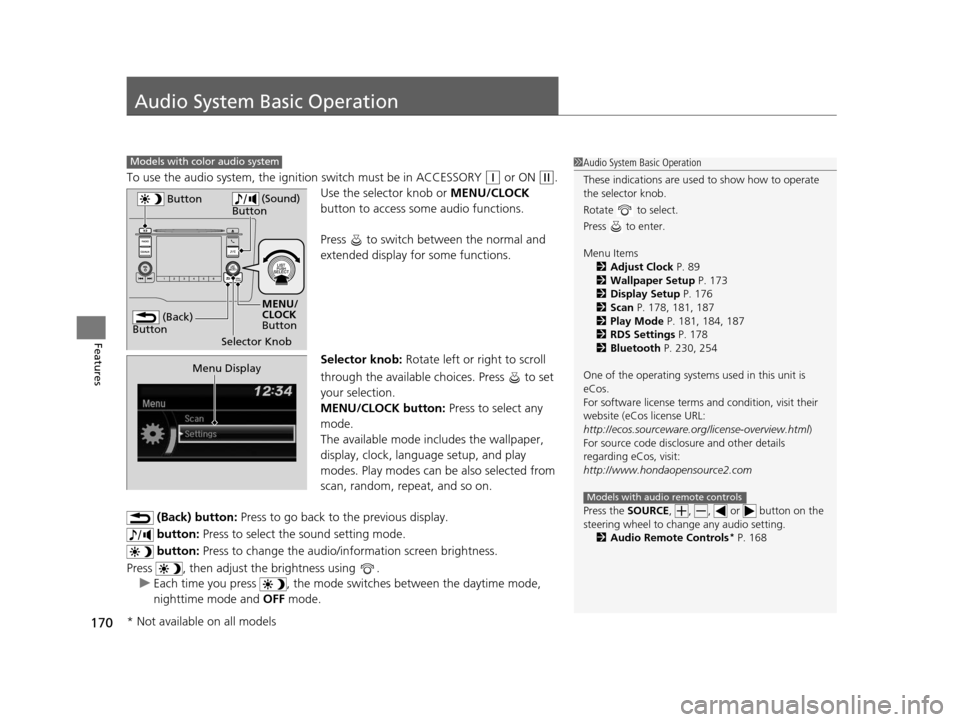
To use the audio system, the ignition switch must be in ACCESSORY (q or ON (w.
Use the selector knob or MENU/CLOCK
button to access some audio functions.
Press to switch between the normal and
extended display fo r some functions.
Selector knob: Rotate left or right to scroll
through the available choices. Press to set
your selection.
MENU/CLOCK button: Press to select any
mode.
The available mode includes the wallpaper,
display, clock, langu age setup, and play
modes. Play modes can be also selected from
scan, random, rep eat, and so on.
(Back) button: Press to go back to the previous display.
button: Press to select the sound setting mode.
button: Press to change the audio/information screen brightness.
Press , then adjust th e brightness using .
u Each time you press , the mode switches between the daytime mode,
nighttime mode and OFF mode.
Models with color audio system1Audio System Basic Operation
These indications are used to show how to operate
the selector knob.
Rotate to select.
Press to enter.
Menu Items 2 Adjust Clock P. 89
2 Wallpaper Setup P. 173
2 Display Setup P. 176
2 Scan P. 178, 181, 187
2 Play Mode P. 181, 184, 187
2 RDS Settings P. 178
2 Bluetooth P. 230, 254
One of the operating system s used in this unit is
eCos.
For software license terms and condition, visit their
website (eCos license URL:
http://ecos.sourceware.org/license-overview.html )
For source code disclo sure and other details
regarding eCos, visit:
http://www.hondaopensource2.com
Press the SOURCE, , , or button on the
steering wheel to cha nge any audio setting.
2 Audio Remote Controls
* P. 168
Models with audio remote controls
(Back)
Button
Selector Knob MENU/
CLOCK
Button
Button
(Sound)
Button
Menu Display
* Not available on all models
15 US FIT-31T5A6000.book 170 ページ 2014年3月6日 木曜日 午後7時5分
Page 179 of 453
uuAudio System Basic Operation uPlaying the AM/FM Radio
178
Features
Provides text data information related to your selected RDS capable FM station.
■To find an RDS station from Station List
1. Press while listening to an FM station.
2. Rotate to select the station, then press .
■Update List
Updates your available station list at any time.
1. Press while listening to an FM station.
2. Rotate to select Update List, then press .
■Radio text
Displays the radio text informat ion of the selected RDS station.
1. Press the MENU/CLOCK button.
2. Rotate to select Settings, then press .
3. Rotate to select RDS Settings, then press .
4. Rotate to select Radio Text, then press .
■Scan
Samples each of the strongest stations on the selected band for 10 seconds.
1. Press the MENU/CLOCK button.
2. Rotate to select Scan, then press .
To turn off scan, press .
■Radio Data System (RDS)1 Playing the AM/FM Radio
The ST indicator appears on the display indicating
stereo FM broadcasts.
Stereo reproduction in AM is not available.
You can store 6 AM stations and 12 FM stations into
the preset memory.
Switching the Audio Mode
Press the SOURCE button on the steering wheel.
2 Audio Remote Controls
* P. 168
Models with audio remote controls
1Radio Data System (RDS)
When you select an RDS-capable FM station, the RDS
automatically turns on, and the frequency display
changes to the station name. However, when the
signals of that station become weak, the display
changes from the statio n name to the frequency.
* Not available on all models
15 US FIT-31T5A6000.book 178 ページ 2014年3月6日 木曜日 午後7時5分
Page 193 of 453
192
uuAudio System Basic Operation uAudio/Information Screen
Features
Audio/Information Screen
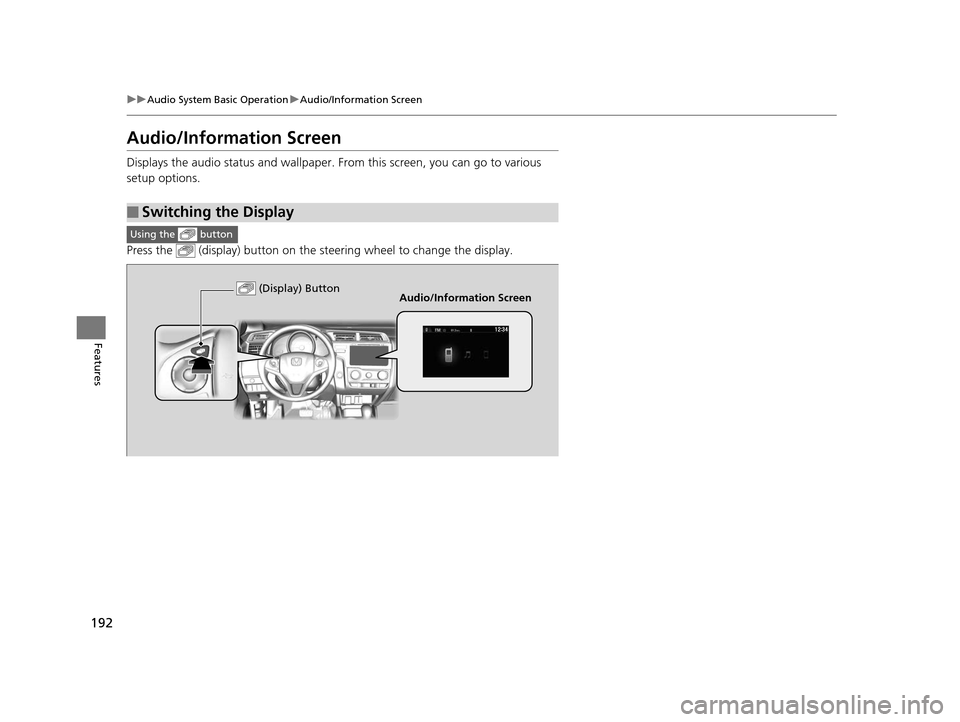
Displays the audio status and wallpaper. From this screen, you can go to various
setup options.
Press the (display) button on the st eering wheel to change the display.
■Switching the Display
Using the button
(Display) ButtonAudio/Information Screen
15 US FIT-31T5A6000.book 192 ページ 2014年3月6日 木曜日 午後7時5分
Page 201 of 453
uuAudio System Basic Operation uPlaying the AM/FM Radio
200
Features
To store a station:
1. Tune to the selected station.
2. Select MENU .
3. Select Save Preset .
4. Select the preset number you wa nt to store that station.
Provides text data information related to your selected RDS-capable FM station.
■To find an RDS station from Station List
1. Select MENU while listening to an FM station.
2. Select Station List .
3. Select the station.
■Manual update
Updates your available station list at any time.
1. Select MENU while listening to an FM station.
2. Select Station List .
3. Select Refresh .
■Preset Memory
■Radio Data System (RDS)
1Playing the AM/FM Radio
The ST indicator appears on the display indicating
stereo FM broadcasts.
Stereo reproduction in AM is not available.
Switching the Audio Mode
Press the SOURCE button on the steering wheel or
select SOURCE on the list.
2 Audio Remote Controls
* P. 168
You can also switch the mode by selecting Change
Source on the MENU screen.
You can store 6 AM stations and 12 FM stations into
the preset memory.
1 Radio Data System (RDS)
When you select an RDS-capable FM station, the RDS
automatically turns on, and the frequency display
changes to the station name. However, when the
signals of that station become weak, the display
changes from the statio n name to the frequency.
* Not available on all models
15 US FIT-31T5A6000.book 200 ページ 2014年3月6日 木曜日 午後7時5分
Page 219 of 453
218
uuAudio System Basic Operation uSiri Eyes Free
Features
Siri Eyes Free
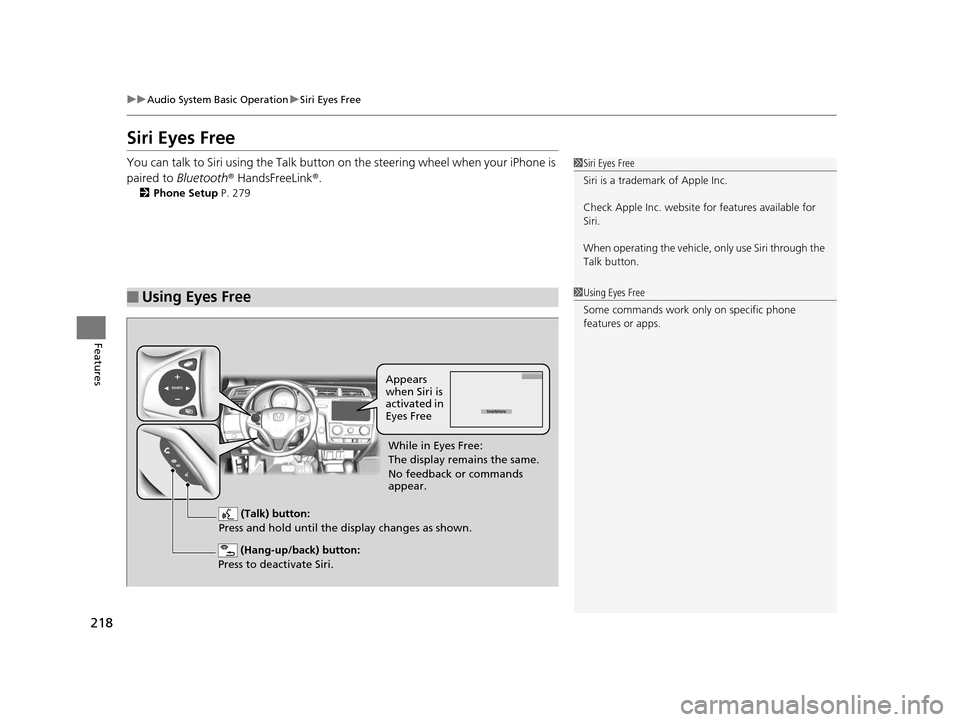
You can talk to Siri using the Talk button on the steering wheel when your iPhone is
paired to Bluetooth ® HandsFreeLink ®.
2 Phone Setup P. 279
■Using Eyes Free
1Siri Eyes Free
Siri is a trademark of Apple Inc.
Check Apple Inc. website for features available for
Siri.
When operating the vehicle, only use Siri through the
Talk button.
1 Using Eyes Free
Some commands work only on specific phone
features or apps.
(Hang-up/back) button:
Press to deactivate Siri.
(Talk) button:
Press and hold until the display changes as shown.
Appears
when Siri is
activated in
Eyes Free
While in Eyes Free:
The display remains the same.
No feedback or commands
appear.
15 US FIT-31T5A6000.book 218 ページ 2014年3月6日 木曜日 午後7時5分
Page 249 of 453
248
Features
Bluetooth® HandsFreeLink ®
See the navigation system manual for how to operate the Bluetooth® HandsFreeLink ®.
Bluetooth ® HandsFreeLink ® (HFL) allows you to place and receive phone calls using
your vehicle’s audio system, without handling your cell phone.
Using HFL
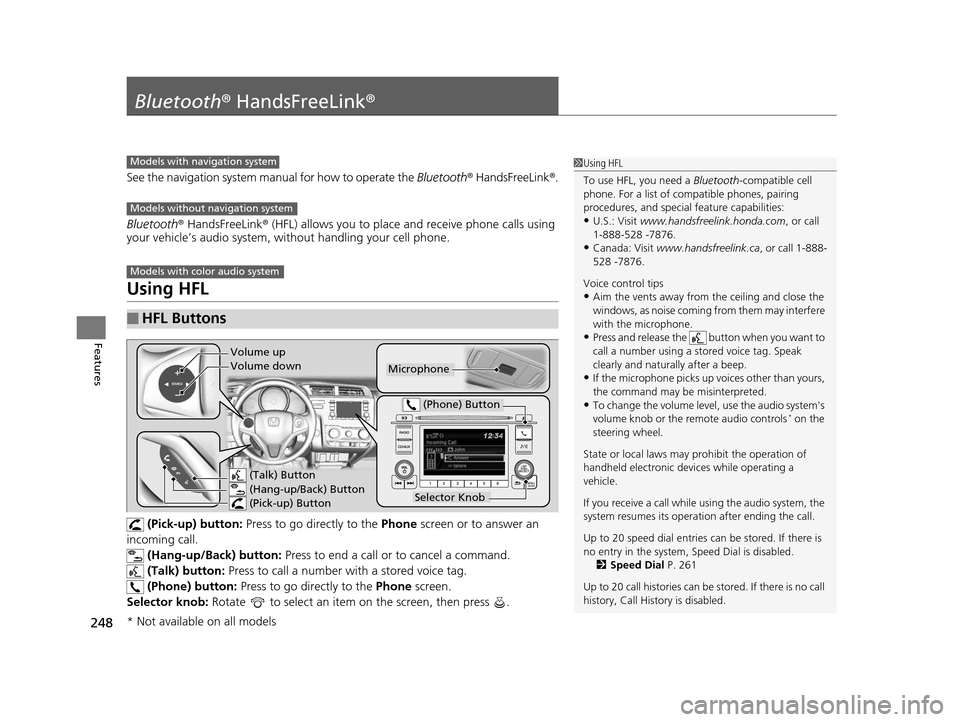
(Pick-up) button: Press to go directly to the Phone screen or to answer an
incoming call.
(Hang-up/Back) button: Press to end a call or to cancel a command.
(Talk) button: Press to call a number with a stored voice tag.
(Phone) button: Press to go directly to the Phone screen.
Selector knob: Rotate to select an item on the screen, then press .
■HFL Buttons
1 Using HFL
To use HFL, you need a Bluetooth-compatible cell
phone. For a list of compatible phones, pairing
procedures, and special feature capabilities:
•U.S.: Visit www.handsfreelink.honda.com , or call
1-888-528 -7876.
•Canada: Visit www.handsfreelink.ca , or call 1-888-
528 -7876.
Voice control tips
•Aim the vents away from the ceiling and close the
windows, as noise coming fr om them may interfere
with the microphone.
•Press and release the button when you want to
call a number using a st ored voice tag. Speak
clearly and naturally after a beep.
•If the microphone picks up vo ices other than yours,
the command may be misinterpreted.
•To change the volume level, use the audio system's
volume knob or the remote audio controls* on the
steering wheel.
State or local laws may pr ohibit the operation of
handheld electronic devi ces while operating a
vehicle.
If you receive a call while using the audio system, the
system resumes its operati on after ending the call.
Up to 20 speed dial entries can be stored. If there is
no entry in the system, Speed Dial is disabled. 2 Speed Dial P. 261
Up to 20 call histories can be stored. If there is no call
history, Call History is disabled.
Models with navigation system
Models without navigation system
Models with color audio system
Microphone
(Talk) Button
(Hang-up/Back) Button
(Pick-up) Button
Selector Knob
(Phone) Button
Volume up
Volume down
* Not available on all models
15 US FIT-31T5A6000.book 248 ページ 2014年3月6日 木曜日 午後7時5分
Page 272 of 453
271
uuBluetooth ® HandsFreeLink ®u Using HFL
Continued
Features
Using HFL
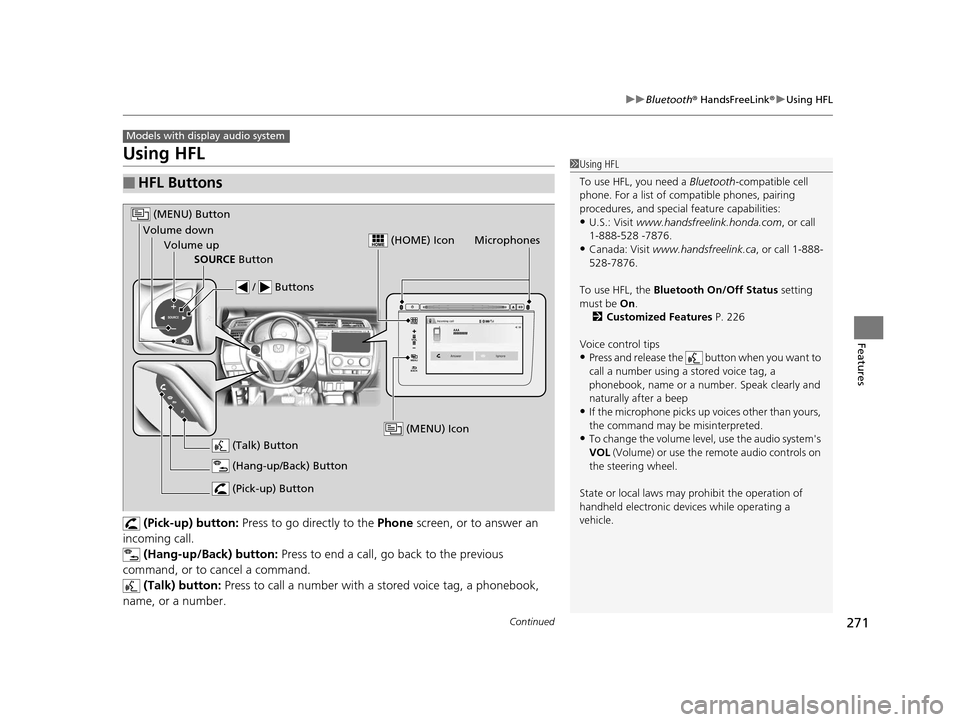
(Pick-up) button: Press to go directly to the Phone screen, or to answer an
incoming call.
(Hang-up/Back) button: Press to end a call, go back to the previous
command, or to cancel a command. (Talk) button: Press to call a number with a st ored voice tag, a phonebook,
name, or a number.
■HFL Buttons
Models with display audio system
1 Using HFL
To use HFL, you need a Bluetooth-compatible cell
phone. For a list of compatible phones, pairing
procedures, and special feature capabilities:
•U.S.: Visit www.handsfreelink.honda.com , or call
1-888-528 -7876.
•Canada: Visit www.handsfreelink.ca , or call 1-888-
528-7876.
To use HFL, the Bluetooth On/Off Status setting
must be On.
2 Customized Features P. 226
Voice control tips
•Press and release the button when you want to
call a number using a stored voice tag, a
phonebook, name or a numbe r. Speak clearly and
naturally after a beep
•If the microphone picks up vo ices other than yours,
the command may be misinterpreted.
•To change the volume level, use the audio system's
VOL (Volume) or use the remote audio controls on
the steering wheel.
State or local laws may pr ohibit the operation of
handheld electronic devi ces while operating a
vehicle.
VOL
HOME
MENU
BACK
Microphones
(Pick-up) Button
(Hang-up/Back) Button
Volume up (Talk) Button
(MENU) Button
Volume downSOURCE Button / Buttons
(MENU) Icon
(HOME) Icon
15 US FIT-31T5A6000.book 271 ページ 2014年3月6日 木曜日 午後7時5分
Page 324 of 453
Continued323
uuWhen Driving uShifting
Driving
Use the paddle shifters to change betw een 1st and 7th speeds without removing
your hands from the steering wheel. The transmission switches to the 7-speed
manual shift mode when you pull a paddle shifter while driving. This mode is useful
when engine braking is needed.
■When the shift lever is in (D:
The shift mode goes into the 7-speed ma nual shift mode temporarily, and the
number is displayed in the shift indicator.
The 7-speed manual shift mode is canceled automatically if you drive at constant
speed or accelerate, and the number in the shift indicator goes off.
You can cancel this mode by pulling the paddle shifter for a few seconds.
The 7-speed manual shift mode is especially useful when reducing the vehicle speed
temporarily before making a turn.
■When the shift lever is in (S:
The shift mode goes into the 7-speed manual shift mode. The M indicator and the
speed number are displayed in the shift indicator. As the vehicle speed slows down,
the transmission automatically shifts down accordingly. When the vehicle comes to
a stop, it automatically shifts down into 1st.
If the vehicle speed increases and the engi ne speed reaches near the tachometer’s
red zone, the transmission automatically shifts up.
You can only pull away in 1st speed.
When canceling the 7-speed manual shift mode, move the shift lever from
(S to
(D. When the 7-speed manual sh ift mode is canceled, the M indicator and shift
indicator go off.
■7-Speed Manual Shift Mode1 7-Speed Manual Shift Mode
To improve fuel economy, the transmission may shift
up to a higher speed than the seventh under certain
circumstances. In this case, the number in the shift
indicator remains as 7.
In the 7-speed manual shif t mode, the transmission
shifts up or down by operating either paddle shifter
under the following conditions:
Shift Up: The engine sp eed reaches the lowest
threshold of the hi gher speed position.
Shift Down: The engine sp eed reaches the highest
threshold of the lower speed position.
When the engine speed reaches near the
tachometer’s red zone, the transmission shifts up
automatically.
When the engine speed reaches the lowest threshold
of the selected speed positi on, the transmission shifts
down automatically.
Operating the paddle shifte rs on slippery surfaces
may cause the tires to lock up. In this case, the 7-
speed manual shift mode is canceled and goes back
to the normal D driving mode.
15 US FIT-31T5A6000.book 323 ページ 2014年3月6日 木曜日 午後7時5分
Page 330 of 453
329
uuWhen Driving uCruise Control*
Continued
Driving
Cruise Control*
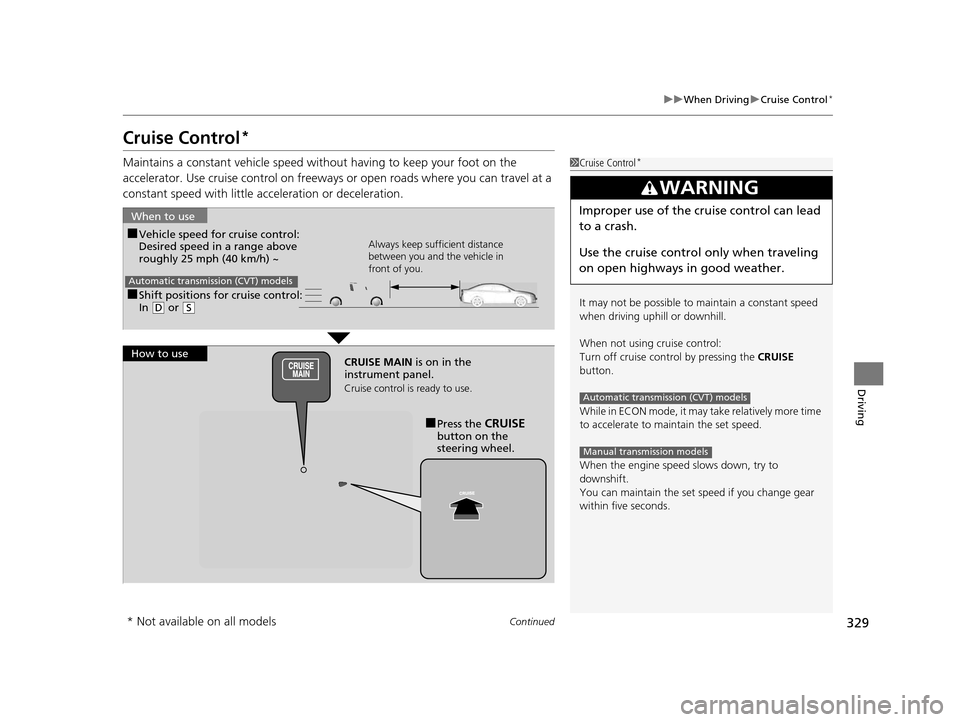
Maintains a constant vehicle speed without having to keep your foot on the
accelerator. Use cruise control on freeways or open road s where you can travel at a
constant speed with little ac celeration or deceleration.1Cruise Control*
It may not be possible to maintain a constant speed
when driving uphill or downhill.
When not using cruise control:
Turn off cruise control by pressing the CRUISE
button.
While in ECON mode, it may take relatively more time
to accelerate to maintain the set speed.
When the engine speed slows down, try to
downshift.
You can maintain the set sp eed if you change gear
within five seconds.
3WARNING
Improper use of the cruise control can lead
to a crash.
Use the cruise control only when traveling
on open highways in good weather.
Automatic transmission (CVT) models
Manual transmission models
■Shift positions for cruise control:
In ( D or (S
When to use
Always keep sufficient distance
between you and the vehicle in
front of you.
Automatic transmission (CVT) models
■Vehicle speed for cruise control:
Desired speed in a range above
roughly 25 mph (40 km/h) ~
How to use CRUISE MAIN is on in the
instrument panel.
Cruise control is ready to use.
■Press the CRUISE
button on the
steering wheel.
* Not available on all models
15 US FIT-31T5A6000.book 329 ページ 2014年3月6日 木曜日 午後7時5分
Page 335 of 453
334
uuWhen Driving uLaneWatchTM*
Driving
LaneWatchTM*
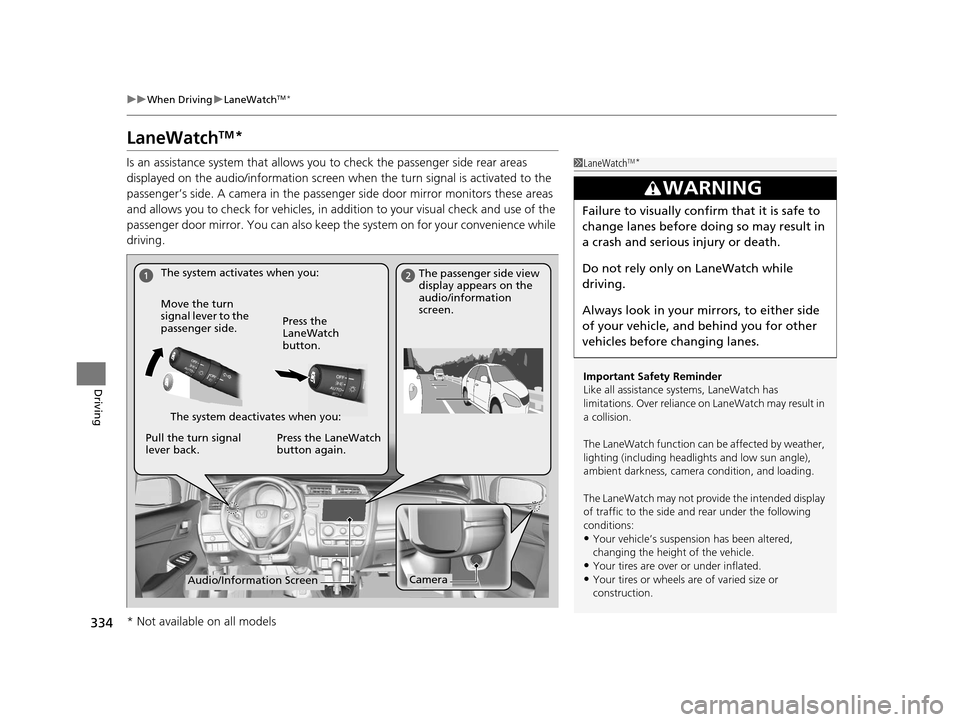
Is an assistance system that allows y ou to check the passenger side rear areas
displayed on the audio/information screen when the turn signal is activated to the
passenger’s side. A camera in the passenger side door mirror monitors these areas
and allows you to check for vehicles, in addition to your visual check and use of the
passenger door mirror. You can also keep th e system on for your convenience while
driving.1 LaneWatchTM*
Important Safety Reminder
Like all assistance systems, LaneWatch has
limitations. Over reliance on LaneWatch may result in
a collision.
The LaneWatch func tion can be affected by weather,
lighting (including headli ghts and low sun angle),
ambient darkness, camera condition, and loading.
The LaneWatch may not prov ide the intended display
of traffic to the side and rear under the following
conditions:
•Your vehicle’s suspension has been altered,
changing the height of the vehicle.
•Your tires are over or under inflated.
•Your tires or wheels are of varied size or
construction.
3WARNING
Failure to visually confirm that it is safe to
change lanes before do ing so may result in
a crash and serious injury or death.
Do not rely only on LaneWatch while
driving.
Always look in your mirrors, to either side
of your vehicle, and behind you for other
vehicles before changing lanes.
The system activates when you: The passenger side view
display appears on the
audio/information
screen.
Move the turn
signal lever to the
passenger side. Press the
LaneWatch
button.
The system deactivates when you:
Pull the turn signal
lever back. Press the LaneWatch
button again.
CameraAudio/Information Screen
* Not available on all models
15 US FIT-31T5A6000.book 334 ページ 2014年3月6日 木曜日 午後7時5分