audio HONDA FIT 2017 3.G Owners Manual
[x] Cancel search | Manufacturer: HONDA, Model Year: 2017, Model line: FIT, Model: HONDA FIT 2017 3.GPages: 465, PDF Size: 26.52 MB
Page 275 of 465
uuBluetooth ® HandsFreeLink ®u HFL Menus
274
Features
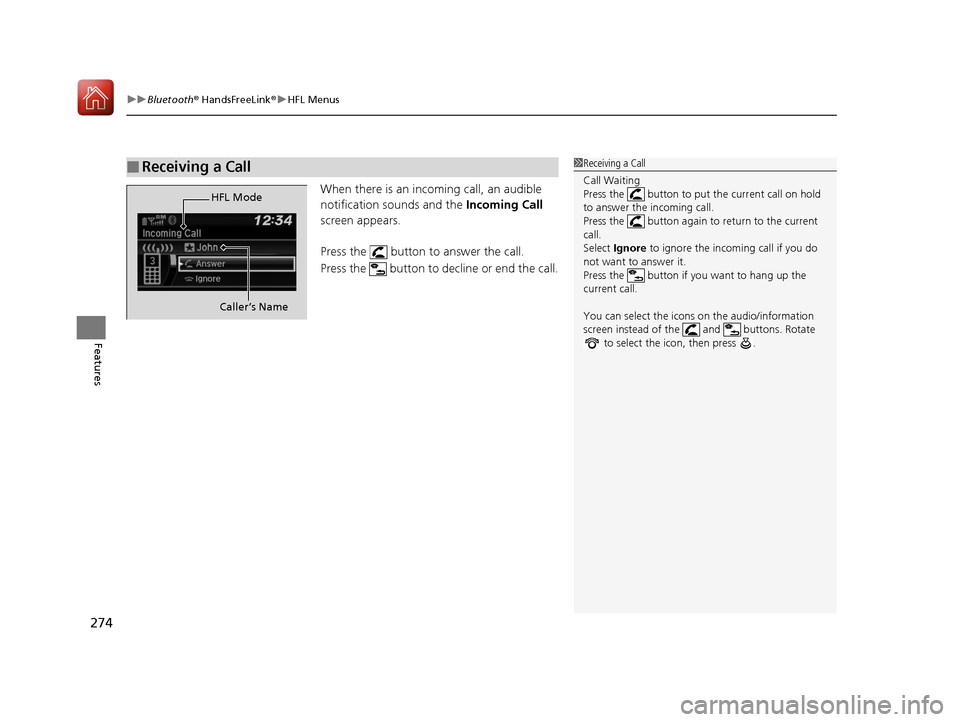
When there is an incoming call, an audible
notification sounds and the Incoming Call
screen appears.
Press the button to answer the call.
Press the button to decline or end the call.
■Receiving a Call1Receiving a Call
Call Waiting
Press the button to put the current call on hold
to answer the incoming call.
Press the button again to return to the current
call.
Select Ignore to ignore the incoming call if you do
not want to answer it.
Press the button if you want to hang up the
current call.
You can select the icons on the audio/information
screen instead of the and buttons. Rotate to select the icon, then press .
HFL Mode
Caller’s Name
17 FIT -31T5A6200.book 274 ページ 2016年5月27日 金曜日 午後6時33分
Page 277 of 465
276
uuBluetooth ® HandsFreeLink ®u Using HFL
Features
Using HFL
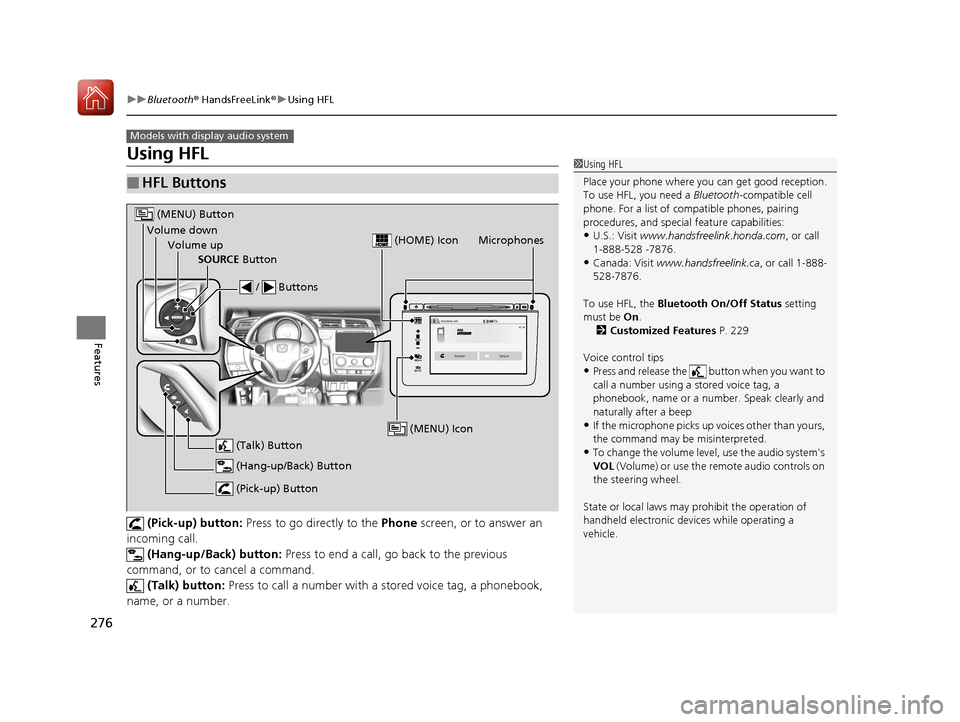
(Pick-up) button: Press to go directly to the Phone screen, or to answer an
incoming call.
(Hang-up/Back) button: Press to end a call, go back to the previous
command, or to cancel a command. (Talk) button: Press to call a number with a stored voice tag, a phonebook,
name, or a number.
■HFL Buttons
Models with display audio system
1 Using HFL
Place your phone where y ou can get good reception.
To use HFL, you need a Bluetooth-compatible cell
phone. For a list of compatible phones, pairing
procedures, and special feature capabilities:
•U.S.: Visit www.handsfreelink.honda.com , or call
1-888-528 -7876.
•Canada: Visit www.handsfreelink.ca , or call 1-888-
528-7876.
To use HFL, the Bluetooth On/Off Status setting
must be On .
2 Customized Features P. 229
Voice control tips
•Press and release the button when you want to
call a number using a stored voice tag, a
phonebook, name or a numbe r. Speak clearly and
naturally after a beep
•If the microphone picks up vo ices other than yours,
the command may be misinterpreted.
•To change the volume level, use the audio system's
VOL (Volume) or use the remote audio controls on
the steering wheel.
State or local laws may prohibit the operation of
handheld electronic devices while operating a
vehicle.
VOL
HOME
MENU
BACK
Microphones
(Pick-up) Button
(Hang-up/Back) Button
Volume up (Talk) Button
(MENU) Button
Volume downSOURCE Button / Buttons
(MENU) Icon
(HOME) Icon
17 FIT -31T5A6200.book 276 ページ 2016年5月27日 金曜日 午後6時33分
Page 278 of 465
Continued277
uuBluetooth ® HandsFreeLink ®u Using HFL
Features
button: Press to display Speed Dial, Call History , or Redial on the Phone
screen. / button: Press to select an item displayed on the Phone screen.
SOURCE button: Press to call a number listed in the selected item on the Phone
screen.
To go to the Phone menu screen:
1. Select HOME .
2. Select Phone to switch the display to the Phone screen.
3. Select MENU .1Using HFL
Up to six speed dial entrie s can be displayed among a
total of 20 that can be entered. If there is no entries
in the system, Speed Dial is disabled.
2 Speed Dial P. 291
Bluetooth ® Wireless Technology
The Bluetooth ® word mark and logos are registered
trademarks owned by Blue tooth SIG, Inc., and any
use of such marks by Honda Motor Co., Ltd., is under
license. Other trademarks and trade names are those
of their respective owners.
HFL Limitations
An incoming call on HFL will interrupt the audio
system when it is playing. It will resume when the call
is ended.
17 FIT -31T5A6200.book 277 ページ 2016年5月27日 金曜日 午後6時33分
Page 279 of 465
uuBluetooth ® HandsFreeLink ®u Using HFL
278
Features
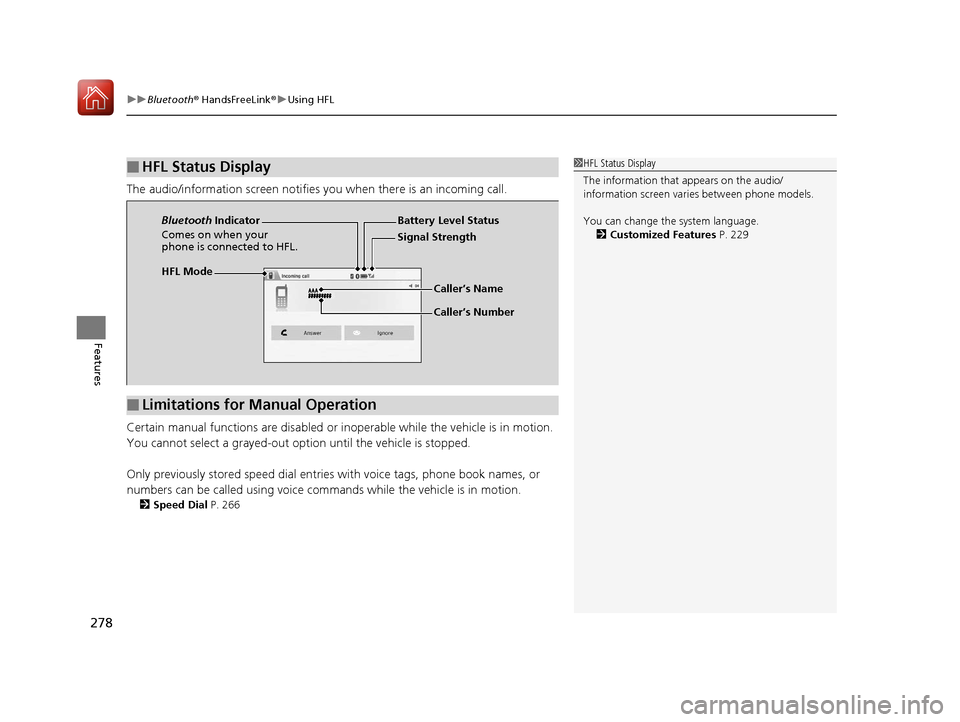
The audio/information screen notifies you when there is an incoming call.
Certain manual functions are disabled or i noperable while the vehicle is in motion.
You cannot select a grayed-out option until the vehicle is stopped.
Only previously stored speed dial entries with voice tags, phone book names, or
numbers can be called using voice commands while the vehicle is in motion.
2 Speed Dial P. 266
■HFL Status Display1HFL Status Display
The information that appears on the audio/
information screen vari es between phone models.
You can change the system language. 2 Customized Features P. 229
HFL Mode Battery Level Status
Signal Strength
Bluetooth
Indicator
Comes on when your
phone is connected to HFL.
Caller’s Name
Caller’s Number
■Limitations for Manual Operation
17 FIT -31T5A6200.book 278 ページ 2016年5月27日 金曜日 午後6時33分
Page 285 of 465
uuBluetooth ® HandsFreeLink ®u HFL Menus
284
Features
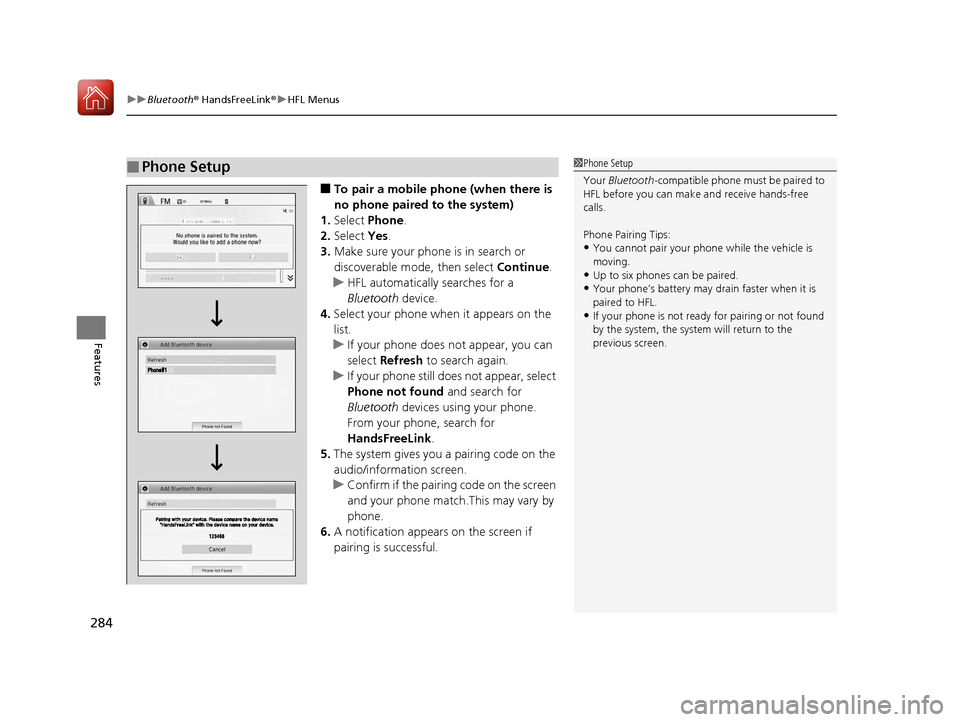
■To pair a mobile phone (when there is
no phone paired to the system)
1. Select Phone .
2. Select Yes.
3. Make sure your phone is in search or
discoverable mode, then select Continue.
u HFL automatically searches for a
Bluetooth device.
4. Select your phone when it appears on the
list.
u If your phone does not appear, you can
select Refresh to search again.
u If your phone still does not appear, select
Phone not found and search for
Bluetooth devices using your phone.
From your phone, search for
HandsFreeLink .
5. The system gives you a pairing code on the
audio/information screen.
u Confirm if the pairing code on the screen
and your phone match.This may vary by
phone.
6. A notification appears on the screen if
pairing is successful.
■Phone Setup1 Phone Setup
Your Bluetooth -compatible phone must be paired to
HFL before you can make and receive hands-free
calls.
Phone Pairing Tips:
•You cannot pair your phone while the vehicle is
moving.
•Up to six phones can be paired.
•Your phone’s battery may dr ain faster when it is
paired to HFL.
•If your phone is not ready for pairing or not found
by the system, the system will return to the
previous screen.
17 FIT -31T5A6200.book 284 ページ 2016年5月27日 金曜日 午後6時33分
Page 294 of 465
Continued293
uuBluetooth ® HandsFreeLink ®u HFL Menus
Features
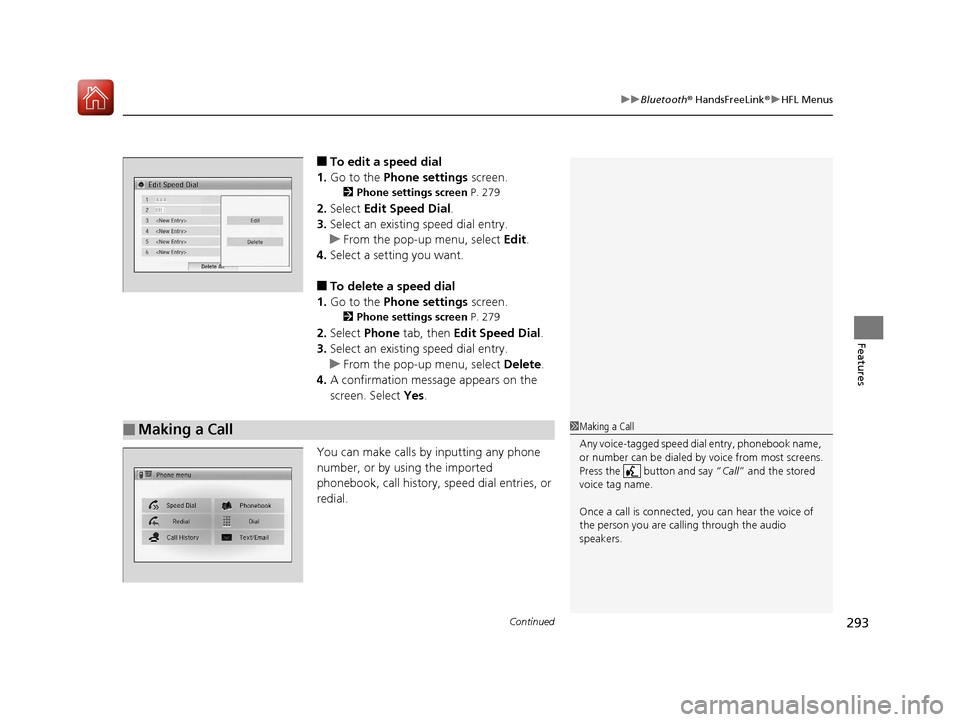
■To edit a speed dial
1. Go to the Phone settings screen.
2Phone settings screen P. 279
2.Select Edit Speed Dial .
3. Select an existing speed dial entry.
u From the pop-up menu, select Edit.
4. Select a setting you want.
■To delete a speed dial
1. Go to the Phone settings screen.
2Phone settings screen P. 279
2.Select Phone tab, then Edit Speed Dial.
3. Select an existing speed dial entry.
u From the pop-up menu, select Delete.
4. A confirmation message appears on the
screen. Select Yes.
You can make calls by inputting any phone
number, or by using the imported
phonebook, call history, speed dial entries, or
redial.
■Making a Call1 Making a Call
Any voice-tagged speed di al entry, phonebook name,
or number can be dialed by voice from most screens.
Press the button and say “ Call” and the stored
voice tag name.
Once a call is connected, you can hear the voice of
the person you are call ing through the audio
speakers.
17 FIT -31T5A6200.book 293 ページ 2016年5月27日 金曜日 午後6時33分
Page 346 of 465
345
uuWhen Driving uLaneWatchTM*
Continued
Driving
LaneWatchTM*
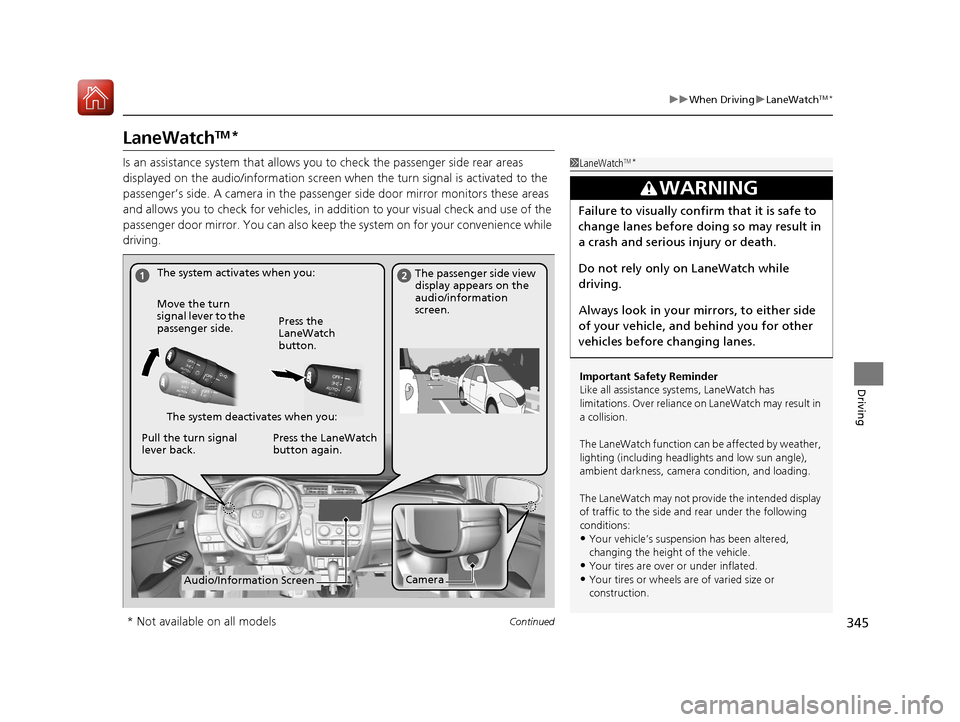
Is an assistance system that allows yo u to check the passenger side rear areas
displayed on the audio/information screen when the turn signal is activated to the
passenger’s side. A camera in the passenge r side door mirror monitors these areas
and allows you to check for ve hicles, in addition to your visual check and use of the
passenger door mirror. You can also keep the system on for your convenience while
driving.1 LaneWatchTM*
Important Safety Reminder
Like all assistance systems, LaneWatch has
limitations. Over reliance on LaneWatch may result in
a collision.
The LaneWatch function can be affected by weather,
lighting (including headli ghts and low sun angle),
ambient darkness, camera condition, and loading.
The LaneWatch may not prov ide the intended display
of traffic to the side and rear under the following
conditions:
•Your vehicle’s suspensi on has been altered,
changing the height of the vehicle.
•Your tires are over or under inflated.
•Your tires or wheels are of varied size or
construction.
3WARNING
Failure to visually confirm that it is safe to
change lanes before do ing so may result in
a crash and serious injury or death.
Do not rely only on LaneWatch while
driving.
Always look in your mirrors, to either side
of your vehicle, and behind you for other
vehicles before changing lanes.
The system activates when you: The passenger side view
display appears on the
audio/information
screen.
Move the turn
signal lever to the
passenger side. Press the
LaneWatch
button.
The system deactivates when you:
Pull the turn signal
lever back. Press the LaneWatch
button again.
CameraAudio/Information Screen
* Not available on all models
17 FIT -31T5A6200.book 345 ページ 2016年5月27日 金曜日 午後6時33分
Page 347 of 465
uuWhen Driving uLaneWatchTM*
346
Driving
■Customizing the LaneWatch settings
You can customize the following items using the audio/information screen.
• Show with Turn Signal: Selects whether LaneWatch monitor comes on when
you operate the turn signal light lever.
• Display Time after Turn Signal Off: Changes the length of time the
LaneWatch display stays on after you pull the turn signal lever back.
• Reference Lines: Selects whether the reference lines appear on the LaneWatch
monitor.
• Next Maneuver Pop up
*: Selects whether a turn direction screen of the
navigation system interrupts the LaneWatch display.
• Display: Adjusts display settings.
2Customized Features P. 229
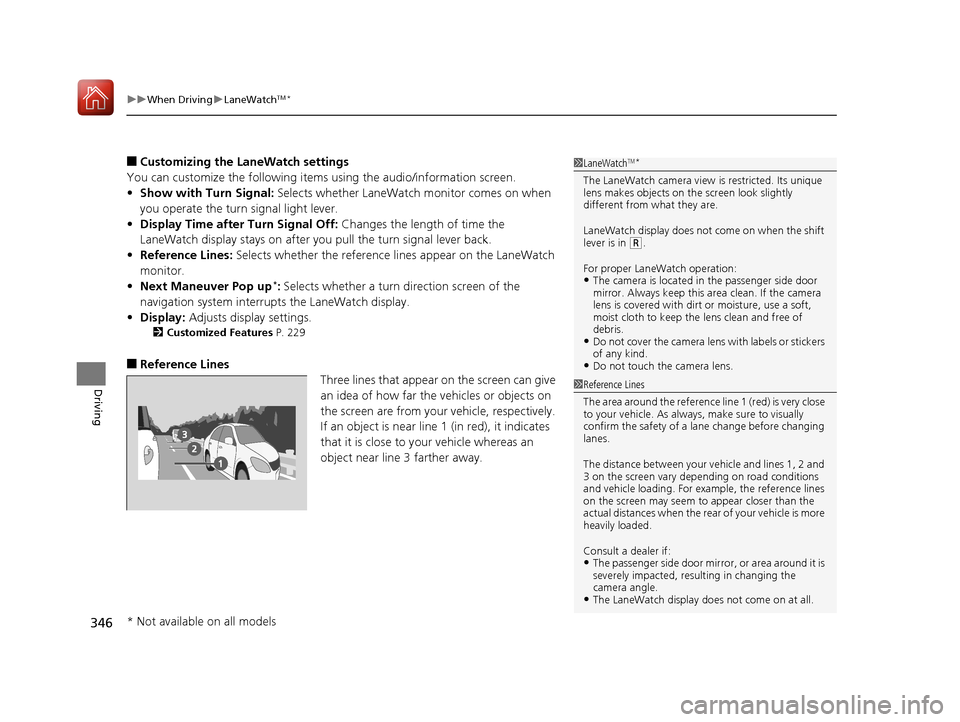
■Reference Lines
Three lines that appear on the screen can give
an idea of how far the vehicles or objects on
the screen are from your vehicle, respectively.
If an object is near line 1 (in red), it indicates
that it is close to your vehicle whereas an
object near line 3 farther away.
1 LaneWatchTM*
The LaneWatch camera view is restricted. Its unique
lens makes objects on the screen look slightly
different from what they are.
LaneWatch display does not come on when the shift
lever is in
(R.
For proper LaneWatch operation:
•The camera is located in the passenger side door
mirror. Always keep this area clean. If the camera
lens is covered with dirt or moisture, use a soft,
moist cloth to keep the lens clean and free of
debris.
•Do not cover the camera lens with labels or stickers
of any kind.
•Do not touch the camera lens.
1 Reference Lines
The area around the reference li ne 1 (red) is very close
to your vehicle. As always, make sure to visually
confirm the safety of a la ne change before changing
lanes.
The distance betwee n your vehicle and lines 1, 2 and
3 on the screen vary depending on road conditions
and vehicle loading. For ex ample, the reference lines
on the screen may seem to appear closer than the
actual distances when the rear of your vehicle is more
heavily loaded.
Consult a dealer if:
•The passenger side door mirr or, or area around it is
severely impacted, resulting in changing the
camera angle.
•The LaneWatch display doe s not come on at all.
* Not available on all models
17 FIT -31T5A6200.book 346 ページ 2016年5月27日 金曜日 午後6時33分
Page 357 of 465
356
Driving
Multi-View Rear Camera
See the Navigation System Manual.
About Your Multi-View Rear Camera
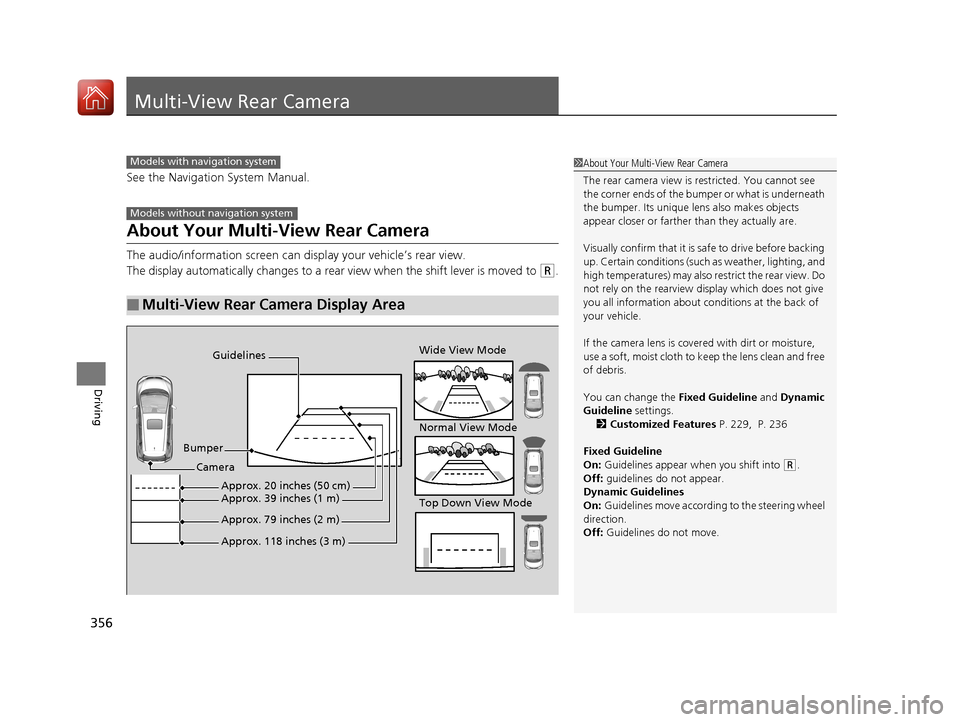
The audio/information screen can display your vehicle’s rear view.
The display automatically changes to a rear view when the shift lever is moved to
(R.
■Multi-View Rear Camera Display Area
Models with navigation system
Models without navigation system
1About Your Multi-View Rear Camera
The rear camera view is restricted. You cannot see
the corner ends of the bum per or what is underneath
the bumper. Its unique le ns also makes objects
appear closer or farther than they actually are.
Visually confirm that it is safe to drive before backing
up. Certain conditions (such as weather, lighting, and
high temperatures) may also restrict the rear view. Do
not rely on the rearview display which does not give
you all information about conditions at the back of
your vehicle.
If the camera lens is cove red with dirt or moisture,
use a soft, moist cloth to keep the lens clean and free
of debris.
You can change the Fixed Guideline and Dynamic
Guideline settings. 2 Customized Features P. 229, P. 236
Fixed Guideline
On: Guidelines appear when you shift into
(R.
Off: guidelines do not appear.
Dynamic Guidelines
On: Guidelines move according to the steering wheel
direction.
Off: Guidelines do not move.
Guidelines
Bumper Wide View Mode
Normal View Mode
Top Down View Mode
Camera
Approx. 118 inches (3 m)
Approx. 79 inches (2 m)
Approx. 39 inches (1 m)Approx. 20 inches (50 cm)
17 FIT -31T5A6200.book 356 ページ 2016年5月27日 金曜日 午後6時33分
Page 358 of 465
357
uuMulti-View Rear Camera uAbout Your Multi-View Rear Camera
Driving
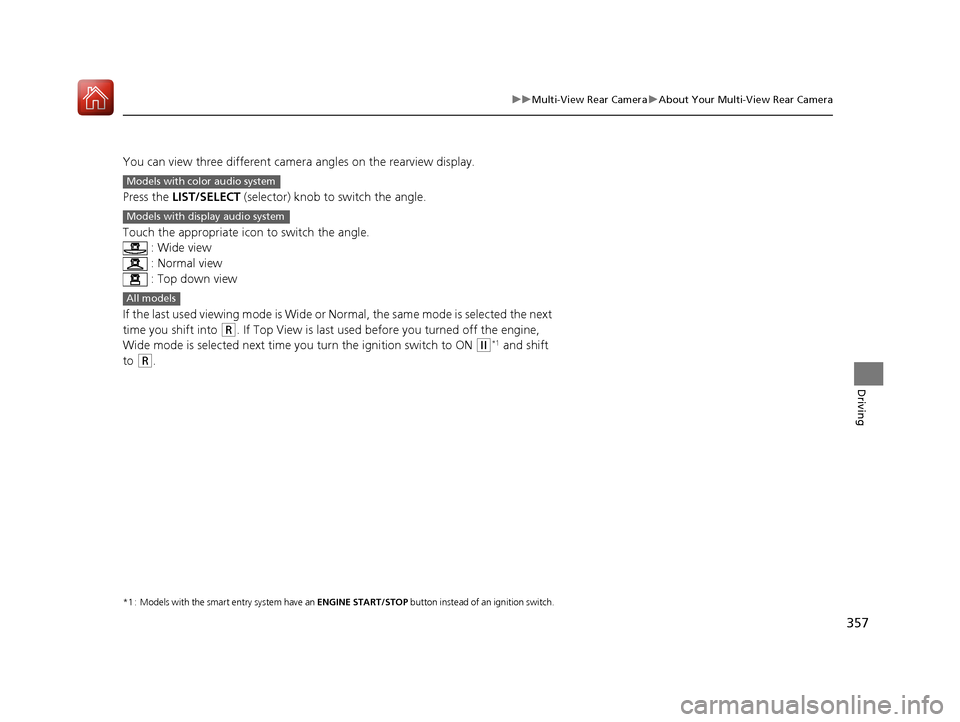
You can view three different camera angles on the rearview display.
Press the LIST/SELECT (selector) knob to switch the angle.
Touch the appropriate icon to switch the angle. : Wide view
: Normal view
: Top down view
If the last used viewing mode is Wide or Normal, the same mode is selected the next
time you shift into
(R. If Top View is last used before you turned off the engine,
Wide mode is selected next time yo u turn the ignition switch to ON
(w*1 and shift
to
(R.
*1 : Models with the smart entry system have an ENGINE START/STOP button instead of an ignition switch.
Models with color audio system
Models with display audio system
All models
17 FIT -31T5A6200.book 357 ページ 2016年5月27日 金曜日 午後6時33分