pairing phone HONDA HR-V 2016 2.G Navigation Manual
[x] Cancel search | Manufacturer: HONDA, Model Year: 2016, Model line: HR-V, Model: HONDA HR-V 2016 2.GPages: 250, PDF Size: 4.84 MB
Page 193 of 250
192
Bluetooth® HandsFreeLink ®
Text/E-mail Message
If your paired phone is MAP-compatible, you can receive and hear text or e-mail
messages and reply to them using fixed reply messages.
2Pairing a Phone P. 170
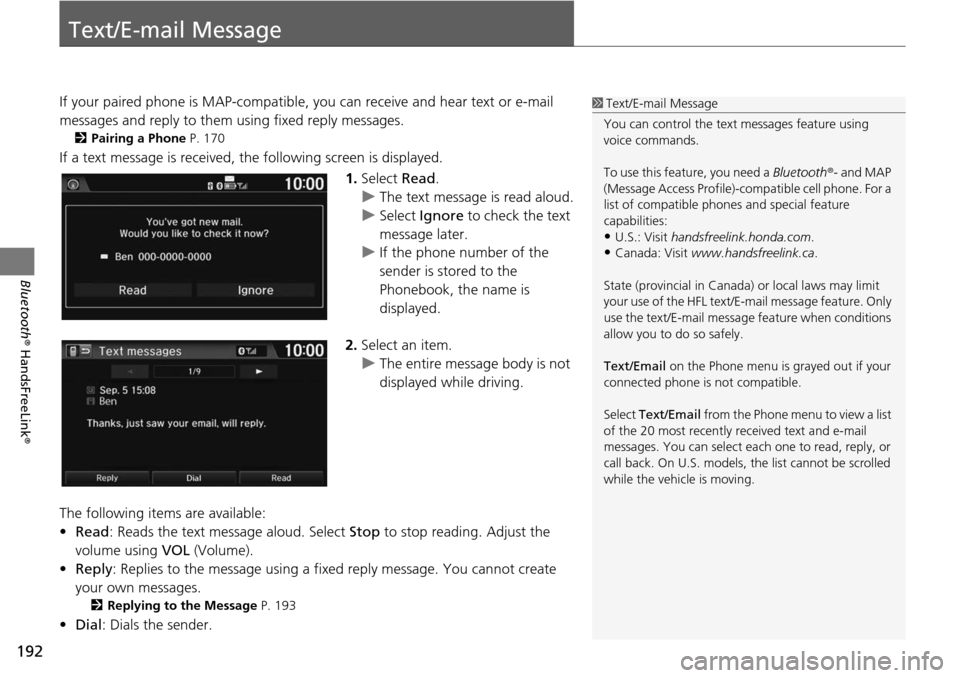
If a text message is received, the following screen is displayed.
1.Select Read .
u The text mes s
age is read aloud.
u Select Igno
re to check the text
message later.
u If the phone number of the
sender is stored
to the
Phonebook, the name is
displayed.
2. Select an item.
u The entire message body is not
di
splayed while driving.
The following items are available:
• Read : Reads the text message aloud. Select Stop to stop
reading. Adjust the
volume using VOL (Volume).
• Repl y:
Replies to the message using a fixed reply message. You cannot create
your own messages.
2 Replying to the Message P. 193
• Dial : Dials the sender.
1Text/E-mail Message
You can control the text messages feature using
voice commands.
To use this feature, you need a Bluetooth®- and MAP
(Message Access Profile)-c ompatible cell phone. For a
list of compatible phon es and special feature
capabilities:
•U.S.: Visit handsfreelink.honda.com.
•Canada: Visit www.handsfreelink.ca .
State (provincial in Canada) or local laws may limit
your use of the HFL text/E-m ail message feature. Only
use the text/E-mail message feature when conditions
allow you to do so safely.
Text/Email on the Phone menu is grayed out if your
connected phone is not compatible.
Select Text/Email from the Phone me nu to view a list
of the 20 most recently re ceived text and e-mail
messages. You can select each one to read, reply, or
call back. On U.S. models, the list cannot be scrolled
while the vehicle is moving.
Page 196 of 250
195Continued
Bluetooth® HandsFreeLink ®
HondaLink Assist
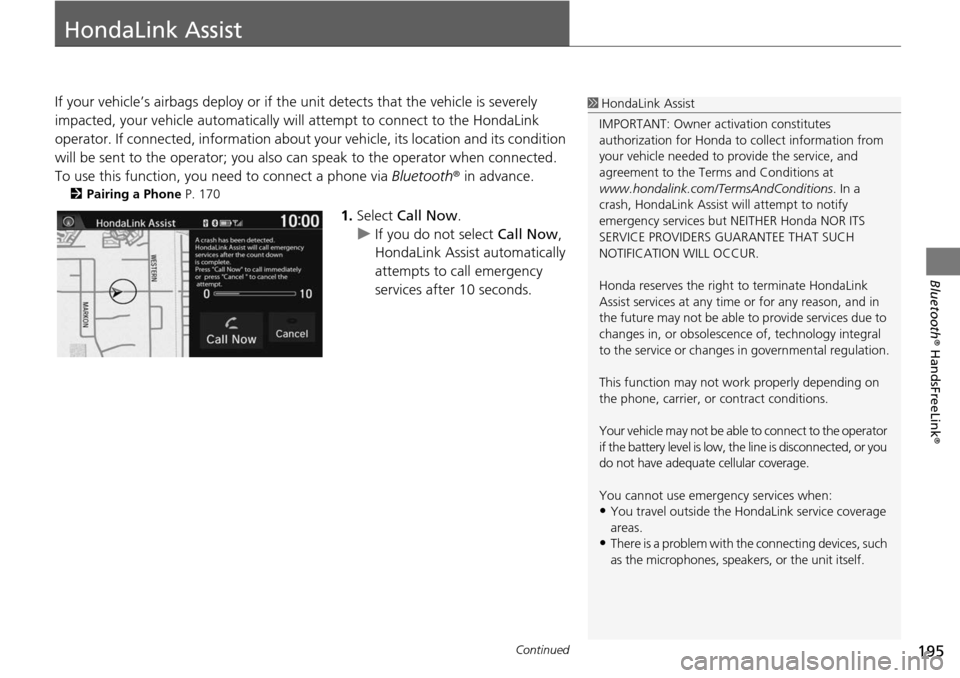
If your vehicle’s airbags deploy or if the unit detects that the vehicle is severely
impacted, your vehicle automatically wi ll attempt to connect to the HondaLink
operator. If connected, information about yo ur vehicle, its location and its condition
will be sent to the operator; you also can speak to the operator when connected.
To use this function, you need to connect a phone via Blu
etooth® in advance.
2Pairing a Phone P. 170
1. Select Call Now .
u If you do not select Call
Now,
HondaLink Assist automatically
attempts to call emergency
services after 10 seconds.
1 HondaLink Assist
IMPORTANT: Owner ac tivation constitutes
authorization for Honda to collect information from
your vehicle needed to provide the service, and
agreement to the Terms and Conditions at
www.hondalink.com/TermsAndConditions . In a
crash, HondaLink Assist will attempt to notify
emergency services but NEITHER Honda NOR ITS
SERVICE PROVIDERS GUARANTEE THAT SUCH
NOTIFICATION WILL OCCUR.
Honda reserves the right to terminate HondaLink
Assist services at any time or for any reason, and in
the future may not be able to provide services due to
changes in, or obsolescence of, technology integral
to the service or changes in governmental regulation.
This function may not wo rk properly depending on
the phone, carrier, or contract conditions.
Your vehicle may not be able to connect to the operator
if the battery level is low, the line is disconnected, or you
do not have adequate cellular coverage.
You cannot use emergency services when:
•You travel outside the H ondaLink service coverage
areas.
•There is a problem with th e connecting devices, such
as the microphones, speakers, or the unit itself.
Page 212 of 250
211
uu Troubleshooting u Smartphone Connection
Troubleshooting
Smartphone Connection
Does the navigation system work outside North
America?The navigation system contains maps for the 50 U.S. states, Canada, and Puerto
Rico. The navigation system will not work in Mexico or other countries.
2 Map Coverage P. 227
Can I play video DVDs in my navigation system?No. The navigation system is designed only to read music discs. If you experience
any problems that you cannot resolve, please contact your dealer.
How do I report errors I find in the database?Minor errors are bound to occur in a large database. If you encounter major errors, see
2Reporting Errors P. 226
ProblemSolution
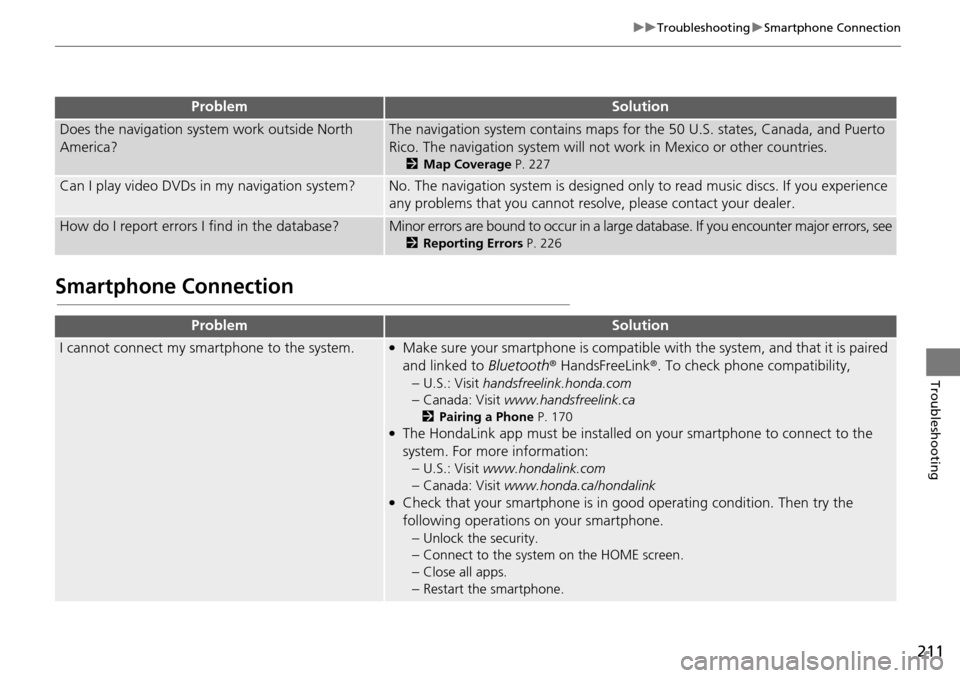
I cannot connect my smartphone to the system.●Make sure your smartphone is compatible with the system, and that it is paired
and linked to Bluetooth® HandsFreeLink ®. To check phone compatibility,
–
U.S.: Visit handsfreelink.honda.com
–Canada: Visit www.handsfreelink.ca
2Pairing a Phone P. 170●The HondaLink app must be installed on your smartphone to connect to the
system. For more information: –
U.S.: Visit www.hondalink.com
–Canada: Visit www.honda.ca/hondalink●Check that your smartphone is in good operating condition. Then try the
following operations on your smartphone.
–
Unlock the security.
–Connect to the system on the HOME screen.
–Close all apps.
–Restart the smartphone.
ProblemSolution
Page 220 of 250
219
uu Error Messages u Bluetooth ® HandsFreeLink ®
Troubleshooting
Bluetooth® HandsFreeLink®
Error MessageCauseSolution
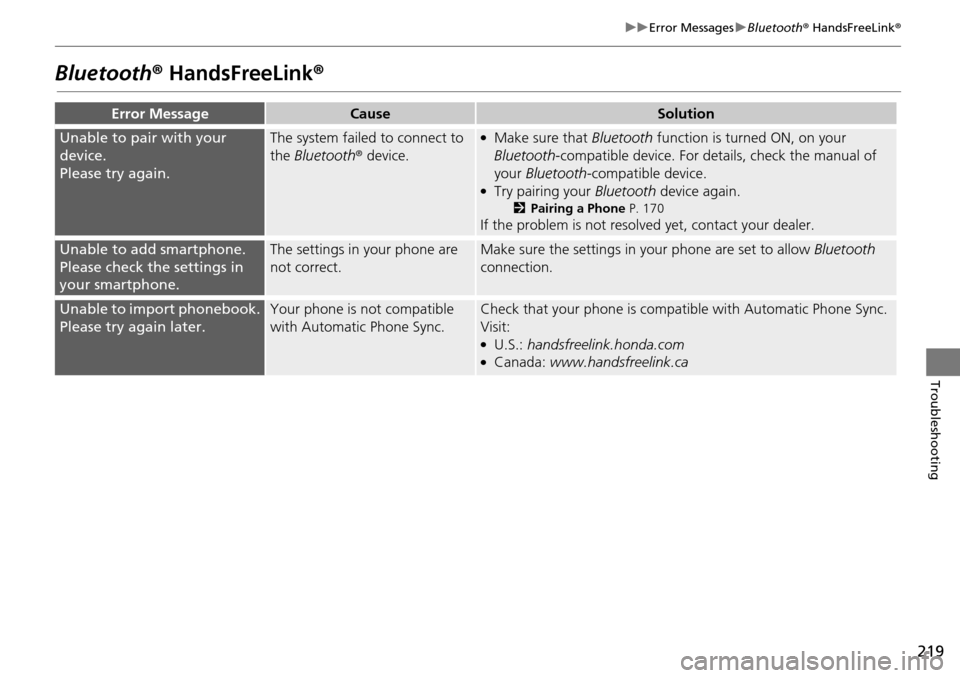
Unable to pair with your
device.
Please try again.
The system failed to connect to
the Bluetooth ® device.●Make sure that Bluetooth function is turned ON, on your
Bluetooth -compatible device. For details, check the manual of
your Bluetooth -compatible device.
●Try pairing your Bluetooth device again.
2Pairing a Phone P. 170
If the problem is not resolved yet, contact your dealer.
Unable to add smartphone.
Please check the settings in
your smartphone.
The settings in your phone are
not correct.Make sure the settings in your phone are set to allow Bluetooth
connection.
Unable to import phonebook.
Please try again later.
Your phone is not compatible
with Automatic Phone Sync.Check that your phone is compat ible with Automatic Phone Sync.
Visit:
●U.S.: handsfreelink.honda.com●Canada: www.handsfreelink.ca
Page 221 of 250
220
uu Error Messages u Smartphone Connection
Troubleshooting
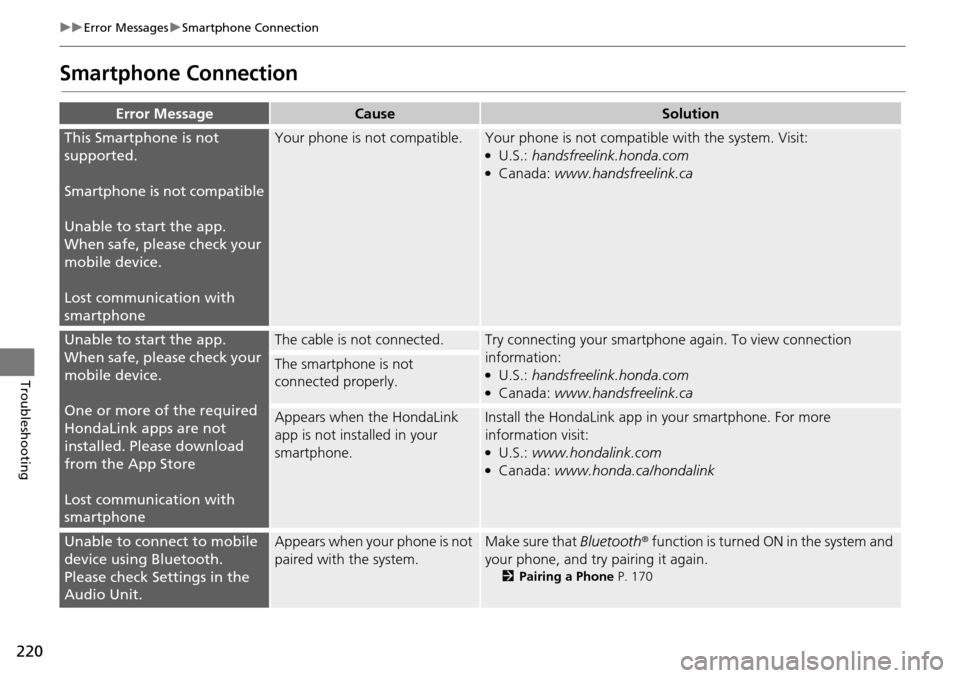
Smartphone Connection
Error MessageCauseSolution
This Smartphone is not
supported.
Smartphone is not compatible
Unable to start the app.
Wh en
safe, please check your
mobile device.
Lost communication with
smartphone
Your phone is not compatible.Your phone is not compatib le with the system. Visit:●U.S.: handsfreelink.honda.com●Canada: www.handsfreelink.ca
Unable to start the app.
When safe, please check your
mobile device.
One or more of the required
HondaLink apps
are not
installed. Please download
from the App Store
Lost communication with
smartphone
The cable is not connected.Try connecting your smartphone again. To view connection
information:
●U.S.: handsfreelink.honda.com●Canada: www.handsfreelink.ca
The smartphone is not
connected properly.
Appears when the HondaLink
app is not installed in your
smartphone.Install the HondaLink app in your smartphone. For more
information visit:
●U.S.: www.hondalink.com●Canada: www.honda.ca/hondalink
Unable to connect to mobile
device using Bluetooth.
Please check Settings in the
Audio Unit.Appears when your phone is not
paired with the system.Make sure that Bluetooth ® function is turned ON in the system and
your phone, and try pairing it again.
2 Pairing a Phone P. 170
Page 246 of 250
Index
245
Index
Index
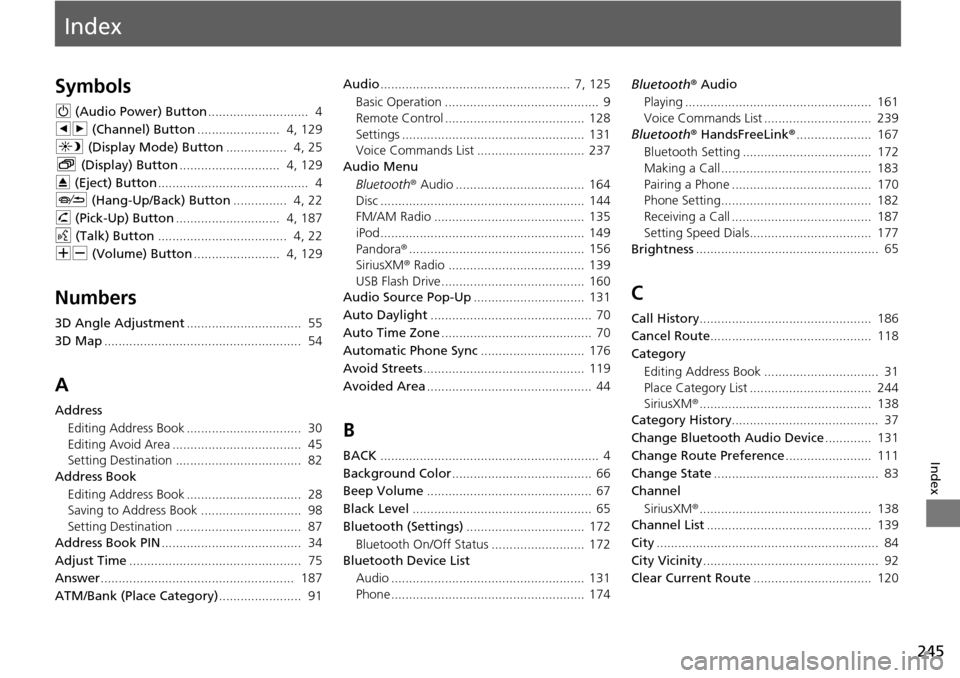
Symbols
9 (Audio Power) Button............................ 4
bn (Channel) Button
....................... 4, 129
a (Display Mode) Button
................. 4, 25
b (Displ ay) Button
............................ 4, 129
E (Eject) Button
.......................................... 4
J (Hang-Up/B
ack) Button............... 4, 22
h (Pi ck-Up) Button
............................. 4, 187
d (Tal k) Button
.................................... 4, 22
NB (Volume) Button
........................ 4, 129
Numbers
3D Angle Adjustment................................ 55
3D Map
....................................................... 54
A
Address Editing Address Book ................................ 30
Editing Avoid Area .................................... 45
Setting Destination ................................... 82
Address Book
Editing Address Book ................................ 28
Saving to Address Book ............................ 98
Setting Destination ................................... 87
Address Book PIN
....................................... 34
Adjust Time
................................................ 75
Answer
...................................................... 187
ATM/Bank (Place Category)
....................... 91 Audio
..................................................... 7,
125
Basic Operation ........................................... 9
Remote Control ....................................... 128
Settings ................................................... 131
Voice Commands List .............................. 237
Audio Menu
Bluetooth ® Audio .................................... 164
Disc ......................................................... 144
FM/AM Radio .......................................... 135
iPod ......................................................... 149
Pandora ®
................................................. 156
SiriusXM ® Radio ...................................... 139
USB Flash Drive ........................................ 160
Audio Source Pop-Up
............................... 131
Auto Daylight
............................................. 70
Auto Time Zone
.......................................... 70
Automatic Phone Sync
............................. 176
Avoid Streets
............................................. 119
Avoided Area
.............................................. 44
B
BACK............................................................. 4
Background Color
....................................... 66
Beep Volume
.............................................. 67
Black Level
.................................................. 65
Bluetooth (Settings)
................................. 172
Bluetooth On/Off Status .......................... 172
Bluetooth Device List
Audio ...................................................... 131
Phone ...................................................... 174 Bluetooth
® Aud i
o
Playing .................................................... 161
Voice Commands List .............................. 239
Bluetooth ® HandsF reeLink
®
..................... 167
Bluetooth Setting .................................... 172
Making a Call .......................................... 183
Pairing a Phone ....................................... 170
Phone Setting.......................................... 182
Receiving a Call ....................................... 187
Setting Speed Dials.................................. 177
Brightness
................................................... 65
C
Call History................................................ 186
Cancel Route
............................................. 118
Category
Editing Address Book ................................ 31
Place Category List .................................. 244
SiriusXM ®
................................................ 138
Category History
......................................... 37
Change Bluetooth Audio Device
............. 131
Change Route Preference
........................ 111
Change State
.............................................. 83
Channel
SiriusXM ®
................................................ 138
Channel List.............................................. 139
City
.............................................................. 84
City Vicinity
................................................. 92
Clear Current Route
................................. 120
Page 247 of 250
246
Index
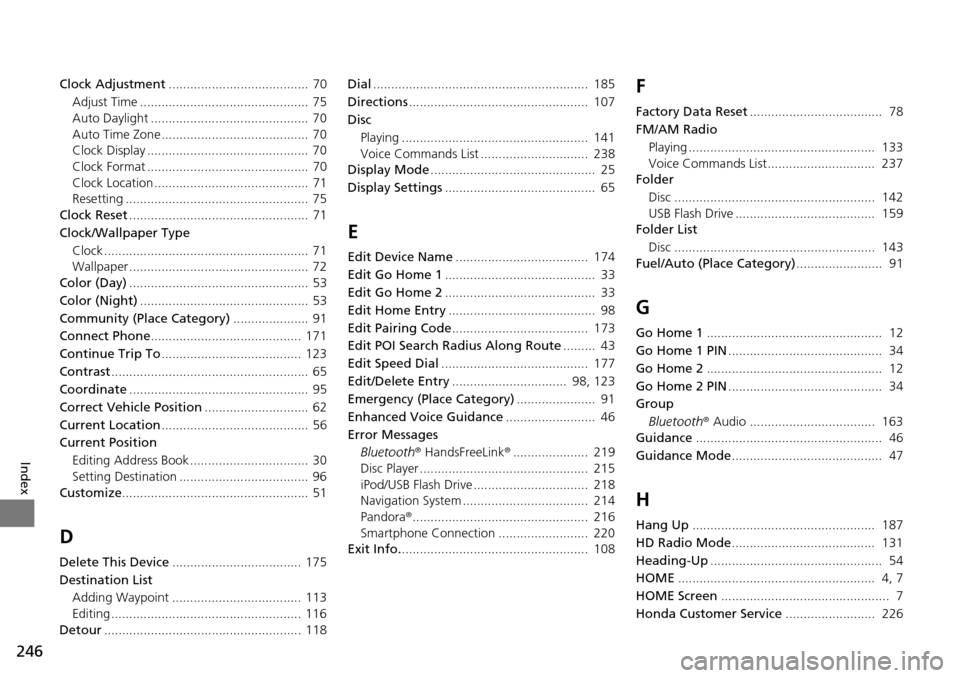
Clock Adjustment....................................... 70
Adjust Time ............................................... 75
Auto Daylight ............................................ 70
Auto Time Zone ......................................... 70
Clock Display ............................................. 70
Clock Format ............................................. 70
Clock Location ........................................... 71
Resetting ................................................... 75
Clock Reset
.................................................. 71
Clock/Wallpaper Type
Clock ......................................................... 71
Wallpaper .................................................. 72
Color (Day)
.................................................. 53
Color (Night)
............................................... 53
Community (Place Category)
..................... 91
Connect Phone
.......................................... 171
Continue Trip To
....................................... 123
Contrast
....................................................... 65
Coordinate
.................................................. 95
Correct Vehicle Position
............................. 62
Current Location
......................................... 56
Current Position
Editing Address Book ................................. 30
Setting Destination .................................... 96
Customize
.................................................... 51
D
Delete This Device.................................... 175
Destination List Adding Waypoint .................................... 113
Editing ..................................................... 116
Detour
....................................................... 118 Dial
............................................................ 185
Directions
.................................................. 107
Disc Playing .................................................... 141
Voice Commands List .............................. 238
Display Mode
.............................................. 25
Display Settings
.......................................... 65
E
Edit Device Name..................................... 174
Edit Go Home 1
.......................................... 33
Edit Go Home 2
.......................................... 33
Edit Home Entry
......................................... 98
Edit Pairing Code
...................................... 173
Edit POI Search Radius Along Route
......... 43
Edit Speed Dial
......................................... 177
Edit/Delete Entry
................................ 98, 123
Emergency (Place Category)
...................... 91
Enhanced Voice Guidance
......................... 46
Error Messages Bluetooth ® HandsFreeLink ®
..................... 219
Disc Player ............................................... 215
iPod/USB Flash Drive ................................ 218
Navigation System ................................... 214
Pandora ®
................................................. 216
Smartphone Connection ......................... 220
Exit Info.
.................................................... 108
F
Factory Data Reset..................................... 78
FM/AM Radio Playing .................................................... 133
Voice Commands List.............................. 237
Folder
Disc ........................................................ 142
USB Flash Drive ....................................... 159
Folder List
Disc ........................................................ 143
Fuel/Auto (Place Category)
........................ 91
G
Go Home 1................................................. 12
Go Home 1 PIN
........................................... 34
Go Home 2
................................................. 12
Go Home 2 PIN
........................................... 34
Group
Bluetooth ® Audio ................................... 163
Guidance
.................................................... 46
Guidance Mode
.......................................... 47
H
Hang Up................................................... 187
HD Radio Mode
........................................ 131
Heading-Up
................................................ 54
HOME
....................................................... 4, 7
HOME Screen
............................................... 7
Honda Customer Service
......................... 226