radio HONDA HR-V 2016 2.G Navigation Manual
[x] Cancel search | Manufacturer: HONDA, Model Year: 2016, Model line: HR-V, Model: HONDA HR-V 2016 2.GPages: 250, PDF Size: 4.84 MB
Page 138 of 250
137
Audio
Playing SiriusXM® Radio *
Selecting SiriusXM ® Mode
1. Select Audio on the HOME screen.
2. Select SOURCE .
3. Select the SiriusXM ®
icon.
4. Select the channel with Catego
ry, Channel , Scan or open the tab
and
select from stored presets.
u The ch annel is displayed.
1Playing SiriusXM ® Radio *
“ Radio select XM ”, “Radio XM ”
You can control the radio using voice control
commands. 2 Radio Commands P. 237
A visual guide helps you operate the audio system.
2 System Controls P. 4
2 Basic Operation P. 9
In the channel mode, all available channels are
selectable. In the category mode, you can select a
channel within a ca tegory (Jazz, Rock, Classical, etc.).
There may be instances when SiriusXM ® Radio does
not broadcast all the data fi elds (artist name, title).
This does not indicate a problem with your audio
system.
You can store 12 SiriusXM ® stations in the presets.
SiriusXM ® Radio display message s will be displayed
on the audio screen.
2 SiriusXM ® Radio Display Messages P. 140
* Not available on all models
Page 139 of 250
138
uu Playing SiriusXM ® Radio * u Audio Screen Control
Audio
Audio Screen Control
H HOME u Audio u SOURCE u SiriusXM ® icon
Control the audio system through the navigation screen. 1.Select the open/close tab on the
op
eration panel to display the
channel list and preset list.
2. Select Preset tab.
u Select and hold a preset
until a
beep sounds to store the
current channel as a preset.
You can also store the current
ch annel as a
preset by selecting and
holding the preset key in the
operation panel.
Select to display preset 7
onwards.
The following items are available:
• Category : Display and select an SiriusXM® Radio category
.
• Channel : Select the previous or next channel.
Operation panelBand
Open/Close tab
Preset list
Page 140 of 250
139
uu Playing SiriusXM ® Radio * u Audio Menu
Audio
• Scan : Scans for channels in the selected mode and plays a 10-second sample.
Select Cancel to stop scanning and pl ay the current selection.
Audio Menu
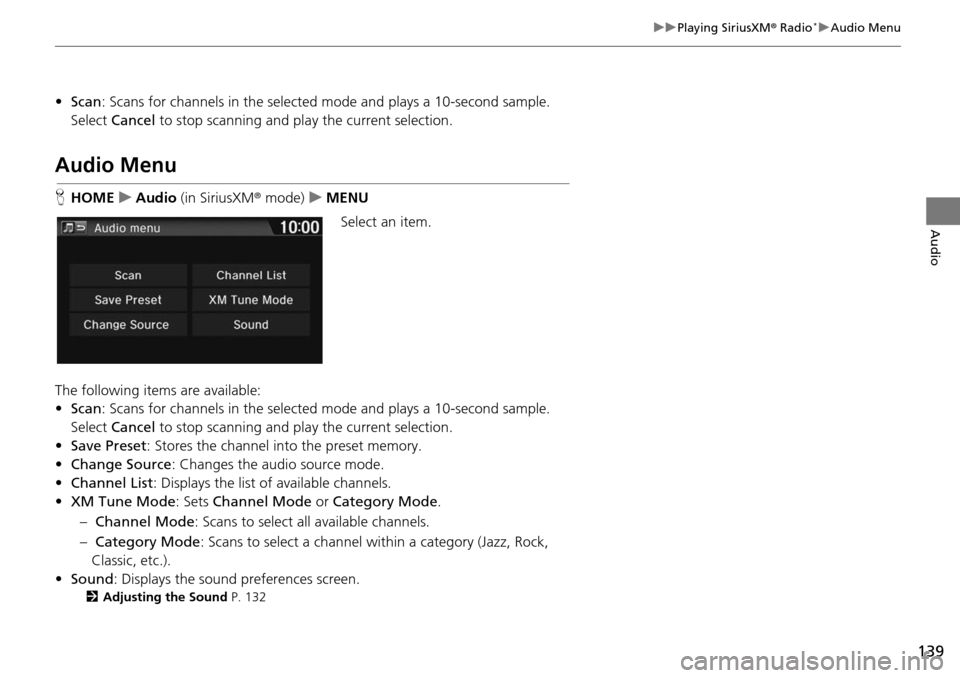
HHOME u Audio (in SiriusXM ® mode ) u MENU
Select an item.
The following items are available:
• Scan : Scans for channels in the selected m
ode and plays a 10-second sample.
Select Cancel to st
op scanning and pl ay the current selection.
• Save Preset : Stores the channel into the preset
memory.
• Change Source : Changes
the audio source mode.
• Channel List : Di
splays the list of available channels.
• XM Tune Mode : Sets Ch
annel Mode or Category Mode .
– Ch annel Mode :
Scans to select all available channels.
– Cate gory Mode : S
cans to select a channel within a category (Jazz, Rock,
Classic, etc.).
• Sound : Display
s the sound preferences screen.
2Adjusting the Sound P. 132
Page 141 of 250
140
uu Playing SiriusXM ® Radio * u SiriusXM ® Radio Service
Audio
SiriusXM ® Radio Service
1. Retrieve your radio ID before registering for subscription.
u To see the radio ID, select (chan
nel) to select “000” channel. You can also
select “000” channel from Chan
nel List.
2. Have your radio ID and credit card number ready, and either call SiriusXM ®
or visit
the SiriusXM® website to subscribe.
Select the SiriusXM ® icon
and stay in this mode for about 30 minutes until the
service is activated. Make sure your vehicl e is in an open area with good reception.
Loading : SiriusXM ® is
loading the audio or program information.
Channel Off Air : The chan
nel is not currently broadcasting.
Channel Not Authorized : The
encryption code is being updated. Channels 0 and
1 still work normally.
No Signal : The signal is too we ak in the cur
rent location.
Channel Not Available : No su
ch channel exists, the channel is not part of your
subscription, or the artist or title information is not available.
Check Antenna : There is
a problem with the SiriusXM ® antenna. Contact a dealer.
■Subscribing to SiriusXM
® Radio
■ Receiving SiriusXM
® Radio
■ SiriusXM
® Radio Display Messages
1 Subscribing to SiriusXM ® Radio
Contact Information for SiriusXM ® Radio:
U.S.: SiriusXM ® Radio at www.siriusxm.com , or
(800) 852-9696
Canada: SiriusXM ® Canada at www.xmradio.ca , or
(877) 209-0079
1 Receiving SiriusXM ® Radio
The SiriusXM ® satellites are in orbit over the equator;
therefore, objects south of the vehicle may cause
satellite reception interruptions. Sa tellite signals are
more likely to be blocked by tall buildings and
mountains the farther north you travel from the
equator.
You may experience rece ption problems under the
following circumstances:
•In a location with an obstruction to the south of
your vehicle
•In tunnels•On the lower level of a multi-tiered road
•Large items are carried on the roof rack
Page 155 of 250
154
Audio
Playing Pandora®
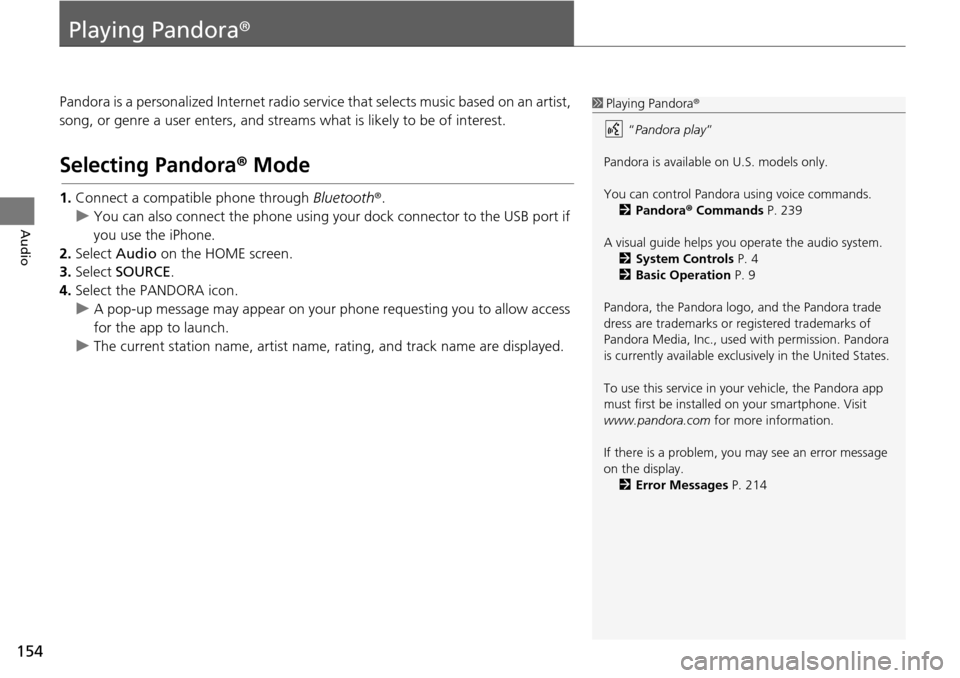
Pandora is a personalized Internet radio se rvice that selects music based on an artist,
song, or genre a user enters, and stream s what is likely to be of interest.
Selecting Pandora® Mode
1.Connect a compatible phone through Bluetooth®.
u You c an also connect the phone using your dock connector to the USB port if
y
ou use the iPhone.
2. Select Audio on
the HOME screen.
3. Select SOURCE .
4. Select the PANDORA icon.
u A pop-up message may appear on your phone requesting you to allow access
for the app to launch.
u The curre nt
station name, artist name, rating, and track name are displayed.
1Playing Pandora®
“Pandora play”
Pandora is available on U.S. models only.
You can control Pandora using voice commands. 2 Pandora ® Commands P. 239
A visual guide helps you operate the audio system.
2 System Controls P. 4
2 Basic Operation P. 9
Pandora, the Pandora logo, and the Pandora trade
dress are trademarks or registered trademarks of
Pandora Media, Inc., used with permission. Pandora
is currently available exclusively in the United States.
To use this service in your vehicle, the Pandora app
must first be installed on your smartphone. Visit
www.pandora.com for more information.
If there is a problem, you may see an error message
on the display. 2 Error Messages P. 214
Page 223 of 250
222
Reference Information
System Initialization
The navigation system must be initialized if
power to the navigation system is
interrupted for any reason (e.g., the battery
was disconnected).
Entering the Security Code
Find the navigation system’s security code
and serial number label in your Owner’s
Manual kit. Do not store the label in your
vehicle. If you lose the label, you must first
retrieve the serial number, and then obtain
the code. You can find out about your serial
number and security code from a dealer.
1.Set the power mode to ON, and turn on
the audio system.
2.Press and hold the audio system power
button for more than two seconds.
u The system is reac tivate
d when the
system’s control unit recognizes that
the system is in your vehicle. If the
control unit fails to recognize, Enter
Code appears on the navigation
screen.
3. Enter
the security code.
u If you do not enter the security code
cor
rectly after 10 tries, leave the
system for one hour before trying
again, or visit a dealer to have the
system reset.
In the U.S., you can register the security
co de
on Honda Owners
( owners.honda.com ). To find information
on how to retrieve the serial number and
obtain the code, visit
radio-navicode.honda.com .
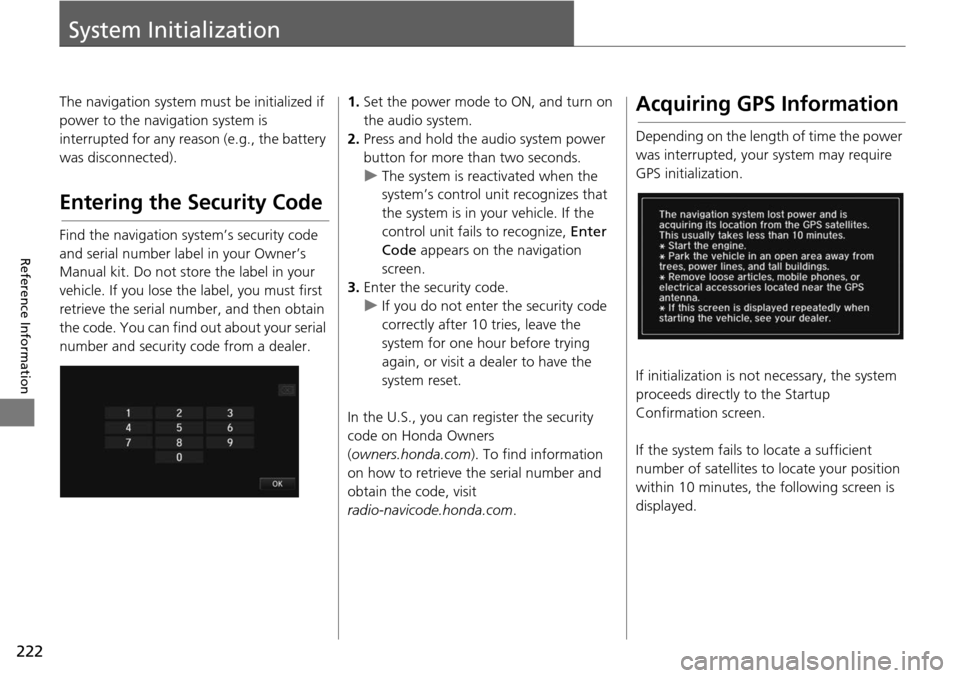
Acquiring GPS Information
Depending on the length of time the power
was interrupted, your system may require
GPS initialization.
If initialization is not necessary, the system
proceeds directly to the St
artup
Confirmation screen.
If the system fails to locate a sufficient
num
ber of satellites to locate your position
within 10 minutes, th e following screen is
displayed.
Page 229 of 250
228
uu Customer Assistance u Obtaining a Navigation Update
Reference Information
Obtaining a Navigation
Update
Honda is continually expanding the scope of
the navigation system. Navigation system
software upgrades may be made available
periodically, usually in the fall of each year.
To purchase an updated data file:
1. Ob
tain your vehicle’s VIN number and the
System/Device Infor
mation.
2System/Device Information P. 200
2. Call the Honda Naviga tion Disc Fulfilment
Center at (888) 291-4675, or order
online at:
•U.S.: www.hondan
avi.com
• Canada: www.
honda.ca
Updated data is not available from your
dealer. Howeve
r, the dealer may assist you
in obtaining one out of courtesy. There is no
program for free updates.
Traffic Information
• Continuously updated traffic information is available in certain areas across the
lower 48 U.S. states, Hawaii, and
Canada.
•Visit automobiles.honda.com/traffic for a
complete listing of coverage areas and
other information.
Operation in Alaska,
Hawaii, Canada, and
Puerto Rico
Navigation-equipped vehicles delivered to
Alaska, Hawaii, and Puerto Rico are
equipped with SiriusXM ® hardware, but
SiriusXM ® broadcasting is not available.
There are certain functions that rely on
SiriusXM ® satellite signal coverage which
are not available. Unavailable menu options
will appear gray on the LCD display.
All roads displayed on the map screens are
verified roads. Infor matio
n in this manual
■SiriusXM
® Radio *
■Map Coverage
relating to “unverified”
roads or areas is not
applicable.
Entering a destinati on address or place/
land
mark on another island may result in a
screen caution messag e. This is because
there are no ferry rout es between islands in
the database.
Shipping a Vehicle to the
U.S. Mainland
To receive SiriusXM ® * audio, you must call
SiriusXM ® and set up an account at
(800) 852-9696.
■ Address and Place Entry
Screens
* Not available on all models
Page 232 of 250
231
uu Legal Information u As required by the FCC
Reference Information
Contractor (Manufacturer/ Supplier) Name:
NAVTEQ
CONTRACTOR (MANUFACTURER/
SUPPLIER) ADDRESS: 425 West Randolph
St., Chicago, Illinois 60606
This Data is a commercial item as defined in
FAR 2.10 1
and is subject to the End User
License Agreement under which this Data
was provided.
© 2012 NAVTEQ – All rights reserved.
If the Contracting Officer, federal
government age
ncy, or any federal official
refuses to use the legend provided herein,
the Contracting Officer, federal
government agency, or any federal official
must notify NAVTEQ prior to seeking
additional or alternative rights in the Data.
■ NOTICE OF USEAs required by the FCC
1.
This device complies with Part 15 of the
FCC Rules and Canadian RSS-210/
RSSGen. Operation is subject to the
following two conditions: (1) this device
may not cause harmful interference, and
(2) this device must accept any
interference received, including
interference that may cause undesired
operation.
2. T
he FCC requires the user to be notified
t
hat any changes or modifications made
to this device that are not expressly
approved by the party responsible for
compliance may void the user’s authority
to operate the equipment.
3. Th
is product emits radio frequency
en
ergy, but the radiated output power of
this device is far below the FCC and IC
radio frequency exposure limits. This
equipment complies with FCC and IC RF
radiation exposure limits set forth for an
uncontrolled environment. Nevertheless,
the device should be used in such a
manner that the potential for human
contact with the antenna during normal
operation is minimized.
Page 238 of 250
237
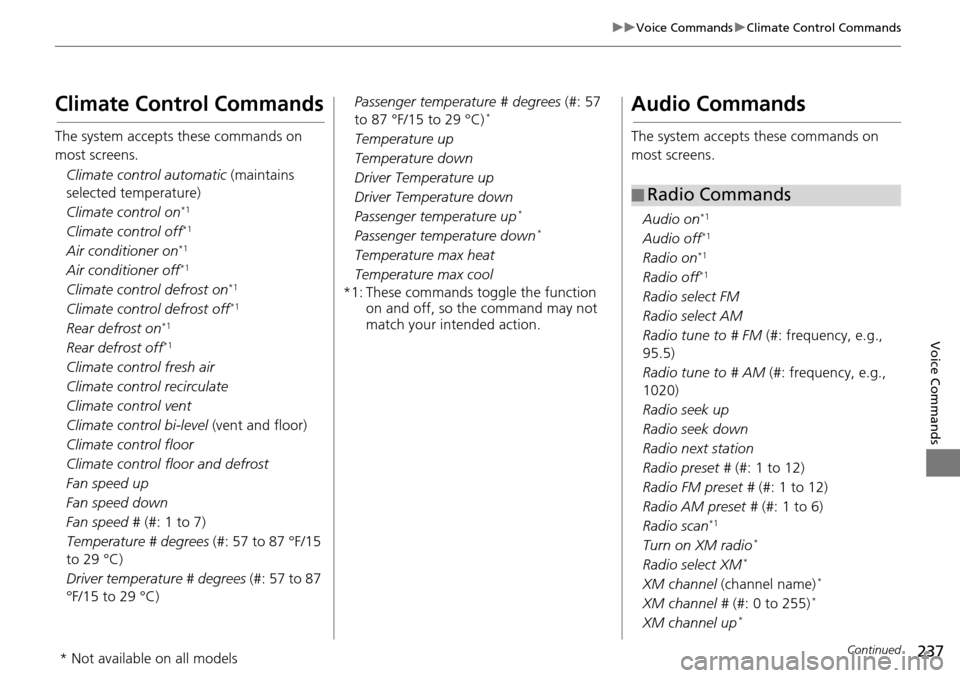
uu Voice Commands u Climate Control Commands
Continued
Voice Commands
Climate Control Commands
The system accepts these commands on
most screens.
Climate control automatic (maintains
selecte d
temperature)
Climate control on
*1
Climate control off*1
Air conditioner on*1
Air conditioner off*1
Climate control defrost on*1
Climate control defrost off*1
Rear defrost on*1
Rear defrost off*1
Climate control fresh air
Climate control recirculate
Climate control vent
Climate control bi-level (vent and floo
r)
Climat
e control floor
Climate control floor and defrost
Fan speed up
Fan speed down
Fan speed #
(#: 1 t
o 7)
Temperature # degrees (#
: 57 to 87 °F/15
to 29 °C)
Driver temperature # degrees (#:
57 to 87
°F/15 to 29 °C) Passenger temperature # degrees
(#: 57
to 87
°F/15 to 29 °C) *
Temperature up
Temperature down
Driver Temperature up
Driver Temperature down
Passenger temperature up
*
Passenger temperature down *
Temperature max heat
Temperature max cool
*1: These commands toggle the function on
and off, so the command may not
match your intended action.
Audio Commands
The system accepts these commands on
most screens.
Audio on
*1
Audio off*1
Radio on*1
Radio off*1
Radio select FM
Radio select AM
Radio tune to # FM (
#
: frequency, e.g.,
95.5)
Radio tune to # AM (#: frequenc
y, e.g.,
1020)
Radio seek up
Radio seek down
Radio next station
Radio preset # (#: 1 to
12)
Radi
o FM preset # (#: 1 to
12)
Radio AM preset # (#: 1 to 6)
Radi
o scan*1
Turn on XM radio *
Radio select XM *
XM channel (channel name) *
XM channel # (#: 0 to 255) *
XM channel up *
■Radio Commands
* Not available on all models
Page 246 of 250
Index
245
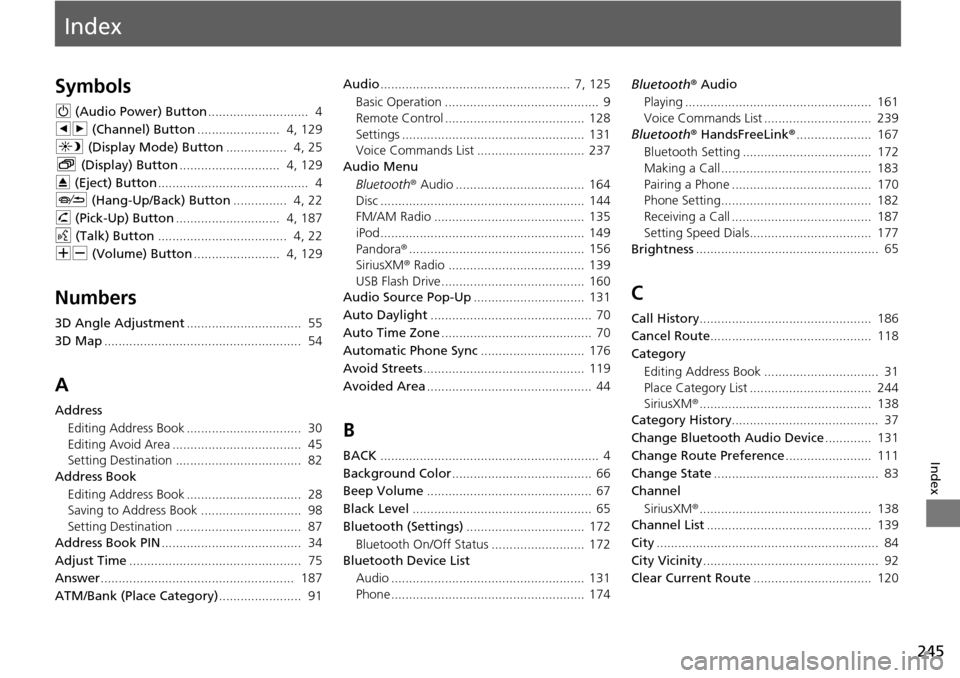
Index
Index
Symbols
9 (Audio Power) Button............................ 4
bn (Channel) Button
....................... 4, 129
a (Display Mode) Button
................. 4, 25
b (Displ ay) Button
............................ 4, 129
E (Eject) Button
.......................................... 4
J (Hang-Up/B
ack) Button............... 4, 22
h (Pi ck-Up) Button
............................. 4, 187
d (Tal k) Button
.................................... 4, 22
NB (Volume) Button
........................ 4, 129
Numbers
3D Angle Adjustment................................ 55
3D Map
....................................................... 54
A
Address Editing Address Book ................................ 30
Editing Avoid Area .................................... 45
Setting Destination ................................... 82
Address Book
Editing Address Book ................................ 28
Saving to Address Book ............................ 98
Setting Destination ................................... 87
Address Book PIN
....................................... 34
Adjust Time
................................................ 75
Answer
...................................................... 187
ATM/Bank (Place Category)
....................... 91 Audio
..................................................... 7,
125
Basic Operation ........................................... 9
Remote Control ....................................... 128
Settings ................................................... 131
Voice Commands List .............................. 237
Audio Menu
Bluetooth ® Audio .................................... 164
Disc ......................................................... 144
FM/AM Radio .......................................... 135
iPod ......................................................... 149
Pandora ®
................................................. 156
SiriusXM ® Radio ...................................... 139
USB Flash Drive ........................................ 160
Audio Source Pop-Up
............................... 131
Auto Daylight
............................................. 70
Auto Time Zone
.......................................... 70
Automatic Phone Sync
............................. 176
Avoid Streets
............................................. 119
Avoided Area
.............................................. 44
B
BACK............................................................. 4
Background Color
....................................... 66
Beep Volume
.............................................. 67
Black Level
.................................................. 65
Bluetooth (Settings)
................................. 172
Bluetooth On/Off Status .......................... 172
Bluetooth Device List
Audio ...................................................... 131
Phone ...................................................... 174 Bluetooth
® Aud i
o
Playing .................................................... 161
Voice Commands List .............................. 239
Bluetooth ® HandsF reeLink
®
..................... 167
Bluetooth Setting .................................... 172
Making a Call .......................................... 183
Pairing a Phone ....................................... 170
Phone Setting.......................................... 182
Receiving a Call ....................................... 187
Setting Speed Dials.................................. 177
Brightness
................................................... 65
C
Call History................................................ 186
Cancel Route
............................................. 118
Category
Editing Address Book ................................ 31
Place Category List .................................. 244
SiriusXM ®
................................................ 138
Category History
......................................... 37
Change Bluetooth Audio Device
............. 131
Change Route Preference
........................ 111
Change State
.............................................. 83
Channel
SiriusXM ®
................................................ 138
Channel List.............................................. 139
City
.............................................................. 84
City Vicinity
................................................. 92
Clear Current Route
................................. 120