EB indicator HONDA HR-V 2016 2.G Workshop Manual
[x] Cancel search | Manufacturer: HONDA, Model Year: 2016, Model line: HR-V, Model: HONDA HR-V 2016 2.GPages: 489, PDF Size: 26.59 MB
Page 191 of 489
uuAudio System Basic Operation uPlaying the AM/FM Radio
190
Features
Provides text data information related to your selected RDS capable FM station.
■To find an RDS station from Station List
1. Press while listening to an FM station.
2. Rotate to select the station, then press .
■Update List
Updates your available station list at any time.
1. Press while listening to an FM station.
2. Rotate to select Update List, then press .
■Radio text
Displays the radio text informat ion of the selected RDS station.
1. Press the MENU/CLOCK button.
2. Rotate to select Settings, then press .
3. Rotate to select RDS Settings, then press .
4. Rotate to select Radio Text, then press .
■Scan
Samples each of the strongest stations on the selected band for 10 seconds.
1. Press the MENU/CLOCK button.
2. Rotate to select Scan, then press .
To turn off scan, press .
■Radio Data System (RDS)1 Playing the AM/FM Radio
The ST indicator appears on the display indicating
stereo FM broadcasts.
Stereo reproduction in AM is not available.
You can store 6 AM stations and 12 FM stations into
the preset memory.
Switching the Audio Mode
Press the SOURCE button on the steering wheel.
2 Audio Remote Controls P. 180
1Radio Data System (RDS)
When you select an RDS-capable FM station, the RDS
automatically turns on, and the frequency display
changes to the station name. However, when the
signals of that station become weak, the display
changes from the statio n name to the frequency.
15 HR-V GAS-31T7A6000.book 190 ページ 2015年6月29日 月曜日 午前11時36分
Page 195 of 489
194
uuAudio System Basic Operation uPlaying an iPod
Features
Playing an iPod
Connect the iPod using your dock connector to the USB port, then press the CD/
AUX button.
2USB Port(s) P. 177
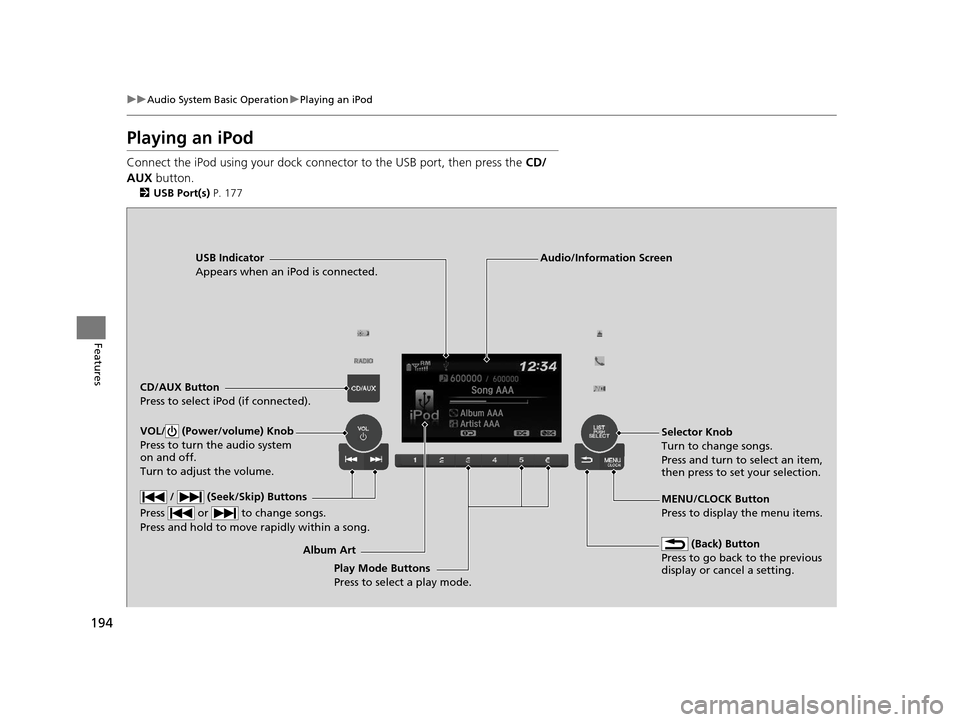
USB Indicator
Appears when an iPod is connected.
CD/AUX Button
Press to select iPod (if connected).
(Back) Button
Press to go back to the previous
display or cancel a setting.
/ (Seek/Skip) Buttons
Press or to change songs.
Press and hold to move rapidly within a song.
VOL/ (Power/volume) Knob
Press to turn the audio system
on and off.
Turn to adjust the volume.Selector Knob
Turn to change songs.
Press and turn to select an item,
then press to set your selection.
MENU/CLOCK Button
Press to display the menu items.
Audio/Information Screen
Album Art Play Mode Buttons
Press to select a play mode.
15 HR-V GAS-31T7A6000.book 194 ページ 2015年6月29日 月曜日 午前11時36分
Page 198 of 489
197
uuAudio System Basic Operation uPlaying a USB Flash Drive
Continued
Features
Playing a USB Flash Drive
Your audio system reads and plays sound files on a USB flash drive in either MP3,
WMA or AAC*1 format.
Connect your USB flash drive to the USB port, then press the CD/AUX button.
2USB Port(s) P. 177
*1:Only AAC format files recorded with iTunes are playable on this unit.
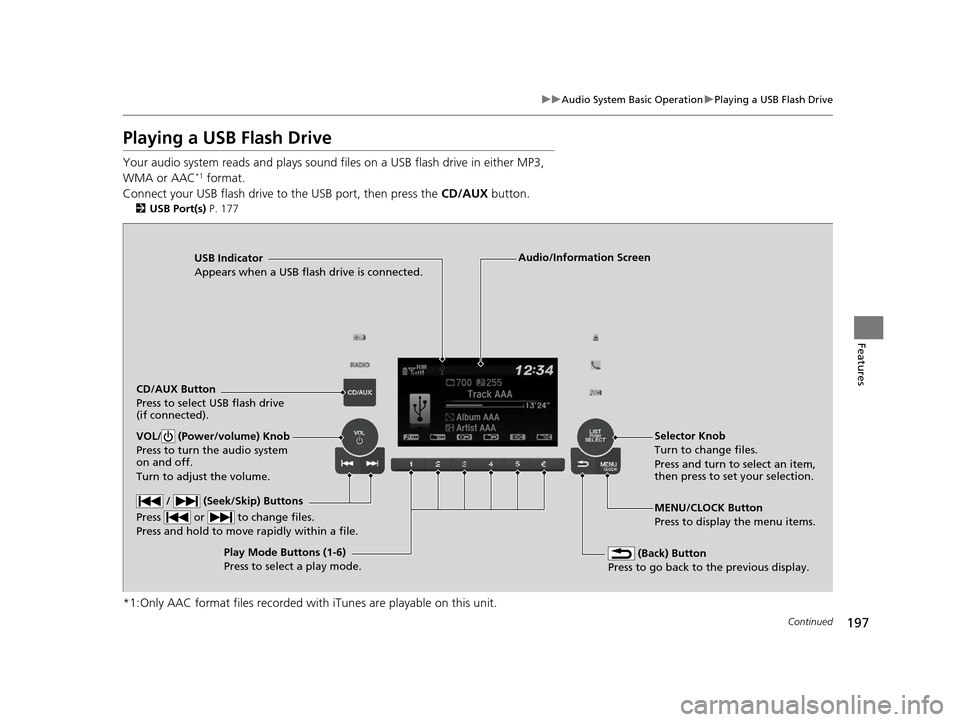
USB Indicator
Appears when a USB flash drive is connected.
CD/AUX Button
Press to select USB flash drive
(if connected).
(Back) Button
Press to go back to the previous display.
/ (Seek/Skip) Buttons
Press or to change files.
Press and hold to move rapidly within a file.
VOL/ (Power/volume) Knob
Press to turn the audio system
on and off.
Turn to adjust the volume.Selector Knob
Turn to change files.
Press and turn to select an item,
then press to set your selection.
MENU/CLOCK Button
Press to display the menu items.
Audio/Information Screen
Play Mode Buttons (1-6)
Press to select a play mode.
15 HR-V GAS-31T7A6000.book 197 ページ 2015年6月29日 月曜日 午前11時36分
Page 201 of 489
200
uuAudio System Basic Operation uPlaying Bluetooth ® Audio
Features
Playing Bluetooth® Audio
Your audio system allows you to listen to music from your Bluetooth-compatible
phone.
This function is available when the phone is paired and connected to the vehicle’s
Bluetooth ® HandsFreeLink ® (HFL) system.
2 Phone Setup P. 266
1Playing Bluetooth ® Audio
Not all Bluetooth -enabled phones with streaming
audio capabilities are compatible with the system.
For a list of compatible phones:
•U.S.: Visit www.handsfreelink.honda.com , or call
1-888-528-7876.
•Canada: Visit www.handsfreelink.ca , or call 1-888-
528-7876.
In some states, it may be illegal to perform some data
device functions while driving.
Only one phone can be used with HFL at a time.
When there are more than two paired phones in the
vehicle, the first paired phone the system finds is
automatically connected.
If more than one phone is paired to the HFL system,
there will be a delay before the system begins to play.
In some cases, the name of the artist, album, or track
may not appear correctly.
Some functions may not be available on some
devices.
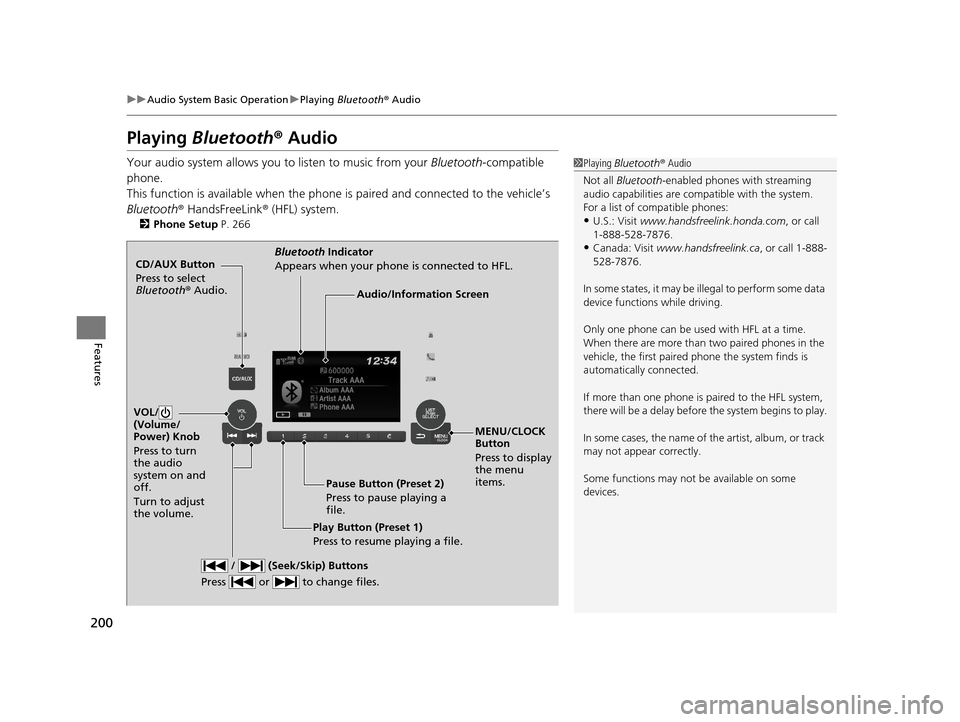
CD/AUX Button
Press to select
Bluetooth ® Audio.
VOL/
(Volume/
Power) Knob
Press to turn
the audio
system on and
off.
Turn to adjust
the volume.
MENU/CLOCK
Button
Press to display
the menu
items.
Audio/Information Screen
Bluetooth Indicator
Appears when your phone is connected to HFL.
/ (Seek/Skip) Buttons
Press or to change files.
Play Button (Preset 1)
Press to resume playing a file. Pause Button (Preset 2)
Press to pause playing a
file.
15 HR-V GAS-31T7A6000.book 200 ページ 2015年6月29日 月曜日 午前11時36分
Page 213 of 489
uuAudio System Basic Operation uPlaying the AM/FM Radio
212
Features
To store a station:
1. Tune to the selected station.
2. Select MENU .
3. Select Save Preset .
4. Select the preset number you want to store that station.
Provides text data information related to your selected RDS-capable FM station.
■To find an RDS station from Station List
1. Select MENU while listening to an FM station.
2. Select Station List .
3. Select the station.
■Manual update
Updates your available station list at any time.
1. Select MENU while listening to an FM station.
2. Select Station List .
3. Select Refresh .
■Preset Memory
■Radio Data System (RDS)
1Playing the AM/FM Radio
The ST indicator appears on the display indicating
stereo FM broadcasts.
Stereo reproduction in AM is not available.
Switching the Audio Mode
Press the SOURCE button on the steering wheel or
select SOURCE on the list.
2 Audio Remote Controls P. 180
You can also switch the mode by selecting Change
Source on the MENU screen.
You can store 6 AM stations and 12 FM stations into
the preset memory.
1 Radio Data System (RDS)
When you select an RDS-capable FM station, the RDS
automatically turns on, and the frequency display
changes to the station name. However, when the
signals of that station become weak, the display
changes from the statio n name to the frequency.
15 HR-V GAS-31T7A6000.book 212 ページ 2015年6月29日 月曜日 午前11時36分
Page 218 of 489
217
uuAudio System Basic Operation uPlaying an iPod
Continued
Features
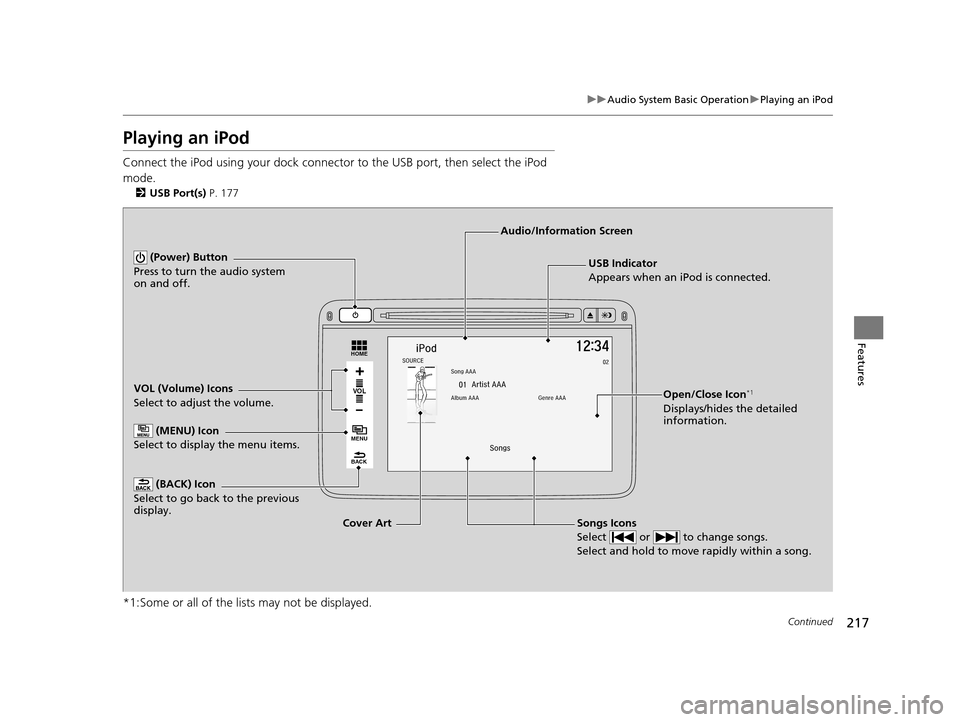
Playing an iPod
Connect the iPod using your dock connector to the USB port, then select the iPod
mode.
2 USB Port(s) P. 177
*1:Some or all of the lists may not be displayed.
VOL
HOME
MENU
BACK
USB Indicator
Appears when an iPod is connected.
Songs Icons
Select or to change songs.
Select and hold to move rapidly within a song.
Audio/Information Screen
Cover Art
VOL (Volume) Icons
Select to adjust the volume.
(BACK) Icon
Select to go back to the previous
display.
(Power) Button
Press to turn the audio system
on and off.
(MENU) Icon
Select to display the menu items.
Open/Close Icon*1
Displays/hides the detailed
information.
15 HR-V GAS-31T7A6000.book 217 ページ 2015年6月29日 月曜日 午前11時36分
Page 223 of 489
222
uuAudio System Basic Operation uPlaying a USB Flash Drive
Features
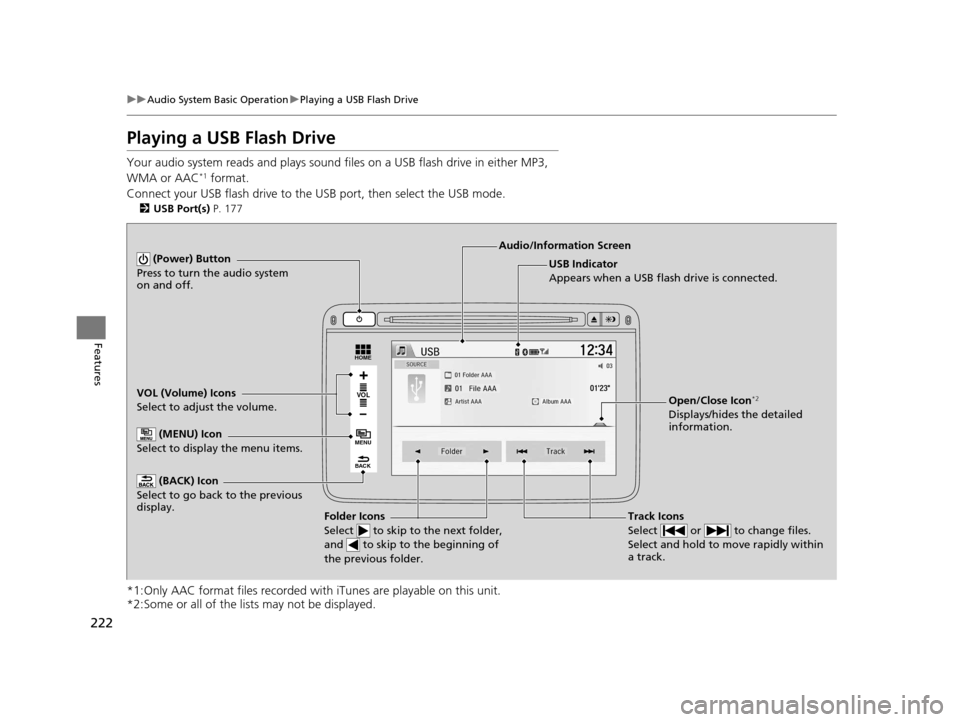
Playing a USB Flash Drive
Your audio system reads and plays sound files on a USB flash drive in either MP3,
WMA or AAC*1 format.
Connect your USB flash drive to the USB port, then select the USB mode.
2USB Port(s) P. 177
*1:Only AAC format files recorded with iTunes are playable on this unit.
*2:Some or all of the lists may not be displayed.
VOL
HOME
MENU
BACK
USB Indicator
Appears when a USB flash drive is connected.
Track Icons
Select or to change files.
Select and hold to move rapidly within
a track.
Audio/Information Screen
VOL (Volume) Icons
Select to adjust the volume. (BACK) Icon
Select to go back to the previous
display. (Power) Button
Press to turn the audio system
on and off.
Open/Close Icon*2
Displays/hides the detailed
information.
(MENU) Icon
Select to display the menu items.
Folder Icons
Select to skip to the next folder,
and to skip to the beginning of
the previous folder.
15 HR-V GAS-31T7A6000.book 222 ページ 2015年6月29日 月曜日 午前11時36分
Page 226 of 489
225
uuAudio System Basic Operation uPlaying Bluetooth ® Audio
Continued
Features
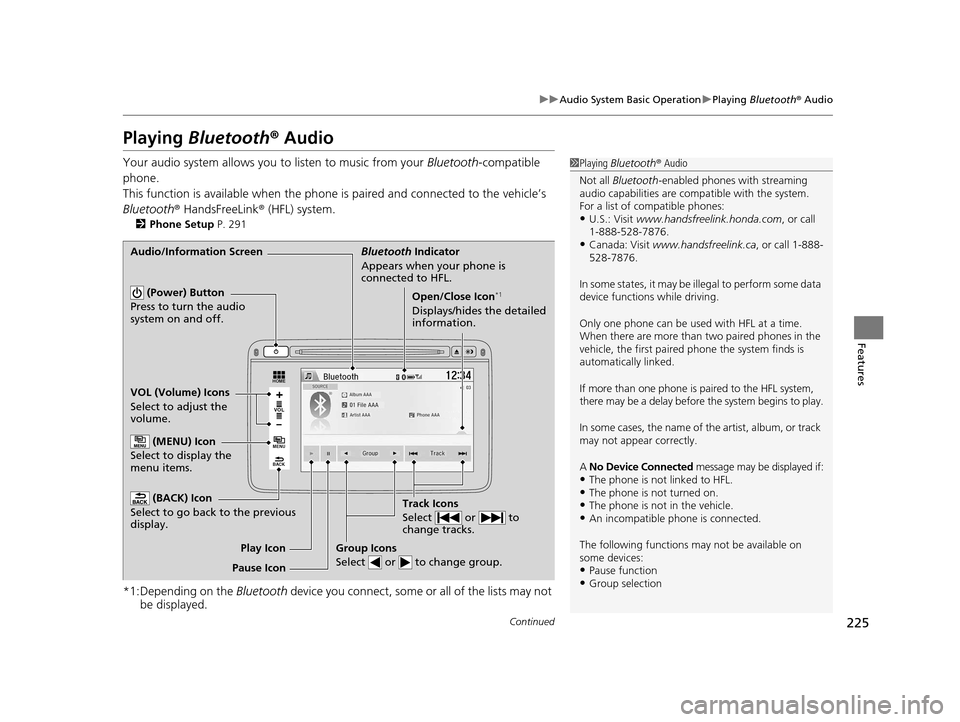
Playing Bluetooth ® Audio
Your audio system allows you to listen to music from your Bluetooth-compatible
phone.
This function is available when the phone is paired and connected to the vehicle’s
Bluetooth ® HandsFreeLink ® (HFL) system.
2Phone Setup P. 291
*1:Depending on the Bluetooth device you connect, some or all of the lists may not
be displayed.
1 Playing Bluetooth ® Audio
Not all Bluetooth -enabled phones with streaming
audio capabilities are comp atible with the system.
For a list of compatible phones:
•U.S.: Visit www.handsfreelink.honda.com , or call
1-888-528-7876.
•Canada: Visit www.handsfreelink.ca , or call 1-888-
528-7876.
In some states, it may be illegal to perform some data
device functions while driving.
Only one phone can be used with HFL at a time.
When there are more than two paired phones in the
vehicle, the first paired phone the system finds is
automatically linked.
If more than one phone is paired to the HFL system,
there may be a delay before the system begins to play.
In some cases, the name of the artist, album, or track
may not appear correctly.
A No Device Connected message may be displayed if:
•The phone is not linked to HFL.•The phone is not turned on.•The phone is not in the vehicle.•An incompatible phone is connected.
The following functions may not be available on
some devices:
•Pause function•Group selection
VOL
HOME
MENU
BACK
Audio/Information Screen Bluetooth Indicator
Appears when your phone is
connected to HFL.
Track Icons
Select or to
change tracks.
VOL (Volume) Icons
Select to adjust the
volume. (BACK) Icon
Select to go back to the previous
display.
(Power) Button
Press to turn the audio
system on and off.Open/Close Icon*1
Displays/hides the detailed
information.
(MENU) Icon
Select to display the
menu items.
Group Icons
Select or to change group.
Pause Icon Play Icon
15 HR-V GAS-31T7A6000.book 225 ページ 2015年6月29日 月曜日 午前11時36分
Page 262 of 489
261
uuBluetooth ® HandsFreeLink ®u Using HFL
Features
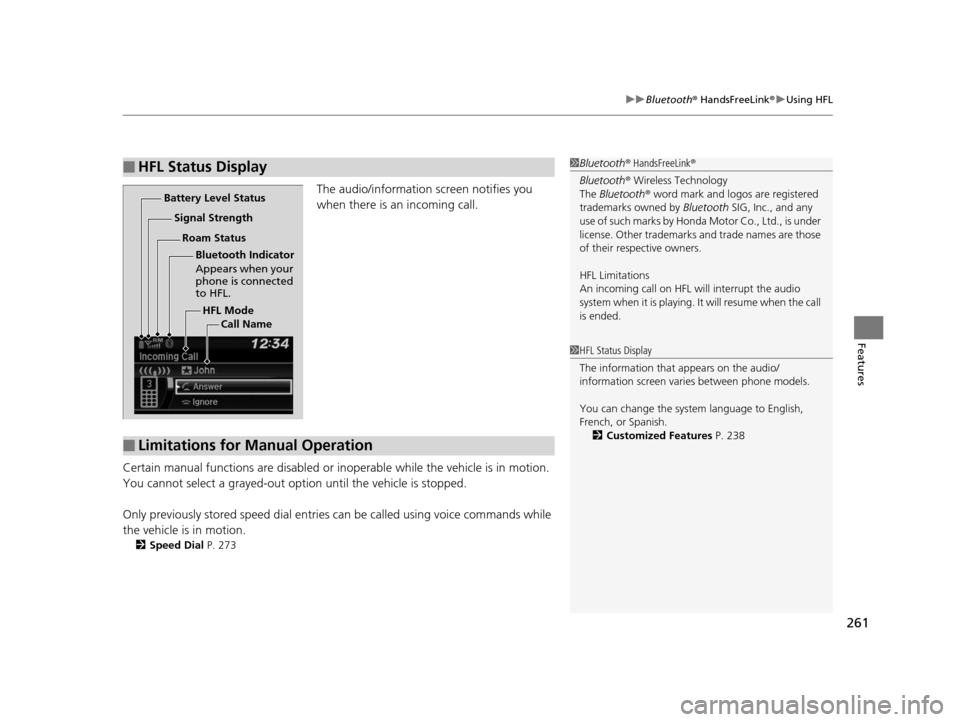
The audio/information screen notifies you
when there is an incoming call.
Certain manual functions are disabled or inoperable while the vehicle is in motion.
You cannot select a grayed-out option until the vehicle is stopped.
Only previously stored speed dial entries can be called using voice commands while
the vehicle is in motion.
2 Speed Dial P. 273
■HFL Status Display1Bluetooth ® HandsFreeLink ®
Bluetooth ® Wireless Technology
The Bluetooth ® word mark and logos are registered
trademarks owned by Bluetooth SIG, Inc., and any
use of such marks by Honda Motor Co., Ltd., is under
license. Other trademarks and trade names are those
of their respective owners.
HFL Limitations
An incoming call on HFL will interrupt the audio
system when it is playing. It will resume when the call
is ended.
HFL Mode
Battery Level Status
Signal Strength
Bluetooth Indicator
Appears when your
phone is connected
to HFL.
Roam Status
Call Name
■Limitations for Manual Operation
1HFL Status Display
The information that appears on the audio/
information screen vari es between phone models.
You can change the system language to English,
French, or Spanish. 2 Customized Features P. 238
15 HR-V GAS-31T7A6000.book 261 ページ 2015年6月29日 月曜日 午前11時36分
Page 286 of 489
285
uuBluetooth ® HandsFreeLink ®u Using HFL
Features
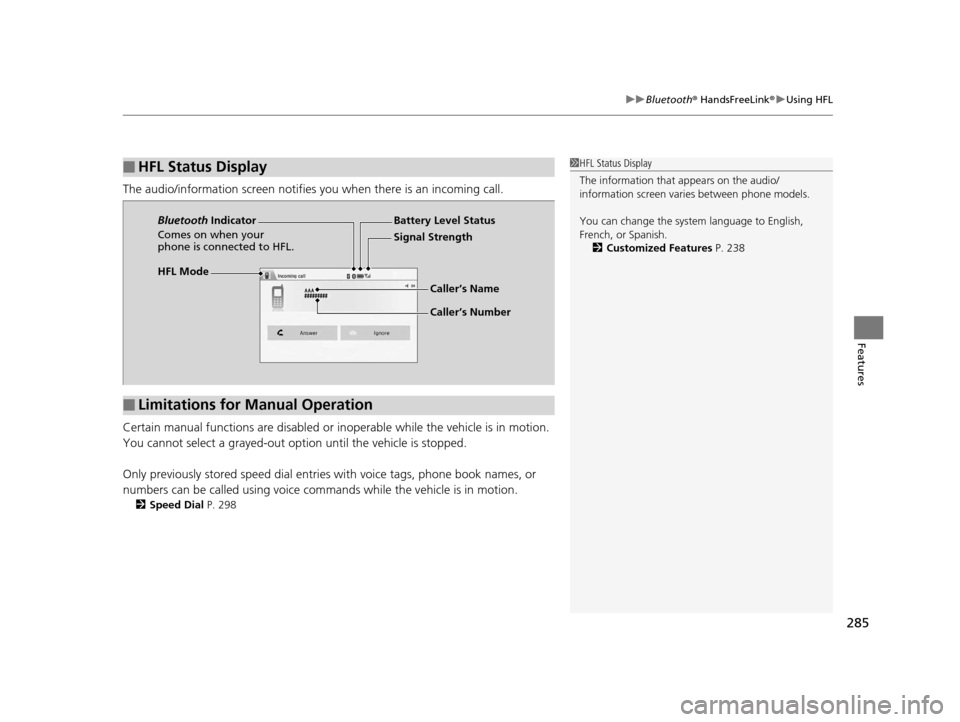
The audio/information scr een notifies you when there is an incoming call.
Certain manual functions are disabled or inoperable while the vehicle is in motion.
You cannot select a grayed-out option until the vehicle is stopped.
Only previously stored speed dial entries with voice tags, phone book names, or
numbers can be called using voice commands while the vehicle is in motion.
2 Speed Dial P. 298
■HFL Status Display1HFL Status Display
The information that appears on the audio/
information screen vari es between phone models.
You can change the system language to English,
French, or Spanish. 2 Customized Features P. 238
HFL Mode Battery Level Status
Signal Strength
Bluetooth
Indicator
Comes on when your
phone is connected to HFL.
Caller’s Name
Caller’s Number
■Limitations for Manual Operation
15 HR-V GAS-31T7A6000.book 285 ページ 2015年6月29日 月曜日 午前11時36分