buttons HONDA HR-V 2016 2.G Quick Guide
[x] Cancel search | Manufacturer: HONDA, Model Year: 2016, Model line: HR-V, Model: HONDA HR-V 2016 2.GPages: 77, PDF Size: 14.93 MB
Page 4 of 77
| 1 VISUAL INDEX
INDEX
VOICE COMMAND
INDEX
CUSTOMER
INFORMATION
SPECIFICATIONS
MAINTENANCE
HANDLING THE
UNEXPECTED
DRIVING
NAVIGATION
TABLE OF CONTENTS
VISUAL INDEX
SAFETY
INFORMATION
INSTRUMENT PANEL
VEHICLE
CONTROLS
AUDIO AND
CONNECTIVITY
BLUETOOTH®
HANDSFREELINK®
HONDALINK®
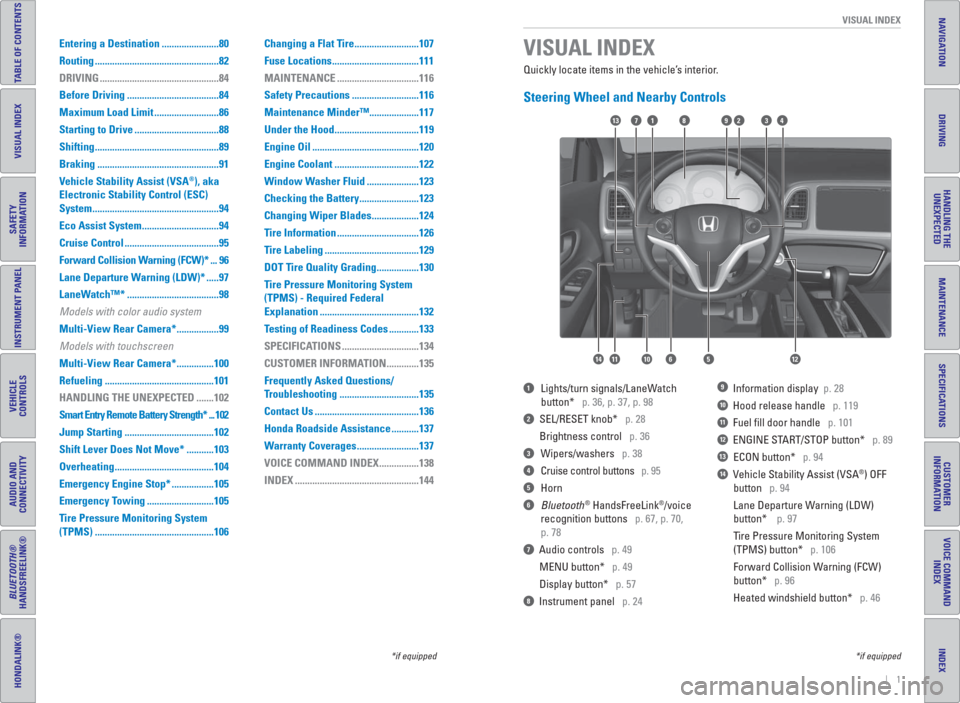
Quickly locate items in the vehicle’s interior.
Steering Wheel and Nearby Controls
1 Lights/turn signals/LaneWatch
button* p. 36, p. 37, p. 98
2 SEL/RESET knob* p. 28
Brightness control p. 36
3 Wipers/washers p. 38
4 Cruise control buttons p. 95
5 Horn
6 Bluetooth® HandsFreeLink®/voice
recognition buttons p. 67, p. 70,
p. 78
7 Audio controls p. 49
MENU button* p. 49
Display button* p. 57
8 Instrument panel p. 24
9 Information display p. 28
10 Hood release handle p. 119
11 Fuel fi ll door handle p. 101
12 ENGINE START/STOP button* p. 89
13 ECON button* p. 94
14 Vehicle Stability Assist (VSA®) OFF
button p. 94
Lane Departure Warning (LDW)
button* p. 97
Tire Pressure Monitoring System
(TPMS) button* p. 106
Forward Collision Warning (FCW)
button* p. 96
Heated windshield button* p. 46
VISUAL INDEX
*if equipped *if equipped
82
1456121011
1713394
Entering a Destination .......................80
Routing ..................................................82
DRIVING ................................................84
Before Driving .....................................84
Maximum Load Limit ..........................86
Starting to Drive ..................................88
Shifting ..................................................89
Braking .................................................91
Vehicle Stability Assist (VSA
®), aka
Electronic Stability Control (ESC)
System ...................................................94
Eco Assist System ...............................94
Cruise Control ......................................95
Forward Collision Warning (FCW)* ... 96
Lane Departure Warning (LDW)* .....97
LaneWatch™* .....................................98
Models with color audio system
Multi-View Rear Camera* .................99
Models with touchscreen
Multi-View Rear Camera* ...............100
Refueling ............................................101
HANDLING THE UNEXPECTED .......102
Smart Entry Remote Battery Strength* ... 102
Jump Starting ....................................102
Shift Lever Does Not Move* ...........103
Overheating ........................................104
Emergency Engine Stop* .................105
Emergency Towing ...........................105
Tire Pressure Monitoring System
(TPMS) ................................................106Changing a Flat Tire ..........................107
Fuse Locations ...................................111
MAINTENANCE .................................116
Safety Precautions ...........................116
Maintenance Minder™....................117
Under the Hood ..................................119
Engine Oil ...........................................120
Engine Coolant ..................................122
Window Washer Fluid .....................123
Checking the Battery ........................123
Changing Wiper Blades ...................124
Tire Information .................................126
Tire Labeling ......................................129
DOT Tire Quality Grading .................130
Tire Pressure Monitoring System
(TPMS) - Required Federal
Explanation ........................................132
Testing of Readiness Codes ............133
SPECIFICATIONS ...............................134
CUSTOMER INFORMATION .............135
Frequently Asked Questions/
Troubleshooting ................................135
Contact Us ..........................................136
Honda Roadside Assistance ...........137
Warranty Coverages .........................137
VOICE COMMAND INDEX ................138
INDEX ..................................................144
Page 26 of 77
44 || 45 VEHICLE CONTROLS VEHICLE CONTROLS
TABLE OF CONTENTS
INDEX
VISUAL INDEX
VOICE COMMAND
INDEX
SAFETY
INFORMATION
CUSTOMER
INFORMATION
INSTRUMENT PANEL
SPECIFICATIONS
VEHICLE
CONTROLS
MAINTENANCE
AUDIO AND
CONNECTIVITY
HANDLING THE
UNEXPECTED
BLUETOOTH®
HANDSFREELINK®
DRIVING
HONDALINK®
NAVIGATION
*if equipped
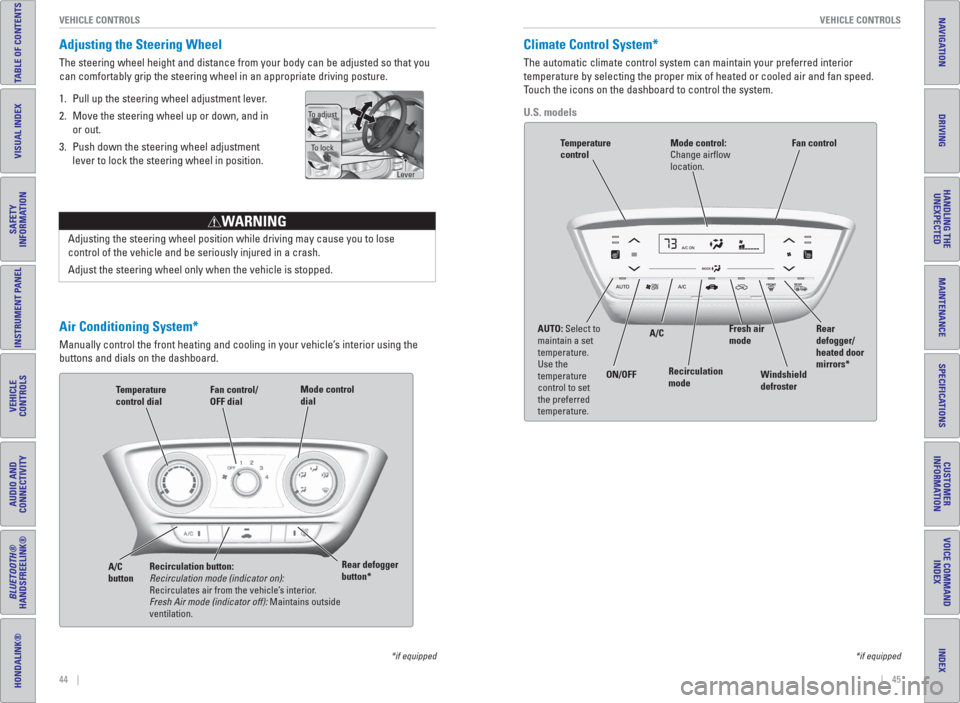
Air Conditioning System*
Manually control the front heating and cooling in your vehicle’s interior using the
buttons and dials on the dashboard.
Fan control/
OFF dial
A/C
buttonTemperature
control dial
Recirculation button:
Recirculation mode (indicator on):
Recirculates air from the vehicle’s interior.
Fresh Air mode (indicator off): Maintains outside
ventilation. Rear defogger
button*Mode control
dial
Adjusting the Steering Wheel
The steering wheel height and distance from your body can be adjusted so that you
can comfortably grip the steering wheel in an appropriate driving posture.
1. Pull up the steering wheel adjustment lever.
2. Move the steering wheel up or down, and in
or out.
3. Push down the steering wheel adjustment
lever to lock the steering wheel in position.
Adjusting the steering wheel position while driving may cause you to lose
control of the vehicle and be seriously injured in a crash.
Adjust the steering wheel only when the vehicle is stopped.
WARNING
To adjust
To lock
Lever
*if equipped
Climate Control System*
The automatic climate control system can maintain your preferred interior
temperature by selecting the proper mix of heated or cooled air and fan speed.
Touch the icons on the dashboard to control the system.
U.S. models
AUTO: Select to
maintain a set
temperature.
Use the
temperature
control to set
the preferred
temperature. ON/OFFA/C
Recirculation
modeRear
defogger/
heated door
mirrors*
Windshield
defroster Fan control
Mode control:
Change airfl ow
location.Temperature
control
Fresh air
mode
Page 28 of 77
48 || 49 AUDIO AND CONNECTIVITY AUDIO AND CONNECTIVITY
TABLE OF CONTENTS
INDEX
VISUAL INDEX
VOICE COMMAND
INDEX
SAFETY
INFORMATION
CUSTOMER
INFORMATION
INSTRUMENT PANEL
SPECIFICATIONS
VEHICLE
CONTROLS
MAINTENANCE
AUDIO AND
CONNECTIVITY
HANDLING THE
UNEXPECTED
BLUETOOTH®
HANDSFREELINK®
DRIVING
HONDALINK®
NAVIGATION
Learn how to operate the vehicle’s audio system.
Basic Audio Operation
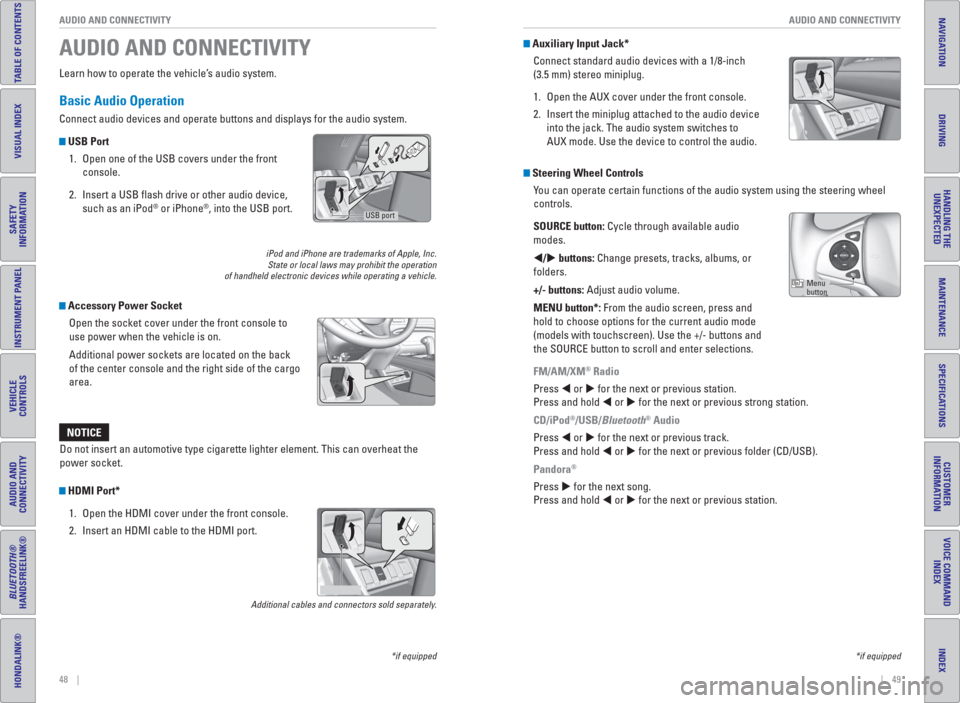
Connect audio devices and operate buttons and displays for the audio system.
USB Port
1. Open one of the USB covers under the front
console.
2. Insert a USB fl ash drive or other audio device,
such as an iPod
® or iPhone®, into the USB port.
iPod and iPhone are trademarks of Apple, Inc.
State or local laws may prohibit the operation
of handheld electronic devices while operating a vehicle.
Accessory Power Socket
Open the socket cover under the front console to
use power when the vehicle is on.
Additional power sockets are located on the back
of the center console and the right side of the cargo
area.
AUDIO AND CONNECTIVITY
*if equipped
Do not insert an automotive type cigarette lighter element. This can overheat the
power socket.
NOTICE
*if equipped
HDMI Port*
1. Open the HDMI cover under the front console.
2. Insert an HDMI cable to the HDMI port.
Additional cables and connectors sold separately.
USB port
Auxiliary Input Jack*
Connect standard audio devices with a 1/8-inch
(3.5 mm) stereo miniplug.
1. Open the AUX cover under the front console.
2. Insert the miniplug attached to the audio device
into the jack. The audio system switches to
AUX mode. Use the device to control the audio.
Steering Wheel Controls
You can operate certain functions of the audio system using the steering wheel
controls.
SOURCE button: Cycle through available audio
modes.
/ buttons: Change presets, tracks, albums, or
folders.
+/- buttons: Adjust audio volume.
MENU button*: From the audio screen, press and
hold to choose options for the current audio mode
(models with touchscreen). Use the +/- buttons and
the SOURCE button to scroll and enter selections.
FM/AM/XM
® Radio
Press or for the next or previous station.
Press and hold or for the next or previous strong station.
CD/iPod
®/USB/Bluetooth® Audio
Press or for the next or previous track.
Press and hold or for the next or previous folder (CD/USB).
Pandora
®
Press for the next song.
Press and hold or for the next or previous station.
Menu
button
Page 29 of 77
50 || 51 AUDIO AND CONNECTIVITY AUDIO AND CONNECTIVITY
TABLE OF CONTENTS
INDEX
VISUAL INDEX
VOICE COMMAND
INDEX
SAFETY
INFORMATION
CUSTOMER
INFORMATION
INSTRUMENT PANEL
SPECIFICATIONS
VEHICLE
CONTROLS
MAINTENANCE
AUDIO AND
CONNECTIVITY
HANDLING THE
UNEXPECTED
BLUETOOTH®
HANDSFREELINK®
DRIVING
HONDALINK®
NAVIGATION
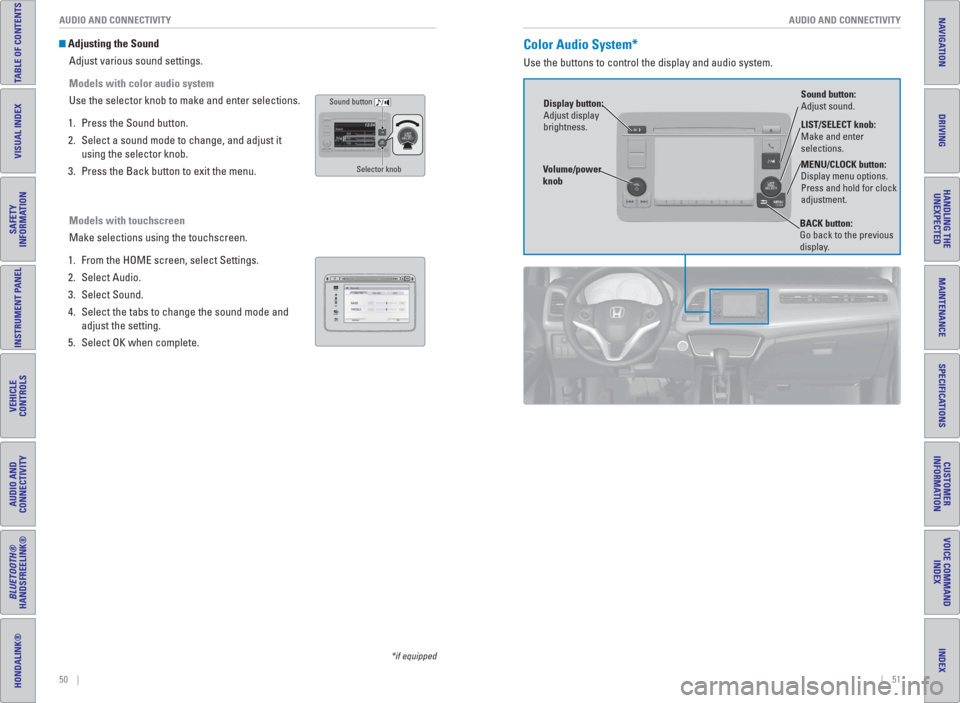
Adjusting the Sound
Adjust various sound settings.
Models with color audio system
Use the selector knob to make and enter selections.
1. Press the Sound button.
2. Select a sound mode to change, and adjust it
using the selector knob.
3. Press the Back button to exit the menu.
Models with touchscreen
Make selections using the touchscreen.
1. From the HOME screen, select Settings.
2. Select Audio.
3. Select Sound.
4. Select the tabs to change the sound mode and
adjust the setting.
5. Select OK when complete.
VOLHOME
MENU
BACK
*if equipped
Sound button
Selector knob
Color Audio System*
Use the buttons to control the display and audio system.
LIST/SELECT knob:
Make and enter
selections.
Volume/power
knob MENU/CLOCK button:
Display menu options.
Press and hold for clock
adjustment.
BACK button:
Go back to the previous
display.
Display button:
Adjust display
brightness.Sound button:
Adjust sound.
Page 30 of 77
52 || 53 AUDIO AND CONNECTIVITY AUDIO AND CONNECTIVITY
TABLE OF CONTENTS
INDEX
VISUAL INDEX
VOICE COMMAND
INDEX
SAFETY
INFORMATION
CUSTOMER
INFORMATION
INSTRUMENT PANEL
SPECIFICATIONS
VEHICLE
CONTROLS
MAINTENANCE
AUDIO AND
CONNECTIVITY
HANDLING THE
UNEXPECTED
BLUETOOTH®
HANDSFREELINK®
DRIVING
HONDALINK®
NAVIGATION
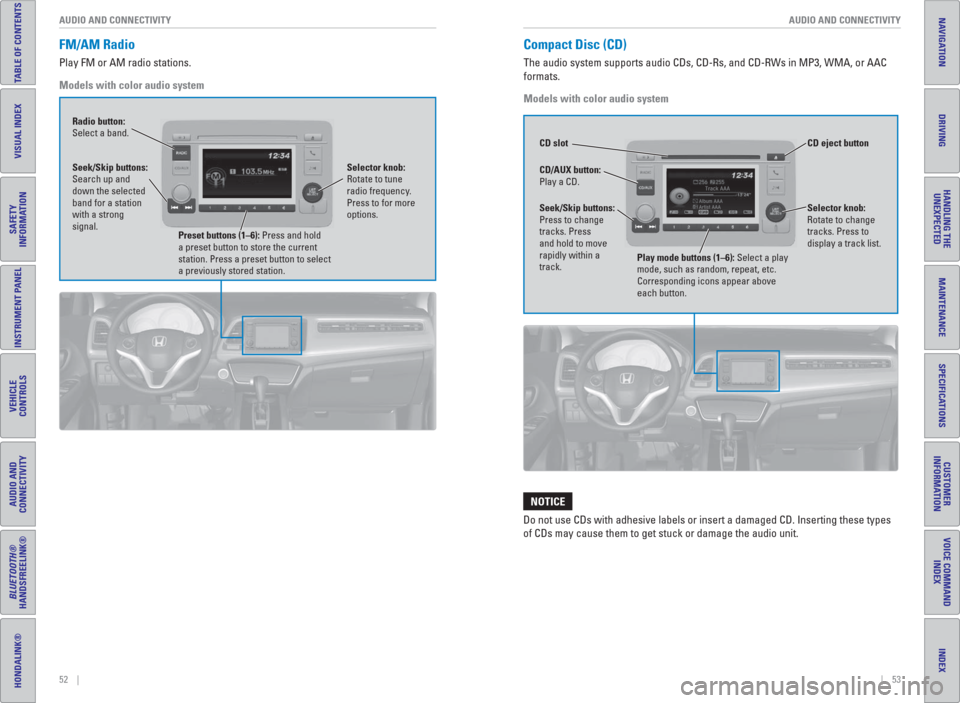
Compact Disc (CD)
The audio system supports audio CDs, CD-Rs, and CD-RWs in MP3, WMA, or AAC
formats.
Models with color audio system
Do not use CDs with adhesive labels or insert a damaged CD. Inserting these types
of CDs may cause them to get stuck or damage the audio unit.
NOTICE
FM/AM Radio
Play FM or AM radio stations.
Models with color audio system
Radio button:
Select a band.
Preset buttons (1–6): Press and hold
a preset button to store the current
station. Press a preset button to select
a previously stored station. Seek/Skip buttons:
Search up and
down the selected
band for a station
with a strong
signal.Selector knob:
Rotate to tune
radio frequency.
Press to for more
options.
CD eject button CD slot
CD/AUX button:
Play a CD.
Selector knob:
Rotate to change
tracks. Press to
display a track list.Seek/Skip buttons:
Press to change
tracks. Press
and hold to move
rapidly within a
track.
Play mode buttons (1–6): Select a play
mode, such as random, repeat, etc.
Corresponding icons appear above
each button.
Page 31 of 77
54 || 55 AUDIO AND CONNECTIVITY AUDIO AND CONNECTIVITY
TABLE OF CONTENTS
INDEX
VISUAL INDEX
VOICE COMMAND
INDEX
SAFETY
INFORMATION
CUSTOMER
INFORMATION
INSTRUMENT PANEL
SPECIFICATIONS
VEHICLE
CONTROLS
MAINTENANCE
AUDIO AND
CONNECTIVITY
HANDLING THE
UNEXPECTED
BLUETOOTH®
HANDSFREELINK®
DRIVING
HONDALINK®
NAVIGATION
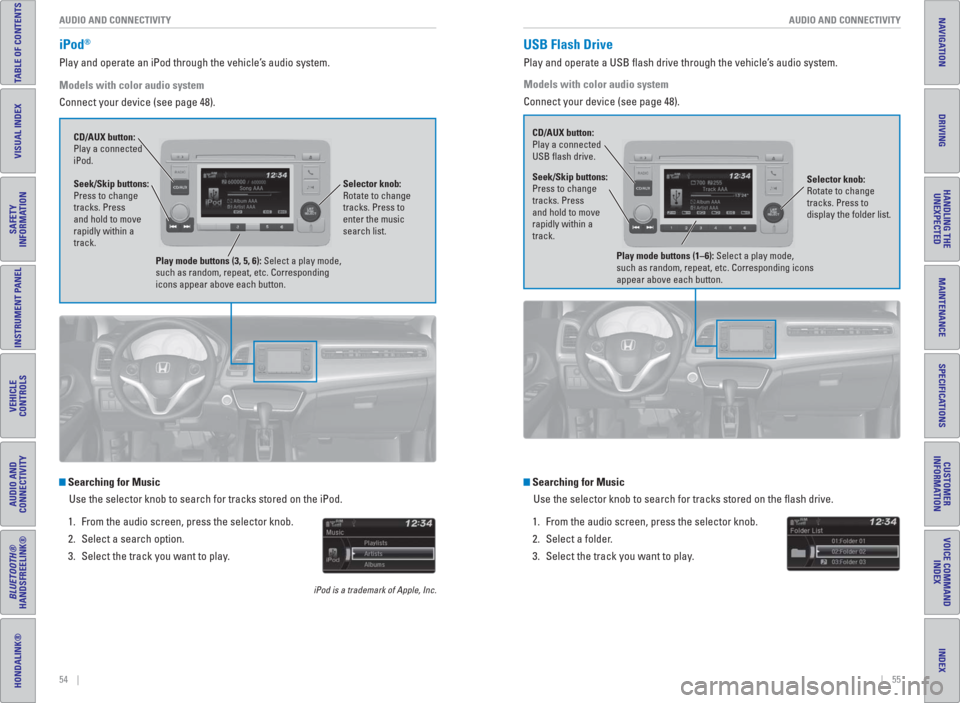
iPod®
Play and operate an iPod through the vehicle’s audio system.
Models with color audio system
Connect your device (see page 48).
Searching for Music
Use the selector knob to search for tracks stored on the iPod.
1. From the audio screen, press the selector knob.
2. Select a search option.
3. Select the track you want to play.
iPod is a trademark of Apple, Inc.
Seek/Skip buttons:
Press to change
tracks. Press
and hold to move
rapidly within a
track. CD/AUX button:
Play a connected
iPod.
Selector knob:
Rotate to change
tracks. Press to
enter the music
search list.
Play mode buttons (3, 5, 6): Select a play mode,
such as random, repeat, etc. Corresponding
icons appear above each button.
Searching for Music
Use the selector knob to search for tracks stored on the fl ash drive.
1. From the audio screen, press the selector knob.
2. Select a folder.
3. Select the track you want to play.
Models with color audio system
Connect your device (see page 48).
USB Flash Drive
Play and operate a USB fl ash drive through the vehicle’s audio system.
Selector knob:
Rotate to change
tracks. Press to
display the folder list. CD/AUX button:
Play a connected
USB fl ash drive.Seek/Skip buttons:
Press to change
tracks. Press
and hold to move
rapidly within a
track.
Play mode buttons (1–6): Select a play mode,
such as random, repeat, etc. Corresponding icons
appear above each button.
Page 32 of 77
56 || 57 AUDIO AND CONNECTIVITY AUDIO AND CONNECTIVITY
TABLE OF CONTENTS
INDEX
VISUAL INDEX
VOICE COMMAND
INDEX
SAFETY
INFORMATION
CUSTOMER
INFORMATION
INSTRUMENT PANEL
SPECIFICATIONS
VEHICLE
CONTROLS
MAINTENANCE
AUDIO AND
CONNECTIVITY
HANDLING THE
UNEXPECTED
BLUETOOTH®
HANDSFREELINK®
DRIVING
HONDALINK®
NAVIGATION
State or local laws may prohibit the operation of
handheld electronic devices while operating a vehicle. Only
launch streaming audio on your phone when it is safe to do so.*if equipped
**HondaLink can be accessed only if the app is installed on your
smartphone, and the phone is connected to the system (see page 58).
Notes:
• Make sure the volume on your phone is properly adjusted.
• You may need to enable additional settings on your phone for playback.
• The resume/pause function and remote audio controls are not supported on all
phones.
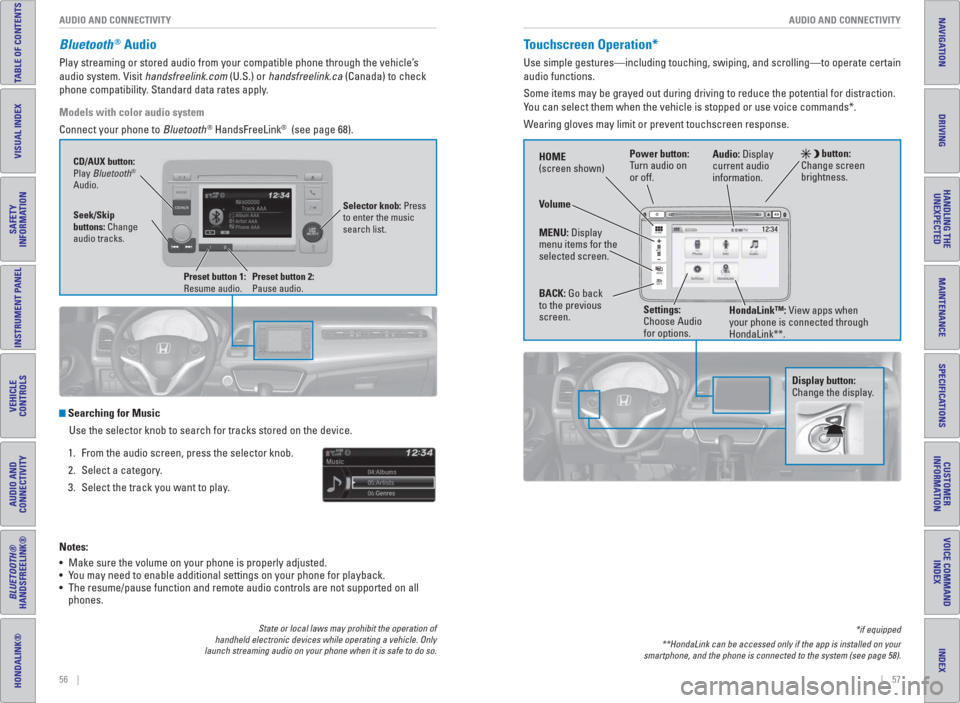
Bluetooth® Audio
Play streaming or stored audio from your compatible phone through the vehicle’s
audio system. Visit handsfreelink.com (U.S.) or handsfreelink.ca (Canada) to check
phone compatibility. Standard data rates apply.
Models with color audio system
Connect your phone to Bluetooth
® HandsFreeLink® (see page 68).
Searching for Music
Use the selector knob to search for tracks stored on the device.
1. From the audio screen, press the selector knob.
2. Select a category.
3. Select the track you want to play.
Seek/Skip
buttons: Change
audio tracks. CD/AUX button:
Play Bluetooth
®
Audio.
Preset button 1:
Resume audio.
Preset button 2:
Pause audio.
Selector knob: Press
to enter the music
search list.
Touchscreen Operation*
Use simple gestures—including touching, swiping, and scrolling—to operate certain
audio functions.
Some items may be grayed out during driving to reduce the potential for distraction.
You can select them when the vehicle is stopped or use voice commands*.
Wearing gloves may limit or prevent touchscreen response.
HOME
MENU
BACK
VOL
Power button:
Turn audio on
or off. HOME
(screen shown)
MENU: Display
menu items for the
selected screen.
BACK: Go back
to the previous
screen. button:
Change screen
brightness.
Settings:
Choose Audio
for options.HondaLink™: View apps when
your phone is connected through
HondaLink**. Audio: Display
current audio
information.
Volume
Display button:
Change the display.
Page 39 of 77
70 || 71 BLUETOOTH
® HANDSFREELINK®BLUETOOTH® HANDSFREELINK®
TABLE OF CONTENTS
INDEX
VISUAL INDEX
VOICE COMMAND
INDEX
SAFETY
INFORMATION
CUSTOMER
INFORMATION
INSTRUMENT PANEL
SPECIFICATIONS
VEHICLE
CONTROLS
MAINTENANCE
AUDIO AND
CONNECTIVITY
HANDLING THE
UNEXPECTED
BLUETOOTH®
HANDSFREELINK®
DRIVING
HONDALINK®
NAVIGATION
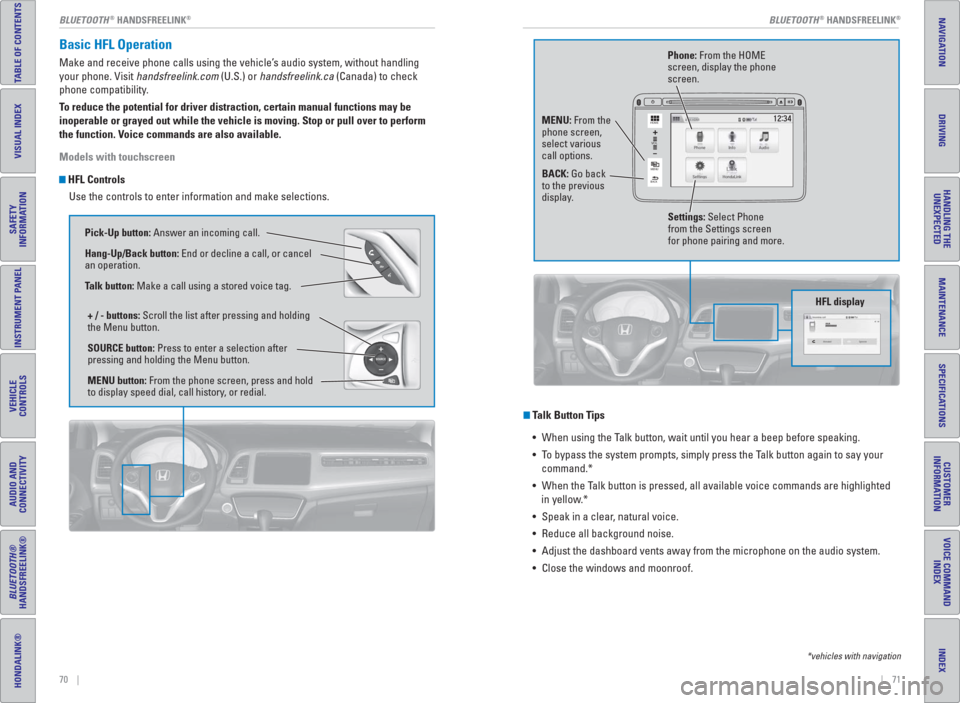
Basic HFL Operation
Make and receive phone calls using the vehicle’s audio system, without handling
your phone. Visit handsfreelink.com (U.S.) or handsfreelink.ca (Canada) to check
phone compatibility.
To reduce the potential for driver distraction, certain manual functions may be
inoperable or grayed out while the vehicle is moving. Stop or pull over to perform
the function. Voice commands are also available.
Models with touchscreen
HFL Controls
Use the controls to enter information and make selections.
Talk Button Tips
• When using the Talk button, wait until you hear a beep before speaking.
• To bypass the system prompts, simply press the Talk button again to say your
command.*
• When the Talk button is pressed, all available voice commands are highlighted
in yellow.*
• Speak in a clear, natural voice.
• Reduce all background noise.
• Adjust the dashboard vents away from the microphone on the audio system.
• Close the windows and moonroof.
*vehicles with navigation
Pick-Up button: Answer an incoming call.
Hang-Up/Back button: End or decline a call, or cancel
an operation.
Talk button: Make a call using a stored voice tag.
+ / - buttons: Scroll the list after pressing and holding
the Menu button.
SOURCE button: Press to enter a selection after
pressing and holding the Menu button.
MENU button: From the phone screen, press and hold
to display speed dial, call history, or redial.
VOL
HOME
MENU
BACK
Phone: From the HOME
screen, display the phone
screen.
MENU: From the
phone screen,
select various
call options.
BACK: Go back
to the previous
display.
Settings: Select Phone
from the Settings screen
for phone pairing and more.
HFL display
Page 42 of 77
| 77 NAVIGATION
INDEX
VOICE COMMAND
INDEX
CUSTOMER
INFORMATION
SPECIFICATIONS
MAINTENANCE
HANDLING THE
UNEXPECTED
DRIVING
NAVIGATION
76 | BLUETOOTH
® HANDSFREELINK®
TABLE OF CONTENTS
VISUAL INDEX
SAFETY
INFORMATION
INSTRUMENT PANEL
VEHICLE
CONTROLS
AUDIO AND
CONNECTIVITY
BLUETOOTH®
HANDSFREELINK®
HONDALINK®
Models with touchscreen
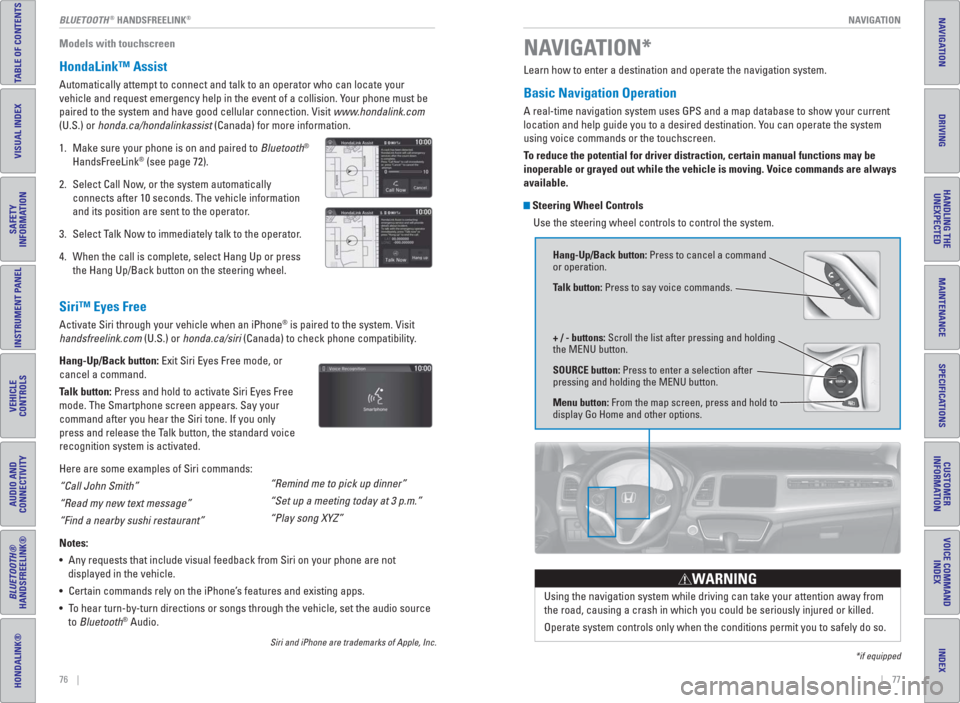
HondaLink™ Assist
Automatically attempt to connect and talk to an operator who can locate your
vehicle and request emergency help in the event of a collision. Your phone must be
paired to the system and have good cellular connection. Visit www.hondalink.com
(U.S.) or honda.ca/hondalinkassist (Canada) for more information.
1. Make sure your phone is on and paired to Bluetooth
®
HandsFreeLink® (see page 72).
2. Select Call Now, or the system automatically
connects after 10 seconds. The vehicle information
and its position are sent to the operator.
3. Select Talk Now to immediately talk to the operator.
4. When the call is complete, select Hang Up or press
the Hang Up/Back button on the steering wheel.
Siri™ Eyes Free
Activate Siri through your vehicle when an iPhone® is paired to the system. Visit
handsfreelink.com (U.S.) or honda.ca/siri (Canada) to check phone compatibility.
Hang-Up/Back button: Exit Siri Eyes Free mode, or
cancel a command.
Talk button: Press and hold to activate Siri Eyes Free
mode. The Smartphone screen appears. Say your
command after you hear the Siri tone. If you only
press and release the Talk button, the standard voice
recognition system is activated.
Here are some examples of Siri commands:
“Call John Smith”
“Read my new text message”
“Find a nearby sushi restaurant”
Notes:
• Any requests that include visual feedback from Siri on your phone are not
displayed in the vehicle.
• Certain commands rely on the iPhone’s features and existing apps.
• To hear turn-by-turn directions or songs through the vehicle, set the audio source
to Bluetooth
® Audio.
Siri and iPhone are trademarks of Apple, Inc.
“Remind me to pick up dinner”
“Set up a meeting today at 3 p.m.”
“Play song XYZ”
Learn how to enter a destination and operate the navigation system.
Basic Navigation Operation
A real-time navigation system uses GPS and a map database to show your current
location and help guide you to a desired destination. You can operate the system
using voice commands or the touchscreen.
To reduce the potential for driver distraction, certain manual functions may be
inoperable or grayed out while the vehicle is moving. Voice commands are always
available.
Steering Wheel Controls
Use the steering wheel controls to control the system.
NAVIGATION*
*if equipped
Using the navigation system while driving can take your attention away from
the road, causing a crash in which you could be seriously injured or killed.
Operate system controls only when the conditions permit you to safely do so.
WARNING
Hang-Up/Back button: Press to cancel a command
or operation.
Talk button: Press to say voice commands.
+ / - buttons: Scroll the list after pressing and holding
the MENU button.
SOURCE button: Press to enter a selection after
pressing and holding the MENU button.
Menu button: From the map screen, press and hold to
display Go Home and other options.
Page 55 of 77
102 || 103 HANDLING THE UNEXPECTED HANDLING THE UNEXPECTED
TABLE OF CONTENTS
INDEX
VISUAL INDEX
VOICE COMMAND
INDEX
SAFETY
INFORMATION
CUSTOMER
INFORMATION
INSTRUMENT PANEL
SPECIFICATIONS
VEHICLE
CONTROLS
MAINTENANCE
AUDIO AND
CONNECTIVITY
HANDLING THE
UNEXPECTED
BLUETOOTH®
HANDSFREELINK®
DRIVING
HONDALINK®
NAVIGATION
HANDLING THE UNEXPECTED
*if equipped
WARNING: Battery posts, terminals, and related accessories contain lead and lead
compounds. Wash your hands after handling.
After the Engine Starts
Once your vehicle’s engine has started, remove the jumper cables in the following
order:
1. Disconnect the jumper cable from your vehicle’s stud bolt.
2. Disconnect the other end of the jumper cable from the assisting vehicle’s (-)
terminal.
3. Disconnect the jumper cable from your vehicle’s (+) terminal.
4. Disconnect the other end of the jumper cable from the assisting vehicle’s (+)
terminal.
5. Have your vehicle inspected by a nearby service station or a dealer.
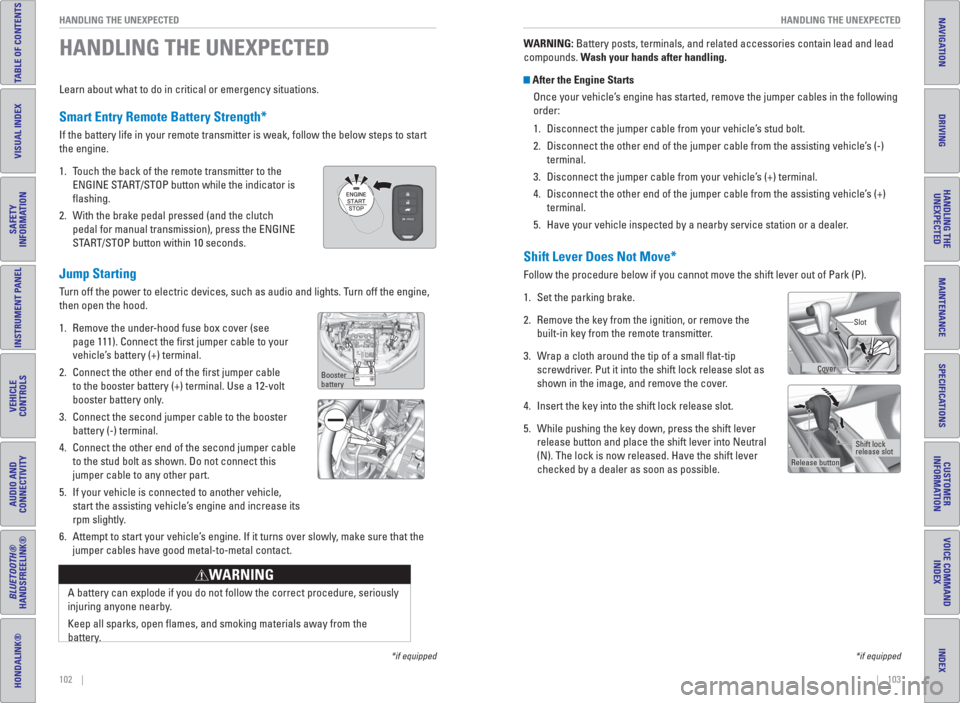
Shift Lever Does Not Move*
Follow the procedure below if you cannot move the shift lever out of Park (P).
1. Set the parking brake.
2. Remove the key from the ignition, or remove the
built-in key from the remote transmitter.
3. Wrap a cloth around the tip of a small fl at-tip
screwdriver. Put it into the shift lock release slot as
shown in the image, and remove the cover.
4. Insert the key into the shift lock release slot.
5. While pushing the key down, press the shift lever
release button and place the shift lever into Neutral
(N). The lock is now released. Have the shift lever
checked by a dealer as soon as possible.
Slot
Release buttonShift lock
release slot
*if equipped
Learn about what to do in critical or emergency situations.
Smart Entry Remote Battery Strength*
If the battery life in your remote transmitter is weak, follow the below steps to start
the engine.
1. Touch the back of the remote transmitter to the
ENGINE START/STOP button while the indicator is
fl ashing.
2. With the brake pedal pressed (and the clutch
pedal for manual transmission), press the ENGINE
START/STOP button within 10 seconds.
Jump Starting
Turn off the power to electric devices, such as audio and lights. Turn off the engine,
then open the hood.
1. Remove the under-hood fuse box cover (see
page 111). Connect the fi rst jumper cable to your
vehicle’s battery (+) terminal.
2. Connect the other end of the fi rst jumper cable
to the booster battery (+) terminal. Use a 12-volt
booster battery only.
3. Connect the second jumper cable to the booster
battery (-) terminal.
4. Connect the other end of the second jumper cable
to the stud bolt as shown. Do not connect this
jumper cable to any other part.
5. If your vehicle is connected to another vehicle,
start the assisting vehicle’s engine and increase its
rpm slightly.
6. Attempt to start your vehicle’s engine. If it turns over slowly, make sure that the
jumper cables have good metal-to-metal contact.
A battery can explode if you do not follow the correct procedure, seriously
injuring anyone nearby.
Keep all sparks, open fl ames, and smoking materials away from the
battery.
WARNING
Booster
batteryCover