remote control HONDA HR-V 2017 2.G Owner's Manual
[x] Cancel search | Manufacturer: HONDA, Model Year: 2017, Model line: HR-V, Model: HONDA HR-V 2017 2.GPages: 489, PDF Size: 29.22 MB
Page 130 of 489
129
uuOperating the Switches Around the Steering Wheel uLight Switches
Controls
The headlights automatically come on when the wipers are used several times within
a number of certain intervals with the headlight switch in AUTO.
The headlights automatically go off a few mi nutes later if the wipers are stopped.
The headlights, all other exterior lights, and the instrument panel lights turn off 15
seconds after you remove the key or set the power mode to VEHICLE OFF (LOCK),
take the remote with you, and close the driver's door.
If you turn the igniti on switch to LOCK
(0*1 with the headlight switch on, but do
not open the door, the lights tu rn off after 10 minutes (3 minutes, if the switch is in
the AUTO position).
The lights turn on again when you unlock or open the driver's door. If you unlock
the door, but do not open it within 15 seconds, the lights go off. If you open the
driver's door, you will hear a lights on reminder chime.
*1: Models with the smart entry system have an ENGINE START/STOP button instead of an
ignition switch.
■Headlight Integration with Wipers*
■Automatic Lighting Off Feature
1 Headlight Integration with Wipers*
This feature activates while the headlights are off in
AUTO .
The instrument panel brightness does not change
when the headlights come on.
At dark ambient light leve ls, the automatic lighting
control feature turns on the headlights, regardless of
the number of wiper sweeps.
* Not available on all models
17 HR-V HDMC-31T7A6100.book 129 ページ 2016年7月20日 水曜日 午前9時50分
Page 176 of 489
175
Features
This chapter describes how to operate technology features.
Audio SystemAbout Your Audio System .................... 176
USB Port(s) ........................................... 177
HDMI ® Port
*........................................ 178
Auxiliary Input Jack*............................. 178
Audio System Theft Protection ............. 179
Audio Remote Controls ........................ 180
Audio System Basic Operation ............. 182
Audio/Information Screen .................... 183
Adjusting the Sound ............................ 187
Display Setup ....................................... 188
Playing AM/FM Radio ........................... 189
Playing a CD ........................................ 191
Playing an iPod..................................... 194
Models with color audio system
Playing a USB Flash Drive ..................... 197
Playing Bluetooth® Audio..................... 200
Audio System Basic Operation ............ 203
Audio/Information Screen .................... 204
Adjusting the Sound ............................ 209
Display Setup ....................................... 210
Playing AM/FM Radio........................... 211
Playing a CD ........................................ 214
Playing an iPod .................................... 217
Playing Internet Radio .......................... 220
Playing a USB Flash Drive ..................... 222
Playing Bluetooth® Audio..................... 225
Playing a Video Using the HDMI ®......... 227
Smartphone Apps ................................ 229
Models with display audio system
Siri ® Eyes Free ....................................... 230
Audio Error Messages ........................... 231
General Information on the Audio
System ............................................. 235
Customized Features ............................. 238
Bluetooth ® HandsFreeLink ®.................. 260
Bluetooth ® HandsFreeLink ®.................. 283Models with color audio system
Models with display audio system
* Not available on all models
17 HR-V HDMC-31T7A6100.book 175 ページ 2016年7月20日 水曜日 午前9時50分
Page 177 of 489
176
Features
Audio System
About Your Audio System
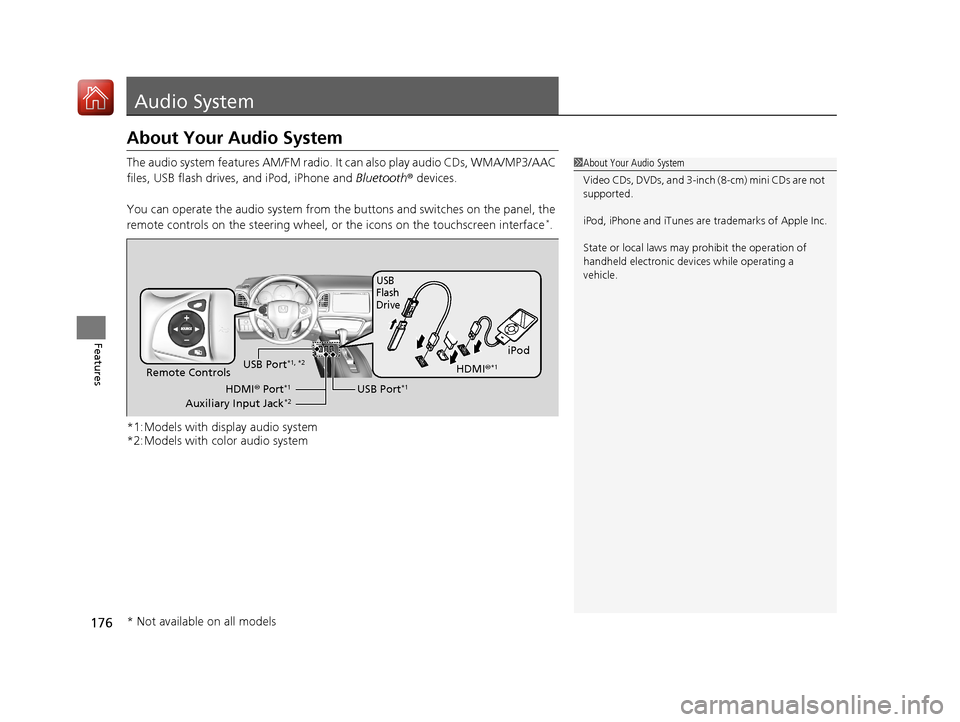
The audio system features AM/FM radio. It can also play audio CDs, WMA/MP3/AAC
files, USB flash drives, and iPod, iPhone and Bluetooth® devices.
You can operate the audio system from the buttons and switches on the panel, the
remote controls on the steering wheel, or the icons on the touchscreen interface
*.
*1:Models with display audio system
*2:Models with color audio system
1 About Your Audio System
Video CDs, DVDs, and 3-inch (8-cm) mini CDs are not
supported.
iPod, iPhone and iTunes are trademarks of Apple Inc.
State or local laws may pr ohibit the operation of
handheld electronic devi ces while operating a
vehicle.
iPod
USB
Flash
Drive
USB Port*1Remote Controls
HDMI® Port*1
Auxiliary Input Jack*2
USB Port*1, *2HDMI ®*1
* Not available on all models
17 HR-V HDMC-31T7A6100.book 176 ページ 2016年7月20日 水曜日 午前9時50分
Page 181 of 489
180
uuAudio System uAudio Remote Controls
Features
Audio Remote Controls
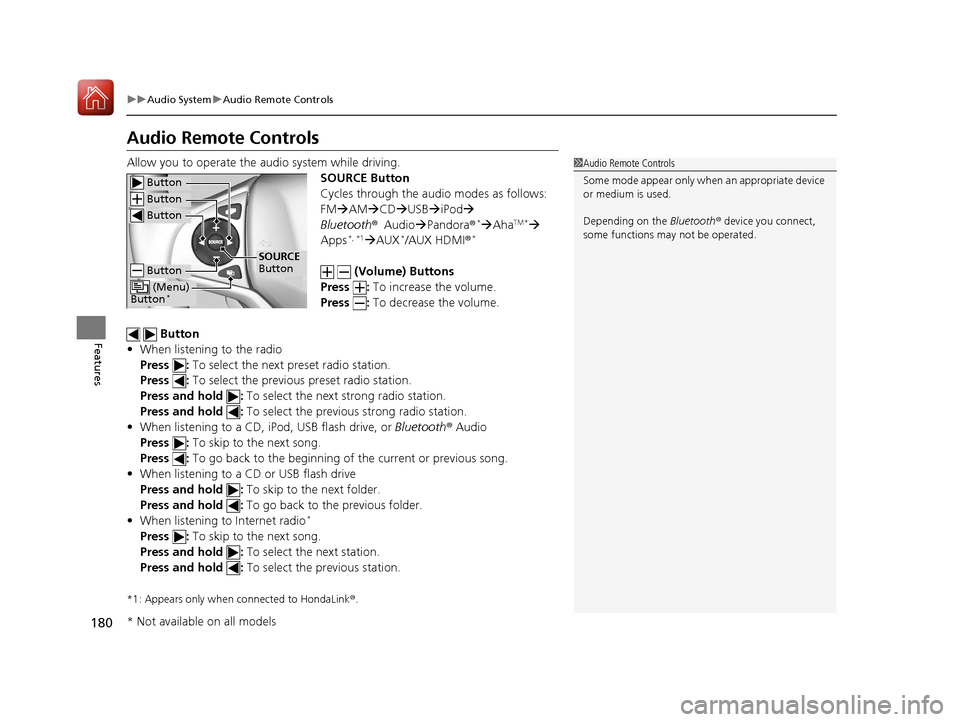
Allow you to operate the audio system while driving.
SOURCE Button
Cycles through the audio modes as follows:
FMAM CD USBiPod
Bluetooth ®Audio Pandora ®
*AhaTM *
Apps*, *1 AUX*/AUX HDMI ®*
(Volume) Buttons
Press : To increase the volume.
Press : To decrease the volume.
Button
• When listening to the radio
Press : To select the next preset radio station.
Press : To select the previous preset radio station.
Press and hold : To select the next strong radio station.
Press and hold : To select the previous strong radio station.
• When listening to a CD, iPod, USB flash drive, or Bluetooth® Audio
Press : To skip to the next song.
Press : To go back to the beginning of the current or previous song.
• When listening to a CD or USB flash drive
Press and hold : To skip to the next folder.
Press and hold : To go back to the previous folder.
• When listening to Internet radio
*
Press : To skip to the next song.
Press and hold : To select the next station.
Press and hold : To select the previous station.
*1: Appears only when connected to HondaLink ®.
1 Audio Remote Controls
Some mode appear only wh en an appropriate device
or medium is used.
Depending on the Bluetooth® device you connect,
some functions ma y not be operated.
Button
Button
Button
Button
(Menu)
Button*
SOURCE
Button
* Not available on all models
17 HR-V HDMC-31T7A6100.book 180 ページ 2016年7月20日 水曜日 午前9時50分
Page 182 of 489
181
uuAudio System uAudio Remote Controls
Features
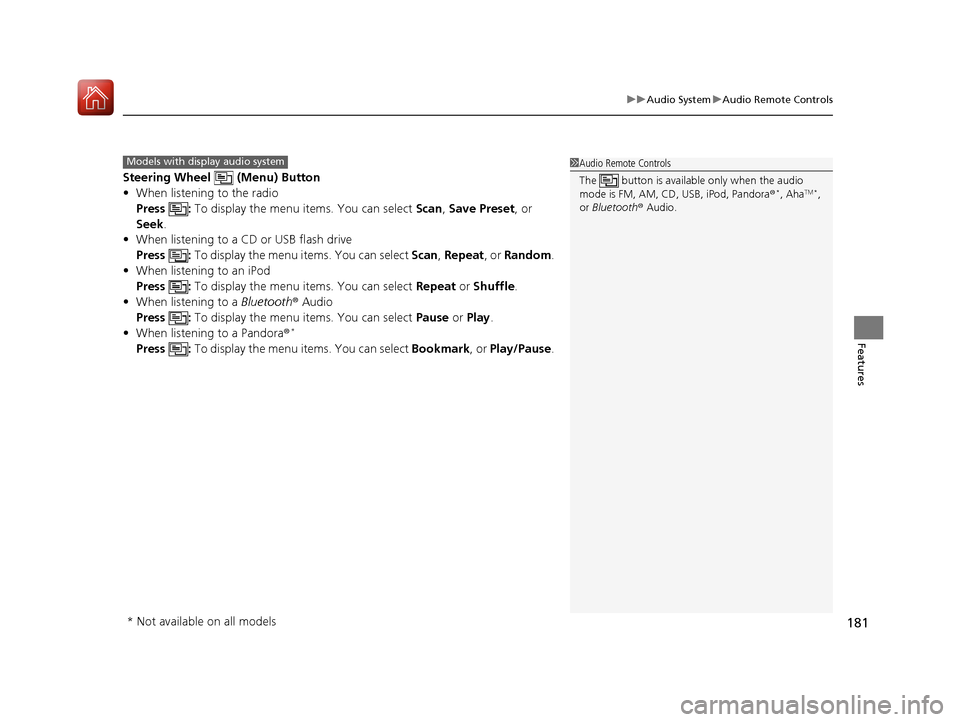
Steering Wheel (Menu) Button
• When listening to the radio
Press : To display the menu items. You can select Scan, Save Preset, or
Seek.
• When listening to a CD or USB flash drive
Press : To display the menu items. You can select Scan, Repeat , or Random .
• When listening to an iPod
Press : To display the menu items. You can select Repeat or Shuffle .
• When listening to a Bluetooth® Audio
Press : To display the menu items. You can select Pause or Play .
• When listening to a Pandora ®
*
Press : To display the menu items. You can select Bookmark, or Play/Pause .
1Audio Remote Controls
The button is available only when the audio
mode is FM, AM, CD, USB, iPod, Pandora®
*, AhaTM *,
or Bluetooth ® Audio.
Models with display audio system
* Not available on all models
17 HR-V HDMC-31T7A6100.book 181 ページ 2016年7月20日 水曜日 午前9時50分
Page 183 of 489
182
Features
Audio System Basic Operation
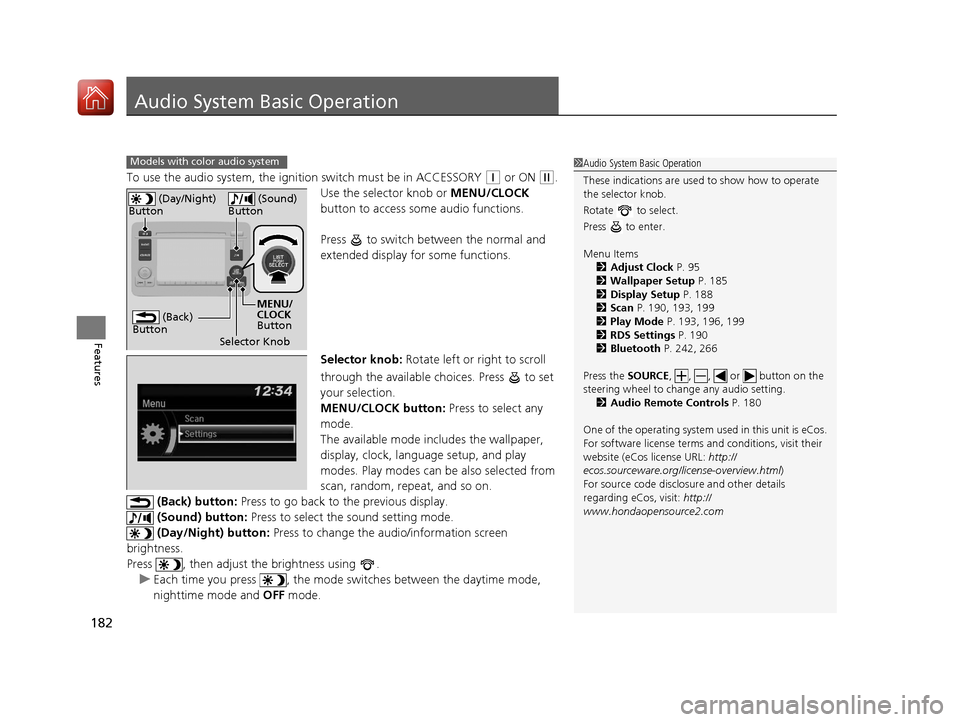
To use the audio system, the ignition switch must be in ACCESSORY (q or ON (w.
Use the selector knob or MENU/CLOCK
button to access some audio functions.
Press to switch between the normal and
extended display fo r some functions.
Selector knob: Rotate left or right to scroll
through the available choices. Press to set
your selection.
MENU/CLOCK button: Press to select any
mode.
The available mode includes the wallpaper,
display, clock, langu age setup, and play
modes. Play modes can be also selected from
scan, random, repeat, and so on.
(Back) button: Press to go back to the previous display.
(Sound) button: Press to select the sound setting mode.
(Day/Night) button: Press to change the audio/information screen
brightness.
Press , then adjust th e brightness using .
u Each time you press , the mode switches between the daytime mode,
nighttime mode and OFF mode.
Models with color audio system1Audio System Basic Operation
These indications are used to show how to operate
the selector knob.
Rotate to select.
Press to enter.
Menu Items 2 Adjust Clock P. 95
2 Wallpaper Setup P. 185
2 Display Setup P. 188
2 Scan P. 190, 193, 199
2 Play Mode P. 193, 196, 199
2 RDS Settings P. 190
2 Bluetooth P. 242, 266
Press the SOURCE, , , or button on the
steering wheel to cha nge any audio setting.
2 Audio Remote Controls P. 180
One of the operating system us ed in this unit is eCos.
For software license terms a nd conditions, visit their
website (eCos license URL: http://
ecos.sourceware.org/l icense-overview.html)
For source code disclo sure and other details
regarding eCos, visit: http://
www.hondaopensource2.com
(Back)
Button
Selector Knob MENU/
CLOCK
Button
(Day/Night)
Button
(Sound)
Button
17 HR-V HDMC-31T7A6100.book 182 ページ 2016年7月20日 水曜日 午前9時50分
Page 191 of 489
uuAudio System Basic Operation uPlaying AM/FM Radio
190
Features
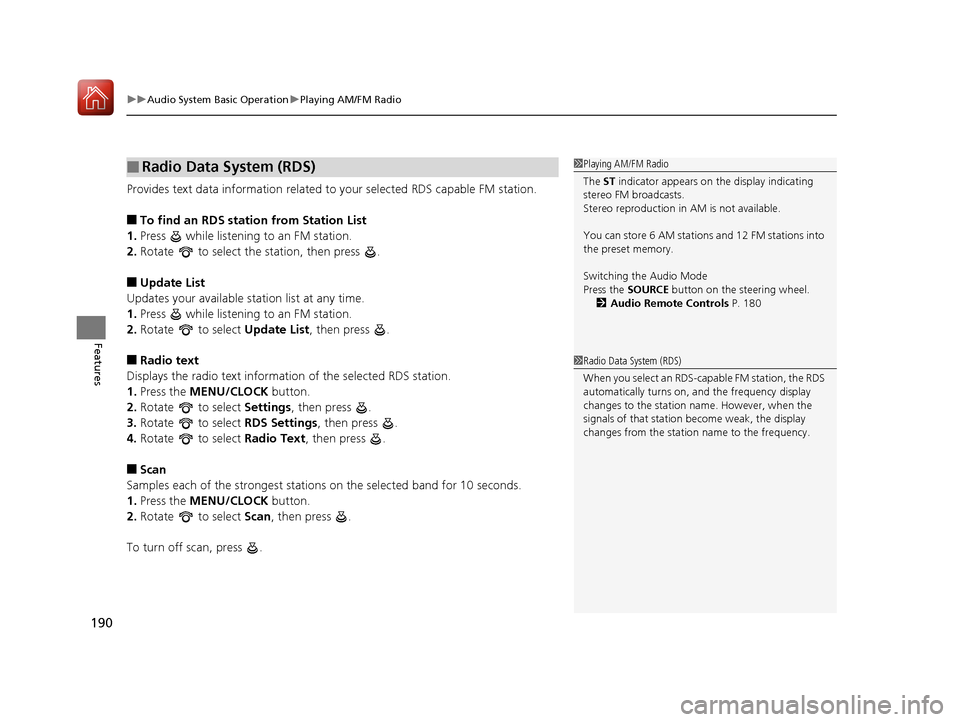
Provides text data information related to your selected RDS capable FM station.
■To find an RDS station from Station List
1. Press while listening to an FM station.
2. Rotate to select the station, then press .
■Update List
Updates your available station list at any time.
1. Press while listening to an FM station.
2. Rotate to select Update List, then press .
■Radio text
Displays the radio text informat ion of the selected RDS station.
1. Press the MENU/CLOCK button.
2. Rotate to select Settings, then press .
3. Rotate to select RDS Settings, then press .
4. Rotate to select Radio Text, then press .
■Scan
Samples each of the strongest stations on the selected band for 10 seconds.
1. Press the MENU/CLOCK button.
2. Rotate to select Scan, then press .
To turn off scan, press .
■Radio Data System (RDS)1 Playing AM/FM Radio
The ST indicator appears on the display indicating
stereo FM broadcasts.
Stereo reproduction in AM is not available.
You can store 6 AM stations and 12 FM stations into
the preset memory.
Switching the Audio Mode
Press the SOURCE button on the steering wheel.
2 Audio Remote Controls P. 180
1Radio Data System (RDS)
When you select an RDS-capable FM station, the RDS
automatically turns on, and the frequency display
changes to the station name. However, when the
signals of that station become weak, the display
changes from the statio n name to the frequency.
17 HR-V HDMC-31T7A6100.book 190 ページ 2016年7月20日 水曜日 午前9時50分
Page 213 of 489
uuAudio System Basic Operation uPlaying AM/FM Radio
212
Features
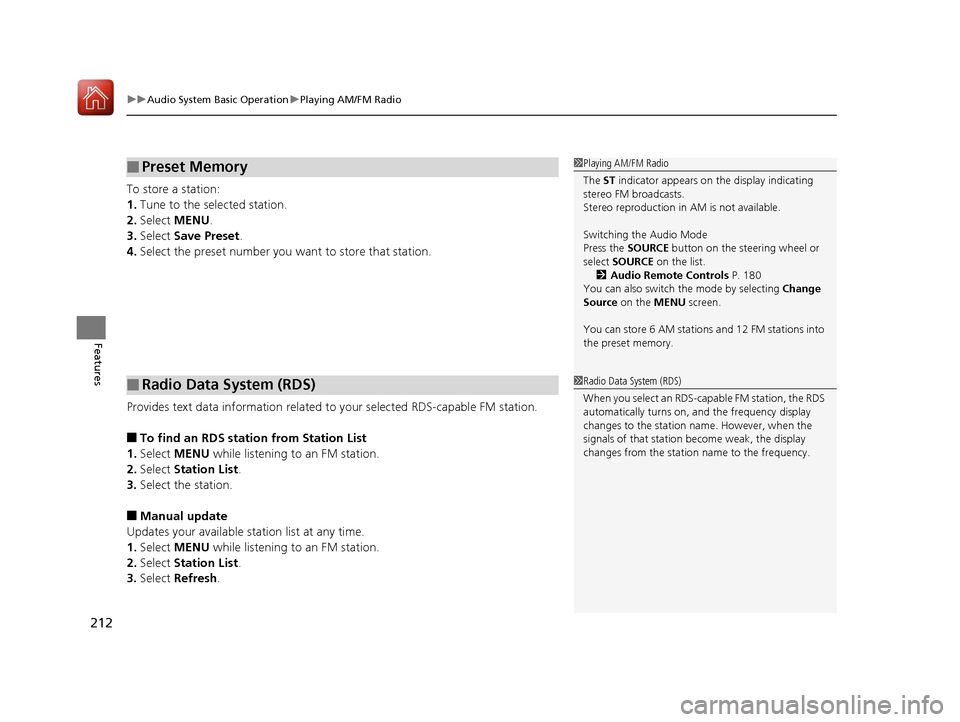
To store a station:
1. Tune to the selected station.
2. Select MENU .
3. Select Save Preset .
4. Select the preset number you want to store that station.
Provides text data information related to your selected RDS-capable FM station.
■To find an RDS station from Station List
1. Select MENU while listening to an FM station.
2. Select Station List .
3. Select the station.
■Manual update
Updates your available station list at any time.
1. Select MENU while listening to an FM station.
2. Select Station List .
3. Select Refresh .
■Preset Memory
■Radio Data System (RDS)
1Playing AM/FM Radio
The ST indicator appears on the display indicating
stereo FM broadcasts.
Stereo reproduction in AM is not available.
Switching the Audio Mode
Press the SOURCE button on the steering wheel or
select SOURCE on the list.
2 Audio Remote Controls P. 180
You can also switch the mode by selecting Change
Source on the MENU screen.
You can store 6 AM stations and 12 FM stations into
the preset memory.
1 Radio Data System (RDS)
When you select an RDS-capable FM station, the RDS
automatically turns on, and the frequency display
changes to the station name. However, when the
signals of that station become weak, the display
changes from the statio n name to the frequency.
17 HR-V HDMC-31T7A6100.book 212 ページ 2016年7月20日 水曜日 午前9時50分
Page 261 of 489
260
Features
Bluetooth® HandsFreeLink ®
Bluetooth® HandsFreeLink ® (HFL) allows you to place and receive phone calls using
your vehicle’s audio system, without handling your cell phone.
Using HFL
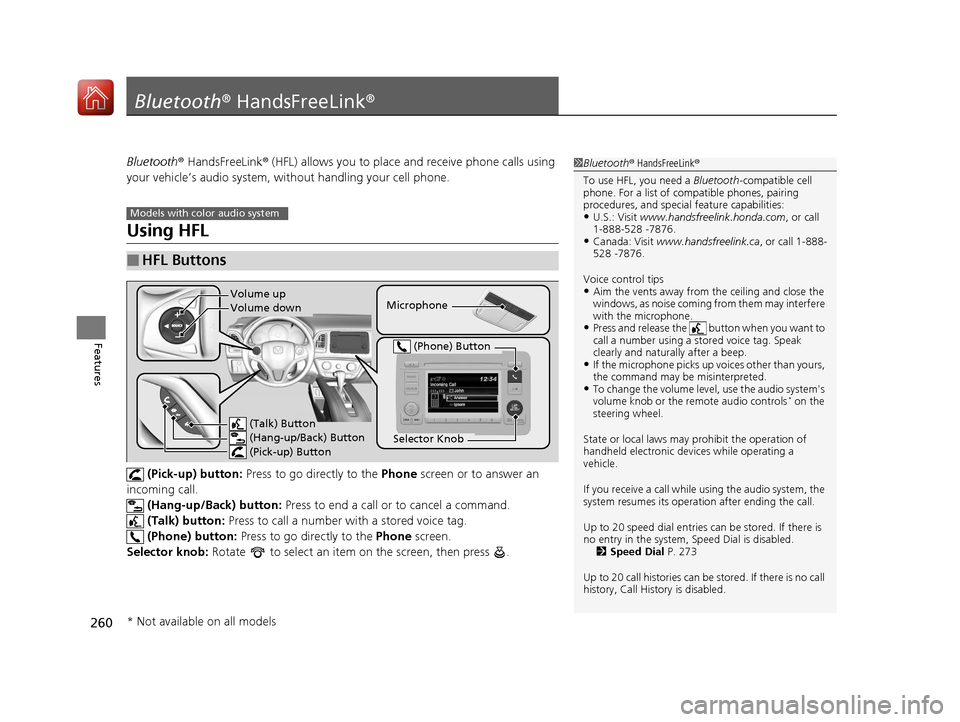
(Pick-up) button: Press to go directly to the Phone screen or to answer an
incoming call. (Hang-up/Back) button: Press to end a call or to cancel a command.
(Talk) button: Press to call a number wi th a stored voice tag.
(Phone) button: Press to go directly to the Phone screen.
Selector knob: Rotate to select an item on the screen, then press .
■HFL Buttons
1 Bluetooth ® HandsFreeLink ®
To use HFL, you need a Bluetooth-compatible cell
phone. For a list of compatible phones, pairing
procedures, and special feature capabilities:
•U.S.: Visit www.handsfreelink.honda.com , or call
1-888-528 -7876.
•Canada: Visit www.handsfreelink.ca , or call 1-888-
528 -7876.
Voice control tips
•Aim the vents away from the ceiling and close the
windows, as noise coming fr om them may interfere
with the microphone.
•Press and release the button when you want to
call a number using a st ored voice tag. Speak
clearly and naturally after a beep.
•If the microphone picks up vo ices other than yours,
the command may be misinterpreted.
•To change the volume level, use the audio system's
volume knob or the remote audio controls* on the
steering wheel.
State or local laws may prohibit the operation of
handheld electronic devices while operating a
vehicle.
If you receive a call while using the audio system, the
system resumes its operati on after ending the call.
Up to 20 speed dial entries can be stored. If there is
no entry in the system, Speed Dial is disabled. 2 Speed Dial P. 273
Up to 20 call histories can be stored. If there is no call
history, Call History is disabled.
Models with color audio system
Microphone
(Talk) Button
(Hang-up/Back) Button
(Pick-up) Button
Selector Knob
(Phone) Button
Volume up
Volume down
* Not available on all models
17 HR-V HDMC-31T7A6100.book 260 ページ 2016年7月20日 水曜日 午前9時50分
Page 284 of 489
283Continued
Features
Bluetooth® HandsFreeLink ®
Bluetooth® HandsFreeLink ® (HFL) allows you to place and receive phone calls using
your vehicle's audio system, without handling your cell phone.
Using HFL
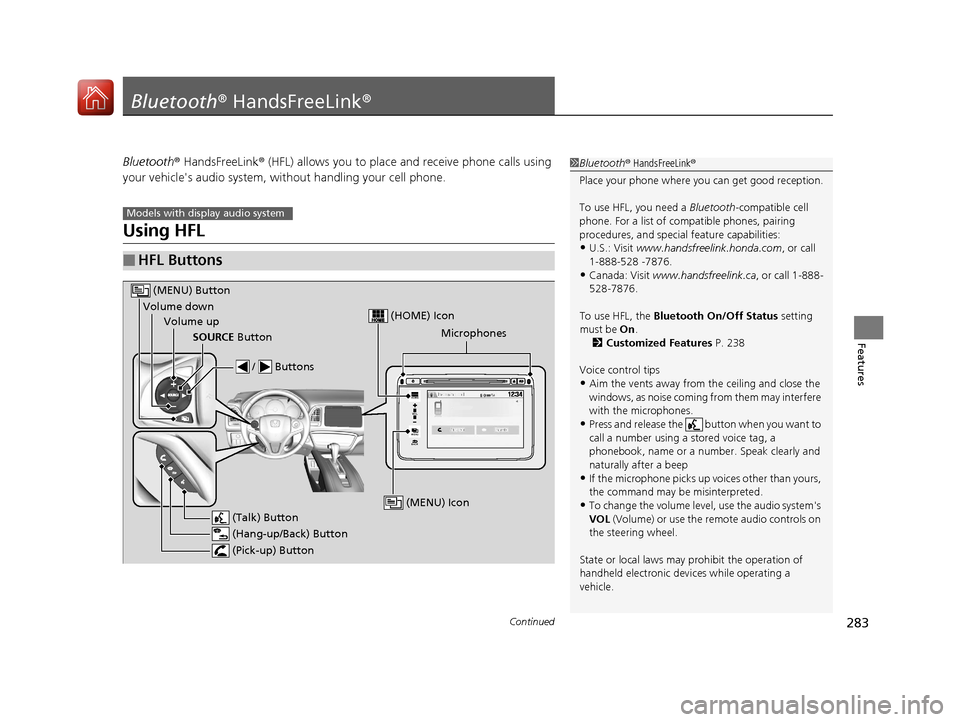
■HFL Buttons
1 Bluetooth ® HandsFreeLink ®
Place your phone where y ou can get good reception.
To use HFL, you need a Bluetooth-compatible cell
phone. For a list of compatible phones, pairing
procedures, and special feature capabilities:
•U.S.: Visit www.handsfreelink.honda.com , or call
1-888-528 -7876.
•Canada: Visit www.handsfreelink.ca , or call 1-888-
528-7876.
To use HFL, the Bluetooth On/Off Status setting
must be On .
2 Customized Features P. 238
Voice control tips
•Aim the vents away from the ceiling and close the
windows, as noise coming fr om them may interfere
with the microphones.
•Press and release the but ton when you want to
call a number using a stored voice tag, a
phonebook, name or a numbe r. Speak clearly and
naturally after a beep
•If the microphone picks up vo ices other than yours,
the command may be misinterpreted.
•To change the volume level, use the audio system's
VOL (Volume) or use the remote audio controls on
the steering wheel.
State or local laws may pr ohibit the operation of
handheld electronic devi ces while operating a
vehicle.
Models with display audio system
VOL
HOME
MENU
BACK
Microphones
(Pick-up) Button
(Hang-up/Back) Button
Volume up (Talk) Button
(MENU) Button
Volume downSOURCE Button
/ Buttons
(MENU) Icon
(HOME) Icon
17 HR-V HDMC-31T7A6100.book 283 ページ 2016年7月20日 水曜日 午前9時50分