bluetooth HONDA HR-V 2017 2.G Owner's Guide
[x] Cancel search | Manufacturer: HONDA, Model Year: 2017, Model line: HR-V, Model: HONDA HR-V 2017 2.GPages: 489, PDF Size: 29.22 MB
Page 262 of 489
261
uuBluetooth ® HandsFreeLink ®u Using HFL
Features
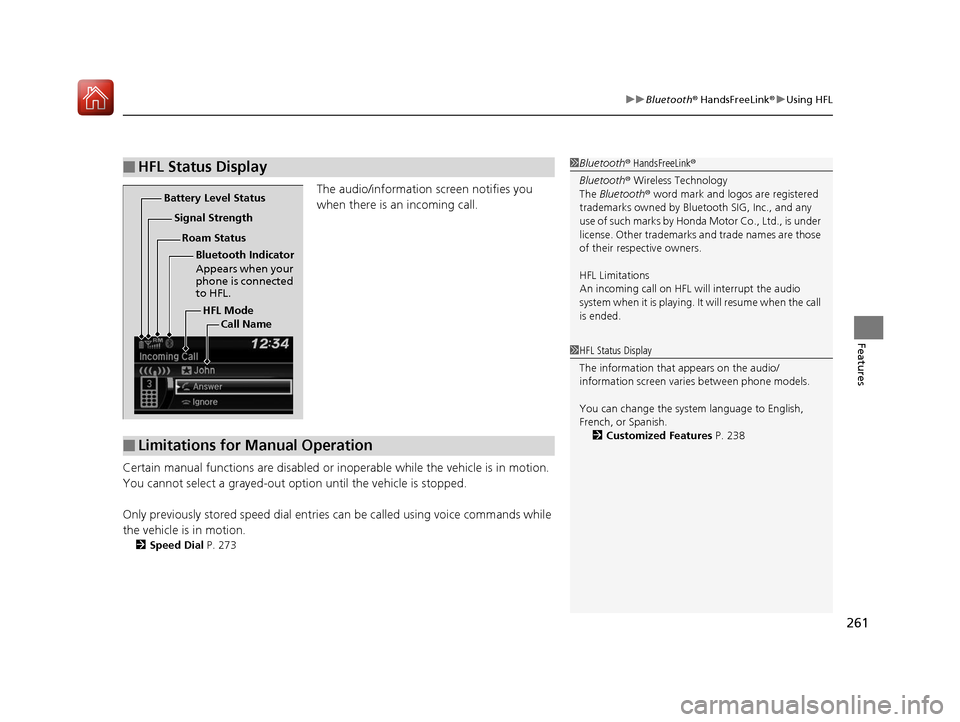
The audio/information screen notifies you
when there is an incoming call.
Certain manual functions are disabled or inoperable while the vehicle is in motion.
You cannot select a grayed-out option until the vehicle is stopped.
Only previously stored speed dial entries can be called using voice commands while
the vehicle is in motion.
2 Speed Dial P. 273
■HFL Status Display1Bluetooth ® HandsFreeLink ®
Bluetooth ® Wireless Technology
The Bluetooth ® word mark and logos are registered
trademarks owned by Blue tooth SIG, Inc., and any
use of such marks by Honda Motor Co., Ltd., is under
license. Other trademarks and trade names are those
of their respective owners.
HFL Limitations
An incoming call on HFL will interrupt the audio
system when it is playing. It will resume when the call
is ended.
HFL Mode
Battery Level Status
Signal Strength
Bluetooth Indicator
Appears when your
phone is connected
to HFL.
Roam Status
Call Name
■Limitations for Manual Operation
1HFL Status Display
The information that appears on the audio/
information screen vari es between phone models.
You can change the system language to English,
French, or Spanish. 2 Customized Features P. 238
17 HR-V HDMC-31T7A6100.book 261 ページ 2016年7月20日 水曜日 午前9時50分
Page 263 of 489
262
uuBluetooth ® HandsFreeLink ®u HFL Menus
Features
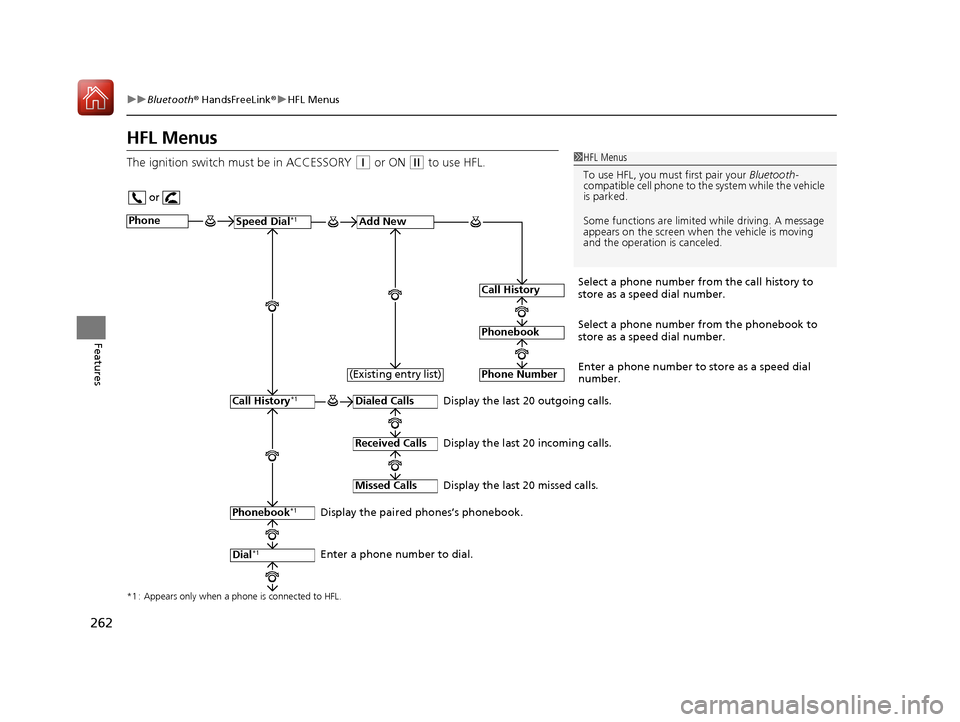
HFL Menus
The ignition switch must be in ACCESSORY (q or ON (w to use HFL.1HFL Menus
To use HFL, you must first pair your Bluetooth-
compatible cell phone to th e system while the vehicle
is parked.
Some functions are limited while driving. A message
appears on the screen when the vehicle is moving
and the operation is canceled.
or
Display the last 20 outgoing calls.
Display the last 20 incoming calls.
Display the last 20 missed calls.
*1 : Appears only when a phone is connected to HFL.
PhoneSpeed Dial*1Add New
Select a phone number from the call history to
store as a speed dial number.
Call History
PhonebookSelect a phone number from the phonebook to
store as a speed dial number.
Phone Number
Enter a phone number to store as a speed dial
number.
Dialed Calls
Received Calls
Missed Calls
Phonebook*1
Dial*1
Call History*1
Display the paired phones’s phonebook.
Enter a phone number to dial. (Existing entry list)
17 HR-V HDMC-31T7A6100.book 262 ページ 2016年7月20日 水曜日 午前9時50分
Page 264 of 489
263
uuBluetooth ® HandsFreeLink ®u HFL Menus
Continued
Features
*1 : Appears only when a phone is connected to HFL.
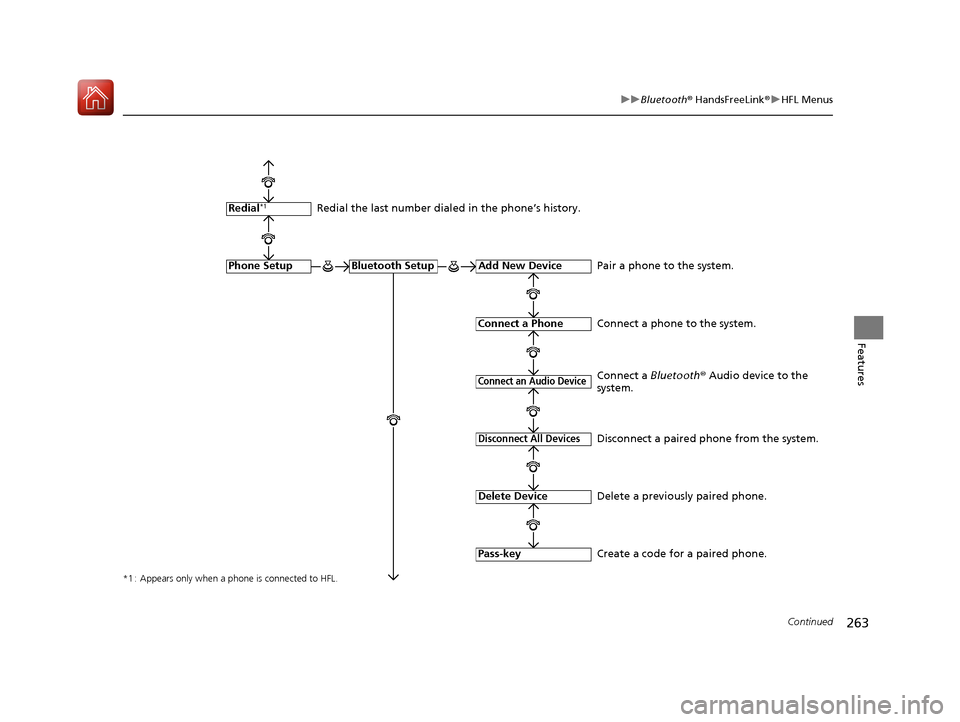
Redial the last number dialed in the phone’s history.
Add New Device
Connect a Phone
Connect an Audio Device
Bluetooth SetupPhone Setup
Redial*1
Pair a phone to the system.
Connect a phone to the system.
Create a code for a paired phone.
Disconnect All Devices
Delete Device
Pass-key
Disconnect a paired phone from the system.
Delete a previously paired phone. Connect a Bluetooth® Audio device to the
system.
17 HR-V HDMC-31T7A6100.book 263 ページ 2016年7月20日 水曜日 午前9時50分
Page 265 of 489
264
uuBluetooth ® HandsFreeLink ®u HFL Menus
Features
*1 : Appears only when a phone is connected to HFL.
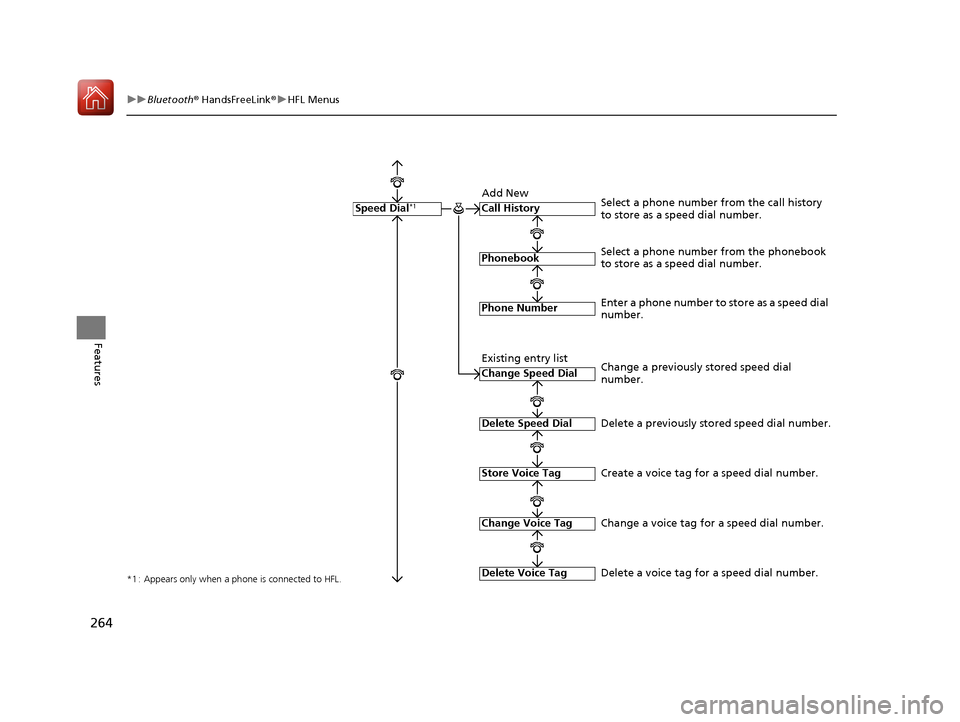
Call History
Phonebook
Phone Number
Speed Dial*1
Select a phone number from the phonebook
to store as a speed dial number. Select a phone number from the call history
to store as a speed dial number.
Create a voice tag for a speed dial number.
Change Speed Dial
Delete Speed Dial
Store Voice Tag
Enter a phone number to store as a speed dial
number.
Delete a previously stored speed dial number.
Change Voice Tag
Delete Voice Tag
Change a previously stored speed dial
number.
Change a voice tag for a speed dial number.
Delete a voice tag for a speed dial number.
Add New
Existing entry list
17 HR-V HDMC-31T7A6100.book 264 ページ 2016年7月20日 水曜日 午前9時50分
Page 266 of 489
265
uuBluetooth ® HandsFreeLink ®u HFL Menus
Continued
Features
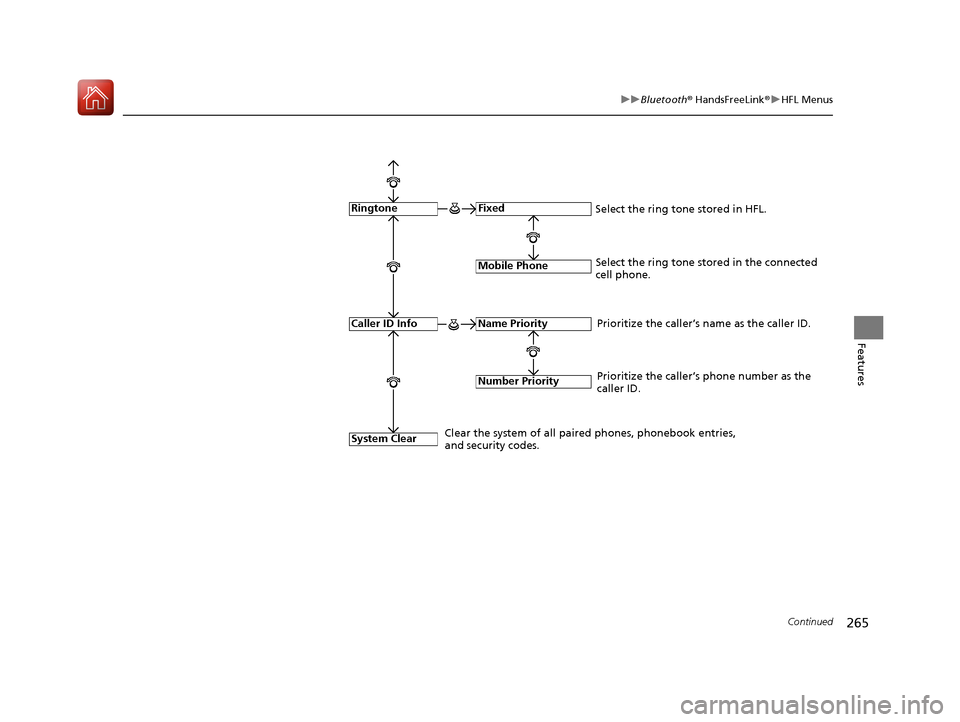
Fixed
Mobile Phone
System Clear
Ringtone
Select the ring tone stored in the connected
cell phone.
Name Priority
Number Priority
Caller ID InfoPrioritize the caller’s name as the caller ID.
Clear the system of all paired phones, phonebook entries,
and security codes. Prioritize the caller’s phone number as the
caller ID.
Select the ring tone stored in HFL.
17 HR-V HDMC-31T7A6100.book 265 ページ 2016年7月20日 水曜日 午前9時50分
Page 267 of 489
uuBluetooth ® HandsFreeLink ®u HFL Menus
266
Features
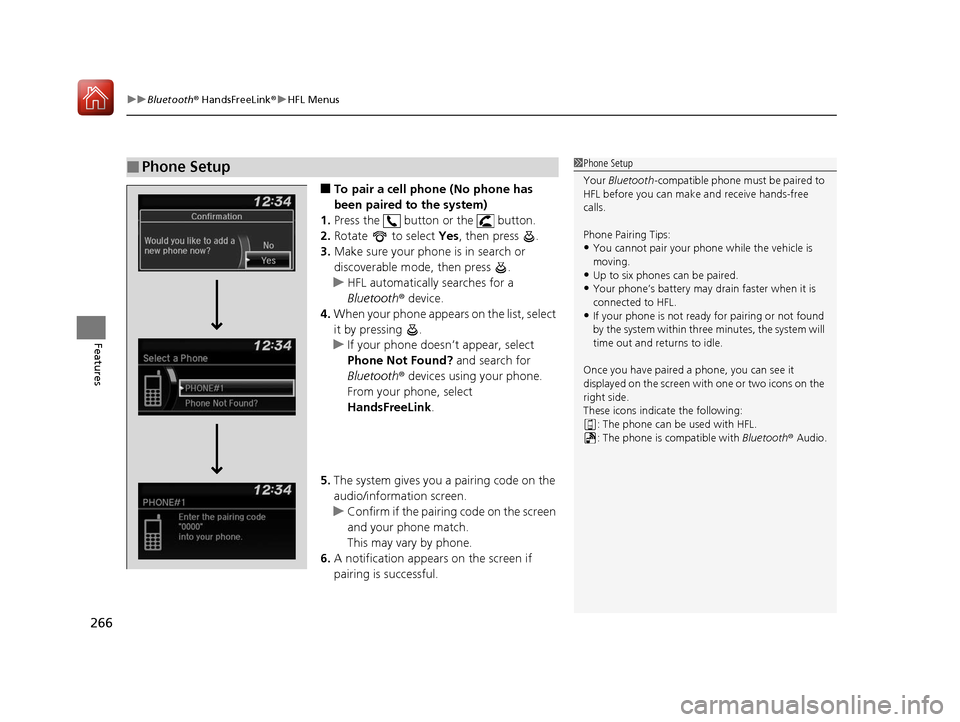
■To pair a cell phone (No phone has
been paired to the system)
1. Press the button or the button.
2. Rotate to select Yes, then press .
3. Make sure your phone is in search or
discoverable mode, then press .
u HFL automatically searches for a
Bluetooth ® device.
4. When your phone appears on the list, select
it by pressing .
u If your phone doesn’t appear, select
Phone Not Found? and search for
Bluetooth ® devices using your phone.
From your phone, select
HandsFreeLink .
5. The system gives you a pairing code on the
audio/information screen.
u Confirm if the pairing code on the screen
and your phone match.
This may vary by phone.
6. A notification appears on the screen if
pairing is successful.
■Phone Setup1 Phone Setup
Your Bluetooth -compatible phone must be paired to
HFL before you can make and receive hands-free
calls.
Phone Pairing Tips:
•You cannot pair your phone while the vehicle is
moving.
•Up to six phones can be paired.
•Your phone’s battery may dr ain faster when it is
connected to HFL.
•If your phone is not ready for pairing or not found
by the system within three minutes, the system will
time out and returns to idle.
Once you have paired a phone, you can see it
displayed on the screen with one or two icons on the
right side.
These icons indicate the following: : The phone can be used with HFL.
: The phone is compatible with Bluetooth® Audio.
17 HR-V HDMC-31T7A6100.book 266 ページ 2016年7月20日 水曜日 午前9時50分
Page 268 of 489
Continued267
uuBluetooth ® HandsFreeLink ®u HFL Menus
Features
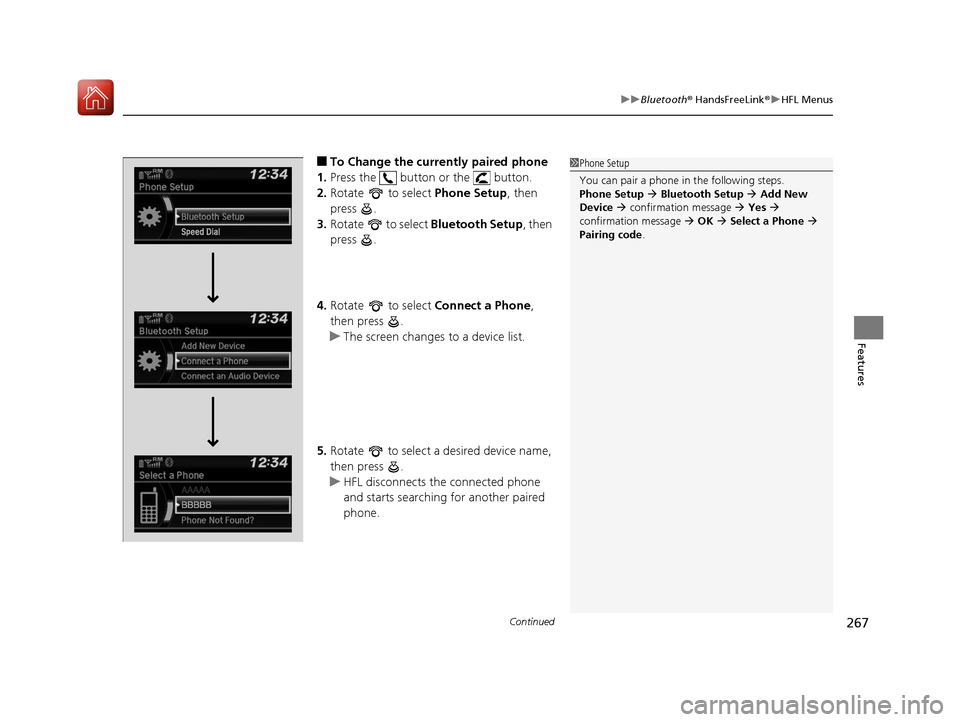
■To Change the currently paired phone
1. Press the button or the button.
2. Rotate to select Phone Setup, then
press .
3. Rotate to select Bluetooth Setup , then
press .
4. Rotate to select Connect a Phone,
then press .
u The screen changes to a device list.
5. Rotate to select a desired device name,
then press .
u HFL disconnects the connected phone
and starts searching for another paired
phone.1Phone Setup
You can pair a phone in the following steps.
Phone Setup Bluetooth Setup Add New
Device confirmation message Yes
confirmation message OK Select a Phone
Pairing code .
17 HR-V HDMC-31T7A6100.book 267 ページ 2016年7月20日 水曜日 午前9時50分
Page 269 of 489
268
uuBluetooth ® HandsFreeLink ®u HFL Menus
Features
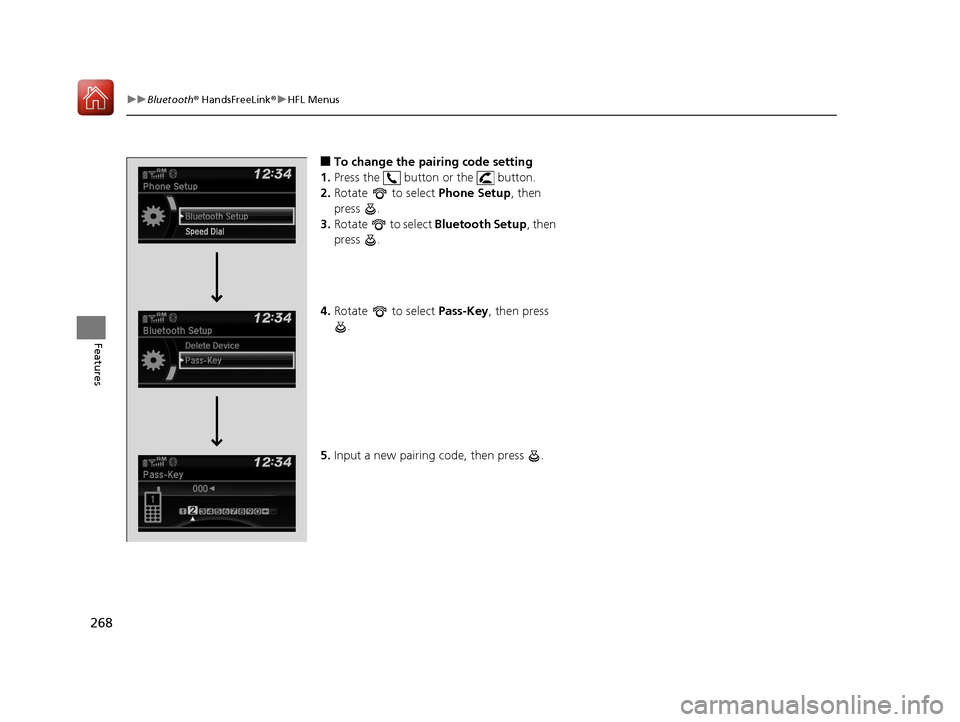
■To change the pairing code setting
1. Press the button or the button.
2. Rotate to select Phone Setup, then
press .
3. Rotate to select Bluetooth Setup, then
press .
4. Rotate to select Pass-Key, then press
.
5. Input a new pairing code, then press .
17 HR-V HDMC-31T7A6100.book 268 ページ 2016年7月20日 水曜日 午前9時50分
Page 270 of 489
269
uuBluetooth ® HandsFreeLink ®u HFL Menus
Continued
Features
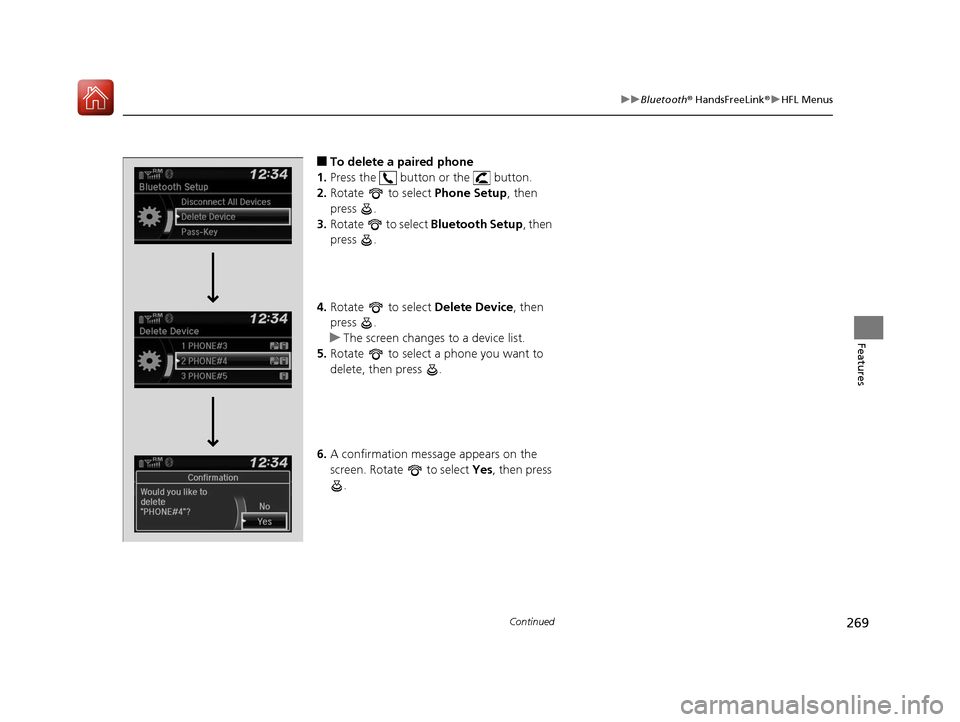
■To delete a paired phone
1. Press the button or the button.
2. Rotate to select Phone Setup, then
press .
3. Rotate to select Bluetooth Setup , then
press .
4. Rotate to select Delete Device, then
press .
u The screen changes to a device list.
5. Rotate to select a phone you want to
delete, then press .
6. A confirmation message appears on the
screen. Rotate to select Yes, then press
.
17 HR-V HDMC-31T7A6100.book 269 ページ 2016年7月20日 水曜日 午前9時50分
Page 271 of 489
uuBluetooth ® HandsFreeLink ®u HFL Menus
270
Features
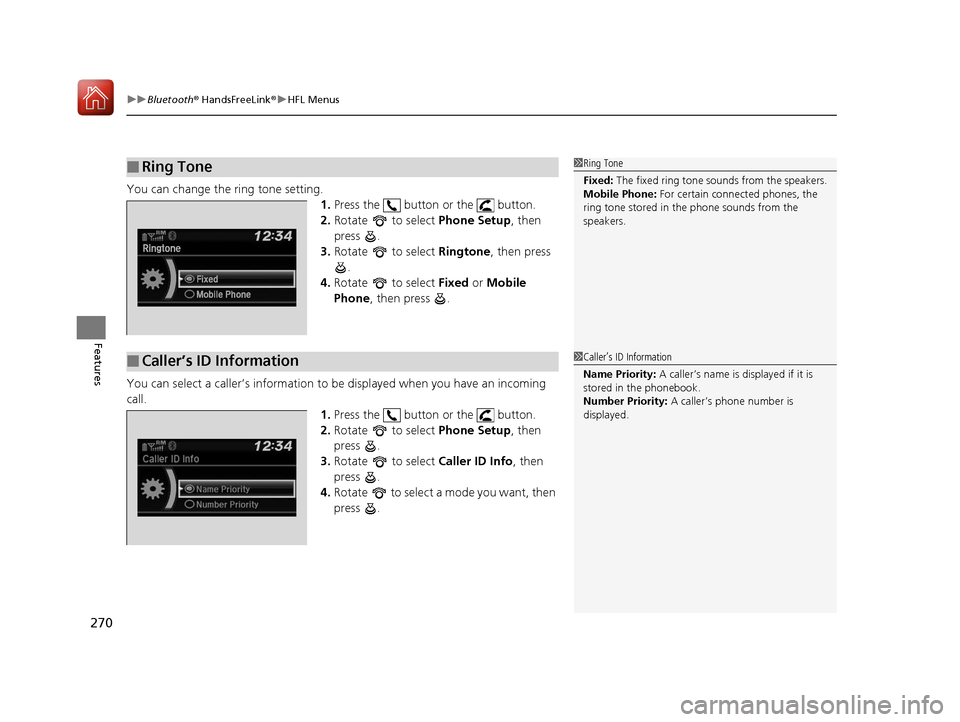
You can change the ring tone setting.
1.Press the button or the button.
2. Rotate to select Phone Setup, then
press .
3. Rotate to select Ringtone, then press
.
4. Rotate to select Fixed or Mobile
Phone , then press .
You can select a caller’s information to be displayed when you have an incoming
call. 1.Press the button or the button.
2. Rotate to select Phone Setup, then
press .
3. Rotate to select Caller ID Info, then
press .
4. Rotate to select a mode you want, then
press .
■Ring Tone1Ring Tone
Fixed: The fixed ring tone sounds from the speakers.
Mobile Phone: For certain connect ed phones, the
ring tone stored in the phone sounds from the
speakers.
■Caller’s ID Information1 Caller’s ID Information
Name Priority: A caller’s name is displayed if it is
stored in the phonebook.
Number Priority: A caller’s phone number is
displayed.
17 HR-V HDMC-31T7A6100.book 270 ページ 2016年7月20日 水曜日 午前9時50分