ad blue HONDA HR-V 2017 2.G Quick Guide
[x] Cancel search | Manufacturer: HONDA, Model Year: 2017, Model line: HR-V, Model: HONDA HR-V 2017 2.GPages: 78, PDF Size: 5.33 MB
Page 39 of 78

70 || 71
Models with color audio system
Making a Call
You can make a call using several methods.
Dialing a Number
Enter a 10-digit phone number to call. Use the selector knob to make and\
enter
selections. This method is inoperable while the vehicle is moving.
1.
Press the Phone button.
2.
Select Dial.
3.
Enter the phone number
. Select the green phone
icon to call.
Using the Phonebook
When your phone is paired, its phonebook is automatically imported to th\
e system.
Use the selector knob to make and enter selections. This method is inope\
rable
while the vehicle is moving.
1.
Press the Phone button.
2.
Select Phonebook.
3.
Scroll through the list to find the name and
number you want to call, and select it to call.
Storing Speed Dial EntriesStore up to 20 numbers for quick dialing. Use the selector knob to make \
and enter
selections.
1.
Press the Phone button.
2.
Select Phone Setup
3.
Select Speed Dial, then select Add New
.
4.
Select an entry method.
5.
If desired, you can create a voice tag for the number
. Follow the prompts.
Using Speed DialMake calls quickly using stored speed dial entries. Use the selector kno\
b to make
and enter selections.
1.
Press the Phone button.
2.
Select Speed Dial.
3.
Scroll through the list to find the entry you want
to call, and select it to call.
Speed dial entries with stored voice tags can be called using the T
alk button.
Press the Talk button and follow the prompts.
Basic HFL Operation
Make and receive phone calls using the vehicle’s audio system, without handling
your phone. Visit handsfreelink.com (U.S.) or handsfreelink.ca (Canada) to check
phone compatibility.
To reduce the potential for driver distraction, certain manual functions \
may be
inoperable or grayed out while the vehicle is moving. Stop or pull over \
to perform
the function. Voice commands are also available.
Models with touchscreen
HFL Controls
Use the controls to enter information and make selections.
Pick-Up button: Answer an incoming call.
Hang-Up/Back button: End or decline a call, or cancel
an operation.
Talk button: Make a call using a stored voice tag.
+ / - buttons: Scroll the list after pressing and holding
the Menu button.
SOURCE button: Press to enter a selection after
pressing and holding the Menu button.
MENU button: From the phone screen, press and hold
to display speed dial, call history, or redial.
BLUETOOTH® HANDSFREELINK®BLUETOOTH® HANDSFREELINK®
Page 40 of 78
72 || 73
Talk Button Tips
•
When using the T
alk button, wait until you hear a beep before speaking.
•
T
o bypass the system prompts, simply press the Talk button again to say your
command.*
•
When the T
alk button is pressed, all available voice commands are highlighted
in yellow.*
•
Speak in a clear
, natural voice.
•
Reduce all background noise.
•
Adjust the dashboard vents away from the microphone on the audio system.\
•
Close the windows and moonroof.
VO L
HOME
MENU
BA CK
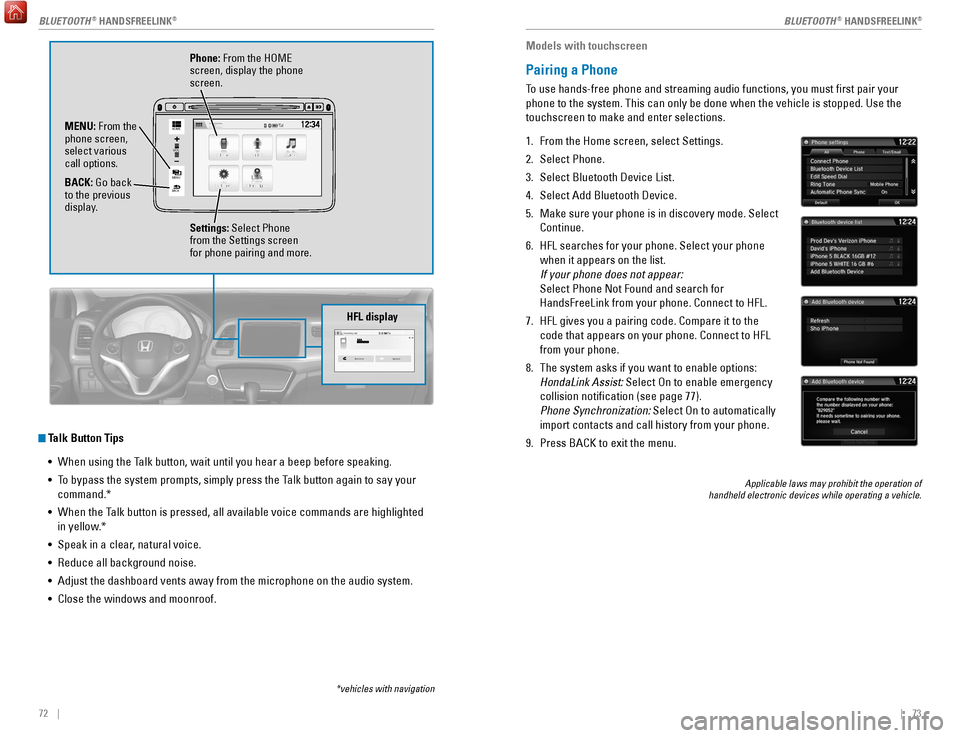
Phone: From the HOME
screen, display the phone
screen.
MENU: From the
phone screen,
select various
call options.
BACK: Go back
to the previous
display. Settings: Select Phone
from the Settings screen
for phone pairing and more.
*vehicles with navigation
HFL display
Models with touchscreen
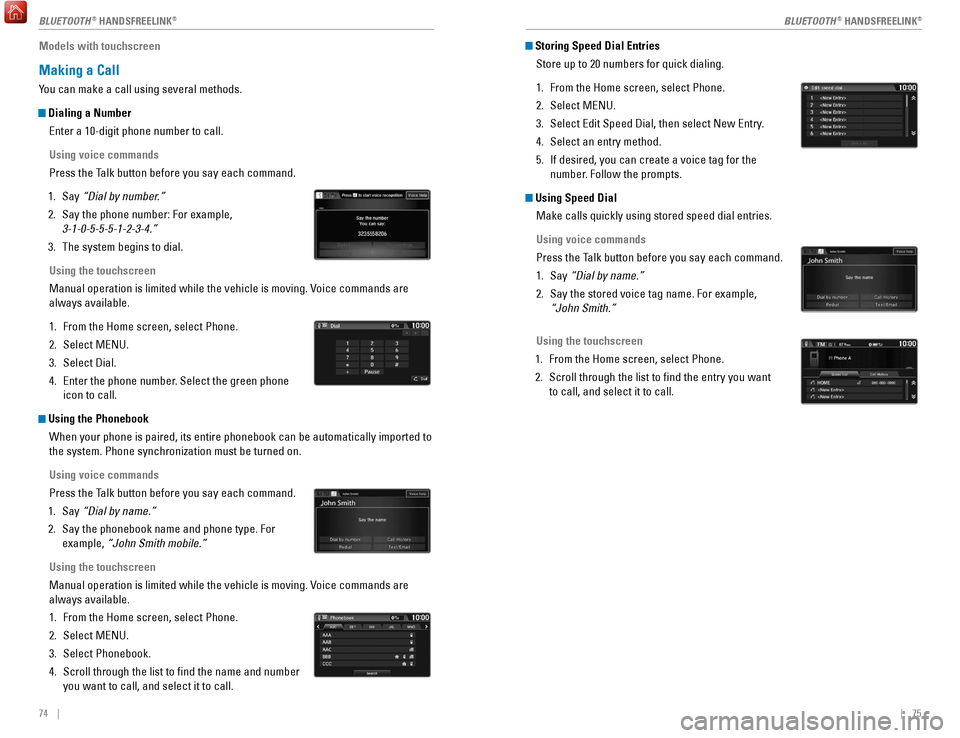
Pairing a Phone
To use hands-free phone and streaming audio functions, you must first p\
air your
phone to the system. This can only be done when the vehicle is stopped. \
Use the
touchscreen to make and enter selections.
1.
From the Home screen, select Settings.
2.
Select Phone.
3.
Select Bluetooth Device List.
4.
Select Add Bluetooth Device.
5.
Make sure your phone is in discovery mode. Select
Continue.
6.
HFL searches for your phone. Select your phone
when it appears on the list.
If your phone does not appear:
Select Phone Not Found and search for
HandsFreeLink from your phone. Connect to HFL.
7.
HFL gives you a pairing code. Compare it to the
code that appears on your phone. Connect to HFL
from your phone.
8.
The system asks if you want to enable options:
HondaLink Assist: Select On to enable emergency
collision notification (see page 77).
Phone Synchronization: Select On to automatically
import contacts and call history from your phone.
9.
Press BACK to exit the menu.
Applicable laws may prohibit the operation of
handheld electronic devices while operating a vehicle.
BLUETOOTH® HANDSFREELINK®BLUETOOTH® HANDSFREELINK®
Page 41 of 78
74 || 75
Models with touchscreen
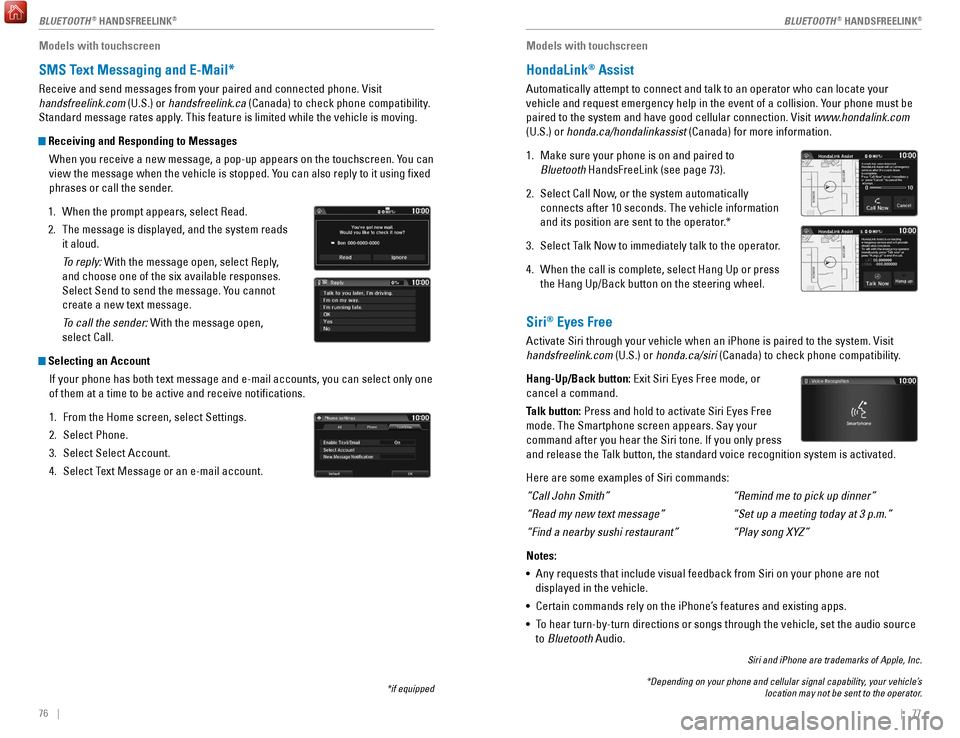
Making a Call
You can make a call using several methods.
Dialing a Number
Enter a 10-digit phone number to call.
Using voice commands
Press the Talk button before you say each command.
1.
Say
“Dial by number.”
2.
Say the phone number: For example,
3-1-0-5-5-5-1-2-3-4.”
3.
The system begins to dial.
Using the touchscreen
Manual operation is limited while the vehicle is moving. V
oice commands are
always available.
1.
From the Home screen, select Phone.
2.
Select MENU.
3.
Select Dial.
4.
Enter the phone number
. Select the green phone
icon to call.
Using the Phonebook
When your phone is paired, its entire phonebook can be automatically imp\
orted to
the system. Phone synchronization must be turned on.
Using voice commands
Press the Talk button before you say each command.
1.
Say
“Dial by name.”
2.
Say the phonebook name and phone type. For
example,
“John Smith mobile.”
Using the touchscreen
Manual operation is limited while the vehicle is moving. Voice commands are
always available.
1.
From the Home screen, select Phone.
2.
Select MENU.
3.
Select Phonebook.
4.
Scroll through the list to find the name and number
you want to call, and select it to call.
Storing Speed Dial EntriesStore up to 20 numbers for quick dialing.
1.
From the Home screen, select Phone.
2.
Select MENU.
3.
Select Edit Speed Dial, then select New Entry
.
4.
Select an entry method.
5.
If desired, you can create a voice tag for the
number
. Follow the prompts.
Using Speed DialMake calls quickly using stored speed dial entries.
Using voice commands
Press the Talk button before you say each command.
1.
Say
“Dial by name.”
2.
Say the stored voice tag name. For example,
“John Smith.”
Using the touchscreen
1.
From the Home screen, select Phone.
2.
Scroll through the list to find the entry you want
to call, and select it to call.
BLUETOOTH® HANDSFREELINK®BLUETOOTH® HANDSFREELINK®
Page 42 of 78
76 || 77
Models with touchscreen
SMS Text Messaging and E-Mail*
Receive and send messages from your paired and connected phone. Visit
handsfreelink.com (U.S.) or handsfreelink.ca (Canada) to check phone compatibility.
Standard message rates apply. This feature is limited while the vehicle is moving.
Receiving and Responding to Messages
When you receive a new message, a pop-up appears on the touchscreen. You can
view the message when the vehicle is stopped. You can also reply to it using fixed
phrases or call the sender.
1.
When the prompt appears, select Read.
2.
The message is displayed, and the system reads
it aloud.
T
o reply: With the message open, select Reply,
and choose one of the six available responses.
Select Send to send the message. You cannot
create a new text message.
To call the sender: With the message open,
select Call.
Selecting an Account
If your phone has both text message and e-mail accounts, you can select \
only one
of them at a time to be active and receive notifications.
1.
From the Home screen, select Settings.
2.
Select Phone.
3.
Select Select Account.
4.
Select T
ext Message or an e-mail account.
*if equipped
Models with touchscreen
HondaLink® Assist
Automatically attempt to connect and talk to an operator who can locate \
your
vehicle and request emergency help in the event of a collision. Your phone must be
paired to the system and have good cellular connection. Visit www.hondalink.com
(U.S.) or honda.ca/hondalinkassist (Canada) for more information.
1.
Make sure your phone is on and paired to
Bluetooth
HandsFreeLink (see page 73).
2.
Select Call Now
, or the system automatically
connects after 10 seconds. The vehicle information
and its position are sent to the operator.*
3.
Select T
alk Now to immediately talk to the operator.
4.
When the call is complete, select Hang Up or press
the Hang Up/Back button on the steering wheel.
Siri® Eyes Free
Activate Siri through your vehicle when an iPhone is paired to the syste\
m. Visit
handsfreelink.com (U.S.) or honda.ca/siri (Canada) to check phone compatibility.
Hang-Up/Back button: Exit Siri Eyes Free mode, or
cancel a command.
Talk button: Press and hold to activate Siri Eyes Free
mode. The Smartphone screen appears. Say your
command after you hear the Siri tone. If you only press
and release the Talk button, the standard voice recognition system is activated.
Here are some examples of Siri commands:
“Call John Smith”
“Read my new text message”
“Find a nearby sushi restaurant”
Notes:
•
Any requests that include visual feedback from Siri on your phone are no\
t
displayed in the vehicle.
•
Certain commands rely on the iPhone’
s features and existing apps.
•
T
o hear turn-by-turn directions or songs through the vehicle, set the aud\
io source
to Bluetooth Audio.
Siri and iPhone are trademarks of Apple, Inc.
“Remind me to pick up dinner”
“Set up a meeting today at 3 p.m.”
“Play song XYZ”
*Depending on your phone and cellular signal capability, your vehicle’s location may not be sent to the operator.
BLUETOOTH® HANDSFREELINK®BLUETOOTH® HANDSFREELINK®
Page 44 of 78

80 || 81
NAVIGATION
NAVIGATION
Voice Prompt Volume
Adjust volume for navigation and voice command confirmation. This does\
not
affect audio or Bluetooth HandsFreeLink volume, which is controlled by the
volume bar.
1.
From the Home Screen, select Settings.
2.
Select System.
3.
Select V
olume.
4.
Adjust the level, or select off.
Voice PromptTurn the voice feedback feature on or off.
1.
From the Home screen, select Settings.
2.
Select System.
3.
Select V
oice Prompt.
4.
Select On or Off.
Talk Button Tips•
When using the T
alk button, wait until you hear a beep before speaking.
•
T
o bypass the system prompts, simply press the Talk button again to say your
command.
•
When the T
alk button is pressed, all available voice commands are highlighted
in yellow.
•
Speak in a clear
, natural voice.
•
Reduce all background noise.
•
Adjust the dashboard vents away from the microphone on the audio system.\
•
Close the windows and moonroof.
Entering a Destination
Use multiple methods to enter a destination.
Home AddressStore your home address in the system so you can easily route to it.
1.
From the Home screen, select Settings.
2.
Select Navigation.
3.
Select Edit Go Home (1 or 2).
4.
Enter the address, and select OK when complete.
When your home address is stored, you can press the T
alk button and say “Go
home” at any time. You can also select Go home from the navigation menu.
Street Address
Enter a street address using voice commands. Press the Talk button before saying
each command.
You can also enter the address manually when the vehicle is stopped. From the
map screen, press MENU and select Address. Follow the prompts.
U.S. models
1.
From the V
oice Portal screen, say “Address.”
2.
The system prompts you to say the entire
address. For example, say
“1-2-3-4 Main Street,
Los Angeles, California.”
3.
The system interprets the address by state, city
,
street, and address number. If necessary, you
may have to clarify similar matches.
4.
Say
“Set as destination” to set the route.
Canadian models
1.
From the V
oice Portal screen, say “Address.”
2.
Follow the prompts.
Page 64 of 78
120 || 121
MAINTENANCE
MAINTENANCE
Maintenance Minder Service Codes
These codes indicate what services are due on your vehicle.
*1: If a message SERVICE does not appear more than 12 months after the display is reset, change the engine oil every year.
#: See information on maintenance and emissions warranty.
CODEMaintenance Main Items
AReplace engine oi l*1
BReplace engine oil*1 and oil lter
Inspect front and rear brakes
Inspect tie rod ends, steering gearbox, and boots
Inspect suspension component s
Inspect driveshaft boots
Inspect brake hoses and lines (Including ABS/VSA)
Inspect all uid levels and condition of uids
Inspect exhaust system#
Inspect fuel lines and connections#
*2: If you drive in dusty conditions, replace the air cleaner element every \
15,000 miles (24,000 km).
*3: If you drive primarily in urban areas that have high concentrations of s\
oot in the air from industryand diesel-powered vehicles, replace the dust and pollen lter every \
15,000 miles (24,000 km).
*4: Driving in mountainous areas at very low vehicle speeds results in higher transmission temperatures. This requires transmission uid changes mo\
re frequently than
recommended by the Maintenance Minder. If you regularly drive your vehic\
le under these
conditions, have the transmission uid changed every 25,000 miles (4\
0,000 km).
CODEMaintenance Sub Items
1
Rotate tires
2Replace air cleaner element*2
Replace dust and pollen lter*3
Inspect drive belt
3
Replace transmission uid*4
4Replace spark plugs
Inspect valve clearance
5
Replace engine coolan t
6Replace rear differential uid*
Continuously variable transmission models only
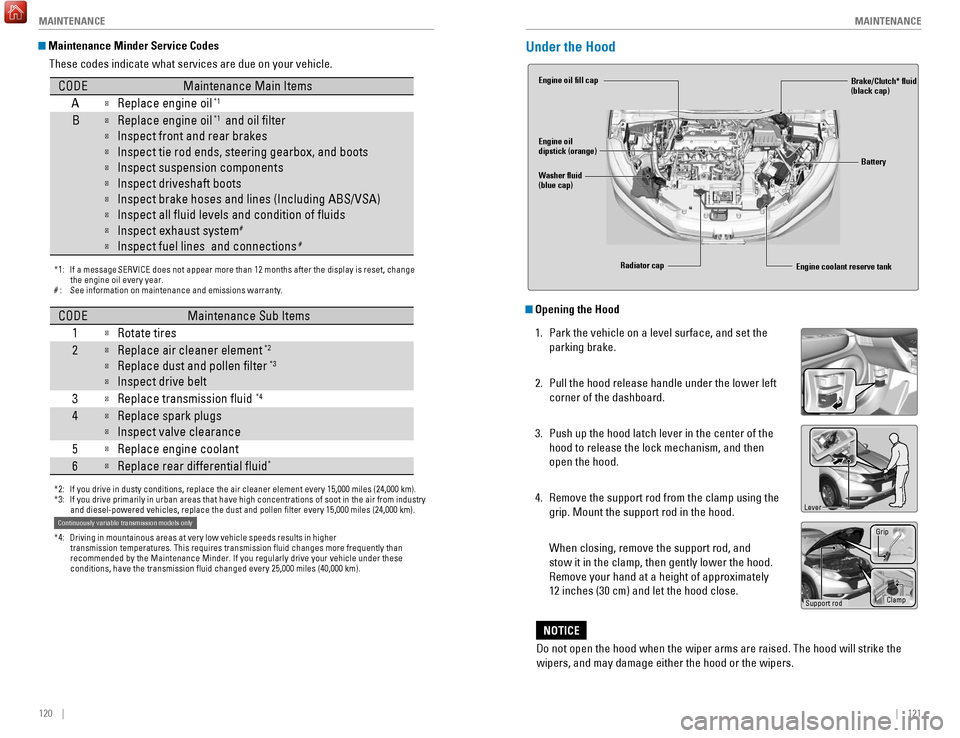
Under the Hood
Opening the Hood
1.
Park the vehicle on a level surface, and set the
parking brake.
2.
Pull the hood release handle under the lower left
corner of the dashboard.
3.
Push up the hood latch lever in the center of the
hood to release the lock mechanism, and then
open the hood.
4.
Remove the support rod from the clamp using the
grip. Mount the support rod in the hood.
When closing, remove the support rod, and
stow it in the clamp, then gently lower the hood.
Remove your hand at a height of approximately
12 inches (30 cm) and let the hood close.
Engine coolant reserve tank
Washer fluid
(blue cap) Engine oil fill cap
Engine oil
dipstick (orange)
Brake/Clutch* fluid
(black cap)
Battery
Radiator cap
Lever
Support rod Grip
Clamp
Do not open the hood when the wiper arms are raised. The hood will strik\
e the
wipers, and may damage either the hood or the wipers.
NOTICE
Page 72 of 78

136 || 137
CUSTOMER INFORMATION
CUSTOMER INFORMATION
Learn about information specific to you as a Honda customer and how to\
get help.
Frequently Asked Questions/Troubleshooting
Below are some frequently asked questions and troubleshooting items that\
you may
have about the vehicle.
Q:
How do I set the vehicle clock?
A:
For vehicles without navigation, see page 48. For vehicles with navigati\
on, the
time is automatically set using GPS signals.
Q:
Why doesn’
t the vehicle start when I press the ENGINE START/STOP button?*
A:
The brake pedal must be pressed to start the engine.
Q:
What is the AUTO setting on my headlight lever?
A:
When in the AUTO position, the vehicle’
s exterior lights will automatically turn
on or off depending on the ambient lighting.
Q:
Why won’
t the driver’s door unlock when I grab the door handle, even though
the keyless access remote is within range?*
A:
If you pull the handle too quickly
, the system may not have time to confirm the
door is unlocked. W
ait to hear a beep to confirm the door is unlocked. If you are
wearing gloves, the system may be slow to respond.
Q:
After my battery was disconnected or went dead, the audio system is aski\
ng for
a code. Where do I find this?
A:
In most cases, you do not need to enter a code. T
urn on the vehicle and the
audio system, and press and hold the power button until the system react\
ivates.
Q:
Why can’
t I operate Pandora through the audio system?
A:
Audio may be streaming through
Bluetooth Audio. Make sure Pandora mode
is selected and the phone cable is properly connected to the USB adapter\
.
Some phones may prompt you to “Allow” a connection.
Q:
Is my phone compatible with
Bluetooth features?
A:
Visit handsfreelink.com (U.S.) or handsfreelink.ca (Canada) to check phone
compatibility for
Bluetooth Audio, Bluetooth HandsFreeLink, and SMS text
messaging.
Q:
Every time I press the T
alk button, the system gives me voice prompts. Can I turn
these off?*
A:
From the Home screen, select Settings. Select the V
oice Recog tab, then select
V
oice Prompt. Select Off.
CUSTOMER INFORMATION
*if equipped
Contact Us
Honda dealer personnel are trained professionals. They should be able to\
answer
all your questions. If you encounter a problem that your dealership does\
not solve
to your satisfaction, please discuss it with the dealership’s service manager or
general manager. If you are dissatisfied with the decision made by the dealership’\
s
management, contact Honda Automobile Customer Service.U.S. owners
American Honda Motor Co., Inc.
Honda Automobile Customer Service
1919 Torrance Blvd.
Mail Stop 500-2N-7A
Torrance, CA 90501-2746
Tel: (800) 999-1009
In Puerto Rico and
the U.S. Virgin Islands
Bella International
P.O. Box 190816
San Juan, PR 00919-0816
Tel: (787) 620-7546
When you call or write, please give us the following information:
•
V
ehicle Identification Number
•
Date of purchase
•
Odometer reading of your vehicle
•
Y
our name, address, and telephone number
•
A detailed description of the problem
•
Name of the dealer who sold the vehicle to you Canadian owners
Honda Canada, Inc.
Customer Relations
180 Honda Blvd.
Markham, ON
L6C 0H9
T
el: (888) 946-6329
Fax: (877) 939-0909
e-mail: [email protected]
Q:
Why can’
t I select an item using the selector knob or touchscreen*?
A:
T
o prevent driver distraction, certain items are limited or inoperable wh\
ile the
vehicle is moving. Use voice commands or pull over to select the items.
Q:
Where can I find the vehicle identification number (VIN)?
A:
Check the label on the driver’
s doorjamb.
*if equipped
Honda Roadside Assistance
24-hour emergency road service is available to you in the United States \
and Canada
throughout your 3-year/36,000-mile warranty term. Services include jump starting,
flat tire and lockout assistance, towing, and more (limitations apply\
).
Call (866) 864-5211 (U.S.) or (800) 465-7587 (Canada).
Page 75 of 78
142 || 143
VOICE COMMAND INDEX
VOICE COMMAND INDEX
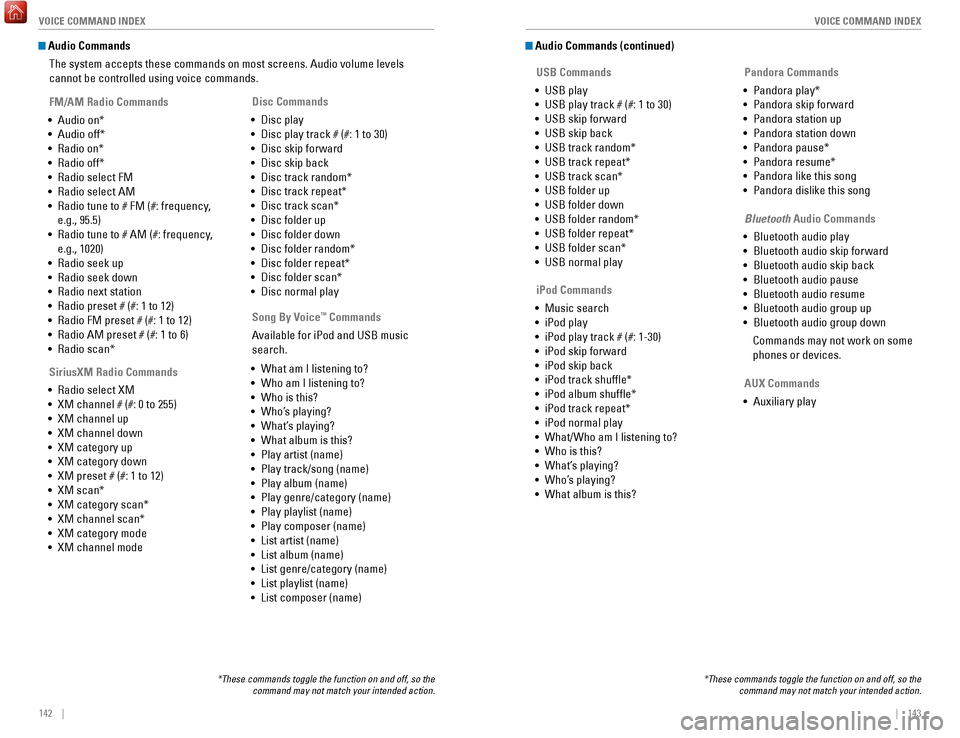
Audio Commands
The system accepts these commands on most screens. Audio volume levels
cannot be controlled using voice commands.
FM/AM Radio Commands
•
Audio on*
•
Audio off*
•
Radio on*
•
Radio off*
•
Radio select FM
•
Radio select AM
•
Radio tune to # FM (#: frequency
,
e.g., 95.5)
•
Radio tune to # AM (#: frequency
,
e.g., 1020)
•
Radio seek up
•
Radio seek down
•
Radio next station
•
Radio preset # (#: 1 to 12)
•
Radio FM preset # (#: 1 to 12)
•
Radio AM preset # (#: 1 to 6)
•
Radio scan*
SiriusXM Radio Commands
•
Radio select XM
•
XM channel # (#: 0 to 255)
•
XM channel up
•
XM channel down
•
XM category up
•
XM category down
•
XM preset # (#: 1 to 12)
•
XM scan*
•
XM category scan*
•
XM channel scan*
•
XM category mode
•
XM channel mode Disc Commands
•
Disc play
•
Disc play track # (#: 1 to 30)
•
Disc skip forward
•
Disc skip back
•
Disc track random*
•
Disc track repeat*
•
Disc track scan*
•
Disc folder up
•
Disc folder down
•
Disc folder random*
•
Disc folder repeat*
•
Disc folder scan*
•
Disc normal play
*These commands toggle the function on and off, so the command may not match your intended action.
Song By Voice™ Commands
Available for iPod and USB music
search.
•
What am I listening to?
•
Who am I listening to?
•
Who is this?
•
Who’
s playing?
•
What’
s playing?
•
What album is this?
•
Play artist (name)
•
Play track/song (name)
•
Play album (name)
•
Play genre/category (name)
•
Play playlist (name)
•
Play composer (name)
•
List artist (name)
•
List album (name)
•
List genre/category (name)
•
List playlist (name)
•
List composer (name)
Audio Commands (continued) USB Commands
•
USB play
•
USB play track # (#: 1 to 30)
•
USB skip forward
•
USB skip back
•
USB track random*
•
USB track repeat*
•
USB track scan*
•
USB folder up
•
USB folder down
•
USB folder random*
•
USB folder repeat*
•
USB folder scan*
•
USB normal play Pandora Commands
•
Pandora play*
•
Pandora skip forward
•
Pandora station up
•
Pandora station down
•
Pandora pause*
•
Pandora resume*
•
Pandora like this song
•
Pandora dislike this song
*These commands toggle the function on and off, so the command may not match your intended action.
iPod Commands
•
Music search
•
iPod play
•
iPod play track # (#: 1-30)
•
iPod skip forward
•
iPod skip back
•
iPod track shuffle*
•
iPod album shuffle*
•
iPod track repeat*
•
iPod normal play
•
What/Who am I listening to?
•
Who is this?
•
What’
s playing?
•
Who’
s playing?
•
What album is this? Bluetooth
Audio Commands
•
Bluetooth audio play
•
Bluetooth audio skip forward
•
Bluetooth audio skip back
•
Bluetooth audio pause
• Bluetooth audio resume
•
Bluetooth audio group up
•
Bluetooth audio group down
Commands may not work on some
phones or devices.
AUX Commands
•
Auxiliary play
Page 76 of 78
144 || 145
INDEX
VOICE COMMAND INDEX
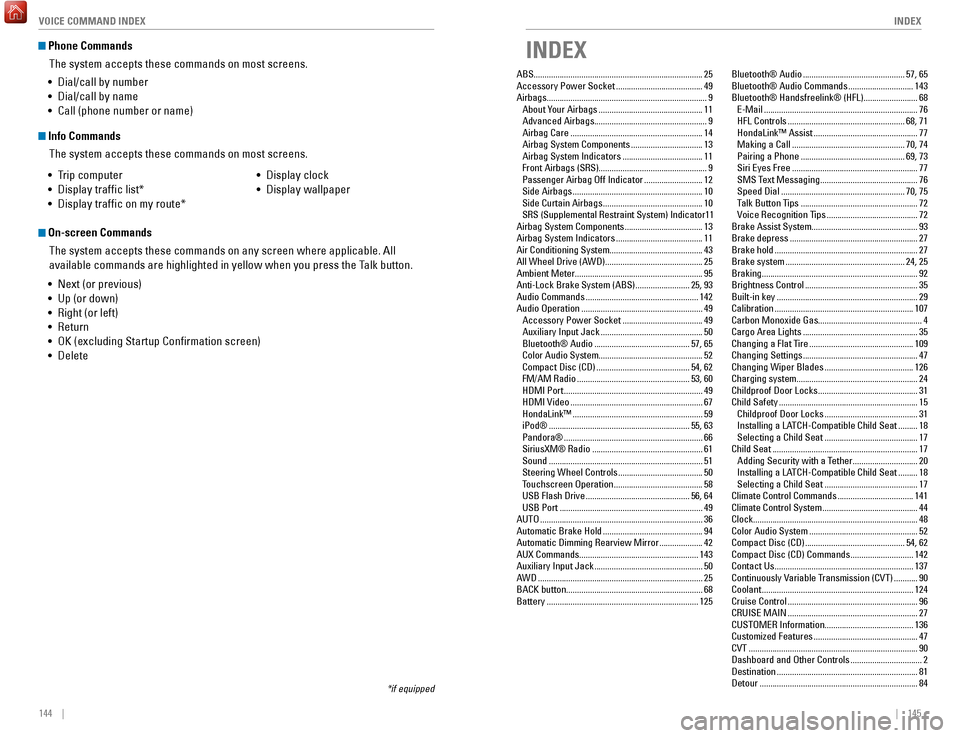
Phone Commands
The system accepts these commands on most screens.
Info CommandsThe system accepts these commands on most screens.
•
T
rip computer
•
Display traffic list*
•
Display traffic on my route* •
Display clock
•
Display wallpaper
On-screen CommandsThe system accepts these commands on any screen where applicable. All
available commands are highlighted in yellow when you press the Talk button.
•
Next (or previous)
•
Up (or down)
•
Right (or left)
•
Return
•
OK (excluding Startup Confirmation screen)
•
Delete
*if equipped
• Dial/call by number
•
Dial/call by name
•
Call (phone number or name)
INDEX
ABS........................................................................\
...... 25
Accessory Power Socket ........................................49
Airbags........................................................................\
.. 9 About Y
our Airbags
................................................ 11
Advanced Airbags
.................................................... 9
Airbag Care
............................................................. 14
Airbag System Components
.................................13
Airbag System Indicators
.....................................11
Front Airbags (SRS)
.................................................. 9
Passenger Airbag Off Indicator
...........................12
Side Airbags
............................................................ 10
Side Curtain Airbags
.............................................. 10
SRS (Supplemental Restraint System) Indicator
11
Airbag System Components
....................................13
Airbag System Indicators
........................................11
Air Conditioning System........................................... 43
All Wheel Drive (A
WD) ............................................. 25
Ambient Meter........................................................... 95 Anti-Lock Brake System (ABS)
.........................25, 93
Audio Commands
.................................................... 142
Audio Operation
........................................................ 49
Accessory Power Socket
.....................................49
Auxiliary Input Jack
............................................... 50
Bluetooth® Audio
............................................ 57, 65
Color Audio System
................................................ 52
Compact Disc (CD)
........................................... 54
, 62
FM/AM Radio
.................................................... 53, 60
HDMI Port
................................................................ 49
HDMI Video
............................................................. 67
HondaLink™
............................................................ 59
iPod®
................................................................. 55, 63
Pandora®
................................................................ 66
SiriusXM® Radio
................................................... 61
Sound
....................................................................... 51
Steering Wheel Controls
.......................................50
Touchscreen Operation
.........................................58
USB Flash Drive
................................................ 56, 64
USB Port
.................................................................. 49
AUTO
........................................................................\
... 36
Automatic Brake Hold
.............................................. 94
Automatic Dimming Rearview Mirror
....................42
AUX Commands....................................................... 143 Auxiliary Input Jack
.................................................. 50
AWD
........................................................................\
.... 25
BACK button............................................................... 68 Battery
...................................................................... 125Bluetooth® Audio
...............................................57, 65
Bluetooth® Audio Commands ..............................143
Bluetooth® Handsfreelink® (HFL)......................... 68 E-Mail
.......................................................................76
HFL Controls
......................................................68, 71
HondaLink™ Assist
................................................77
Making a Call
....................................................70, 74
Pairing a Phone
................................................69, 73
Siri Eyes Free
..........................................................77
SMS Text Messaging
.............................................76
Speed Dial
.........................................................70, 75
Talk Button Tips
......................................................72
Voice Recognition Tips
..........................................72
Brake Assist System................................................. 93
Brake depress
...........................................................27
Brake hold
..................................................................27
Brake system
.......................................................24, 25
Braking........................................................................\
92 Brightness Control
....................................................35
Built-in key
.................................................................29
Calibration
................................................................107
Carbon Monoxide Gas................................................ 4
Cargo Area Lights
.....................................................35
Changing a Flat Tire
................................................109
Changing Settings
.....................................................47
Changing Wiper Blades
.........................................126
Charging system........................................................ 24 Childproof Door Locks
..............................................31
Child Safety
................................................................15
Childproof Door Locks
...........................................31
Installing a LA
TCH-Compatible Child Seat .........18
Selecting a Child Seat
...........................................17
Child Seat
...................................................................17
Adding Security with a Tether
..............................20
Installing a LATCH-Compatible Child Seat
.........18
Selecting a Child Seat
...........................................17
Climate Control Commands
...................................141
Climate Control System
............................................44
Clock........................................................................\
.... 48 Color Audio System
..................................................52
Compact Disc (CD)
..............................................54, 62
Compact Disc (CD) Commands
.............................142
Contact Us
................................................................137
Continuously Variable Transmission (CVT)
...........90
Coolant
......................................................................124
Cruise Control
............................................................96
CRUISE
MAIN ............................................................27
CUSTOMER Information......................................... 136
Customized Features
................................................47
CVT
........................................................................\
......90
Dashboard and Other Controls
.................................2
Destination
.................................................................81
Detour
........................................................................\
.84