display HONDA HR-V 2017 2.G Quick Guide
[x] Cancel search | Manufacturer: HONDA, Model Year: 2017, Model line: HR-V, Model: HONDA HR-V 2017 2.GPages: 78, PDF Size: 5.33 MB
Page 34 of 78
60 || 61
AUDIO AND CONNECTIVITY
AUDIO AND CONNECTIVITY
FM/AM Radio
Play FM or AM radio stations.
Models with touchscreen
HOME
MENU
BA CK
VO L
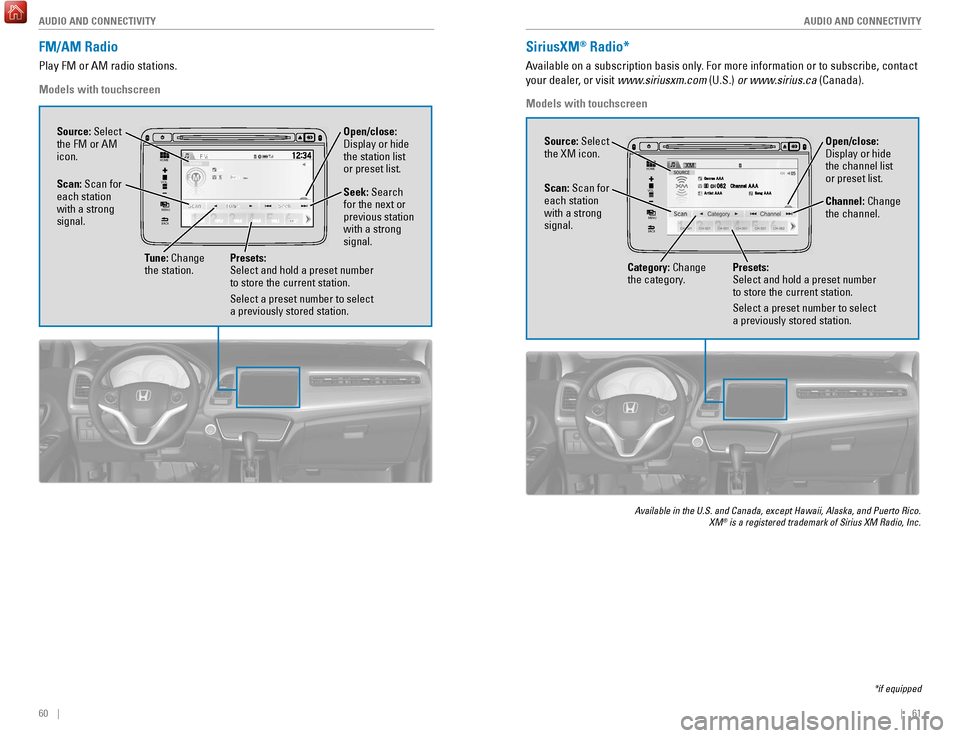
Source: Select
the FM or AM
icon.
Tune: Change
the station. Seek: Search
for the next or
previous station
with a strong
signal. Open/close:
Display or hide
the station list
or preset list.
Scan: Scan for
each station
with a strong
signal.
Presets:
Select and hold a preset number
to store the current station.
Select a preset number to select
a previously stored station.
SiriusXM® Radio*
Available on a subscription basis only. For more information or to subscribe, contact
your dealer, or visit www.siriusxm.com (U.S.) or www.sirius.ca (Canada).
Models with touchscreen
Available in the U.S. and Canada, except Hawaii, Alaska, and Puerto Rico.\
XM® is a registered trademark of Sirius XM Radio, Inc.
*if equipped
HOMEMENU
BA CK
VO L
Open/close:
Display or hide
the channel list
or preset list.Source: Select
the XM icon.
Category: Change
the category. Channel: Change
the channel.
Scan: Scan for
each station
with a strong
signal.
Presets:
Select and hold a preset number
to store the current station.
Select a preset number to select
a previously stored station.
Page 35 of 78
62 || 63
AUDIO AND CONNECTIVITY
AUDIO AND CONNECTIVITY
Compact Disc (CD)
The audio system supports audio CDs, CD-Rs, and CD-RWs in MP3, WMA, or AAC
formats.
Models with touchscreen
Do not use CDs with adhesive labels or insert a damaged CD. Inserting th\
ese
types of CDs may cause them to get stuck or damage the audio unit.
NOTICE
VO L
HOME
MENU
BA CK
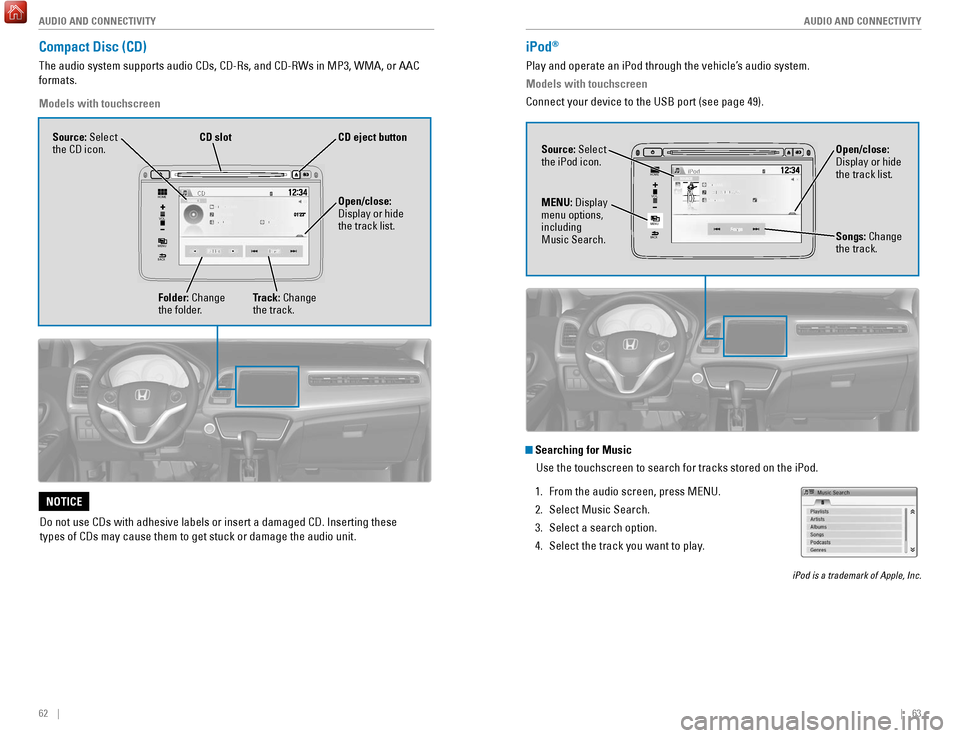
Source: Select
the CD icon.
Folder: Change
the folder. Open/close:
Display or hide
the track list.
Track: Change
the track.
CD
slotCD eject button
iPod®
Play and operate an iPod through the vehicle’s audio system.
Models with touchscreen
Connect your device to the USB port (see page 49).
VOL
HOME
MENU
BA CK
Source: Select
the iPod icon. Open/close:
Display or hide
the track list.
MENU: Display
menu options,
including
Music Search. Songs: Change
the track.
Searching for Music
Use the touchscreen to search for tracks stored on the iPod.
1.
From the audio screen, press MENU.
2.
Select Music Search.
3.
Select a search option.
4.
Select the track you want to play
.
iPod is a trademark of Apple, Inc.
Page 36 of 78
64 || 65
AUDIO AND CONNECTIVITY
AUDIO AND CONNECTIVITY
USB Flash Drive
Play and operate a USB flash drive through the vehicle’s audio system.
Models with touchscreen
Connect your device to the USB port (see page 49).
Searching for Music
Use the touchscreen to search for tracks stored on the USB flash drive\
.
1.
From the audio screen, press MENU.
2.
Select Music Search.
3.
Select a folder
.
4.
Select the track you want to play
.
VOL
HOME
MENU
BA CK
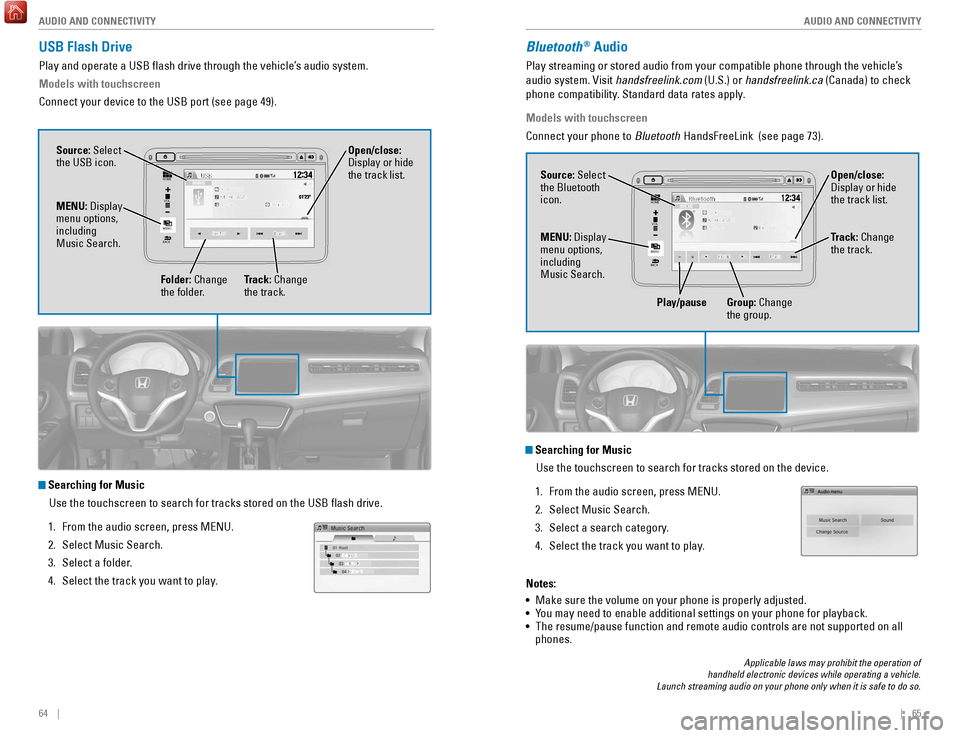
Source: Select
the USB icon.
Folder: Change
the folder. Open/close:
Display or hide
the track list.
MENU: Display
menu options,
including
Music Search.
Track: Change
the track.
Bluetooth® Audio
Play streaming or stored audio from your compatible phone through the ve\
hicle’s
audio system. Visit handsfreelink.com (U.S.) or handsfreelink.ca (Canada) to check
phone compatibility. Standard data rates apply.
Models with touchscreen
Connect your phone to Bluetooth HandsFreeLink (see page 73).
VOL
HOME
MENU
BA CK
Source: Select
the Bluetooth
icon. Open/close:
Display or hide
the track list.
MENU: Display
menu options,
including
Music Search. Track: Change
the track.
Play/pause Group: Change the group.
Searching for Music
Use the touchscreen to search for tracks stored on the device.
1.
From the audio screen, press MENU.
2.
Select Music Search.
3.
Select a search category
.
4.
Select the track you want to play
.
Notes:
•
Make sure the volume on your phone is properly adjusted.
•
Y
ou may need to enable additional settings on your phone for playback.
•
The resume/pause function and remote audio controls are not supported on\
all
phones.
Applicable laws may prohibit the operation of
handheld electronic devices while operating a vehicle.
Launch streaming audio on your phone only when it is safe to do so.
Page 37 of 78

66 || 67
AUDIO AND CONNECTIVITY
AUDIO AND CONNECTIVITY
Pandora®
Play and operate Pandora from your compatible phone through the vehicle’\
s audio
system. Visit handsfreelink.com to check phone compatibility. Standard data rates
apply. Available in the U.S. only.
Models with touchscreen
Connect your phone when the vehicle is stopped.
For iPhone:
•
Connect via
Bluetooth HandsFreeLink (see page 73) or USB port (see page 49).
•
A pop-up may appear on your phone requesting you to allow access for Pan\
dora
to be launched.
•
If you cannot operate Pandora through the audio system, it may be stream\
ing
through
Bluetooth Audio. Make sure Pandora is selected on the audio system.
•
If Pandora still does not operate, try rebooting the phone and reconnect\
ing the
cable if necessary.
For other compatible smartphones:
•
Connect via
Bluetooth HandsFreeLink (see page 73).
Applicable laws may prohibit the operation of
handheld electronic devices while operating a vehicle.
Launch streaming audio on your phone only when it is safe to do so.
Source: Select
the Pandora icon.
Station: Change
the station. Skip: Go to
the next song. Open/close:
Display or hide
information.
MENU: Display
menu options,
including the
Station List. Like/dislike
song
Play/Pause
HDMI Video
Play video from a compatible device while your vehicle is stopped.
Models with touchscreen
Connect your device to the HDMI port (see page 49).
From the connected device, launch the video you want to display on the
touchscreen. The device or video resolution must be 720p or lower to vie\
w. This
feature is limited while the vehicle is moving.
VO L
HOME
MENU
BA CK
Source: Select
the HDMI
icon from the
SOURCE screen.
Page 38 of 78
68 || 69
Learn how to operate the vehicle’s hands-free calling system.
Basic HFL Operation
Make and receive phone calls using the vehicle’s audio system, without handling
your phone. Visit handsfreelink.com (U.S.) or handsfreelink.ca (Canada) to check
phone compatibility.
To reduce the potential for driver distraction, certain manual functions \
may be
inoperable or grayed out while the vehicle is moving. Stop or pull over \
to perform
the function.
Models with color audio system
HFL Controls
Use the controls to enter information and make selections.
BLUETOOTH® HANDSFREELINK® (HFL)
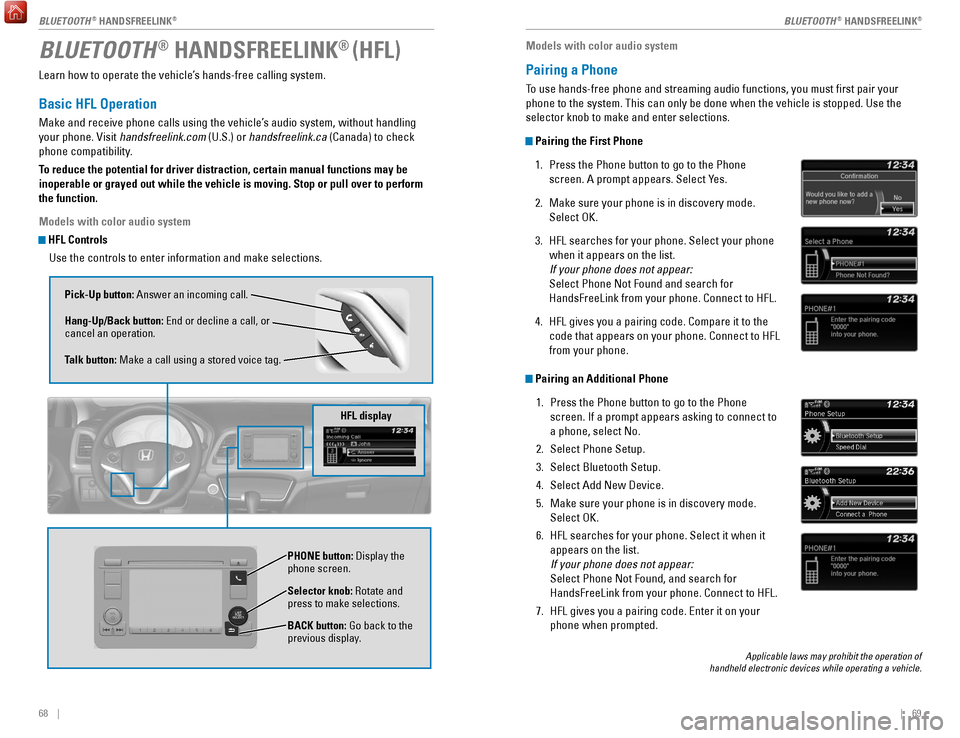
Pick-Up button: Answer an incoming call.
Hang-Up/Back button: End or decline a call, or
cancel an operation.
Talk button: Make a call using a stored voice tag.
Selector knob: Rotate and
press to make selections.
BACK button: Go back to the
previous display. PHONE button: Display the
phone screen.
HFL display
Models with color audio system
Pairing a Phone
To use hands-free phone and streaming audio functions, you must first p\
air your
phone to the system. This can only be done when the vehicle is stopped. \
Use the
selector knob to make and enter selections.
Pairing the First Phone
1.
Press the Phone button to go to the Phone
screen. A prompt appears. Select Y
es.
2.
Make sure your phone is in discovery mode.
Select OK.
3.
HFL searches for your phone. Select your phone
when it appears on the list.
If your phone does not appear:
Select Phone Not Found and search for
HandsFreeLink from your phone. Connect to HFL.
4.
HFL gives you a pairing code. Compare it to the
code that appears on your phone. Connect to HFL
from your phone.
Pairing an Additional Phone1.
Press the Phone button to go to the Phone
screen. If a prompt appears asking to connect to
a phone, select No.
2.
Select Phone Setup.
3.
Select Bluetooth Setup.
4.
Select Add New Device.
5.
Make sure your phone is in discovery mode.
Select OK.
6.
HFL searches for your phone. Select it when it
appears on the list.
If your phone does not appear:
Select Phone Not Found, and search for
HandsFreeLink from your phone. Connect to HFL.
7.
HFL gives you a pairing code. Enter it on your
phone when prompted.
Applicable laws may prohibit the operation of
handheld electronic devices while operating a vehicle.
BLUETOOTH® HANDSFREELINK®BLUETOOTH® HANDSFREELINK®
Page 39 of 78

70 || 71
Models with color audio system
Making a Call
You can make a call using several methods.
Dialing a Number
Enter a 10-digit phone number to call. Use the selector knob to make and\
enter
selections. This method is inoperable while the vehicle is moving.
1.
Press the Phone button.
2.
Select Dial.
3.
Enter the phone number
. Select the green phone
icon to call.
Using the Phonebook
When your phone is paired, its phonebook is automatically imported to th\
e system.
Use the selector knob to make and enter selections. This method is inope\
rable
while the vehicle is moving.
1.
Press the Phone button.
2.
Select Phonebook.
3.
Scroll through the list to find the name and
number you want to call, and select it to call.
Storing Speed Dial EntriesStore up to 20 numbers for quick dialing. Use the selector knob to make \
and enter
selections.
1.
Press the Phone button.
2.
Select Phone Setup
3.
Select Speed Dial, then select Add New
.
4.
Select an entry method.
5.
If desired, you can create a voice tag for the number
. Follow the prompts.
Using Speed DialMake calls quickly using stored speed dial entries. Use the selector kno\
b to make
and enter selections.
1.
Press the Phone button.
2.
Select Speed Dial.
3.
Scroll through the list to find the entry you want
to call, and select it to call.
Speed dial entries with stored voice tags can be called using the T
alk button.
Press the Talk button and follow the prompts.
Basic HFL Operation
Make and receive phone calls using the vehicle’s audio system, without handling
your phone. Visit handsfreelink.com (U.S.) or handsfreelink.ca (Canada) to check
phone compatibility.
To reduce the potential for driver distraction, certain manual functions \
may be
inoperable or grayed out while the vehicle is moving. Stop or pull over \
to perform
the function. Voice commands are also available.
Models with touchscreen
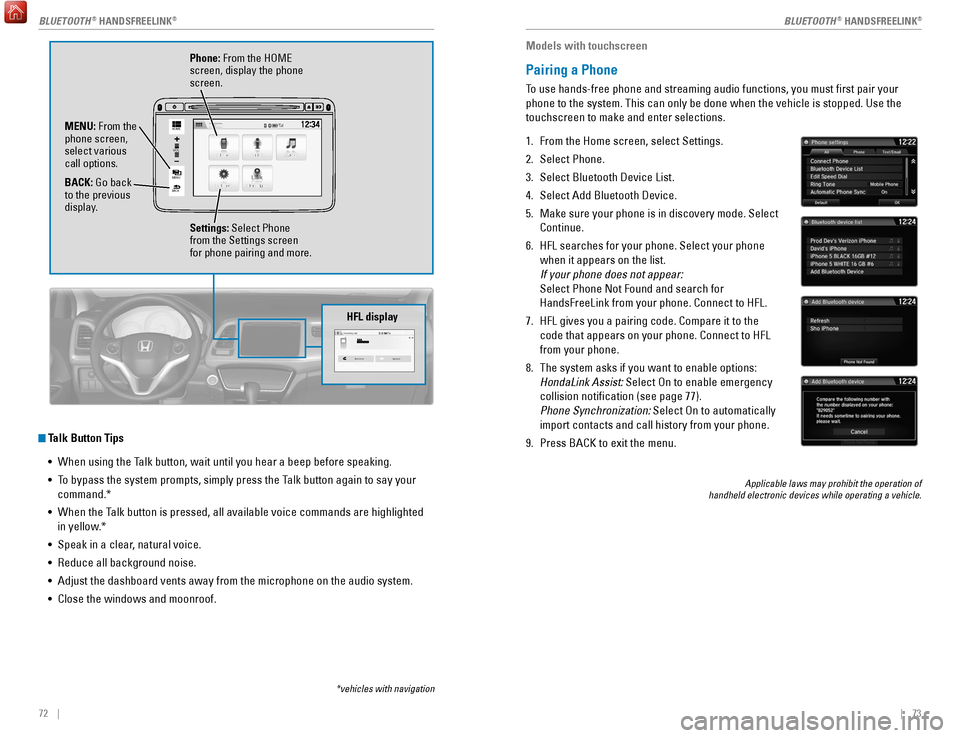
HFL Controls
Use the controls to enter information and make selections.
Pick-Up button: Answer an incoming call.
Hang-Up/Back button: End or decline a call, or cancel
an operation.
Talk button: Make a call using a stored voice tag.
+ / - buttons: Scroll the list after pressing and holding
the Menu button.
SOURCE button: Press to enter a selection after
pressing and holding the Menu button.
MENU button: From the phone screen, press and hold
to display speed dial, call history, or redial.
BLUETOOTH® HANDSFREELINK®BLUETOOTH® HANDSFREELINK®
Page 40 of 78
72 || 73
Talk Button Tips
•
When using the T
alk button, wait until you hear a beep before speaking.
•
T
o bypass the system prompts, simply press the Talk button again to say your
command.*
•
When the T
alk button is pressed, all available voice commands are highlighted
in yellow.*
•
Speak in a clear
, natural voice.
•
Reduce all background noise.
•
Adjust the dashboard vents away from the microphone on the audio system.\
•
Close the windows and moonroof.
VO L
HOME
MENU
BA CK
Phone: From the HOME
screen, display the phone
screen.
MENU: From the
phone screen,
select various
call options.
BACK: Go back
to the previous
display. Settings: Select Phone
from the Settings screen
for phone pairing and more.
*vehicles with navigation
HFL display
Models with touchscreen
Pairing a Phone
To use hands-free phone and streaming audio functions, you must first p\
air your
phone to the system. This can only be done when the vehicle is stopped. \
Use the
touchscreen to make and enter selections.
1.
From the Home screen, select Settings.
2.
Select Phone.
3.
Select Bluetooth Device List.
4.
Select Add Bluetooth Device.
5.
Make sure your phone is in discovery mode. Select
Continue.
6.
HFL searches for your phone. Select your phone
when it appears on the list.
If your phone does not appear:
Select Phone Not Found and search for
HandsFreeLink from your phone. Connect to HFL.
7.
HFL gives you a pairing code. Compare it to the
code that appears on your phone. Connect to HFL
from your phone.
8.
The system asks if you want to enable options:
HondaLink Assist: Select On to enable emergency
collision notification (see page 77).
Phone Synchronization: Select On to automatically
import contacts and call history from your phone.
9.
Press BACK to exit the menu.
Applicable laws may prohibit the operation of
handheld electronic devices while operating a vehicle.
BLUETOOTH® HANDSFREELINK®BLUETOOTH® HANDSFREELINK®
Page 42 of 78
76 || 77
Models with touchscreen
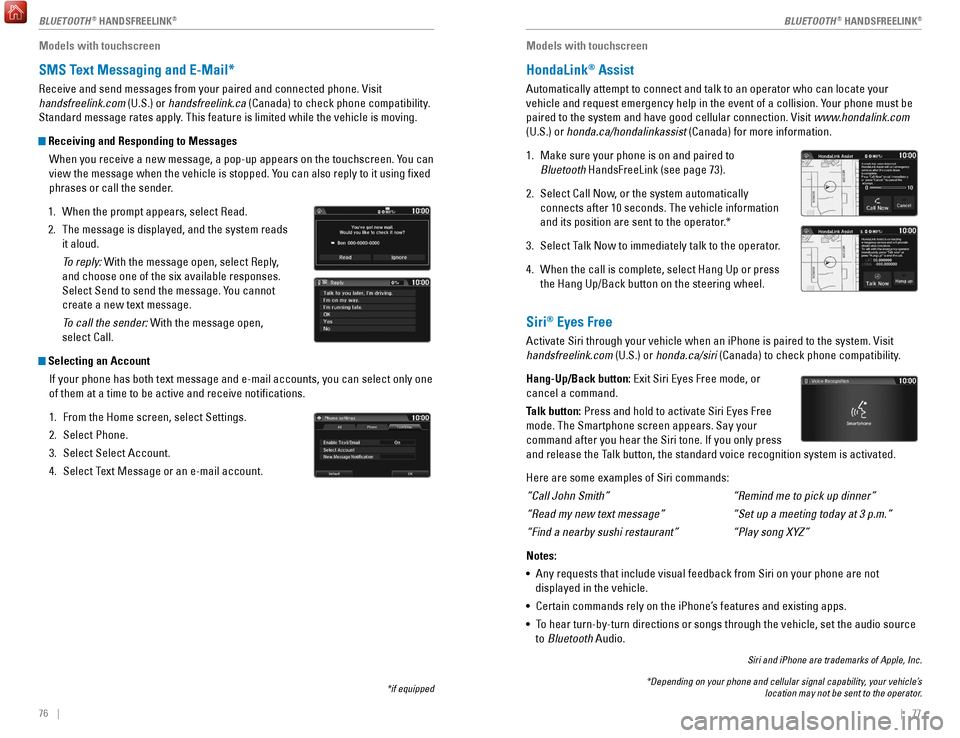
SMS Text Messaging and E-Mail*
Receive and send messages from your paired and connected phone. Visit
handsfreelink.com (U.S.) or handsfreelink.ca (Canada) to check phone compatibility.
Standard message rates apply. This feature is limited while the vehicle is moving.
Receiving and Responding to Messages
When you receive a new message, a pop-up appears on the touchscreen. You can
view the message when the vehicle is stopped. You can also reply to it using fixed
phrases or call the sender.
1.
When the prompt appears, select Read.
2.
The message is displayed, and the system reads
it aloud.
T
o reply: With the message open, select Reply,
and choose one of the six available responses.
Select Send to send the message. You cannot
create a new text message.
To call the sender: With the message open,
select Call.
Selecting an Account
If your phone has both text message and e-mail accounts, you can select \
only one
of them at a time to be active and receive notifications.
1.
From the Home screen, select Settings.
2.
Select Phone.
3.
Select Select Account.
4.
Select T
ext Message or an e-mail account.
*if equipped
Models with touchscreen
HondaLink® Assist
Automatically attempt to connect and talk to an operator who can locate \
your
vehicle and request emergency help in the event of a collision. Your phone must be
paired to the system and have good cellular connection. Visit www.hondalink.com
(U.S.) or honda.ca/hondalinkassist (Canada) for more information.
1.
Make sure your phone is on and paired to
Bluetooth
HandsFreeLink (see page 73).
2.
Select Call Now
, or the system automatically
connects after 10 seconds. The vehicle information
and its position are sent to the operator.*
3.
Select T
alk Now to immediately talk to the operator.
4.
When the call is complete, select Hang Up or press
the Hang Up/Back button on the steering wheel.
Siri® Eyes Free
Activate Siri through your vehicle when an iPhone is paired to the syste\
m. Visit
handsfreelink.com (U.S.) or honda.ca/siri (Canada) to check phone compatibility.
Hang-Up/Back button: Exit Siri Eyes Free mode, or
cancel a command.
Talk button: Press and hold to activate Siri Eyes Free
mode. The Smartphone screen appears. Say your
command after you hear the Siri tone. If you only press
and release the Talk button, the standard voice recognition system is activated.
Here are some examples of Siri commands:
“Call John Smith”
“Read my new text message”
“Find a nearby sushi restaurant”
Notes:
•
Any requests that include visual feedback from Siri on your phone are no\
t
displayed in the vehicle.
•
Certain commands rely on the iPhone’
s features and existing apps.
•
T
o hear turn-by-turn directions or songs through the vehicle, set the aud\
io source
to Bluetooth Audio.
Siri and iPhone are trademarks of Apple, Inc.
“Remind me to pick up dinner”
“Set up a meeting today at 3 p.m.”
“Play song XYZ”
*Depending on your phone and cellular signal capability, your vehicle’s location may not be sent to the operator.
BLUETOOTH® HANDSFREELINK®BLUETOOTH® HANDSFREELINK®
Page 43 of 78
78 || 79
NAVIGATION
NAVIGATION
Learn how to enter a destination and operate the navigation system.
Basic Navigation Operation
A real-time navigation system uses GPS and a map database to show your current
location and help guide you to a desired destination. You can operate the system
using voice commands or the touchscreen.
To reduce the potential for driver distraction, certain manual functions \
may be
inoperable or grayed out while the vehicle is moving. Voice commands are always
available.
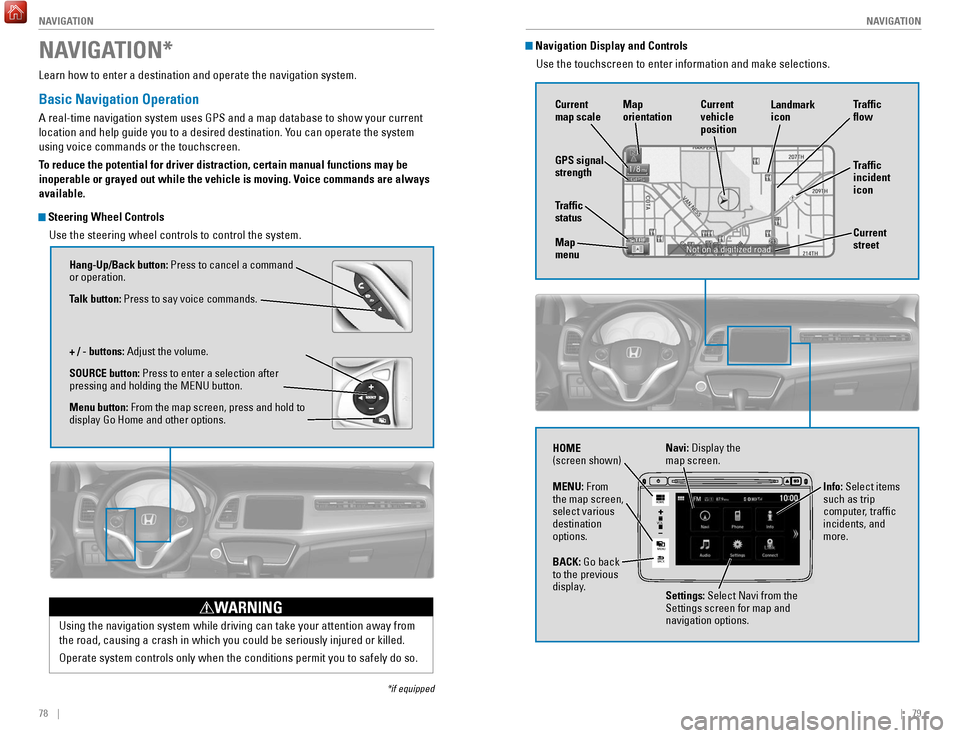
Steering Wheel Controls
Use the steering wheel controls to control the system.
NAVIGATION*
*if equipped
Using the navigation system while driving can take your attention away f\
rom
the road, causing a crash in which you could be seriously injured or kil\
led.
Operate system controls only when the conditions permit you to safely do\
so.
WARNING
Hang-Up/Back button: Press to cancel a command
or operation.
Talk button: Press to say voice commands.
+ / - buttons: Adjust the volume.
SOURCE button: Press to enter a selection after
pressing and holding the MENU button.
Menu button: From the map screen, press and hold to
display Go Home and other options.
Navigation Display and ControlsUse the touchscreen to enter information and make selections.
HOME
MENU
BA CK
VO L
Navi: Display the
map screen.
HOME
(screen shown)
Info: Select items
such as trip
computer, traffic
incidents, and
more.
BACK: Go back
to the previous
display. Settings: Select Navi from the
Settings screen for map and
navigation options.
MENU: From
the map screen,
select various
destination
options.
GPS signal
strength
Traffic
incident
icon Traffic
flow
Current
map scale Current
vehicle
position
Map
orientation
Current
street
Traffic
status
Map
menu Landmark
icon
Page 45 of 78

82 || 83
NAVIGATION
NAVIGATION
Place Category
Enter a destination or point of interest using voice commands. Press the\
Talk
button before saying each command.
You can also enter the place name manually when the vehicle is stopped. F\
rom the
map screen, press MENU and select Place Name. Follow the prompts.
1.
From the V
oice Portal screen, say “Place name.”
2.
Say a category
, for example “ATM/Bank.”
3.
Say the name of the place, for example “
ABC
Bank.”
4.
The system interprets the name. If necessary
,
you may have to clarify similar matches.
5.
Say
“Set as destination” to set the route.
Find Nearest PlaceEnter a destination by category and distance using voice commands. Press\
the
Talk button before saying each command.
1.
Say
“Find nearest” and a place. For example,
“Find nearest ATM.”
2.
A list of the nearest places in your area is
displayed by shortest distance to destination.
3.
Say the number next to the destination you want
to select.
4.
Say
“Set as destination” to set the route.
Routing
After a destination is set, you can alter or cancel your route.
Map Legend
During route guidance Next
guidance
point
Estimated time
to destination
Distance to
destination Calculated
route