radio HONDA INSIGHT 2020 (in English) User Guide
[x] Cancel search | Manufacturer: HONDA, Model Year: 2020, Model line: INSIGHT, Model: HONDA INSIGHT 2020Pages: 675, PDF Size: 36.95 MB
Page 242 of 675
240
uuAudio System uAudio Remote Controls
Features
/ (Seek/Skip) Buttons
• When listening to the radio
Press : To select the next preset radio station.
Press : To select the previous preset radio station.
Press and hold : To select the next strong station.
Press and hold : To select the previous strong station.
• When listening to an iPod, USB flash drive, or Bluetooth® Audio, or Smartphone
Connection
Press : To skip to the next song.
Press : To go back to the beginning of the current or previous song.
• When listening to a USB flash drive
Press and hold : To skip to the next folder.
Press and hold : To go back to the previous folder.
20 INSIGHT-31TXM6100.book 240 ページ 2019年4月24日 水曜日 午後2時2分
Page 250 of 675
248
uuAudio System Basic Operation uPlaying AM/FM Radio
Features
Playing AM/FM Radio
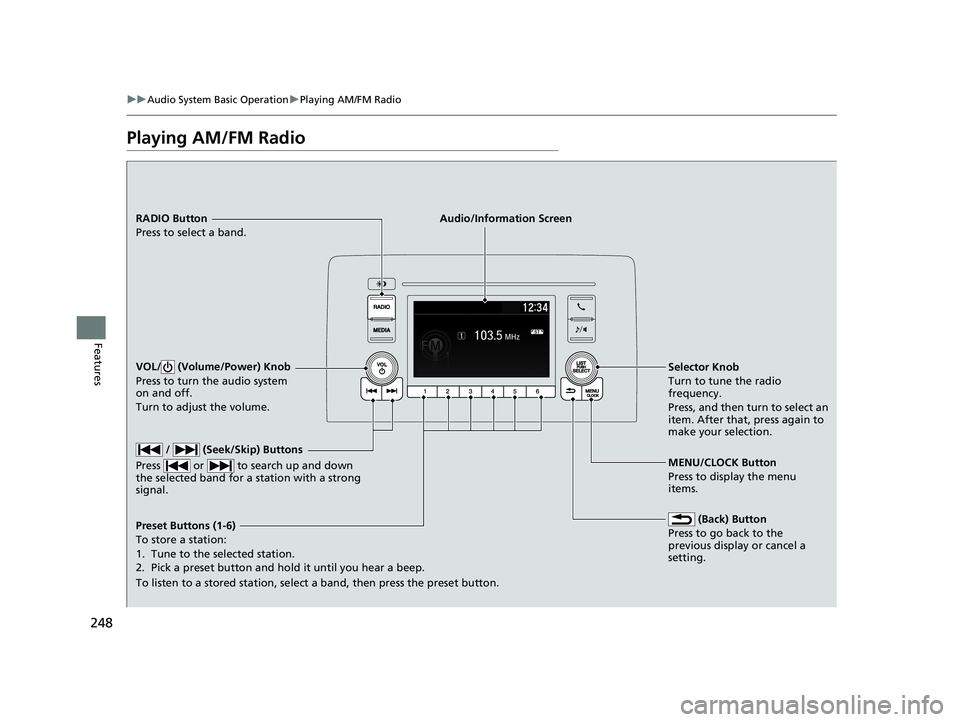
RADIO Button
Press to select a band.
(Back) Button
Press to go back to the
previous display or cancel a
setting.
/ (Seek/Skip) Buttons
Press or to search up and down
the selected band for a station with a strong
signal.
VOL/ (Volume/Power) Knob
Press to turn the audio system
on and off.
Turn to adjust the volume.
Preset Buttons (1-6)
To store a station:
1. Tune to the selected station.
2. Pick a preset button and hold it until you hear a beep.
To listen to a stored station, select a band, then press the preset button. Selector Knob
Turn to tune the radio
frequency.
Press, and then turn to select an
item. After that, press again to
make your selection.
MENU/CLOCK Button
Press to display the menu
items.
Audio/Information Screen
20 INSIGHT-31TXM6100.book 248 ページ 2019年4月24日 水曜日 午後2時2分
Page 251 of 675
249
uuAudio System Basic Operation uPlaying AM/FM Radio
Features
Provides text data information related to your selected RDS capable FM station.
■To find an RDS station from Station List
1. Press while listening to an FM station.
2. Rotate to select the station, then press .
■Update List
Updates your available st ation list at any time.
1. Press while listening to an FM station.
2. Rotate to select Update List, then press .
■Radio text
Displays the radio text informat ion of the selected RDS station.
1. Press the MENU/CLOCK button.
2. Rotate to select Settings, then press .
3. Rotate to select RDS Settings, then press .
4. Rotate to select Radio Text, then press .
■Scan
Samples each of the strongest stations on the selected band for 10 seconds.
1. Press the MENU/CLOCK button.
2. Rotate to select Scan, then press .
To turn off scan, press .
■Radio Data System (RDS)1 Playing AM/FM Radio
The ST indicator appears on the display indicating
stereo FM broadcasts.
Stereo reproduction in AM is not available.
You can store 6 AM stations and 12 FM stations into
the preset memory. FM1 and FM2 let you store 6
stations each.
Switching the Audio Mode
Press the SOURCE button on the steering wheel.
2 Audio Remote Controls P. 237
1Radio Data System (RDS)
When you select an RDS-capable FM station, the RDS
automatically turns on, and the frequency display
changes to the station name. However, when the
signals of that station become weak, the display
changes from the statio n name to the frequency.
20 INSIGHT-31TXM6100.book 249 ページ 2019年4月24日 水曜日 午後2時2分
Page 255 of 675
253
uuAudio System Basic Operation uPlaying Pandora ®
Continued
Features
Playing Pandora ®
Your audio system allows you to listen to music from the Pandora ® app on a
compatible smartphone.
This function is available when the phone is paired an d connected to the vehicle’s
Bluetooth ® HandsFreeLink ® (HFL) system, or with an iPhone, you can connect using
your USB cable to the USB port.
2 Phone Setup P. 395
2 USB Port(s) P. 235
1Playing Pandora ®
Pandora ®, the Pandora logo, and the Pandora trade
dress are trademarks or registered trademarks of
Pandora Media, Inc., used with permission. Pandora
is only available in certai n countries. Visit the Pandora
website for more information.
To find out if your phone is compatible with this
feature, visit automobiles.honda.com /handsfreelink/,
or call 1-888-528-7876.
To use this service in your vehicle, the Pandora ® app
must first be installed on your phone. Visit
www.pandora.com. for more information.
Pandora ® is free, personalized radio that plays music
and comedy you’ll love. Just start with the name of
one of your favorite arti sts, tracks, comedians or
composers and Pandora ® will create a custom station
that plays similar tracks. Pandora ® also features
hundreds of genre stations ranging from Dubstep to
Smooth Jazz to Power Workout.
If you cannot operate Pandora ® through the audio
system, it may be streaming through Bluetooth®
Audio. Make sure Pandora ® mode on your audio
system is selected.
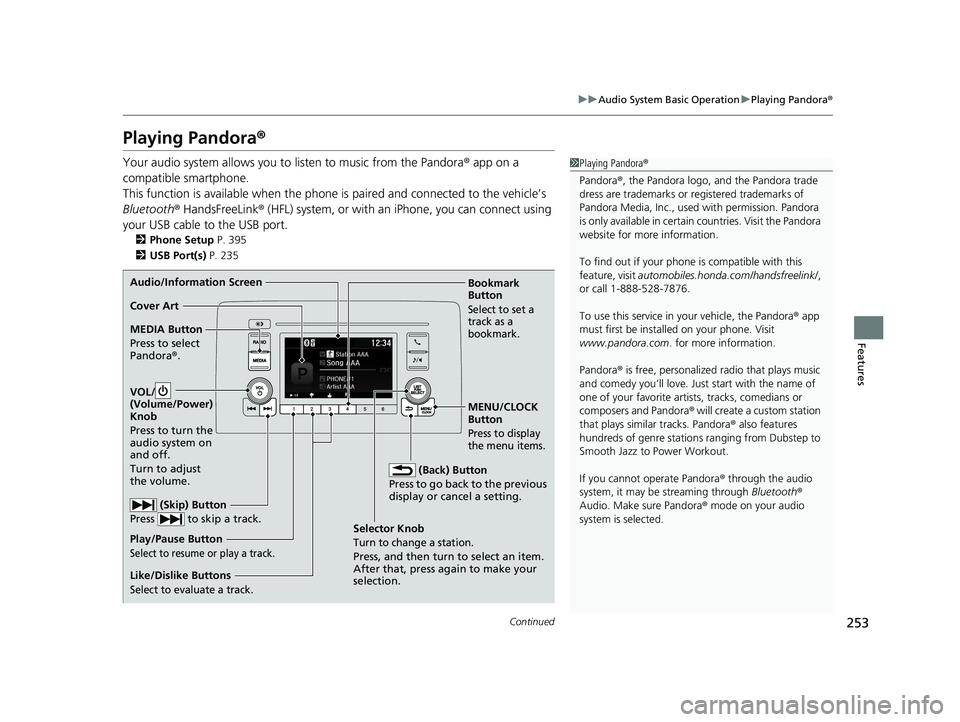
Audio/Information Screen
Selector Knob
Turn to change a station.
Press, and then turn to select an item.
After that, press again to make your
selection.
VOL/
(Volu
me/Power)
Knob
Press to turn the
audio system on
and off.
Turn to adjust
the volume.
(Back) Button
Press to go back to the previous
display or cancel a setting.
MEDIA Button
Press to select
Pandora ®.
Play/Pause Button
Select to resume or play a track.
(Skip) Button
Press to skip a track.
Like/Dislike Buttons
Select to evaluate a track.
MENU/CLOCK
Button
Press to display
the menu items.
Bookmark
Button
Select to set a
track as a
bookmark.Cover Art
20 INSIGHT-31TXM6100.book 253 ページ 2019年4月24日 水曜日 午後2時2分
Page 292 of 675
290
uuAudio System Basic Operation uPlaying AM/FM Radio
Features
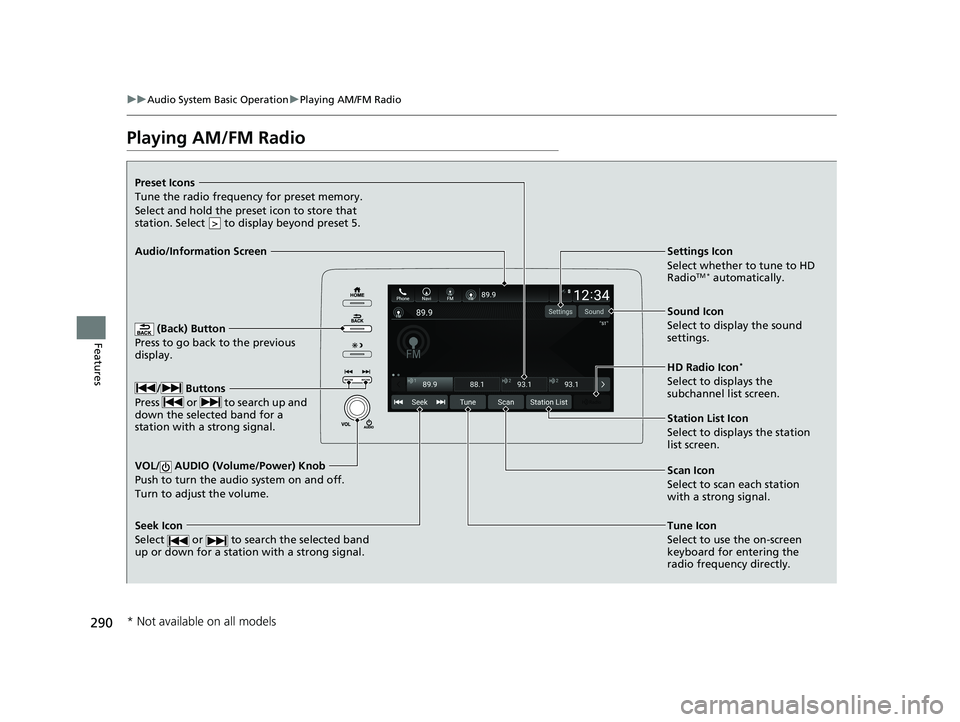
Playing AM/FM Radio
(Back) Button
Press to go back to the previous
display.
/ Buttons
Press or to search up and
down the selected band for a
station with a strong signal.
VOL/ AUDIO (Volume/Power) Knob
Push to turn the audi o system on and off.
Turn to adjust the volume.
Tune Icon
Select to use the on-screen
keyboard for entering the
radio frequency directly.
Audio/Information Screen
Scan Icon
Select to scan eac
h station
with a strong signal.
Preset Icons
Tune the radio frequency for preset memory.
Select and hold the preset icon to store that
station. Select to display beyond preset 5.
>
Settings Icon
Select whether to tune to HD
Radio
TM * automatically.
Seek Icon
Select or to search the selected band
up or down for a station with a strong signal.
Sound Icon
Select to display the sound
settings.
HD Radio Icon
*
Select to displays the
subchannel list screen.
Station List Icon
Select to displays the station
list screen.
* Not available on all models
20 INSIGHT-31TXM6100.book 290 ページ 2019年4月24日 水曜日 午後2時2分
Page 293 of 675
Continued291
uuAudio System Basic Operation uPlaying AM/FM Radio
Features
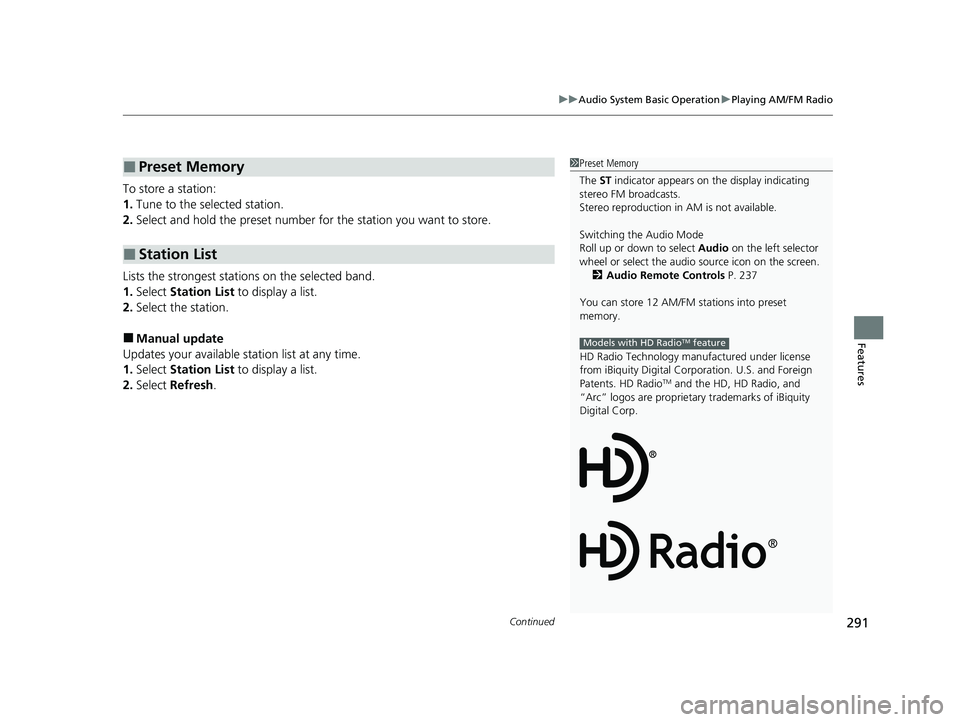
To store a station:
1. Tune to the selected station.
2. Select and hold the preset number for the station you want to store.
Lists the strongest stations on the selected band.
1. Select Station List to display a list.
2. Select the station.
■Manual update
Updates your available st ation list at any time.
1. Select Station List to display a list.
2. Select Refresh .
■Preset Memory
■Station List
1Preset Memory
The ST indicator appears on the display indicating
stereo FM broadcasts.
Stereo reproduction in AM is not available.
Switching the Audio Mode
Roll up or down to select Audio on the left selector
wheel or select the audio source icon on the screen.
2 Audio Remote Controls P. 237
You can store 12 AM/FM stations into preset
memory.
HD Radio Technology manufactured under license
from iBiquity Digital Cor poration. U.S. and Foreign
Patents. HD Radio
TM and the HD, HD Radio, and
“Arc” logos are proprietary trademarks of iBiquity
Digital Corp.
Models with HD RadioTM feature
20 INSIGHT-31TXM6100.book 291 ページ 2019年4月24日 水曜日 午後2時2分
Page 294 of 675
uuAudio System Basic Operation uPlaying AM/FM Radio
292
Features
Samples each of the strongest stations on the selected band for 10 seconds. To turn
off scan, select Stop or press the button.
Provides text data information related to your selected RDS-capable FM station.
■To find an RDS station from Station List
1. Select Station List to display a list while listening to an FM station.
2. Select the station.
■Manual update
Updates your available station list at any time.
1. Select Station List to display a list while listening to an FM station.
2. Select Refresh .
■Scan
■Radio Data System (RDS)1Radio Data System (RDS)
When you select an RDS-capable FM station, the RDS
automatically turns on, and the frequency display
changes to the station name. However, when the
signals of that station become weak, the display
changes from the statio n name to the frequency.
20 INSIGHT-31TXM6100.book 292 ページ 2019年4月24日 水曜日 午後2時2分
Page 295 of 675
293
uuAudio System Basic Operation uPlaying AM/FM Radio
Features
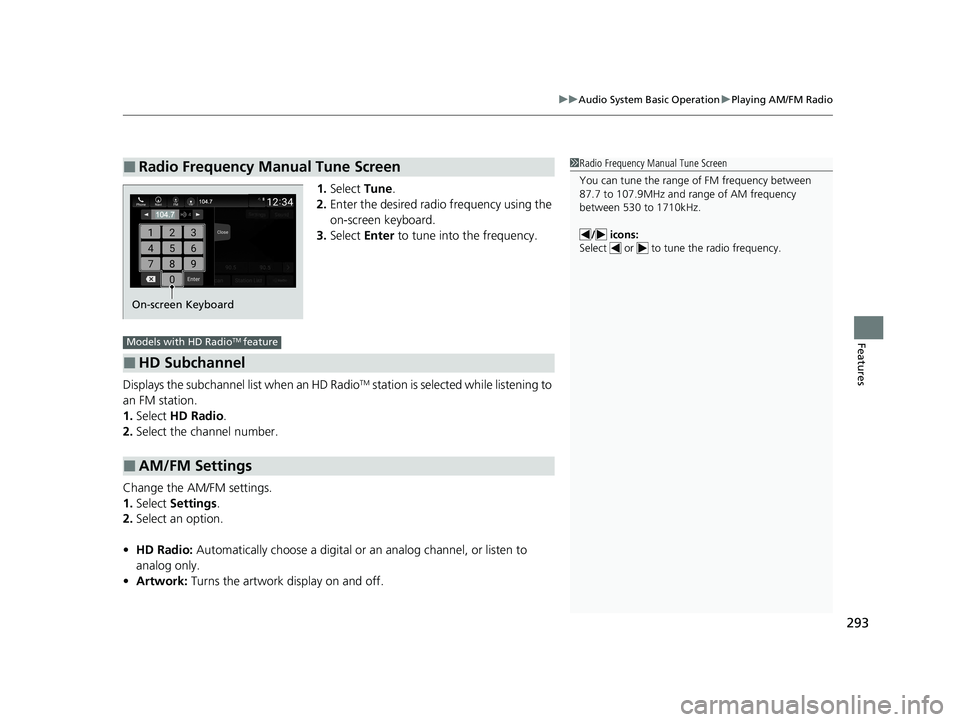
1. Select Tune.
2. Enter the desired radio frequency using the
on-screen keyboard.
3. Select Enter to tune into the frequency.
Displays the subchannel list when an HD Radio
TM station is selected while listening to
an FM station.
1. Select HD Radio .
2. Select the channel number.
Change the AM/FM settings.
1. Select Settings .
2. Select an option.
• HD Radio: Automatically choose a digital or an analog channel, or listen to
analog only.
• Artwork: Turns the artwork display on and off.
■Radio Frequency Manual Tune Screen1Radio Frequency Manual Tune Screen
You can tune the range of FM frequency between
87.7 to 107.9MHz and range of AM frequency
between 530 to 1710kHz.
/ icons:
Select or to tune the radio frequency.
On-screen Keyboard
■HD Subchannel
■AM/FM Settings
Models with HD RadioTM feature
20 INSIGHT-31TXM6100.book 293 ページ 2019年4月24日 水曜日 午後2時2分
Page 296 of 675
294
uuAudio System Basic Operation uPlaying SiriusXM ® Radio*
Features
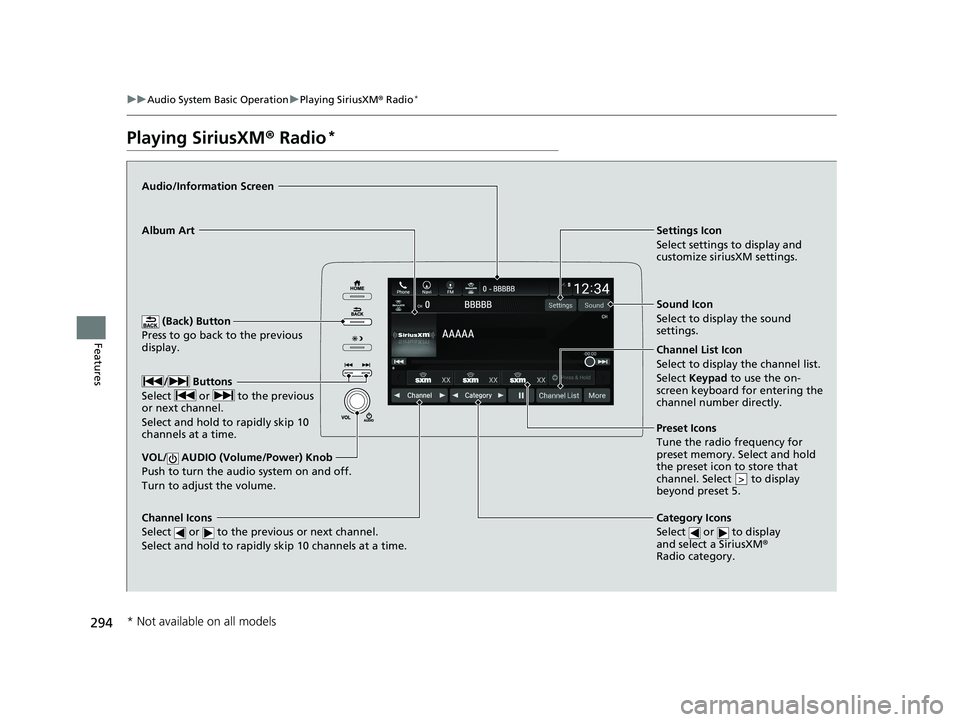
Playing SiriusXM ® Radio*
(Back) Button
Press to go back to the previous
display.
Channel Icons
Select or to the previous or next channel.
Select and hold to rapidly skip 10 channels at a time.
VOL/ AUDIO (Volume/Power) Knob
Push to turn the a udio system on and off.
Turn to adjust the volume.
Category Icons
Select or to display
and select a SiriusXM ®
Radio category.
Audio/Information Screen
Preset Icons
Tune the
radio frequency for
preset memory. Select and hold
the preset icon to store that
channel. Select to display
beyond preset 5.
>
Album Art Settings Icon
Select settings to display and
customize siriusXM settings.
/ Buttons
Select or to the previous
or next channel.
Select and hold to rapidly skip 10
channels at a time.
Sound Icon
Select to display the sound
settings.
Channel List Icon
Select to display the channel list.
Select Keypad to use the on-
screen keyboard for entering the
channel number directly.
* Not available on all models
20 INSIGHT-31TXM6100.book 294 ページ 2019年4月24日 水曜日 午後2時2分
Page 297 of 675
Continued295
uuAudio System Basic Operation uPlaying SiriusXM ® Radio*
Features
1. Select Settings .
2. Select Tune Mode .
3. Select Channel or Category .
■To Change the Tune Mode1Playing SiriusXM ® Radio*
In the channel mode, all available channels are
selectable. In the categor y mode, you can select a
channel within a ca tegory (Jazz, Rock, Classical, etc.).
There may be instances when SiriusXM ® Radio does
not broadcast all the data fi elds (artist name, title).
This does not indicate a problem with your audio
system.
SiriusXM ® Radio stations load in ascending order,
which can take about a minute. Once they have
loaded you will be able to scroll up or down to make
your selections.
Switching the Audio Mode
Roll up or down to select Audio on the left selector
wheel or select the audio source icon on the screen.
2 Audio Remote Controls P. 237
Tune Start:
When you change to a preset channel, a song being
played on that channel restarts from the beginning
with this function. This can be turned on or off by the
following procedure.
1. Select Settings.
2. Select Tune Start .
3. Select ON or OFF .
To change a category, select Category icons, or
select More and then select Category List.
* Not available on all models
20 INSIGHT-31TXM6100.book 295 ページ 2019年4月24日 水曜日 午後2時2分