set HONDA ODYSSEY 2011 RB3-RB4 / 4.G Navigation Manual
[x] Cancel search | Manufacturer: HONDA, Model Year: 2011, Model line: ODYSSEY, Model: HONDA ODYSSEY 2011 RB3-RB4 / 4.GPages: 178, PDF Size: 3.97 MB
Page 2 of 178
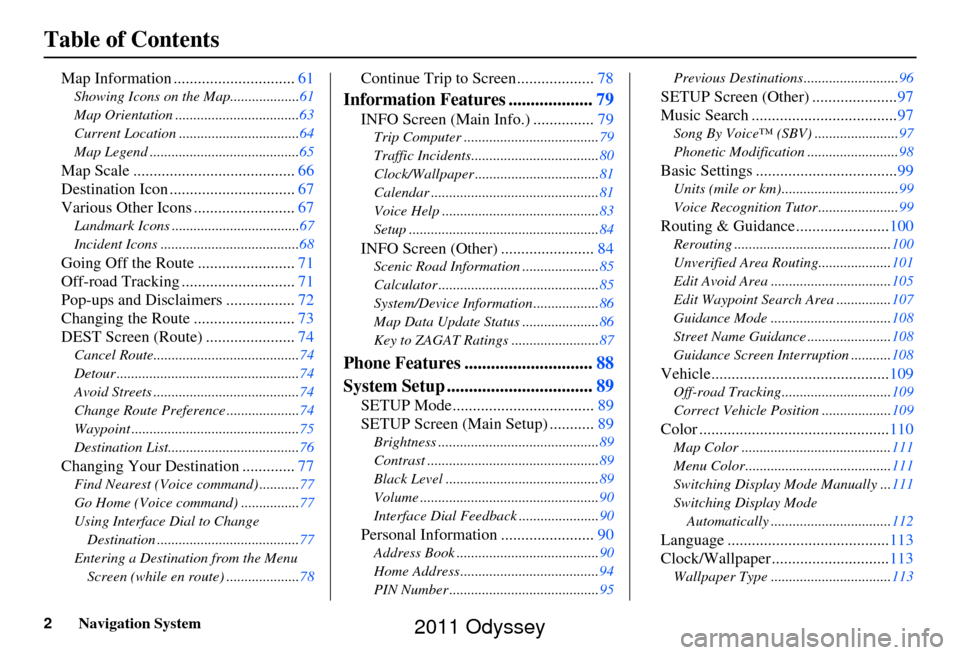
2Navigation System
Table of Contents
Map Information ..............................61
Showing Icons on the Map...................61
Map Orientation ..................................63
Current Location .................................64
Map Legend .........................................65
Map Scale ........................................ 66
Destination Icon ............................... 67
Various Other Icons ......................... 67
Landmark Icons ...................................67
Incident Icons ......................................68
Going Off the Route ........................71
Off-road Tracking ............................ 71
Pop-ups and Disclaimers ................. 72
Changing the Route ......................... 73
DEST Screen (Route) ...................... 74
Cancel Route........................................74
Detour ..................................................74
Avoid Streets ........................................74
Change Route Preference ....................74
Waypoint ..............................................75
Destination List....................................76
Changing Your Destination .............77
Find Nearest (Voice command) ...........77
Go Home (Voice command) ................77
Using Interface Dial to Change
Destination .......................................77
Entering a Destination from the Menu Screen (while en route) ....................78
Continue Trip to Screen................... 78
Information Features ...................79
INFO Screen (Main Info.) ............... 79
Trip Computer ..................................... 79
Traffic Incidents................................... 80
Clock/Wallpaper .................................. 81
Calendar .............................................. 81
Voice Help ........................................... 83
Setup .................................................... 84
INFO Screen (Other) .......................84
Scenic Road Information ..................... 85
Calculator ............................................ 85
System/Device Information .................. 86
Map Data Update Status ..................... 86
Key to ZAGAT Ratings ........................ 87
Phone Features .............................88
System Setup ................................. 89
SETUP Mode................................... 89
SETUP Screen (Main Setup) ........... 89
Brightness ............................................ 89
Contrast ............................................... 89
Black Level .......................................... 89
Volume ................................................. 90
Interface Dial Feedback ...................... 90
Personal Information .......................90
Address Book ....................................... 90
Home Address ...................................... 94
PIN Number ......................................... 95Previous Destinations..........................
96
SETUP Screen (Other) .....................97
Music Search .................................... 97
Song By Voice™ (SBV) ....................... 97
Phonetic Modification ......................... 98
Basic Settings ...................................99
Units (mile or km)................................ 99
Voice Recognition Tutor ...................... 99
Routing & Guidance.......................100
Rerouting ........................................... 100
Unverified Area Routing.................... 101
Edit Avoid Area ................................. 105
Edit Waypoint Search Area ............... 107
Guidance Mode ........... ......................108
Street Name Guidance ....................... 108
Guidance Screen Interruption ........... 108
Vehicle............................................109
Off-road Tracking..............................109
Correct Vehicle Position ................... 109
Color ...............................................110
Map Color ......................................... 111
Menu Color........................................ 111
Switching Display Mode Manually ... 111
Switching Display Mode Automatically ................................. 112
Language ........................................ 113
Clock/Wallpaper............................. 113
Wallpaper Type ................................. 113
2011 Odyssey
Page 3 of 178
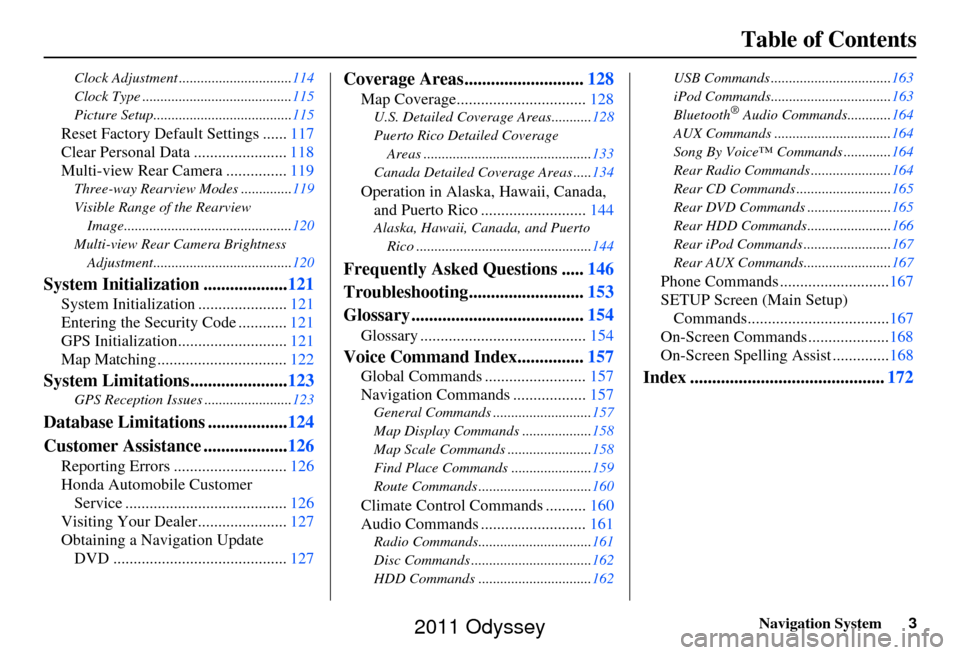
Navigation System3
Table of Contents
Clock Adjustment ............................... 114
Clock Type ......................................... 115
Picture Setup...................................... 115
Reset Factory Default Settings ......117
Clear Personal Data ....................... 118
Multi-view Rear Camera ............... 119
Three-way Rearview Modes .............. 119
Visible Range of the Rearview Image.............................................. 120
Multi-view Rear Camera Brightness Adjustment...................................... 120
System Initialization ...................121
System Initialization ......................121
Entering the Security Code ............ 121
GPS Initialization.................. .........121
Map Matching ................................ 122
System Limitations......................123
GPS Reception Issues ........................ 123
Database Limitations ..................124
Customer Assistance ................... 126
Reporting Errors ............................ 126
Honda Automobile Customer Service ........................................ 126
Visiting Your Dealer...................... 127
Obtaining a Navigation Update DVD ........................................... 127
Coverage Areas........................... 128
Map Coverage................................ 128
U.S. Detailed Coverage Areas........... 128
Puerto Rico Detailed Coverage Areas .............................................. 133
Canada Detailed Coverage Areas ..... 134
Operation in Alaska, Hawaii, Canada,
and Puerto Rico .......................... 144
Alaska, Hawaii, Canada, and Puerto
Rico ................................................ 144
Frequently Asked Questions .....146
Troubleshooting.......................... 153
Glossary ....................................... 154
Glossary ......................................... 154
Voice Command Index...............157
Global Commands ......................... 157
Navigation Commands .................. 157
General Commands ........................... 157
Map Display Commands ................... 158
Map Scale Commands .... ...................158
Find Place Commands ...................... 159
Route Commands ............ ...................160
Climate Control Commands .......... 160
Audio Commands .......................... 161
Radio Commands...............................161
Disc Commands .... .............................162
HDD Commands ............................... 162USB Commands .................................
163
iPod Commands................................. 163
Bluetooth
® Audio Commands............ 164
AUX Commands ................................ 164
Song By Voice™ Co mmands .............164
Rear Radio Commands .. ....................164
Rear CD Commands .......................... 165
Rear DVD Commands ....................... 165
Rear HDD Commands....................... 166
Rear iPod Commands ........................ 167
Rear AUX Commands........................ 167
Phone Commands ...........................167
SETUP Screen (Main Setup) Commands................................... 167
On-Screen Commands .................... 168
On-Screen Spelling Assist ..............168
Index ............................................ 172
2011 Odyssey
Page 4 of 178
4Navigation System
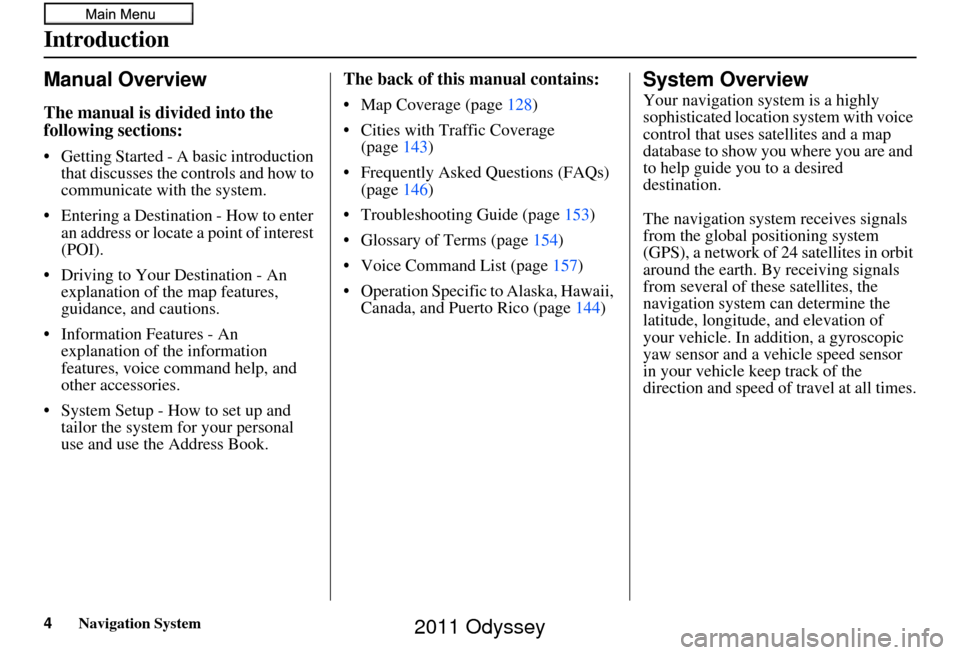
Manual Overview
The manual is divided into the
following sections:
• Getting Started - A basic introduction that discusses the controls and how to
communicate with the system.
• Entering a Destination - How to enter an address or locate a point of interest
(POI).
• Driving to Your Destination - An explanation of the map features,
guidance, and cautions.
• Information Features - An explanation of the information
features, voice command help, and
other accessories.
• System Setup - How to set up and tailor the system for your personal
use and use the Address Book.
The back of this manual contains:
• Map Coverage (page 128)
• Cities with Traffic Coverage (page 143)
• Frequently Asked Questions (FAQs) (page 146)
• Troubleshooting Guide (page 153)
• Glossary of Terms (page 154)
• Voice Command List (page 157)
• Operation Specific to Alaska, Hawaii, Canada, and Puerto Rico (page 144)
System Overview
Your navigation system is a highly
sophisticated location system with voice
control that uses satellites and a map
database to show you where you are and
to help guide you to a desired
destination.
The navigation system receives signals
from the global positioning system
(GPS), a network of 24 satellites in orbit
around the earth. By receiving signals
from several of these satellites, the
navigation system can determine the
latitude, longitude, and elevation of
your vehicle. In a ddition, a gyroscopic
yaw sensor and a vehicle speed sensor
in your vehicle k eep track of the
direction and speed of travel at all times.
Introduction
2011 Odyssey
Page 8 of 178
8Navigation System
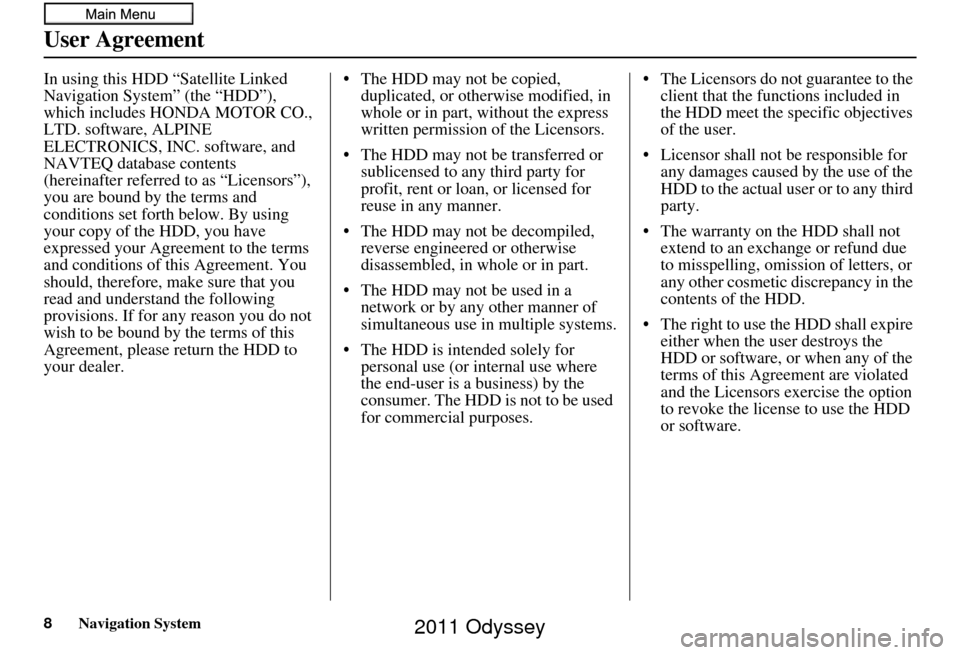
In using this HDD “Satellite Linked
Navigation System” (the “HDD”),
which includes HONDA MOTOR CO.,
LTD. software, ALPINE
ELECTRONICS, INC. software, and
NAVTEQ database contents
(hereinafter referred to as “Licensors”),
you are bound by the terms and
conditions set forth below. By using
your copy of the HDD, you have
expressed your Agre ement to the terms
and conditions of this Agreement. You
should, therefore, make sure that you
read and understand the following
provisions. If for any reason you do not
wish to be bound by the terms of this
Agreement, please return the HDD to
your dealer. • The HDD may not be copied,
duplicated, or otherwise modified, in
whole or in part, without the express
written permission of the Licensors.
• The HDD may not be transferred or sublicensed to any third party for
profit, rent or loan, or licensed for
reuse in any manner.
• The HDD may not be decompiled, reverse engineered or otherwise
disassembled, in whole or in part.
• The HDD may not be used in a network or by any other manner of
simultaneous use in multiple systems.
• The HDD is intended solely for personal use (or internal use where
the end-user is a business) by the
consumer. The HDD is not to be used
for commercial purposes. • The Licensors do not guarantee to the
client that the functions included in
the HDD meet the sp ecific objectives
of the user.
• Licensor shall not be responsible for any damages caused by the use of the
HDD to the actual user or to any third
party.
• The warranty on the HDD shall not extend to an exchange or refund due
to misspelling, omission of letters, or
any other cosmetic discrepancy in the
contents of the HDD.
• The right to use the HDD shall expire either when the user destroys the
HDD or software, or when any of the
terms of this Agreement are violated
and the Licensors exercise the option
to revoke the license to use the HDD
or software.
User Agreement
2011 Odyssey
Page 9 of 178
Navigation System9
User Agreement
• The terms and conditions hereof
apply to all subsequent users and
owners as well as to the original
purchaser.
• The logos of oil companies, hotels, convenience stores, and other
businesses are displayed for your
information and convenience, and in
no way imply any sponsorship,
approval or endorsement of these
companies, or their products.
The logos are trademarks of their
respective owners. The user shall indemnify and save
harmless the Licensors, and their
officers, employees and agents, from
and against any claim, demand or
action, irrespective of the nature of the
cause of the claim, demand or action,
alleging loss, costs, expense, damages
or injuries (including injuries resulting
in death) arising out of the use or
possession of the HDD or software.
Use, duplication, or disclosure of this
HDD by or on behalf of the United
States government is subject to
“Restricted Rights” as set forth at FAR
52.227-14, -19 or DFARS 252.227-
7013, as applicable. Manufacturers are
the Licensors, including HONDA
MOTOR CO., LTD., 2-1-1 Minami
Aoyama Minato-Ku Tokyo 107-8556
JAPAN., Alpine Electronics, Inc., 20-1
Yoshima Kogyodanchi, Iwaki,
Fukushima 970-1192 JAPAN.,
NAVTEQ Corporation, 425 W
Randolph St. Chicago, IL 60606, USA.
2011 Odyssey
Page 10 of 178
10Navigation System
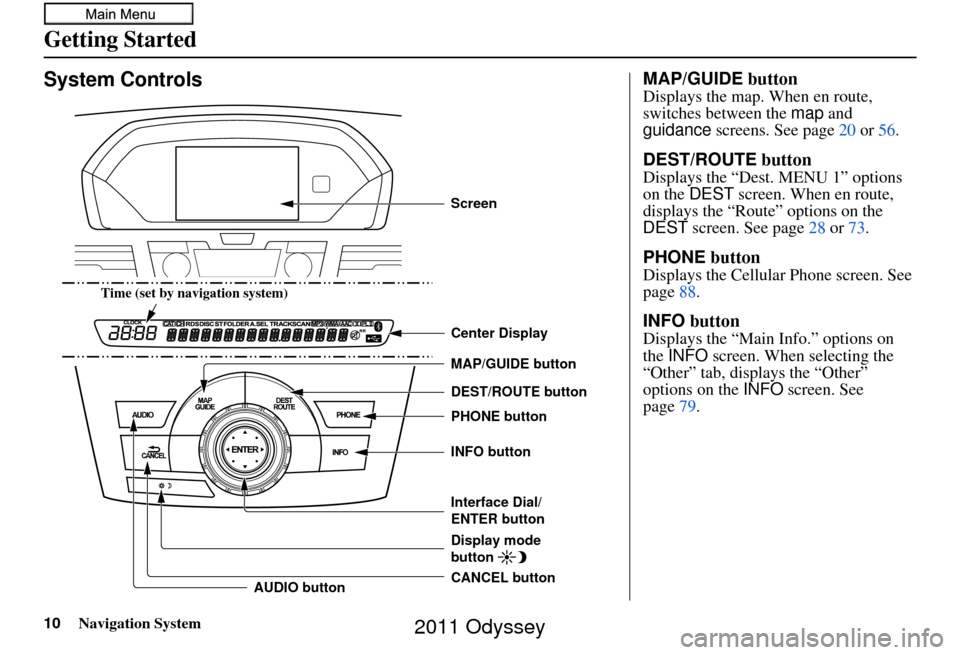
System Controls
CANCEL button INFO button
DEST/ROUTE button
Interface Dial/
ENTER button PHONE button
AUDIO button MAP/GUIDE button Center Display
Display mode
button
Time (set by navigation system)
Screen
MAP/GUIDE button
Displays the map. When en route,
switches between the
map and
guidance screens. See page 20 or 56 .
DEST/ROUTE button
Displays the “Dest. MENU 1” options
on the DEST screen. When en route,
displays the “Route” options on the
DEST screen. See page 28 or 73.
PHONE button
Displays the Cellular Phone screen. See
page88.
INFO button
Displays the “Main Info.” options on
the INFO screen. When selecting the
“Other” tab, displays the “Other”
options on the INFO screen. See
page 79.
Getting Started
2011 Odyssey
Page 12 of 178
12Navigation System
Getting Started
Screen
All selections and instructions are
displayed on the screen. The display is
not a “touch screen” - you can enter
information into the system either by
voice or by using the Interface Dial.
Clean the screen with a soft, damp cloth.
You may use a mild cleaner intended for
use on computer screens.
NOTE:
Whenever you shift to R (Reverse), the
rear view behind the vehicle is shown on
the navigation system screen. See
page 119.
Lower Display
Shows a summary of the audio
information, as well as the time. This
summary is helpful as a confirmation
when adjusting audio by voice.
The audio summary consists of the radio
band, frequency, and volume. For XM
radio, a brief description of the station
and current music is displayed.
The time is automatically set by the
navigation system. Settings can be
adjusted in SETUP (see Time
Adjustment on page115).
2011 Odyssey
Page 18 of 178
18Navigation System
Getting Started
System Start-up
When you turn the ignition to ON (II), it
takes about 10 seconds for the
navigation system to boot up.
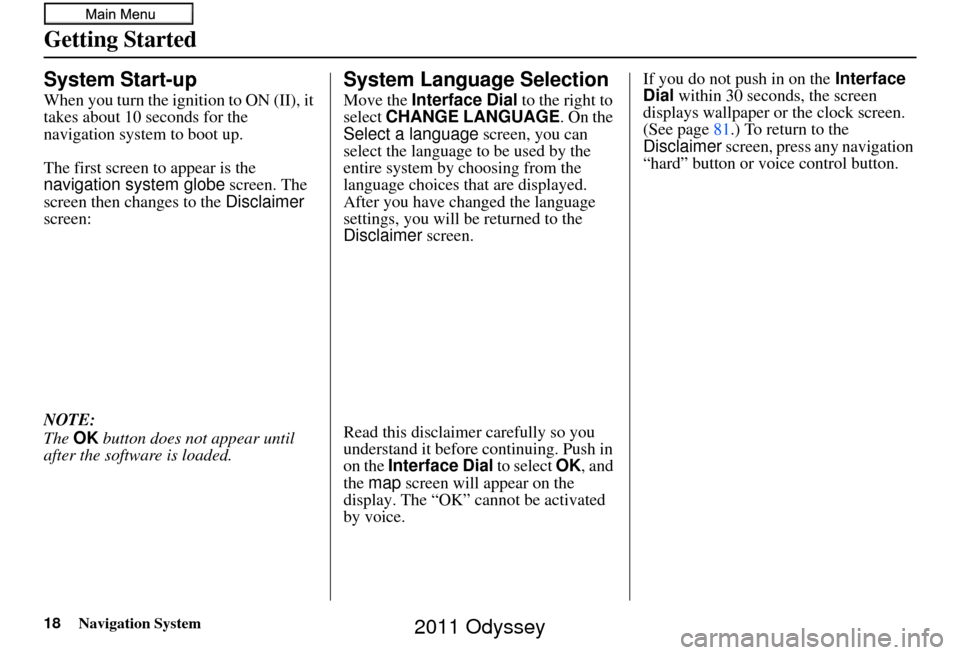
The first screen to appear is the
navigation system globe screen. The
screen then changes to the Disclaimer
screen:
NOTE:
The OK button does not appear until
after the software is loaded.
System Language Selection
Move the Interface Dial to the right to
select CHANGE LANGUAGE. On the
Select a language screen, you can
select the language to be used by the
entire system by choosing from the
language choices that are displayed.
After you have changed the language
settings, you will be returned to the
Disclaimer screen.
Read this disclaimer carefully so you
understand it before continuing. Push in
on the Interface Dial to select OK, and
the map screen will appear on the
display. The “OK” cannot be activated
by voice. If you do not push in on the
Interface
Dial within 30 seconds, the screen
displays wallpaper or the clock screen.
(See page 81.) To return to the
Disclaimer screen, press any navigation
“hard” button or voice control button.
2011 Odyssey
Page 21 of 178
Navigation System21
Getting Started
Map Screen Description
Zoom In/Out
Rotate the Interface Dial knob to
change the map scale. Zooming in
increases the detail, while zooming out
gives you a wide area view. After
changing the scale, give the system a
few moments to update the display.
Map Scrolling
To view other map areas, move the
Interface Dial left, right, up, or down.
The map will shift in that direction. To
return the map to you r current location,
press either the MAP/GUIDE ,
CANCEL , or BACK button on the
steering wheel.
Displaying Current Location
You can see the current address,
latitude, longitude, and elevation at any
time by doing one of the following:
• Use the voice control system and say “Display the current location.”
• Push in on the Interface Dial while
displaying the map of the current
location, and select Map
Information. Rotate the Interface
Dial knob to select Current
Location.
The Current location screen will
appear on the display. NOTE:
The elevation will not appear when the
system is temporarily lacking proper
GPS information. Th
e system elevation
may not agree with elevations shown on
roadside elevation signs, and may
fluctuate plus or minus 100 feet or more.
You can save the current location in
your Address Book by doing one of the
following (if an Address Book PIN has
been set, you need to enter your PIN.):
• Use the voice control system and say “Save.”
• Select Save by rotating the
Interface Dial knob and push in on
the Interface Dial .
Say “Register the current location” on
the map screen, and you can register the
current location with out displaying the
Current location screen.
Select Return to return to the previous
screen.
2011 Odyssey
Page 24 of 178
24Navigation System
Getting Started
Viewing Flow Data
Traffic flow data is displayed as colored
bands on either side of the freeway (see
Traffic Display Legend on page22).
The different colored bands represent
the average road speeds as determined
by under-road sensor s and other probes.
While driving to your destination on a
road that has traffic flow data, your
route line color is used to display the
traffic flow data. This means that when
the map scale is set to one of the traffic
scales (1/20 through 5 mile scale), your
blue route line may appear as alternating
orange or red segments (see Traffic
Display Legend on page22).
NOTE:
A blue route line segment on a freeway
can mean one of two things:
• Under-road sensors, GPS probes, cell phone probes, and other methods
used to collect traffic speed
information.
• The road has no sensors, and traffic conditions are unknown (they could
be congested). Naturally, only roads with these sensors
will show traffic information. The
amount of flow data varies considerably
from one city to another. This map
display is refreshed continuously. You
can only view traffic information in the
city where yo
u are located.
NOTE:
Traffic flow and incident icons are displayed on the 5 miles (8 km) or
less map scale.
Not all freeways within a metropolitan area have traffic flow
data (colored bands on the side of the
freeways) - this is normal, and you
cannot assume that a lack of data
implies no traffic.
Not all cities have traffic flow information. See cities listed on
page 143.
Due to freeway maintenance and construction, traffic flow may be
available only for one side of a road,
or be missing entirely for some
portion of the freeway. The displayed traffic flow may
conflict with other audio- or Internet-
based traffic information.
If traffic flow is not showing, verify that the “TRAFFIC” selection for the
Icon Bar is ON, and that the icon
options for traffic are both ON (see
page 61).
2011 Odyssey