phone HONDA ODYSSEY 2013 RC1-RC2 / 5.G Navigation Manual
[x] Cancel search | Manufacturer: HONDA, Model Year: 2013, Model line: ODYSSEY, Model: HONDA ODYSSEY 2013 RC1-RC2 / 5.GPages: 267, PDF Size: 8.64 MB
Page 42 of 267
40
Personal Information
Address Book
System Setup
The following items are available:
• Current Position: Select your current position.
• Address: Enter an address on the character input screen when prompted.2Address
P. 70
• Previous Destinations: Select a previous destination.
2Previous Destination
P. 76
• Place Name: Enter the name of a place/landmark.
2Place Name
P. 77
• Place Category: Select a category to search for a place/landmark (e.g., Banking,
Lodging).
2 Place Category
P. 80
• Place Phone Number: Enter the phone number of a place/landmark.
2Place Phone Number
P. 84
H INFO button
Setup
Personal Information
Address Book
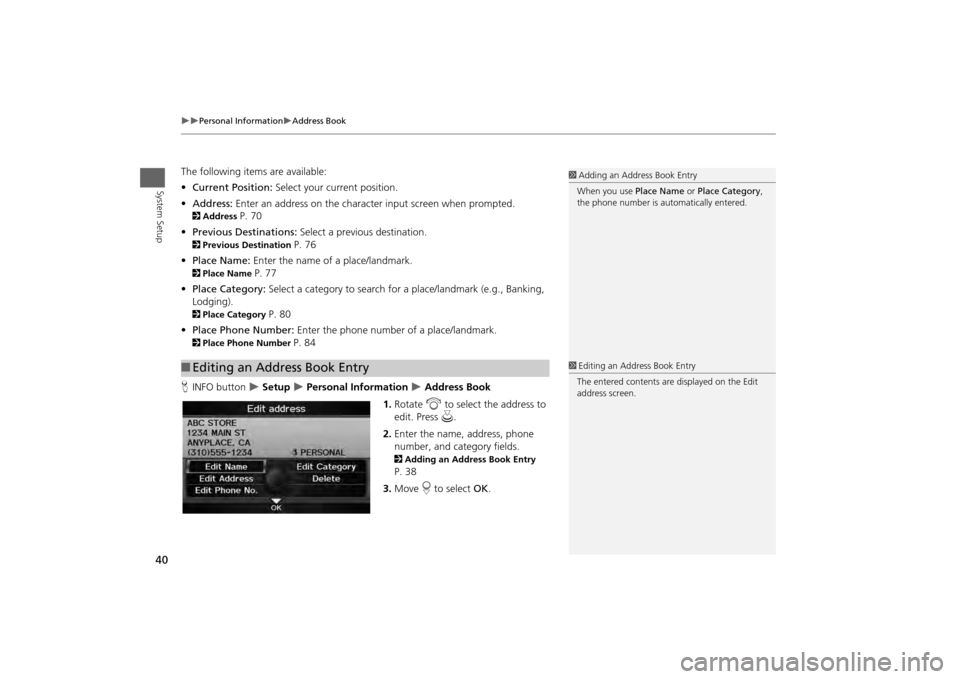
1. Rotate i to select the address to
edit. Press u.
2. Enter the name, address, phone
number, and category fields.
2 Adding an Address Book Entry P. 38
3. Move r to select OK.
■Editing an Address Book Entry
1 Adding an Address Book Entry
When you use Place Name or Place Category ,
the phone number is automatically entered.1 Editing an Address Book Entry
The entered contents are displayed on the Edit
address screen.
Page 44 of 267
42
Personal Information
Home Addresses
System Setup
HINFO button
Setup
Personal Information
Address Book
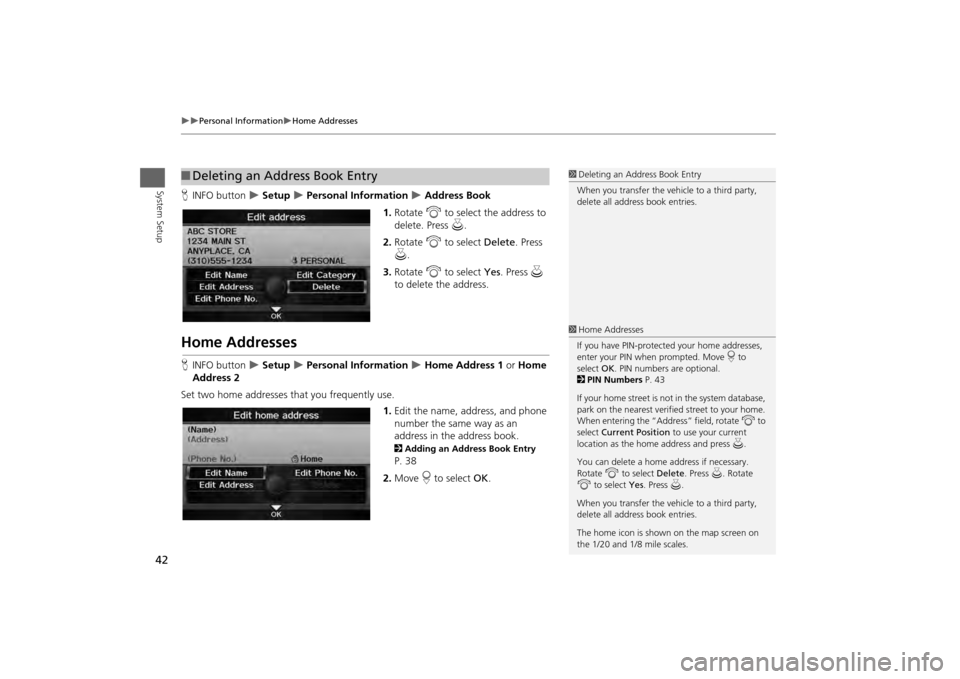
1. Rotate i to select the address to
delete. Press u.
2. Rotate i to select Delete . Press
u .
3. Rotate i to select Yes . Press u
to delete the address.
Home AddressesH INFO button
Setup
Personal Information
Home Address 1 or Home
Address 2
Set two home addresses that you frequently use. 1.Edit the name, address, and phone
number the same way as an
address in the address book.
2 Adding an Address Book Entry P. 38
2. Move r to select OK.
■Deleting an Address Book Entry
1 Deleting an Address Book Entry
When you transfer the vehicle to a third party,
delete all address book entries.1 Home Addresses
If you have PIN-protecte d your home addresses,
enter your PIN when prompted. Move r to
select OK. PIN numbers are optional.
2 PIN Numbers P. 43
If your home street is not in the system database,
park on the nearest verified street to your home.
When entering the “Address” field, rotate i to
select Current Position to use your current
location as the home address and press u.
You can delete a home address if necessary.
Rotate i to select Delete. Press u . Rotate
i to select Yes. Press u.
When you transfer the vehicle to a third party,
delete all address book entries.
The home icon is shown on the map screen on
the 1/20 and 1/8 mile scales.
Page 47 of 267
45System Setup
Music SearchHINFO button
Setup
Other
Music Search
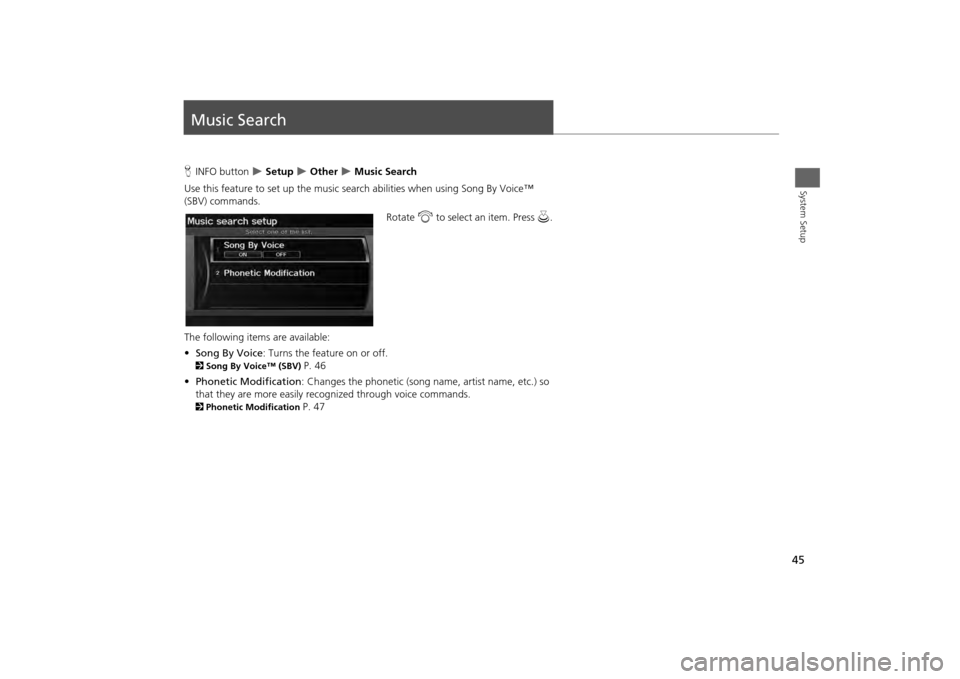
Use this feature to set up the music sear ch abilities when using Song By Voice™
(SBV) commands.
Rotate i to select an item. Press u.
The following items are available:
• Song By Voice : Turns the feature on or off.
2Song By Voice™ (SBV)
P. 46
• Phonetic Modification : Changes the phonetic (song name, artist name, etc.) so
that they are more easily recognized through voice commands.
2 Phonetic Modification
P. 47
Page 49 of 267
47
Music Search
Phonetic Modification
System Setup
Phonetic ModificationHINFO button
Setup
Other
Music Search
Phonetic Modification
Add phonetic modifications of difficult or foreign words so that it is easier for SBV to
recognize artists, songs, albums, and comp osers in voice commands when searching
for music on the HDD or iPod®.
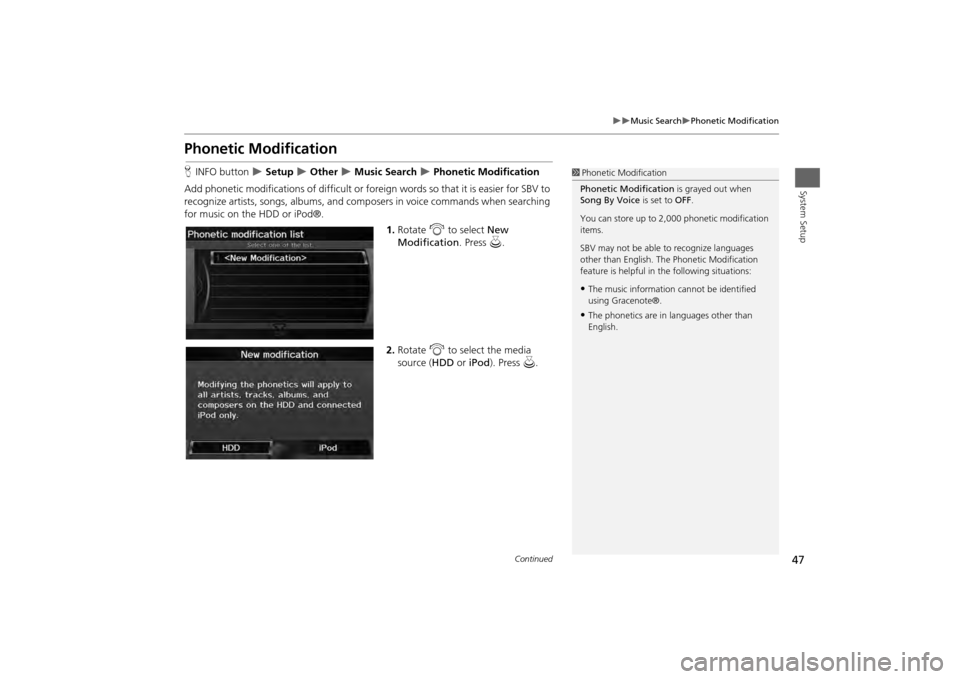
1.Rotate i to select New
Modification . Press u.
2. Rotate i to select the media
source ( HDD or iPod). Press u.
1Phonetic Modification
Phonetic Modification is grayed out when
Song By Voice is set to OFF.
You can store up to 2, 000 phonetic modification
items.
SBV may not be able to recognize languages
other than English. The Phonetic Modification
feature is helpful in the following situations:•The music information cannot be identified
using Gracenote®.•The phonetics are in languages other than
English.
Continued
Page 50 of 267
48
Music Search
Phonetic Modification
System Setup
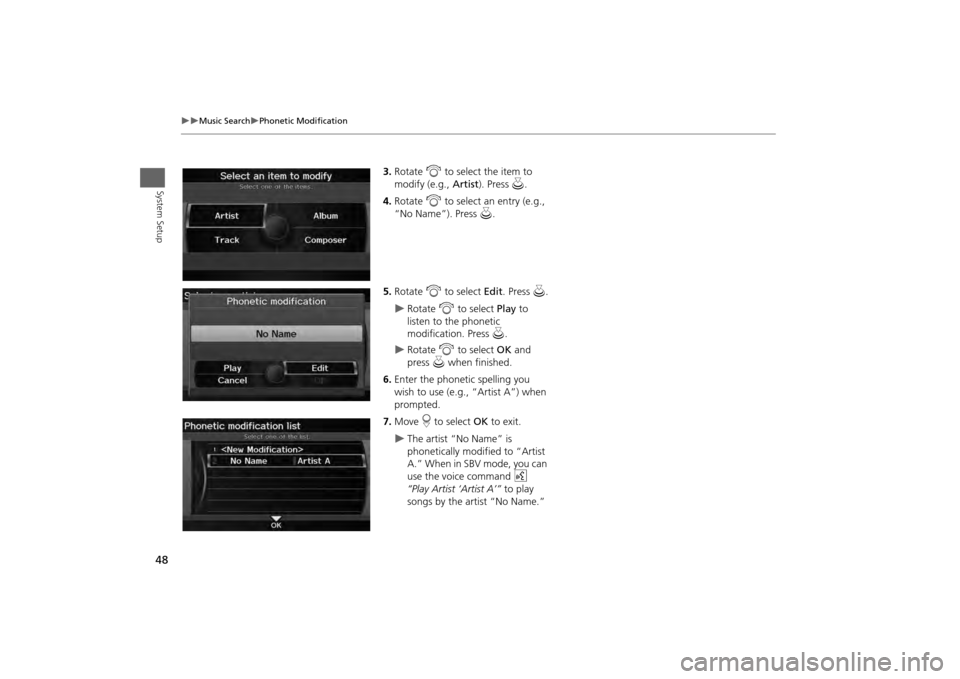
3.Rotate i to select the item to
modify (e.g., Artist). Press u.
4. Rotate i to select an entry (e.g.,
“No Name”). Press u .
5. Rotate i to select Edit . Press u.
Rotate i to select Play to
listen to the phonetic
modification. Press u.
Rotate i to select OK and
press u when finished.
6. Enter the phonetic spelling you
wish to use (e.g., “Artist A”) when
prompted.
7. Move r to select OK to exit.
The artist “No Name” is
phonetically modified to “Artist
A.” When in SBV mode, you can
use the voice command d
“Play Artist ‘Artist A’” to play
songs by the artist “No Name.”
Page 67 of 267
65
Data Reset
Clear Personal Data
System Setup
Clear Personal DataHINFO button
Setup
Other
Clear Personal Data
Delete uploaded data, calendar entries, addr ess books, or stored destinations, or
reset other settings to their factory defaults.
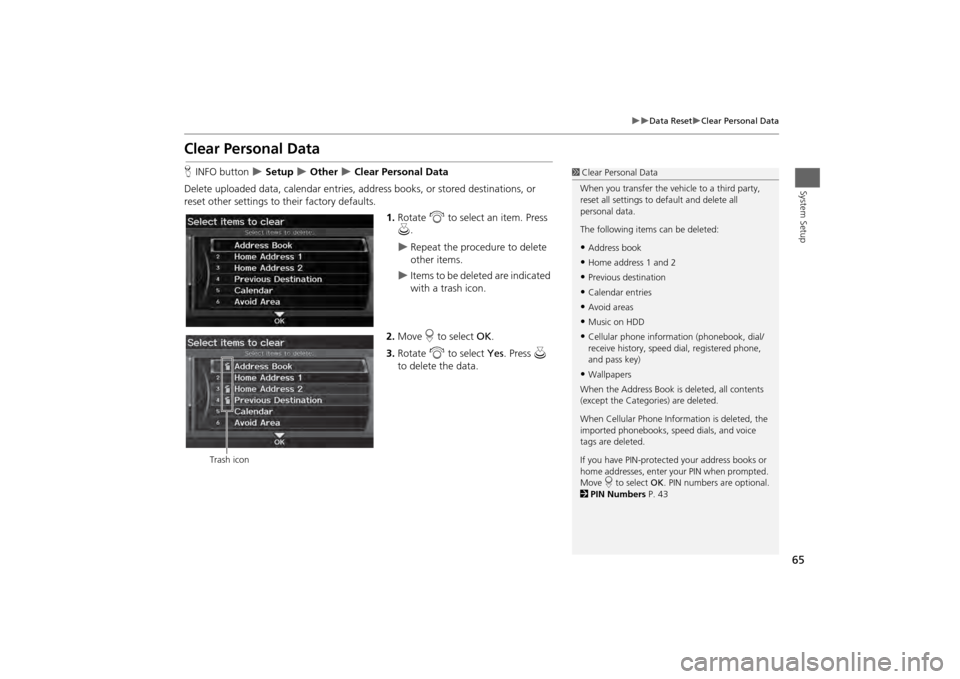
1.Rotate i to select an item. Press
u .
Repeat the procedure to delete
other items.
Items to be deleted are indicated
with a trash icon.
2. Move r to select OK.
3. Rotate i to select Yes. Press u
to delete the data.
1 Clear Personal Data
When you transfer the vehicle to a third party,
reset all settings to default and delete all
personal data.
The following item s can be deleted:•Address book•Home address 1 and 2•Previous destination•Calendar entries•Avoid areas•Music on HDD•Cellular phone inform ation (phonebook, dial/
receive history, speed dial, registered phone,
and pass key)•Wallpapers
When the Address Book is deleted, all contents
(except the Categor ies) are deleted.
When Cellular Phone Information is deleted, the
imported phonebooks, speed dials, and voice
tags are deleted.
If you have PIN-protecte d your address books or
home addresses, enter your PIN when prompted.
Move r to select OK. PIN numbers are optional.
2 PIN Numbers P. 43
Trash icon
Page 69 of 267
67
Navigation
This section describes how to enter a destination, select a route to take,
and follow the route to your destination. It also describes how to change your route or destination along the way.
Entering a Destination........................... 68
Address ................................................. 70
Address Book ......................................... 75
Previous Destination ............................... 76
Place Name ............................................ 77
Place Category ....................................... 80
Place Phone Number .............................. 84
ZAGAT................................................... 84
Coordinate ............................................ 86
Intersection ............................................ 87
Map Input.............................................. 88 Calculating the Route
..............................90
Changing the Route Preference ..............91
Viewing the Routes .................................92
Calculating the Route on the Destination Map ......................................................92
Driving to Your Destination ...................93
Viewing the Route ..................................93
Listening to Voice Guidance ....................97
Map Menu ................................................98
Displaying the Map Menu .......................98
Guidance Menu ....................................100
Map Information ...................................105
FM Traffic .............................................114 Changing Your Route
........................... 116
Canceling the Route............................. 117
Taking a Detour ................................... 117
Avoiding Streets ................................... 117
Adding Waypoints ............................... 118
Editing the Destination List ................... 122
Changing Your Destination ................. 123
Find Nearest Place ................................ 123
Selecting a Destination on the Map ...... 124
Entering a New Destination .................. 125
Resuming Your Trip .............................. 127
Page 71 of 267

69
Entering a Destination
Navigation
•Place Name : Sets a destination by entering a place name. 2Place Name
P. 77
• Place Category : Sets a destination by selecting a place/landmark.
2Place Category
P. 80
• Place Phone No. : Sets a destination by entering the phone number of a place/
landmark.
2 Place Phone Number
P. 84
• ZAGAT: Sets a destination (restaurant) by using ZAGAT® SURVEY Rating
information.
2 ZAGAT
P. 84
• Coordinate: Sets a destination by entering latitude and longitude.
2 Coordinate
P. 86
• Intersection : Sets a destination (intersectio n) by entering two streets.
2Intersection
P. 87
• Map Input : Sets a destination by scrolling through the map.
2Map Input
P. 88
• Go Home 1 or 2 : Sets your home addres s as a destination.
2Going Home
P. 12
Page 86 of 267
84
Entering a Destination
Place Phone Number
Navigation
Place Phone NumberHDEST/ROUTE button
Dest. MENU 2
Place Phone No.
Select a destination by phone number. On ly phone numbers in the database are
recognized.
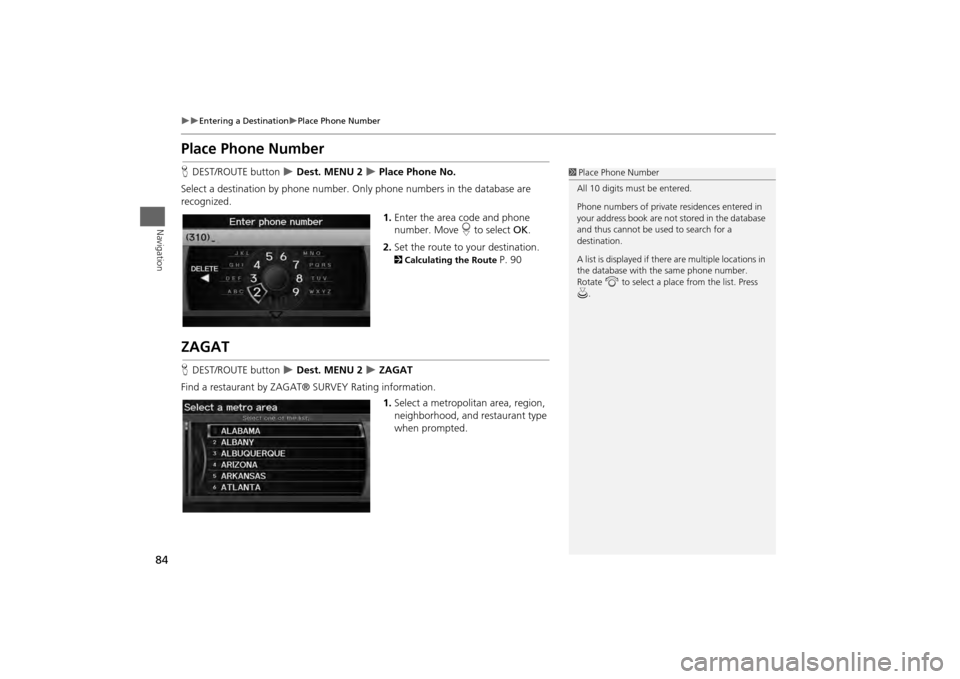
1.Enter the area code and phone
number. Move r to select OK.
2. Set the route to your destination.
2 Calculating the Route
P. 90
ZAGATHDEST/ROUTE button
Dest. MENU 2
ZAGAT
Find a restaurant by ZAGAT® SURVEY Rating information. 1.Select a metropolitan area, region,
neighborhood, and restaurant type
when prompted.
1Place Phone Number
All 10 digits must be entered.
Phone numbers of private residences entered in
your address book are not stored in the database
and thus cannot be used to search for a
destination.
A list is displayed if there are multiple locations in
the database with the same phone number.
Rotate i to select a place from the list. Press
u .
Page 92 of 267
90Navigation
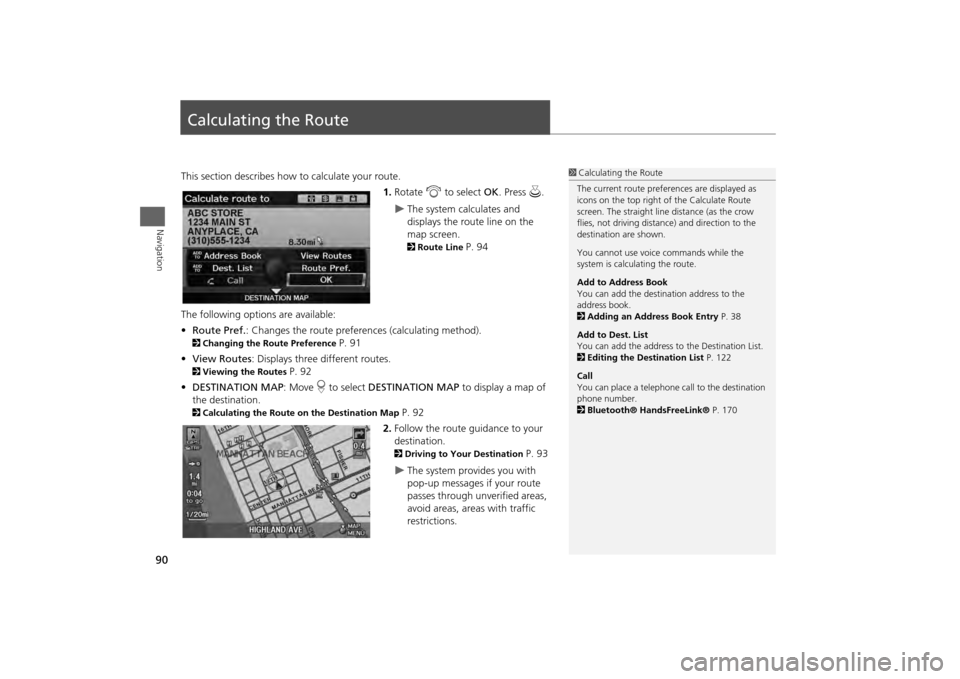
Calculating the RouteThis section describes how to calculate your route.1.Rotate i to select OK . Press u.
The system calculates and
displays the route line on the
map screen. 2Route Line
P. 94
The following options are available:
• Route Pref. : Changes the route preferences (calculating method).
2Changing the Route Preference
P. 91
• View Routes : Displays three different routes.
2Viewing the Routes
P. 92
• DESTINATION MAP : Move r to select DESTINATION MAP to display a map of
the destination.
2 Calculating the Route on the Destination Map
P. 92
2. Follow the route guidance to your
destination. 2 Driving to Your Destination
P. 93
The system provides you with
pop-up messages if your route
passes through unverified areas,
avoid areas, areas with traffic
restrictions.
1Calculating the Route
The current route prefer ences are displayed as
icons on the top right of the Calculate Route
screen. The straight line distance (as the crow
flies, not driving distan ce) and direction to the
destination are shown.
You cannot use voice commands while the
system is calculating the route.
Add to Address Book
You can add the destination address to the
address book.
2 Adding an Address Book Entry P. 38
Add to Dest. List
You can add the address to the Destination List.
2 Editing the Destination List P. 122
Call
You can place a telephone ca ll to the destination
phone number.
2 Bluetooth® HandsFreeLink® P. 170