ECO mode HONDA ODYSSEY 2013 RC1-RC2 / 5.G Workshop Manual
[x] Cancel search | Manufacturer: HONDA, Model Year: 2013, Model line: ODYSSEY, Model: HONDA ODYSSEY 2013 RC1-RC2 / 5.GPages: 433, PDF Size: 12.35 MB
Page 206 of 433
205
uuAudio System Basic OperationuPlaying the XM® Radio
*
Continued
Features
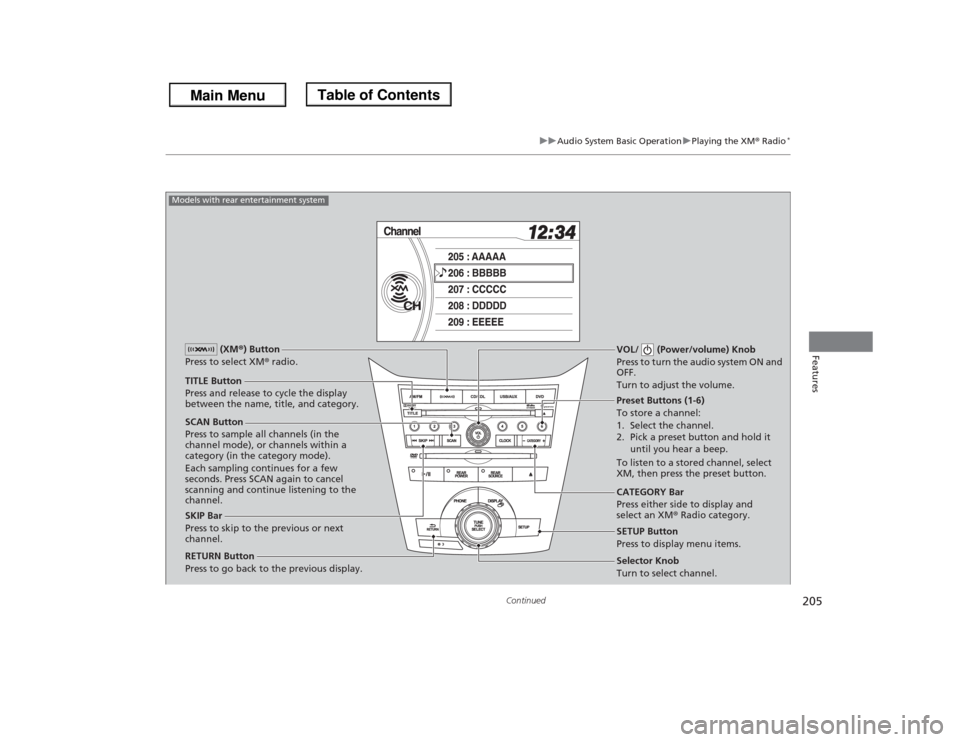
SCAN Button
Press to sample all channels (in the
channel mode), or channels within a
category (in the category mode).
Each sampling continues for a few
seconds. Press SCAN again to cancel
scanning and continue listening to the
channel.VOL/ (Power/volume) Knob
Press to turn the audio system ON and
OFF.
Turn to adjust the volume.
Preset Buttons (1-6)
To store a channel:
1. Select the channel.
2. Pick a preset button and hold it
until you hear a beep.
To listen to a stored channel, select
XM, then press the preset button.
SKIP Bar
Press to skip to the previous or next
channel.CATEGORY Bar
Press either side to display and
select an XM® Radio category. TITLE Button
Press and release to cycle the display
between the name, title, and category. (XM®) Button
Press to select XM® radio.
RETURN Button
Press to go back to the previous display.
Selector Knob
Turn to select channel. SETUP Button
Press to display menu items.
Models with rear entertainment system
Page 208 of 433
207
uuAudio System Basic OperationuPlaying a CD
Continued
Features
Playing a CDYour audio system supports audio CDs, CD-Rs and CD-RWs in either MP3, WMA, or
AAC format. With the CD loaded, press the CD button.
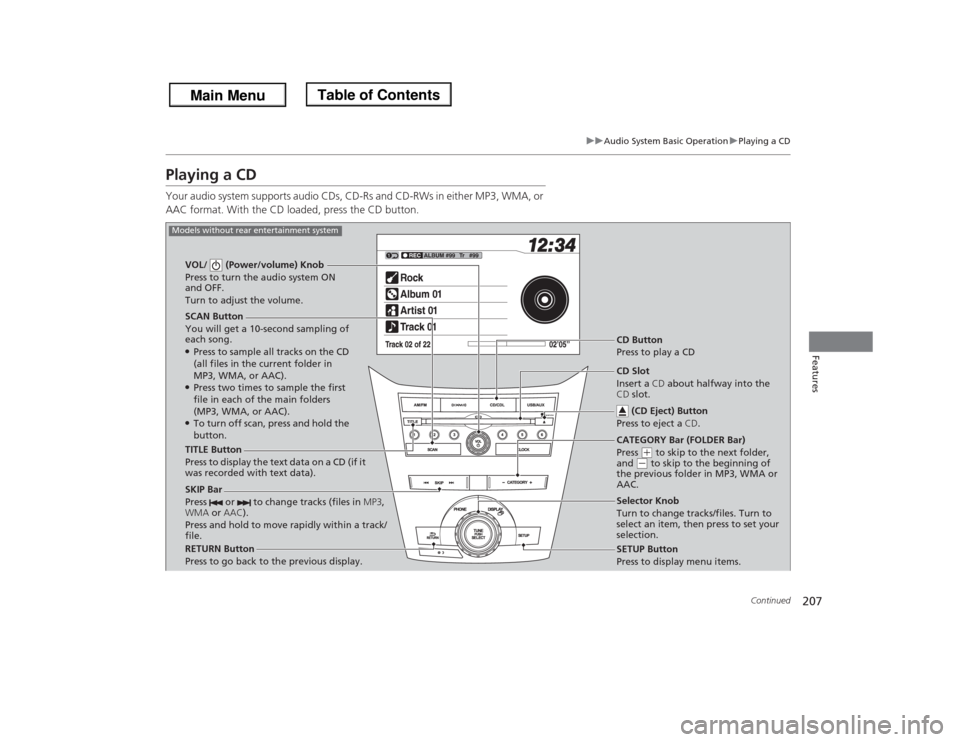
SCAN Button
You will get a 10-second sampling of
each song.●Press to sample all tracks on the CD
(all files in the current folder in
MP3, WMA, or AAC).●Press two times to sample the first
file in each of the main folders
(MP3, WMA, or AAC).●To turn off scan, press and hold the
button. VOL/ (Power/volume) Knob
Press to turn the audio system ON
and OFF.
Turn to adjust the volume.
CD Button
Press to play a CD
TITLE Button
Press to display the text data on a CD (if it
was recorded with text data).
RETURN Button
Press to go back to the previous display.Selector Knob
Turn to change tracks/files. Turn to
select an item, then press to set your
selection.
SETUP Button
Press to display menu items.
Models without rear entertainment system
CD Slot
Insert a CD about halfway into the
CD slot.
(CD Eject) Button
Press to eject a CD.
SKIP Bar
Press or to change tracks (files in MP3,
WMA or AAC).
Press and hold to move rapidly within a track/
file.
CATEGORY Bar (FOLDER Bar)
Press
(+ to skip to the next folder,
and
(- to skip to the beginning of
the previous folder in MP3, WMA or
AAC.
Page 209 of 433
208
uuAudio System Basic OperationuPlaying a CD
Features
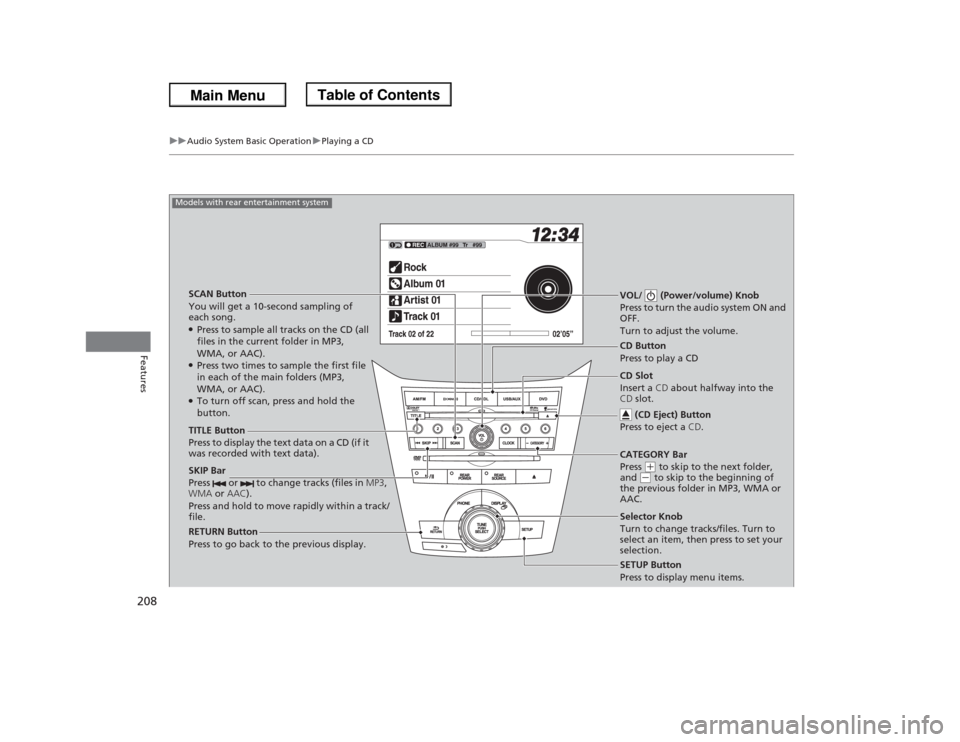
SCAN Button
You will get a 10-second sampling of
each song.●Press to sample all tracks on the CD (all
files in the current folder in MP3,
WMA, or AAC).●Press two times to sample the first file
in each of the main folders (MP3,
WMA, or AAC).●To turn off scan, press and hold the
button.VOL/ (Power/volume) Knob
Press to turn the audio system ON and
OFF.
Turn to adjust the volume.SKIP Bar
Press or to change tracks (files in MP3,
WMA or AAC).
Press and hold to move rapidly within a track/
file.TITLE Button
Press to display the text data on a CD (if it
was recorded with text data).
RETURN Button
Press to go back to the previous display.
SETUP Button
Press to display menu items.
Models with rear entertainment system
CD Button
Press to play a CD
Selector Knob
Turn to change tracks/files. Turn to
select an item, then press to set your
selection. CD Slot
Insert a CD about halfway into the
CD slot.
(CD Eject) Button
Press to eject a CD.CATEGORY Bar
Press
(+ to skip to the next folder,
and
(- to skip to the beginning of
the previous folder in MP3, WMA or
AAC.
Page 210 of 433
Continued
209
uuAudio System Basic OperationuPlaying a CD
Features
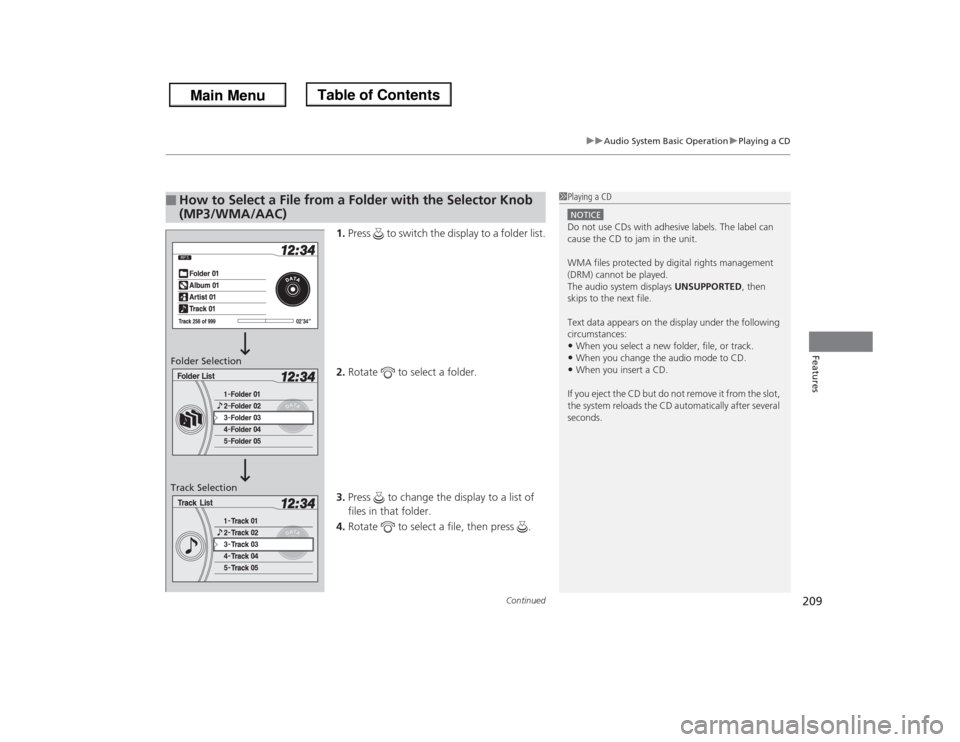
1.Press to switch the display to a folder list.
2.Rotate to select a folder.
3.Press to change the display to a list of
files in that folder.
4.Rotate to select a file, then press .
■
How to Select a File from a Folder with the Selector Knob
(MP3/WMA/AAC)
1Playing a CDNOTICEDo not use CDs with adhesive labels. The label can
cause the CD to jam in the unit.
WMA files protected by digital rights management
(DRM) cannot be played.
The audio system displays UNSUPPORTED, then
skips to the next file.
Text data appears on the display under the following
circumstances:•When you select a new folder, file, or track.•When you change the audio mode to CD.•When you insert a CD.
If you eject the CD but do not remove it from the slot,
the system reloads the CD automatically after several
seconds.
Folder Selection
Track Selection
Page 212 of 433
211
uuAudio System Basic OperationuPlaying CD Library
Continued
Features
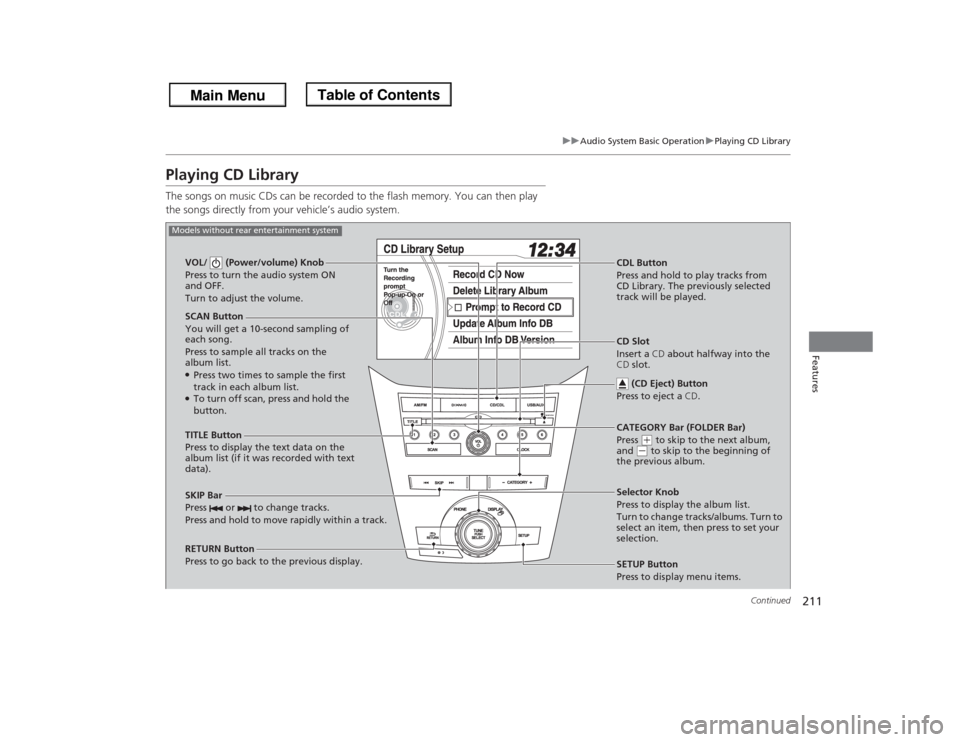
Playing CD LibraryThe songs on music CDs can be recorded to the flash memory. You can then play
the songs directly from your vehicle’s audio system.
SCAN Button
You will get a 10-second sampling of
each song.
Press to sample all tracks on the
album list.●Press two times to sample the first
track in each album list.●To turn off scan, press and hold the
button. VOL/ (Power/volume) Knob
Press to turn the audio system ON
and OFF.
Turn to adjust the volume.
CDL Button
Press and hold to play tracks from
CD Library. The previously selected
track will be played.
TITLE Button
Press to display the text data on the
album list (if it was recorded with text
data).
RETURN Button
Press to go back to the previous display.Selector Knob
Press to display the album list.
Turn to change tracks/albums. Turn to
select an item, then press to set your
selection.
SETUP Button
Press to display menu items.
Models without rear entertainment system
CD Slot
Insert a CD about halfway into the
CD slot.
(CD Eject) Button
Press to eject a CD.
SKIP Bar
Press or to change tracks.
Press and hold to move rapidly within a track.
CATEGORY Bar (FOLDER Bar)
Press
(+ to skip to the next album,
and
(- to skip to the beginning of
the previous album.
Page 213 of 433
212
uuAudio System Basic OperationuPlaying CD Library
Features
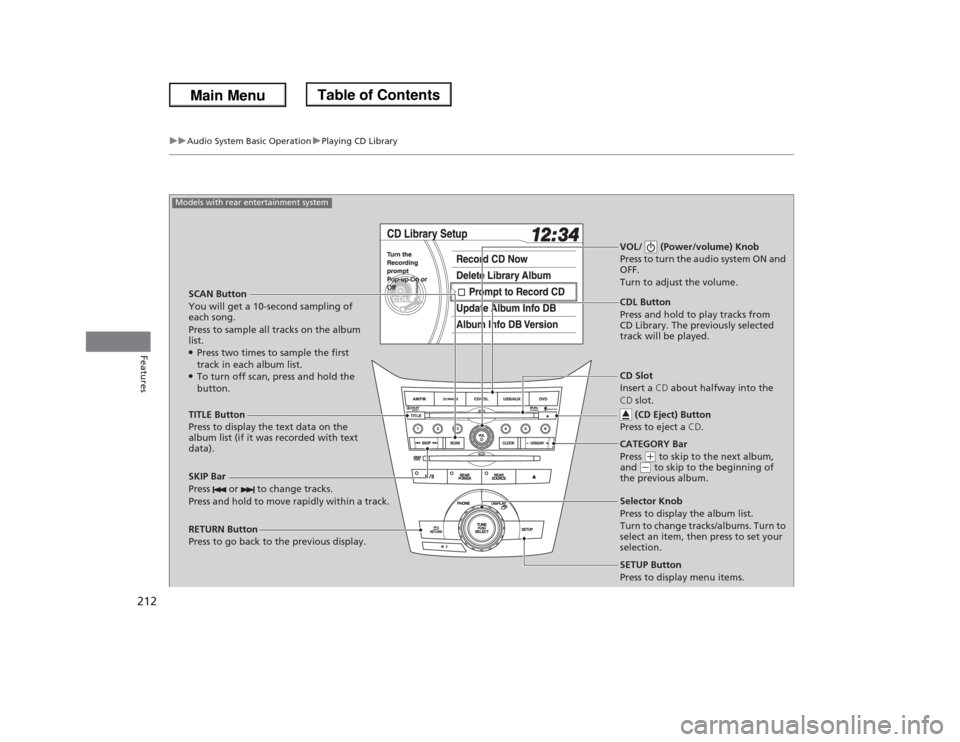
SCAN Button
You will get a 10-second sampling of
each song.
Press to sample all tracks on the album
list.●Press two times to sample the first
track in each album list.●To turn off scan, press and hold the
button.VOL/ (Power/volume) Knob
Press to turn the audio system ON and
OFF.
Turn to adjust the volume.SKIP Bar
Press or to change tracks.
Press and hold to move rapidly within a track.TITLE Button
Press to display the text data on the
album list (if it was recorded with text
data).
RETURN Button
Press to go back to the previous display.
SETUP Button
Press to display menu items.
Models with rear entertainment system
CDL Button
Press and hold to play tracks from
CD Library. The previously selected
track will be played.
Selector Knob
Press to display the album list.
Turn to change tracks/albums. Turn to
select an item, then press to set your
selection. CD Slot
Insert a CD about halfway into the
CD slot.
(CD Eject) Button
Press to eject a CD.CATEGORY Bar
Press
(+ to skip to the next album,
and
(- to skip to the beginning of
the previous album.
Page 222 of 433
221
uuAudio System Basic OperationuPlaying a USB Flash Drive
Continued
Features
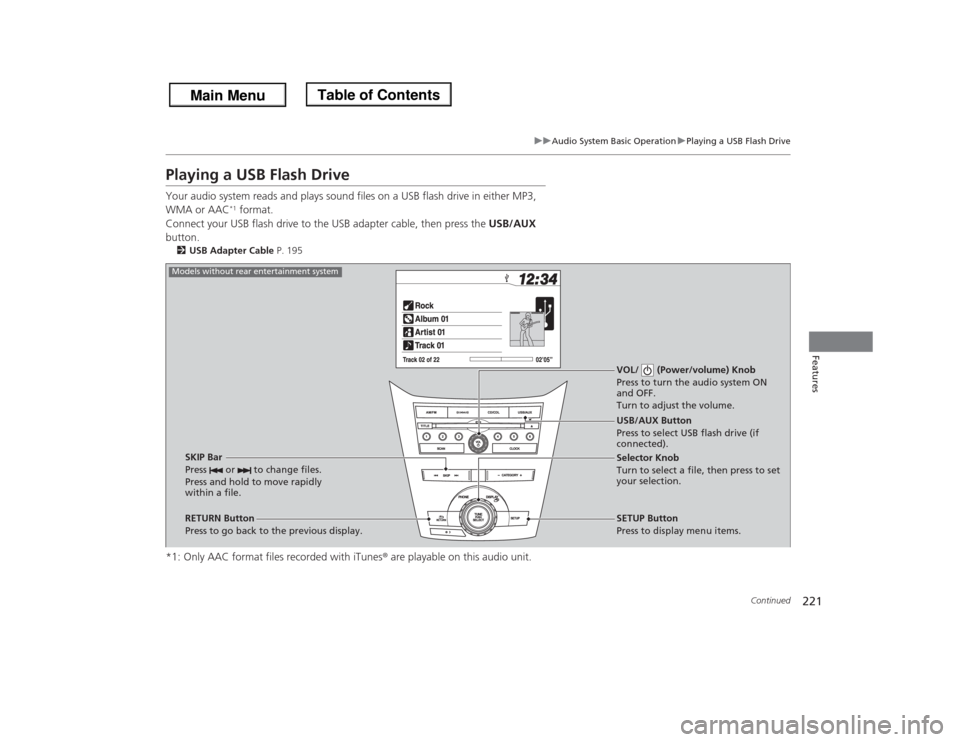
Playing a USB Flash DriveYour audio system reads and plays sound files on a USB flash drive in either MP3,
WMA or AAC
*1 format.
Connect your USB flash drive to the USB adapter cable, then press the USB/AUX
button.
2USB Adapter Cable P. 195*1: Only AAC format files recorded with iTunes® are playable on this audio unit.
VOL/ (Power/volume) Knob
Press to turn the audio system ON
and OFF.
Turn to adjust the volume.
RETURN Button
Press to go back to the previous display.Selector Knob
Turn to select a file, then press to set
your selection.
SETUP Button
Press to display menu items. USB/AUX Button
Press to select USB flash drive (if
connected).
SKIP Bar
Press or to change files.
Press and hold to move rapidly
within a file.
Models without rear entertainment system
Page 228 of 433
Continued
227
uuAudio System Basic OperationuPlaying Bluetooth® Audio
Features
1.Make sure that your phone is paired and linked to HFL.
2.Press the AUX button.
If the phone is not recognized, another HFL-compatible phone, which is not
compatible for Bluetooth® Audio, may already be linked.
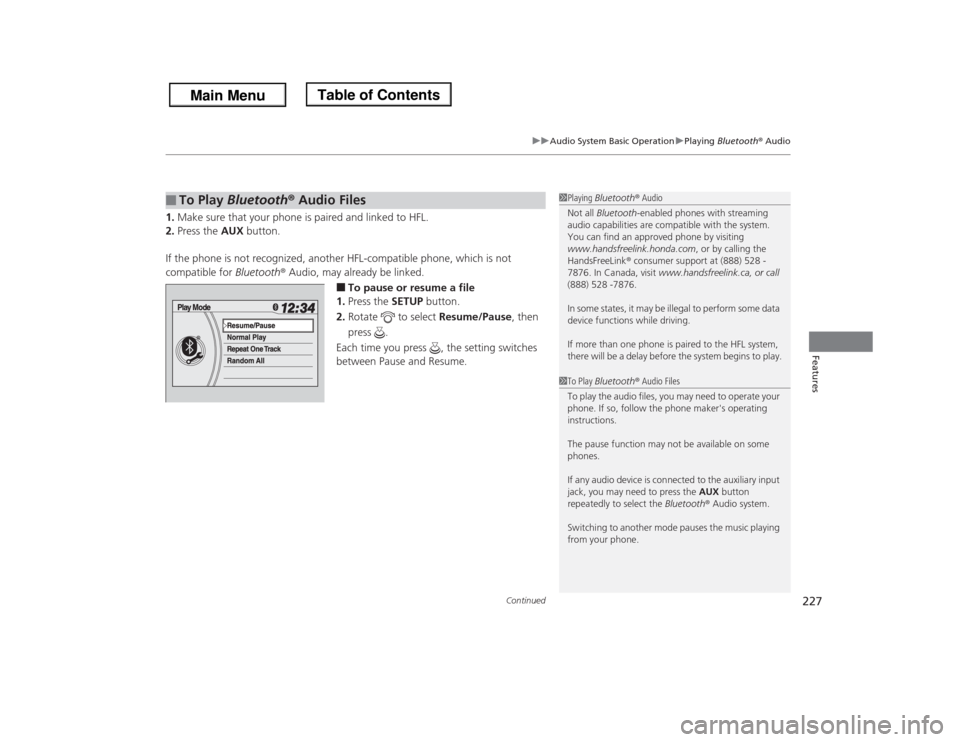
■To pause or resume a file
1.Press the SETUP button.
2.Rotate to select Resume/Pause, then
press .
Each time you press , the setting switches
between Pause and Resume.
■
To Play Bluetooth® Audio Files
1Playing Bluetooth® Audio
Not all Bluetooth-enabled phones with streaming
audio capabilities are compatible with the system.
You can find an approved phone by visiting
www.handsfreelink.honda.com, or by calling the
HandsFreeLink® consumer support at (888) 528 -
7876. In Canada, visit www.handsfreelink.ca, or call
(888) 528 -7876.
In some states, it may be illegal to perform some data
device functions while driving.
If more than one phone is paired to the HFL system,
there will be a delay before the system begins to play.1To Play Bluetooth® Audio Files
To play the audio files, you may need to operate your
phone. If so, follow the phone maker's operating
instructions.
The pause function may not be available on some
phones.
If any audio device is connected to the auxiliary input
jack, you may need to press the AUX button
repeatedly to select the Bluetooth® Audio system.
Switching to another mode pauses the music playing
from your phone.
Page 236 of 433
235
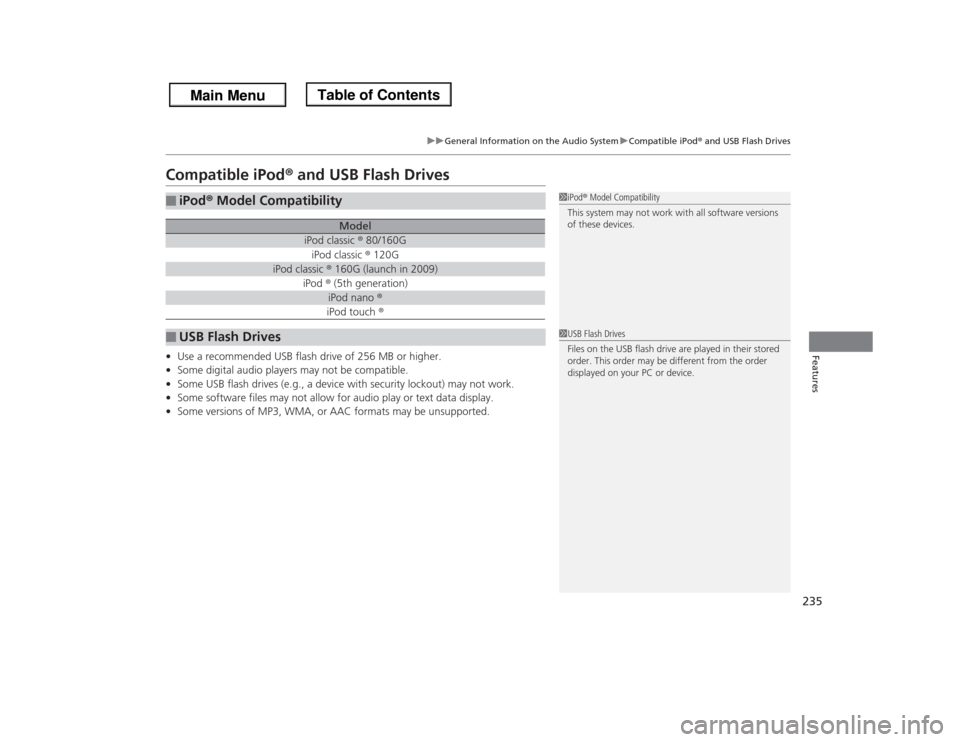
uuGeneral Information on the Audio SystemuCompatible iPod® and USB Flash Drives
Features
Compatible iPod® and USB Flash Drives•Use a recommended USB flash drive of 256 MB or higher.
•Some digital audio players may not be compatible.
•Some USB flash drives (e.g., a device with security lockout) may not work.
•Some software files may not allow for audio play or text data display.
•Some versions of MP3, WMA, or AAC formats may be unsupported.■
iPod® Model Compatibility
Model
iPod classic ® 80/160GiPod classic ® 120G
iPod classic ® 160G (launch in 2009)
iPod ® (5th generation)
iPod nano ®iPod touch ®
■
USB Flash Drives
1iPod® Model Compatibility
This system may not work with all software versions
of these devices.1USB Flash Drives
Files on the USB flash drive are played in their stored
order. This order may be different from the order
displayed on your PC or device.
Page 239 of 433
238
uuRear Entertainment System
*uOperating the System
Features
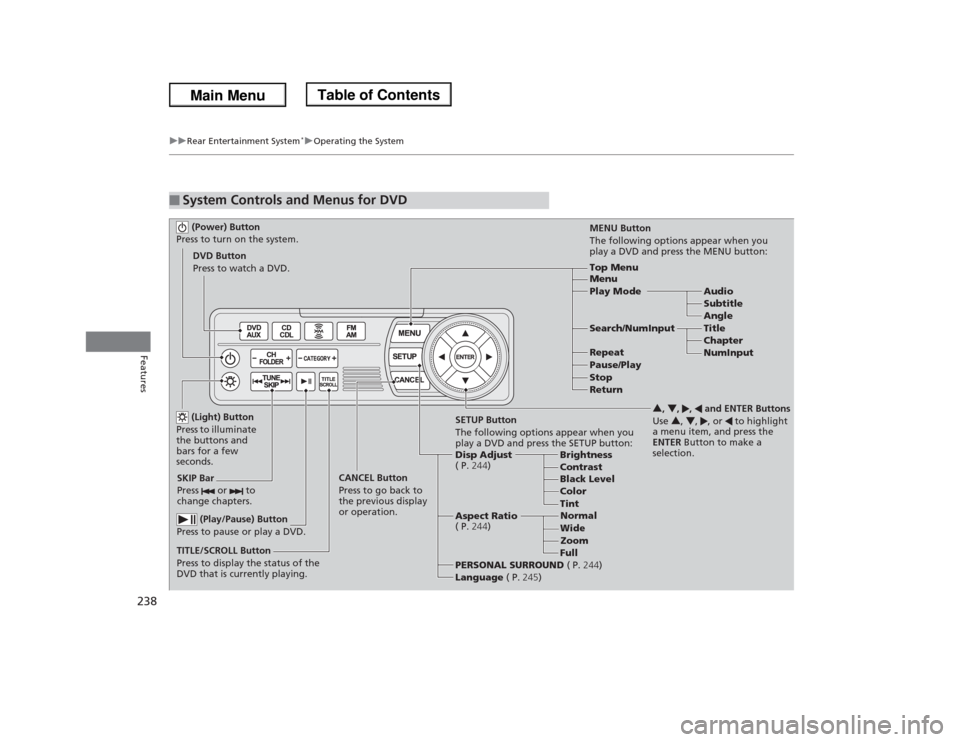
■
System Controls and Menus for DVD (Power) Button
Press to turn on the system.DVD Button
Press to watch a DVD.
(Light) Button
Press to illuminate
the buttons and
bars for a few
seconds.
SKIP Bar
Press or to
change chapters.
(Play/Pause) Button
Press to pause or play a DVD.
TITLE/SCROLL Button
Press to display the status of the
DVD that is currently playing.MENU Button
The following options appear when you
play a DVD and press the MENU button:
Top Menu
Menu
Play Mode Audio
Subtitle
Angle
Search/NumInput Title
Chapter
NumInput Repeat
Pause/Play
Stop
Return
SETUP Button
The following options appear when you
play a DVD and press the SETUP button:
Disp Adjust
( P.244)Brightness
Contrast
Black Level
Color CANCEL Button
Press to go back to
the previous display
or operation.3, 4, , and ENTER Buttons
Use 3, 4, , or to highlight
a menu item, and press the
ENTER Button to make a
selection.
Tint
Normal
Wide
Zoom
Full Aspect Ratio
( P.244)
PERSONAL SURROUND ( P.244)
Language ( P.245)