lock HONDA ODYSSEY 2016 RC1-RC2 / 5.G Quick Guide
[x] Cancel search | Manufacturer: HONDA, Model Year: 2016, Model line: ODYSSEY, Model: HONDA ODYSSEY 2016 RC1-RC2 / 5.GPages: 80, PDF Size: 16.28 MB
Page 25 of 80
42 || 43
VEHICLE CONTROLS
VEHICLE CONTROLS
INDEX
VOICE COMMAND
INDEX
CUSTOMER
INFORMATION
SPECIFICATIONS
MAINTENANCE
HANDLING THE UNEXPECTED
DRIVING
NAVIGATION
TABLE OF CONTENTS
VISUAL INDEX
SAFETY
INFORMATION
INSTRUMENT PANEL
VEHICLE
CONTROLS
AUDIO AND
CONNECTIVITY
BLUETOOTH®
HANDSFREELINK®
HONDALINK®
Sitting improperly or out of position can result in serious injury or de\
ath in a
crash.
Always sit upright, well back in the seat, with your feet on the floor\
.
WARNING
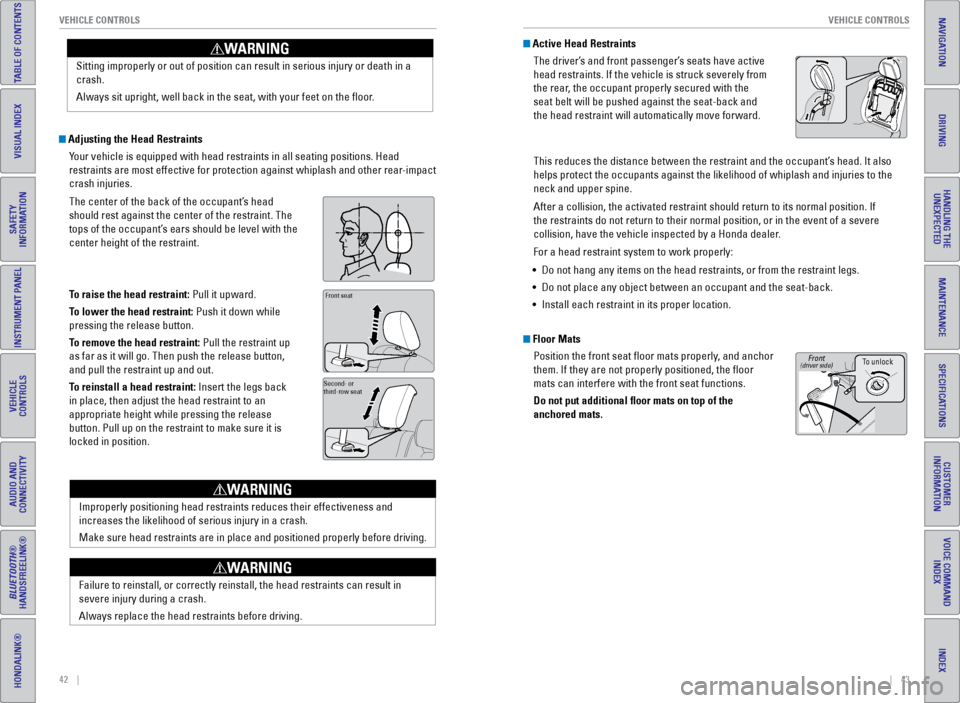
Adjusting the Head Restraints
Your vehicle is equipped with head restraints in all seating positions. H\
ead
restraints are most effective for protection against whiplash and other \
rear-impact
crash injuries.
The center of the back of the occupant’s head
should rest against the center of the restraint. The
tops of the occupant’s ears should be level with the
center height of the restraint.
To raise the head restraint: Pull it upward.
To lower the head restraint: Push it down while
pressing the release button.
To remove the head restraint: Pull the restraint up
as far as it will go. Then push the release button,
and pull the restraint up and out.
To reinstall a head restraint: Insert the legs back
in place, then adjust the head restraint to an
appropriate height while pressing the release
button. Pull up on the restraint to make sure it is
locked in position.
Position head in the
center of the head
restraint.Front seat
Second- or
third-row seat
Improperly positioning head restraints reduces their effectiveness and
increases the likelihood of serious injury in a crash.
Make sure head restraints are in place and positioned properly before dr\
iving.
WARNING
Failure to reinstall, or correctly reinstall, the head restraints can re\
sult in
severe injury during a crash.
Always replace the head restraints before driving.
WARNING
Active Head RestraintsThe driver’s and front passenger’s seats have active
head restraints. If the vehicle is struck severely from
the rear, the occupant properly secured with the
seat belt will be pushed against the seat-back and
the head restraint will automatically move forward.
This reduces the distance between the restraint and the occupant’s head. It also
helps protect the occupants against the likelihood of whiplash and injur\
ies to the
neck and upper spine.
After a collision, the activated restraint should return to its normal p\
osition. If
the restraints do not return to their normal position, or in the event o\
f a severe
collision, have the vehicle inspected by a Honda dealer.
For a head restraint system to work properly:
• Do not hang any items on the head restraints, or from the restraint legs\
.
• Do not place any object between an occupant and the seat-back.
• Install each restraint in its proper location.
Floor Mats
Position the front seat floor mats properly, and anchor
them. If they are not properly positioned, the floor
mats can interfere with the front seat functions.
Do not put additional floor mats on top of the
anchored mats.
To unlock
Front(driver side)
Page 26 of 80
44 || 45
VEHICLE CONTROLS
VEHICLE CONTROLS
INDEX
VOICE COMMAND
INDEX
CUSTOMER
INFORMATION
SPECIFICATIONS
MAINTENANCE
HANDLING THE UNEXPECTED
DRIVING
NAVIGATION
TABLE OF CONTENTS
VISUAL INDEX
SAFETY
INFORMATION
INSTRUMENT PANEL
VEHICLE
CONTROLS
AUDIO AND
CONNECTIVITY
BLUETOOTH®
HANDSFREELINK®
HONDALINK®
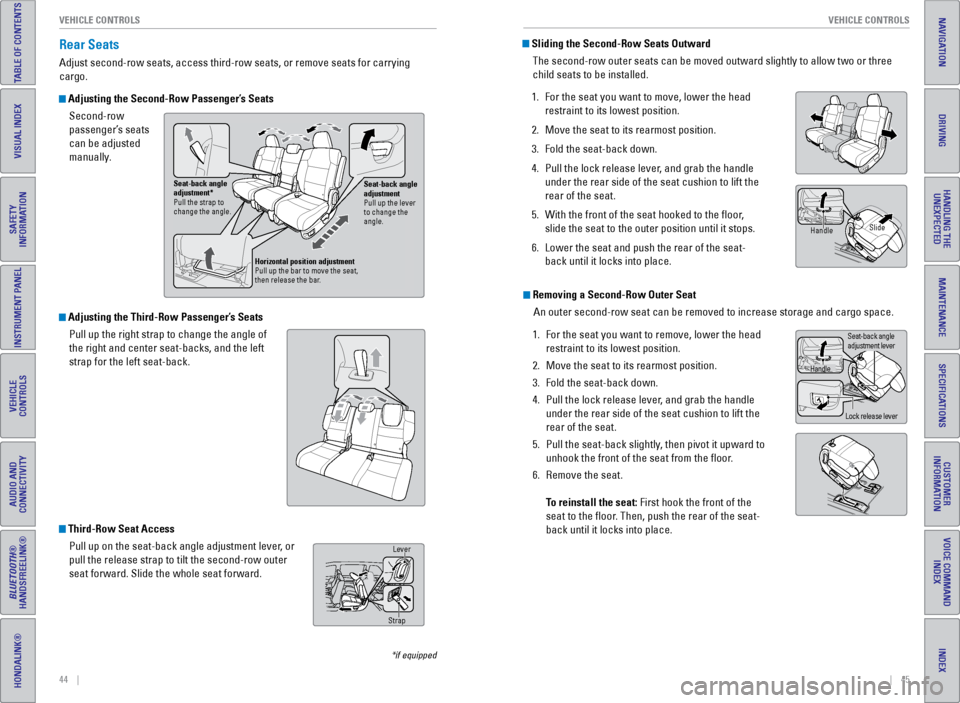
Adjusting the Third-Row Passenger’s Seats
Pull up the right strap to change the angle of
the right and center seat-backs, and the left
strap for the left seat-back.
Rear Seats
Adjust second-row seats, access third-row seats, or remove seats for carrying
cargo.
Adjusting the Second-Row Passenger’s SeatsSecond-row
passenger’s seats
can be adjusted
manually.
*if equipped
Sliding the Second-Row Seats OutwardThe second-row outer seats can be moved outward slightly to allow two or\
three
child seats to be installed.
1. For the seat you want to move, lower the head
restraint to its lowest position.
2. Move the seat to its rearmost position.
3. Fold the seat-back down.
4. Pull the lock release lever, and grab the handle
under the rear side of the seat cushion to lift the
rear of the seat.
5. With the front of the seat hooked to the floor,
slide the seat to the outer position until it stops.
6. Lower the seat and push the rear of the seat-
back until it locks into place.
Removing a Second-Row Outer Seat
An outer second-row seat can be removed to increase storage and cargo sp\
ace.
1. For the seat you want to remove, lower the head
restraint to its lowest position.
2. Move the seat to its rearmost position.
3. Fold the seat-back down.
4. Pull the lock release lever, and grab the handle
under the rear side of the seat cushion to lift the
rear of the seat.
5. Pull the seat-back slightly, then pivot it upward to
unhook the front of the seat from the floor.
6. Remove the seat.
To reinstall the seat: First hook the front of the
seat to the floor. Then, push the rear of the seat-
back until it locks into place.
Handle Slide
Handle
Lock release leverSeat-back angle
adjustment lever
Third-Row Seat Access
Pull up on the seat-back angle adjustment lever, or
pull the release strap to tilt the second-row outer
seat forward. Slide the whole seat forward.
Seat-back angle
adjustment
Pull up the lever
to change the
angle.
Seat-back angle
adjustment*
Pull the strap to
change the angle.
Horizontal position adjustment
Pull up the bar to move the seat,
then release the bar.
Lever
Strap
Page 27 of 80
46 || 47
VEHICLE CONTROLS
VEHICLE CONTROLS
INDEX
VOICE COMMAND
INDEX
CUSTOMER
INFORMATION
SPECIFICATIONS
MAINTENANCE
HANDLING THE UNEXPECTED
DRIVING
NAVIGATION
TABLE OF CONTENTS
VISUAL INDEX
SAFETY
INFORMATION
INSTRUMENT PANEL
VEHICLE
CONTROLS
AUDIO AND
CONNECTIVITY
BLUETOOTH®
HANDSFREELINK®
HONDALINK®
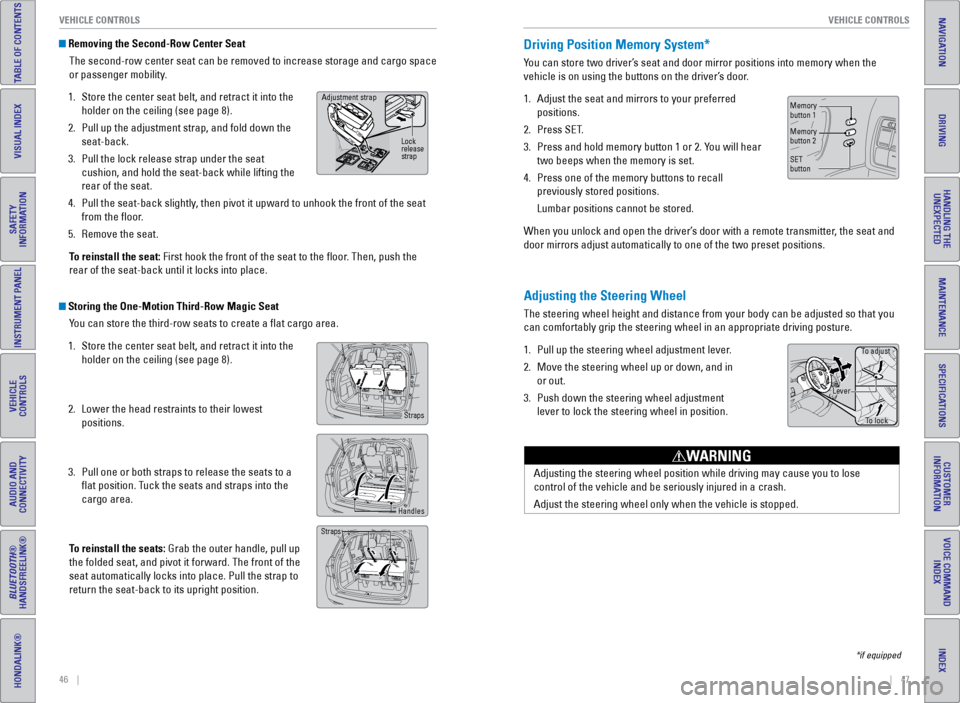
Removing the Second-Row Center Seat
The second-row center seat can be removed to increase storage and cargo space
or passenger mobility.
1. Store the center seat belt, and retract it into the
holder on the ceiling (see page 8).
2. Pull up the adjustment strap, and fold down the
seat-back.
3. Pull the lock release strap under the seat
cushion, and hold the seat-back while lifting the
rear of the seat.
4. Pull the seat-back slightly, then pivot it upward to unhook the front of the seat
from the floor.
5. Remove the seat.
To reinstall the seat: First hook the front of the seat to the floor. Then, push the
rear of the seat-back until it locks into place.
Storing the One-Motion Third-Row Magic Seat You can store the third-row seats to create a flat cargo area.
1. Store the center seat belt, and retract it into the
holder on the ceiling (see page 8).
2. Lower the head restraints to their lowest
positions.
3. Pull one or both straps to release the seats to a
flat position. Tuck the seats and straps into the
cargo area.
To reinstall the seats: Grab the outer handle, pull up
the folded seat, and pivot it forward. The front of the
seat automatically locks into place. Pull the strap to
return the seat-back to its upright position.
Adjustment strap
Lock
release
strap
Straps
Handles
Straps
Adjusting the Steering Wheel
The steering wheel height and distance from your body can be adjusted so\
that you
can comfortably grip the steering wheel in an appropriate driving postur\
e.
1. Pull up the steering wheel adjustment lever.
2. Move the steering wheel up or down, and in
or out.
3. Push down the steering wheel adjustment
lever to lock the steering wheel in position.
Adjusting the steering wheel position while driving may cause you to los\
e
control of the vehicle and be seriously injured in a crash.
Adjust the steering wheel only when the vehicle is stopped.
WARNING
Driving Position Memory System*
You can store two driver’s seat and door mirror positions into memory when the
vehicle is on using the buttons on the driver’s door.
1. Adjust the seat and mirrors to your preferred
positions.
2. Press SET.
3. Press and hold memory button 1 or 2. You will hear
two beeps when the memory is set.
4. Press one of the memory buttons to recall
previously stored positions.
Lumbar positions cannot be stored.
When you unlock and open the driver’s door with a remote transmitter, the seat and
door mirrors adjust automatically to one of the two preset positions.
To adjust
To lock
Lever
Memory
button 1
Memory
button 2
SET
button
*if equipped
Page 30 of 80
52 || 53
VEHICLE CONTROLS
VEHICLE CONTROLS
INDEX
VOICE COMMAND
INDEX
CUSTOMER
INFORMATION
SPECIFICATIONS
MAINTENANCE
HANDLING THE UNEXPECTED
DRIVING
NAVIGATION
TABLE OF CONTENTS
VISUAL INDEX
SAFETY
INFORMATION
INSTRUMENT PANEL
VEHICLE
CONTROLS
AUDIO AND
CONNECTIVITY
BLUETOOTH®
HANDSFREELINK®
HONDALINK®
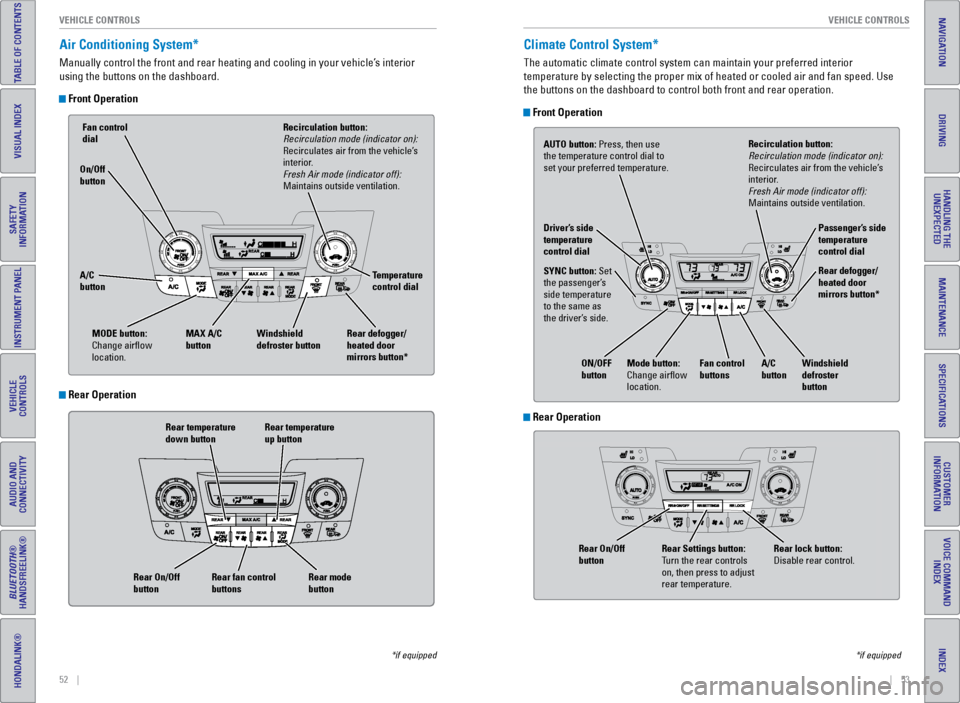
Air Conditioning System*
Manually control the front and rear heating and cooling in your vehicle’\
s interior
using the buttons on the dashboard.
Front Operation
Rear temperature
down button Rear temperature
up button
Rear fan control
buttons
Rear On/Off
button
Rear mode
button
Fan control
dial
A/C
button MAX A/C
button Windshield
defroster button Temperature
control dial
Recirculation button:
Recirculation mode (indicator on):
Recirculates air from the vehicle’s
interior.
Fresh Air mode (indicator off):
Maintains outside ventilation.
Rear defogger/
heated door
mirrors button*
On/Off
button
MODE button:
Change airflow
location.
*if equipped
Climate Control System*
The automatic climate control system can maintain your preferred interio\
r
temperature by selecting the proper mix of heated or cooled air and fan \
speed. Use
the buttons on the dashboard to control both front and rear operation.
Front Operation
AUTO button: Press, then use
the temperature control dial to
set your preferred temperature.
SYNC button: Set
the passenger’s
side temperature
to the same as
the driver’s side. Driver’s side
temperature
control dial
A/C
buttonPassenger’s side
temperature
control dial
Recirculation button:
Recirculation mode (indicator on):
Recirculates air from the vehicle’s
interior.
Fresh Air mode (indicator off):
Maintains outside ventilation.
Rear defogger/
heated door
mirrors button*
Windshield
defroster
button
Fan control
buttons
ON/OFF
button
Mode button:
Change airflow
location.
*if equipped
Rear Operation
Rear Operation
Rear lock button:
Disable rear control.
Rear Settings button:
Turn the rear controls
on, then press to adjust
rear temperature.
Rear On/Off
button
Page 31 of 80
54 || 55
VEHICLE CONTROLS
VEHICLE CONTROLS
INDEX
VOICE COMMAND
INDEX
CUSTOMER
INFORMATION
SPECIFICATIONS
MAINTENANCE
HANDLING THE UNEXPECTED
DRIVING
NAVIGATION
TABLE OF CONTENTS
VISUAL INDEX
SAFETY
INFORMATION
INSTRUMENT PANEL
VEHICLE
CONTROLS
AUDIO AND
CONNECTIVITY
BLUETOOTH®
HANDSFREELINK®
HONDALINK®
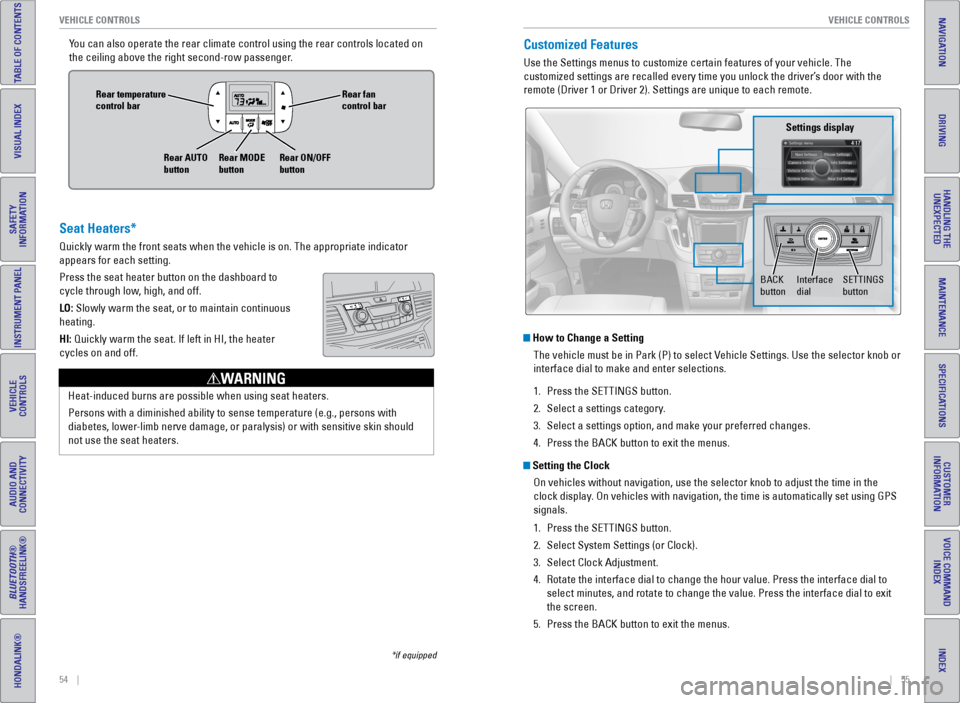
You can also operate the rear climate control using the rear controls loc\
ated on
the ceiling above the right second-row passenger.Customized Features
Use the Settings menus to customize certain features of your vehicle. Th\
e
customized settings are recalled every time you unlock the driver’s door with the
remote (Driver 1 or Driver 2). Settings are unique to each remote.
How to Change a Setting
The vehicle must be in Park (P) to select Vehicle Settings. Use the selector knob or
interface dial to make and enter selections.
1. Press the SETTINGS button.
2. Select a settings category.
3. Select a settings option, and make your preferred changes.
4. Press the BACK button to exit the menus.
Setting the Clock
On vehicles without navigation, use the selector knob to adjust the time\
in the
clock display. On vehicles with navigation, the time is automatically set using GPS
signals.
1. Press the SETTINGS button.
2. Select System Settings (or Clock).
3. Select Clock Adjustment.
4. Rotate the interface dial to change the hour value. Press the interface \
dial to
select minutes, and rotate to change the value. Press the interface dial\
to exit
the screen.
5. Press the BACK button to exit the menus.
SETTINGS
button
Settings display
BACK
buttonInterface
dial
Seat Heaters*
Quickly warm the front seats when the vehicle is on. The appropriate ind\
icator
appears for each setting.
Press the seat heater button on the dashboard to
cycle through low, high, and off.
LO: Slowly warm the seat, or to maintain continuous
heating.
HI: Quickly warm the seat. If left in HI, the heater
cycles on and off.
Heat-induced burns are possible when using seat heaters.
Persons with a diminished ability to sense temperature (e.g., persons w\
ith
diabetes, lower-limb nerve damage, or paralysis) or with sensitive skin should
not use the seat heaters.
WARNING
Rear fan
control bar
Rear ON/OFF
button
Rear temperature
control bar
Rear AUTO
buttonRear MODE
button
*if equipped
Page 32 of 80
56 || 57
AUDIO AND CONNECTIVITY
AUDIO AND CONNECTIVITY
INDEX
VOICE COMMAND
INDEX
CUSTOMER
INFORMATION
SPECIFICATIONS
MAINTENANCE
HANDLING THE UNEXPECTED
DRIVING
NAVIGATION
TABLE OF CONTENTS
VISUAL INDEX
SAFETY
INFORMATION
INSTRUMENT PANEL
VEHICLE
CONTROLS
AUDIO AND
CONNECTIVITY
BLUETOOTH®
HANDSFREELINK®
HONDALINK®
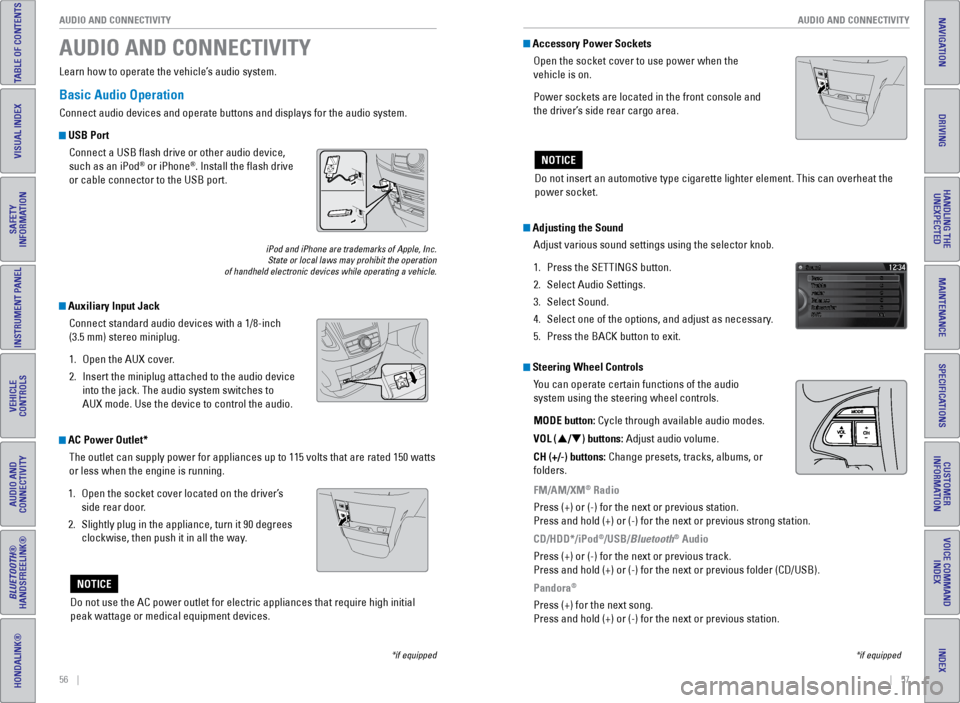
Basic Audio Operation
Connect audio devices and operate buttons and displays for the audio sys\
tem.
USB Port
Connect a USB flash drive or other audio device,
such as an iPod
® or iPhone®. Install the flash drive
or cable connector to the USB port.
Auxiliary Input Jack
Connect standard audio devices with a 1/8-inch
(3.5 mm) stereo miniplug.
1. Open the AUX cover.
2. Insert the miniplug attached to the audio device
into the jack. The audio system switches to
AUX mode. Use the device to control the audio.
iPod and iPhone are trademarks of Apple, Inc.
State or local laws may prohibit the operation
of handheld electronic devices while operating a vehicle.
AUDIO AND CONNECTIVITY
Learn how to operate the vehicle’s audio system.
Adjusting the Sound
Adjust various sound settings using the selector knob.
1. Press the SETTINGS button.
2. Select Audio Settings.
3. Select Sound.
4. Select one of the options, and adjust as necessary.
5. Press the BACK button to exit.
Steering Wheel Controls
You can operate certain functions of the audio
system using the steering wheel controls.
MODE button: Cycle through available audio modes.
VOL (p/q) buttons: Adjust audio volume.
CH (+/-) buttons: Change presets, tracks, albums, or
folders.
FM/AM/XM
® Radio
Press (+) or (-) for the next or previous station.
Press and hold (+) or (-) for the next or previous strong station.
CD/HDD*/iPod
®/USB/Bluetooth® Audio
Press (+) or (-) for the next or previous track.
Press and hold (+) or (-) for the next or previous folder (CD/USB)\
.
Pandora
®
Press (+) for the next song.
Press and hold (+) or (-) for the next or previous station.
*if equipped
Accessory Power Sockets Open the socket cover to use power when the
vehicle is on.
Power sockets are located in the front console and
the driver’s side rear cargo area.
Do not insert an automotive type cigarette lighter element. This can ove\
rheat the
power socket.
NOTICE
AC Power Outlet*The outlet can supply power for appliances up to 115 volts that are rate\
d 150 watts
or less when the engine is running.
1. Open the socket cover located on the driver’s
side rear door.
2. Slightly plug in the appliance, turn it 90 degrees
clockwise, then push it in all the way.
Do not use the AC power outlet for electric appliances that require high\
initial
peak wattage or medical equipment devices.
NOTICE
*if equipped
Page 33 of 80
58 || 59
AUDIO AND CONNECTIVITY
AUDIO AND CONNECTIVITY
INDEX
VOICE COMMAND
INDEX
CUSTOMER
INFORMATION
SPECIFICATIONS
MAINTENANCE
HANDLING THE UNEXPECTED
DRIVING
NAVIGATION
TABLE OF CONTENTS
VISUAL INDEX
SAFETY
INFORMATION
INSTRUMENT PANEL
VEHICLE
CONTROLS
AUDIO AND
CONNECTIVITY
BLUETOOTH®
HANDSFREELINK®
HONDALINK®
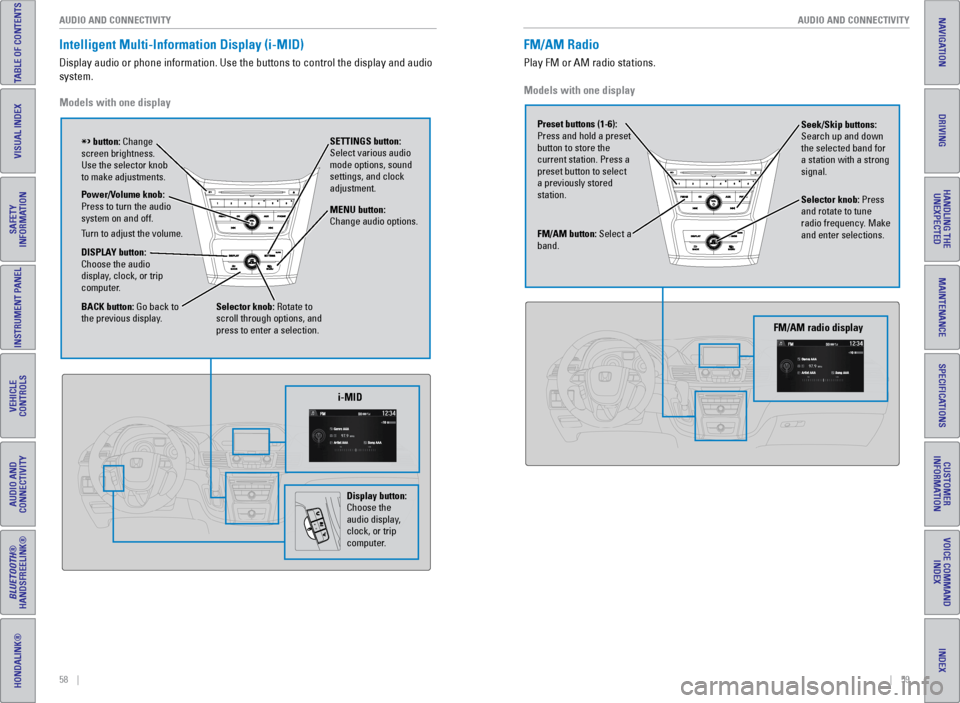
Intelligent Multi-Information Display (i-MID)
Display audio or phone information. Use the buttons to control the displ\
ay and audio
system.
Models with one display
Selector knob: Rotate to
scroll through options, and
press to enter a selection. MENU button:
Change audio options.
DISPLAY button:
Choose the audio
display, clock, or trip
computer. Power/Volume knob:
Press to turn the audio
system on and off.
Turn to adjust the volume. SETTINGS button:
Select various audio
mode options, sound
settings, and clock
adjustment.
BACK button: Go back to
the previous display.
button: Change
screen brightness.
Use the selector knob
to make adjustments.
i-MID
Display button:
Choose the
audio display,
clock, or trip
computer.
Models with one display
FM/AM Radio
Play FM or AM radio stations.
FM/AM button: Select a
band. Preset buttons (1-6):
Press and hold a preset
button to store the
current station. Press a
preset button to select
a previously stored
station. Seek/Skip buttons:
Search up and down
the selected band for
a station with a strong
signal.
Selector knob: Press
and rotate to tune
radio frequency. Make
and enter selections.
FM/AM radio display
Page 36 of 80
64 || 65
AUDIO AND CONNECTIVITY
AUDIO AND CONNECTIVITY
INDEX
VOICE COMMAND
INDEX
CUSTOMER
INFORMATION
SPECIFICATIONS
MAINTENANCE
HANDLING THE UNEXPECTED
DRIVING
NAVIGATION
TABLE OF CONTENTS
VISUAL INDEX
SAFETY
INFORMATION
INSTRUMENT PANEL
VEHICLE
CONTROLS
AUDIO AND
CONNECTIVITY
BLUETOOTH®
HANDSFREELINK®
HONDALINK®
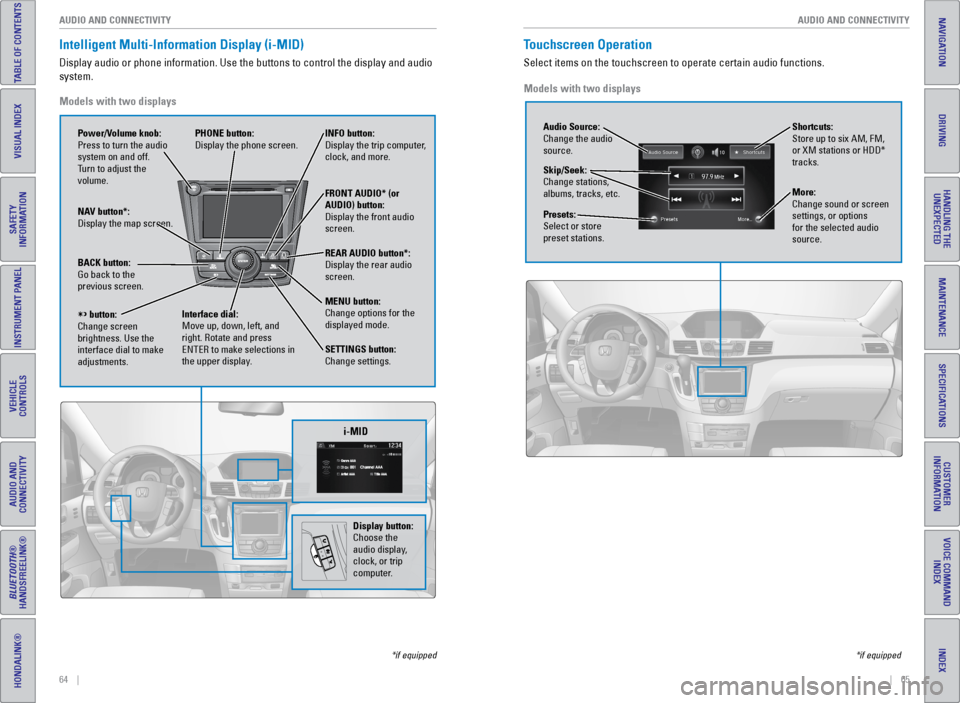
Intelligent Multi-Information Display (i-MID)
Display audio or phone information. Use the buttons to control the displ\
ay and audio
system.
*if equipped
Models with two displays
REAR
AUDIO
FRONT
AUDIO
NAV
i-MID
Power/Volume knob:
Press to turn the audio
system on and off.
Turn to adjust the
volume. INFO button:
Display the trip computer,
clock, and more.
FRONT AUDIO* (or
AUDIO) button:
Display the front audio
screen.
REAR AUDIO button*:
Display the rear audio
screen.
MENU button:
Change options for the
displayed mode.
SETTINGS button:
Change settings.
PHONE button:
Display the phone screen.
NAV button*:
Display the map screen.
BACK button:
Go back to the
previous screen.
button:
Change screen
brightness. Use the
interface dial to make
adjustments. Interface dial:
Move up, down, left, and
right. Rotate and press
ENTER to make selections in
the upper display.
Display button:
Choose the
audio display,
clock, or trip
computer.
Touchscreen Operation
Select items on the touchscreen to operate certain audio functions.
*if equipped
Models with two displays
Audio Source:
Change the audio
source.
Shortcuts:
Store up to six AM, FM,
or XM stations or HDD*
tracks.
More:
Change sound or screen
settings, or options
for the selected audio
source.
Skip/Seek:
Change stations,
albums, tracks, etc.
Presets:
Select or store
preset stations.
Page 41 of 80
74 || 75
AUDIO AND CONNECTIVITY
AUDIO AND CONNECTIVITY
INDEX
VOICE COMMAND
INDEX
CUSTOMER
INFORMATION
SPECIFICATIONS
MAINTENANCE
HANDLING THE UNEXPECTED
DRIVING
NAVIGATION
TABLE OF CONTENTS
VISUAL INDEX
SAFETY
INFORMATION
INSTRUMENT PANEL
VEHICLE
CONTROLS
AUDIO AND
CONNECTIVITY
BLUETOOTH®
HANDSFREELINK®
HONDALINK®
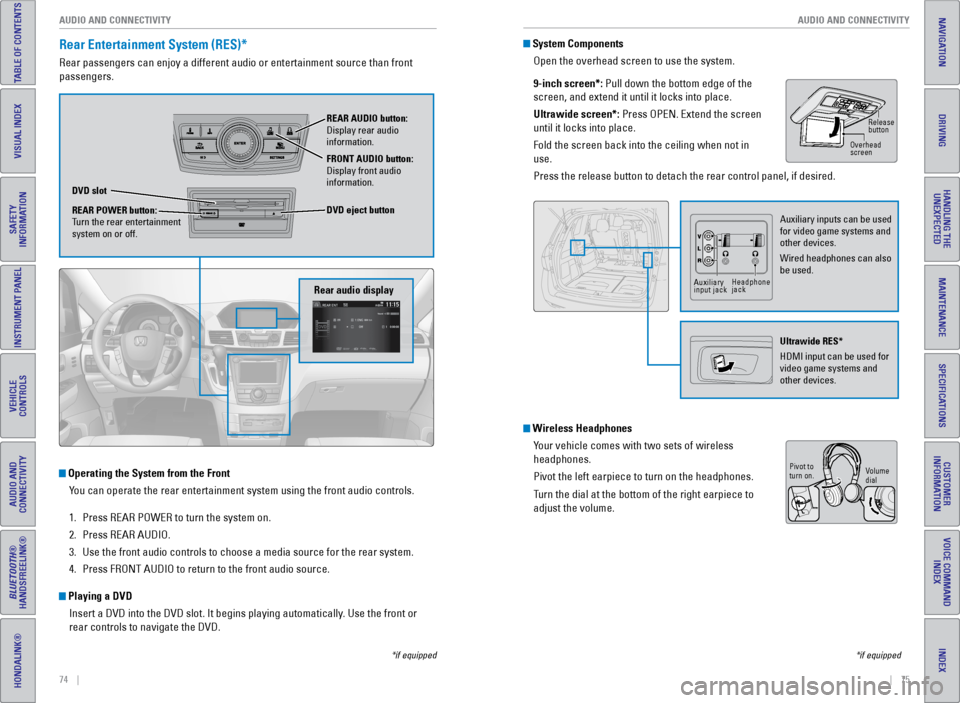
Rear Entertainment System (RES)*
Rear passengers can enjoy a different audio or entertainment source than\
front
passengers.
Operating the System from the Front
You can operate the rear entertainment system using the front audio contr\
ols.
1. Press REAR POWER to turn the system on.
2. Press REAR AUDIO.
3. Use the front audio controls to choose a media source for the rear syste\
m.
4. Press FRONT AUDIO to return to the front audio source.
Playing a DVD
Insert a DVD into the DVD slot. It begins playing automatically. Use the front or
rear controls to navigate the DVD.
Rear audio display
DVD slot
REAR POWER button:
Turn the rear entertainment
system on or off. REAR AUDIO button:
Display rear audio
information.
FRONT AUDIO button:
Display front audio
information.
DVD eject button
*if equipped
System Components
Open the overhead screen to use the system.
9-inch screen*: Pull down the bottom edge of the
screen, and extend it until it locks into place.
Ultrawide screen*: Press OPEN. Extend the screen
until it locks into place.
Fold the screen back into the ceiling when not in
use.
Press the release button to detach the rear control panel, if desired.
Wireless HeadphonesYour vehicle comes with two sets of wireless
headphones.
Pivot the left earpiece to turn on the headphones.
Turn the dial at the bottom of the right earpiece to
adjust the volume.
*if equipped
Overhead
screen Release
button
Auxiliary inputs can be used
for video game systems and
other devices.
Wired headphones can also
be used.
Ultrawide RES*
HDMI input can be used for
video game systems and
other devices.
Auxiliary
input jackHeadphone
jack
Volume
dial
Pivot to
turn on.
Page 49 of 80
90 || 91
DRIVING
DRIVING
INDEX
VOICE COMMAND
INDEX
CUSTOMER
INFORMATION
SPECIFICATIONS
MAINTENANCE
HANDLING THE UNEXPECTED
DRIVING
NAVIGATION
TABLE OF CONTENTS
VISUAL INDEX
SAFETY
INFORMATION
INSTRUMENT PANEL
VEHICLE
CONTROLS
AUDIO AND
CONNECTIVITY
BLUETOOTH®
HANDSFREELINK®
HONDALINK®
Learn about preparation for driving, as well as other features.
Before Driving
Check the following items before you begin driving.
Exterior Checks
• Make sure there are no obstructions on the windows, door mirrors, exterior
lights, or other parts of the vehicle.
• Remove any frost, snow, or ice.
• Make sure the hood is securely closed.
• Heat from the engine and exhaust can ignite flammable materials left u\
nder
the hood, causing a fire. If you’ve parked your vehicle for an exte\
nded period,
inspect and remove any debris that may have collected, such as dried grass
and leaves that have fallen or have been carried in for use as a nest by\
a small
animal. Also check under the hood for leftover flammable materials aft\
er you or
someone else has performed maintenance on your vehicle.
• Make sure the tires are in good condition.
• Make sure there are no people or objects behind or around the vehicle.
Interior Checks
• Store or secure all items on board properly.
• Do not pile items higher than the seat height.
• Do not place anything in the front seat footwells. Make sure to secure t\
he floor
mats.
• If you have any animals on board, do not let them move freely around in \
the
vehicle.
• Securely close and lock all doors and the tailgate.
• Adjust your seating position, mirrors, and steering wheel properly.
• Make sure items placed on the floor behind the front seats cannot roll\
under the
seats.
• Everyone in the vehicle must fasten their seat belt.
• Make sure that the indicators in the instrument panel come on when you s\
tart
the vehicle, and go off soon after.
DRIVING
If the doors are frozen shut, use warm water around the door edges to me\
lt any
ice. Do not try to force them open, as this can damage the rubber trim a\
round the
doors. When done, wipe dry to avoid further freezing.
NOTICE
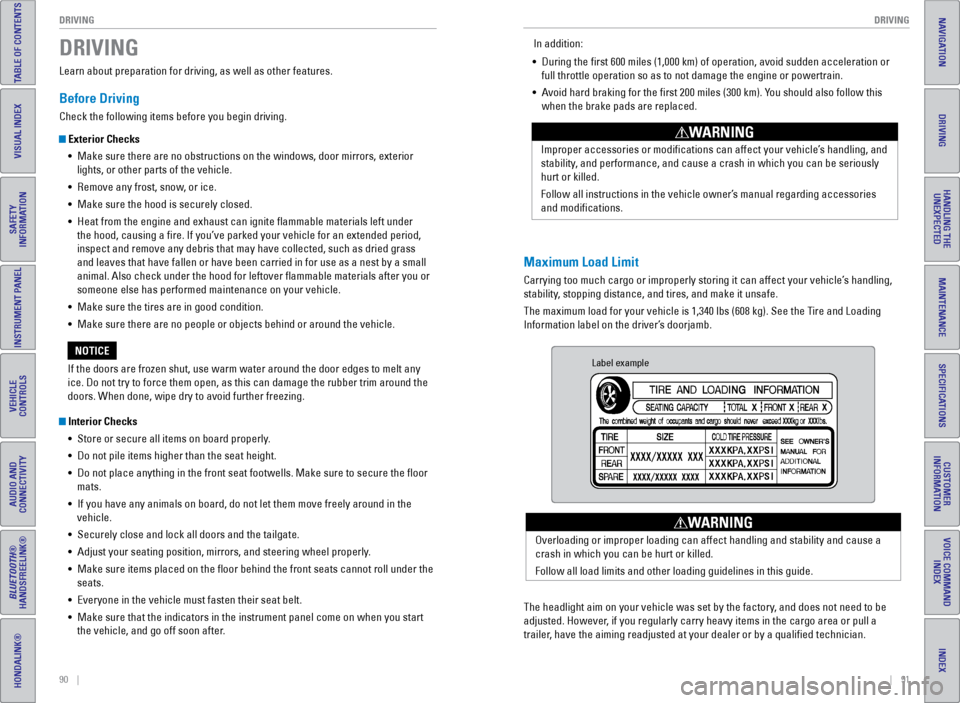
Maximum Load Limit
Carrying too much cargo or improperly storing it can affect your vehicle\
’s handling,
stability, stopping distance, and tires, and make it unsafe.
The maximum load for your vehicle is 1,340 lbs (608 kg). See the Tire and Loading
Information label on the driver’s doorjamb. Improper accessories or modifications can affect your vehicle’s handling, and
stability, and performance, and cause a crash in which you can be seriously
hurt or killed.
Follow all instructions in the vehicle owner’s manual regarding accessories
and modifications.
WARNING
In addition:
• During the first 600 miles (1,000 km) of operation, avoid sudden acc\
eleration or
full throttle operation so as to not damage the engine or powertrain.
• Avoid hard braking for the first 200 miles (300 km). You should also follow this
when the brake pads are replaced.
Label example
The headlight aim on your vehicle was set by the factory, and does not need to be
adjusted. However, if you regularly carry heavy items in the cargo area or pull a
trailer, have the aiming readjusted at your dealer or by a qualified technici\
an. Overloading or improper loading can affect handling and stability and ca\
use a
crash in which you can be hurt or killed.
Follow all load limits and other loading guidelines in this guide.
WARNING