trip computer HONDA ODYSSEY 2016 RC1-RC2 / 5.G Quick Guide
[x] Cancel search | Manufacturer: HONDA, Model Year: 2016, Model line: ODYSSEY, Model: HONDA ODYSSEY 2016 RC1-RC2 / 5.GPages: 80, PDF Size: 16.28 MB
Page 33 of 80
58 || 59
AUDIO AND CONNECTIVITY
AUDIO AND CONNECTIVITY
INDEX
VOICE COMMAND
INDEX
CUSTOMER
INFORMATION
SPECIFICATIONS
MAINTENANCE
HANDLING THE UNEXPECTED
DRIVING
NAVIGATION
TABLE OF CONTENTS
VISUAL INDEX
SAFETY
INFORMATION
INSTRUMENT PANEL
VEHICLE
CONTROLS
AUDIO AND
CONNECTIVITY
BLUETOOTH®
HANDSFREELINK®
HONDALINK®
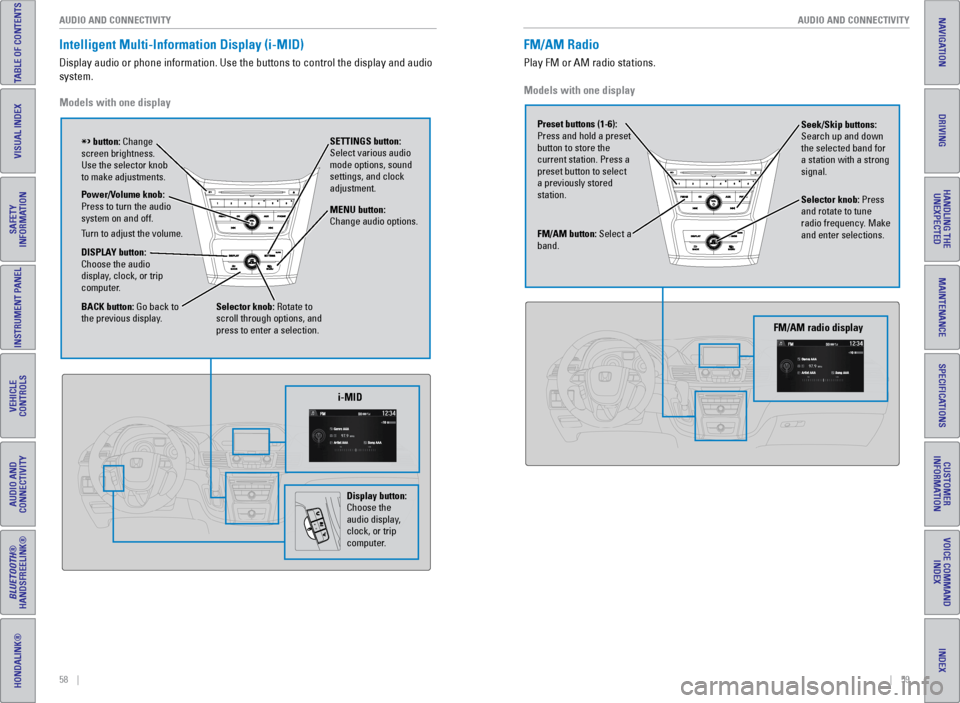
Intelligent Multi-Information Display (i-MID)
Display audio or phone information. Use the buttons to control the displ\
ay and audio
system.
Models with one display
Selector knob: Rotate to
scroll through options, and
press to enter a selection. MENU button:
Change audio options.
DISPLAY button:
Choose the audio
display, clock, or trip
computer. Power/Volume knob:
Press to turn the audio
system on and off.
Turn to adjust the volume. SETTINGS button:
Select various audio
mode options, sound
settings, and clock
adjustment.
BACK button: Go back to
the previous display.
button: Change
screen brightness.
Use the selector knob
to make adjustments.
i-MID
Display button:
Choose the
audio display,
clock, or trip
computer.
Models with one display
FM/AM Radio
Play FM or AM radio stations.
FM/AM button: Select a
band. Preset buttons (1-6):
Press and hold a preset
button to store the
current station. Press a
preset button to select
a previously stored
station. Seek/Skip buttons:
Search up and down
the selected band for
a station with a strong
signal.
Selector knob: Press
and rotate to tune
radio frequency. Make
and enter selections.
FM/AM radio display
Page 36 of 80
64 || 65
AUDIO AND CONNECTIVITY
AUDIO AND CONNECTIVITY
INDEX
VOICE COMMAND
INDEX
CUSTOMER
INFORMATION
SPECIFICATIONS
MAINTENANCE
HANDLING THE UNEXPECTED
DRIVING
NAVIGATION
TABLE OF CONTENTS
VISUAL INDEX
SAFETY
INFORMATION
INSTRUMENT PANEL
VEHICLE
CONTROLS
AUDIO AND
CONNECTIVITY
BLUETOOTH®
HANDSFREELINK®
HONDALINK®
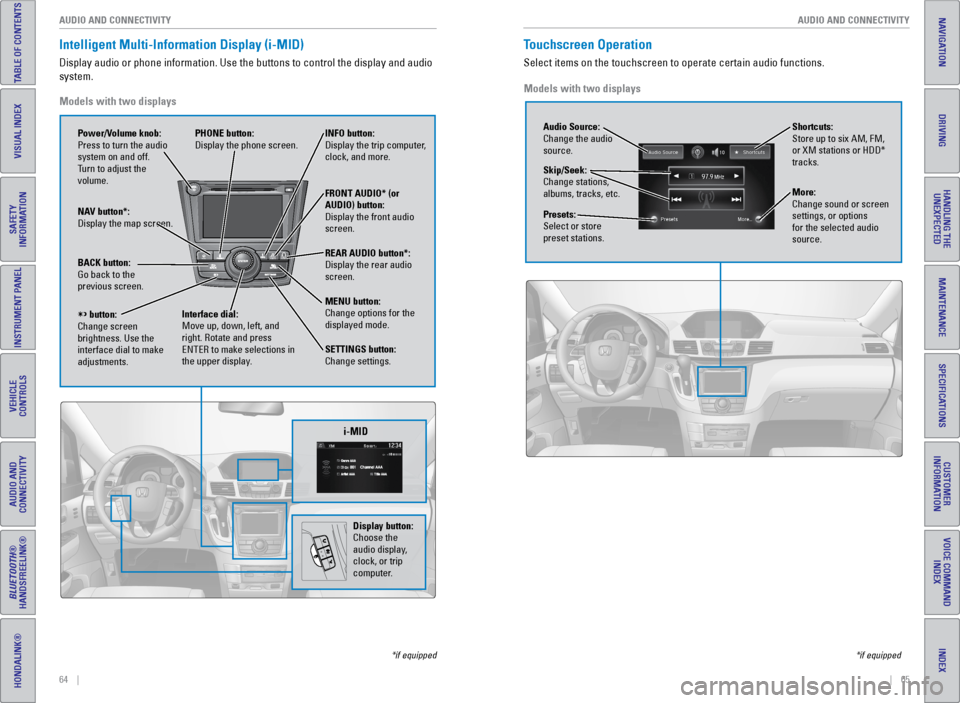
Intelligent Multi-Information Display (i-MID)
Display audio or phone information. Use the buttons to control the displ\
ay and audio
system.
*if equipped
Models with two displays
REAR
AUDIO
FRONT
AUDIO
NAV
i-MID
Power/Volume knob:
Press to turn the audio
system on and off.
Turn to adjust the
volume. INFO button:
Display the trip computer,
clock, and more.
FRONT AUDIO* (or
AUDIO) button:
Display the front audio
screen.
REAR AUDIO button*:
Display the rear audio
screen.
MENU button:
Change options for the
displayed mode.
SETTINGS button:
Change settings.
PHONE button:
Display the phone screen.
NAV button*:
Display the map screen.
BACK button:
Go back to the
previous screen.
button:
Change screen
brightness. Use the
interface dial to make
adjustments. Interface dial:
Move up, down, left, and
right. Rotate and press
ENTER to make selections in
the upper display.
Display button:
Choose the
audio display,
clock, or trip
computer.
Touchscreen Operation
Select items on the touchscreen to operate certain audio functions.
*if equipped
Models with two displays
Audio Source:
Change the audio
source.
Shortcuts:
Store up to six AM, FM,
or XM stations or HDD*
tracks.
More:
Change sound or screen
settings, or options
for the selected audio
source.
Skip/Seek:
Change stations,
albums, tracks, etc.
Presets:
Select or store
preset stations.
Page 78 of 80
148 || 149
VOICE COMMAND INDEX
VOICE COMMAND INDEX
INDEX
VOICE COMMAND
INDEX
CUSTOMER
INFORMATION
SPECIFICATIONS
MAINTENANCE
HANDLING THE UNEXPECTED
DRIVING
NAVIGATION
TABLE OF CONTENTS
VISUAL INDEX
SAFETY
INFORMATION
INSTRUMENT PANEL
VEHICLE
CONTROLS
AUDIO AND
CONNECTIVITY
BLUETOOTH®
HANDSFREELINK®
HONDALINK®
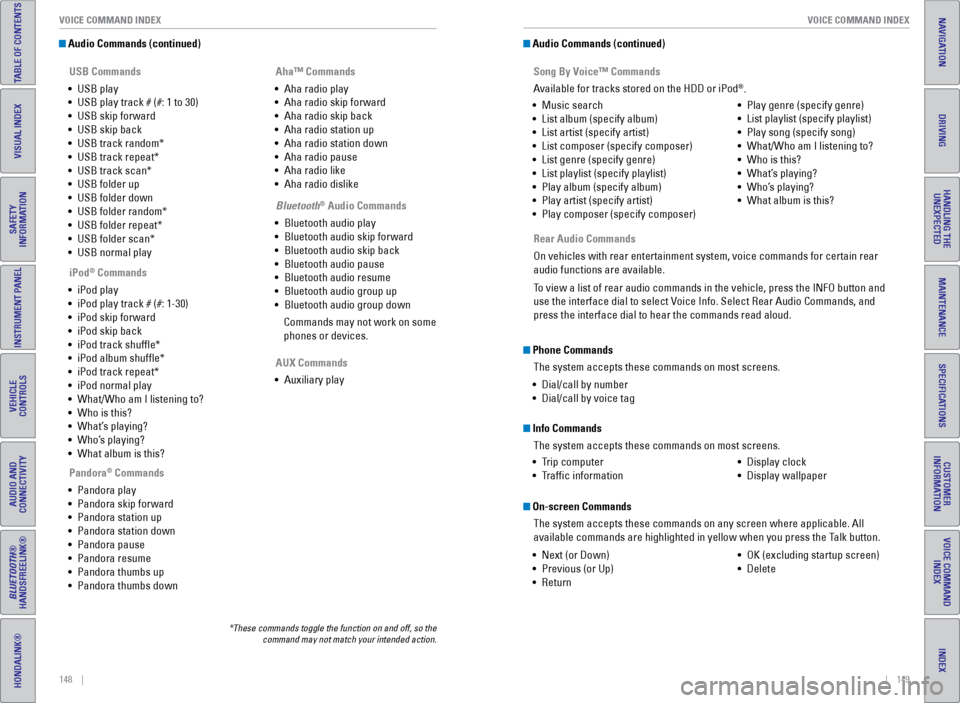
Audio Commands (continued)
USB Commands
• USB play
• USB play track # (#: 1 to 30)
• USB skip forward
• USB skip back
• USB track random*
• USB track repeat*
• USB track scan*
• USB folder up
• USB folder down
• USB folder random*
• USB folder repeat*
• USB folder scan*
• USB normal play
Pandora
® Commands
• Pandora play
• Pandora skip forward
• Pandora station up
• Pandora station down
• Pandora pause
• Pandora resume
• Pandora thumbs up
• Pandora thumbs down
*These commands toggle the function on and off, so the
command may not match your intended action.
iPod® Commands
• iPod play
• iPod play track # (#: 1-30)
• iPod skip forward
• iPod skip back
• iPod track shuffle*
• iPod album shuffle*
• iPod track repeat*
• iPod normal play
• What/Who am I listening to?
• Who is this?
• What’s playing?
• Who’s playing?
• What album is this? Aha™ Commands
• Aha radio play
• Aha radio skip forward
• Aha radio skip back
• Aha radio station up
• Aha radio station down
• Aha radio pause
• Aha radio like
• Aha radio dislike
Bluetooth
® Audio Commands
• Bluetooth audio play
• Bluetooth audio skip forward
• Bluetooth audio skip back
• Bluetooth audio pause
• Bluetooth audio resume
• Bluetooth audio group up
• Bluetooth audio group down
Commands may not work on some
phones or devices.
AUX Commands
• Auxiliary play •
Music search
• List album (specify album)
• List artist (specify artist)
• List composer (specify composer)
• List genre (specify genre)
• List playlist (specify playlist)
• Play album (specify album)
• Play artist (specify artist)
• Play composer (specify composer) •
Play genre (specify genre)
• List playlist (specify playlist)
• Play song (specify song)
• What/Who am I listening to?
• Who is this?
• What’s playing?
• Who’s playing?
• What album is this?
Song By Voice™ Commands
Available for tracks stored on the HDD or iPod
®.
Audio Commands (continued)
Rear Audio Commands
On vehicles with rear entertainment system, voice commands for certain rear
audio functions are available.
To view a list of rear audio commands in the vehicle, press the INFO butt\
on and
use the interface dial to select Voice Info. Select Rear Audio Commands, and
press the interface dial to hear the commands read aloud.
Phone CommandsThe system accepts these commands on most screens.
• Dial/call by number
• Dial/call by voice tag
Info Commands
The system accepts these commands on most screens.
• Trip computer
• Traffic information •
Display clock
• Display wallpaper
On-screen Commands
The system accepts these commands on any screen where applicable. All
available commands are highlighted in yellow when you press the Talk button.
• Next (or Down)
• Previous (or Up)
• Return •
OK (excluding startup screen)
• Delete