reset HONDA ODYSSEY 2017 RC1-RC2 / 5.G Quick Guide
[x] Cancel search | Manufacturer: HONDA, Model Year: 2017, Model line: ODYSSEY, Model: HONDA ODYSSEY 2017 RC1-RC2 / 5.GPages: 81, PDF Size: 15.25 MB
Page 4 of 81
| 1
VISUAL INDEX
INDEX
VOICE COMMAND
INDEX
CUSTOMER
INFORMATION
SPECIFICATIONS
MAINTENANCE
HANDLING THE UNEXPECTED
DRIVING
NAVIGATION
C6 | COveR
TABLE OF CONTENTS
VISUAL INDEX
SAFETY
INFORMATION
INSTRUMENT PANEL
VEHICLE
CONTROLS
AUDIO AND
CONNECTIVITY
BLUETOOTH®
HANDSFREELINK®
HONDALINK®
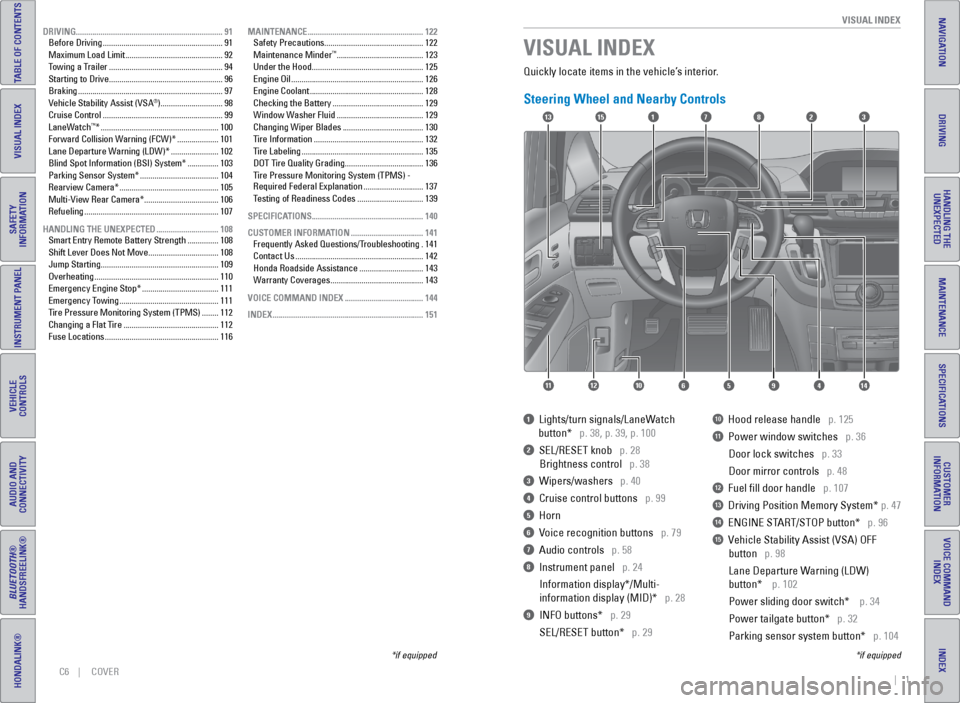
Quickly locate items in the vehicle’s interior.
Steering Wheel and Nearby Controls
1 Lights/turn signals/LaneWatch
button* p. 38, p. 39, p. 100
2 SeL/ReSeT knob p. 28
Brightness control p. 38
3 Wipers/washers p. 40
4 Cruise control buttons p. 99
5 Horn
6 voice recognition buttons p. 79
7 Audio controls p. 58
8 Instrument panel p. 24
Information display*/Multi-
information display (MID)* p. 28
9 INFO buttons* p. 29
SeL/ReSeT button* p. 29
10 Hood release handle p. 125
11 Power window switches p. 36
Door lock switches p. 33
Door mirror controls p. 48
12 Fuel fill door handle p. 107
13 Driving Position Memory System* p. 47
14 eNGINe START/STOP button* p. 96
15 vehicle Stability Assist (vSA) OFF
button p. 98
Lane Departure Warning (LDW)
button* p. 102
Power sliding door switch* p. 34
Power tailgate button* p. 32
Parking sensor system button* p. 104
VISUAL INDEX
*if equipped
*if equipped
17
4596111210
1513823
14
DRIVING ....................................................................... 91
Before Driving .......................................................... 91
Maximum Load Limit ............................................... 92
Towing a Trailer ....................................................... 94
Starting to Drive ....................................................... 96
Braking ...................................................................... 97
v ehicle Stability Assist (vSA
®) .............................. 98
Cruise Control .......................................................... 99
LaneWatch
™* ......................................................... 100
Forward Collision Warning (FCW)* .................... 101
Lane Departure Warning (LDW)* ....................... 102
Blind Spot Information (BSI) System* ............... 103
Parking Sensor System* ......................................104
Rearview Camera* ................................................ 105
Multi-view Rear Camera* .................................... 106
Refueling ................................................................. 107
HANDLING THE UNEXPECTED .............................. 108
Smart entry Remote Battery Strength ............... 108
Shift Lever Does Not Move .................................. 108
Jump Starting ......................................................... 109
Overheating ............................................................ 110
emergency engine Stop* ..................................... 111
emergency Towing ................................................ 111
Tire Pressure Monitoring System (TPMS) ........ 112
Changing a Flat Tire .............................................. 112
Fuse Locations ....................................................... 116MAINTENANCE ........................................................
122
Safety Precautions ................................................ 122
Maintenance Minder
™ .......................................... 123
Under the Hood ...................................................... 125
engine Oil ................................................................ 126
engine Coolant ....................................................... 128
Checking the Battery ............................................ 129
Window Washer Fluid .......................................... 129
Changing Wiper Blades ....................................... 130
Tire Information ..................................................... 132
Tire Labeling ........................................................... 135
DOT Tire Quality Grading ......................................136
Tire Pressure Monitoring System (TPMS) -
Required Federal explanation ............................. 137
Testing of Readiness Codes ................................ 139
SPECIFICATIONS ...................................................... 140
CUSTOMER INFORMATION ................................... 141
Frequently Asked Questions/Troubleshooting . 141
Contact Us .............................................................. 142
Honda Roadside Assistance ............................... 143
Warranty Coverages ............................................. 143
VOICE COMMAND INDEX ...................................... 144
INDEX ........................................................................\
. 151
Page 18 of 81
28 || 29
INSTRUMENT P
ANEL
INSTRUMENT P ANEL
TABLE OF CONTENTS
INDEX
VISUAL INDEX
VOICE COMMAND
INDEX
SAFETY
INFORMATION
CUSTOMER
INFORMATION
INSTRUMENT PANEL
SPECIFICATIONS
VEHICLE
CONTROLS
MAINTENANCE
AUDIO AND
CONNECTIVITY
HANDLING THE UNEXPECTED
BLUETOOTH®
HANDSFREELINK®
DRIVING
HONDALINK®
NAVIGATION
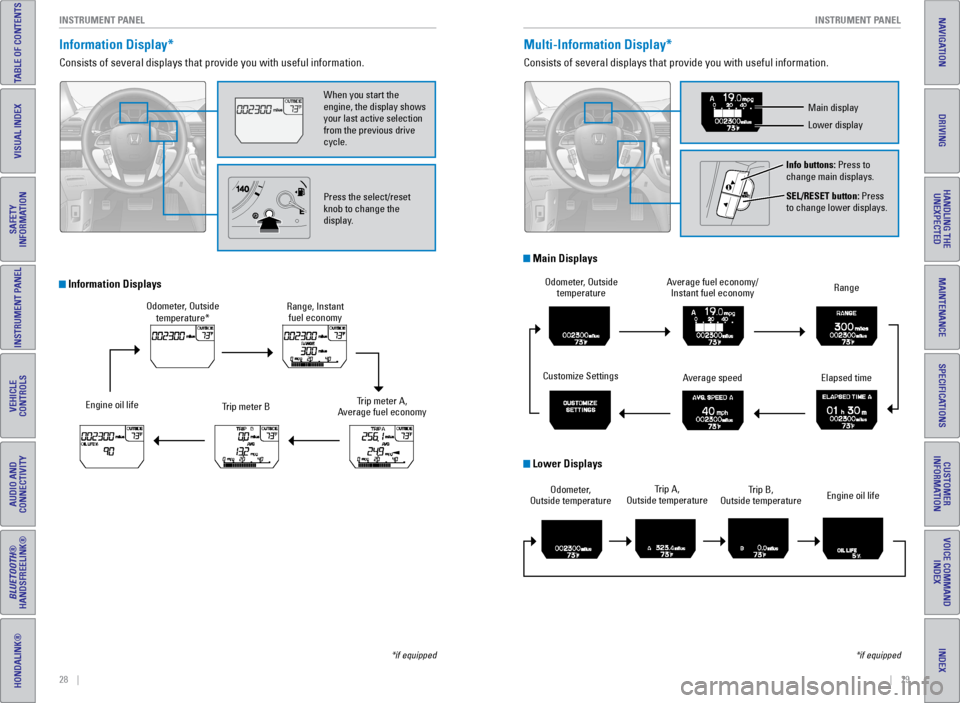
Information Display*
Consists of several displays that provide you with useful information.
Information Displays
Press the select/reset
knob to change the
display. When you start the
engine, the display shows
your last active selection
from the previous drive
cycle.
*if equipped
Multi-Information Display*
Consists of several displays that provide you with useful information.
Main Displays
Customize Settings Average fuel economy/
Instant fuel economy
Odometer, Outside
temperature
Average speed Range
elapsed time
Lower Displays
Odometer,
Outside temperature Trip A,
Outside temperature engine oil life
Trip B,
Outside temperature
*if equipped
Main display
Lower display
Info buttons: Press to
change main displays.
SEL/RESET button: Press
to change lower displays.
Odometer, Outside temperature*
engine oil life Trip meter BRange, Instant
fuel economy
Trip meter A,
Average fuel economy
Page 27 of 81
46 || 47
VEHICLE CONTROLS
VEHICLE CONTROLS
TABLE OF CONTENTS
INDEX
VISUAL INDEX
VOICE COMMAND
INDEX
SAFETY
INFORMATION
CUSTOMER
INFORMATION
INSTRUMENT PANEL
SPECIFICATIONS
VEHICLE
CONTROLS
MAINTENANCE
AUDIO AND
CONNECTIVITY
HANDLING THE UNEXPECTED
BLUETOOTH®
HANDSFREELINK®
DRIVING
HONDALINK®
NAVIGATION
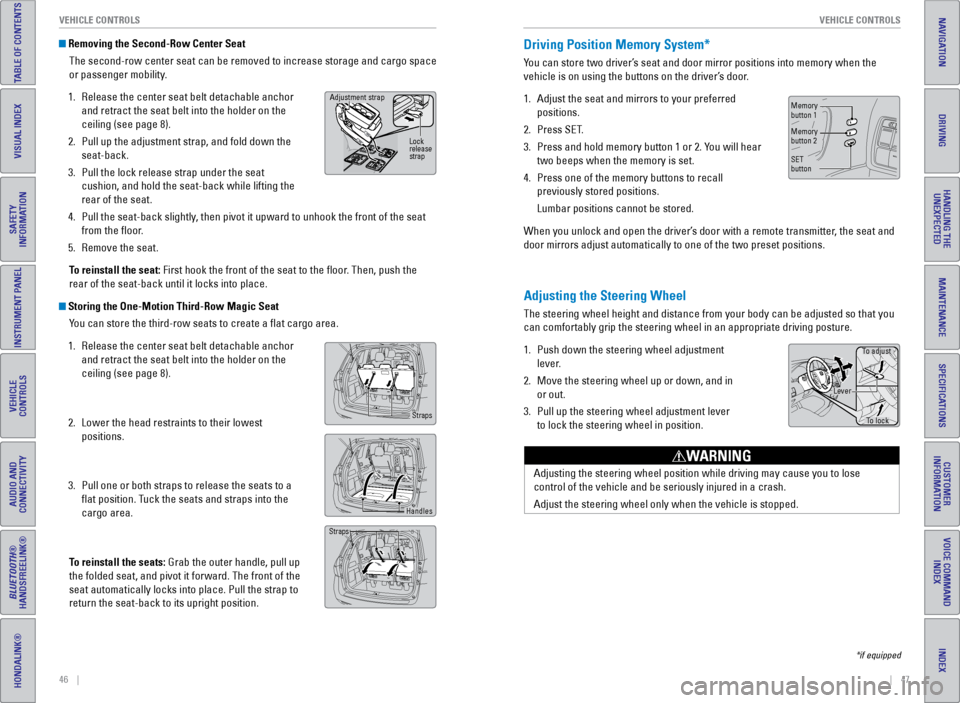
Removing the Second-Row Center Seat
The second-row center seat can be removed to increase storage and cargo space
or passenger mobility.
1. Release the center seat belt detachable anchor
and retract the seat belt into the holder on the
ceiling (see page 8).
2. Pull up the adjustment strap, and fold down the
seat-back.
3. Pull the lock release strap under the seat
cushion, and hold the seat-back while lifting the
rear of the seat.
4. Pull the seat-back slightly, then pivot it upward to unhook the front of the seat
from the floor.
5. Remove the seat.
To reinstall the seat: First hook the front of the seat to the floor. Then, push the
rear of the seat-back until it locks into place.
Storing the One-Motion Third-Row Magic Seat You can store the third-row seats to create a flat cargo area.
1. Release the center seat belt detachable anchor
and retract the seat belt into the holder on the
ceiling (see page 8).
2. Lower the head restraints to their lowest
positions.
3. Pull one or both straps to release the seats to a
flat position. Tuck the seats and straps into the
cargo area.
To reinstall the seats: Grab the outer handle, pull up
the folded seat, and pivot it forward. The front of the
seat automatically locks into place. Pull the strap to
return the seat-back to its upright position.
Adjustment strap
Lock
release
strap
Straps
Handles
Straps
Adjusting the Steering Wheel
The steering wheel height and distance from your body can be adjusted so\
that you
can comfortably grip the steering wheel in an appropriate driving postur\
e.
1. Push down the steering wheel adjustment
lever.
2. Move the steering wheel up or down, and in
or out.
3. Pull up the steering wheel adjustment lever
to lock the steering wheel in position.
Adjusting the steering wheel position while driving may cause you to los\
e
control of the vehicle and be seriously injured in a crash.
Adjust the steering wheel only when the vehicle is stopped.
WARNING
Driving Position Memory System*
You can store two driver’s seat and door mirror positions into memory when the
vehicle is on using the buttons on the driver’s door.
1. Adjust the seat and mirrors to your preferred
positions.
2. Press SeT.
3. Press and hold memory button 1 or 2. You will hear
two beeps when the memory is set.
4. Press one of the memory buttons to recall
previously stored positions.
Lumbar positions cannot be stored.
When you unlock and open the driver’s door with a remote transmitter, the seat and
door mirrors adjust automatically to one of the two preset positions.
To adjust
To lock
Lever
Memory
button 1
Memory
button 2
SeT
button
*if equipped
Page 33 of 81
58 || 59
AUDIO AND CONNECTIVITY
AUDIO AND CONNECTIVITY
TABLE OF CONTENTS
INDEX
VISUAL INDEX
VOICE COMMAND
INDEX
SAFETY
INFORMATION
CUSTOMER
INFORMATION
INSTRUMENT PANEL
SPECIFICATIONS
VEHICLE
CONTROLS
MAINTENANCE
AUDIO AND
CONNECTIVITY
HANDLING THE UNEXPECTED
BLUETOOTH®
HANDSFREELINK®
DRIVING
HONDALINK®
NAVIGATION
Adjusting the Sound
Adjust various sound settings using the selector knob.
1. Press the SeTTINGS button.
2. Select Audio Settings.
3. Select Sound.
4. Select one of the options, and adjust as necessary.
5. Press the BACK button to exit.
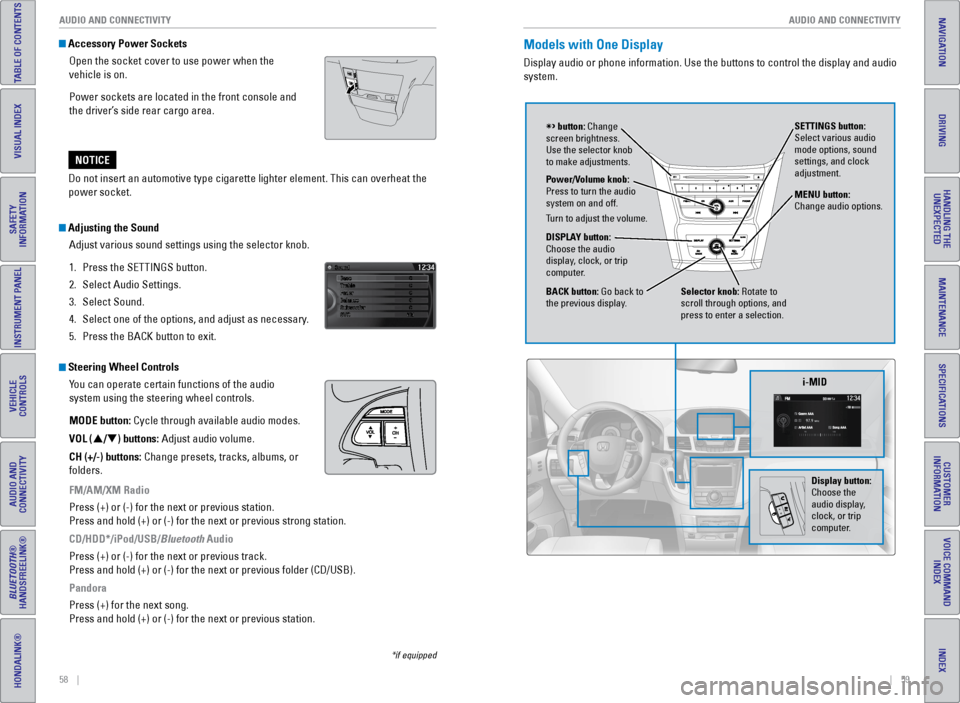
Steering Wheel Controls
You can operate certain functions of the audio
system using the steering wheel controls.
MODE button: Cycle through available audio modes.
VOL (p/q) buttons: Adjust audio volume.
CH (+/-) buttons: Change presets, tracks, albums, or
folders.
FM/AM/XM Radio
Press (+) or (-) for the next or previous station.
Press and hold (+) or (-) for the next or previous strong station.
CD/HDD*/iPod/USB/Bluetooth Audio
Press (+) or (-) for the next or previous track.
Press and hold (+) or (-) for the next or previous folder (CD/USB)\
.
Pandora
Press (+) for the next song.
Press and hold (+) or (-) for the next or previous station.
*if equipped
Accessory Power SocketsOpen the socket cover to use power when the
vehicle is on.
Power sockets are located in the front console and
the driver’s side rear cargo area.
Do not insert an automotive type cigarette lighter element. This can ove\
rheat the
power socket.
NOTICE
Models with One Display
Display audio or phone information. Use the buttons to control the displ\
ay and audio
system.
Selector knob: Rotate to
scroll through options, and
press to enter a selection. MENU button:
Change audio options.
DISPLAY button:
Choose the audio
display, clock, or trip
computer. Power/Volume knob:
Press to turn the audio
system on and off.
Turn to adjust the volume. SETTINGS button:
Select various audio
mode options, sound
settings, and clock
adjustment.
BACK button: Go back to
the previous display.
button: Change
screen brightness.
Use the selector knob
to make adjustments.
i-MID
Display button:
Choose the
audio display,
clock, or trip
computer.
Page 34 of 81
60 || 61
AUDIO AND CONNECTIVITY
AUDIO AND CONNECTIVITY
TABLE OF CONTENTS
INDEX
VISUAL INDEX
VOICE COMMAND
INDEX
SAFETY
INFORMATION
CUSTOMER
INFORMATION
INSTRUMENT PANEL
SPECIFICATIONS
VEHICLE
CONTROLS
MAINTENANCE
AUDIO AND
CONNECTIVITY
HANDLING THE UNEXPECTED
BLUETOOTH®
HANDSFREELINK®
DRIVING
HONDALINK®
NAVIGATION
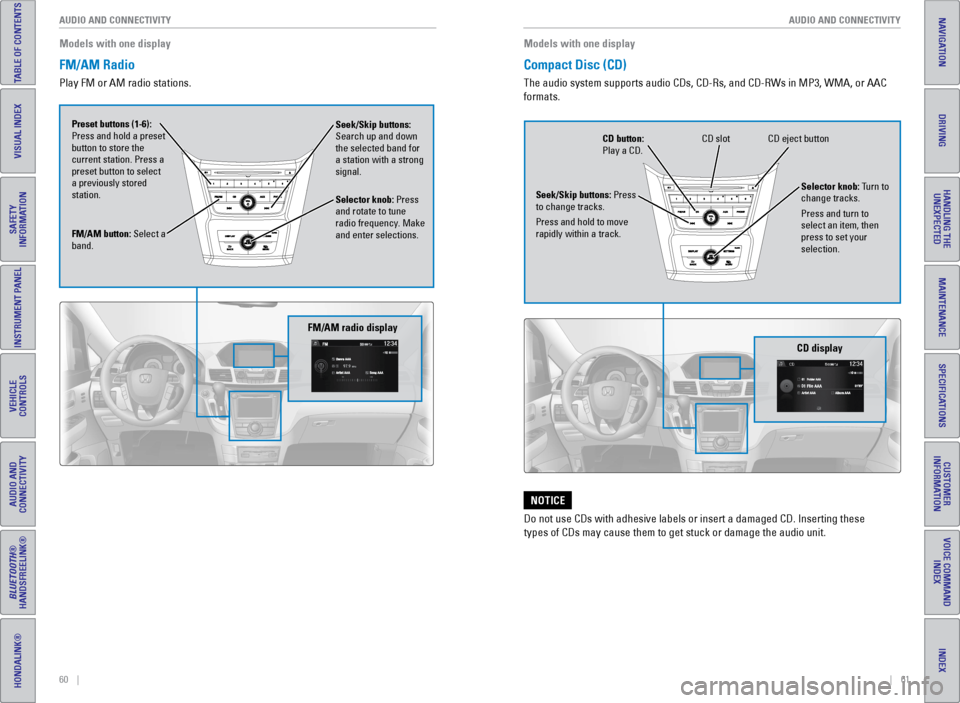
Models with one display
FM/AM Radio
Play FM or AM radio stations.
FM/AM button: Select a
band. Preset buttons (1-6):
Press and hold a preset
button to store the
current station. Press a
preset button to select
a previously stored
station. Seek/Skip buttons:
Search up and down
the selected band for
a station with a strong
signal.
Selector knob: Press
and rotate to tune
radio frequency. Make
and enter selections.
FM/AM radio display
Compact Disc (CD)
The audio system supports audio CDs, CD-Rs, and CD-RWs in MP3, WMA, or AAC
formats.
Do not use CDs with adhesive labels or insert a damaged CD. Inserting th\
ese
types of CDs may cause them to get stuck or damage the audio unit.
NOTICE
Models with one display
CD eject button
CD slot
CD button:
Play a CD.
Seek/Skip buttons: Press
to change tracks.
Press and hold to move
rapidly within a track. Selector knob: Turn to
change tracks.
Press and turn to
select an item, then
press to set your
selection.
CD display
Page 35 of 81
62 || 63
AUDIO AND CONNECTIVITY
AUDIO AND CONNECTIVITY
TABLE OF CONTENTS
INDEX
VISUAL INDEX
VOICE COMMAND
INDEX
SAFETY
INFORMATION
CUSTOMER
INFORMATION
INSTRUMENT PANEL
SPECIFICATIONS
VEHICLE
CONTROLS
MAINTENANCE
AUDIO AND
CONNECTIVITY
HANDLING THE UNEXPECTED
BLUETOOTH®
HANDSFREELINK®
DRIVING
HONDALINK®
NAVIGATION
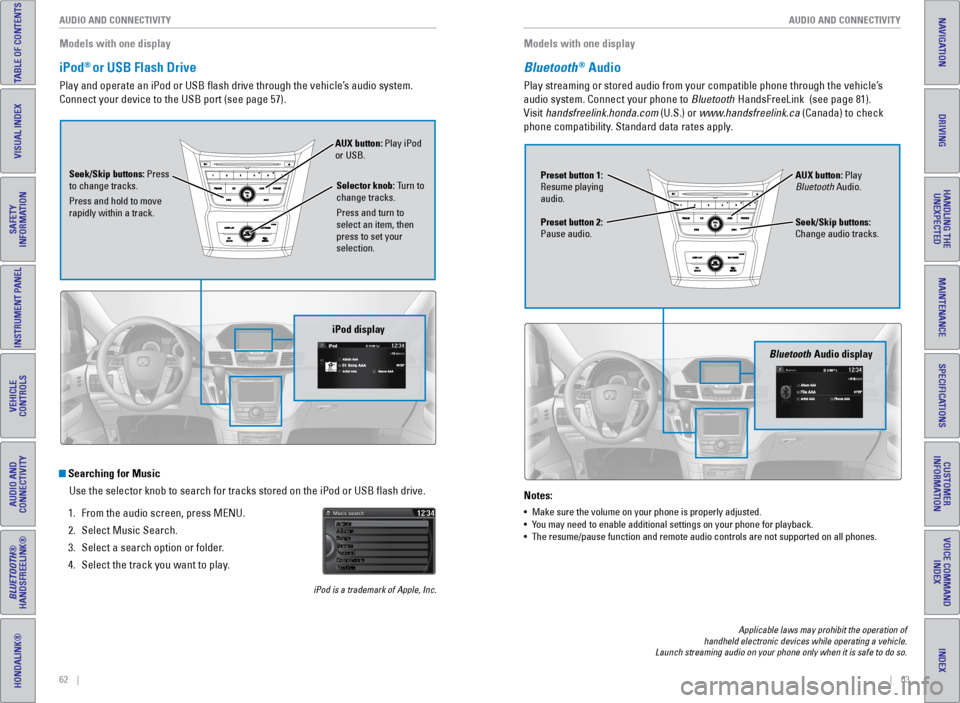
iPod® or USB Flash Drive
Play and operate an iPod or USB flash drive through the vehicle’s audio system.
Connect your device to the USB port (see page 57).
Searching for Music
Use the selector knob to search for tracks stored on the iPod or USB fl\
ash drive.
1. From the audio screen, press MeNU.
2. Select Music Search.
3. Select a search option or folder.
4. Select the track you want to play.
iPod is a trademark of Apple, Inc.
Models with one display
Seek/Skip buttons: Press
to change tracks.
Press and hold to move
rapidly within a track. AUX button: Play iPod
or USB.
Selector knob: Turn to
change tracks.
Press and turn to
select an item, then
press to set your
selection.
iPod display
Bluetooth® Audio
Play streaming or stored audio from your compatible phone through the ve\
hicle’s
audio system. Connect your phone to Bluetooth HandsFreeLink (see page 81).
visit handsfreelink.honda.com (U.S.) or www.handsfreelink.ca (Canada) to check
phone compatibility. Standard data rates apply.
Notes:
• Make sure the volume on your phone is properly adjusted.
• You may need to enable additional settings on your phone for playback.
• The resume/pause function and remote audio controls are not supported on\
all phones.
Models with one display
Seek/Skip buttons:
Change audio tracks. AUX button: Play
Bluetooth Audio.
Preset button 1:
Resume playing
audio.
Preset button 2:
Pause audio.
Bluetooth Audio display
Applicable laws may prohibit the operation of
handheld electronic devices while operating a vehicle.
Launch streaming audio on your phone only when it is safe to do so.
Page 36 of 81
64 || 65
AUDIO AND CONNECTIVITY
AUDIO AND CONNECTIVITY
TABLE OF CONTENTS
INDEX
VISUAL INDEX
VOICE COMMAND
INDEX
SAFETY
INFORMATION
CUSTOMER
INFORMATION
INSTRUMENT PANEL
SPECIFICATIONS
VEHICLE
CONTROLS
MAINTENANCE
AUDIO AND
CONNECTIVITY
HANDLING THE UNEXPECTED
BLUETOOTH®
HANDSFREELINK®
DRIVING
HONDALINK®
NAVIGATION
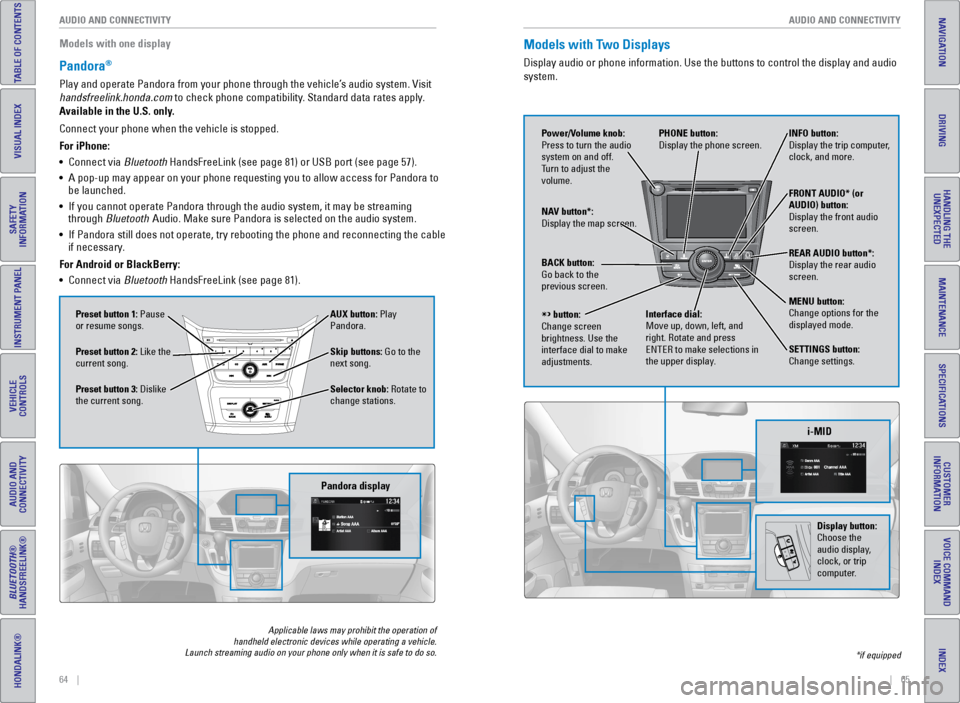
Pandora®
Play and operate Pandora from your phone through the vehicle’s audio system. visit
handsfreelink.honda.com to check phone compatibility. Standard data rates apply.
Available in the U.S. only.
Skip buttons: Go to the
next song.
Selector knob: Rotate to
change stations. AUX button: Play
Pandora.
Preset button 1: Pause
or resume songs.
Preset button 3: Dislike
the current song. Preset button 2: Like the
current song.
Pandora display
Applicable laws may prohibit the operation of
handheld electronic devices while operating a vehicle.
Launch streaming audio on your phone only when it is safe to do so.
Connect your phone when the vehicle is stopped.
For iPhone:
• Connect via Bluetooth HandsFreeLink (see page 81) or USB port (see page 57).
• A pop-up may appear on your phone requesting you to allow access for Pan\
dora to
be launched.
• If you cannot operate Pandora through the audio system, it may be stream\
ing
through Bluetooth Audio. Make sure Pandora is selected on the audio system.
• If Pandora still does not operate, try rebooting the phone and reconnect\
ing the cable
if necessary.
For Android or BlackBerry:
• Connect via Bluetooth HandsFreeLink (see page 81).
Models with Two Displays
Display audio or phone information. Use the buttons to control the displ\
ay and audio
system.
*if equipped
REAR
AUDIO
FRONT
AUDIO
NAV
i-MID
Power/Volume knob:
Press to turn the audio
system on and off.
Turn to adjust the
volume. INFO button:
Display the trip computer,
clock, and more.
FRONT AUDIO* (or
AUDIO) button:
Display the front audio
screen.
REAR AUDIO button*:
Display the rear audio
screen.
MENU button:
Change options for the
displayed mode.
SETTINGS button:
Change settings.
PHONE button:
Display the phone screen.
NAV button*:
Display the map screen.
BACK button:
Go back to the
previous screen.
button:
Change screen
brightness. Use the
interface dial to make
adjustments. Interface dial:
Move up, down, left, and
right. Rotate and press
eNTeR to make selections in
the upper display.
Display button:
Choose the
audio display,
clock, or trip
computer.
Models with one display
Page 37 of 81
66 || 67
AUDIO AND CONNECTIVITY
AUDIO AND CONNECTIVITY
TABLE OF CONTENTS
INDEX
VISUAL INDEX
VOICE COMMAND
INDEX
SAFETY
INFORMATION
CUSTOMER
INFORMATION
INSTRUMENT PANEL
SPECIFICATIONS
VEHICLE
CONTROLS
MAINTENANCE
AUDIO AND
CONNECTIVITY
HANDLING THE UNEXPECTED
BLUETOOTH®
HANDSFREELINK®
DRIVING
HONDALINK®
NAVIGATION
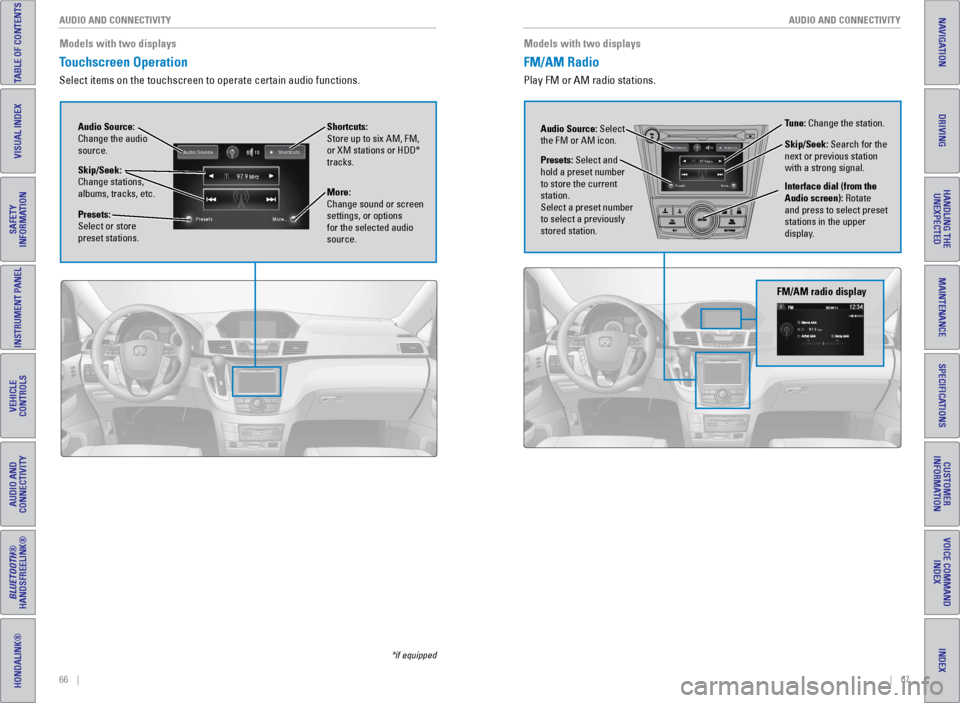
Touchscreen Operation
Select items on the touchscreen to operate certain audio functions.
*if equipped
Models with two displays
Audio Source:
Change the audio
source. Shortcuts:
Store up to six AM, FM,
or XM stations or HDD*
tracks.
More:
Change sound or screen
settings, or options
for the selected audio
source.
Skip/Seek:
Change stations,
albums, tracks, etc.
Presets:
Select or store
preset stations.
FM/AM Radio
Play FM or AM radio stations. Models with two displays
FM/AM radio display
Audio Source: Select
the FM or AM icon.
Interface dial (from the
Audio screen): Rotate
and press to select preset
stations in the upper
display.
Presets: Select and
hold a preset number
to store the current
station.
Select a preset number
to select a previously
stored station. Tune: Change the station.
Skip/Seek: Search for the
next or previous station
with a strong signal.
Page 38 of 81
68 || 69
AUDIO AND CONNECTIVITY
AUDIO AND CONNECTIVITY
TABLE OF CONTENTS
INDEX
VISUAL INDEX
VOICE COMMAND
INDEX
SAFETY
INFORMATION
CUSTOMER
INFORMATION
INSTRUMENT PANEL
SPECIFICATIONS
VEHICLE
CONTROLS
MAINTENANCE
AUDIO AND
CONNECTIVITY
HANDLING THE UNEXPECTED
BLUETOOTH®
HANDSFREELINK®
DRIVING
HONDALINK®
NAVIGATION
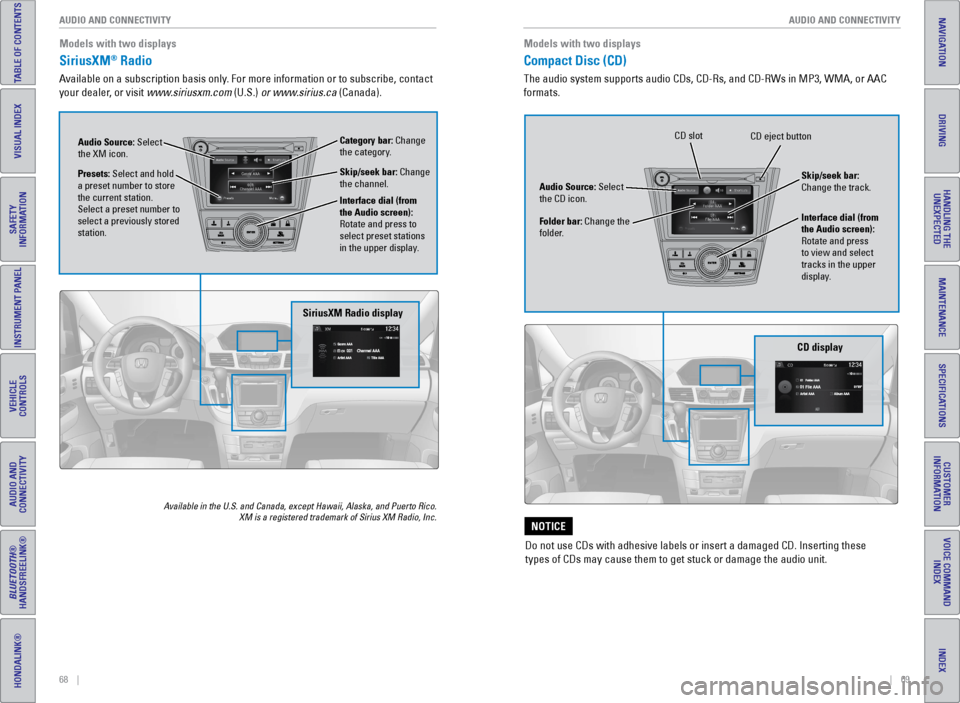
SiriusXM® Radio
Available on a subscription basis only. For more information or to subscribe, contact
your dealer, or visit www.siriusxm.com (U.S.) or www.sirius.ca (Canada).
Available in the U.S. and Canada, except Hawaii, Alaska, and Puerto Rico.\
XM is a registered trademark of Sirius XM Radio, Inc.
Models with two displays
SiriusXM Radio display
Presets: Select and hold
a preset number to store
the current station.
Select a preset number to
select a previously stored
station. Audio Source: Select
the XM icon.
Category bar: Change
the category.
Interface dial (from
the Audio screen):
Rotate and press to
select preset stations
in the upper display. Skip/seek bar: Change
the channel.
Compact Disc (CD)
The audio system supports audio CDs, CD-Rs, and CD-RWs in MP3, WMA, or AAC
formats. Models with two displays
CD display
Audio Source: Select
the CD icon.
Folder bar: Change the
folder. Interface dial (from
the Audio screen):
Rotate and press
to view and select
tracks in the upper
display. Skip/seek bar:
Change the track.
CD eject button
CD slot
Do not use CDs with adhesive labels or insert a damaged CD. Inserting th\
ese
types of CDs may cause them to get stuck or damage the audio unit.
NOTICE
Page 65 of 81
122 || 123
MAINTENANCE
MAINTENANCE
TABLE OF CONTENTS
INDEX
VISUAL INDEX
VOICE COMMAND
INDEX
SAFETY
INFORMATION
CUSTOMER
INFORMATION
INSTRUMENT PANEL
SPECIFICATIONS
VEHICLE
CONTROLS
MAINTENANCE
AUDIO AND
CONNECTIVITY
HANDLING THE UNEXPECTED
BLUETOOTH®
HANDSFREELINK®
DRIVING
HONDALINK®
NAVIGATION
Learn about basic maintenance that you can perform on the vehicle yourse\
lf, as well
as information about how to best maintain the vehicle.
Safety Precautions
Some of the most important safety precautions are listed below; however, we cannot
warn you of every conceivable hazard that can arise in performing mainte\
nance.
Only you can decide whether or not you should perform a given task.
Maintenance Safety
• To reduce the possibility of fire or explosion, keep cigarettes, sparks\
, and flames
away from the battery and all fuel-related parts.
• Never leave rags, towels, or other flammable objects under the hood. H\
eat from
the engine and exhaust can ignite them, causing a fire.
• To clean parts, use a commercially available degreaser or parts cleaner, not
gasoline.
• Wear eye protection and protective clothing when working with the battery\
or
compressed air.
• Do not run the engine in confined spaces where carbon monoxide gas can\
accumulate.
Vehicle Safety
• The vehicle must be stationary, and parked on level ground with the parking
brake set and the engine off.
• Be aware that hot parts can burn you.
• Be aware that moving parts can injure you.
Improperly maintaining this vehicle or failing to correct a problem befo\
re
driving can cause a crash in which you can be seriously hurt or killed. \
Always follow the inspection and maintenance recommendations according
to the schedules in this guide.
WARNING
Failure to properly follow maintenance instructions and precautions can \
cause you to be seriously hurt or killed.
Always follow the procedures and precautions in this guide.
WARNING
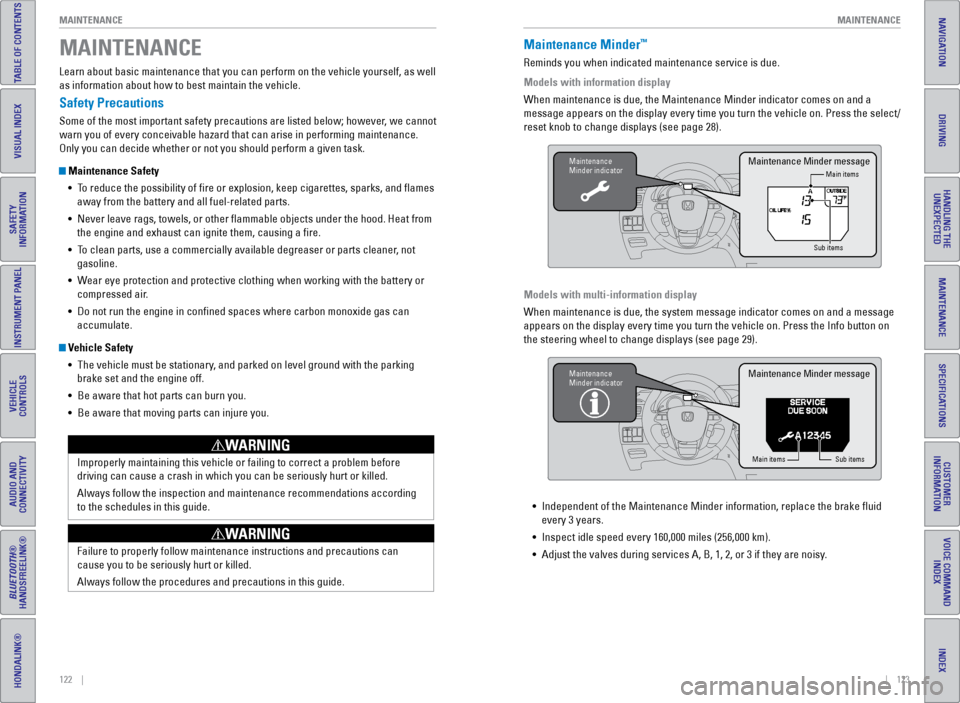
MAINTENANCEMaintenance Minder™
Reminds you when indicated maintenance service is due.
Models with information display
When maintenance is due, the Maintenance Minder indicator comes on and a\
message appears on the display every time you turn the vehicle on. Press\
the select/
reset knob to change displays (see page 28).
Models with multi-information display
When maintenance is due, the system message indicator comes on and a mes\
sage
appears on the display every time you turn the vehicle on. Press the Inf\
o button on
the steering wheel to change displays (see page 29).
Maintenance
Minder indicator
Main items
Sub itemsMaintenance Minder message
Maintenance
Minder indicator
Main items Sub items
Maintenance Minder message
• Independent of the Maintenance Minder information, replace the brake fl\
uid
every 3 years.
• Inspect idle speed every 160,000 miles (256,000 km).
• Adjust the valves during services A, B, 1, 2, or 3 if they are noisy.