audio HONDA ODYSSEY 2018 (in English) User Guide
[x] Cancel search | Manufacturer: HONDA, Model Year: 2018, Model line: ODYSSEY, Model: HONDA ODYSSEY 2018Pages: 763, PDF Size: 47.02 MB
Page 124 of 763
uuGauges and Displays uDriver Information Interface
122
Instrument Panel
Press the (home) button, then press the / button to scroll to the content
you want to see. Press ENTER to see detailed information.
*1: Models with color audio system
*2: Models with Display Audio
■Accessing Content1Accessing Content
To go back to the previous screen, press the
*1/ *2 (back) button.
You can edit, add, or delete the meter contents using
the driver information interface. 2 Arrange Apps P. 131
2 Show/Hide Apps P. 13034
18 US ODYSSEY-31THR6010.book 122 ページ 2018年12月6日 木曜日 午後4時18分
Page 125 of 763
123
uuGauges and Displays uDriver Information Interface
Continued
Instrument Panel
(Home) Button
/ Button34
*
* *
Press or .34
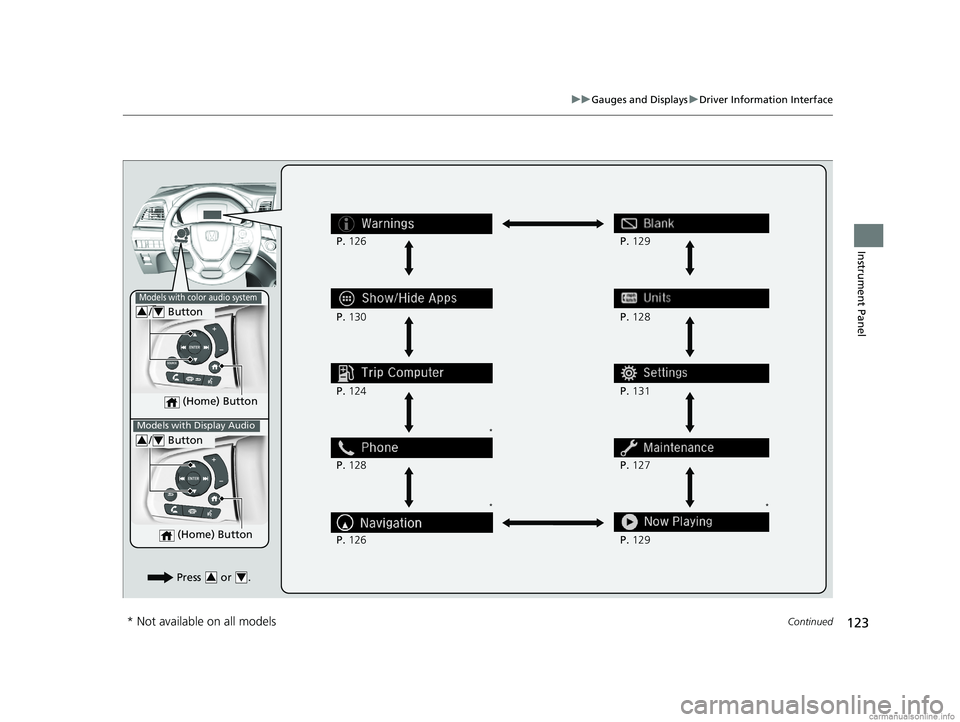
P.126
P. 130
P. 124
P. 128
P. 126 P.
128
P. 131
P. 127
P. 129
P.
129
Models with color audio system
Models with Display Audio
(Home) Button
/ Button34
* Not available on all models
18 US ODYSSEY-31THR6010.book 123 ページ 2018年12月6日 木曜日 午後4時18分
Page 126 of 763
124
uuGauges and Displays uDriver Information Interface
Instrument Panel
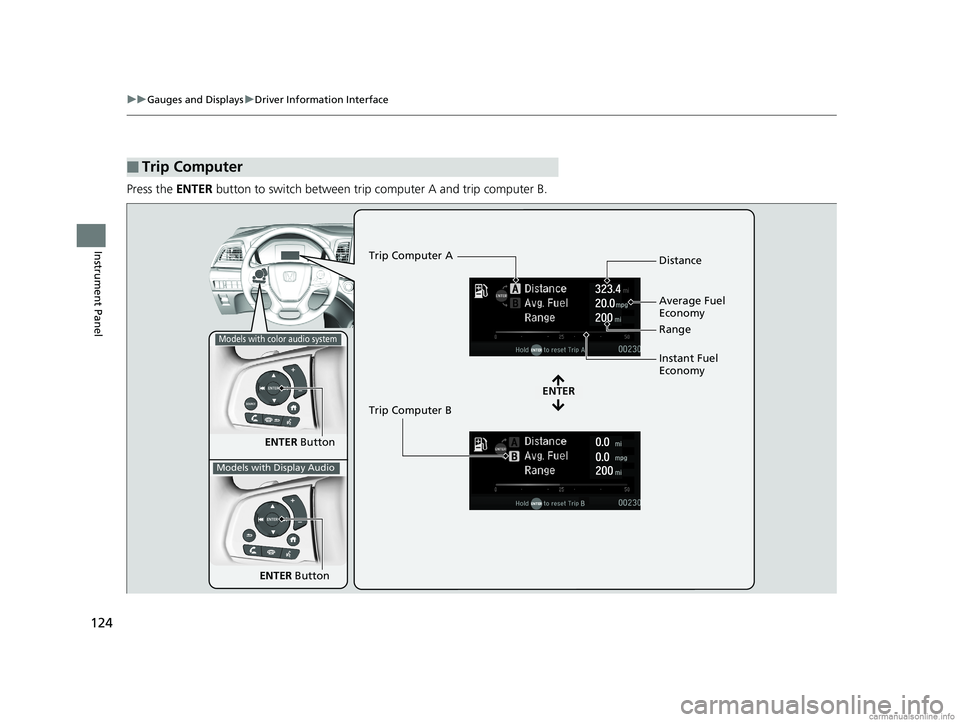
Press the ENTER button to switch between trip computer A and trip computer B.
■Trip Computer
ENTER Button
ENTER
Trip Computer A
Trip Computer B Distance
Range
Average Fuel
Economy
Instant Fuel
Economy
Models with color audio system
Models with Display Audio
ENTER
Button
18 US ODYSSEY-31THR6010.book 124 ページ 2018年12月6日 木曜日 午後4時18分
Page 127 of 763
Continued125
uuGauges and Displays uDriver Information Interface
Instrument Panel
■Distance
Shows the total number of miles or kilomete rs driven since the last reset. Meters A
and B can be used to measure two separate trips.
Resetting distance
To reset the Distance, display it and then press and hold the ENTER button until the
Distance is reset to 0.0.
■Average fuel economy (Avg. Fuel)
Shows the estimated average fuel economy of each Distance in mpg or l/100 km.
The display is updated at set intervals. When a Distance is reset, the average fuel
economy is also reset.
■Instant fuel economy
Shows the instant fuel economy as a bar graph in mpg or l/100 km.
■Range
Shows the estimated distance you can trave l on the remaining fuel. This estimated
distance is based on the vehicle’s current fuel economy.
1 Distance
Switch between Distance A and Distance B by
pressing the ENTER button.
1Average fuel economy ( Avg. Fuel)
You can change when the average fuel economy is
reset.
2 Vehicle Customization P. 133
2 Customized Features P. 442
Models with color audio system
Models with Display Audio
18 US ODYSSEY-31THR6010.book 125 ページ 2018年12月6日 木曜日 午後4時18分
Page 128 of 763
uuGauges and Displays uDriver Information Interface
126
Instrument Panel
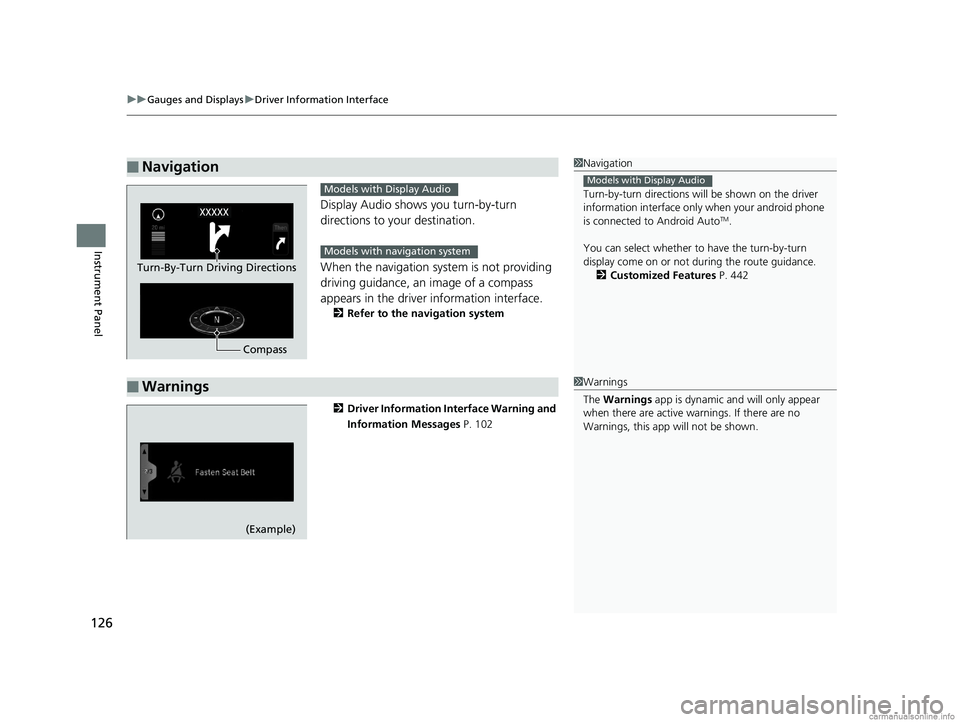
Display Audio shows you turn-by-turn
directions to your destination.
When the navigation system is not providing
driving guidance, an image of a compass
appears in the driver information interface.
2Refer to the navigation system
2 Driver Information Interface Warning and
Information Messages P. 102
■Navigation1Navigation
Turn-by-turn directions wi ll be shown on the driver
information interface only when your android phone
is connected to Android Auto
TM.
You can select whether to have the turn-by-turn
display come on or not dur ing the route guidance.
2 Customized Features P. 442
Models with Display Audio
Compass
Turn-By-Turn Driving Directions
Models with Display Audio
Models with navigation system
■Warnings1Warnings
The Warnings app is dynamic a nd will only appear
when there are active warnings. If there are no
Warnings, this app will not be shown.
(Example)
18 US ODYSSEY-31THR6010.book 126 ページ 2018年12月6日 木曜日 午後4時18分
Page 131 of 763
129
uuGauges and Displays uDriver Information Interface
Continued
Instrument Panel
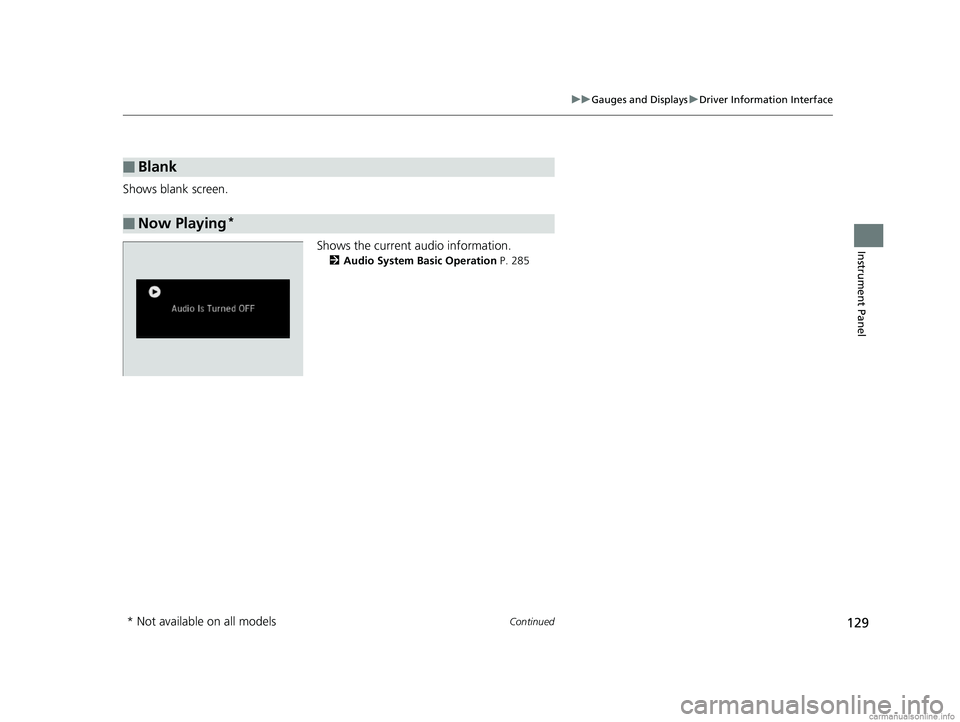
Shows blank screen.
Shows the current audio information.
2Audio System Basic Operation P. 285
■Blank
■Now Playing*
* Not available on all models
18 US ODYSSEY-31THR6010.book 129 ページ 2018年12月6日 木曜日 午後4時18分
Page 132 of 763
uuGauges and Displays uDriver Information Interface
130
Instrument Panel
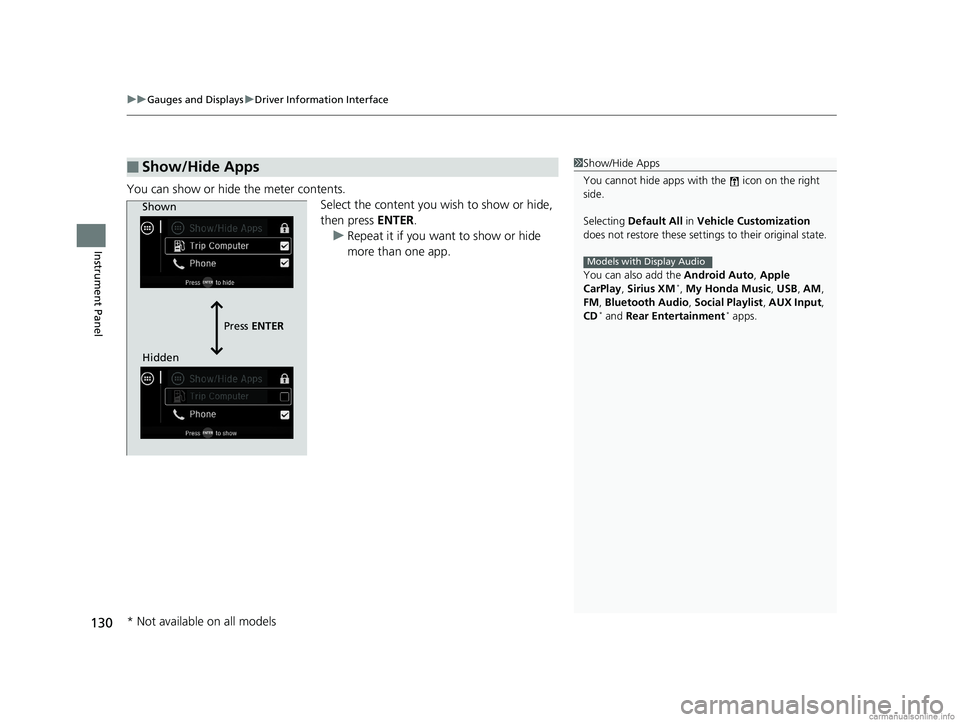
You can show or hide the meter contents.
Select the content you wish to show or hide,
then press ENTER.
u Repeat it if you want to show or hide
more than one app.
■Show/Hide Apps1Show/Hide Apps
You cannot hide apps with the icon on the right
side.
Selecting Default All in Vehicle Customization
does not restore these settings to their original state.
You can also add the Android Auto, Apple
CarPlay , Sirius XM
*, My Honda Music , USB , AM ,
FM , Bluetooth Audio , Social Playlist , AUX Input ,
CD
* and Rear Entertainment* apps.
Models with Display Audio
Shown
Press ENTER
Hidden
* Not available on all models
18 US ODYSSEY-31THR6010.book 130 ページ 2018年12月6日 木曜日 午後4時18分
Page 135 of 763
Continued133
uuGauges and Displays uDriver Information Interface
Instrument Panel
■Vehicle Customization
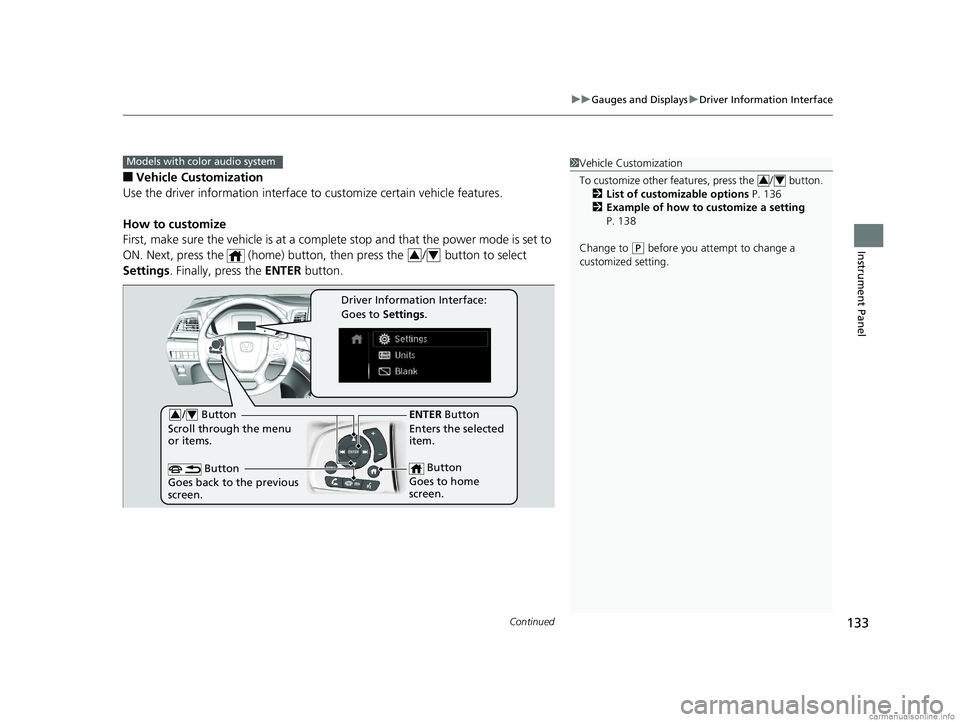
Use the driver information interface to customize certain vehicle features.
How to customize
First, make sure the vehicle is at a complete stop and that the power mode is set to
ON. Next, press the (home) button, then press the / button to select
Settings . Finally, press the ENTER button.
Models with color audio system1Vehicle Customization
To customize other features, press the / button.
2 List of customizable options P. 136
2 Example of how to customize a setting
P. 138
Change to
( P before you attempt to change a
customized setting.
34
34
/ Button
Scroll through the menu
or items.34
Button
Goes back to the previous
screen.
ENTER Button
Enters the selected
item.
Button
Goes to home
screen.
Driver Information Interface:
Goes to Settings.
18 US ODYSSEY-31THR6010.book 133 ページ 2018年12月6日 木曜日 午後4時18分
Page 144 of 763
142
Controls
Clock
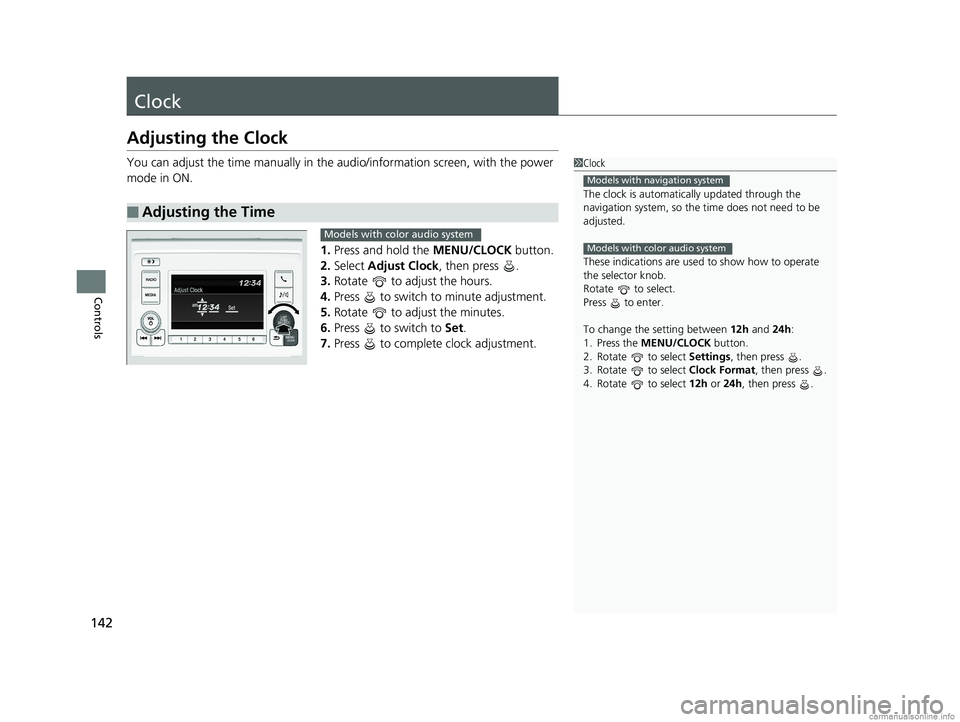
Adjusting the Clock
You can adjust the time manually in the audio/information screen, with the power
mode in ON.
1.Press and hold the MENU/CLOCK button.
2. Select Adjust Clock , then press .
3. Rotate to adjust the hours.
4. Press to switch to minute adjustment.
5. Rotate to adjust the minutes.
6. Press to switch to Set.
7. Press to complete clock adjustment.
■Adjusting the Time
1Clock
The clock is automatica lly updated through the
navigation system, so the ti me does not need to be
adjusted.
These indications are used to show how to operate
the selector knob.
Rotate to select.
Press to enter.
To change the setting between 12h and 24h:
1. Press the MENU/CLOCK button.
2. Rotate to select Settings, then press .
3. Rotate to select Clock Format, then press .
4. Rotate to select 12h or 24h , then press .
Models with navigation system
Models with color audio systemModels with color audio system
18 US ODYSSEY-31THR6010.book 142 ページ 2018年12月6日 木曜日 午後4時18分
Page 145 of 763
143
uuClock uAdjusting the Clock
Controls
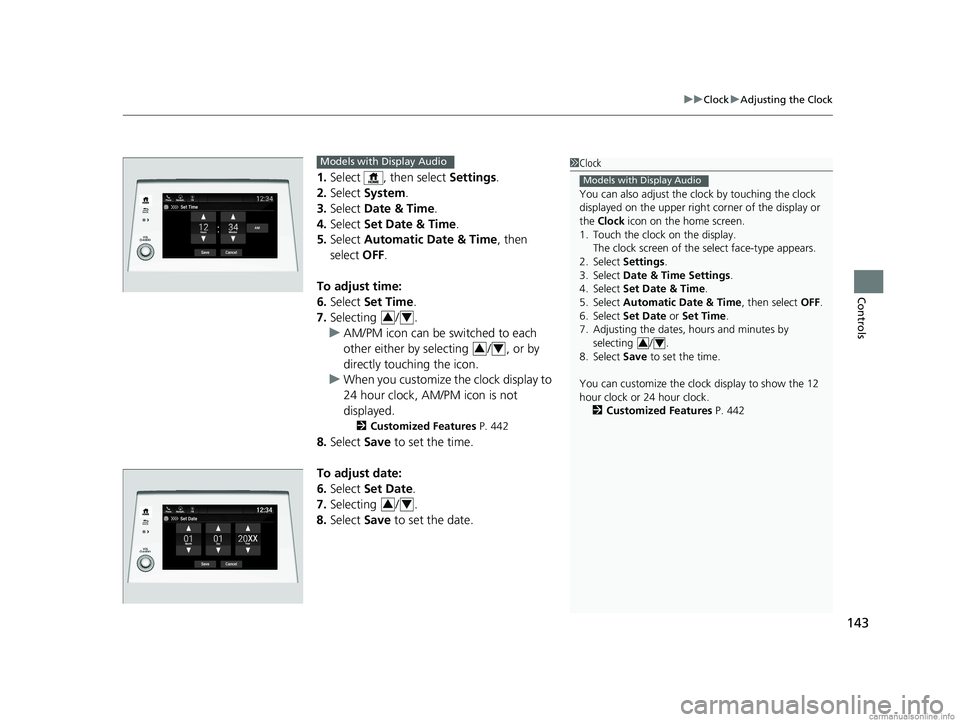
1. Select , then select Settings.
2. Select System.
3. Select Date & Time .
4. Select Set Date & Time .
5. Select Automatic Date & Time , then
select OFF.
To adjust time:
6. Select Set Time.
7. Selecting / .
u AM/PM icon can be switched to each
other either by selecting / , or by
directly touching the icon.
u When you customize the clock display to
24 hour clock, AM/PM icon is not
displayed.
2 Customized Features P. 442
8.Select Save to set the time.
To adjust date:
6. Select Set Date.
7. Selecting / .
8. Select Save to set the date.
1Clock
You can also adjust the clock by touching the clock
displayed on the upper right corner of the display or
the Clock icon on the home screen.
1. Touch the clock on the display.
The clock screen of the select face-type appears.
2. Select Settings .
3. Select Date & Time Settings .
4. Select Set Date & Time .
5. Select Automatic Date & Time , then select OFF.
6. Select Set Date or Set Time.
7. Adjusting the dates, hours and minutes by selecting / .
8. Select Save to set the time.
You can customize the clock display to show the 12
hour clock or 24 hour clock. 2 Customized Features P. 442
Models with Display Audio
34
Set Time
Save
Hours MinutesAM
Cancel
Phone Navigati.. FM
Models with Display Audio
34
34
34
18 US ODYSSEY-31THR6010.book 143 ページ 2018年12月6日 木曜日 午後4時18分