phone HONDA ODYSSEY 2022 User Guide
[x] Cancel search | Manufacturer: HONDA, Model Year: 2022, Model line: ODYSSEY, Model: HONDA ODYSSEY 2022Pages: 782, PDF Size: 27.17 MB
Page 275 of 782
274
Features
Audio System
About Your Audio System
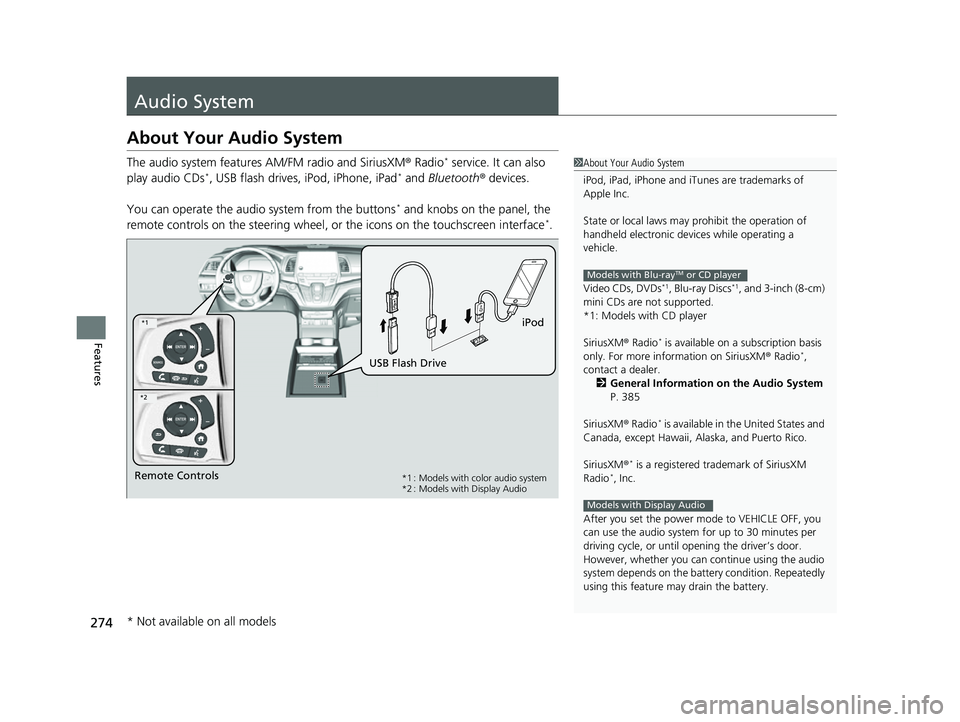
The audio system features AM/FM radio and SiriusXM® Radio* service. It can also
play audio CDs*, USB flash drives, iPod, iPhone, iPad* and Bluetooth ® devices.
You can operate the audio system from the buttons
* and knobs on the panel, the
remote controls on the steering wheel, or the icons on the touchscreen interface*.
1 About Your Audio System
iPod, iPad, iPhone and iT unes are trademarks of
Apple Inc.
State or local laws may pr ohibit the operation of
handheld electronic devices while operating a
vehicle.
Video CDs, DVDs
*1, Blu-ray Discs*1, and 3-inch (8-cm)
mini CDs are not supported.
*1: Models with CD player
SiriusXM ® Radio
* is available on a subscription basis
only. For more information on SiriusXM ® Radio*,
contact a dealer.
2 General Information on the Audio System
P. 385
SiriusXM ® Radio
* is available in the United States and
Canada, except Ha waii, Alaska, and Puerto Rico.
SiriusXM ®
* is a registered tra demark of SiriusXM
Radio*, Inc.
After you set the power m ode to VEHICLE OFF, you
can use the audio system for up to 30 minutes per
driving cycle, or until opening the driver’s door.
However, whether you can continue using the audio
system depends on the batter y condition. Repeatedly
using this feature ma y drain the battery.
Models with Blu-rayTM or CD player
Models with Display Audio
Remote Controls iPod
USB Flash Drive*1 : Models with color audio system
*2 : Models with Display Audio
*1
*2
* Not available on all models
22 US ODYSSEY-31THR6400.book 274 ページ 2020年11月16日 月曜日 午後1時41分
Page 276 of 782
275
uuAudio System uUSB Ports
Continued
Features
USB Ports
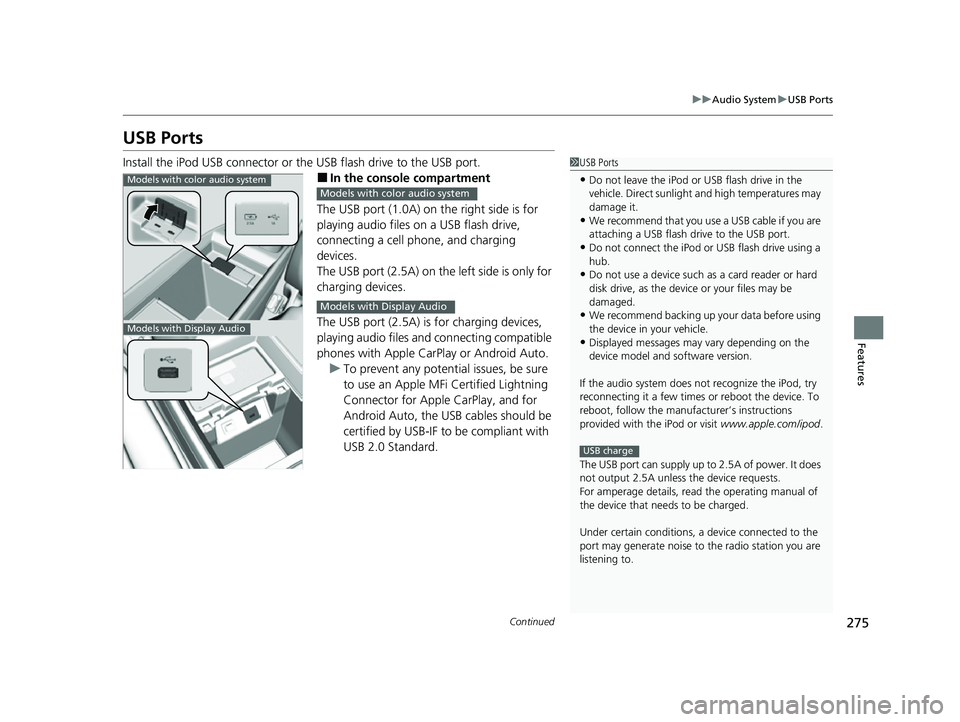
Install the iPod USB connector or the USB flash drive to the USB port.
■In the consol e compartment
The USB port (1.0A) on the right side is for
playing audio files on a USB flash drive,
connecting a cell phone, and charging
devices.
The USB port (2.5A) on the left side is only for
charging devices.
The USB port (2.5A) is for charging devices,
playing audio files and connecting compatible
phones with Apple CarPlay or Android Auto. u To prevent any potenti al issues, be sure
to use an Apple MFi Certified Lightning
Connector for Apple CarPlay, and for
Android Auto, the USB cables should be
certified by USB-IF to be compliant with
USB 2.0 Standard.
1 USB Ports
•Do not leave the iPod or USB flash drive in the
vehicle. Direct sunlight and high temperatures may
damage it.
•We recommend that you us e a USB cable if you are
attaching a USB flash drive to the USB port.
•Do not connect the iPod or USB flash drive using a
hub.
•Do not use a device such as a card reader or hard
disk drive, as the device or your files may be
damaged.
•We recommend backing up yo ur data before using
the device in your vehicle.
•Displayed messages may vary depending on the
device model and software version.
If the audio system does not recognize the iPod, try
reconnecting it a few times or reboot the device. To
reboot, follow the manufac turer’s instructions
provided with the iPod or visit www.apple.com/ipod.
The USB port can supply up to 2.5A of power. It does
not output 2.5A unless the device requests.
For amperage details, read the operating manual of
the device that ne eds to be charged.
Under certain condi tions, a device connected to the
port may generate noise to the radio station you are
listening to.
USB charge
Models with color audio system
Models with Display Audio
Models with color audio system
Models with Display Audio
22 US ODYSSEY-31THR6400.book 275 ページ 2020年11月16日 月曜日 午後1時41分
Page 298 of 782
297
uuAudio System Basic Operation uPlaying Bluetooth ® Audio
Continued
Features
Playing Bluetooth ® Audio
Your audio system allows you to listen to music from your Bluetooth-compatible
phone.
This function is available when the phone is paired and connected to the vehicle’s
Bluetooth ® HandsFreeLink ® (HFL) system.
2Phone Setup P. 491
1Playing Bluetooth ® Audio
Not all Bluetooth -enabled phones with streaming
audio capabilities are compatible with the system.
For a list of compatible phones:
•U.S.: Visit automobiles.honda.com/handsfreelink/ ,
or call 1-888-528-7876.
•Canada: For more info rmation on smartphone
compatibility, call 1-888-528-7876.
In some states, it may be il legal to perform some data
device functions while driving.
Only one phone can be used with HFL at a time.
When there are more than two paired phones in the
vehicle, the first paired phone the system finds is
automatically connected.
If more than one phone is paired to the HFL system,
there may be a delay before the system begins to
play.
In some cases, the name of the artist, album, or track
may not appear correctly.
Some functions may not be available on some
devices.
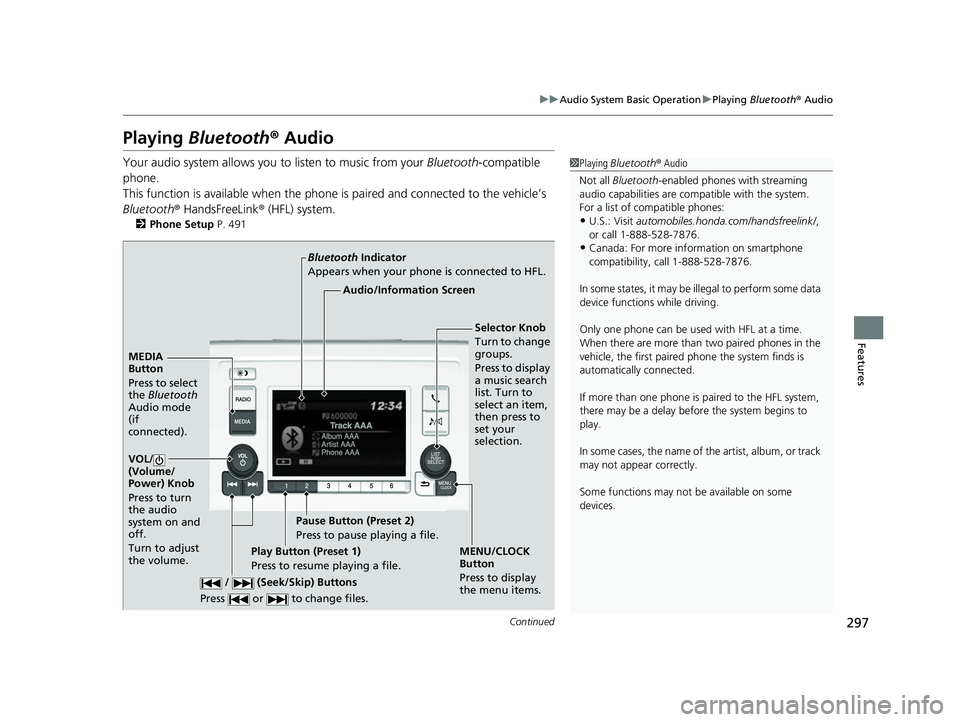
MEDIA
Button
Press to select
the Bluetooth
Audio mode
(if
connected).
VOL/
(Volume/
Power) Knob
Press to turn
the audio
system on and
off.
Turn to adjust
the volume.
MENU/CLOCK
Button
Press to display
the menu items.
Audio/Information Screen
Bluetooth
Indicator
App
ears when your phone is connected to HFL.
/ (Seek/Skip) Buttons
Press or to change files.
Play Button (Preset 1)
Press to resume playing a file. Pause Button (Preset 2)
Press to pause playing a file.
Selector Knob
Turn to change
groups.
Press to display
a music search
list. Turn to
select an item,
then press to
set your
selection.
22 US ODYSSEY-31THR6400.book 297 ページ 2020年11月16日 月曜日 午後1時41分
Page 299 of 782
uuAudio System Basic Operation uPlaying Bluetooth ® Audio
298
Features
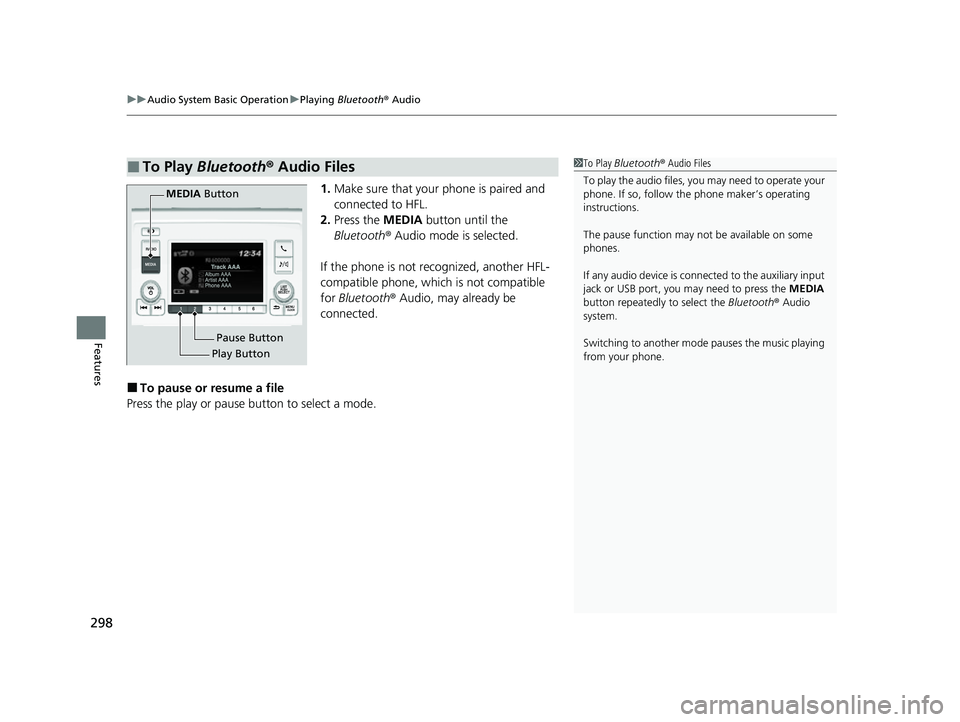
1. Make sure that your phone is paired and
connected to HFL.
2. Press the MEDIA button until the
Bluetooth ® Audio mode is selected.
If the phone is not recognized, another HFL-
compatible phone, which is not compatible
for Bluetooth ® Audio, may already be
connected.
■To pause or resume a file
Press the play or pause button to select a mode.
■To Play Bluetooth ® Audio Files1 To Play Bluetooth ® Audio Files
To play the audio files, y ou may need to operate your
phone. If so, follow the phone maker’s operating
instructions.
The pause function may no t be available on some
phones.
If any audio device is conne cted to the auxiliary input
jack or USB port, you may need to press the MEDIA
button repeatedly to select the Bluetooth® Audio
system.
Switching to another mode pauses the music playing
from your phone.
Play Button Pause Button
MEDIA
Button
22 US ODYSSEY-31THR6400.book 298 ページ 2020年11月16日 月曜日 午後1時41分
Page 303 of 782
302
uuAudio System Basic Operation uAudio/Information Screen
Features
■Phone
Displays the HFL information.
2 Bluetooth ® HandsFreeLink ® P. 510
■Trip Computer
Displays the trip computer information.
• Current Drive tab: Displays the current trip information.
• Trip A /Trip B tab: Displays information for the current and three previous drives.
The information is stored every time you reset Trip A/B.
To reset Trip A/B, select Reset.
To change the setting of how to reset Trip A/B, select Settings, then select Trip
A Reset Method or Trip B Reset Method .
■Clock
Displays the clock.
■System Updates
Updates the software versi on of the audio system.
2System Updates P. 315
■FM/AM/Sirius XM*/CD*/USB/Bluetooth Audio/AUX Input/My Honda
Music/Social Playlist
Displays the each audio information.
■Settings
Enters the customiz ing menu screen.
2Customized Features P. 463
* Not available on all models
22 US ODYSSEY-31THR6400.book 302 ページ 2020年11月16日 月曜日 午後1時41分
Page 314 of 782
Continued313
uuAudio System Basic Operation uAudio/Information Screen
Features
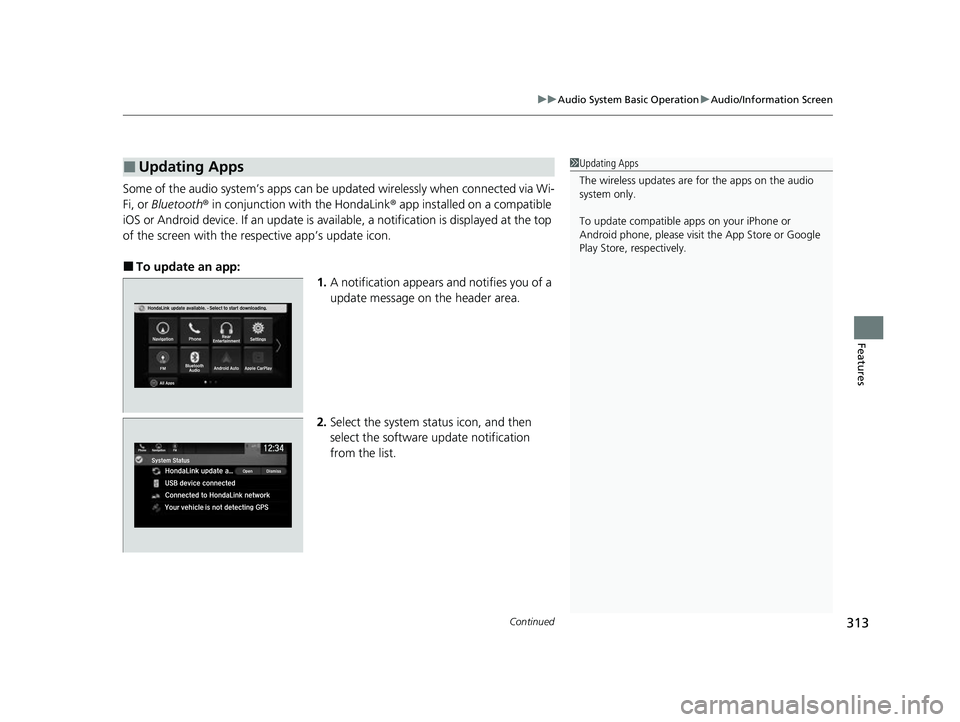
Some of the audio system’s apps can be updated wirelessly when connected via Wi-
Fi, or Bluetooth ® in conjunction with the HondaLink ® app installed on a compatible
iOS or Android device. If an update is avai lable, a notification is displayed at the top
of the screen with the re spective app’s update icon.
■To update an app:
1.A notification appears and notifies you of a
update message on the header area.
2. Select the system status icon, and then
select the software update notification
from the list.
■Updating Apps1Updating Apps
The wireless updates are for the apps on the audio
system only.
To update compatible a pps on your iPhone or
Android phone, please visit the App Store or Google
Play Store, respectively.
22 US ODYSSEY-31THR6400.book 313 ページ 2020年11月16日 月曜日 午後1時41分
Page 315 of 782
314
uuAudio System Basic Operation uAudio/Information Screen
Features
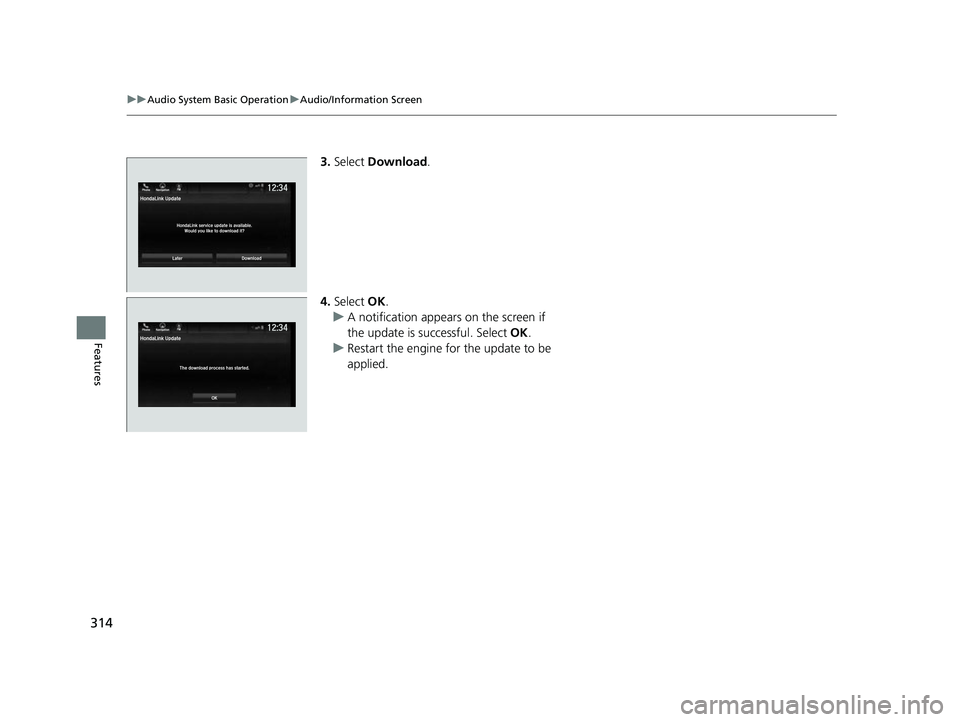
3. Select Download .
4. Select OK.
u A notification appears on the screen if
the update is successful. Select OK.
u Restart the engine for the update to be
applied.
LaterDownload
HondaLink Update
HondaLink service update is available.Would you like to download it?
12:34Phone Navigation FM
22 US ODYSSEY-31THR6400.book 314 ページ 2020年11月16日 月曜日 午後1時41分
Page 331 of 782
330
uuAudio System Basic Operation uVoice Control Operation
Features
Voice Control Operation
Your vehicle has a voice control system that allows hands-free operation.
The voice control system uses the (tal k) and (back) buttons on the steering
wheel and a microphone near the map lights on the ceiling.
To achieve optimum voice recognition when using the voice control system:
• Make sure the correct screen is displa yed for the voice command that you are
using.
The system recognizes only certain commands. Available voice commands.
2 Voice Portal Screen P. 331
•Close the windows and moonroof*.
• Adjust the dashboard and side vents so air does not blow onto the microphone
on the ceiling.
• Speak clearly in a clear, natural speaking voice without pausing between words.
• Reduce any background noise if possible. The system may misinterpret your
command if more than one person is speaking at the same time.
■Voice Recognition
1Voice Control Operation
When you press the button, a helpful prompt asks
what you would like to do. Press and release the
button again to bypass this prompt and give a
command.
1 Voice Recognition
The voice control system can only be used from the
driver’s seat because the microphone unit removes
noises from the front passenger’s side.
* Not available on all models
22 US ODYSSEY-31THR6400.book 330 ページ 2020年11月16日 月曜日 午後1時41分
Page 332 of 782
331
uuAudio System Basic Operation uVoice Control Operation
Continued
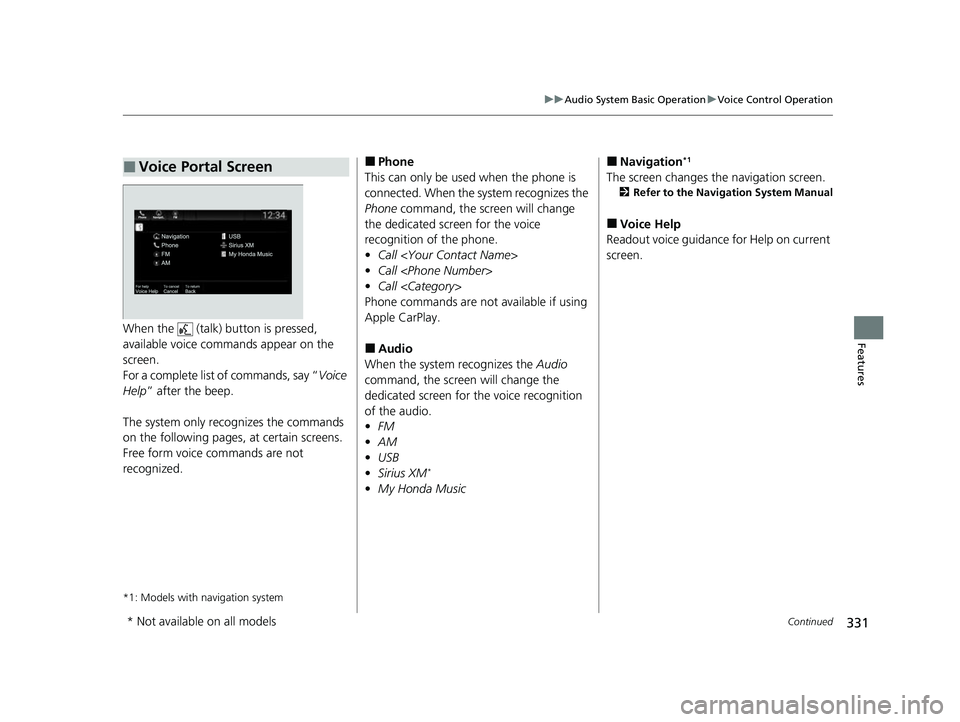
FeaturesWhen the (talk) button is pressed,
available voice comma nds appear on the
screen.
For a complete list of commands, say “ Voice
Help ” after the beep.
The system only recognizes the commands
on the following pages, at certain screens.
Free form voice commands are not
recognized.
*1: Models with navigation system
■Voice Portal Screen■Phone
This can only be used when the phone is
connected. When the sy stem recognizes the
Phone command, the screen will change
the dedicated screen for the voice
recognition of the phone.
• Call
• Call
• Call
Phone commands are not available if using
Apple CarPlay.
■Audio
When the system recognizes the Audio
command, the screen will change the
dedicated screen for the voice recognition
of the audio.
• FM
• AM
• USB
• Sirius XM
*
•My Honda Music
■Navigation*1
The screen changes the navigation screen.
2 Refer to the Navigation System Manual
■Voice Help
Readout voice guidance for Help on current
screen.
* Not available on all models
22 US ODYSSEY-31THR6400.book 331 ページ 2020年11月16日 月曜日 午後1時41分
Page 333 of 782
332
uuAudio System Basic Operation uVoice Control Operation
Features
The system accepts th ese commands on the
dedicated screen for the voice recognition
of the phone.
• Call
• Call
• Call
■Phone Commands
The system accepts these commands on the
dedicated screen for the voice recognition
of the audio.
■FM Commands
• Tune to <87.7-107.9> FM
■AM Commands
• Tune to <530-1710> AM
■Sirius XM Commands*
•Channel <1-999>
• Channel
■USB/My Honda Music Commands
• Play Artist
• Play Album
• Play Genre
• Play Playlist
• Play Music
• Play Song
■Audio Commands
* Not available on all models
22 US ODYSSEY-31THR6400.book 332 ページ 2020年11月16日 月曜日 午後1時41分