USB HONDA ODYSSEY 2023 Owner's Manual
[x] Cancel search | Manufacturer: HONDA, Model Year: 2023, Model line: ODYSSEY, Model: HONDA ODYSSEY 2023Pages: 707, PDF Size: 23.9 MB
Page 315 of 707
313
uuAudio System Basic Operation uPlaying a USB Flash Drive
Continued
Features
Playing a USB Flash Drive
Your audio system reads and plays audio f iles on a USB flash drive in either MP3,
WMA, or AAC*1 format.
Connect your USB flash drive to the USB port, then select the USB mode.
2 USB Ports P. 259
*1:Only AAC format files recorded with iTunes are playable on this unit.
AAAAAAAA
CCCCCBBBBB
BBBBB
BrowseTrack
Phone Navigati.. FMSound
0:08 -0:12
AAAAAAAAAAA
CCCCCCCCBBBBBB
BBBBBBBBBBBBBBB
BrowseTrack
PhoneNavigati..FMSound
0:08-0:121
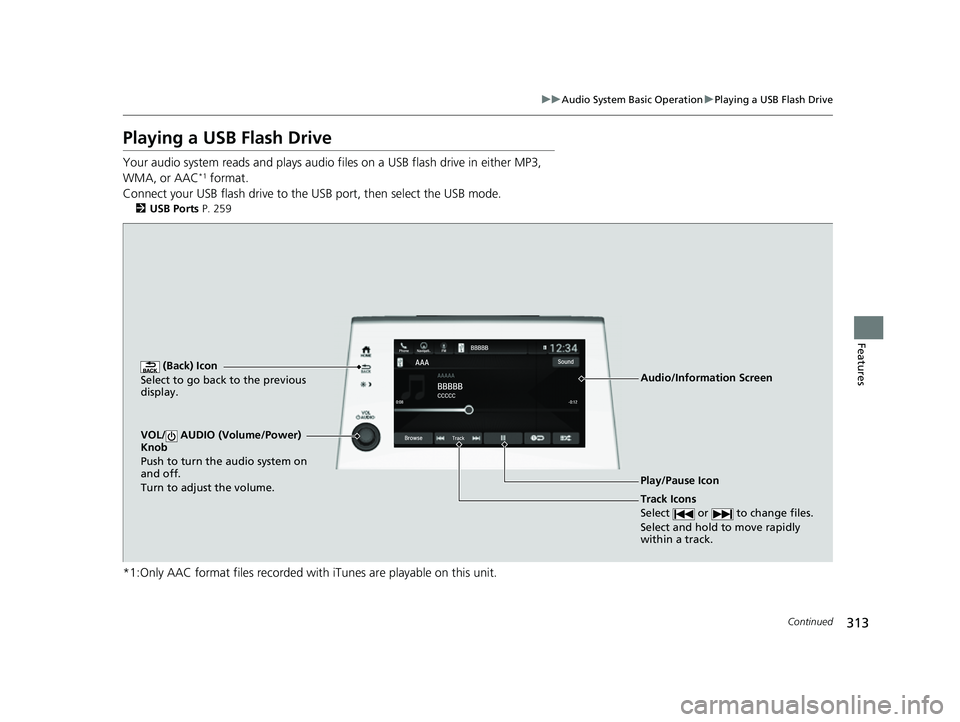
(Back) Icon
Select to go back to the previous
display.
Track Icons
Select or to change files.
Select and hold to move rapidly
within a track.
VOL/ AUDIO (Volume/Power)
Knob
Push to turn the audio system on
and off.
Turn to adjust the volume.
Audio/Information Screen
Play/Pause Icon
23 US ODYSSEY-31THR6500.book 313 ページ 2022年1月24日 月曜日 午前11時35分
Page 316 of 707
uuAudio System Basic Operation uPlaying a USB Flash Drive
314
Features
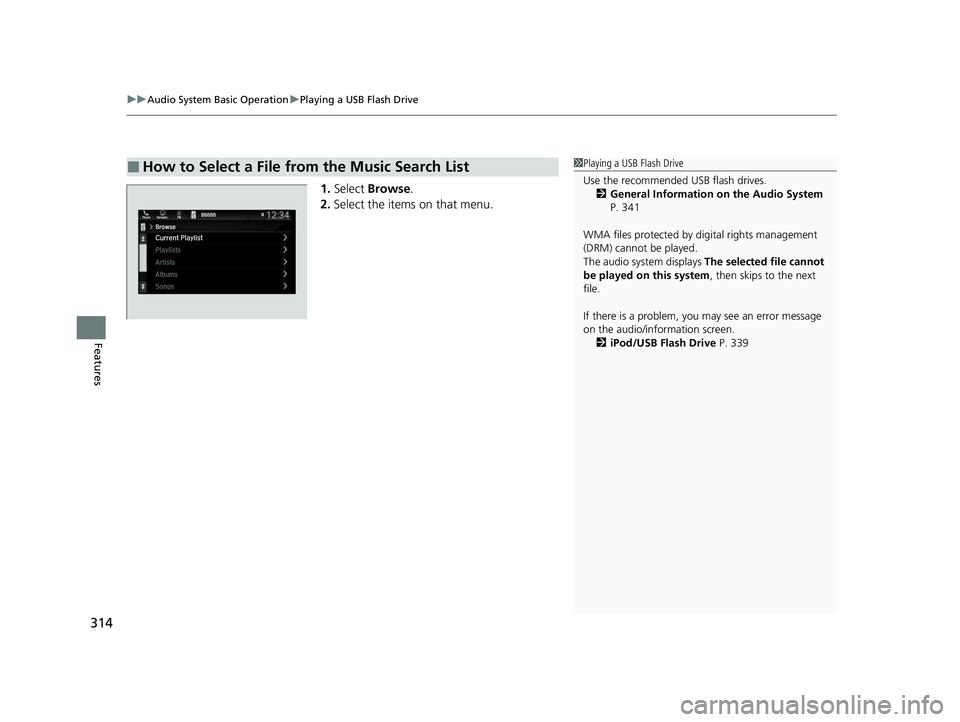
1. Select Browse .
2. Select the items on that menu.
■How to Select a File from the Music Search List1Playing a USB Flash Drive
Use the recommended USB flash drives.
2 General Information on the Audio System
P. 341
WMA files protected by di gital rights management
(DRM) cannot be played.
The audio system displays The selected file cannot
be played on this system , then skips to the next
file.
If there is a problem, you may see an error message
on the audio/information screen. 2 iPod/USB Flash Drive P. 339
23 US ODYSSEY-31THR6500.book 314 ページ 2022年1月24日 月曜日 午前11時35分
Page 317 of 707
315
uuAudio System Basic Operation uPlaying a USB Flash Drive
Features
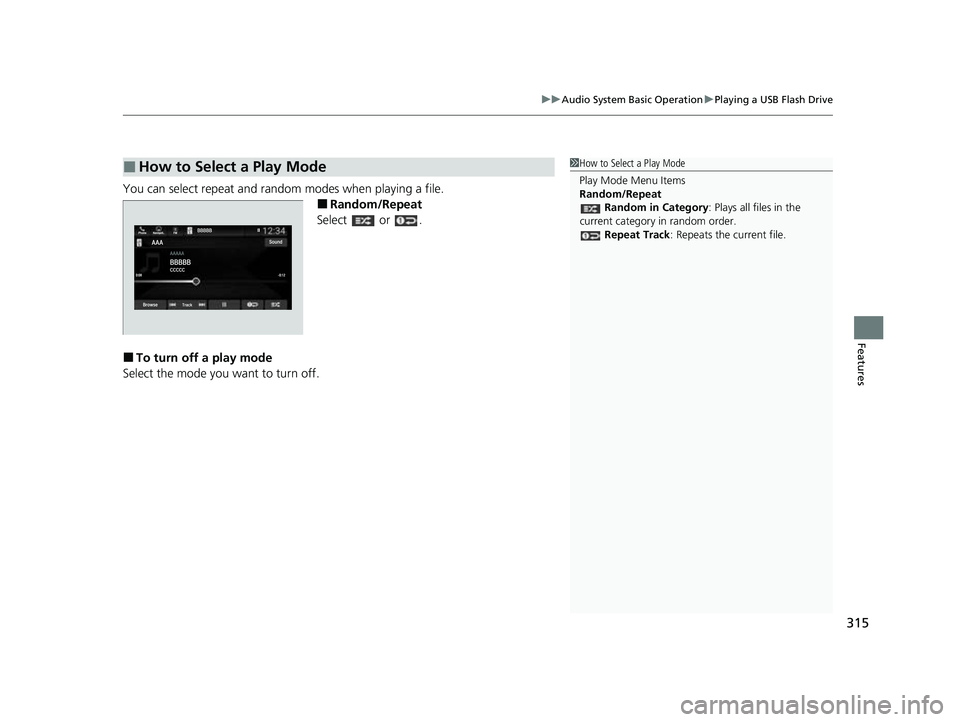
You can select repeat and random modes when playing a file.
■Random/Repeat
Select or .
■To turn off a play mode
Select the mode you want to turn off.
■How to Select a Play Mode1 How to Select a Play Mode
Play Mode Menu Items
Random/Repeat
Random in Category : Plays all files in the
current category in random order. Repeat Track : Repeats the current file.
23 US ODYSSEY-31THR6500.book 315 ページ 2022年1月24日 月曜日 午前11時35分
Page 318 of 707
316
uuAudio System Basic Operation uPlaying My Honda Music
Features
Playing My Honda Music
My Honda Music plays audio files that have been imported form a USB flash drive.
Your audio system supports audio files in either MP3, WMA, or AAC*1 format.
2 File Manager P. 285
*1:Only AAC format files recorded with iTunes are playable on this unit.
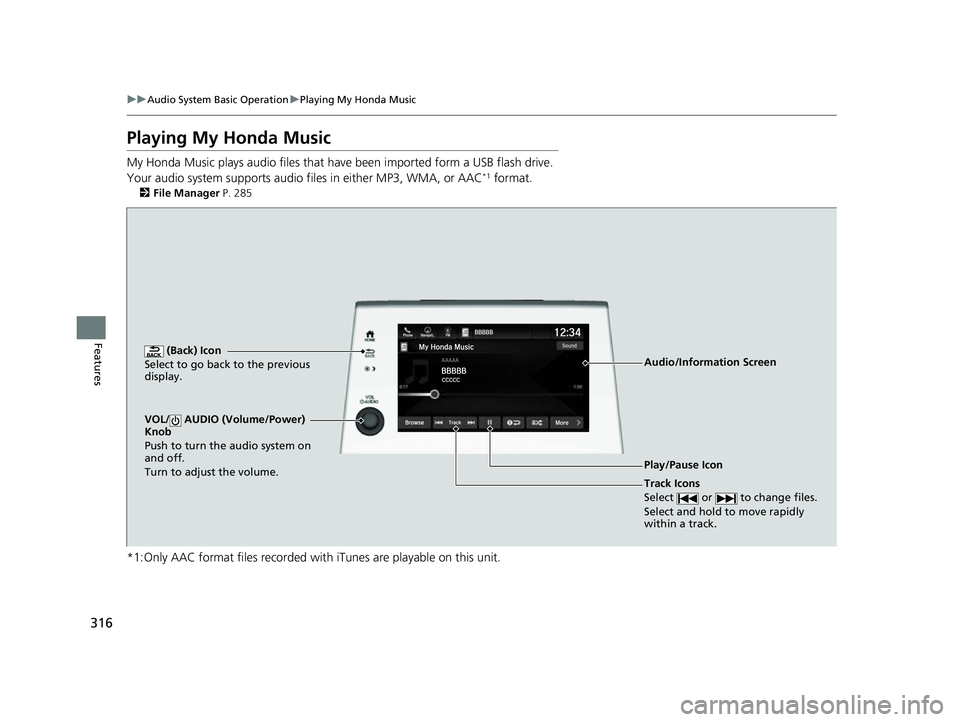
(Back) Icon
Select to go back to the previous
display.
Track Icons
Select or to change files.
Select and hold to move rapidly
within a track.
VOL/ AUDIO (Volume/Power)
Knob
Push to turn the audio system on
and off.
Turn to adjust the volume.
Audio/Information Screen
Play/Pause Icon
23 US ODYSSEY-31THR6500.book 316 ページ 2022年1月24日 月曜日 午前11時35分
Page 319 of 707
Continued317
uuAudio System Basic Operation uPlaying My Honda Music
Features
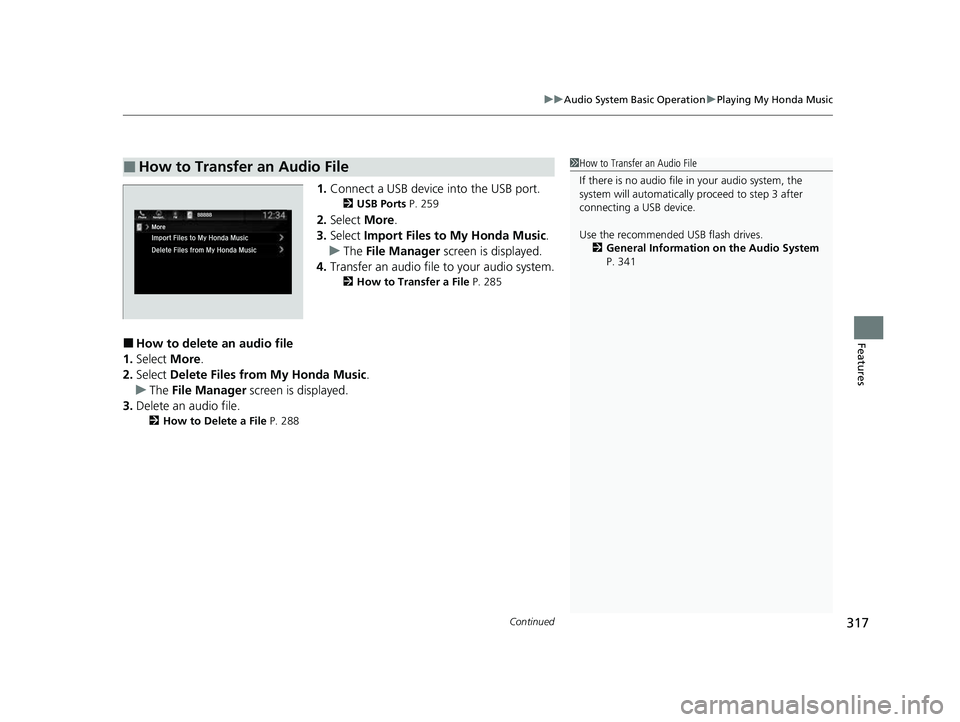
1. Connect a USB device into the USB port.
2 USB Ports P. 259
2.Select More.
3. Select Import Files to My Honda Music .
u The File Manager screen is displayed.
4. Transfer an audio file to your audio system.
2How to Transfer a File P. 285
■How to delete an audio file
1. Select More.
2. Select Delete Files from My Honda Music .
u The File Manager screen is displayed.
3. Delete an audio file.
2 How to Delete a File P. 288
■How to Transfer an Audio File1How to Transfer an Audio File
If there is no audio file in your audio system, the
system will automatically proceed to step 3 after
connecting a USB device.
Use the recommended USB flash drives.
2 General Information on the Audio System
P. 341
23 US ODYSSEY-31THR6500.book 317 ページ 2022年1月24日 月曜日 午前11時35分
Page 334 of 707
332
uuAudio System Basic Operation uApple CarPlay
Features
Apple CarPlay
If you connect an Apple CarPlay-compatible iPhone to the system via the USB port,
you can use the audio/information screen, instead of the iPhone display, to make a
phone call, listen to musi c, view maps (navigation), and access messages.
2USB Ports P. 259
■Phone
Access the contact list, make phone calls, or listen to voice mail.
■Messages
Check and reply to text messages, or have messages read to you.
■Music
Play music stored on your iPhone.
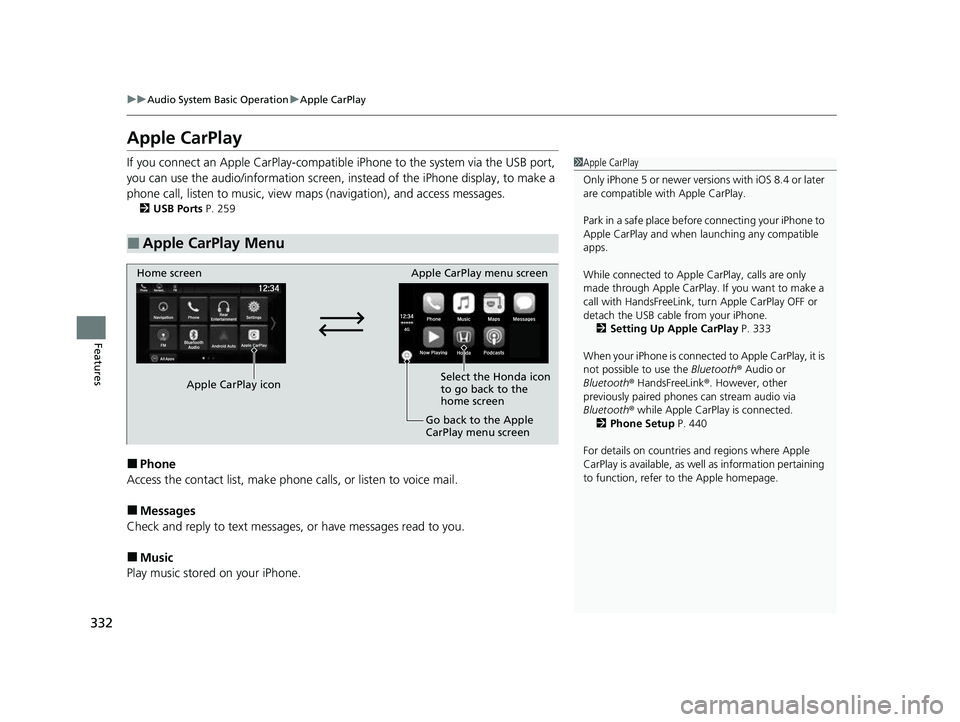
■Apple CarPlay Menu
1 Apple CarPlay
Only iPhone 5 or newer versi ons with iOS 8.4 or later
are compatible with Apple CarPlay.
Park in a safe place before connecting your iPhone to
Apple CarPlay and when launching any compatible
apps.
While connected to Apple CarPlay, calls are only
made through Apple CarPlay. If you want to make a
call with HandsFreeLink, tu rn Apple CarPlay OFF or
detach the USB cable from your iPhone. 2 Setting Up Apple CarPlay P. 333
When your iPhone is connected to Apple CarPlay, it is
not possible to use the Bluetooth® Audio or
Bluetooth ® HandsFreeLink ®. However, other
previously paired phones can stream audio via
Bluetooth ® while Apple CarPlay is connected.
2 Phone Setup P. 440
For details on c ountries and regions where Apple
CarPlay is available, as well as information pertaining
to function, refer to the Apple homepage.
Home screen
Apple CarPlay icon Apple CarPlay menu screen
Go back to the Apple
CarPlay menu screen
Select the Honda icon
to go back to the
home screen
23 US ODYSSEY-31THR6500.book 332 ページ 2022年1月24日 月曜日 午前11時35分
Page 335 of 707
Continued333
uuAudio System Basic Operation uApple CarPlay
Features
■Maps
Display Apple Maps and use the navigation function just as you would on your
iPhone.
Only one navigation system (pre-installed navigation or Apple CarPlay) can give
directions at a time. When you are using one system, directions to any prior
destination set on the other system will be canceled, and the system you are
currently using will direct you to your destination.
After you have connected your iPhone to the system via the USB port, use the
following procedure to set up Apple CarPlay. Use of Apple CarPlay will result in the
transmission of certain user and vehicle information (such as vehicle location, speed,
and status) to your iPhone to enhance the Apple CarPlay experience. You will need
to consent to the sharing of this in formation on the audio/information screen.
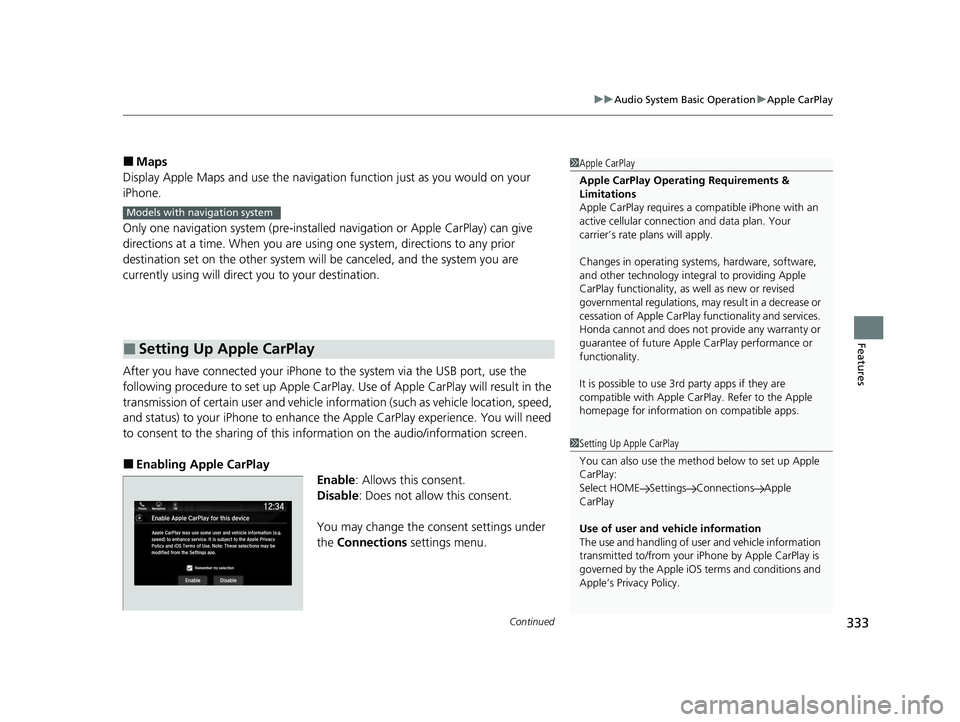
■Enabling Apple CarPlay
Enable: Allows this consent.
Disable : Does not allow this consent.
You may change the consent settings under
the Connections settings menu.
■Setting Up Apple CarPlay
1Apple CarPlay
Apple CarPlay Operating Requirements &
Limitations
Apple CarPlay requi res a compatible iPhone with an
active cellular connecti on and data plan. Your
carrier’s rate plans will apply.
Changes in operating systems, hardware, software,
and other technology integral to providing Apple
CarPlay functionality, as well as new or revised
governmental regulations, may result in a decrease or
cessation of Apple CarPlay functionality and services.
Honda cannot and does not pr ovide any warranty or
guarantee of future Appl e CarPlay performance or
functionality.
It is possible to use 3r d party apps if they are
compatible with Apple CarPlay. Refer to the Apple
homepage for information on compatible apps.
Models with navigation system
1 Setting Up Apple CarPlay
You can also use the method below to set up Apple
CarPlay:
Select HOME Settings Connections Apple
CarPlay
Use of user and vehicle information
The use and handling of user and vehicle information
transmitted to/from your iP hone by Apple CarPlay is
governed by the Apple iOS terms and conditions and
Apple’s Privacy Policy.
23 US ODYSSEY-31THR6500.book 333 ページ 2022年1月24日 月曜日 午前11時35分
Page 337 of 707
335
uuAudio System Basic Operation uAndroid AutoTM
Continued
Features
Android AutoTM
When you connect an Android phone to the audio system via the USB port, Android
Auto is automatically initiated. When connected via Android Auto, you can use the
audio/information screen to access the Phone, Google Maps (Navigation), Google
Play Music, and Google Now functions. When you first use Android Auto, a tutorial
will appear on the screen.
We recommend that you complete this tuto rial while safely parked before using
Android Auto.
2 USB Ports P. 259
2 Auto Pairing Connection P. 337
1Android AutoTM
Android Auto is a trademark of Google LLC.
To use Android Auto, you need to download the
Android Auto app from Google Play to your
smartphone.
We recommend that you upda te Android OS to the
latest version when using Android Auto.
Bluetooth A2DP cannot be used while your phone is
connected to Android Auto.
Park in a safe place befo re connecting your Android
phone to Android Auto and when launching any
compatible apps.
To directly access the Android Auto phone function,
press Phone on the home screen.
2 Auto Pairing Connection P. 337
When your Android phone is connected to Android
Auto, it is not possible to use the Bluetooth® Audio.
However, other previously paired phones can stream
audio via Bluetooth ® while Android Auto is
connected. 2 Phone Setup P. 440
23 US ODYSSEY-31THR6500.book 335 ページ 2022年1月24日 月曜日 午前11時35分
Page 339 of 707
Continued337
uuAudio System Basic Operation uAndroid AutoTM
Features
d Music and audio
Play Google Play Music an d music apps that are compatible with Android Auto.
To switch between music apps, press this icon.
e Go back to the Home Screen.
f Voice
Operate Android Auto with your voice.
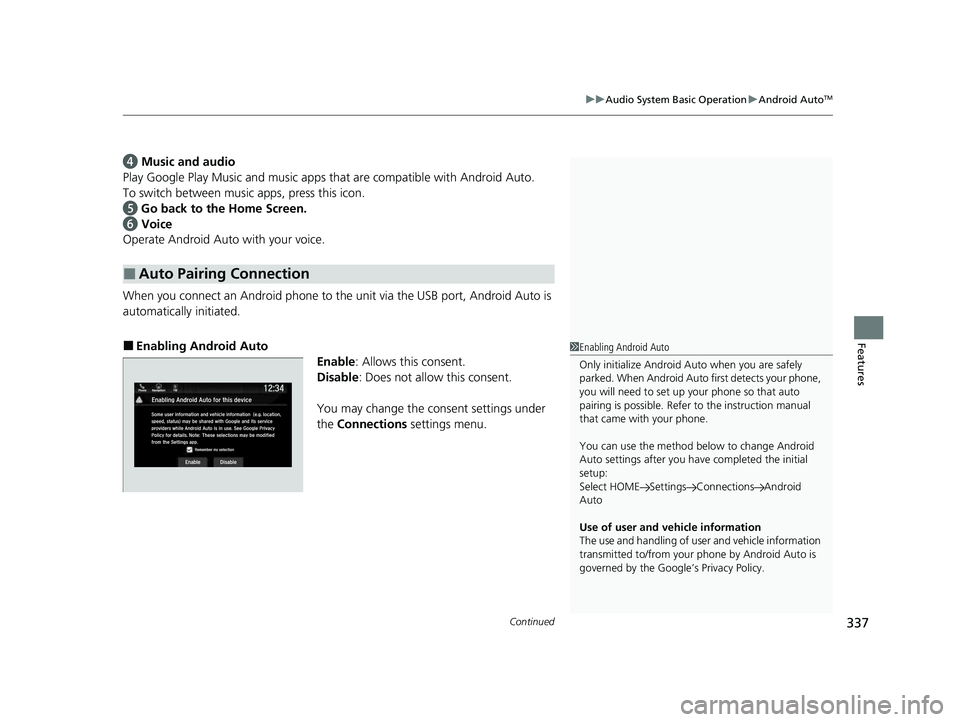
When you connect an Android phone to the unit via the USB port, Android Auto is
automatically initiated.
■Enabling Android Auto
Enable: Allows this consent.
Disable : Does not allow this consent.
You may change the consent settings under
the Connections settings menu.
■Auto Pairing Connection
1Enabling Android Auto
Only initialize Android Auto when you are safely
parked. When Android Auto first detects your phone,
you will need to set up your phone so that auto
pairing is possibl e. Refer to the instruction manual
that came with your phone.
You can use the method below to change Android
Auto settings after you ha ve completed the initial
setup:
Select HOME Settings Connections Android
Auto
Use of user and vehicle information
The use and handling of user and vehicle information
transmitted to/from your phone by Android Auto is
governed by the Google’s Privacy Policy.
23 US ODYSSEY-31THR6500.book 337 ページ 2022年1月24日 月曜日 午前11時35分
Page 341 of 707
339
Features
Audio Error Messages
iPod/USB Flash Drive
If an error occurs while playing an iPod or USB flash drive, you may see the following
error messages. If you cannot clear the error message, contact a dealer.
Error MessageSolution
Problem reading connected device. See
Owner’s Manual for a list of compatible
devices. If device is compatible, try
reconnecting device.
If this error remains, contact Honda dealer.
•Appears when there is a problem with th e audio system. Check if the device is
compatible with the audio system.
• Appears when an incompatib le device is connected. Disconnect the device. Then,
turn the audio system off and turn it on again. Do not reconnect the device that
caused the error.
• Appears when an unsupported iPod is connected. If it appears when a supported
iPod is connected, update the iPod software to the newer version.
• Appears when an unsupported device is connected. If it appears when a supported
device is connected, reconnect the device.
• Appears when the system does not ack nowledge the iPod. Reconnect the iPod.
The selected file cannot be played on this
systemAppears when the files in the USB flash driv e are DRM or an unsupported format. This
error message appears for about three seconds, then plays the next song.
The connected device does not contain any
files that can be played on this system. See
Owner’s Manual for a list of compatible file
types.Appears when the iPod is empty.
Appears when the USB flash drive is empty or there are no MP3, WMA, or AAC files in
the USB flash drive.
Check that compatible files are stored on the device.
iPod
USB flash drive
iPod and USB flash drive
23 US ODYSSEY-31THR6500.book 339 ページ 2022年1月24日 月曜日 午前11時35分