turn signal HONDA PASSPORT 2020 (in English) User Guide
[x] Cancel search | Manufacturer: HONDA, Model Year: 2020, Model line: PASSPORT, Model: HONDA PASSPORT 2020Pages: 667, PDF Size: 39.71 MB
Page 245 of 667
243
uuAudio System Basic Operation uPlaying AM/FM Radio
Features
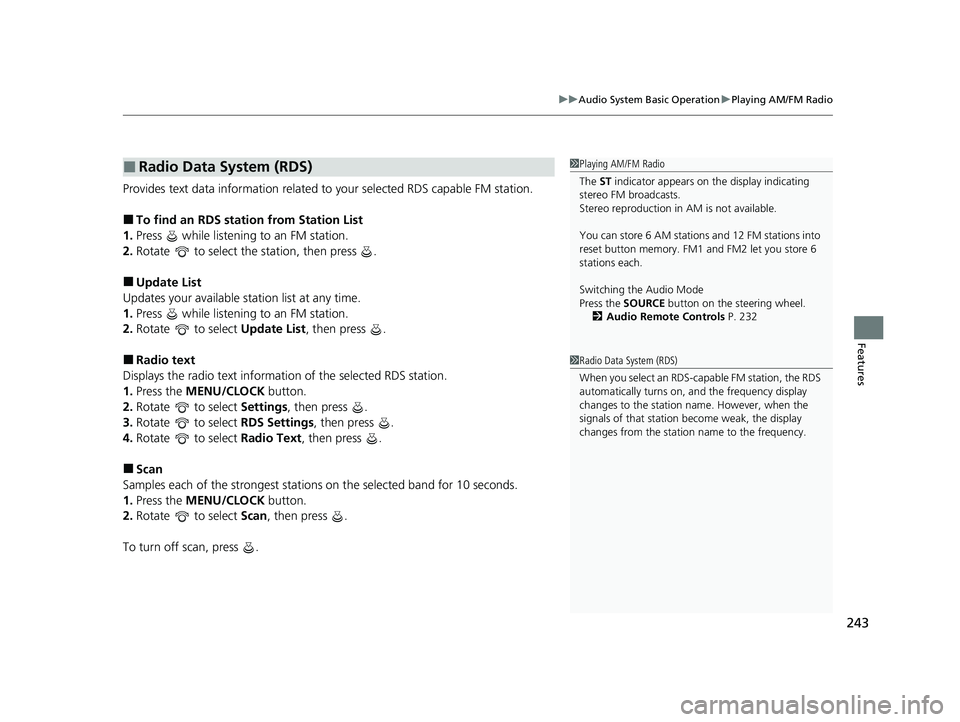
Provides text data information related to your selected RDS capable FM station.
■To find an RDS station from Station List
1. Press while listening to an FM station.
2. Rotate to select the station, then press .
■Update List
Updates your available st ation list at any time.
1. Press while listening to an FM station.
2. Rotate to select Update List, then press .
■Radio text
Displays the radio text information of the selected RDS station.
1. Press the MENU/CLOCK button.
2. Rotate to select Settings, then press .
3. Rotate to select RDS Settings, then press .
4. Rotate to select Radio Text, then press .
■Scan
Samples each of the strongest stations on the selected band for 10 seconds.
1. Press the MENU/CLOCK button.
2. Rotate to select Scan, then press .
To turn off scan, press .
■Radio Data System (RDS)1 Playing AM/FM Radio
The ST indicator appears on the display indicating
stereo FM broadcasts.
Stereo reproduction in AM is not available.
You can store 6 AM stations and 12 FM stations into
reset button memory. FM1 and FM2 let you store 6
stations each.
Switching the Audio Mode
Press the SOURCE button on the steering wheel.
2 Audio Remote Controls P. 232
1Radio Data System (RDS)
When you select an RDS-capable FM station, the RDS
automatically turns on, and the frequency display
changes to the station name. However, when the
signals of that station become weak, the display
changes from the statio n name to the frequency.
20 PASSPORT-31TGS6100.book 243 ページ 2019年8月30日 金曜日 午後6時22分
Page 287 of 667
285
uuAudio System Basic Operation uPlaying AM/FM Radio
Continued
Features
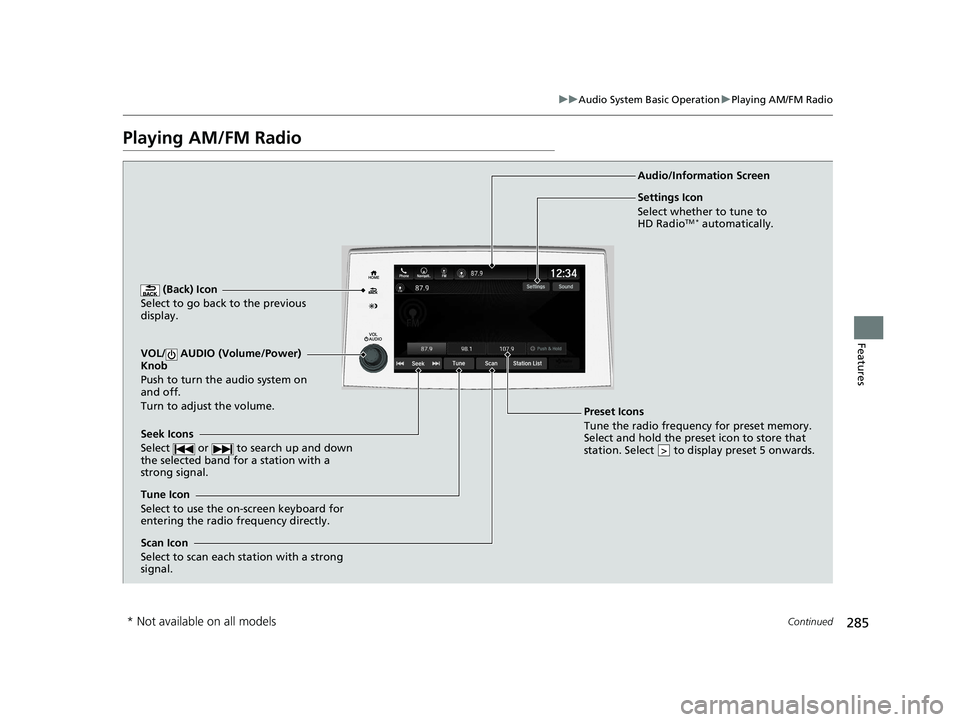
Playing AM/FM Radio
(Back) Icon
Select to go back to the previous
display.
Seek Icons
Select or to search up and down
the selected band for a station with a
strong signal.
VOL/ AUDIO (Volume/Power)
Knob
Push to turn the audio system on
and off.
Turn to adjust the volume.
Tune Icon
Select to use the on-screen keyboard for
entering the radio frequency directly. Audio/Information Screen
Scan Icon
Select to scan each station with a strong
signal.
Preset Icons
Tune the radio frequency for preset memory.
Select and hold the preset icon to store that
station. Select to display preset 5 onwards.
>
Settings Icon
Select whether to tune to
HD Radio
TM * automatically.
* Not available on all models
20 PASSPORT-31TGS6100.book 285 ページ 2019年8月30日 金曜日 午後6時22分
Page 289 of 667
Continued287
uuAudio System Basic Operation uPlaying AM/FM Radio
Features
Samples each of the strongest stations on th e selected band for 10 seconds. To turn
off scan, select Stop or .
Provides text data information related to your selected RDS-capable FM station.
■To find an RDS station from Station List
1. Select Station List to display a list while listening to an FM station.
2. Select the station.
■Manual update
Updates your available st ation list at any time.
1. Select Station List to display a list while listening to an FM station.
2. Select Refresh .
■Scan
Samples each of the strongest stations on th e selected band for 10 seconds. To turn
off scan, select Stop or .
■Scan
■Radio Data System (RDS)1Radio Data System (RDS)
When you select an RDS-capable FM station, the RDS
automatically turns on, and the frequency display
changes to the station name. However, when the
signals of that station become weak, the display
changes from the statio n name to the frequency.
20 PASSPORT-31TGS6100.book 287 ページ 2019年8月30日 金曜日 午後6時22分
Page 369 of 667
367
uuCustomized Features u
Continued
Features
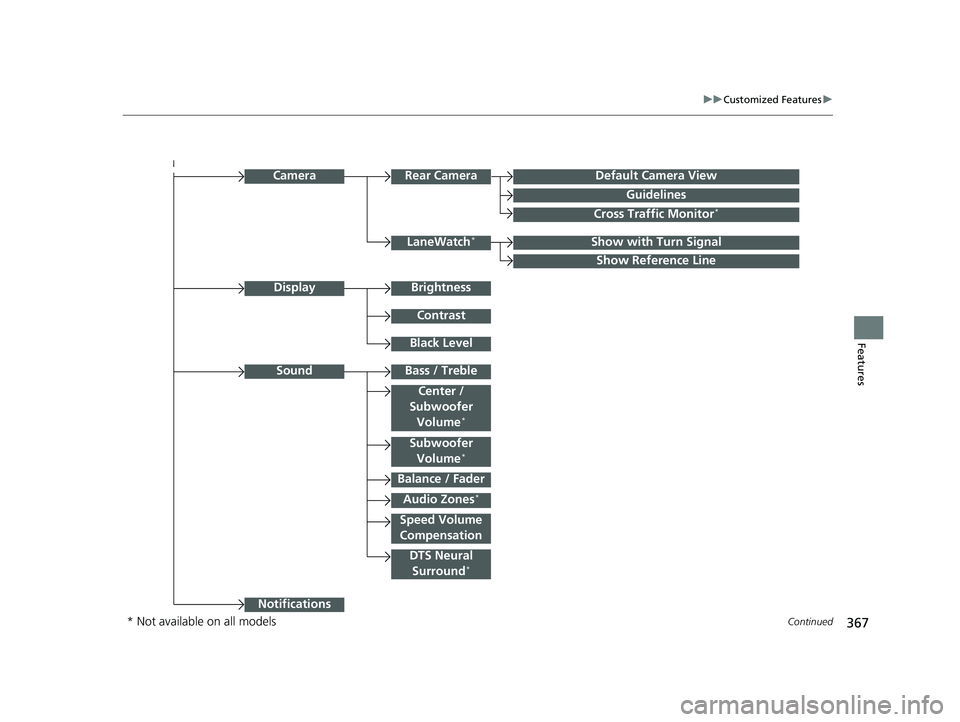
Audio Zones*
Bass / Treble
Camera
Show with Turn SignalLaneWatch*
Show Reference Line
Rear CameraDefault Camera View
Guidelines
Cross Traffic Monitor*
Sound
Balance / Fader
Center /
Subwoofer
Volume
*
DTS Neural Surround*
Speed Volume
Compensation
Notifications
Brightness
Contrast
Black Level
Display
Subwoofer Volume*
* Not available on all models
20 PASSPORT-31TGS6100.book 367 ページ 2019年8月30日 金曜日 午後6時22分
Page 374 of 667
372
uuCustomized Features u
Features
*1:Default SettingSetup
Group Customizable Features Description Selectable Settings
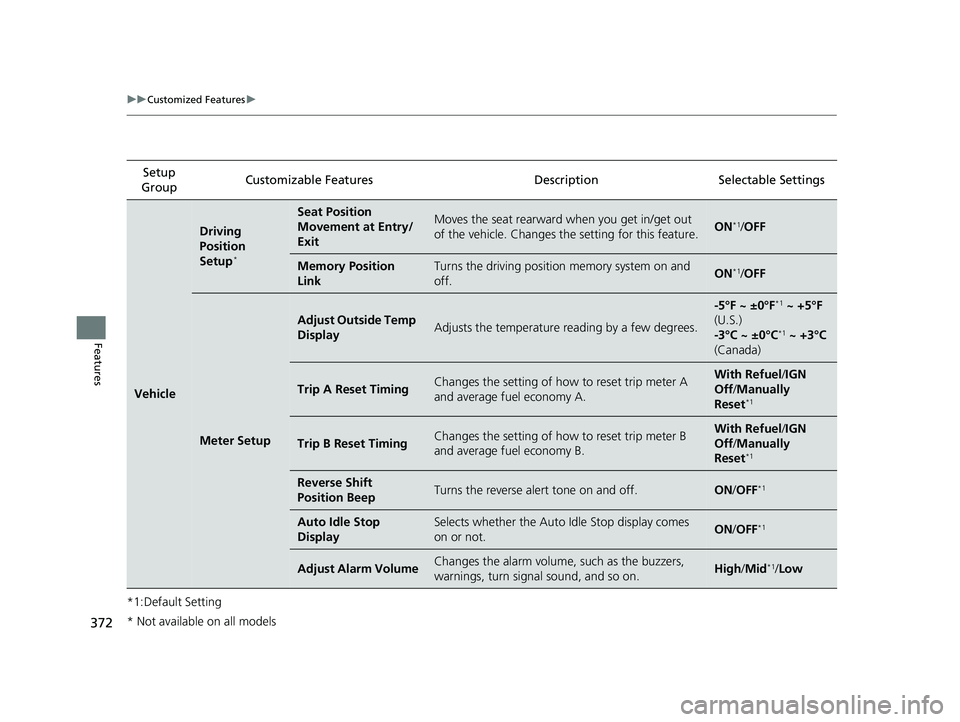
Vehicle
Driving
Position
Setup
*
Seat Position
Movement at Entry/
ExitMoves the seat rearward when you get in/get out
of the vehicle. Changes the setting for this feature.ON*1/
OFF
Memory Position
LinkTurns the driving position memory system on and
off.ON*1/ OFF
Meter Setup
Adjust Outside Temp
DisplayAdjusts the temperature reading by a few degrees.
-5°F ~ ±0°F*1 ~ +5°F
(U.S.)
-3°C ~ ±0°C
*1 ~ +3°C
(Canada)
Trip A Reset TimingChanges the setting of how to reset trip meter A
and average fuel economy A.With Refuel /IGN
Off /Manually
Reset
*1
Trip B Reset TimingChanges the setting of how to reset trip meter B
and average fuel economy B.With Refuel /IGN
Off /Manually
Reset
*1
Reverse Shift
Position BeepTurns the reverse alert tone on and off.ON /OFF*1
Auto Idle Stop
DisplaySelects whether the Auto Idle Stop display comes
on or not.ON /OFF*1
Adjust Alarm VolumeChanges the alarm volume, such as the buzzers,
warnings, turn signal sound, and so on.High /Mid*1/Low
* Not available on all models
20 PASSPORT-31TGS6100.book 372 ページ 2019年8月30日 金曜日 午後6時22分
Page 379 of 667
377
uuCustomized Features u
Continued
Features
*1:Default SettingSetup
Group Customizable Features Desc
ription Selectable Settings
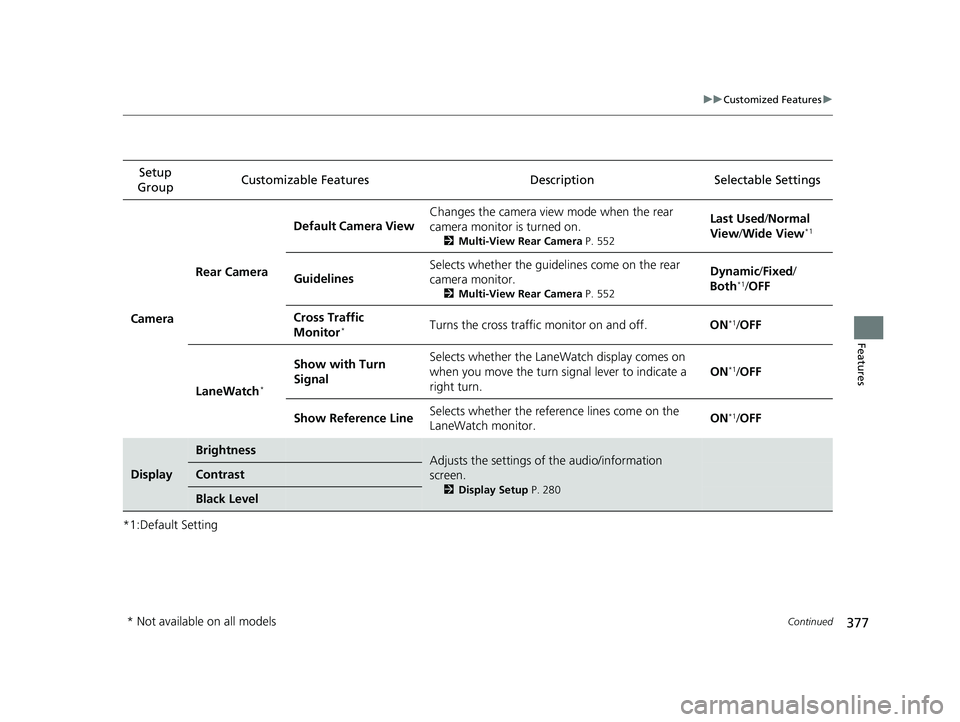
Camera Rear Camera
Default Camera View
Changes the camera view mode when the rear
camera monitor is turned on.
2
Multi-View Rear Camera P. 552
Last Used/Normal
View/ Wide View*1
Guidelines Selects whether the guidelines come on the rear
camera monitor.
2
Multi-View Rear Camera P. 552
Dynamic/Fixed /
Both*1/ OFF
Cross Traffic
Monitor
*Turns the cross traffic monitor on and off. ON*1/OFF
LaneWatch
*
Show with Turn
Signal Selects whether the LaneWatch display comes on
when you move the turn signal lever to indicate a
right turn.
ON*1/
OFF
Show Reference Line Selects whether the reference lines come on the
LaneWatch monitor. ON
*1/
OFF
Display
BrightnessAdjusts the settings of the audio/information
screen.
2 Display Setup P. 280
Contrast
Black Level
* Not available on all models
20 PASSPORT-31TGS6100.book 377 ページ 2019年8月30日 金曜日 午後6時22分
Page 449 of 667
Continued447
uuTowing a Trailer uTowing Preparation
Driving
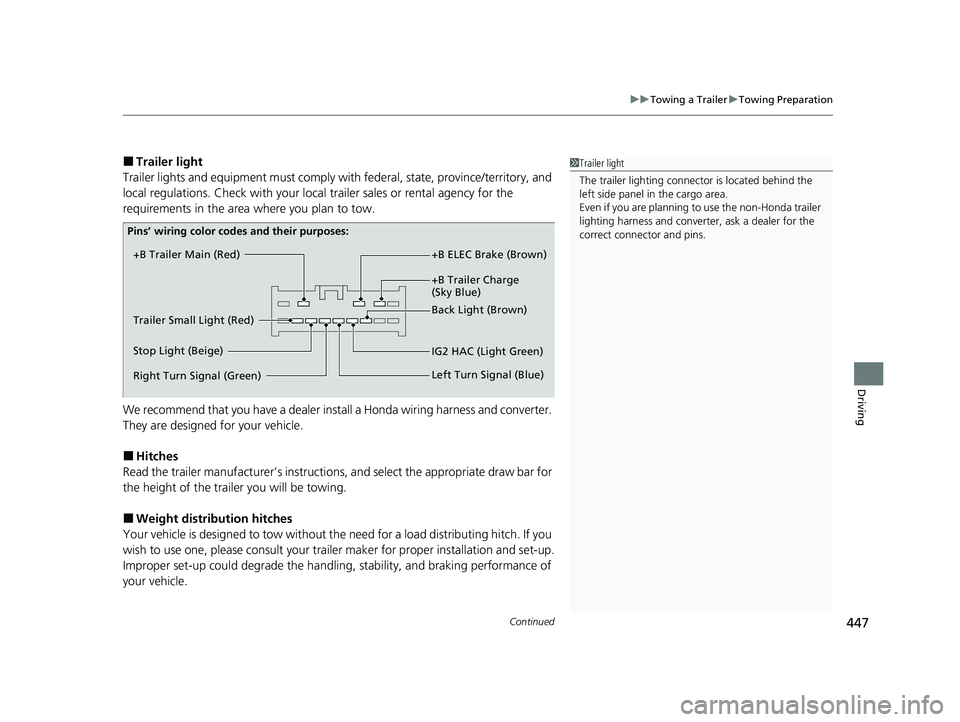
■Trailer light
Trailer lights and equipment must comply with federal, state, province/territory, and
local regulations. Check with your local trailer sales or rental agency for the
requirements in the area where you plan to tow.
We recommend that you have a dealer inst all a Honda wiring harness and converter.
They are designed for your vehicle.
■Hitches
Read the trailer manufacturer ’s instructions, and select the appropriate draw bar for
the height of the trailer you will be towing.
■Weight distribution hitches
Your vehicle is designed to tow without the need for a load distributing hitch. If you
wish to use one, please consult your trailer maker for proper installation and set-up.
Improper set-up could degrade the handling, stability, and braking performance of
your vehicle.
1 Trailer light
The trailer lighting connect or is located behind the
left side panel in the cargo area.
Even if you are planning to use the non-Honda trailer
lighting harness and converte r, ask a dealer for the
correct connector and pins.
+B Trailer Main (Red)
+B Trailer Charge
(Sky Blue) +B ELEC Brake (Brown)
IG2 HAC (Light Green) Back Light (Brown)
Trailer Small Light (Red)
Stop Light (Beige)
Pins’ wiring color codes and their purposes:
Right Turn Signal (Green) Left
Turn Signal (Blue)
20 PASSPORT-31TGS6100.book 447 ページ 2019年8月30日 金曜日 午後6時22分
Page 485 of 667
Continued483
uuWhen Driving uBlind spot information System*
Driving
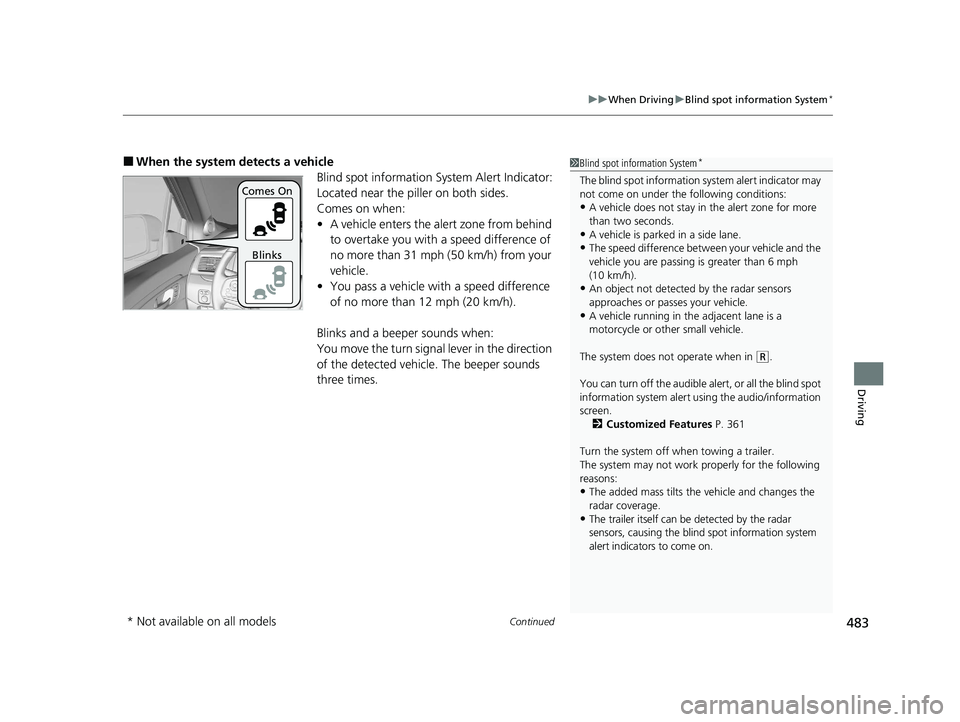
■When the system detects a vehicle
Blind spot information System Alert Indicator:
Located near the piller on both sides.
Comes on when:
•A vehicle enters the alert zone from behind
to overtake you with a speed difference of
no more than 31 mph (50 km/h) from your
vehicle.
• You pass a vehicle with a speed difference
of no more than 12 mph (20 km/h).
Blinks and a beeper sounds when:
You move the turn signal lever in the direction
of the detected vehicle. The beeper sounds
three times.1 Blind spot information System*
The blind spot information system alert indicator may
not come on under the following conditions:
•A vehicle does not stay in the alert zone for more
than two seconds.
•A vehicle is parked in a side lane.
•The speed difference betw een your vehicle and the
vehicle you are passing is greater than 6 mph
(10 km/h).
•An object not detected by the radar sensors
approaches or passes your vehicle.
•A vehicle running in the adjacent lane is a
motorcycle or other small vehicle.
The system does not operate when in
( R.
You can turn off the audible al ert, or all the blind spot
information system alert using the audio/information
screen.
2 Customized Features P. 361
Turn the system off when towing a trailer.
The system may not work properly for the following
reasons:
•The added mass tilts the vehicle and changes the
radar coverage.
•The trailer itself can be detected by the radar
sensors, causing the blind spot information system
alert indicators to come on.
Comes On
Blinks
* Not available on all models
20 PASSPORT-31TGS6100.book 483 ページ 2019年8月30日 金曜日 午後6時22分
Page 487 of 667
485
uuWhen Driving uLaneWatchTM*
Continued
Driving
LaneWatchTM*
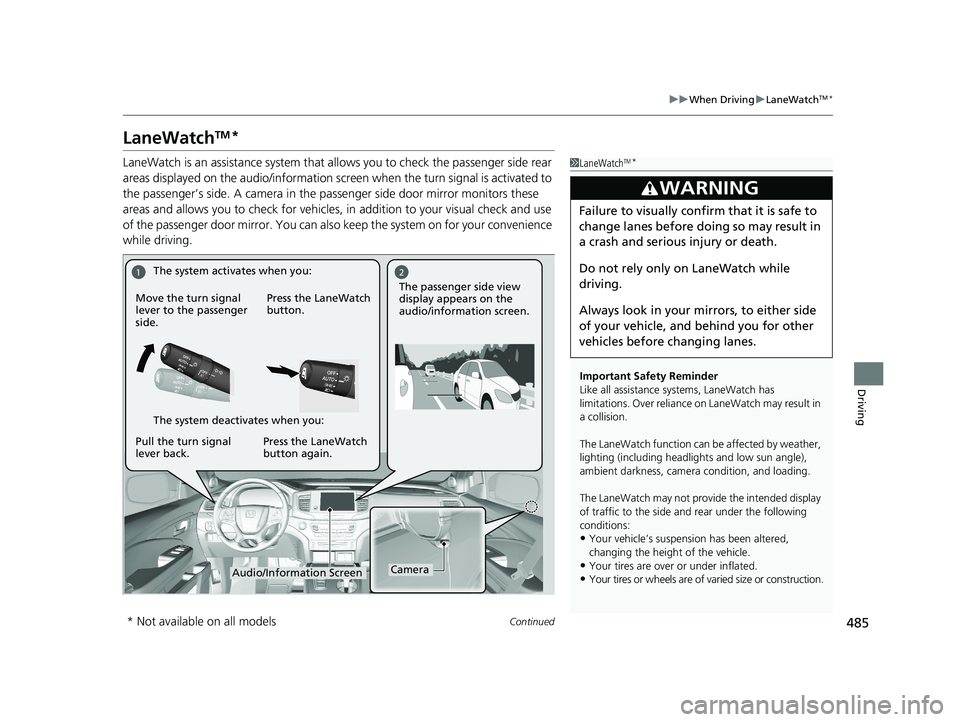
LaneWatch is an assistance system that al lows you to check the passenger side rear
areas displayed on the audio/information screen when the turn signal is activated to
the passenger’s side. A camera in the pa ssenger side door mirror monitors these
areas and allows you to check for vehicles, in addition to your visual check and use
of the passenger door mirror. You can also keep the system on for your convenience
while driving.1 LaneWatchTM*
Important Safety Reminder
Like all assistance systems, LaneWatch has
limitations. Over reliance on LaneWatch may result in
a collision.
The LaneWatch function can be affected by weather,
lighting (including headli ghts and low sun angle),
ambient darkness, camera condition, and loading.
The LaneWatch may not prov ide the intended display
of traffic to the side and rear under the following
conditions:
•Your vehicle’s suspensi on has been altered,
changing the height of the vehicle.
•Your tires are over or under inflated.
•Your tires or wheels are of varied size or construction.
3WARNING
Failure to visually confirm that it is safe to
change lanes before doing so may result in
a crash and serious injury or death.
Do not rely only on LaneWatch while
driving.
Always look in your mi rrors, to either side
of your vehicle, and behind you for other
vehicles before changing lanes.
CameraAudio/Information Screen
Move the turn signal
lever to the passenger
side.
Press the LaneWatch
button.
Pull the turn signal
lever back. Press the LaneWatch
button again. The passenger side view
display appears on the
audio/information screen.
The system activates when you:
The system deactivates when you:
* Not available on all models
20 PASSPORT-31TGS6100.book 485 ページ 2019年8月30日 金曜日 午後6時22分
Page 488 of 667
uuWhen Driving uLaneWatchTM*
486
Driving
■Customizing the LaneWatch settings
You can customize the following items using the audio/information screen.
• Show with Turn Signal : Selects whether LaneWatch monitor comes on when
you operate the turn signal lever.
• Show Reference Line : Selects whether the reference lines appear on the
LaneWatch monitor.
• Display : Adjusts display settings.
2Customized Features P. 361
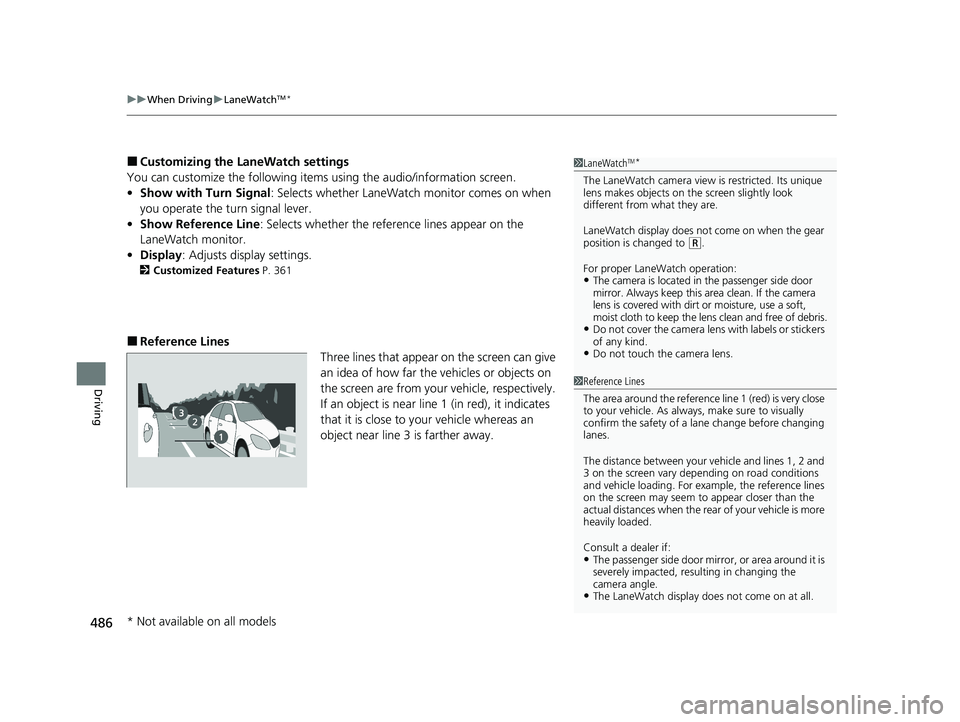
■Reference Lines
Three lines that appear on the screen can give
an idea of how far the vehicles or objects on
the screen are from your vehicle, respectively.
If an object is near line 1 (in red), it indicates
that it is close to your vehicle whereas an
object near line 3 is farther away.
1 LaneWatchTM*
The LaneWatch camera view is restricted. Its unique
lens makes objects on the screen slightly look
different from what they are.
LaneWatch display does not come on when the gear
position is changed to
( R.
For proper LaneWatch operation:
•The camera is located in the passenger side door
mirror. Always keep this area clean. If the camera
lens is covered with dirt or moisture, use a soft,
moist cloth to keep the lens clean and free of debris.
•Do not cover the camera lens with labels or stickers
of any kind.
•Do not touch the camera lens.
1Reference Lines
The area around the reference line 1 (red) is very close
to your vehicle. As always, make sure to visually
confirm the safety of a la ne change before changing
lanes.
The distance betwee n your vehicle and lines 1, 2 and
3 on the screen vary depending on road conditions
and vehicle loading. For ex ample, the reference lines
on the screen may seem to appear closer than the
actual distances when the rear of your vehicle is more
heavily loaded.
Consult a dealer if:
•The passenger side door mirr or, or area around it is
severely impacted, resulting in changing the
camera angle.
•The LaneWatch display doe s not come on at all.
* Not available on all models
20 PASSPORT-31TGS6100.book 486 ページ 2019年8月30日 金曜日 午後6時22分