buttons HONDA PASSPORT 2022 User Guide
[x] Cancel search | Manufacturer: HONDA, Model Year: 2022, Model line: PASSPORT, Model: HONDA PASSPORT 2022Pages: 607, PDF Size: 20.86 MB
Page 220 of 607
uuClimate Control System uRear Climate Control System
218
Controls
3. Press the AUTO button.
u The rear system changes to AUTO mode.
u The system automatically adjusts the fan speed and airflow levels to maintain
the set rear temperature. Change the temperature if necessary.
4. To turn off the rear climate control system, press the (Rear On/Off) button.
Use the system when the engine is running and the climate control system is
operating.
1. Press the (Rear On/Off) button.
2. Press the Rear AUTO button.
3. Adjust the interior temperature using the rear temperature control button.
4. To turn off the rear climate co ntrol system, press the button.
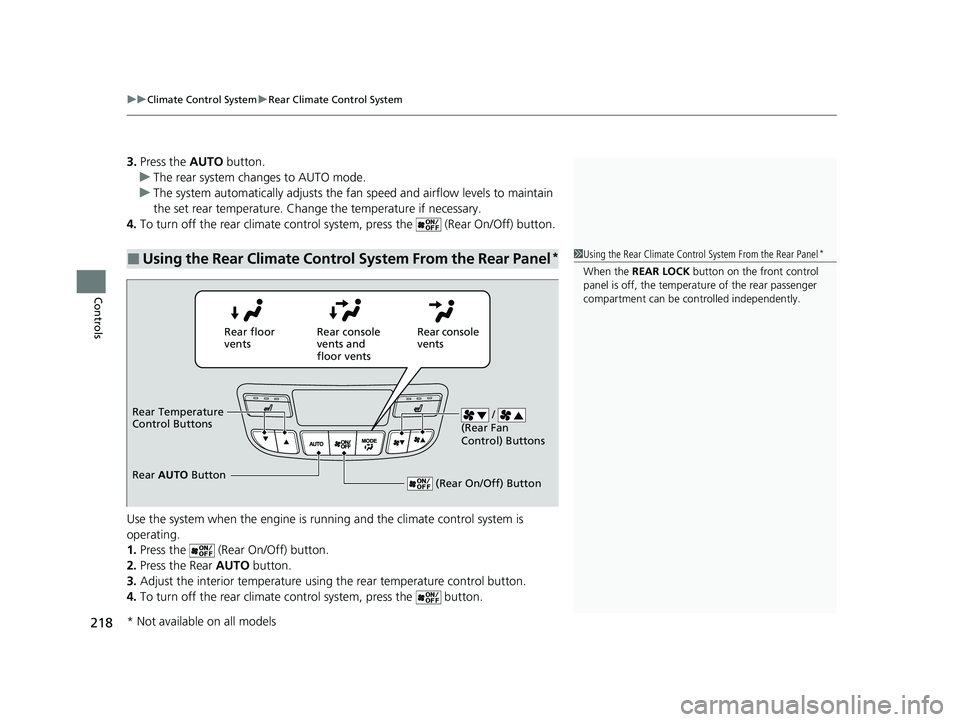
■Using the Rear Climate Control System From the Rear Panel*1Using the Rear Climate Control System From the Rear Panel*
When the REAR LOCK button on the front control
panel is off, the temperat ure of the rear passenger
compartment can be cont rolled independently.
Rear floor
ventsRear console
vents and
floor vents Rear console
vents
/
(Rear Fan
Control) Buttons
(Rear On/Off) Button
Rear Temperature
Control Buttons
Rear AUTO Button
* Not available on all models
22 PASSPORT-31TGS6300.book 218 ページ 2021年10月6日 水曜日 午前10時2分
Page 228 of 607
226
uuAudio System uAudio Remote Controls
Features
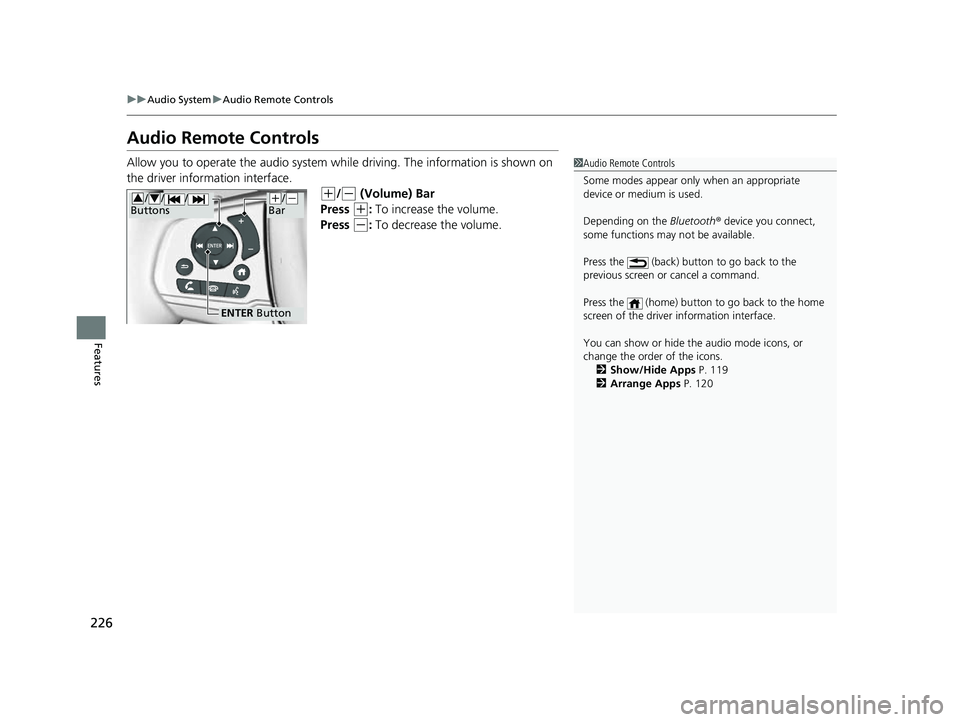
Audio Remote Controls
Allow you to operate the audio system while driving. The information is shown on
the driver information interface.
(+/(- (Volume) Bar
Press
(+: To increase the volume.
Press
(-: To decrease the volume.
1 Audio Remote Controls
Some modes appear only when an appropriate
device or medium is used.
Depending on the Bluetooth® device you connect,
some functions may not be available.
Press the (back) button to go back to the
previous screen or cancel a command.
Press the (home) button to go back to the home
screen of the driver information interface.
You can show or hide the audio mode icons, or
change the order of the icons. 2 Show/Hide Apps P. 119
2 Arrange Apps P. 120
ENTER Button
(+/(-
Bar///
Buttons34
22 PASSPORT-31TGS6300.book 226 ページ 2021年10月6日 水曜日 午前10時2分
Page 229 of 607
227
uuAudio System uAudio Remote Controls
Features
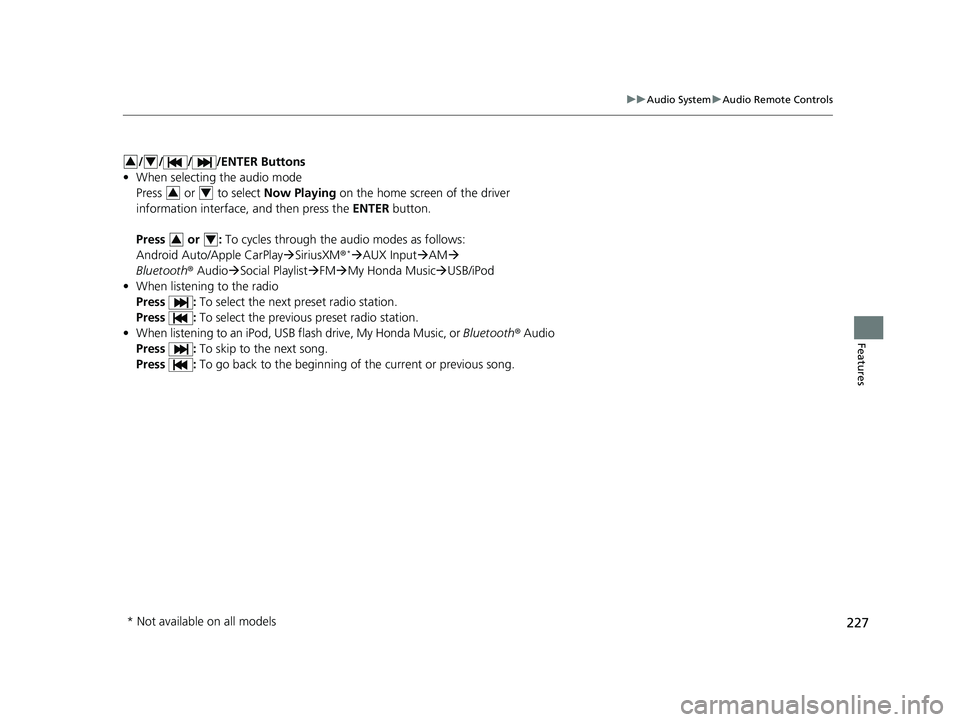
/ / / /ENTER Buttons
• When selecting the audio mode
Press or to select Now Playing on the home screen of the driver
information interface, and then press the ENTER button.
Press or : To cycles through the audio modes as follows:
Android Auto/Apple CarPlay SiriusXM ®
*AUX Input AM
Bluetooth ® AudioSocial Playlist FM My Honda Music USB/iPod
• When listening to the radio
Press : To select the next preset radio station.
Press : To select the previous preset radio station.
• When listening to an iPod, USB flash drive, My Honda Music, or Bluetooth® Audio
Press : To skip to the next song.
Press : To go back to the beginning of the current or previous song.
34
34
34
* Not available on all models
22 PASSPORT-31TGS6300.book 227 ページ 2021年10月6日 水曜日 午前10時2分
Page 259 of 607
257
uuAudio System Basic Operation uVoice Control Operation
Continued
Features
Voice Control Operation
Your vehicle has a voice control syst em that allows hands-free operation.
The voice control system uses the (tal k) and (back) buttons on the steering
wheel and a microphone near the map lights on the ceiling.
To achieve optimum voice recognition when using the voice control system:
• Make sure the correct screen is displa yed for the voice command that you are
using.
The system recognizes only certain commands.
Available voice commands:
2 Voice Portal Screen P. 258
•Close the windows and moonroof*.
• Adjust the dashboard and side vents so air does not blow onto the microphone
on the ceiling.
• Speak clearly in a clear, natural speaking voice without pausing between words.
• Reduce any background noise if possibl e. The system may misinterpret your
command if more than one person is speaking at the same time.
■Voice Recognition
1Voice Control Operation
When you press the button, a helpful prompt asks
what you would like to do. Press and release the
button again to bypass th is prompt and give a
command.
1 Voice Recognition
The voice control system can only be used from the
driver’s seat because the microphone unit removes
noises from the front passenger’s side.
* Not available on all models
22 PASSPORT-31TGS6300.book 257 ページ 2021年10月6日 水曜日 午前10時2分
Page 349 of 607
347
uuHomeLink ® Universal Transceiver*u Training HomeLink
Continued
Features
Training HomeLink
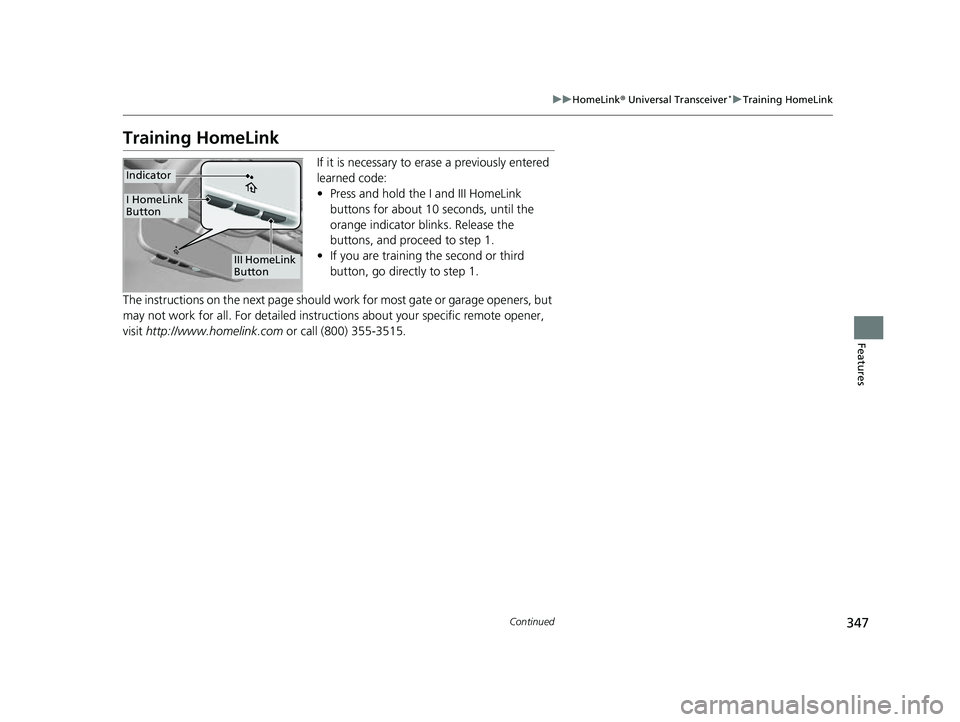
If it is necessary to er ase a previously entered
learned code:
• Press and hold the I and III HomeLink
buttons for about 10 seconds, until the
orange indicator blinks. Release the
buttons, and proceed to step 1.
• If you are training the second or third
button, go directly to step 1.
The instructions on the next page should work for most gate or garage openers, but
may not work for all. For detailed instructions about your specific remote opener,
visit http://www.homelink.com or call (800) 355-3515.
III HomeLink
Button
Indicator
I HomeLink
Button
22 PASSPORT-31TGS6300.book 347 ページ 2021年10月6日 水曜日 午前10時2分
Page 350 of 607
uuHomeLink ® Universal Transceiver*u Training HomeLink
348
Features
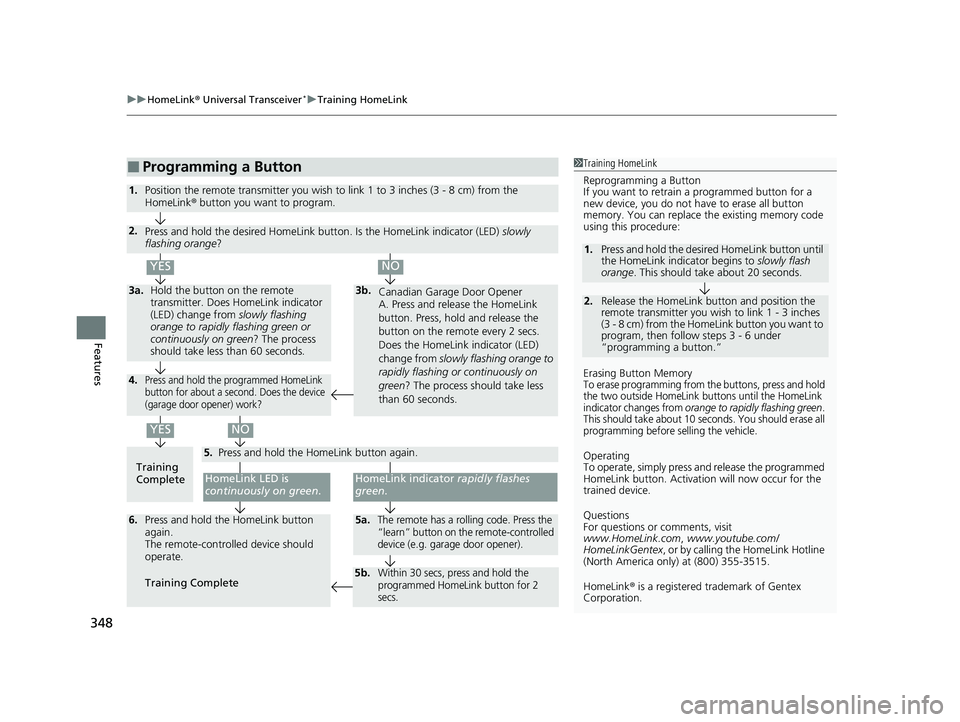
■Programming a Button1Training HomeLink
Reprogramming a Button
If you want to retrain a programmed button for a
new device, you do not ha ve to erase all button
memory. You can replace the existing memory code
using this procedure:
Erasing Button Memory
To erase programming from the buttons, press and hold
the two outside HomeLink buttons until the HomeLink
indicator changes from
orange to rapidly flashing green.
This should take about 10 seconds. You should erase all
programming before selling the vehicle.
Operating
To operate, simply press and release the programmed
HomeLink button. Activati on will now occur for the
trained device.
Questions
For questions or comments, visit
www.HomeLink.com , www.youtube.com/
HomeLinkGentex , or by calling the HomeLink Hotline
(North America only) at (800) 355-3515.
HomeLink® is a registered tra demark of Gentex
Corporation.
2.
1. Press and hold the desired HomeLink button until
the HomeLink indi
cator begins to slowly flash
orange . This should take about 20 seconds.
Release the HomeLink button and position the
remote transmitter you wish to link 1 - 3 inches
(3 - 8 cm) from the Home Link button you want to
program, then follow steps 3 - 6 under
“programming a button.”
Training
CompleteHomeLink LED is
continuously on green .
YES
YES
1.Position the remote transmitter you wish to link 1 to 3 inches (3 - 8 cm) from the
HomeLink® button you want to program.
3b.
Canadian Garage Door Opener
A. Press and release the HomeLink
button. Press, hold and release the
button on the remote every 2 secs.
Does the HomeLink indicator (LED)
change from slowly flashing orange to
rapidly flashing or continuously on
green ? The process should take less
than 60 seconds.
NO
2. Press and hold the desired HomeLink button. Is the HomeLink indicator (LED) slowly
flashing orange ?
NO
3a.Hold the button on the remote
transmitter. Does HomeLink indicator
(LED) change from slowly flashing
orange to rapidly flashing green or
continuously on green? The process
should take less than 60 seconds.
5. Press and hold the HomeLink button again.
HomeLink indicator rapidly flashes
green .
5a.The remote has a rolling code. Press the
“learn” button on th e remote-controlled
device (e.g. garage door opener).6. Press and hold the HomeLink button
again.
The remote-controll ed device should
operate.
Training Complete
5b.Within 30 secs, press and hold the
programmed HomeLink button for 2
secs.
4.Press and hold the programmed HomeLink
button for about a second. Does the device
(garage door opener) work?
22 PASSPORT-31TGS6300.book 348 ページ 2021年10月6日 水曜日 午前10時2分
Page 351 of 607
349Continued
Features
Bluetooth® HandsFreeLink ®
Bluetooth® HandsFreeLink ® (HFL) allows you to place and receive phone calls using
your vehicle’s audio system, without handling your cell phone.
Using HFL
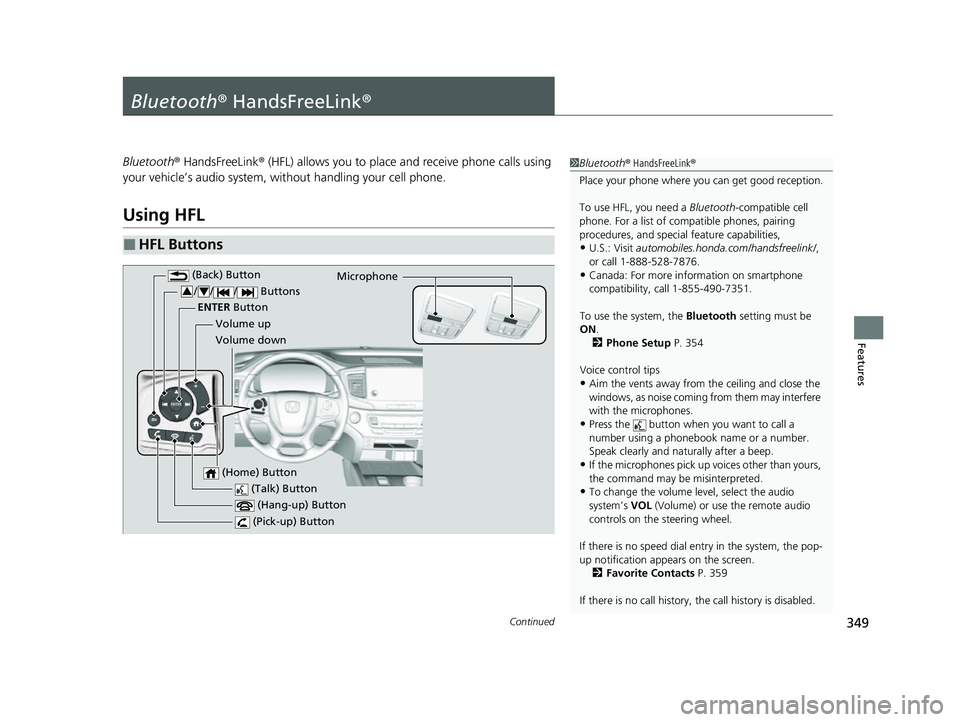
■HFL Buttons
1 Bluetooth ® HandsFreeLink ®
Place your phone where y ou can get good reception.
To use HFL, you need a Bluetooth-compatible cell
phone. For a list of compatible phones, pairing
procedures, and special feature capabilities,
•U.S.: Visit automobiles.honda.com /handsfreelink/,
or call 1-888-528-7876.
•Canada: For more info rmation on smartphone
compatibility, call 1-855-490-7351.
To use the system, the Bluetooth setting must be
ON .
2 Phone Setup P. 354
Voice control tips
•Aim the vents away from the ceiling and close the
windows, as noise coming from them may interfere
with the microphones.
•Press the button when you want to call a
number using a phonebook name or a number.
Speak clearly and naturally after a beep.
•If the microphones pick up vo ices other than yours,
the command may be misinterpreted.
•To change the volume level, select the audio
system’s VOL (Volume) or use the remote audio
controls on the steering wheel.
If there is no speed dial entry in the system, the pop-
up notification appe ars on the screen.
2 Favorite Contacts P. 359
If there is no call history, the call history is disabled. (Talk) Button
Volume up Microphone
(Hang-up) Button
(Pick-up) Button
Volume down
ENTER
Button
(Back) Button
/// Buttons34
(Home) Button
22 PASSPORT-31TGS6300.book 349 ページ 2021年10月6日 水曜日 午前10時2分
Page 352 of 607
uuBluetooth ® HandsFreeLink ®u Using HFL
350
Features
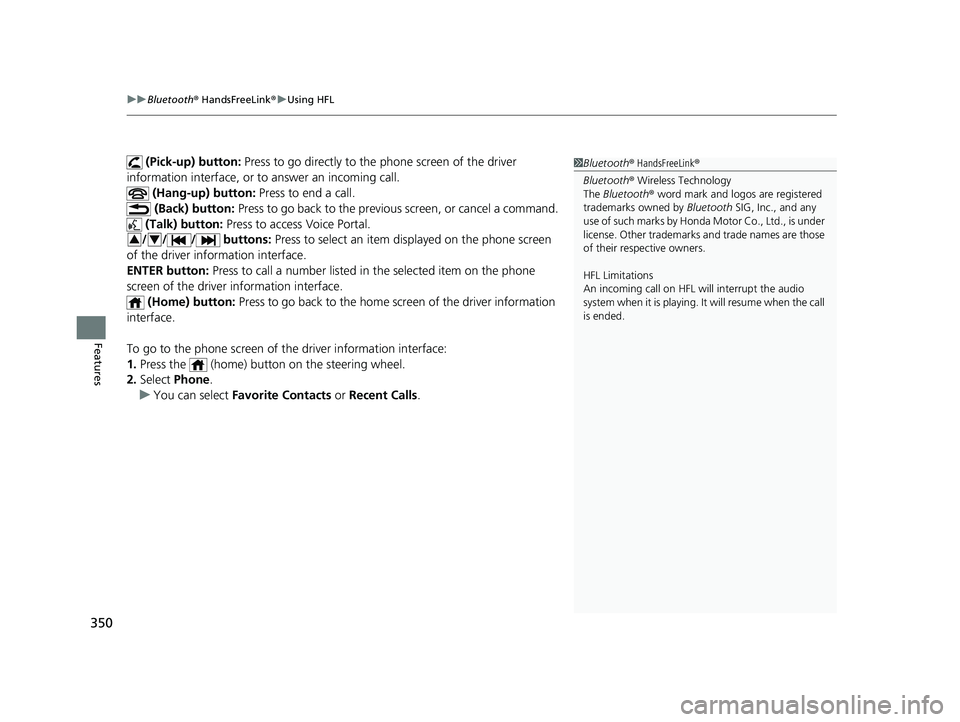
(Pick-up) button: Press to go directly to the phone screen of the driver
information interface, or to answer an incoming call.
(Hang-up) button: Press to end a call.
(Back) button: Press to go back to the previo us screen, or cancel a command.
(Talk) button: Press to access Voice Portal.
// / buttons: Press to select an item displayed on the phone screen
of the driver information interface.
ENTER button: Press to call a number listed in the selected item on the phone
screen of the driver information interface.
(Home) button: Press to go back to the home sc reen of the driver information
interface.
To go to the phone screen of the driver information interface:
1. Press the (home) button on the steering wheel.
2. Select Phone .
u You can select Favorite Contacts or Recent Calls .1Bluetooth ® HandsFreeLink ®
Bluetooth ® Wireless Technology
The Bluetooth ® word mark and logos are registered
trademarks owned by Bluetooth SIG, Inc., and any
use of such marks by Honda Motor Co., Ltd., is under
license. Other trademarks and trade names are those
of their respective owners.
HFL Limitations
An incoming call on HFL will interrupt the audio
s y s t e m wh e n it is p la y i n g . It wi ll r e s u m e w h en t h e c a l l
is ended.
34
22 PASSPORT-31TGS6300.book 350 ページ 2021年10月6日 水曜日 午前10時2分
Page 366 of 607
uuBluetooth ® HandsFreeLink ®u HFL Menus
364
Features
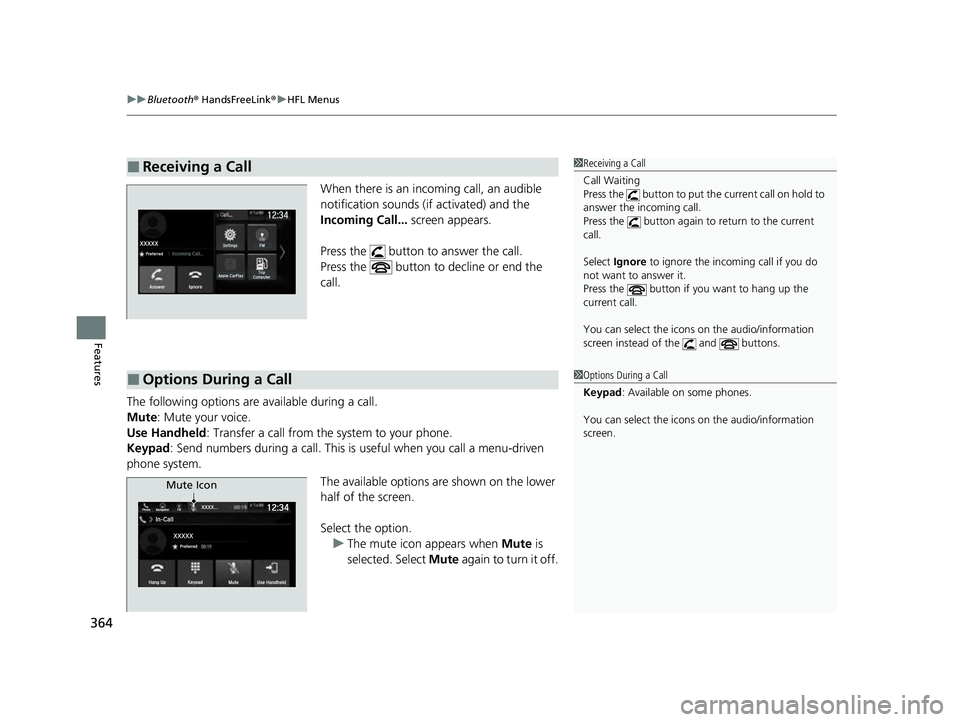
When there is an incoming call, an audible
notification sounds (i f activated) and the
Incoming Call... screen appears.
Press the button to answer the call.
Press the button to decline or end the
call.
The following options are available during a call.
Mute: Mute your voice.
Use Handheld : Transfer a call from the system to your phone.
Keypad : Send numbers during a call. This is useful when you call a menu-driven
phone system.
The available options are shown on the lower
half of the screen.
Select the option.u The mute icon appears when Mute is
selected. Select Mute again to turn it off.
■Receiving a Call1Receiving a Call
Call Waiting
Press the button to put th e current call on hold to
answer the incoming call.
Press the button again to return to the current
call.
Select Ignore to ignore the incoming call if you do
not want to answer it.
Press the button if you want to hang up the
current call.
You can select the icons on the audio/information
screen instead of the and buttons.
■Options During a Call1 Options During a Call
Keypad : Available on some phones.
You can select the icons on the audio/information
screen.
Mute Icon
22 PASSPORT-31TGS6300.book 364 ページ 2021年10月6日 水曜日 午前10時2分
Page 405 of 607
403
uuWhen Driving uShifting
Continued
Driving
Shifting
Change the gear position in accordance with your driving needs.
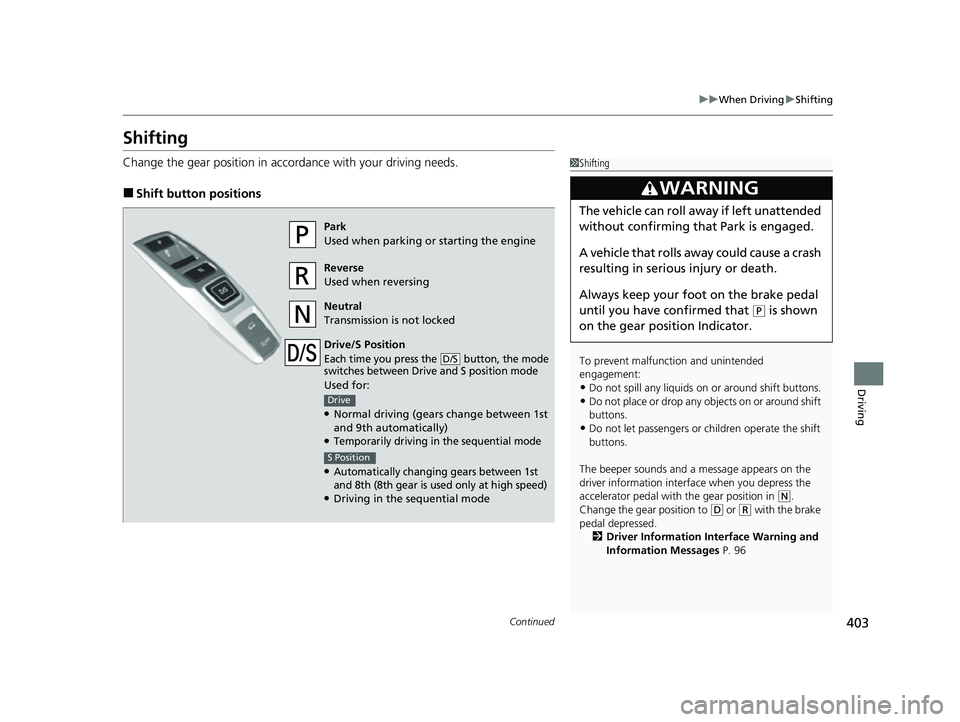
■Shift button positions
1Shifting
To prevent malfunc tion and unintended
engagement:
•Do not spill any liquids on or around shift buttons.
•Do not place or drop any objects on or around shift
buttons.
•Do not let passengers or ch ildren operate the shift
buttons.
The beeper sounds and a message appears on the
driver information interf ace when you depress the
accelerator pedal with the gear position in
( N.
Change the gear position to ( D or (R with the brake
pedal depressed. 2 Driver Information Interface Warning and
Information Messages P. 96
3WARNING
The vehicle can roll away if left unattended
without confirming th at Park is engaged.
A vehicle that rolls away could cause a crash
resulting in serious injury or death.
Always keep your foot on the brake pedal
until you have confirmed that
( P is shown
on the gear position Indicator.
Park
Used when parking or starting the engine
Reverse
Used when reversing
Neutral
Transmission is not locked
Drive/S Position
Each time you press the button, the mode
switches between Drive and S position mode
Used for:
●Normal driving (gears change between 1st
and 9th automatically)
●Temporarily driving in the sequential mode
●Automatically changing gears between 1st
and 8th (8th gear is used only at high speed)
●Driving in the sequential mode
D/S
Drive
S Position
22 PASSPORT-31TGS6300.book 403 ページ 2021年10月6日 水曜日 午前10時2分