phone HONDA PASSPORT 2022 User Guide
[x] Cancel search | Manufacturer: HONDA, Model Year: 2022, Model line: PASSPORT, Model: HONDA PASSPORT 2022Pages: 607, PDF Size: 20.86 MB
Page 242 of 607
uuAudio System Basic Operation uAudio/Information Screen
240
Features
Some of the audio system’s apps can be updated wirelessly when connected via Wi-
Fi, or Bluetooth ® in conjunction with the HondaLink ® app installed on a compatible
iOS or Android device. If an update is available, a notification is displayed at the top
of the screen with the resp ective app’s update icon.
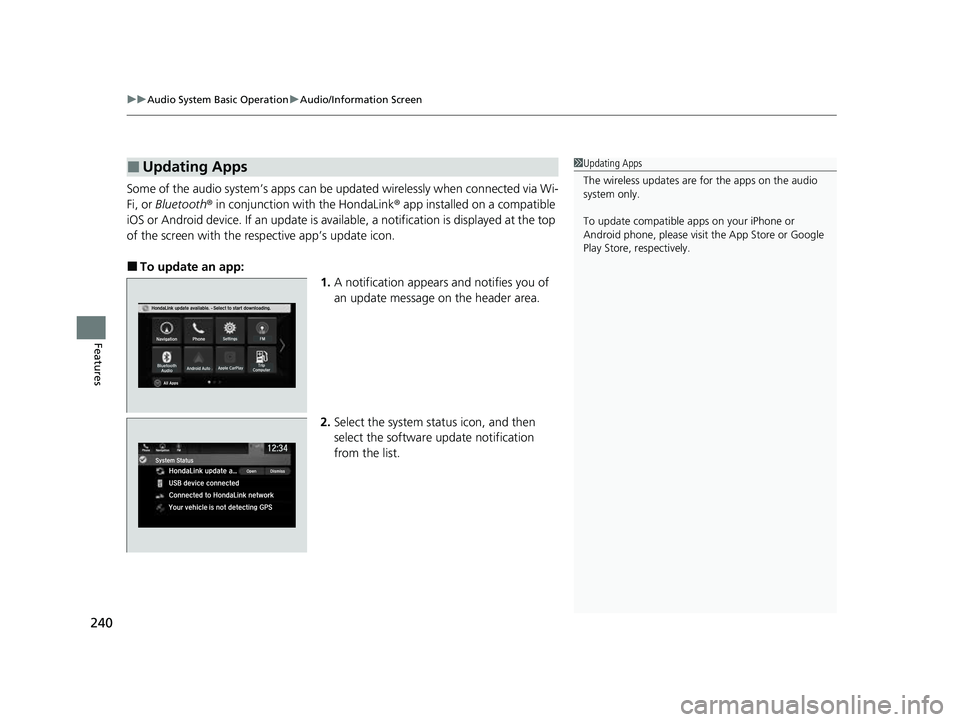
■To update an app:
1.A notification appears and notifies you of
an update message on the header area.
2. Select the system stat us icon, and then
select the software update notification
from the list.
■Updating Apps1 Updating Apps
The wireless updates are for the apps on the audio
system only.
To update compatible a pps on your iPhone or
Android phone, please visit the App Store or Google
Play Store, respectively.
22 PASSPORT-31TGS6300.book 240 ページ 2021年10月6日 水曜日 午前10時2分
Page 259 of 607
257
uuAudio System Basic Operation uVoice Control Operation
Continued
Features
Voice Control Operation
Your vehicle has a voice control syst em that allows hands-free operation.
The voice control system uses the (tal k) and (back) buttons on the steering
wheel and a microphone near the map lights on the ceiling.
To achieve optimum voice recognition when using the voice control system:
• Make sure the correct screen is displa yed for the voice command that you are
using.
The system recognizes only certain commands.
Available voice commands:
2 Voice Portal Screen P. 258
•Close the windows and moonroof*.
• Adjust the dashboard and side vents so air does not blow onto the microphone
on the ceiling.
• Speak clearly in a clear, natural speaking voice without pausing between words.
• Reduce any background noise if possibl e. The system may misinterpret your
command if more than one person is speaking at the same time.
■Voice Recognition
1Voice Control Operation
When you press the button, a helpful prompt asks
what you would like to do. Press and release the
button again to bypass th is prompt and give a
command.
1 Voice Recognition
The voice control system can only be used from the
driver’s seat because the microphone unit removes
noises from the front passenger’s side.
* Not available on all models
22 PASSPORT-31TGS6300.book 257 ページ 2021年10月6日 水曜日 午前10時2分
Page 260 of 607
258
uuAudio System Basic Operation uVoice Control Operation
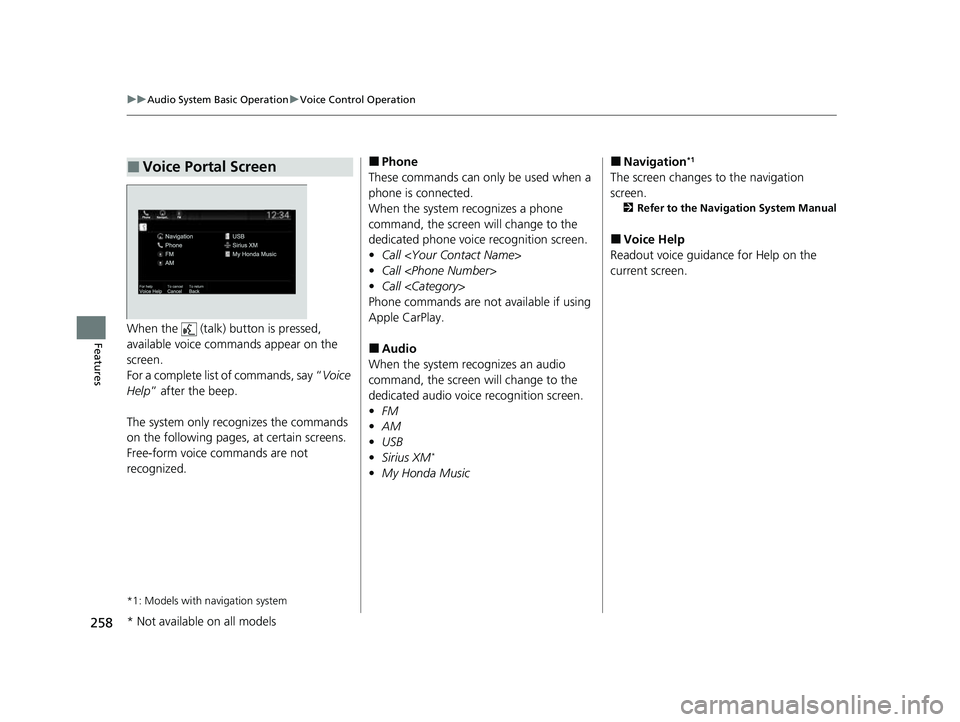
FeaturesWhen the (talk) button is pressed,
available voice commands appear on the
screen.
For a complete list of commands, say “ Voice
Help ” after the beep.
The system only reco gnizes the commands
on the following pages, at certain screens.
Free-form voice commands are not
recognized.
*1: Models with navigation system
■Voice Portal Screen■Phone
These commands can only be used when a
phone is connected.
When the system recognizes a phone
command, the screen will change to the
dedicated phone voice recognition screen.
• Call
• Call
• Call
Phone commands are not available if using
Apple CarPlay.
■Audio
When the system re cognizes an audio
command, the screen will change to the
dedicated audio voice recognition screen.
• FM
• AM
• USB
• Sirius XM
*
•My Honda Music
■Navigation*1
The screen changes to the navigation
screen.
2 Refer to the Navigation System Manual
■Voice Help
Readout voice guidance for Help on the
current screen.
* Not available on all models
22 PASSPORT-31TGS6300.book 258 ページ 2021年10月6日 水曜日 午前10時2分
Page 261 of 607
259
uuAudio System Basic Operation uVoice Control Operation
Features
The system will acce pt these commands
when on the dedicated phone voice
recognition screen.
• Call
• Call
• Call
■Phone Commands
The system will accept these commands
when on the dedicated audio voice
recognition screen.
■FM Commands
• Tune to <87.7-107.9> FM
■AM Commands
• Tune to <530-1710> AM
■Sirius XM Commands*
•Channel <1-999>
• Channel
■USB/My Honda Music Commands
• Play Artist
• Play Album
• Play Genre
• Play Playlist
• Play Music
• Play Song
■Audio Commands
* Not available on all models
22 PASSPORT-31TGS6300.book 259 ページ 2021年10月6日 水曜日 午前10時2分
Page 276 of 607
uuAudio System Basic Operation uPlaying an iPod
274
Features
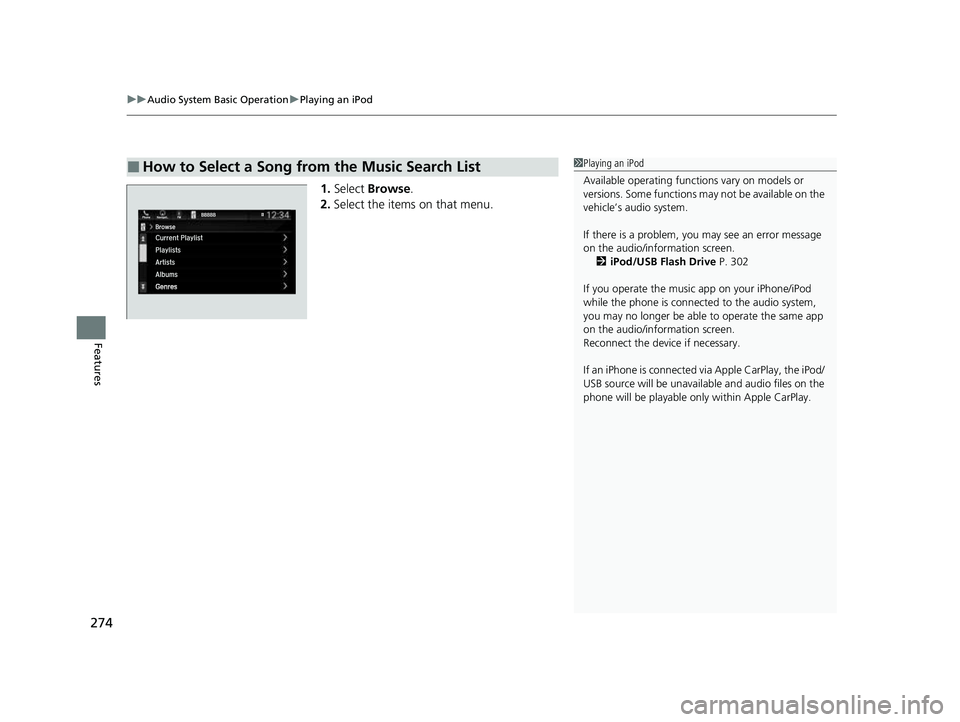
1. Select Browse .
2. Select the items on that menu.
■How to Select a Song from the Music Search List1Playing an iPod
Available operating functi ons vary on models or
versions. Some functions ma y not be available on the
vehicle’s audio system.
If there is a problem, you may see an error message
on the audio/information screen. 2 iPod/USB Flash Drive P. 302
If you operate the musi c app on your iPhone/iPod
while the phone is connected to the audio system,
you may no longer be able to operate the same app
on the audio/information screen.
Reconnect the devi ce if necessary.
If an iPhone is connected vi a Apple CarPlay, the iPod/
USB source will be unavailable and audio files on the
phone will be playable onl y within Apple CarPlay.
22 PASSPORT-31TGS6300.book 274 ページ 2021年10月6日 水曜日 午前10時2分
Page 285 of 607
283
uuAudio System Basic Operation uPlaying Bluetooth ® Audio
Continued
Features
Playing Bluetooth ® Audio
Your audio system allows you to listen to music from your Bluetooth-compatible
phone.
This function is available when the phone is paired an d connected to the vehicle’s
Bluetooth ® HandsFreeLink ® (HFL) system.
2Phone Setup P. 354
*1: Depending on the
Bluetooth® device you connect, this function may not be displayed.
1 Playing Bluetooth ® Audio
Not all Bluetooth-enabled phones with streaming
audio capabilities are compatible with the system.
For a list of compatible phones:
•U.S.: Visit automobiles.honda.com /handsfreelink/,
or call 1-888-528-7876.
•Canada: For more info rmation on smartphone
compatibility, call 1-855-490-7351.
It may be illegal to pe rform some data device
functions while driving.
Only one phone can be used with HFL at a time.
When there is more than one paired phone in the
vehicle, the first paired phone the system finds is
automatically connected.
If more than one phone is paired to the HFL system,
there may be a delay before the system begins to
play.
In some cases, the name of the artist, album, or track
may not appear correctly.
Some functions may not be available on some
devices.
If a phone is currently conne cted via Apple CarPlay or
Android Auto, Bluetooth® Audio from that phone
will be unavailable. Howe ver, you can have a second
previously paired phone stream Bluetooth® Audio by
selecting from the Bluetooth® device list.
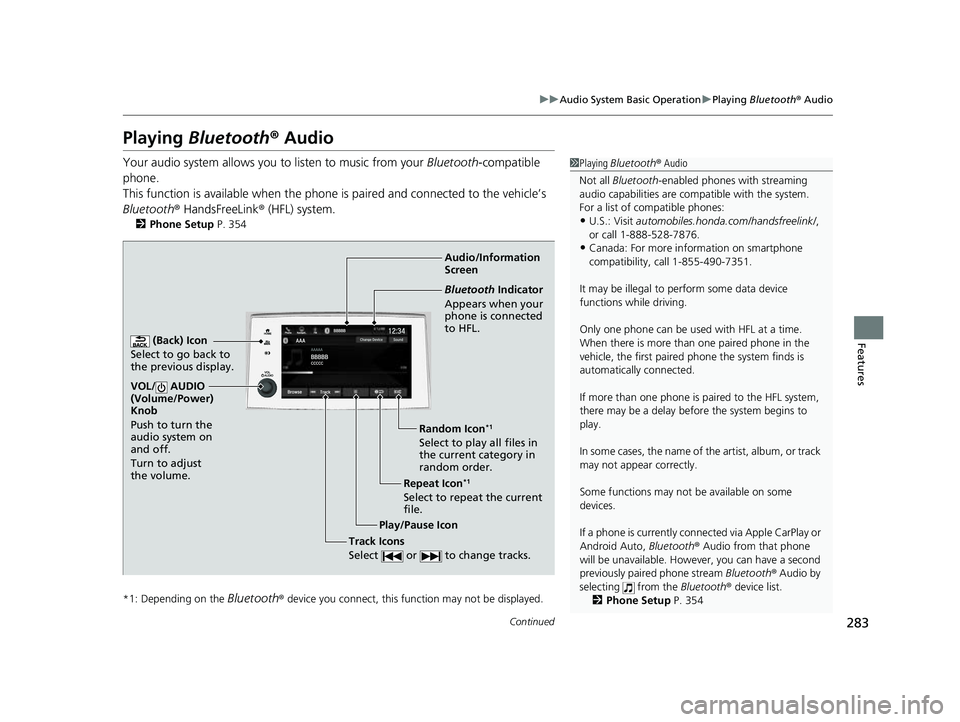
2 Phone Setup P. 354Audio/Information
Screen
(Back) Icon
Select to go b
ack to
the previous display.
VOL/ AUDIO
(Volume/Power)
Knob
Push to turn the
audio system on
and off.
Turn to adjust
the volume.
Repeat Icon*1
Select to repeat the current
file. Random Icon
*1
Select to play all files in
the current category in
random order.
Play/Pause Icon
Bluetooth Indicator
Appears when your
phone is connected
to HFL.
Track Icons
Select or to change tracks.
22 PASSPORT-31TGS6300.book 283 ページ 2021年10月6日 水曜日 午前10時2分
Page 286 of 607
uuAudio System Basic Operation uPlaying Bluetooth ® Audio
284
Features
1. Make sure that your phone is paired and
connected to the system.
2 Phone Setup P. 354
2.Select the Bluetooth® Audio mode.
If the phone is not recognized, another HFL-
compatible phone, which is not compatible
for Bluetooth ® Audio, may already be
connected.
■To pause or resume a file
Select the play/pause icon.
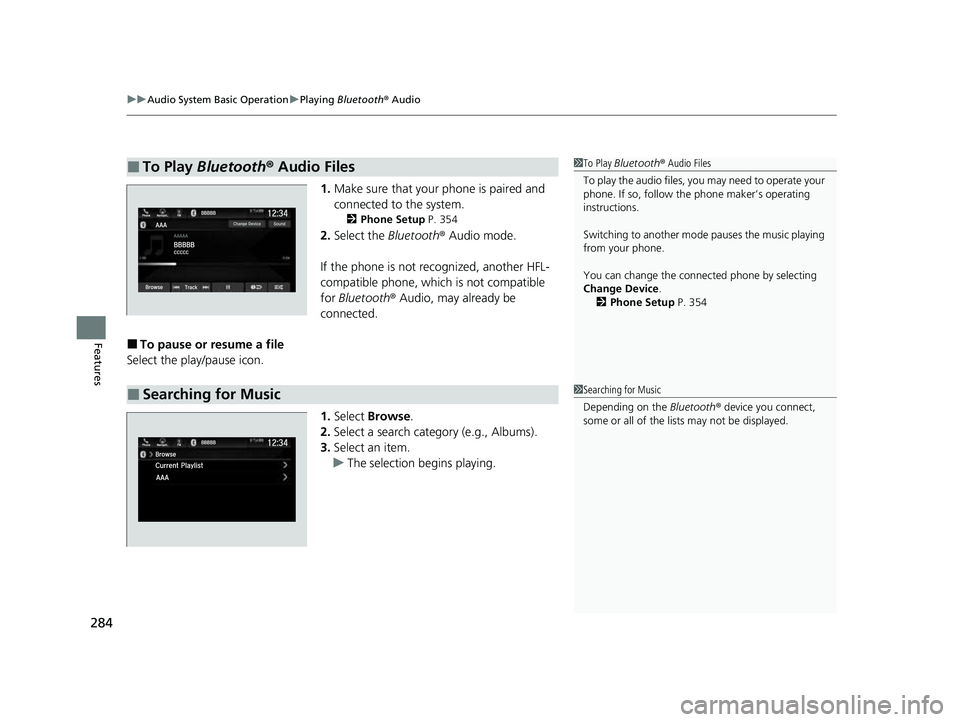
1.Select Browse .
2. Select a search cate gory (e.g., Albums).
3. Select an item.
u The selection begins playing.
■To Play Bluetooth ® Audio Files1 To Play Bluetooth ® Audio Files
To play the audio files, y ou may need to operate your
phone. If so, follow the phone maker’s operating
instructions.
Switching to another mode pauses the music playing
from your phone.
You can change the connected phone by selecting
Change Device .
2 Phone Setup P. 354
■Searching for Music1Searching for Music
Depending on the Bluetooth® device you connect,
some or all of the list s may not be displayed.
22 PASSPORT-31TGS6300.book 284 ページ 2021年10月6日 水曜日 午前10時2分
Page 287 of 607
285
uuAudio System Basic Operation uPlaying Social Playlist
Continued
Features
Playing Social Playlist
The Honda CabinControlTM smartphone app allows users to share audio files from
their devices to Social Playlist.
Unfortunately, the driver cannot select the audio files from the audio/information
screen. The driver can play in order of their choice only if they individually select each
song in the queue. The driver cannot rearrange the order of the playlist.
2 Wi-Fi Connection P. 292
1Playing Social Playlist
For more information, check the Honda
CabinControl smartphone app instruction manual.
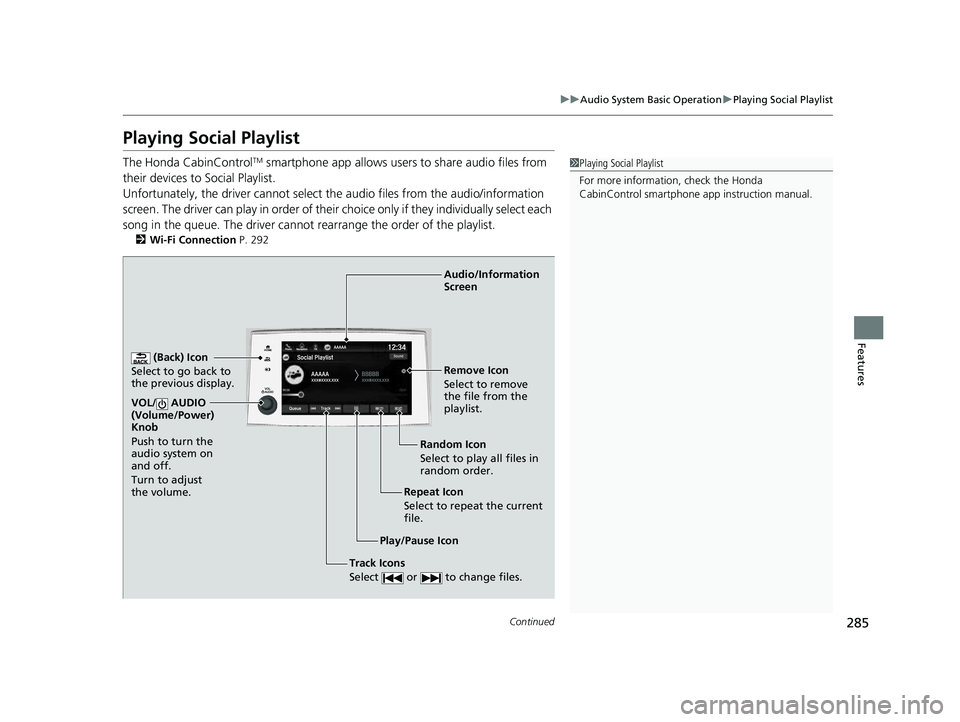
(Back) Icon
Select to go back to
the previous display.
Track Icons
Select or to change files.
VOL/ AUDIO
(Volume/Power)
Knob
Push to turn the
audio system on
and off.
Turn to adjust
the volume.
Audio/Information
Screen
Play/Pause Icon Repeat Icon
Select
to repeat the
current
file. Random Icon
Select to play all files in
random order. Remove Icon
Select to remove
the file from the
playlist.
22 PASSPORT-31TGS6300.book 285 ページ 2021年10月6日 水曜日 午前10時2分
Page 289 of 607
287
uuAudio System Basic Operation uHondaLink ®
Continued
Features
HondaLink ®
HondaLink® connects you to the latest info rmation from Honda. You can connect
your phone wirelessly through Wi-Fi or Bluetooth®.
2Wi-Fi Connection P. 292
2 Phone Setup P. 354
Use the following procedure to connect to HondaLink ® service.
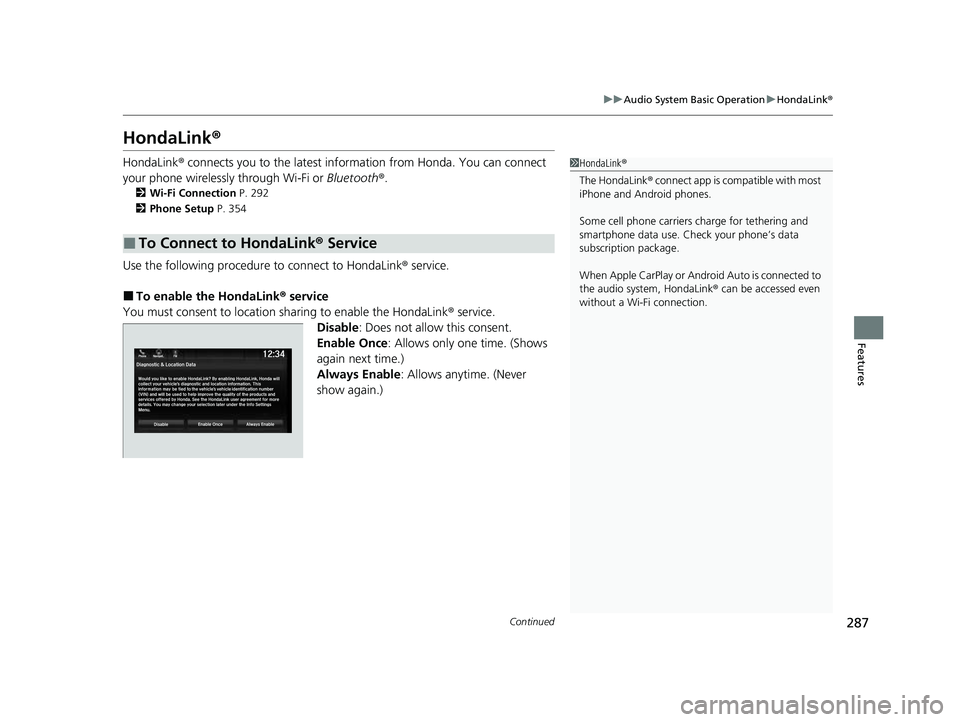
■To enable the HondaLink® service
You must consent to location sharing to enable the HondaLink ® service.
Disable : Does not allow this consent.
Enable Once : Allows only one time. (Shows
again next time.)
Always Enable: Allows anytime. (Never
show again.)
■To Connect to HondaLink ® Service
1 HondaLink ®
The HondaLink® connect app is compatible with most
iPhone and Android phones.
Some cell phone carriers charge for tethering and
smartphone data use. Check your phone’s data
subscription package.
When Apple CarPlay or Andr oid Auto is connected to
the audio system, HondaLink ® can be accessed even
without a Wi-Fi connection.
22 PASSPORT-31TGS6300.book 287 ページ 2021年10月6日 水曜日 午前10時2分
Page 294 of 607
292
uuAudio System Basic Operation uWi-Fi Connection
Features
Wi-Fi Connection
This vehicle is equipped wi th Wi-Fi connectivity. You ca n connect to an external
Wi-Fi hotspot or communication device.
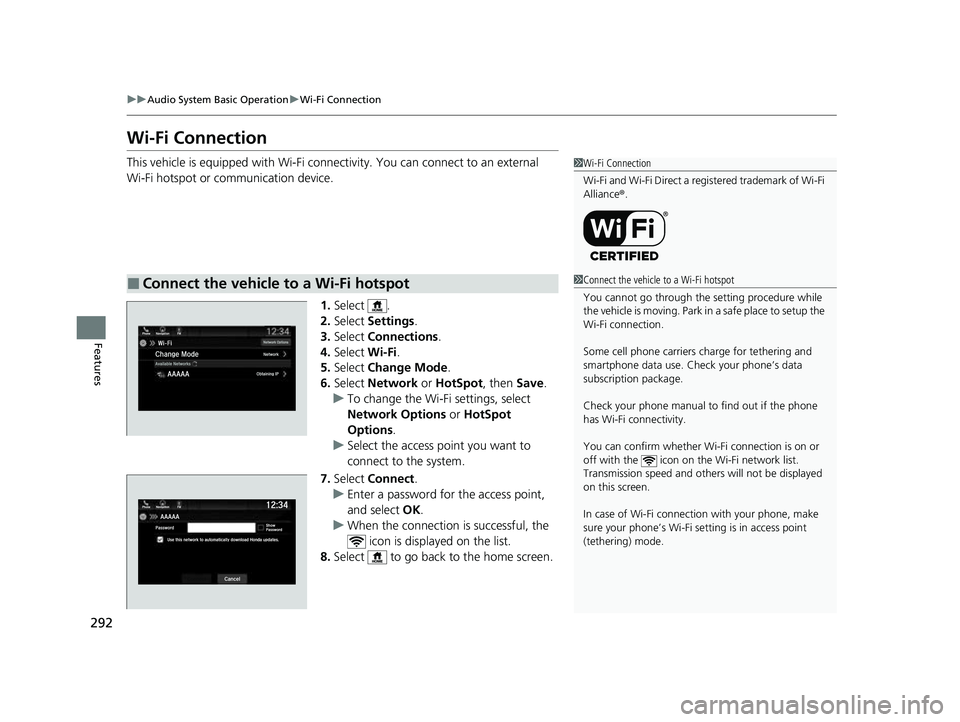
1.Select .
2. Select Settings .
3. Select Connections .
4. Select Wi-Fi.
5. Select Change Mode .
6. Select Network or HotSpot, then Save.
u To change the Wi-Fi settings, select
Network Options or HotSpot
Options .
u Select the access point you want to
connect to the system.
7. Select Connect .
u Enter a password for the access point,
and select OK .
u When the connection is successful, the
icon is displayed on the list.
8. Select to go back to the home screen.
■Connect the vehicle to a Wi-Fi hotspot
1Wi-Fi Connection
Wi-Fi and Wi-Fi Direct a registered trademark of Wi-Fi
Alliance® .
1Connect the vehicle to a Wi-Fi hotspot
You cannot go through the setting procedure while
the vehicle is moving. Park in a safe place to setup the
Wi-Fi connection.
Some cell phone carriers charge for tethering and
smartphone data use. Check your phone’s data
subscription package.
Check your phone manual to find out if the phone
has Wi-Fi connectivity.
You can confirm whether Wi -Fi connection is on or
off with the icon on the Wi-Fi network list.
Transmission speed and others will not be displayed
on this screen.
In case of Wi-Fi connect ion with your phone, make
sure your phone’s Wi-Fi se tting is in access point
(tethering) mode.
22 PASSPORT-31TGS6300.book 292 ページ 2021年10月6日 水曜日 午前10時2分