Jack HONDA PILOT 2013 2.G Owners Manual
[x] Cancel search | Manufacturer: HONDA, Model Year: 2013, Model line: PILOT, Model: HONDA PILOT 2013 2.GPages: 488, PDF Size: 10.18 MB
Page 6 of 488
5
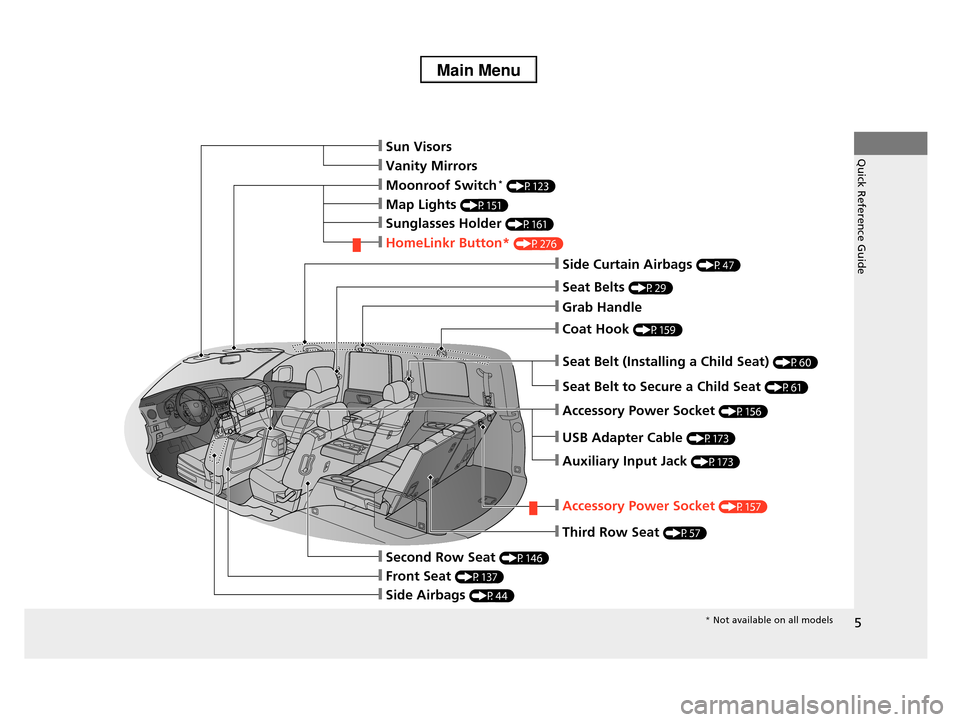
Quick Reference Guide❙Sun Visors
❙Vanity Mirrors
❙Moonroof Switch* (P123)
❙Map Lights (P151)
❙Sunglasses Holder (P161)
❙HomeLinkr Button* (P276)
❙Side Curtain Airbags (P47)
❙Seat Belts (P29)
❙Grab Handle
❙Coat Hook (P159)
❙Seat Belt (Installing a Child Seat) (P60)
❙Seat Belt to Secure a Child Seat (P61)
❙Accessory Power Socket (P156)
❙USB Adapter Cable (P173)
❙Auxiliary Input Jack (P173)
❙Accessory Power Socket (P157)
❙Third Row Seat (P57)
❙Second Row Seat (P146)
❙Front Seat (P137)
❙Side Airbags (P44)
* Not available on all models
Page 172 of 488
171
Features
This chapter describes how to operate technology features.
Audio SystemAbout Your Audio System ................ 172 USB Adapter Cable .......................... 173 Auxiliary Input Jack .......................... 173 Audio System Theft Protection ......... 174
Audio System Basic Operation........ 175Audio/Information Screen*.............. 176Audio Remote Controls .................... 184Adjusting the Sound ........................ 185 Playing the AM/FM Radio ................. 186 Playing the XM® Radio*................... 190Playing a CD .................................... 193
Models without navigation system
Playing an iPod®............................... 203Playing a USB Flash Drive ................. 207Playing Bluetooth® Audio................. 211
Audio System Basic Operation........ 216Audio Remote Controls.................... 217Adjusting the Sound ........................ 218 Playing the AM/FM Radio ................. 219 Playing the XM® Radio ..................... 223Playing a CD .................................... 226Playing Hard Disc Drive (HDD) Audio .... 230Playing an iPod®............................... 240Rear Entertainment System*........... 251
Models with navigation system
Audio Error Messages...................... 266General Information on the Audio System............................................. 272HomeLink® Universal Transceiver*.. 276
Bluetooth® HandsFreeLink®Using HFL ........................................ 278 HFL Menus ...................................... 280
Bluetooth® HandsFreeLink®Using HFL ........................................ 301HFL Menus ...................................... 303Compass*.......................................... 320
Models without navigation system
Models with navigation system
* Not available on all models
Page 174 of 488
173
uuAudio SystemuUSB Adapter Cable
Features
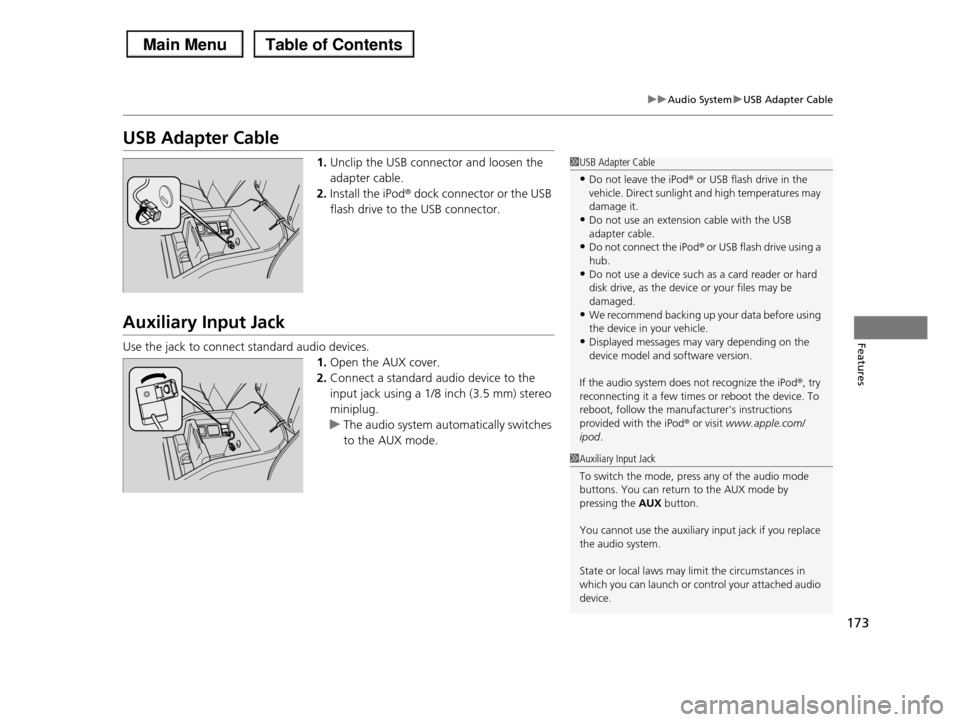
USB Adapter Cable
1.Unclip the USB connector and loosen the
adapter cable.
2.Install the iPod® dock connector or the USB
flash drive to the USB connector.
Auxiliary Input Jack
Use the jack to connect standard audio devices.
1.Open the AUX cover.
2.Connect a standard audio device to the
input jack using a 1/8 inch (3.5 mm) stereo
miniplug.
uThe audio system automatically switches
to the AUX mode.
1USB Adapter Cable
•Do not leave the iPod® or USB flash drive in the vehicle. Direct sunlight and high temperatures may
damage it.
•Do not use an extension cable with the USB adapter cable.
•Do not connect the iPod® or USB flash drive using a
hub.•Do not use a device such as a card reader or hard
disk drive, as the device or your files may be
damaged.•We recommend backing up your data before using
the device in your vehicle.
•Displayed messages may vary depending on the device model and software version.
If the audio system does not recognize the iPod®, try reconnecting it a few times or reboot the device. To
reboot, follow the manufacturer's instructions
provided with the iPod® or visit www.apple.com/ipod.
1Auxiliary Input Jack
To switch the mode, press any of the audio mode
buttons. You can return to the AUX mode by pressing the AUX button.
You cannot use the auxiliary input jack if you replace the audio system.
State or local laws may limit the circumstances in which you can launch or control your attached audio
device.
Page 214 of 488
Continued213
uuAudio System Basic OperationuPlaying Bluetooth® Audio
Features
1.Make sure that your phone is paired and linked to HFL.
2.Press the USB/AUX button.
If the phone is not recognized, another HFL-compatible phone, which is not
compatible for Bluetooth® Audio, may be already linked.
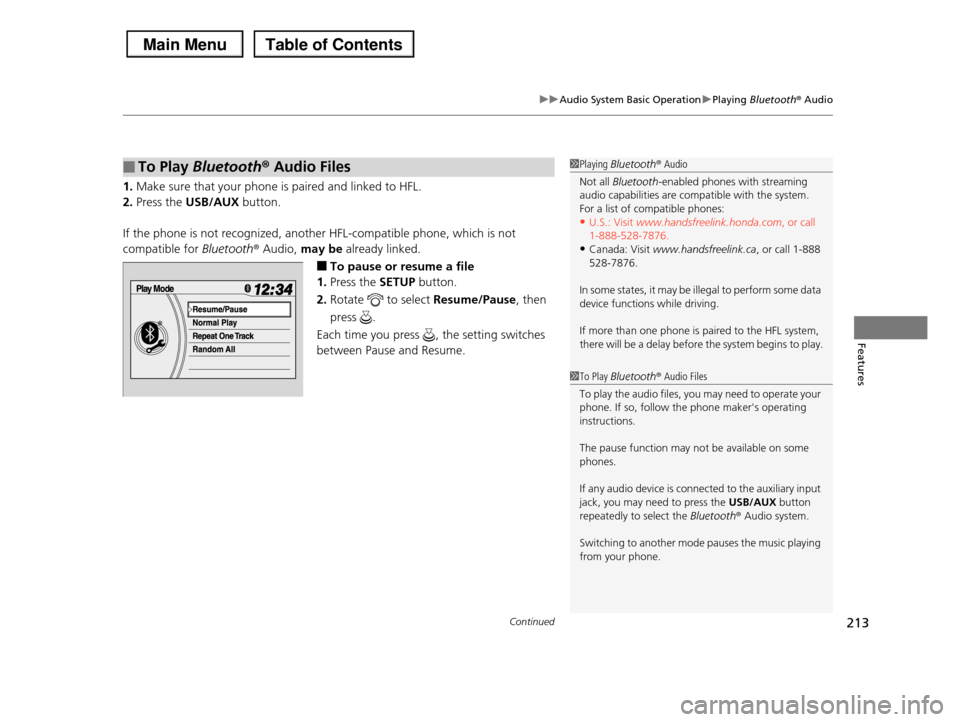
■To pause or resume a file
1.Press the SETUP button.
2.Rotate to select Resume/Pause, then
press .
Each time you press , the setting switches
between Pause and Resume.
■To Play Bluetooth® Audio Files1Playing Bluetooth® Audio
Not all Bluetooth-enabled phones with streaming audio capabilities are compatible with the system.
For a list of compatible phones:
•U.S.: Visit www.handsfreelink.honda.com, or call 1-888-528-7876.
•Canada: Visit www.handsfreelink.ca, or call 1-888
528-7876.
In some states, it may be illegal to perform some data
device functions while driving.
If more than one phone is paired to the HFL system,
there will be a delay before the system begins to play.
1To Play Bluetooth® Audio Files
To play the audio files, you may need to operate your
phone. If so, follow the phone maker's operating
instructions.
The pause function may not be available on some
phones.
If any audio device is connected to the auxiliary input
jack, you may need to press the USB/AUX button repeatedly to select the Bluetooth® Audio system.
Switching to another mode pauses the music playing from your phone.
Page 251 of 488
uuAudio System Basic OperationuPlaying Bluetooth® Audio
250
Features
1.Make sure that your phone is paired and
linked to HFL.
2.Press the USB/AUX button.
If the phone is not recognized, another HFL-
compatible phone, which is not compatible
for Bluetooth® Audio, may be already linked.
■To pause or resume a file
1.Press the AUDIO button, move to select AUDIO MENU.
2.Rotate to select Resume/Pause, then press .
Each time you press , the setting switches between Pause and Resume.
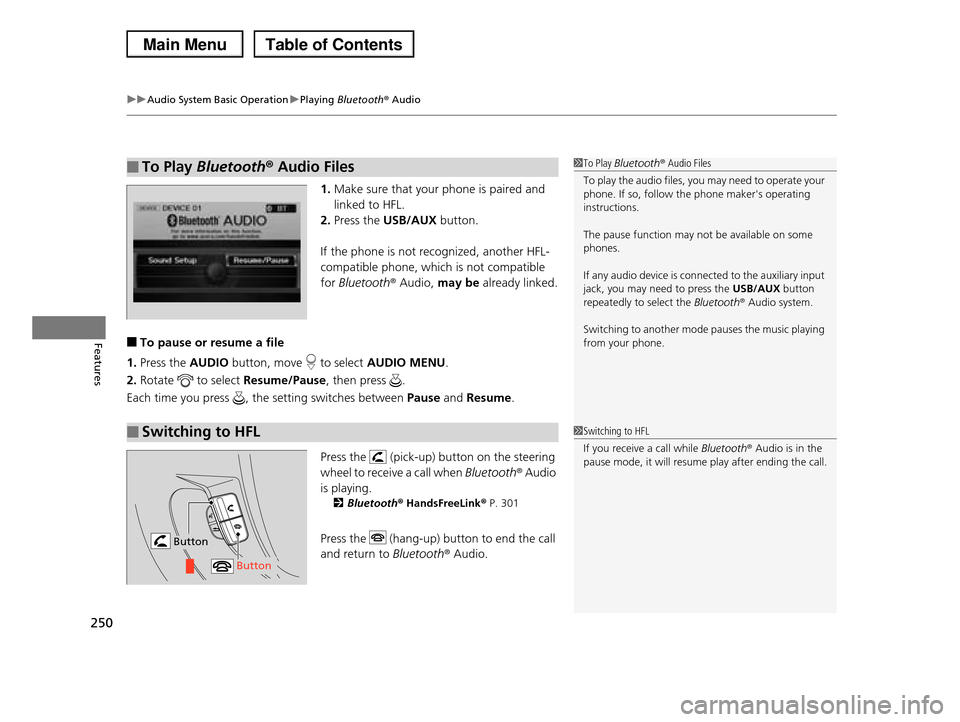
Press the (pick-up) button on the steering
wheel to receive a call when Bluetooth® Audio
is playing.
2Bluetooth® HandsFreeLink® P. 301
Press the (hang-up) button to end the call
and return to Bluetooth® Audio.
■To Play Bluetooth® Audio Files1To Play Bluetooth® Audio Files
To play the audio files, you may need to operate your phone. If so, follow the phone maker's operating
instructions.
The pause function may not be available on some
phones.
If any audio device is connected to the auxiliary input
jack, you may need to press the USB/AUX button
repeatedly to select the Bluetooth® Audio system.
Switching to another mode pauses the music playing
from your phone.
■Switching to HFL1Switching to HFL
If you receive a call while Bluetooth® Audio is in the
pause mode, it will resume play after ending the call.
Button
Button
Page 252 of 488
251Continued
Features
Rear Entertainment System*
Allows the rear passengers to enjoy a different entertainment source, such as DVD,
CD, CD Library*, HDD*, and radio, than the front passengers.
The rear seat passengers can listen to audio from the rear entertainment system by
a wireless headphone that comes with your vehicle.
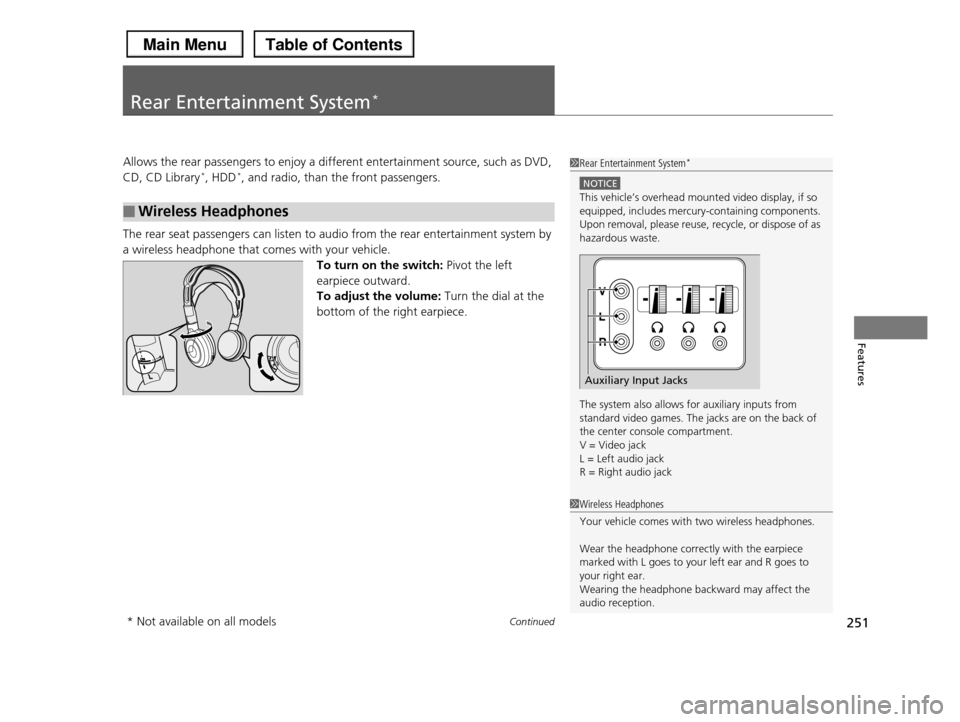
To turn on the switch: Pivot the left
earpiece outward.
To adjust the volume: Turn the dial at the
bottom of the right earpiece.
■Wireless Headphones
1Rear Entertainment System*
NOTICE
This vehicle’s overhead mounted video display, if so equipped, includes mercury-containing components.
Upon removal, please reuse, recycle, or dispose of as
hazardous waste.
The system also allows for auxiliary inputs from standard video games. The jacks are on the back of
the center console compartment.
V = Video jack L = Left audio jack
R = Right audio jack
Auxiliary Input Jacks
1Wireless Headphones
Your vehicle comes with two wireless headphones.
Wear the headphone correctly with the earpiece marked with L goes to your left ear and R goes to
your right ear.
Wearing the headphone backward may affect the audio reception.
* Not available on all models
Page 266 of 488
265
uuRear Entertainment System*uPlayable Discs
Features
Playable Discs
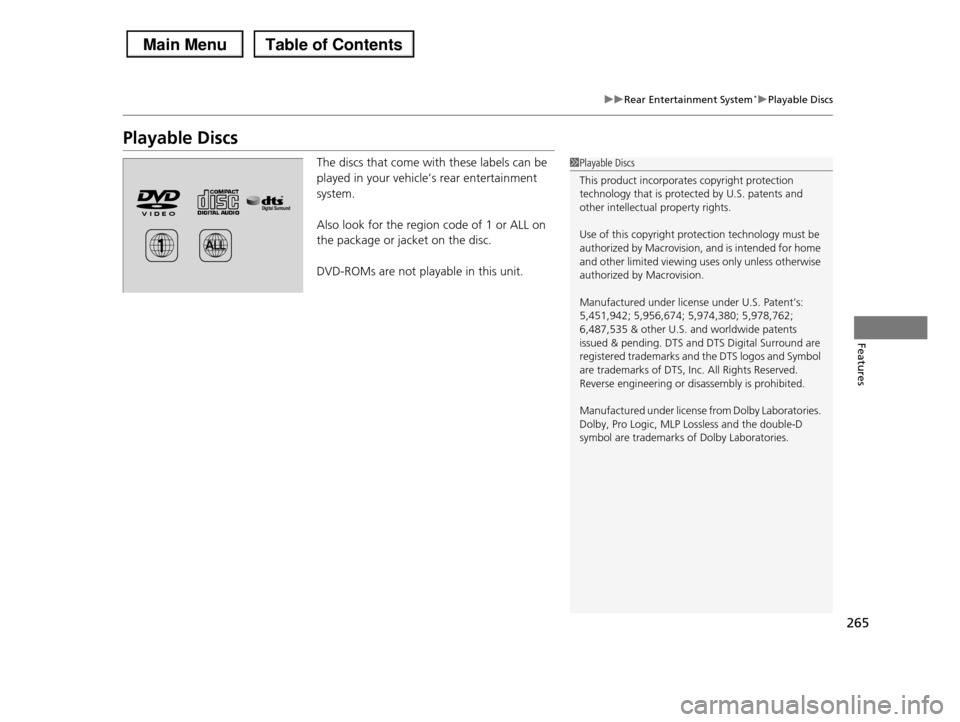
The discs that come with these labels can be
played in your vehicle’s rear entertainment
system.
Also look for the region code of 1 or ALL on
the package or jacket on the disc.
DVD-ROMs are not playable in this unit.
1Playable Discs
This product incorporates copyright protection
technology that is protected by U.S. patents and
other intellectual property rights.
Use of this copyright protection technology must be
authorized by Macrovision, and is intended for home and other limited viewing uses only unless otherwise
authorized by Macrovision.
Manufactured under license under U.S. Patent’s:
5,451,942; 5,956,674; 5,974,380; 5,978,762;
6,487,535 & other U.S. and worldwide patents issued & pending. DTS and DTS Digital Surround are
registered trademarks and the DTS logos and Symbol
are trademarks of DTS, Inc. All Rights Reserved. Reverse engineering or disassembly is prohibited.
Manufactured under license from Dolby Laboratories. Dolby, Pro Logic, MLP Lossless and the double-D
symbol are trademarks of Dolby Laboratories.
Page 274 of 488
273
uuGeneral Information on the Audio SystemuRecommended CDs
Continued
Features
Recommended CDs
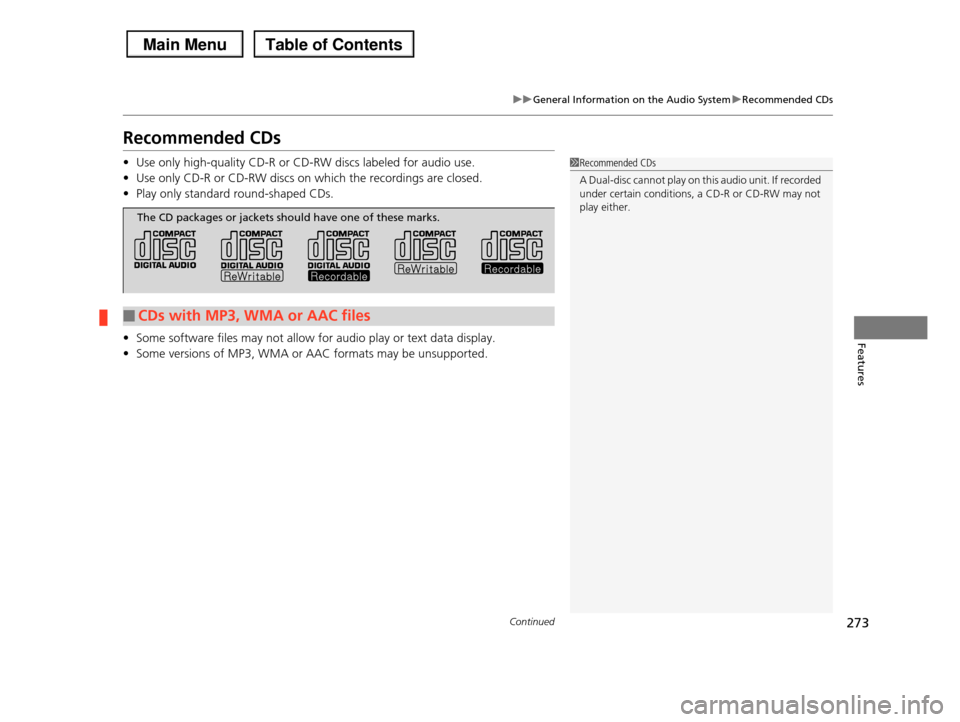
•Use only high-quality CD-R or CD-RW discs labeled for audio use.
•Use only CD-R or CD-RW discs on which the recordings are closed.
•Play only standard round-shaped CDs.
•Some software files may not allow for audio play or text data display.
•Some versions of MP3, WMA or AAC formats may be unsupported.
1Recommended CDs
A Dual-disc cannot play on this audio unit. If recorded
under certain conditions, a CD-R or CD-RW may not
play either.
■CDs with MP3, WMA or AAC files
The CD packages or jackets should have one of these marks.
Page 435 of 488
434
Handling the Unexpected
Tools
Types of Tools
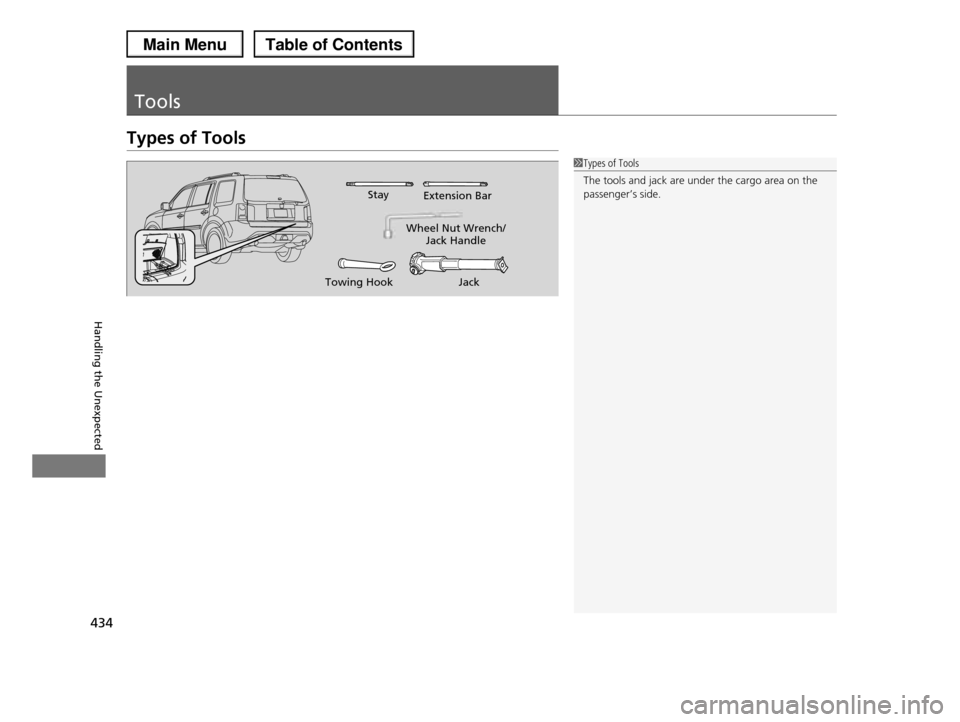
1Types of Tools
The tools and jack are under the cargo area on the passenger’s side.
Wheel Nut Wrench/Jack Handle
JackTowing Hook
StayExtension Bar
Page 437 of 488
436
uuIf a Tire Goes FlatuChanging a Flat Tire
Handling the Unexpected
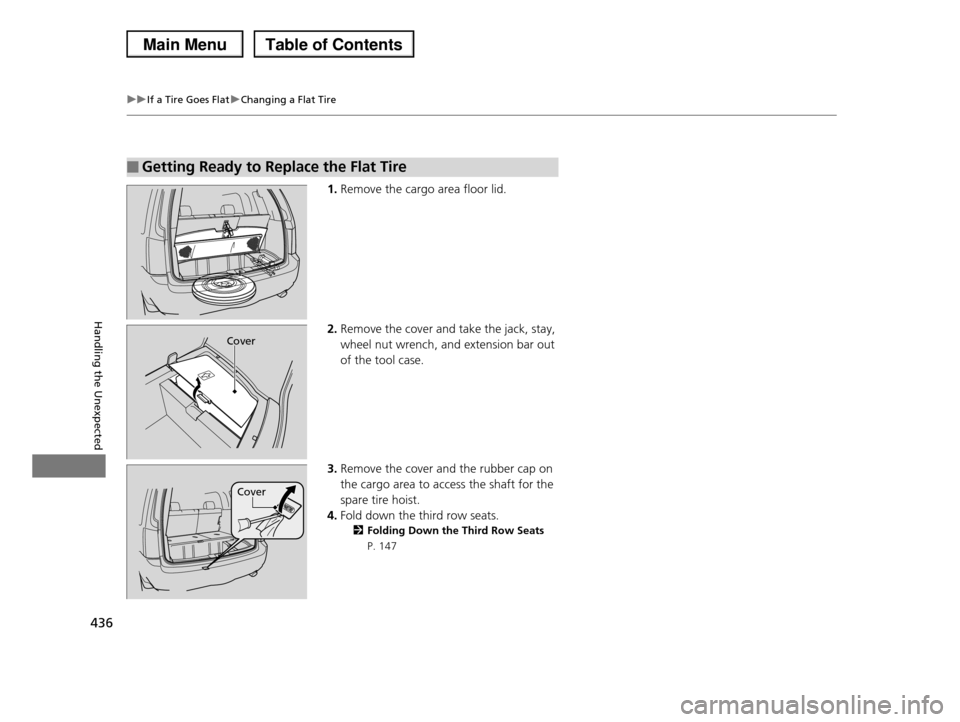
1.Remove the cargo area floor lid.
2.Remove the cover and take the jack, stay,
wheel nut wrench, and extension bar out
of the tool case.
3.Remove the cover and the rubber cap on
the cargo area to access the shaft for the
spare tire hoist.
4.Fold down the third row seats.
2Folding Down the Third Row Seats
P. 147
■Getting Ready to Replace the Flat Tire
Cover
Cover