audio HONDA PILOT 2014 2.G Owners Manual
[x] Cancel search | Manufacturer: HONDA, Model Year: 2014, Model line: PILOT, Model: HONDA PILOT 2014 2.GPages: 488, PDF Size: 12.11 MB
Page 255 of 488
uu Rear Entertainment System * u Operating the System
254
Features
■Playing a DVD
• Insert
a DVD into the lower slot of the front audio unit.
u The
system automatically starts the DVD.
• To
fast forward, press and hold the (SKIP) bar, and to reverse, press and hold
the bar on the front panel.
• To go
to the next chapter, press the bar, and to go to the beginning of the
current chapter, press the bar on the front panel. Quickly press the bar
twice to go to the previous chapter.
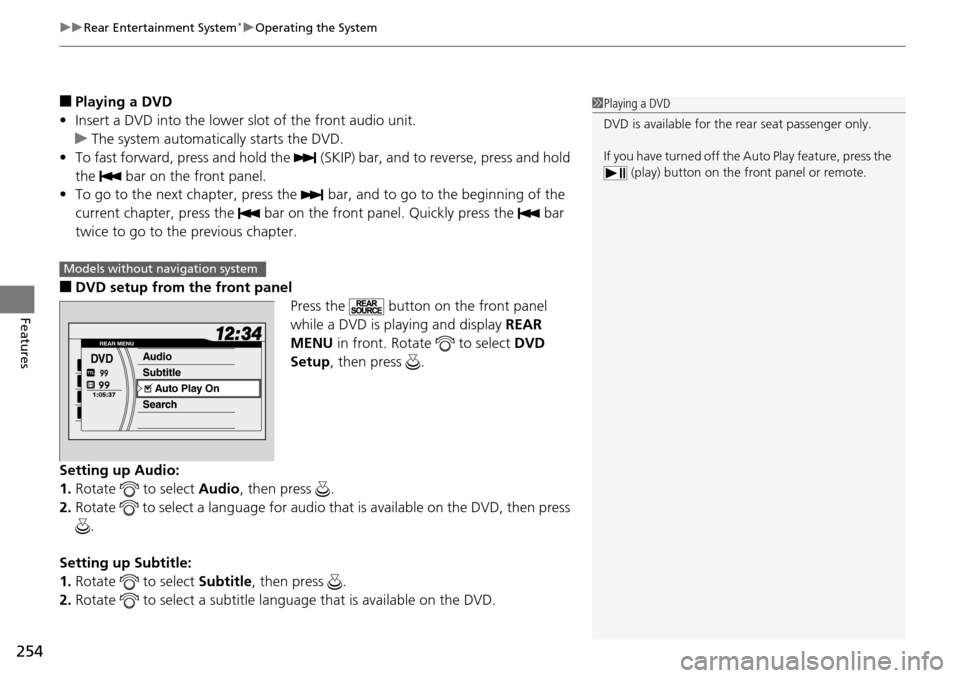
■DVD setup from the front panel Press the button on the front panel
while a DVD is playing and display REAR
ME
NU in front. Rotate to select DVD
Setup , then press .
Setting up Audio:
1. Rotate
to select Audio, then press .
2. Rotate
to select a language for audio that is available on the DVD, then press
.
Setting up Subtitle:
1. Rotate
to select Su btitle, then press .
2. Rotate
to select a subtitle language that is available on the DVD.
1Playing a DVD
DVD is available for the rear seat passenger only.
If you have turned off the Auto Play feature, press the (play) button on the fr ont panel or remote.
Models without navigation system
Page 256 of 488
255
uu Rear Entertainment System * u Operating the System
Continued
Features
Auto Play On:
1. Rotate to select Auto Play On, then press .
2. The che
ck mark disappears, and th e auto play feature turns off.
u With this
feature off, the DVD does no t automatically start playing when the
disc is inserted. Press button to play.
Title/Chapter Search:
1. Rota
te to select Title Sea rch or Chapter Search , then press .
2. Rota
te to select a title or chapter number, then press .
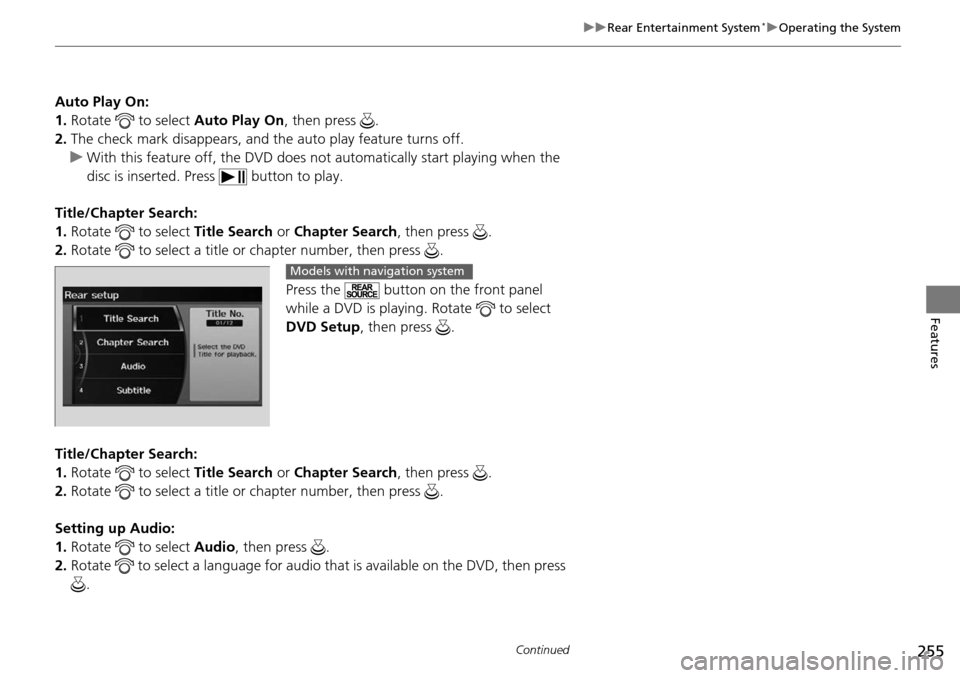
Press the button on the front panel
while a DVD is playing. Rotate to select
DVD Setup , then press .
Title/Chapter Search:
1. Rota
te to select Title Sea rch or Chapter Search , then press .
2. Rota
te to select a title or chapter number, then press .
Setting up Audio:
1. Rota
te to select Audio, then press .
2. Rota
te to select a language for audio that is available on the DVD, then press
.
Models with navigation system
Page 257 of 488
uu Rear Entertainment System * u Operating the System
256
Features
Setting up Subtitle:
1. Rotate to select Su btitle, then press .
2. Rotate
to select a subtitle language that is available on the DVD.
Setting up Repeat:
1. Rotate
to select Repeat, then press .
2. Rotate
to select the icon in the center to re peat the current chapter, the icon
on the right to repeat the
current title, or OFF to turn off repeat.
Auto Play:
1. Rotate
to select Auto Play , then press .
2. Rotate
to select OFF or ON , then press .
u With
this feature off, the DVD does no t automatically start playing when the
disc is inserted. Press button to play.
■TITLE/SCROLL button on the remote
Press the TI
TLE/SCROLL button while the DVD is playing to see the current status of
title, chapter, elapsed time, angle, su btitle, audio, and sound characteristics.
1TITLE/SCROLL button on the remote
Press the TITLE/SCROLL button again to return.
Page 258 of 488
257
uu Rear Entertainment System * u Operating the System
Continued
Features
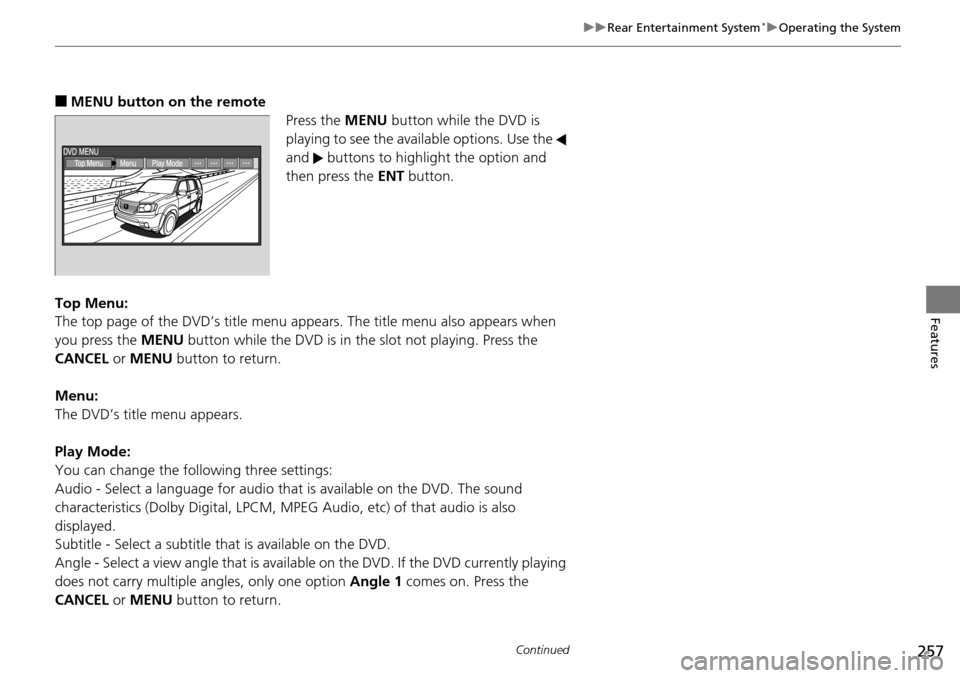
■MENU button on the remote
Press the ME
NU button while the DVD is
playing to see the avai lable options. Use the
and buttons to highlight the option and
then press the ENT bu
tton.
Top Menu:
The top page of the DVD’s title menu appears.
The title menu also appears when
you press the MENU button while the DVD is in the slot not playing. Press the
CANCEL or MENU button to return.
Menu:
The DVD’s title menu appears.
Play Mode:
You can change the following three settings:
Audio - Select a language for audio that is available on the DVD. The sound
charac
teristics (Dolby Digita l, LPCM, MPEG Audio, etc) of that audio is also
displayed.
Subtitle - Select a subtitle that is available on the DVD.
Angle - Select a view angle that is availabl e on the
DVD. If the DVD currently playing
does not carry multiple angles, only one option Angle 1 comes on. Press the
CANCEL or MENU button to return.
Page 260 of 488
Continued259
uu Rear Entertainment System * u Operating the System
Features
■SETUP button on the remote
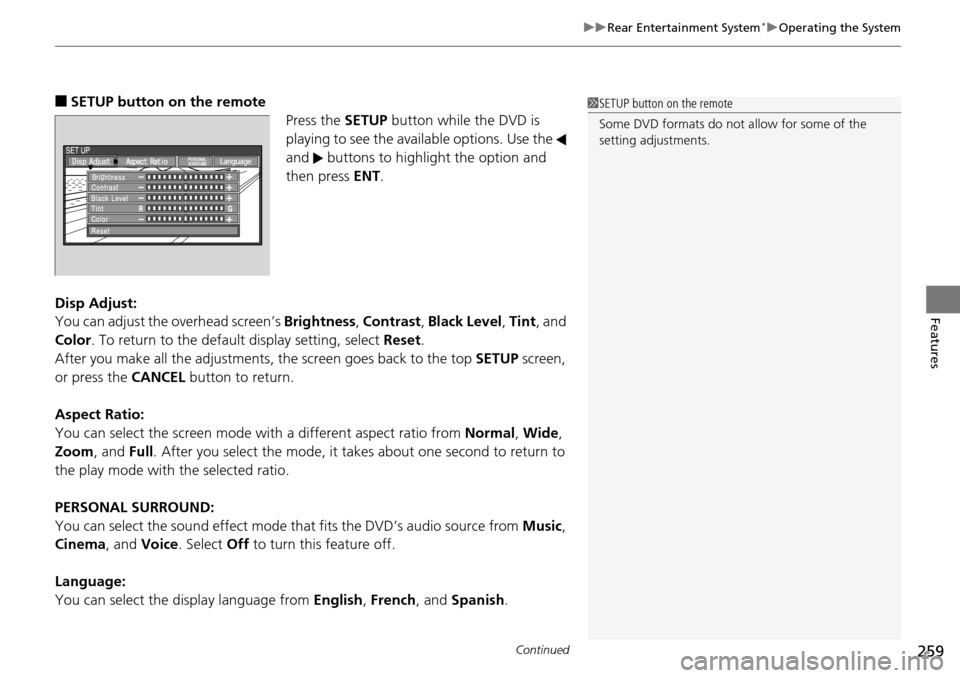
Press the SE
TUP button while the DVD is
playing to see the avai lable options. Use the
and buttons to highlight the option and
then press ENT.
Disp Adjust:
You can adjust the overhe
ad screen’s Brightness , Contrast , Black Level , Tint , and
Color . To return to the default display setting, select Reset.
After you make all the adjustments, the screen goes back to the top SET
UP screen,
or press the CANCEL button to return.
Aspect Ratio:
You can select the screen mode wi th
a different aspect ratio from Normal, Wide ,
Zoom , and Full. After you select the mode, it t akes about one second to return to
the play mode with the selected ratio.
PERSONAL SURROUND:
You can select the sound effect mode th at
fits the DVD’s audio source from Music,
Cinema , and Voice . Select Off to turn this feature off.
Language:
You can select the display language from En
glish, French , and Spanish .
1SETUP button on the remote
Some DVD formats do not allow for some of the
setting adjustments.
Page 261 of 488
uu Rear Entertainment System * u Operating the System
260
Features
Initial Settings -
Press the SETUP button to configure the initial Language, Dynamic Range, and
Angle Mark settings before playing a DVD.
Language Settings:
Select the language for the DVD’s displayed menus (M
enu Language), the DVD’s
audio ( Audio Language ), and the DVD’s subtitle ( Subtitle Language).
1. Selec
t the language setting.
2.Select
the language from English, French, Spanish, Arabic, German, Italian,
Dutch, Chinese, Kor ean, Thai, Japanese, and other.
3. I
f you select other, you need to enter the four di git language code to configure
the language that is not listed. Select Yes to go to the number input screen.
u To return to
the Language Settings screen, select No.
4. Press the ENT
button each time you input a digit.
u If y
ou want to delete a number, select DEL.
5. The cursor automatically goes
to ENT after you input four digits. Press the ENT
button to command.
Dynamic Range:
This feature reduces the difference between the loud
and quiet sound levels. Select
ON or OFF .
Angle Mark:
You can select whether to display the angle mark appearing in the upper right
corner of the
screen when you change the view angle while the DVD is playing.
Select ON or OFF .
When the DVD is not playing1SETUP button on the remote
Initial Settings:
The prior language varies by disc. You may not be
able to configure your selected language setting.
Page 262 of 488
261
uu Rear Entertainment System * u Operating the System
Continued
Features
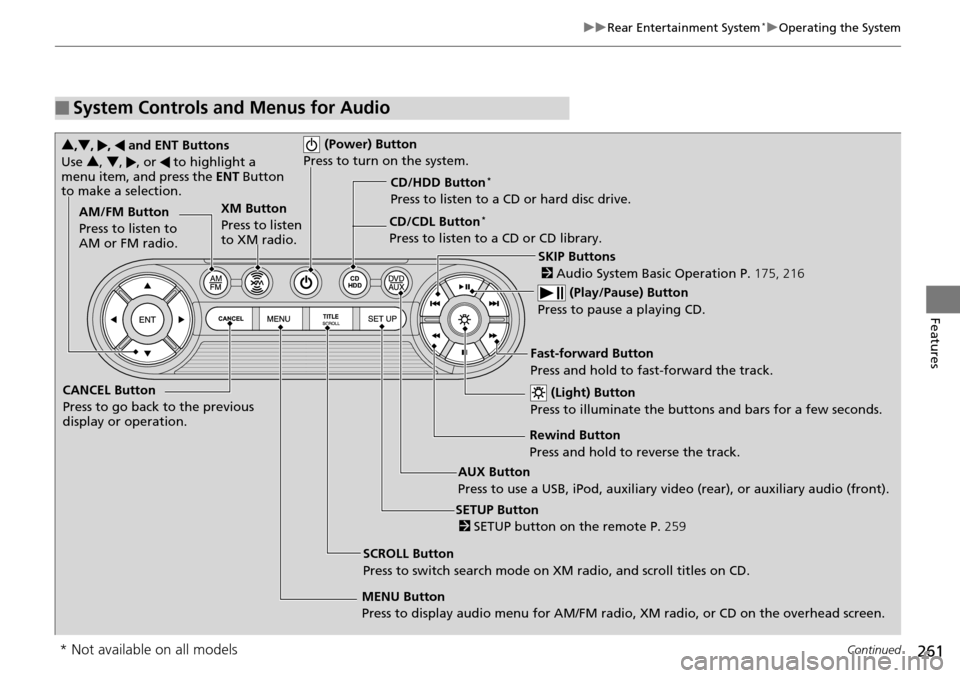
■System Controls and Menus for Audio
(Power) Button
Press to turn on the system.
AUX Button
Press to use a USB, iPod, auxiliary video (rear), or auxiliary audio (front). (Light) Button
Press to illuminate the buttons and bars for a few seconds.
SKIP Buttons
2 Audio System Basic Operation P. 175, 216
(Play/Pause) Button
Press to pause a playing CD.
SCROLL Button
Press to switch search mode on XM radio, and scroll titles on CD.
CANCEL Button
Press to go back to the previous
display or operation.
3
,4 , , and ENT Buttons
Use 3, 4 , , or to highlight a
menu item, and press the ENT Button
to make a selection.
CD/CDL Button *
Press to listen to a CD or CD library.
AM/FM Button
Press to listen to
AM or FM radio.
SETUP Button
2 SETUP button on the remote P. 259
XM Button
Press to listen
to XM radio.
MENU Button
Press to display audio menu for AM/FM radio, XM radio, or CD on the overhead screen.CD/HDD Button
*
Press to listen to a CD or hard disc drive.
Rewind Button
Press and hold to reverse the track.Fast-forward Button
Press and hold to fast-forward the track.
* Not available on all models
Page 263 of 488
uu Rear Entertainment System * u Operating the System
262
Features
■Playing AM/FM radio in the rear
Press the AM/FM b
utton.
When you press the ME
NU button while the radio is playing, the audio menu
appears on the overhead screen. The availa ble functions are the same as those of
the front audio system. The SKIP button on the control panel works the same as the
SKIP bar on the front panel for AM/FM radio operation.
2Playing the AM/FM Radio P. 186
■Playing XM radio in the rear
Press the XM b
utton.
When you press the ME
NU button while the radio is playing, the audio menu
appears on the overhead screen. The availa ble functions are the same as those of
the front audio system. The SKIP button on the control panel works the same as the
SKIP bar on the front panel for XM radio operation.
2Playing the XM ® Radi o * P. 190
To change the mode between category and channel, press and hold the TITLE/
SCROLL button for five seconds.
1 System Controls and Menus for Audio
If you press the button on the front panel, you
can operate the rear entertainment system from the
front display.
2 button on the front panel P. 252
* Not available on all models
Page 264 of 488
263
uu Rear Entertainment System * u Operating the System
Features
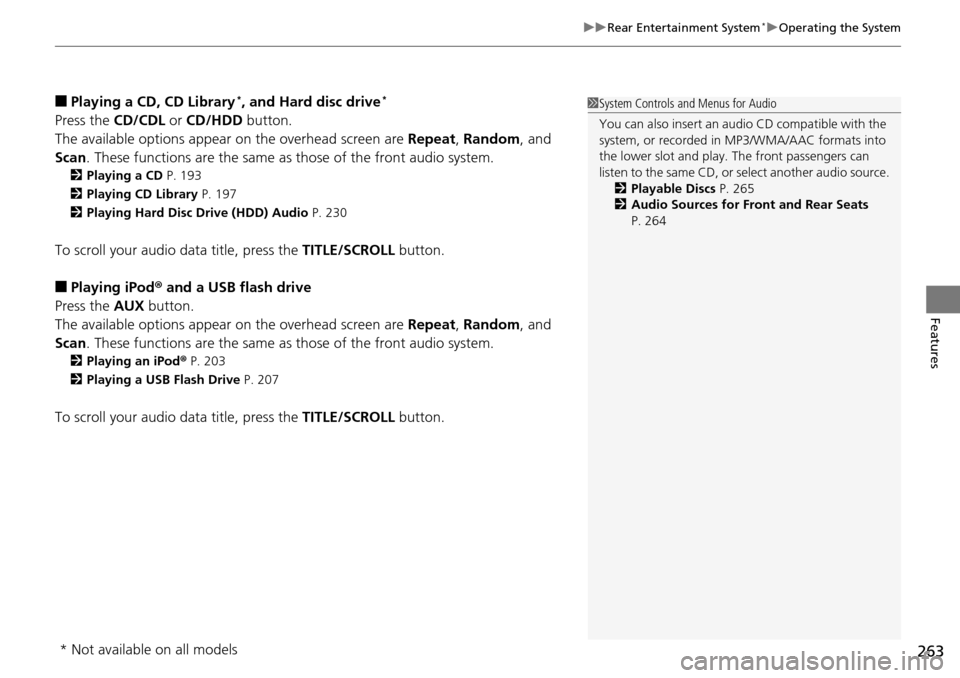
■Playing a CD, CD Library *, and Hard disc drive *
Press the CD/CDL or CD/HDD button.
The available options appear on the overhead
screen are Repeat, Random , and
Scan . These functions are the same as those of the front audio system.
2Playing a CD P. 193
2 Playing CD Library P. 197
2 Playing Hard Disc Drive (HDD) Audio P. 230
To scroll your audio data title, press the TITLE/SCROLL button.
■Playing iPod® and a USB flash drive
Press the AU
X button.
The available options appear on the overhead
screen are Repeat, Random , and
Scan . These functions are the same as those of the front audio system.
2Playing an iPod ® P. 203
2 Playing a USB Flash Drive P. 207
To scroll your audio data title, press the TITLE/SCROLL button.
1System Controls and Menus for Audio
You can also insert an audio CD compatible with the
system, or recorded in MP3/WMA/AAC formats into
the lower slot and play. The front passengers can
listen to the same CD, or select another audio source.
2 Playable Discs P. 265
2 Audio Sources for Front and Rear Seats
P. 264
* Not available on all models
Page 265 of 488
264
uu Rear Entertainment System * u Audio Sources for Front and Rear Seats
Features
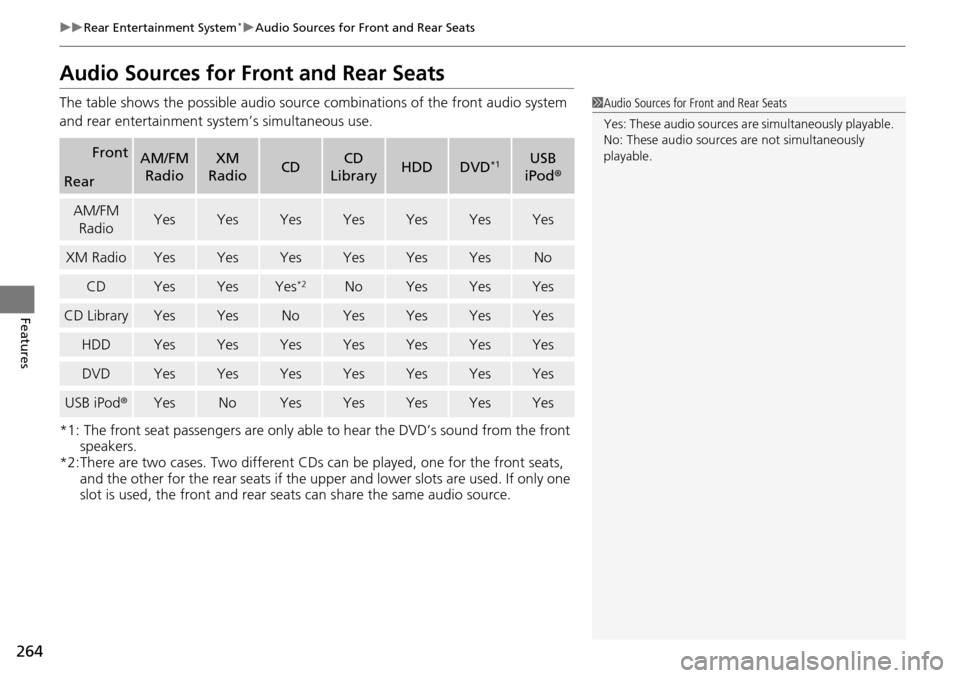
Audio Sources for Front and Rear Seats
The table shows the possible audio source combinations of the front audio system
and rear entertainment sy stem’s simultaneous use.
*1: The front seat passengers are only able to hear the DVD
’s sound from the front
speakers.
*2:There are two cases. Two different CDs can be played,
one for the front seats,
and the other for the rear seats if the upp er and lower slots are used. If only one
slot is used, the front and rear seats can share the same audio source.
FrontAM/FM
RadioXM
RadioCDCD
LibraryHDDDVD*1USB
iPod ®
Rear
AM/FM
RadioYesYesYesYesYesYesYes
XM RadioYesYesYesYesYesYesNo
CDYesYesYes*2NoYesYesYes
CD LibraryYesYesNoYesYesYesYes
HDDYesYesYesYesYesYesYes
DVDYesYesYesYesYesYesYes
USB iPod ®YesNoYesYesYesYesYes
1Audio Sources for Front and Rear Seats
Yes: These audio sources ar e simultaneously playable.
No: These audio sources are not simultaneously
playable.