Radio HONDA PILOT 2014 2.G Owner's Manual
[x] Cancel search | Manufacturer: HONDA, Model Year: 2014, Model line: PILOT, Model: HONDA PILOT 2014 2.GPages: 488, PDF Size: 12.11 MB
Page 225 of 488
224
uu Audio System Basic Operation u Playing the XM ® Radio
Features
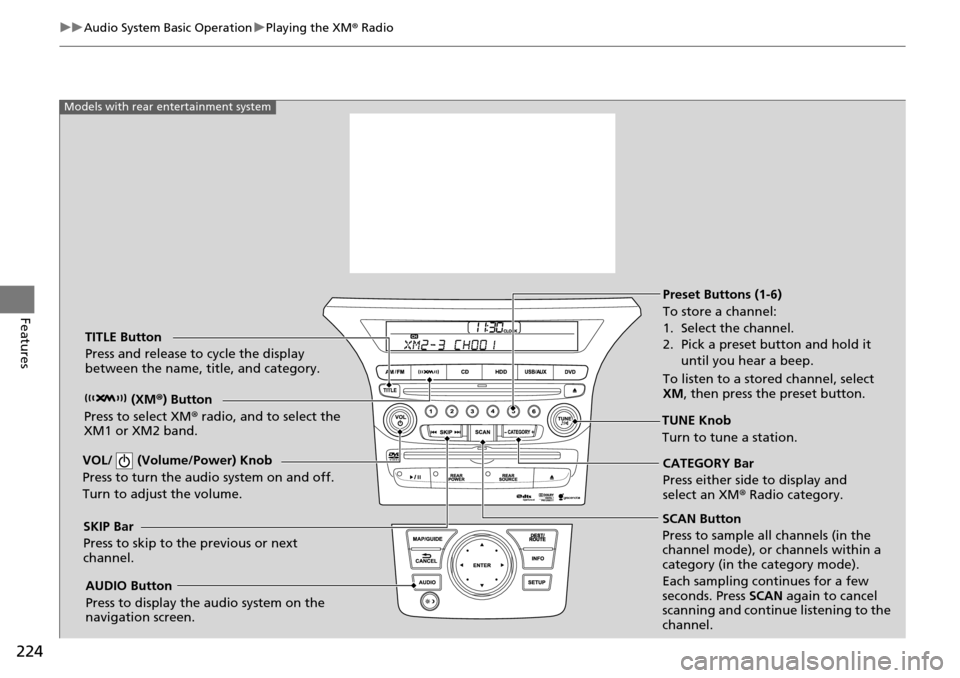
SCAN Button
Press to sample all channels (in the
channel mode), or channels within a
category (in the category mode).
Each sampling continues for a few
seconds. Press SCAN again to cancel
scanning and continue listening to the
channel.
VOL/ (Volume/Power) Knob
Press to turn the a
udio system on and off.
Turn to adjust the volume.
Preset Buttons (1-6)
To store a channel:
1. Select the channel.
2. Pick a preset button and hold it until you hear a beep.
To listen to a stored channel, select
XM , then press the preset button.
SKIP Bar
Press to skip to the previous or next
channel. CATEGORY Bar
Press either side to display and
select an XM
® Radio category.
TITLE Button
Press and release to cycle the display
between the name, title, and category.
(XM®) Button
Press to select XM ® radio, and to select the
XM1 or XM2 band.
TUNE Knob
Turn to tune a station.
AUDIO Button
Press to display the audio system on the
navigation screen.
Models with rear entertainment system
Page 226 of 488
225
uu Audio System Basic Operation u Playing the XM ® Radio
Features
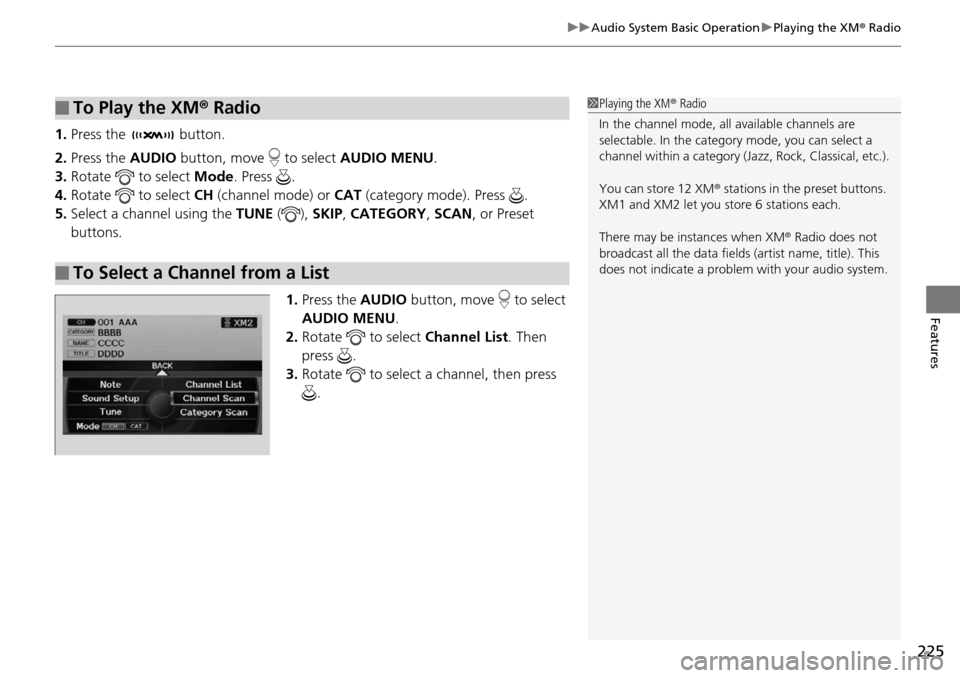
1. Press the button.
2. Press the AUDIO button, move to select AUDIO ME
NU.
3. Rota
te to select Mo de. Press .
4. Rota
te to select CH (channel mode) or CAT (category mode). Press .
5. Select
a channel using the TUNE (), SKIP , CATEGO RY, SCAN, or Preset
buttons.
1.Press the AUD
IO button, move to select
AUDIO MENU .
2. Ro
tate to select Ch annel List. Then
press .
3. Ro
tate to select a channel, then press
.
■To Play the XM ® Radio
■To Select a Channel from a List
1 Playing the XM ® Radio
In the channel mode, all available channels are
selectable. In the categor y mode, you can select a
channel within a ca tegory (Jazz, Rock, Classical, etc.).
You can store 12 XM ® stations in the preset buttons.
XM1 and XM2 let you store 6 stations each.
There may be instances when XM ® Radio does not
broadcast all the data fields (artist name, title). This
does not indicate a problem with your audio system.
Page 252 of 488
251Continued
Features
Rear Entertainment System *
Allows the rear passengers to enjoy a different entertainment source, such as DVD,
CD, CD Library *, HDD *, and radio, than the front passengers.
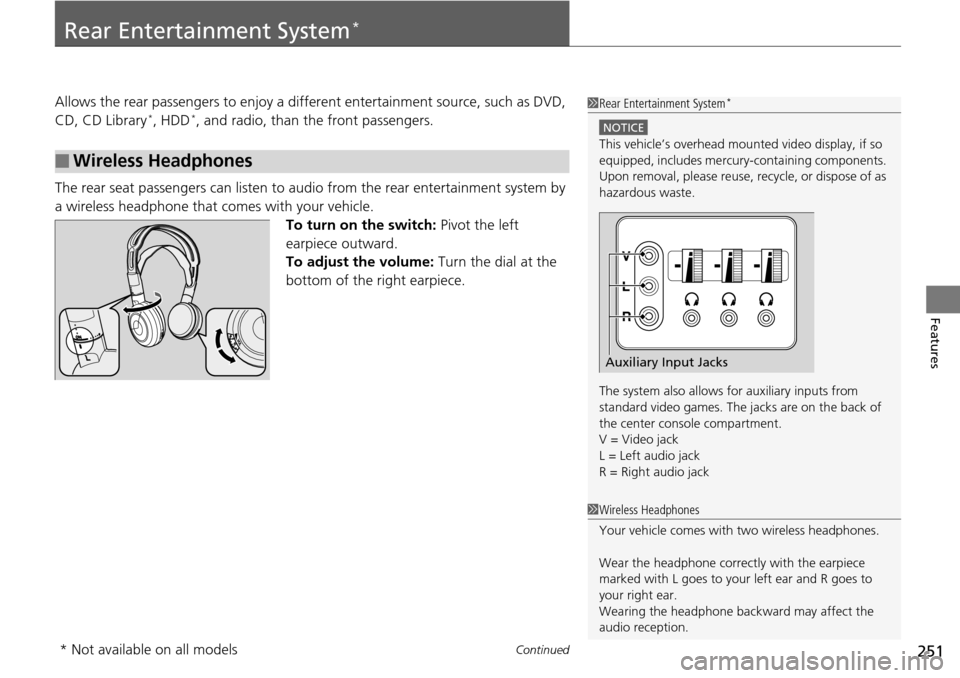
The rear seat passengers can listen to audio from the r
ear entertainment system by
a wireless headphone that comes with your vehicle.
To turn on the switch: Pivot the left
ea
rpiece outward.
To adjust the volume: Turn the dial at the
bottom
of the right earpiece.
■Wireless Headphones
1 Rear Entertainment System *
NOTICE
This vehicle’s overhead mount ed video display, if so
equipped, includes mercur y-containing components.
Upon removal, please reuse, recycle, or dispose of as
hazardous waste.
The system also allows for auxiliary inputs from
standard video games. The jacks are on the back of
the center console compartment.
V = Video jack
L = Left audio jack
R = Right audio jack
Auxiliary Input Jacks
1 Wireless Headphones
Your vehicle comes with two wireless headphones.
Wear the headphone correctly with the earpiece
marked with L goes to y our left ear and R goes to
your right ear.
Wearing the headphone back ward may affect the
audio reception.
* Not available on all models
Page 262 of 488
261
uu Rear Entertainment System * u Operating the System
Continued
Features
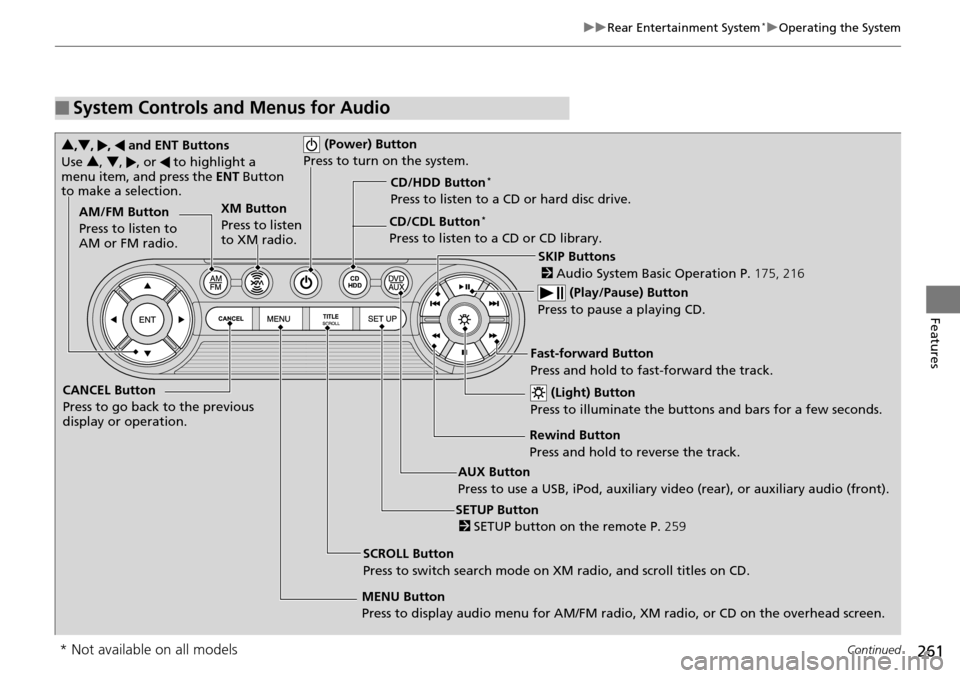
■System Controls and Menus for Audio
(Power) Button
Press to turn on the system.
AUX Button
Press to use a USB, iPod, auxiliary video (rear), or auxiliary audio (front). (Light) Button
Press to illuminate the buttons and bars for a few seconds.
SKIP Buttons
2 Audio System Basic Operation P. 175, 216
(Play/Pause) Button
Press to pause a playing CD.
SCROLL Button
Press to switch search mode on XM radio, and scroll titles on CD.
CANCEL Button
Press to go back to the previous
display or operation.
3
,4 , , and ENT Buttons
Use 3, 4 , , or to highlight a
menu item, and press the ENT Button
to make a selection.
CD/CDL Button *
Press to listen to a CD or CD library.
AM/FM Button
Press to listen to
AM or FM radio.
SETUP Button
2 SETUP button on the remote P. 259
XM Button
Press to listen
to XM radio.
MENU Button
Press to display audio menu for AM/FM radio, XM radio, or CD on the overhead screen.CD/HDD Button
*
Press to listen to a CD or hard disc drive.
Rewind Button
Press and hold to reverse the track.Fast-forward Button
Press and hold to fast-forward the track.
* Not available on all models
Page 263 of 488
uu Rear Entertainment System * u Operating the System
262
Features
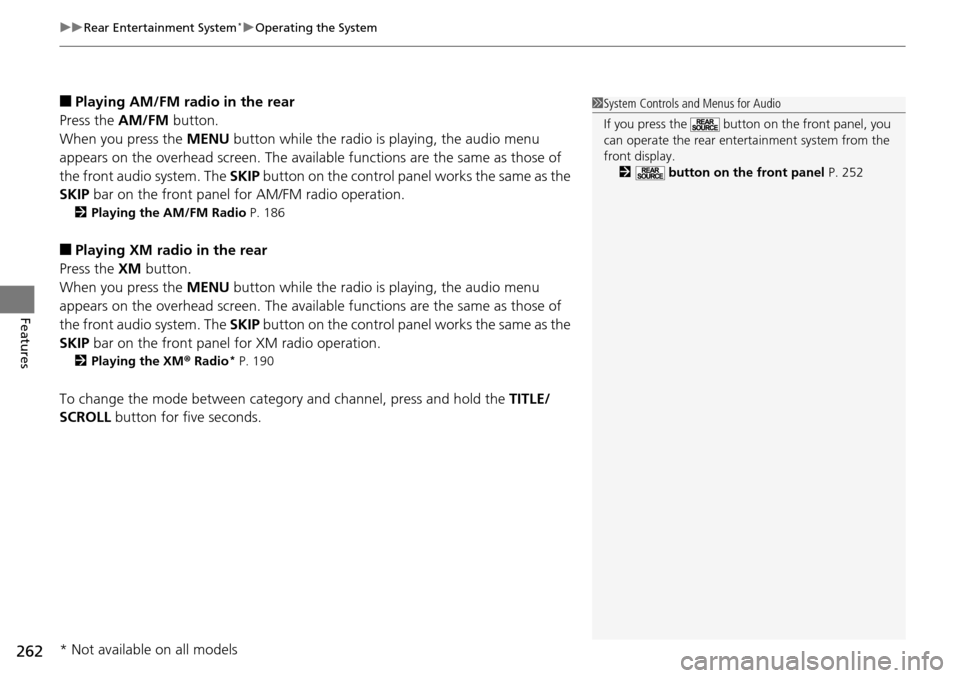
■Playing AM/FM radio in the rear
Press the AM/FM b
utton.
When you press the ME
NU button while the radio is playing, the audio menu
appears on the overhead screen. The availa ble functions are the same as those of
the front audio system. The SKIP button on the control panel works the same as the
SKIP bar on the front panel for AM/FM radio operation.
2Playing the AM/FM Radio P. 186
■Playing XM radio in the rear
Press the XM b
utton.
When you press the ME
NU button while the radio is playing, the audio menu
appears on the overhead screen. The availa ble functions are the same as those of
the front audio system. The SKIP button on the control panel works the same as the
SKIP bar on the front panel for XM radio operation.
2Playing the XM ® Radi o * P. 190
To change the mode between category and channel, press and hold the TITLE/
SCROLL button for five seconds.
1 System Controls and Menus for Audio
If you press the button on the front panel, you
can operate the rear entertainment system from the
front display.
2 button on the front panel P. 252
* Not available on all models
Page 265 of 488
264
uu Rear Entertainment System * u Audio Sources for Front and Rear Seats
Features
Audio Sources for Front and Rear Seats
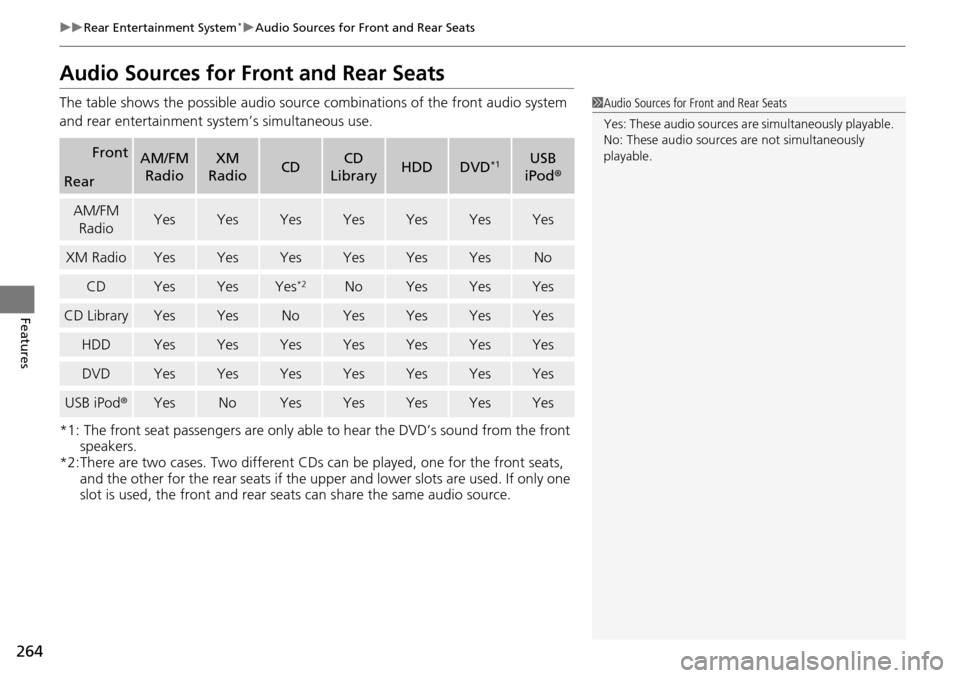
The table shows the possible audio source combinations of the front audio system
and rear entertainment sy stem’s simultaneous use.
*1: The front seat passengers are only able to hear the DVD
’s sound from the front
speakers.
*2:There are two cases. Two different CDs can be played,
one for the front seats,
and the other for the rear seats if the upp er and lower slots are used. If only one
slot is used, the front and rear seats can share the same audio source.
FrontAM/FM
RadioXM
RadioCDCD
LibraryHDDDVD*1USB
iPod ®
Rear
AM/FM
RadioYesYesYesYesYesYesYes
XM RadioYesYesYesYesYesYesNo
CDYesYesYes*2NoYesYesYes
CD LibraryYesYesNoYesYesYesYes
HDDYesYesYesYesYesYesYes
DVDYesYesYesYesYesYesYes
USB iPod ®YesNoYesYesYesYesYes
1Audio Sources for Front and Rear Seats
Yes: These audio sources ar e simultaneously playable.
No: These audio sources are not simultaneously
playable.
Page 273 of 488
272
Features
General Information on the Audio System
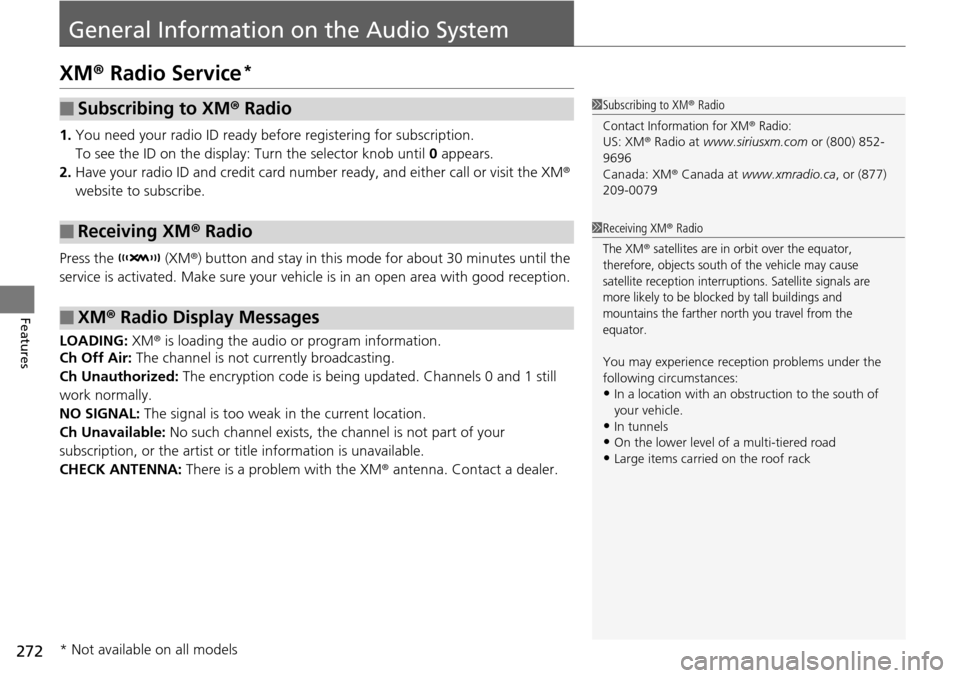
XM® Radio Service *
1. You need your radio ID ready befo re registering for subscription.
To see the ID on the display: Turn the selector knob until 0 a
ppears.
2. Hav
e your radio ID and credit card numbe r ready, and either call or visit the XM®
website to subscribe.
Press the (XM®)
button and stay in this mode for about 30 minutes until the
service is activated. Make su re your
vehicle is in an open area with good reception.
LOADING: XM® is
loading the audio or program information.
Ch Off Air: The channel is not currently broadcasting.
Ch Unauthorized: The encryption code is being updated. Channels 0 and 1 still
work norm
ally.
NO SIGNAL: The signal is too weak in the current location.
Ch Unavailable: No such channel exists, the channel is not part of your
subscr
iption, or the artist or title information is unavailable.
CHECK ANTENNA: There is a problem with the XM ® antenna.
Contact a dealer.
■Subscribing to XM® Radio
■Receiving XM® Radio
■XM ® Radio Display Messages
1 Subscribing to XM ® Radio
Contact Information for XM® Radio:US: XM ® Radio at www.siriusxm.com or (800) 852-
9696
Canada: XM ® Canada at www.xmradio.ca , or (877)
209-0079
1 Receiving XM ® Radio
The XM® satellites are in orbit over the equator,
therefore, objects south of the vehicle may cause
satellite reception interruptions. Satellite signals are
more likely to be blocked by tall buildings and
mountains the farther north you travel from the
equator.
You may experience rece ption problems under the
following circumstances:
•In a location with an obstruction to the south of
your vehicle.
•In tunnels
•On the lower level of a multi-tiered road•Large items carried on the roof rack
* Not available on all models
Page 455 of 488
454
Handling the Unexpected
Fuses
Fuse Locations
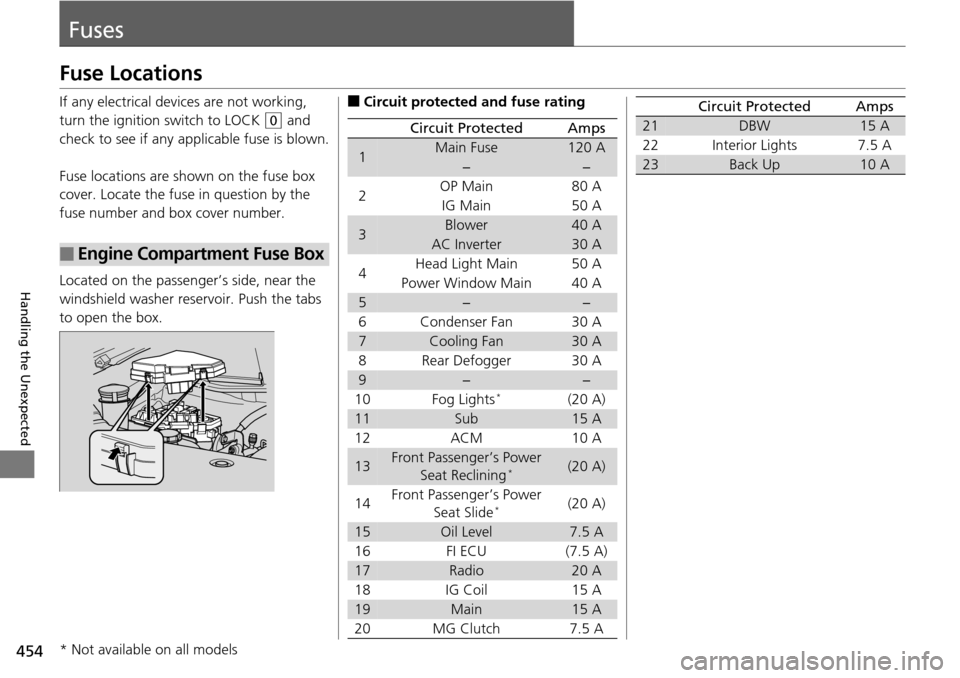
If any electrical devices are not working,
turn the ignition switch to LOCK
(0
and
check to see if any appl icable fuse is blown.
Fuse locations are shown on the fuse box
co
ver. Locate the fuse in question by the
fuse number and box cover number.
Located on the passenger’s side, near the
wi
ndshield washer reservoir. Push the tabs
to open the box.
■Engine Compartment Fuse Box
■Circuit protected and fuse rating
Circuit ProtectedAmps
1Main Fuse120 A
−−
2OP Main80 A
IG Main50 A
3Blower40 A
AC Inverter30 A
4 Head Light Main
50 A
Power Window Main 40
A
5−−
6 Condenser Fan 30
A
7Cooling Fan30 A
8 Rear Defogger 30
A
9−−
10 Fog Lights *(20 A)
11Sub15 A
12 ACM 10
A
13Front Passenger’s Power
Seat Reclining *(20 A)
14 Front Passenger’s Power
S
eat Slide *(20 A)
15Oil Level7.5 A
16 FI ECU (7.5
A)
17Radio20 A
18 IG Coil 15
A
19Main15 A
20 MG Clutch 7.5 A
21DBW15 A
22 Interior Lights 7.5
A
23Back Up10 A
Circuit ProtectedAmps
* Not available on all models
Page 464 of 488
463
Information
This chapter includes your vehicle's specifications, locations of identification numbers, and other
information required by regulation.
Specifications .................................... 464
Identification Numbers
Vehicle Identification Number (VIN)...... 466
Engine Number and Transmission Number...................................... 466
Devices that Emit Radio Waves ....... 467
Reporting Safety Defects .................
469Emissions Testing
Testing of Readiness Codes.............. 470
Warranty Coverages ...........
............. 472
Authorized Manuals ............
............. 474
Customer Service Information .........
475
Gracenote® End User License
Agreement ..
................................. 476
Page 468 of 488
467Continued
Information
Devices that Emit Radio Waves
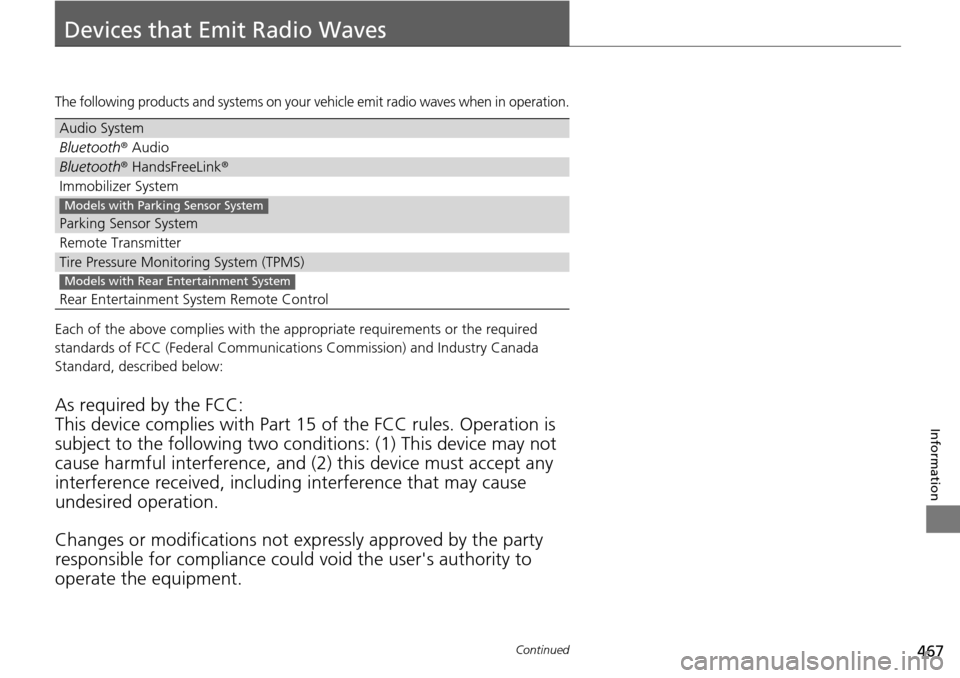
The following products and systems on your vehicle emit radio waves when in operation.
Each of the above complies with the appropriate requirements or the required
standards of FCC (Federal Communications Commission) and Industry Canada
Standard, described below:
As required by the FCC:
This device complies with Part 15 of the FCC rules. Operation is
subject to the following
two conditions: (1) This device may not
cause harmful interferenc e, and (2) this device must accept any
interference received, including interference that may cause
undesired operation.
Changes or modifications not ex p
ressly approved by the party
responsible for compliance could void the user's authority to
operate the equipment.
Audio System
Bluetooth ® Audio
Bluetooth® HandsFreeLink ®
Immobilizer System
Parking Sensor System
Remote Transmitter
Tire Pressure Monitoring System (TPMS)
Rear Entertainment System Remote Control
Models with Parking Sensor System
Models with Rear Entertainment System