audio HONDA PILOT 2015 2.G User Guide
[x] Cancel search | Manufacturer: HONDA, Model Year: 2015, Model line: PILOT, Model: HONDA PILOT 2015 2.GPages: 488, PDF Size: 11.34 MB
Page 175 of 488
174
uuAudio System uAudio System Theft Protection*
Features
Audio System Theft Protection*
The audio system is disabled when it is di sconnected from the power source, such as
when the battery is disconnected or goes dead. In certain conditions, the system
may display “enter code”. If this occurs, reactivate the audio system.
■Reactivate the audio system
1. Turn the ignition switch to ON
(w.
2. Turn on the audio system.
3. Press and hold the audio system power button for more than two seconds.
u The audio system is reac tivated when the audio co ntrol unit establishes a
connection with the vehicle control unit. If the control unit fails to recognize
the audio unit, you must go to a deal er and have the audio unit checked.
* Not available on all models
Page 176 of 488
175
Features
Audio System Basic Operation
To use the audio system function, the ignition swit ch must be in ACCESSORY (q or
ON
(w.
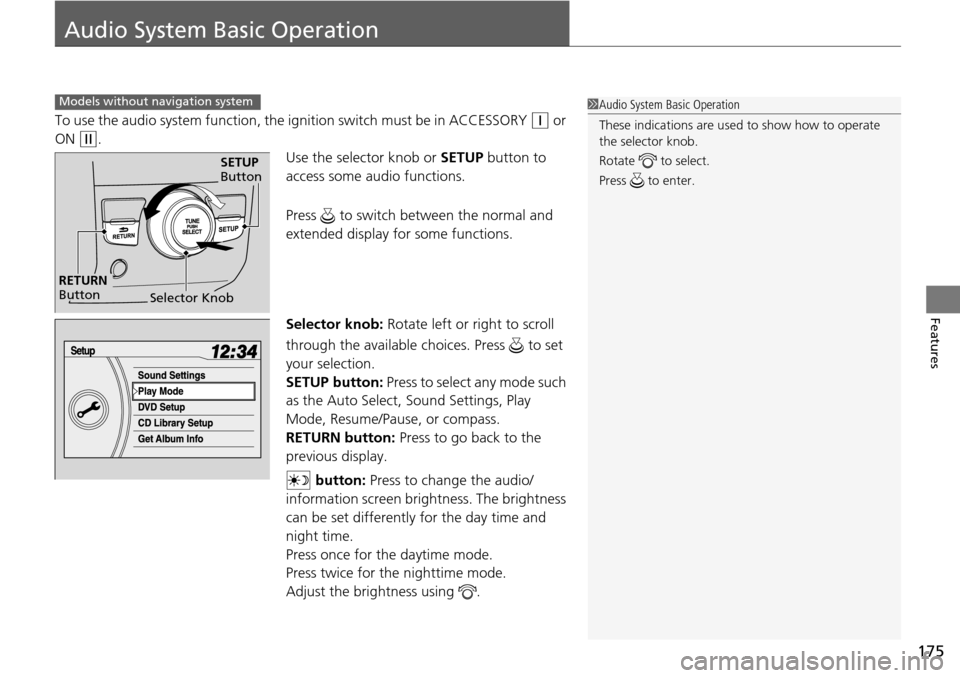
Use the selector knob or SETUP button to
access some audio functions.
Press to switch between the normal and
extended display fo r some functions.
Selector knob: Rotate left or right to scroll
through the available choices. Press to set
your selection.
SETUP button: Press to select any mode such
as the Auto Select, Sound Settings, Play
Mode, Resume/Pause, or compass.
RETURN button: Press to go back to the
previous display.
button: Press to change the audio/
information screen brightness. The brightness
can be set differently for the day time and
night time.
Press once for the daytime mode.
Press twice for the nighttime mode.
Adjust the brightness using .
Models without navigation system1 Audio System Basic Operation
These indications are used to show how to operate
the selector knob.
Rotate to select.
Press to enter.
Selector Knob
SETUP
Button
RETURN
Button
Page 177 of 488
176
uuAudio System Basic Operation uAudio/Information Screen*
Features
Audio/Information Screen*
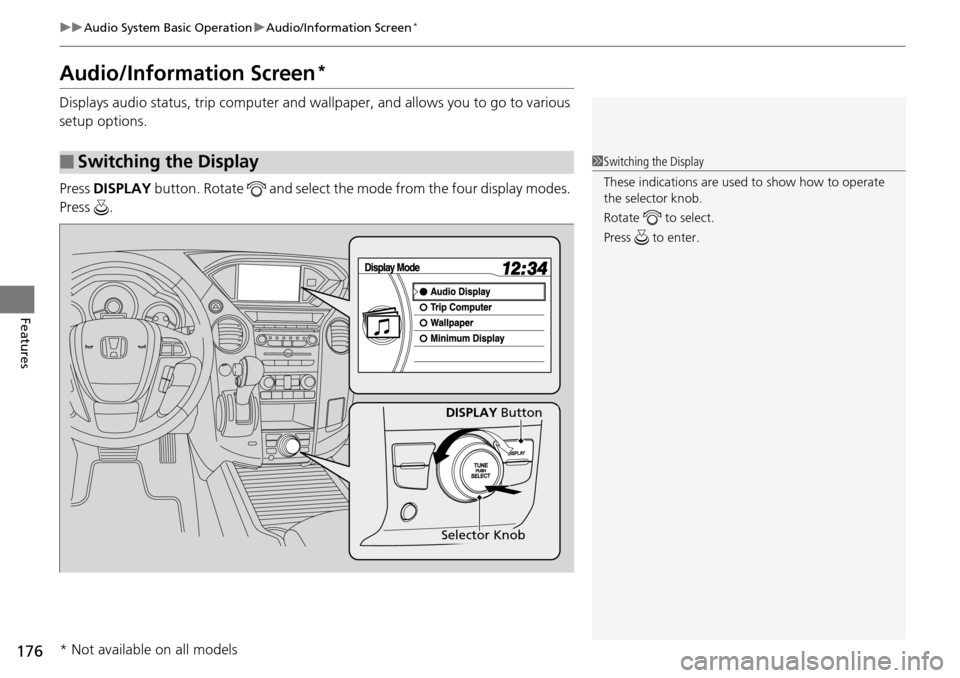
Displays audio status, trip computer and wa llpaper, and allows you to go to various
setup options.
Press DISPLAY button. Rotate and select the mo de from the four display modes.
Press .
■Switching the Display1 Switching the Display
These indications are used to show how to operate
the selector knob.
Rotate to select.
Press to enter.
DISPLAY Button
Selector Knob
* Not available on all models
Page 178 of 488
Continued177
uuAudio System Basic Operation uAudio/Information Screen*
Features
Shows the current audio information.
2 Audio System Basic Operation P. 175
Shows the instant fuel economy, averag e fuel economy, distance (trip meter),
average speed, elapsed time, and range.
2 Instant Fuel Economy P. 82
2 Trip Meter P. 82
2 Range P. 82
■Average speed
Shows the average speed in mph (U.S.) or km/h (Canada).
■Elapsed time
Shows the time during one drive cycle.
Shows a clock screen or an image you import.
2 Wallpaper Setup P. 179
Minimizes the display by only showing the compass, audio status, and clock on the
upper part of the display.
■Audio Display
■Trip Computer
■Wallpaper
■Minimum Display
1 Trip Computer
You can reset the trip computer.
2 Trip Computer P. 88
Page 179 of 488
178
uuAudio System Basic Operation uAudio/Information Screen*
Features
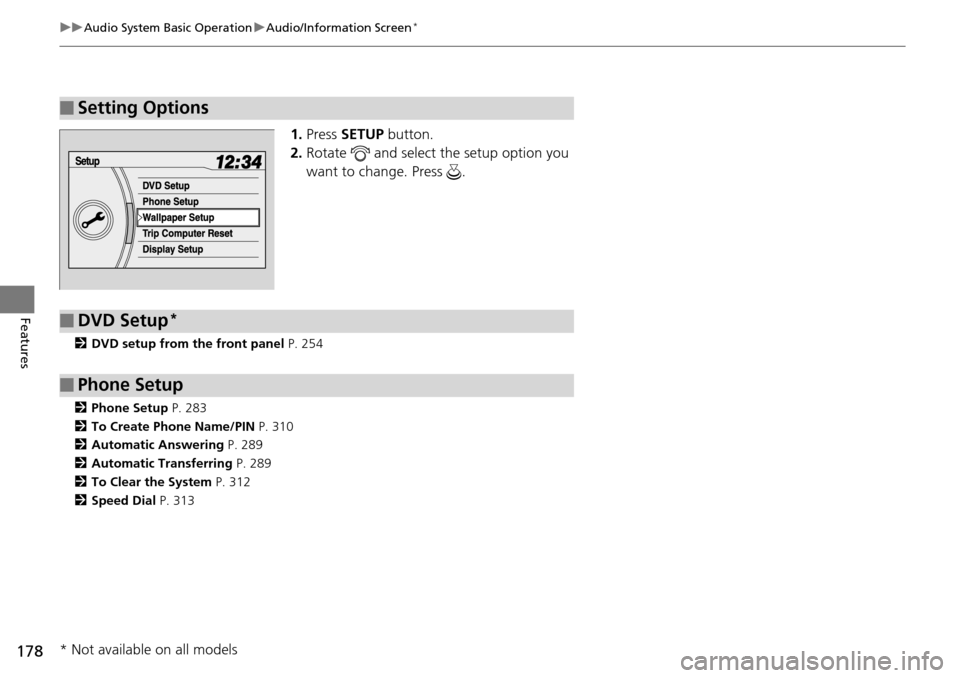
1. Press SETUP button.
2. Rotate and select the setup option you
want to change. Press .
2 DVD setup from the front panel P. 254
2 Phone Setup P. 283
2 To Create Phone Name/PIN P. 310
2 Automatic Answering P. 289
2 Automatic Transferring P. 289
2 To Clear the System P. 312
2 Speed Dial P. 313
■Setting Options
■DVD Setup*
■Phone Setup
* Not available on all models
Page 180 of 488
Continued179
uuAudio System Basic Operation uAudio/Information Screen*
Features
You can change, store, delete the wallp aper on the audio/information screen.
See the navigation system manual for how to change the wallpaper.
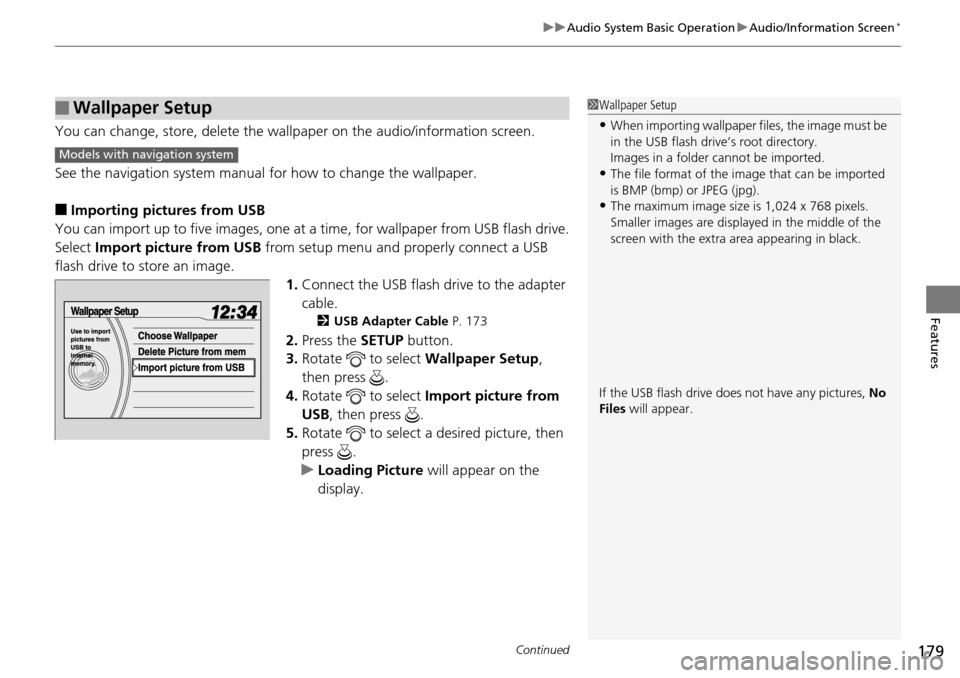
■Importing pictures from USB
You can import up to five images, one at a time, for wallpaper from USB flash drive.
Select Import picture from USB from setup menu and properly connect a USB
flash drive to store an image. 1.Connect the USB flash drive to the adapter
cable.
2 USB Adapter Cable P. 173
2.Press the SETUP button.
3. Rotate to select Wallpaper Setup,
then press .
4. Rotate to select Import picture from
USB , then press .
5. Rotate to select a desired picture, then
press .
u Loading Picture will appear on the
display.
■Wallpaper Setup1 Wallpaper Setup
•When importing wallpaper files, the image must be
in the USB flash drive’s root directory.
Images in a folder cannot be imported.
•The file format of the im age that can be imported
is BMP (bmp) or JPEG (jpg).
•The maximum image size is 1,024 x 768 pixels.
Smaller images are displayed in the middle of the
screen with the extra area appearing in black.
If the USB flash drive doe s not have any pictures, No
Files will appear.
Models with navigation system
Page 181 of 488
180
uuAudio System Basic Operation uAudio/Information Screen*
Features
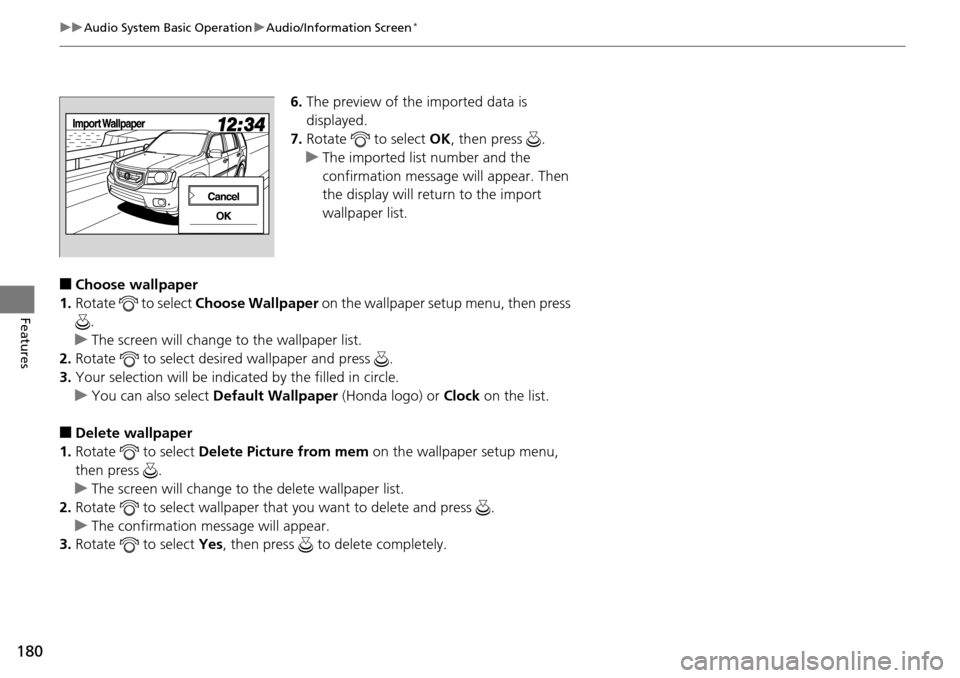
6. The preview of the imported data is
displayed.
7. Rotate to select OK, then press .
u The imported list number and the
confirmation message will appear. Then
the display will retu rn to the import
wallpaper list.
■Choose wallpaper
1. Rotate to select Choose Wallpaper on the wallpaper setup menu, then press
.
u The screen will change to the wallpaper list.
2. Rotate to select desired wallpaper and press .
3. Your selection will be indicate d by the filled in circle.
u You can also select Default Wallpaper (Honda logo) or Clock on the list.
■Delete wallpaper
1. Rotate to select Delete Picture from mem on the wallpaper setup menu,
then press .
u The screen will change to the delete wallpaper list.
2. Rotate to select wallpaper that you want to delete and press .
u The confirmation message will appear.
3. Rotate to select Yes, then press to delete completely.
Page 182 of 488
181
uuAudio System Basic Operation uAudio/Information Screen*
Continued
Features
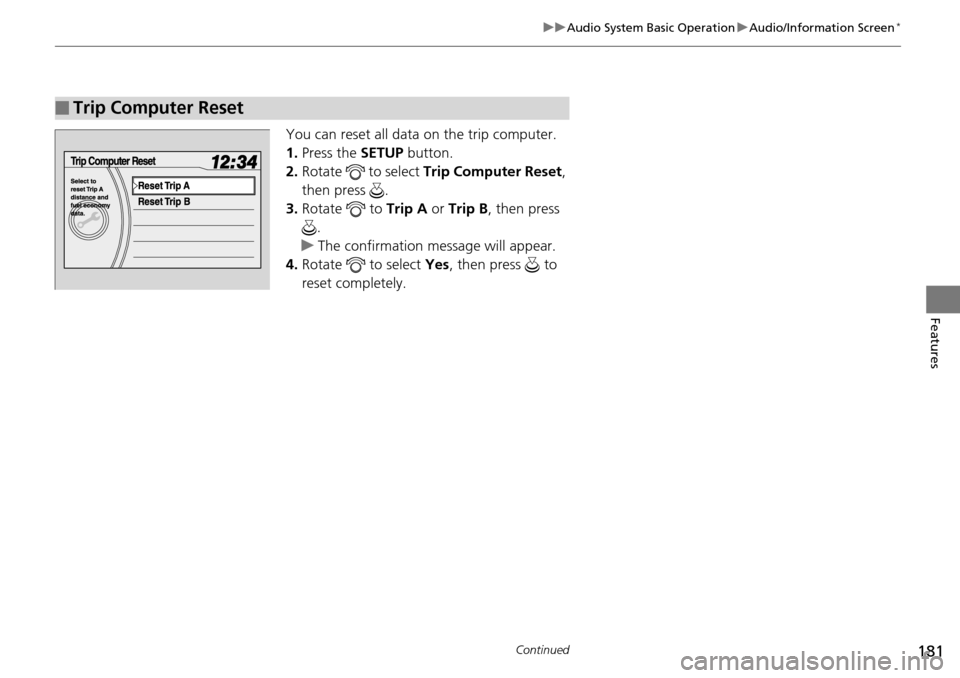
You can reset all data on the trip computer.
1. Press the SETUP button.
2. Rotate to select Trip Computer Reset ,
then press .
3. Rotate to Trip A or Trip B , then press
.
u The confirmation message will appear.
4. Rotate to select Yes, then press to
reset completely.
■Trip Computer Reset
Page 183 of 488
182
uuAudio System Basic Operation uAudio/Information Screen*
Features
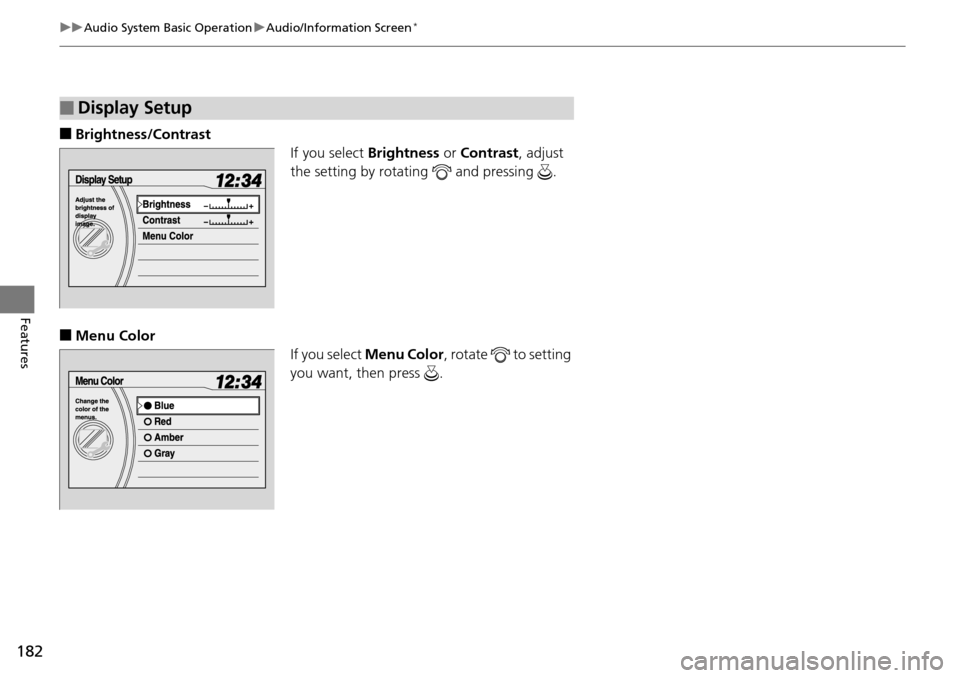
■Brightness/Contrast
If you select Brightness or Contrast , adjust
the setting by rotating and pressing .
■Menu Color If you select Menu Color, rotate to setting
you want, then press .
■Display Setup
Page 184 of 488
183
uuAudio System Basic Operation uAudio/Information Screen*
Features
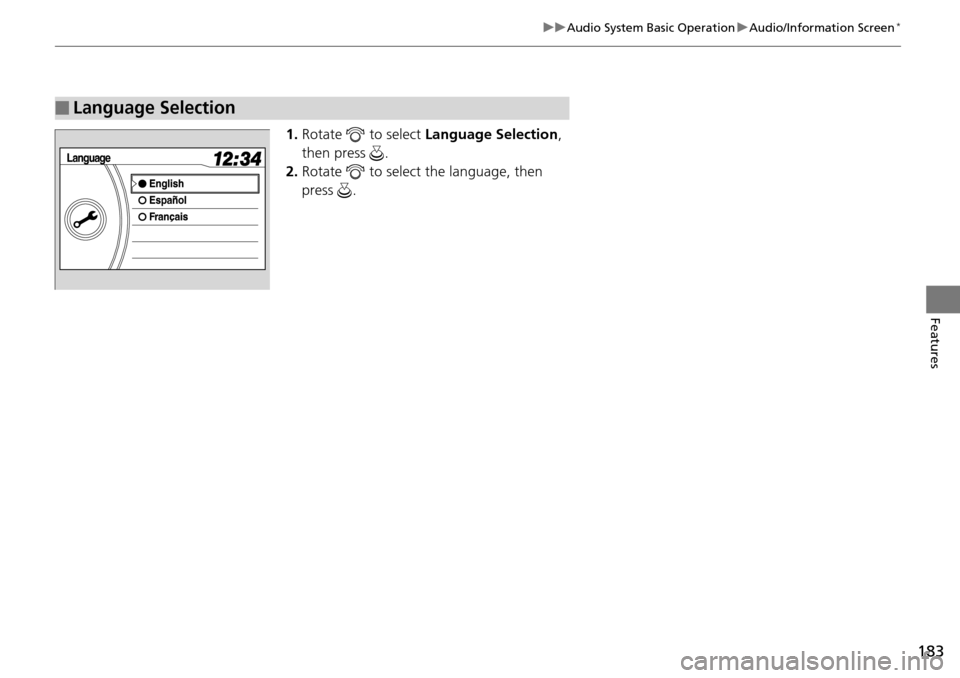
1. Rotate to select Language Selection ,
then press .
2. Rotate to select the language, then
press .
■Language Selection