USB port HONDA PILOT 2016 3.G User Guide
[x] Cancel search | Manufacturer: HONDA, Model Year: 2016, Model line: PILOT, Model: HONDA PILOT 2016 3.GPages: 661, PDF Size: 37.79 MB
Page 263 of 661
262
uuAudio System Basic Operation uVoice Control Operation
FeaturesWhen the (Talk) button is pressed,
available voice commands appear on the
screen.
For a complete list of commands, say “ Voice
Help ” after the beep or select Voice Help.
You can see the list of commands in Voice
Info on the Info menu screen. Select Info,
then select .
*1: Models with navigation system
■Voice Portal Screen■Phone Call
This can be only used when the phone is
connected. When the sy stem recognizes the
Phone call command, the screen will
change the dedicated screen for the voice
recognition of the phone.
• Dial by number
• Call history
• Redial
• Call
• Call
■Music Search*1
This can be only used when the iPod or USB
device is connected.
■Audio
When the system recognizes the Audio
command, the screen will change the
dedicated screen for the voice recognition
of the audio.
• Audio On
• Audio Off
• Radio FM
• Radio AM
• Radio SXM
• DISC
• Pandora
*
•iPod
• USB
• Other Sources
■Navigation*1
The screen changes the navigation screen.
2 Refer to the Navigation System Manual
■Voice Settings
The screen changes the Voice Recog tab
on the System settings screen.
■Trip Computer
The screen changes the trip computer
screen .
* Not available on all models
16 PILOT-31TG76000.book 262 ページ 2015年6月15日 月曜日 午前11時30分
Page 264 of 661
263
uuAudio System Basic Operation uVoice Control Operation
Continued
Features
■Voice Help
You can see a list of the available
commands on the screen.
• Useful Commands
• Phone Commands
• Audio Commands
• On Screen Commands
• Music Search Commands
• General Commands
• Climate Control Commands
• All Commands
• Voice Settings
• Getting Started
The system accepts these commands on the
voice portal top screen.
• Call
• Call
• What time is it?
• What is today's date?
■Useful Commands
The system accepts these commands on the
dedicated screen for the voice recognition
of the phone.
• Call by Number
• Call by Name
• Call
• Call
The system accepts these commands on the
dedicated screen for the voice recognition
of the audio.
■Radio FM Commands
• Radio tune to <87.7-107.9> FM
• Radio tune to <87.7 -107.9> HD <1-8>
FM
• Radio FM preset <1-12>
■Radio AM Commands
• Radio tune to <530-1710> AM
• Radio AM preset <1-6>
■Radio SXM Commands
• SXM channel <1-999>
• SXM channel
■Phone Commands
■Audio Commands
•Radio SXM preset <1-12>
■DISC Commands
• DISC play
• DISC play track <1-30>
■Pandora Commands*
•Pandora play
■iPod Commands
• iPod play
• iPod play track <1-30>
• Music Search
• What album is this?
• What am I listening to?
■USB Commands
• USB play
• USB play track <1-30>
• Music Search
• What album is this?
• What am I listening to?
■Bluetooth ® audio Commands
• Bluetooth ® audio play
NOTE:
Bluetooth ® Audio commands may not work
on some phones or Bluetooth® Audio
devices.
* Not available on all models
16 PILOT-31TG76000.book 263 ページ 2015年6月15日 月曜日 午前11時30分
Page 268 of 661
267
uuAudio System Basic Operation uPlaying AM/FM Radio
Continued
Features
Samples each of the strongest stations on the selected band for 10 seconds. To turn
off scan, select Cancel or .
If your iPod/iPhone is connected to the USB port, you can store the TAG information.
If the iPod/iPhone is not connected to the audio system, the information is stored in
the audio system temporarily, then once the device is connected to the system, data
is transferred to the iPod/iPhone.
To store the TAG information to the iP od/iPhone or the audio system, select TAG.
Displays the TAG information saved to the audio system.
1. Select .
2. Select Song Tag List .
■Scan
■Tag Song to Device
■Tagged Song List
Models with HD RadioTM
Models with HD RadioTM
16 PILOT-31TG76000.book 267 ページ 2015年6月15日 月曜日 午前11時30分
Page 282 of 661
281
uuAudio System Basic Operation uPlaying an iPod
Continued
Features
Playing an iPod
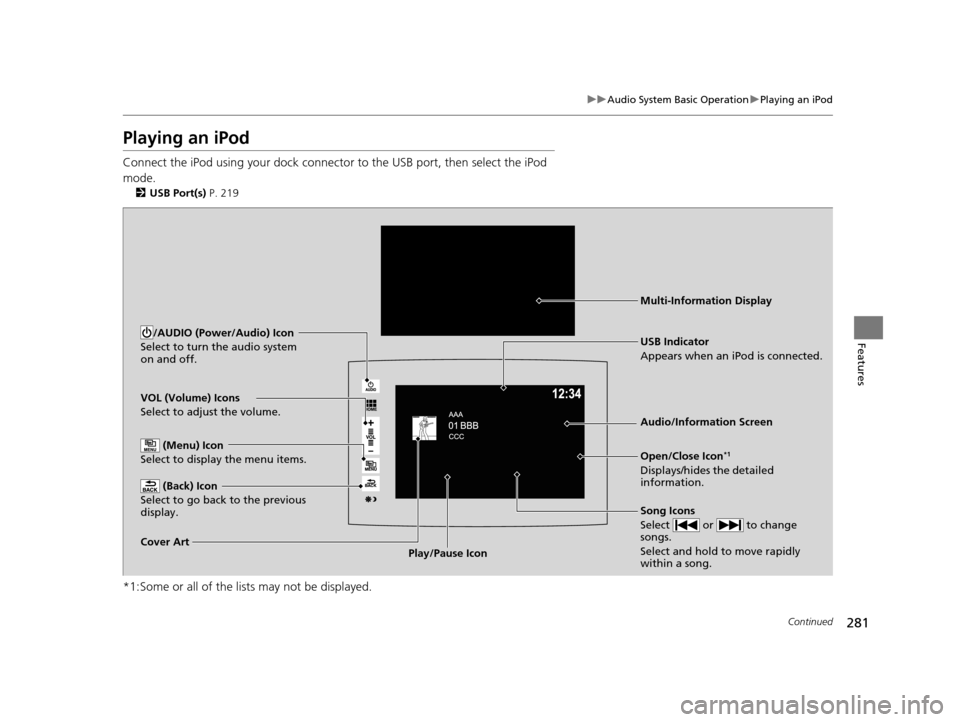
Connect the iPod using your dock connector to the USB port, then select the iPod
mode.
2 USB Port(s) P. 219
*1:Some or all of the lists may not be displayed.
VOL (Volume) Icons
Select to adjust the volume.
(Back) Icon
Select to go back to the previous
display.
Song Icons
Select or to change
songs.
Select and hold to move rapidly
within a song.
/AUDIO (Power/Audio) Icon
Select to turn the audio system
on and off.
Open/Close Icon*1
Displays/hides the detailed
information.
(Menu) Icon
Select to display the menu items.
Cover Art Audio/Information Screen
USB Indicator
Appears when an iPod is connected.
Play/Pause Icon
Multi-Information Display
16 PILOT-31TG76000.book 281 ページ 2015年6月15日 月曜日 午前11時30分
Page 289 of 661
288
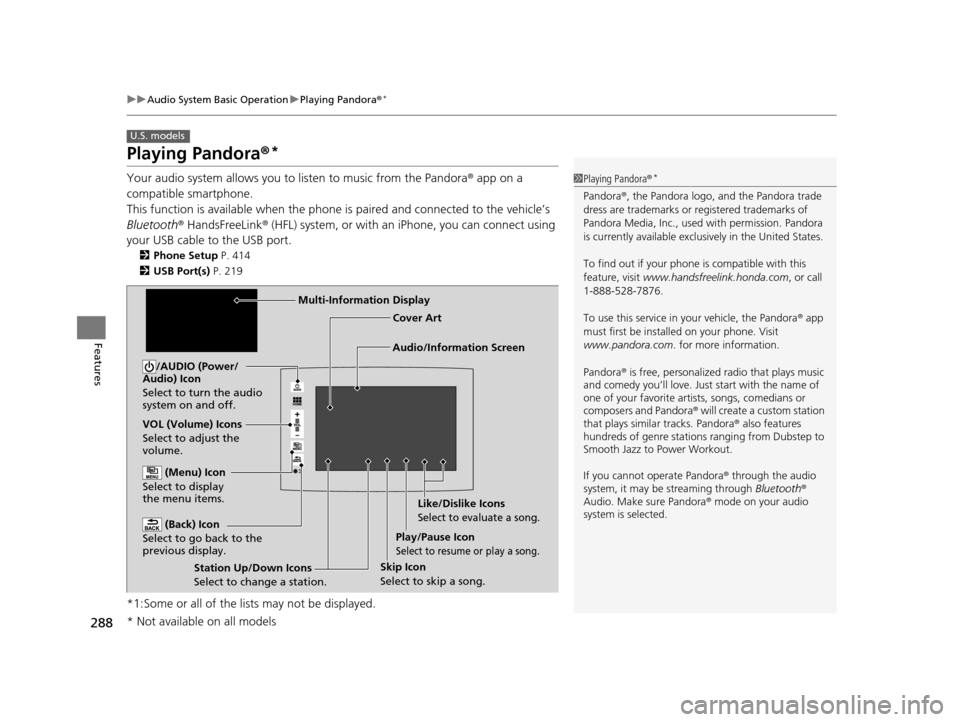
uuAudio System Basic Operation uPlaying Pandora ®*
Features
Playing Pandora ®*
Your audio system allows you to listen to music from the Pandora ® app on a
compatible smartphone.
This function is available when the phone is paired and connected to the vehicle’s
Bluetooth ® HandsFreeLink ® (HFL) system, or with an iPhone, you can connect using
your USB cable to the USB port.
2 Phone Setup P. 414
2 USB Port(s) P. 219
*1:Some or all of the lists may not be displayed.
U.S. models
1Playing Pandora ®*
Pandora®, the Pandora logo, and the Pandora trade
dress are trademarks or registered trademarks of
Pandora Media, Inc., used with permission. Pandora
is currently available exclusively in the United States.
To find out if your phone is compatible with this
feature, visit www.handsfreelink.honda.com , or call
1-888-528-7876.
To use this service in your vehicle, the Pandora ® app
must first be installed on your phone. Visit
www.pandora.com . for more information.
Pandora ® is free, personalized radio that plays music
and comedy you’ll love. Just start with the name of
one of your favorite arti sts, songs, comedians or
composers and Pandora ® will create a custom station
that plays similar tracks. Pandora® also features
hundreds of genre stations ranging from Dubstep to
Smooth Jazz to Power Workout.
If you cannot operate Pandora ® through the audio
system, it may be streaming through Bluetooth®
Audio. Make sure Pandora ® mode on your audio
system is selected.
Audio/Information Screen Cover Art
VOL (Volume) Icons
Select to adjust the
volume. (Back) Icon
Select to go back to the
previous display.
/AUDIO (Power/
Audio) Icon
Select to turn the audio
system on and off.
(Menu) Icon
Select to display
the menu items.
Play/Pause Icon
Select to resume or play a song.
Station Up/Down Icons
Select to change a station. Skip Icon
Select to skip a song.Like/Dislike Icons
Select to evaluate a song.
Multi-Information Display
* Not available on all models
16 PILOT-31TG76000.book 288 ページ 2015年6月15日 月曜日 午前11時30分
Page 292 of 661
291
uuAudio System Basic Operation uPlaying a USB Flash Drive
Continued
Features
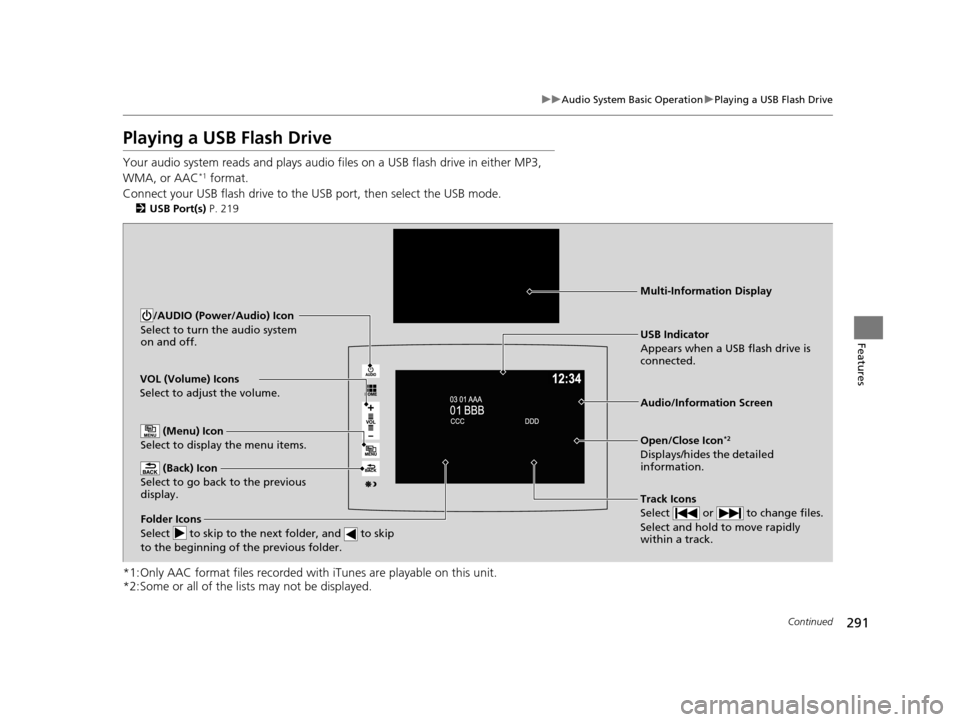
Playing a USB Flash Drive
Your audio system reads and plays audio f iles on a USB flash drive in either MP3,
WMA, or AAC*1 format.
Connect your USB flash drive to the USB port, then select the USB mode.
2 USB Port(s) P. 219
*1:Only AAC format files recorded with iTunes are playable on this unit.
*2:Some or all of the lists may not be displayed.
VOL (Volume) Icons
Select to adjust the volume.
(Back) Icon
Select to go back to the previous
display.
Track Icons
Select or to change files.
Select and hold to move rapidly
within a track.
/AUDIO (Power/Audio) Icon
Select to turn the audio system
on and off.
Open/Close Icon*2
Displays/hides the detailed
information.
(Menu) Icon
Select to display the menu items.
Folder Icons
Select to skip to the next folder, and to skip
to the beginning of the previous folder.
Audio/Information Screen
USB Indicator
Appears when a USB flash drive is
connected.
Multi-Information Display
16 PILOT-31TG76000.book 291 ページ 2015年6月15日 月曜日 午前11時30分
Page 306 of 661
305
uuAudio Error Messages uiPod/USB Flash Drive
Features
iPod/USB Flash Drive
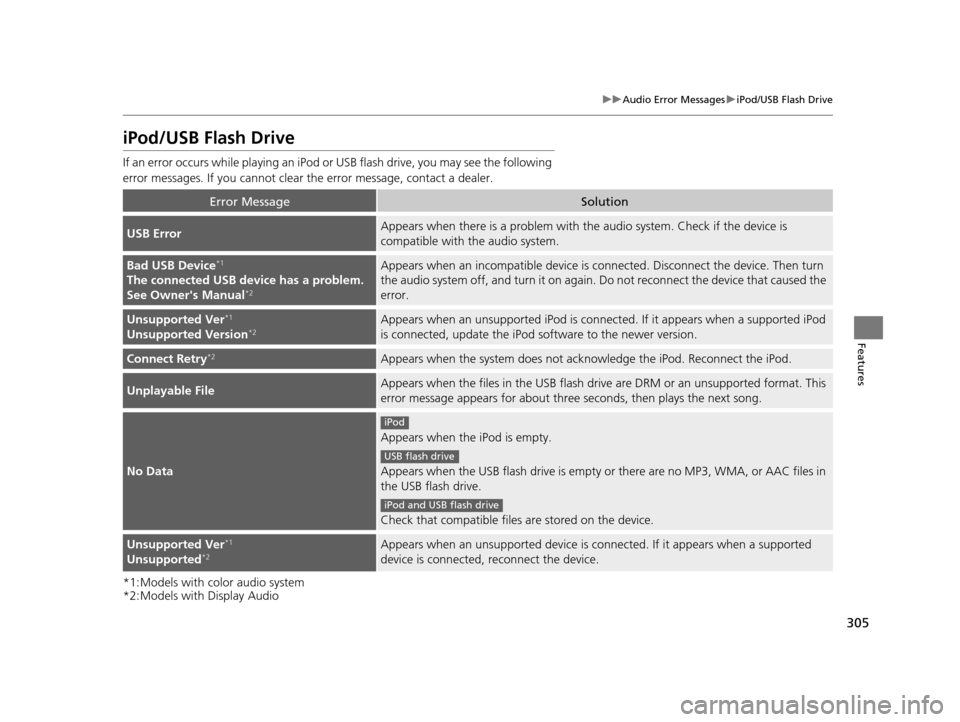
If an error occurs while playing an iPod or USB flash drive, you may see the following
error messages. If you cannot clear the error message, contact a dealer.
*1:Models with color audio system
*2:Models with Display Audio
Error MessageSolution
USB ErrorAppears when there is a pr oblem with the audio system. Check if the device is
compatible with the audio system.
Bad USB Device*1
The connected USB device has a problem.
See Owner's Manual*2
Appears when an incompatible device is co nnected. Disconnect the device. Then turn
the audio system off, and turn it on again. Do not reconnect the device that caused the
error.
Unsupported Ver*1
Unsupported Version*2Appears when an unsupported iPod is connect ed. If it appears when a supported iPod
is connected, update the iPod software to the newer version.
Connect Retry*2Appears when the system does not acknowledge the iPod. Reconnect the iPod.
Unplayable FileAppears when the files in the USB flash driv e are DRM or an unsupported format. This
error message appears for about three seconds, then plays the next song.
No Data
Appears when the iPod is empty.
Appears when the USB flash drive is empty or there are no MP3, WMA, or AAC files in
the USB flash drive.
Check that compatible files are stored on the device.
Unsupported Ver*1
Unsupported*2Appears when an unsupported device is connected. If it appears when a supported
device is connected, reconnect the device.
iPod
USB flash drive
iPod and USB flash drive
16 PILOT-31TG76000.book 305 ページ 2015年6月15日 月曜日 午前11時30分
Page 312 of 661
311
uuGeneral Information on the Audio System uCompatible iPod, iPhone, and USB Flash Drives
Features
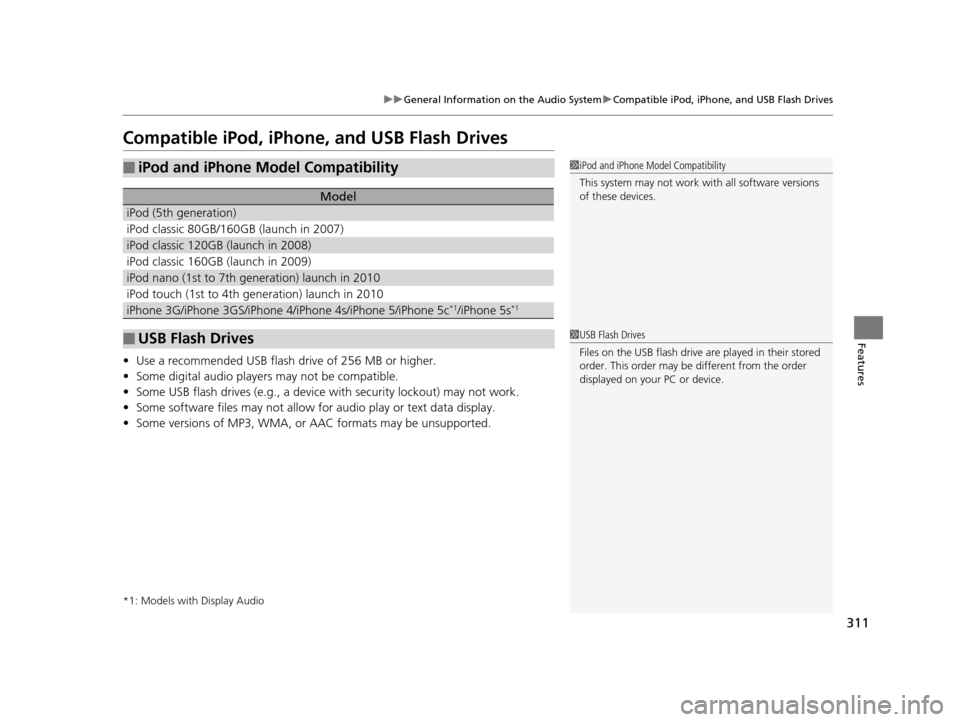
Compatible iPod, iPhone , and USB Flash Drives
•Use a recommended USB flash drive of 256 MB or higher.
• Some digital audio players may not be compatible.
• Some USB flash drives (e.g., a device with security lockout) may not work.
• Some software files may not allow for audio play or text data display.
• Some versions of MP3, WMA, or AAC formats may be unsupported.
*1: Models with Display Audio
■iPod and iPhone Model Compatibility
Model
iPod (5th generation)
iPod classic 80GB/160GB (launch in 2007)
iPod classic 120GB (launch in 2008)
iPod classic 160GB (launch in 2009)
iPod nano (1st to 7th generation) launch in 2010
iPod touch (1st to 4th generation) launch in 2010
iPhone 3G/iPhone 3GS/iPhone 4/iPhone 4s/iPhone 5/iPhone 5c*1/iPhone 5s*1
■USB Flash Drives
1iPod and iPhone Model Compatibility
This system may not work with all software versions
of these devices.
1USB Flash Drives
Files on the USB flash drive are played in their stored
order. This order may be different from the order
displayed on your PC or device.
16 PILOT-31TG76000.book 311 ページ 2015年6月15日 月曜日 午前11時30分
Page 316 of 661
315
uuBlu-ray/DVD Rear Entertainment System*uUSB Ports*
Features
USB Ports*
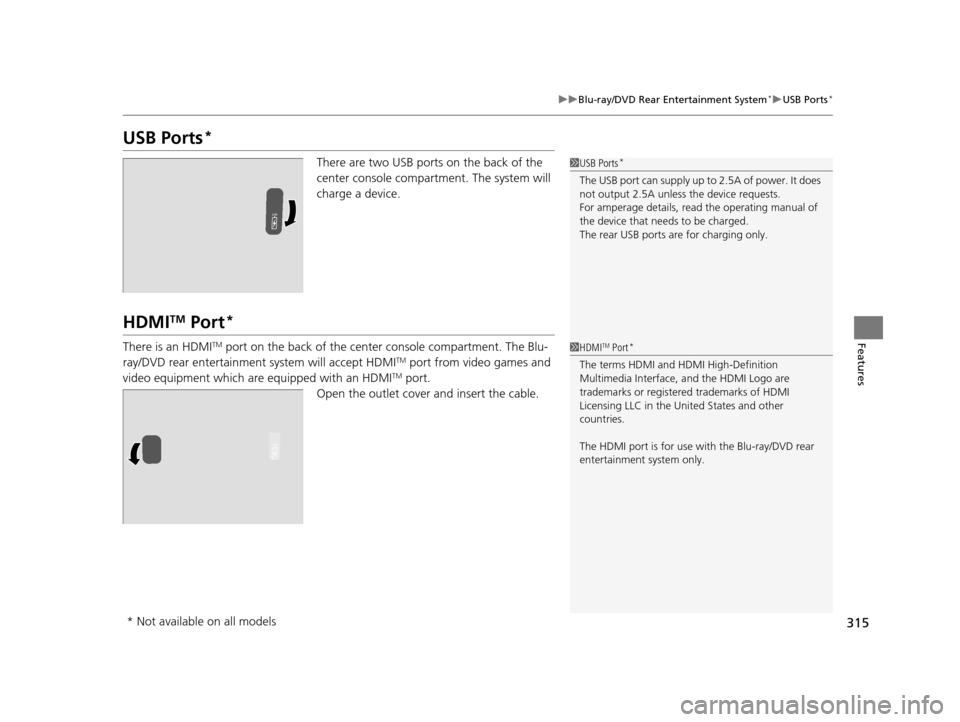
There are two USB ports on the back of the
center console compartment. The system will
charge a device.
HDMITM Port*
There is an HDMITM port on the back of the center console compartment. The Blu-
ray/DVD rear entertainment system will accept HDMITM port from video games and
video equipment which are equipped with an HDMITM port.
Open the outlet cover and insert the cable.
1 USB Ports*
The USB port can supply up to 2.5A of power. It does
not output 2.5A unless the device requests.
For amperage details, read the operating manual of
the device that ne eds to be charged.
The rear USB ports ar e for charging only.
1HDMITM Port*
The terms HDMI and HDMI High-Definition
Multimedia Interface, and the HDMI Logo are
trademarks or registered trademarks of HDMI
Licensing LLC in the United States and other
countries.
The HDMI port is for use with the Blu-ray/DVD rear
entertainment system only.
* Not available on all models
16 PILOT-31TG76000.book 315 ページ 2015年6月15日 月曜日 午前11時30分
Page 650 of 661
Index
649
Index
Index
A
ABS (Anti-lock Brake System).................. 529
AC Power Outlet ...................................... 197
Accessories and Modifications ................ 553
Accessory Power Sockets ......................... 196
Adaptive Cruise Control (ACC) ................ 491
Indicator ................................................... 92
Adaptive Cruise Control (ACC) with Low
Speed Follow (LSF) Indicator ................................................... 92
Additives
Coolant .................................................. 571
Engine Oil ............................................... 566
Washer ................................................... 574
Additives, Engine Oil ............................... 566
Adjusting Armrest .................................................. 186
Front Seats.............................................. 174
Head Restraints ....................... 179, 180, 181
Mirrors.................................................... 171
Rear Seats ............................................... 183
Second Row Seat .................................... 176
Steering Wheel ....................................... 170
Temperature ........................................... 116
Agile Handling Assist System .................. 517
Aha
TM........................................................ 290
Air Conditioning System (Climate Control System) .................................................... 210
Changing the Mode................................ 211
Defrosting the Windshield and Windows .............................................. 211 Dust and Pollen Filter ............................... 599
Recirculation/Fresh Air Mode ................... 211
Sensor ..................................................... 216
Synchronized Mode ................................. 213
Using Automatic Climate Control ............ 210
Air Conditioning System (Heating and Cooling System) ...................................... 205
Cooling ................................................... 207
Defrosting the Windshield and Windows ............................................... 208
Heating ................................................... 206
Air Pressure ....................................... 586, 639
Airbags ........................................................ 45
Advanced Airbags ..................................... 51
After a Collision ......................................... 49
Airbag Care ............................................... 57
Event Data Recorder .................................... 0
Front Airbags (SRS) .................................... 48
Indicator .............................................. 55, 83
Passenger Airbag Off Indicator .................. 56
Sensors ...................................................... 45
Side Airbags .............................................. 52
Side Curtain Airbags .................................. 54
All-wheel drive (AWD) Indicator ............... 89
AM/FM Radio .................................... 231, 265
Anti-lock Brake System (ABS) .................. 529
Indicator .................................................... 83
Armrest ..................................................... 186
Audio Remote Controls ............................ 222
Audio System .................................... 218, 242
Adjusting the Sound ........................ 229, 258 Audio/Information Screen................ 225, 243
Auxiliary Input Jack.................................. 220
Changing the Home Screen Icon Layout .. 247
Closing Apps ........................................... 257
Display Setup .................................. 230, 259
Error Messages ........................................ 304
General Information ................................ 308
Home Screen........................................... 250
Limitations for Manual Operation ............ 260
MP3/WMA/AAC ...................... 236, 278, 291
Playing a CD............................................ 278
Reactivating ............................................ 221
Recommended CDs ................................. 309
Remote Controls ..................................... 222
Security Code .......................................... 221
Selecting an Audio Source ....................... 260
Status Area ............................................. 256
Theft Protection ...................................... 221
USB Flash Drives ...................................... 311
USB Port.................................................. 219
Wallpaper Setup.............................. 227, 248
Audio/Information Screen ............... 225, 243
Authorized Manuals ................................ 647
Auto Door Locking/Unlocking ................. 134
Customize ............................................... 367
Auto High-Beam System .......................... 159
Auto high-beam system Indicator............. 87
Auto Idle-stop ........................................... 479
OFF Button .............................................. 479
Auto Idle-stop In dicator (Green)............... 90
16 PILOT-31TG76000.book 649 ページ 2015年6月15日 月曜日 午前11時30分