radio HONDA PILOT 2016 3.G Owner's Guide
[x] Cancel search | Manufacturer: HONDA, Model Year: 2016, Model line: PILOT, Model: HONDA PILOT 2016 3.GPages: 661, PDF Size: 37.79 MB
Page 309 of 661
308
Features
General Information on the Audio System
SiriusXM® Radio Service
1. You need your radio ID ready before regist ering for subscription. To see the ID in
the screen, select Channel to 0.
2. Have your radio ID ready, and either call or visit the SiriusXM® website to
subscribe.
Switch to the SiriusXM ® mode by using the SOURCE button on the steering wheel,
or through the audio/information screen, and stay in this mode for about 30
minutes until the service is activated. Make sure your vehicle is in an open area with
good reception.
Channel Not Subscribed:
You are not subscribed to the channel selected.
Subscription Update:
SiriusXM ® radio is receiving information update from the network.
Channel Not Available:
No such channel exits, or the artist or title information is unavailable.
No Signal:
The signal is too weak in the current location.
Antenna Disconnected:
The SiriusXM ® antenna is disconnected. Contact a dealer.
■Subscribing to SiriusXM ® Radio
■Receiving SiriusXM® Radio
■SiriusXM® Radio Display Messages
1 Subscribing to SiriusXM ® Radio
Contact Information for SiriusXM ® Radio:
•US: SiriusXM ® Radio at www.siriusxm.com or 1-
800-852-9696
•Canada: SiriusXM ® Canada at www.xmradio.ca , or
1-877-209-0079
1 Receiving SiriusXM ® Radio
The SiriusXM ® satellites are in orbit over the equator;
therefore, objects south of the vehicle may cause
satellite reception interruptions. Sa tellite signals are
more likely to be blocked by tall buildings and
mountains the farther north you travel from the
equator.
You may experience rece ption problems under the
following circumstances:
•In a location with an obstruction to the south of
your vehicle.
•In tunnels
•On the lower level of a multi-tiered road•Large items carried on the roof rack
16 PILOT-31TG76000.book 308 ページ 2015年6月15日 月曜日 午前11時30分
Page 332 of 661
331
uuBlu-ray/DVD Rear Entertainment System*uPlaying Audio
Continued
Features
Playing Audio
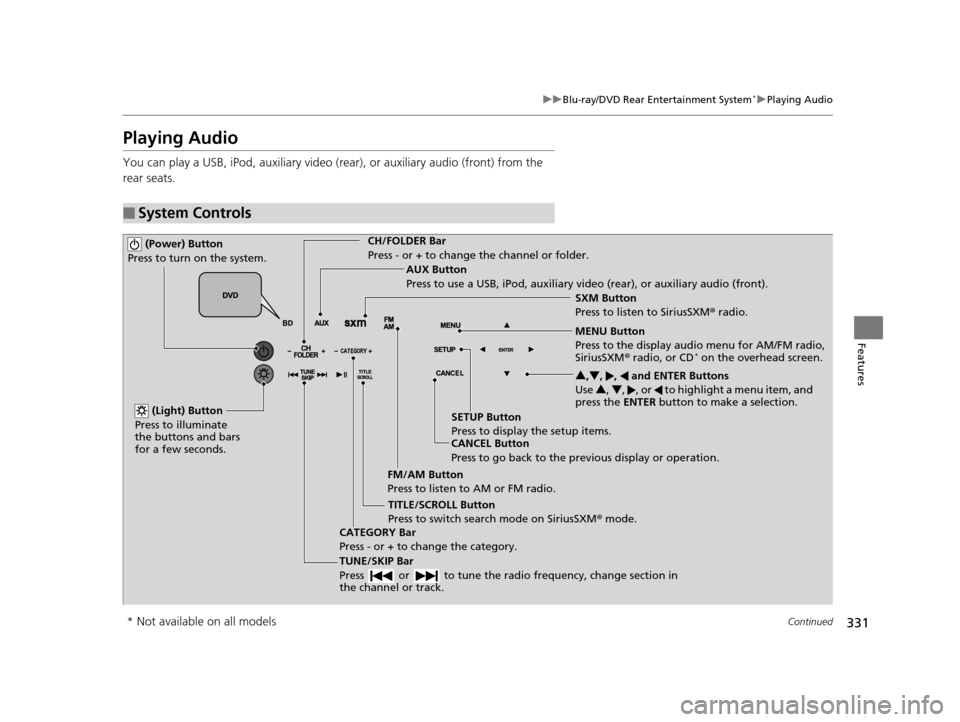
You can play a USB, iPod, auxiliary video (rear), or auxiliary audio (front) from the
rear seats.
■System Controls
(Power) Button
Press to turn on the system.CH/FOLDER Bar
Press - or + to change the channel or folder.
(Light) Button
Press to illuminate
the buttons and bars
for a few seconds.
TUNE/SKIP Bar
Press or to tune the radi o frequency, change section in
the channel or track.
TITLE/SCROLL Button
Press to switch search mode on SiriusSXM ® mode.
CANCEL Button
Press to go back to the previous display or operation. 3
,4 , , and ENTER Buttons
Use 3, 4 , , or to highlight a menu item, and
press the ENTER button to make a selection.
CATEGORY Bar
Press - or + to change the category. AUX Button
Press to use a USB, iPod, auxiliary video (rear), or auxiliary audio (front).
FM/AM Button
Press to listen to AM or FM radio. SETUP Button
Press to display the setup items. SXM Button
Press to listen to SiriusSXM
® radio.
MENU Button
Press to the display audio menu for AM/FM radio,
SiriusSXM ® radio, or CD
* on the overhead screen.
* Not available on all models
16 PILOT-31TG76000.book 331 ページ 2015年6月15日 月曜日 午前11時30分
Page 333 of 661
uuBlu-ray/DVD Rear Entertainment System*uPlaying Audio
332
Features
To play the AM/FM radio, press the AM/FM button on the remote.
When you press the MENU button on the remote while the radio is playing, the
audio menu appears on the overhead screen.
The available functions are the same as those of the front audio system. The TUNE/
SKIP bar on the remote works the same as the Skip/Seek icons (<>) on the front
touch screen for AM/FM radio operation.
2 Playing AM/FM Radio P. 265
To play the SiriusXM® radio, press the SXM button on the remote.
When you press the MENU button on the remote while the radio is playing, the
audio menu appears on the overhead screen.
The available functions are the same as those of the front audio system. The TUNE/
SKIP bar on the remote works the same as the Skip/Seek icons (<>) on the front
touch screen for SiriusXM ® radio operation.
2Playing SiriusXM ® Radio P. 270
To change the mode between category and channel, press the TITLE/SCROLL
button on the remote for five seconds.
■Playing AM/FM Radio in the Rear
■Playing SiriusXM ® Radio in the Rear
1 System Controls
You can operate the Blu-ray/DVD rear entertainment
system on the front display.
16 PILOT-31TG76000.book 332 ページ 2015年6月15日 月曜日 午前11時30分
Page 334 of 661
333
uuBlu-ray/DVD Rear Entertainment System*uPlaying Audio
Features
To play a disc, press the DVD* or BD* button on the remote.
When you press the MENU button on the remote while the radio is playing, the
audio menu appears on the overhead screen.
The available options appear on the overh ead screen are Repeat, Random, and Scan.
These functions are the same as those of the front audio system.
2 Playing a CD* P. 278
To scroll you audio da ta title, press the TITLE/SCROLL button on the remote for five
seconds.
To play an iPod and a USB flash drive, press the AUX button on the remote.
When you press the MENU button on the remote while the iPod or USB flash drive
is playing, the audio menu ap pears on the overhead screen.
The available options appear on the overh ead screen are Repeat, Random, and Scan.
These functions are the same as those of the front audio system.
2 Playing an iPod P. 281
2 Playing a USB Flash Drive P. 291
To scroll you audio data title, press the TITLE/SCROLL button on the remote for five
seconds.
■Playing a Disc in the Rear
■Playing an iPod and a USB Flash Drive in the Rear
* Not available on all models
16 PILOT-31TG76000.book 333 ページ 2015年6月15日 月曜日 午前11時30分
Page 335 of 661
334
uuBlu-ray/DVD Rear Entertainment System*uAudio Sources for Front and Rear Seats
Features
Audio Sources for Front and Rear Seats
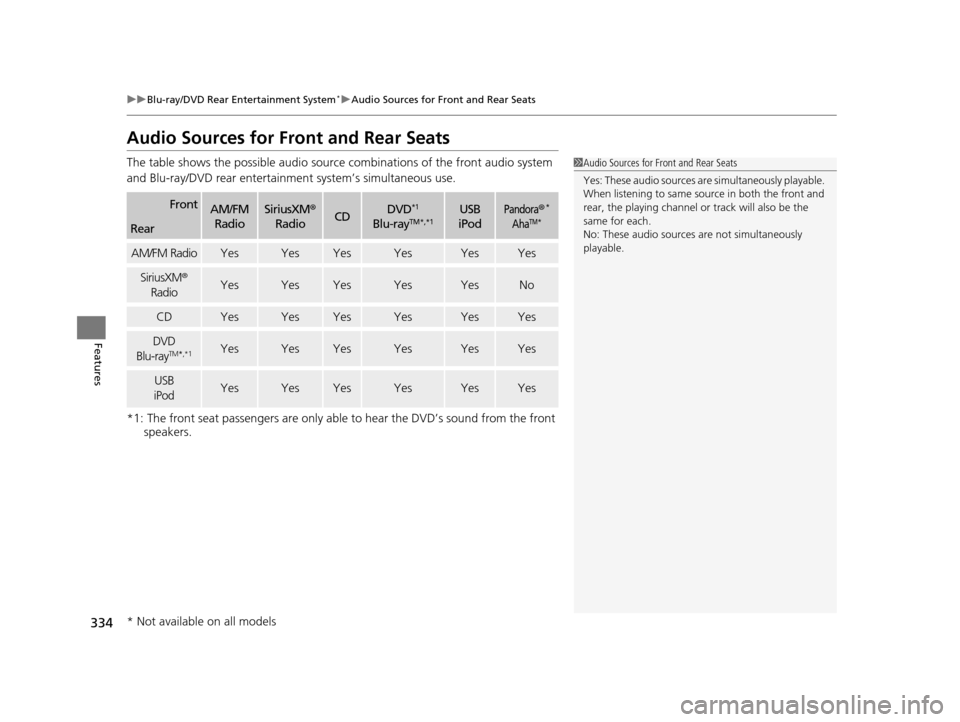
The table shows the possible audio source combinations of the front audio system
and Blu-ray/DVD rear entertainme nt system’s simultaneous use.
*1: The front seat passengers are only able to hear the DVD’s sound from the front speakers.
FrontAM/FM
RadioSiriusXM ®
RadioCDDVD*1
Blu-rayTM*,*1USB
iPodPandora®*
AhaTM*Rear
AM/FM RadioYesYesYesYesYesYes
SiriusXM ®
RadioYesYesYesYesYesNo
CDYesYesYesYesYesYes
DVD
Blu-rayTM *,*1YesYesYesYesYesYes
USB
iPodYesYesYesYesYesYes
1 Audio Sources for Front and Rear Seats
Yes: These audio sources ar e simultaneously playable.
When listening to same source in both the front and
rear, the playing channel or track will also be the
same for each.
No: These audio sources are not simultaneously
playable.
* Not available on all models
16 PILOT-31TG76000.book 334 ページ 2015年6月15日 月曜日 午前11時30分
Page 344 of 661
343
uuCustomized Features u
Continued
Features
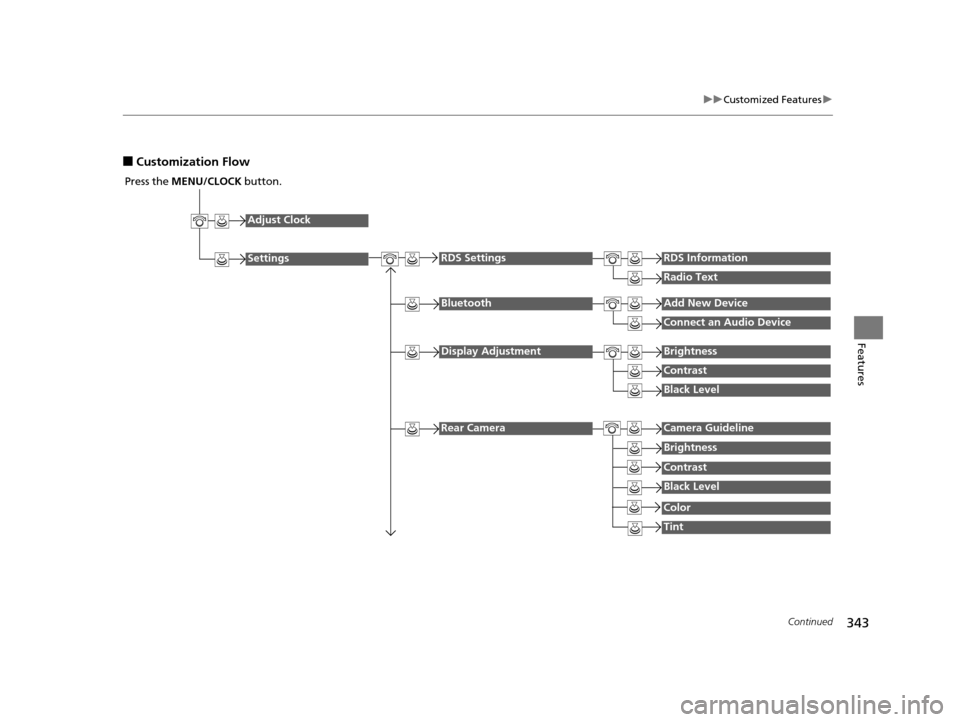
■Customization Flow
Press the MENU/CLOCK button.
Adjust Clock
Settings
BluetoothAdd New Device
Connect an Audio Device
Display AdjustmentBrightness
Contrast
Black Level
Rear CameraCamera Guideline
RDS SettingsRDS Information
Radio Text
Brightness
Contrast
Black Level
Color
Tint
16 PILOT-31TG76000.book 343 ページ 2015年6月15日 月曜日 午前11時30分
Page 347 of 661
346
uuCustomized Features u
Features
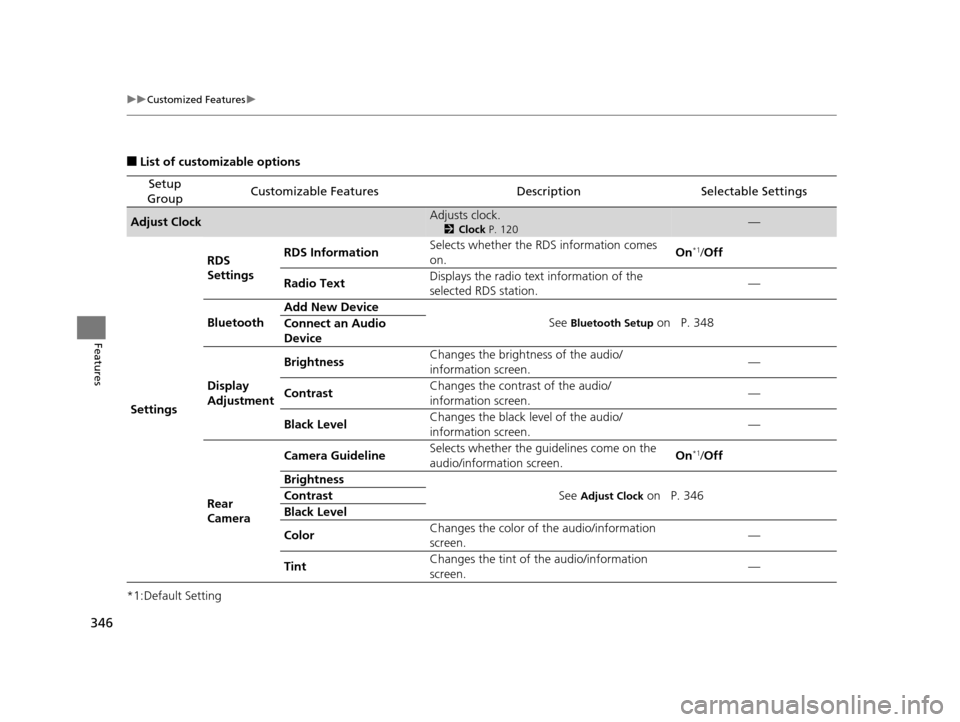
■List of customizable options
*1:Default Setting
Setup
GroupCustomizable FeaturesDescriptionSelectable Settings
Adjust ClockAdjusts clock.
2 Clock P. 120—
Settings RDS
Settings
RDS Information
Selects whether the RDS information comes
on. On
*1/
Off
Radio Text Displays the radio text information of the
selected RDS station. —
Bluetooth Add New Device
See
Bluetooth Setup on P. 348
Connect an Audio
Device
Display
Adjustment Brightness
Changes the brightness of the audio/
information screen. —
Contrast Changes the contrast of the audio/
information screen. —
Black Level Changes the black level of the audio/
information screen.
—
Rear
Camera Camera Guideline
Selects whether the guidelines come on the
audio/information screen. On
*1/
Off
Brightness See
Adjust Clock on P. 346
Contrast
Black Level
Color Changes the color of
the audio/information
screen. —
Tint Changes the tint of
the audio/information
screen. —
16 PILOT-31TG76000.book 346 ページ 2015年6月15日 月曜日 午前11時30分
Page 356 of 661
355
uuCustomized Features u
Continued
Features
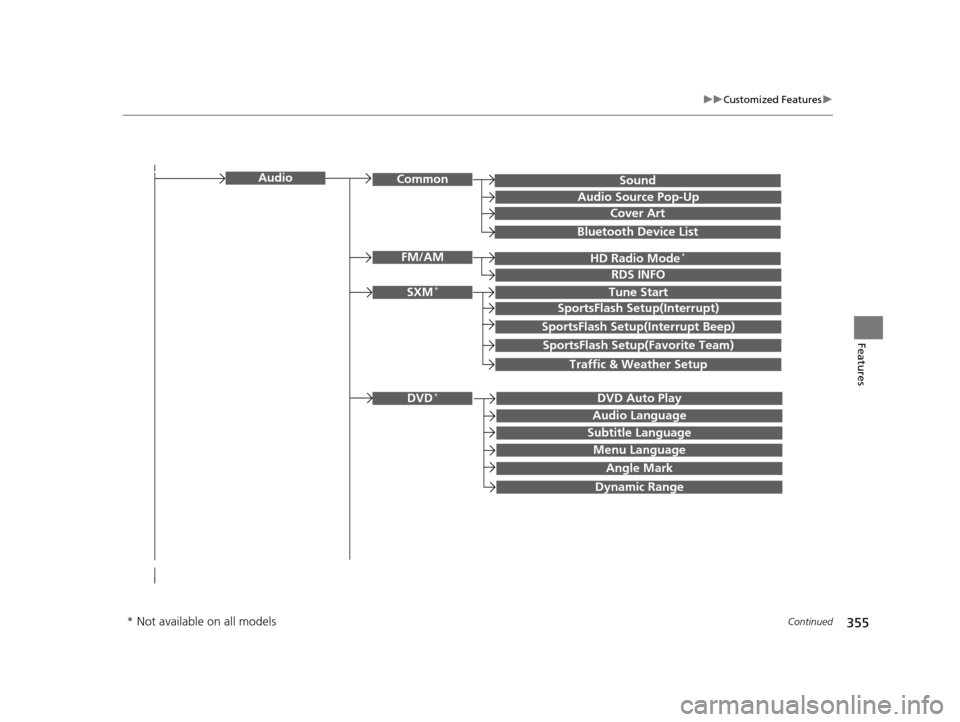
SoundAudioCommon
Audio Source Pop-Up
Cover Art
HD Radio Mode*FM/AM
RDS INFO
SXM*Tune Start
SportsFlash Setup(Interrupt)
SportsFlash Setup(Interrupt Beep)
SportsFlash Setup(Favorite Team)
Traffic & Weather Setup
DVD Auto PlayDVD*
Audio Language
Subtitle Language
Menu Language
Angle Mark
Bluetooth Device List
Dynamic Range
* Not available on all models
16 PILOT-31TG76000.book 355 ページ 2015年6月15日 月曜日 午前11時30分
Page 370 of 661
369
uuCustomized Features u
Continued
Features
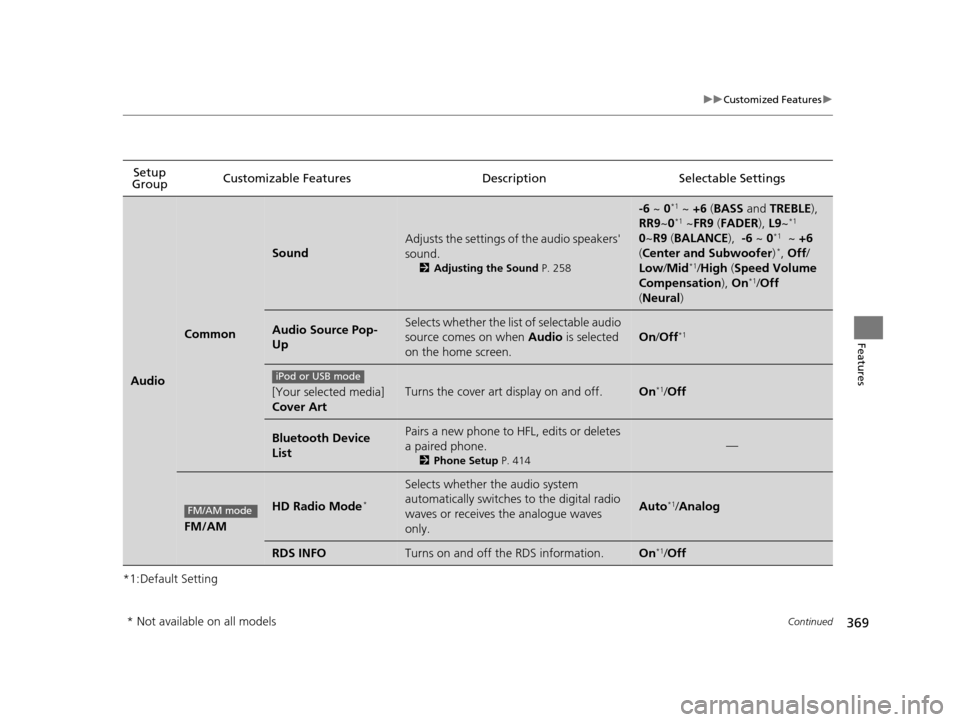
*1:Default SettingSetup
Group Customizable Features Descri
ption Selectable Settings
Audio
Common
Sound
Adjusts the settings of the audio speakers'
sound.
2Adjusting the Sound P. 258
-6 ~ 0*1 ~ +6 (BASS and TREBLE),
RR9 ~0*1 ~FR9 (FADER ), L9~*1
0 ~R9 (BALANCE ), -6 ~ 0*1 ~ +6
( Center and Subwoofer )*, Off /
Low /Mid*1/High (Speed Volume
Compensation ), On*1/Off
( Neural )
Audio Source Pop-
UpSelects whether the list of selectable audio
source comes on when Audio is selected
on the home screen.
On /Off*1
[Your selected media]
Cover ArtTurns the cover art display on and off.On*1/Off
Bluetooth Device
ListPairs a new phone to HFL, edits or deletes
a paired phone.
2 Phone Setup P. 414
—
FM/AM
HD Radio Mode*
Selects whether the audio system
automatically switches to the digital radio
waves or receives the analogue waves
only.
Auto*1/Analog
RDS INFOTurns on and off the RDS information.On*1/Off
iPod or USB mode
FM/AM mode
* Not available on all models
16 PILOT-31TG76000.book 369 ページ 2015年6月15日 月曜日 午前11時30分
Page 462 of 661
461Continued
Driving
When Driving
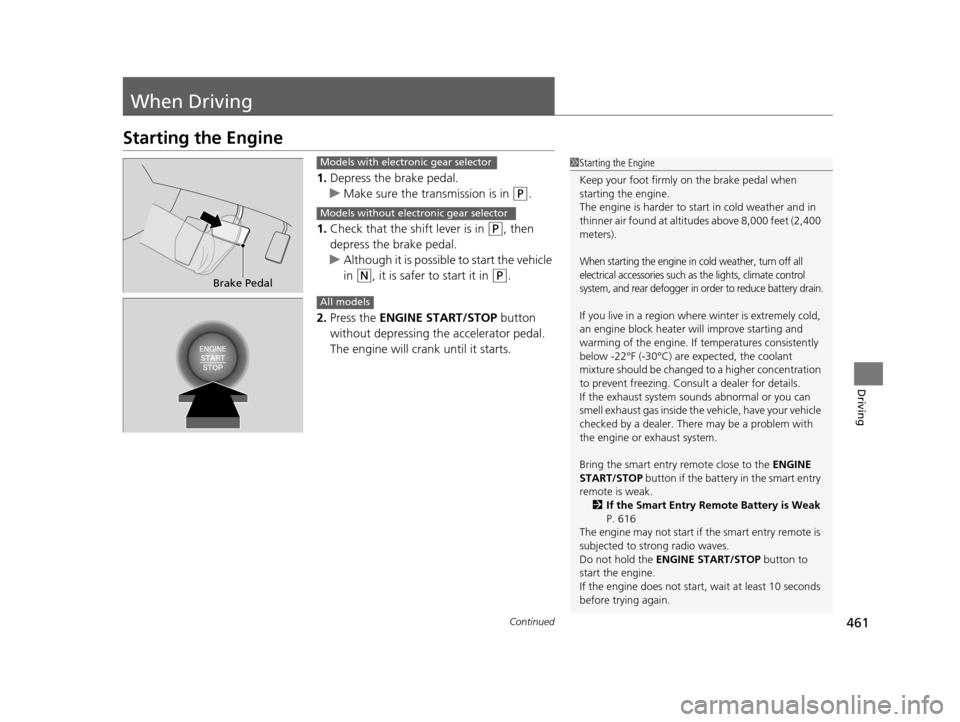
Starting the Engine
1.Depress the brake pedal.
u Make sure the transmission is in
(P.
1. Check that the shift lever is in
(P, then
depress the brake pedal.
u Although it is possible to start the vehicle
in
(N, it is safer to start it in (P.
2. Press the ENGINE START/STOP button
without depressing the accelerator pedal.
The engine will crank until it starts.
1 Starting the Engine
Keep your foot firmly on the brake pedal when
starting the engine.
The engine is harder to st art in cold weather and in
thinner air found at altitudes above 8,000 feet (2,400
meters).
When starting the engine in cold weather, turn off all
electrical accessories such as the lights, climate control
system, and rear defogger in order to reduce battery drain.
If you live in a region where winter is extremely cold,
an engine block heater will improve starting and
warming of the engine. If temperatures consistently
below -22°F (-30°C) are expected, the coolant
mixture should be changed to a higher concentration
to prevent freezing. Cons ult a dealer for details.
If the exhaust system sounds abnormal or you can
smell exhaust gas inside the vehicle, have your vehicle
checked by a dealer. There may be a problem with
the engine or exhaust system.
Bring the smart entry remote close to the ENGINE
START/STOP button if the battery in the smart entry
remote is weak.
2 If the Smart Entry Remote Battery is Weak
P. 616
The engine may not start if the smart entry remote is
subjected to strong radio waves.
Do not hold the ENGINE START/STOP button to
start the engine.
If the engine does not start, wait at least 10 seconds
before trying again.
Brake Pedal
Models with electronic gear selector
Models without electronic gear selector
All models
16 PILOT-31TG76000.book 461 ページ 2015年6月15日 月曜日 午前11時30分