phone HONDA PILOT 2016 3.G Workshop Manual
[x] Cancel search | Manufacturer: HONDA, Model Year: 2016, Model line: PILOT, Model: HONDA PILOT 2016 3.GPages: 661, PDF Size: 37.79 MB
Page 385 of 661
384
uuBluetooth ® HandsFreeLink ®u HFL Menus
Features
*1 : Appears only when a phone is connected to HFL.
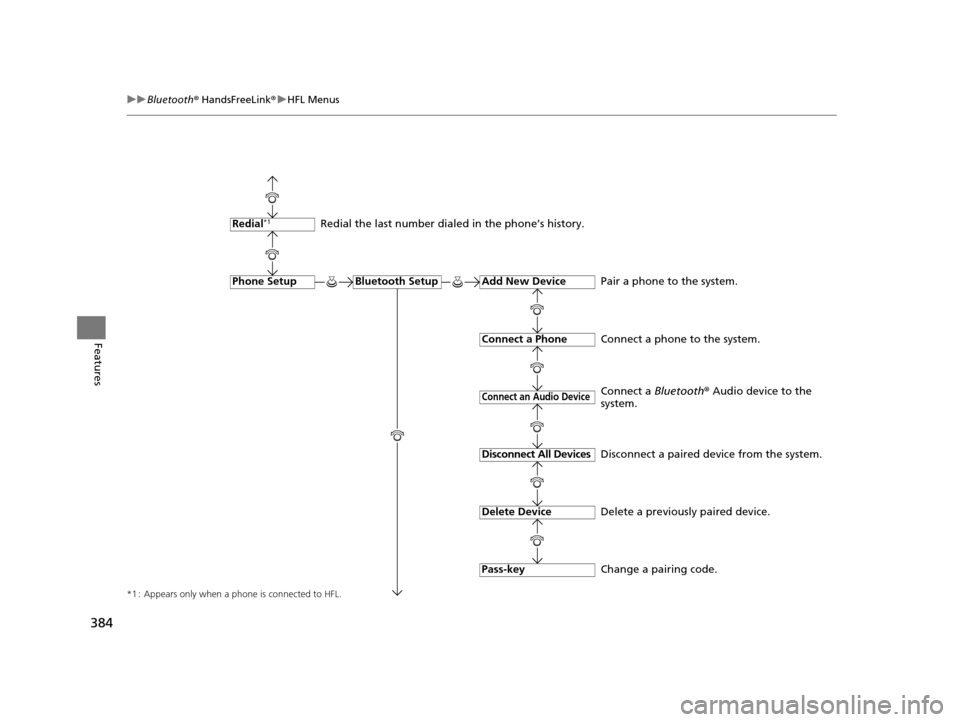
Redial the last number dialed in the phone’s history.
Add New Device
Connect a Phone
Connect an Audio Device
Bluetooth SetupPhone Setup
Redial*1
Pair a phone to the system.
Connect a phone to the system.
Change a pairing code.
Disconnect All Devices
Delete Device
Pass-key
Disconnect a paired device from the system.
Delete a previously paired device. Connect a
Bluetooth® Audio device to the
system.
16 PILOT-31TG76000.book 384 ページ 2015年6月15日 月曜日 午前11時30分
Page 386 of 661
385
uuBluetooth ® HandsFreeLink ®u HFL Menus
Continued
Features
*1 : Appears only when a phone is connected to HFL.
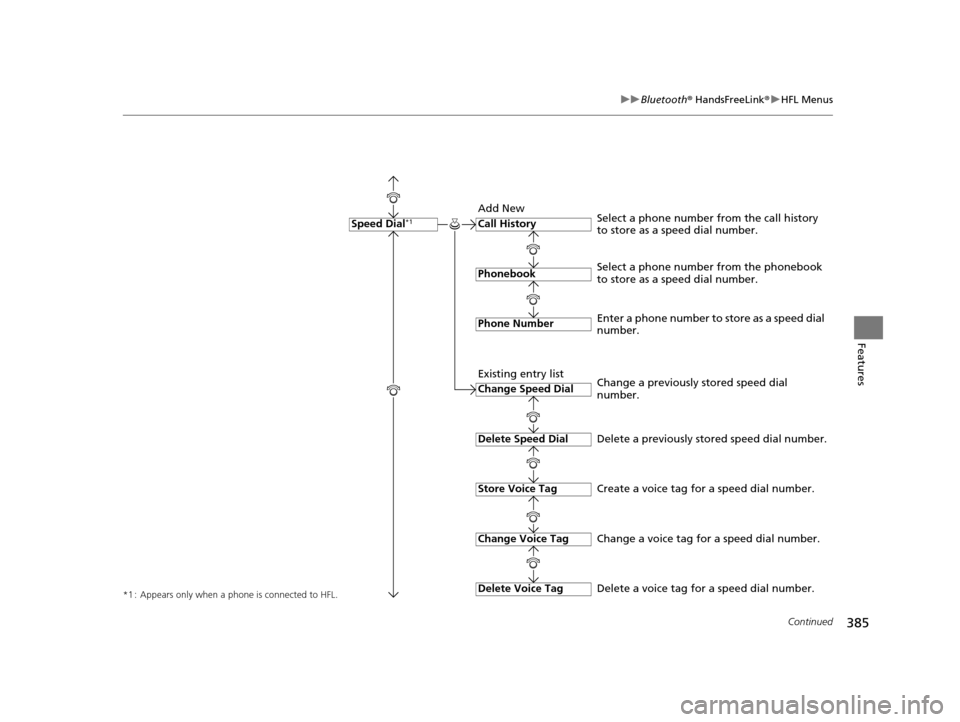
Call History
Phonebook
Phone Number
Speed Dial*1
Select a phone number from the phonebook
to store as a speed dial number. Select a phone number from the call history
to store as a speed dial number.
Create a voice tag for a speed dial number.
Change Speed Dial
Delete Speed Dial
Store Voice Tag
Enter a phone number to store as a speed dial
number.
Delete a previously stored speed dial number.
Change Voice Tag
Delete Voice Tag
Change a previously stored speed dial
number.
Change a voice tag for a speed dial number.
Delete a voice tag for a speed dial number.
Add New
Existing entry list
16 PILOT-31TG76000.book 385 ページ 2015年6月15日 月曜日 午前11時30分
Page 387 of 661
386
uuBluetooth ® HandsFreeLink ®u HFL Menus
Features
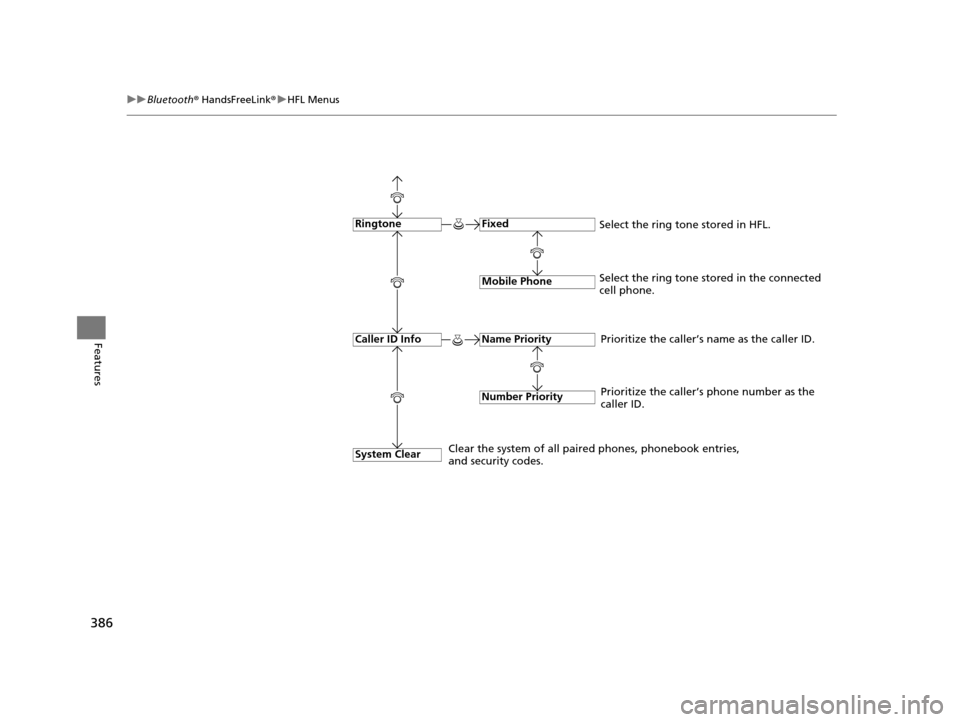
Fixed
Mobile Phone
System Clear
Ringtone
Select the ring tone stored in the connected
cell phone.
Name Priority
Number Priority
Caller ID InfoPrioritize the caller’s name as the caller ID.
Clear the system of all paired phones, phonebook entries,
and security codes. Prioritize the caller’s phone number as the
caller ID.
Select the ring tone stored in HFL.
16 PILOT-31TG76000.book 386 ページ 2015年6月15日 月曜日 午前11時30分
Page 388 of 661
Continued387
uuBluetooth ® HandsFreeLink ®u HFL Menus
Features
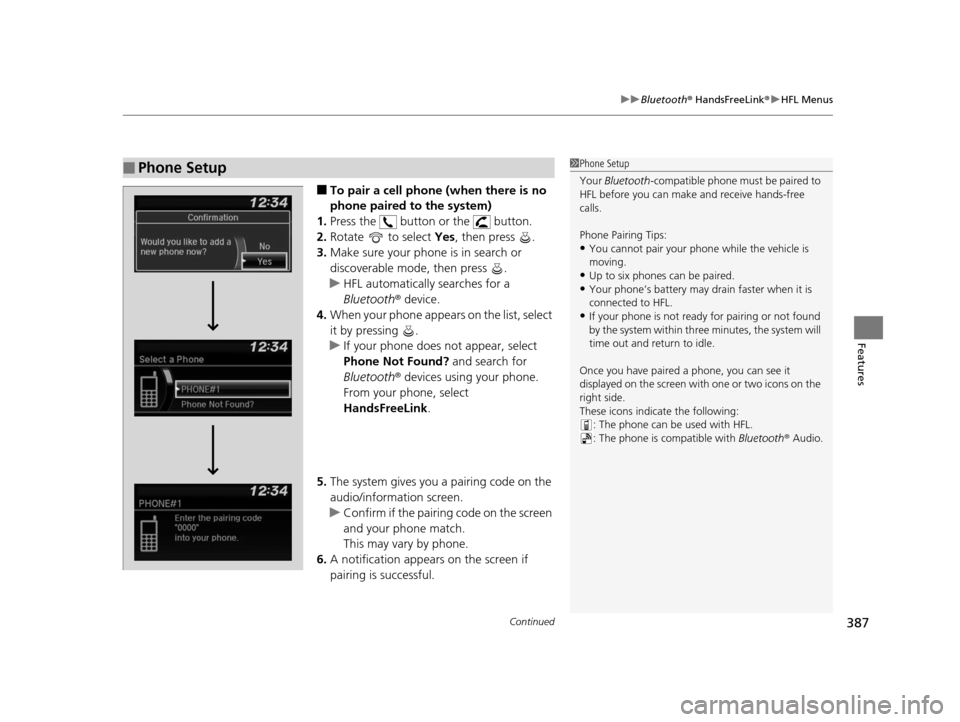
■To pair a cell phone (when there is no
phone paired to the system)
1. Press the button or the button.
2. Rotate to select Yes, then press .
3. Make sure your phone is in search or
discoverable mode, then press .
u HFL automatically searches for a
Bluetooth ® device.
4. When your phone appears on the list, select
it by pressing .
u If your phone does not appear, select
Phone Not Found? and search for
Bluetooth ® devices using your phone.
From your phone, select
HandsFreeLink .
5. The system gives you a pairing code on the
audio/information screen.
u Confirm if the pairing code on the screen
and your phone match.
This may vary by phone.
6. A notification appears on the screen if
pairing is successful.
■Phone Setup1Phone Setup
Your Bluetooth -compatible phone must be paired to
HFL before you can make and receive hands-free
calls.
Phone Pairing Tips:
•You cannot pair your phone while the vehicle is
moving.
•Up to six phones can be paired.•Your phone’s battery may dr ain faster when it is
connected to HFL.
•If your phone is not ready for pairing or not found
by the system within three minutes, the system will
time out and return to idle.
Once you have paired a phone, you can see it
displayed on the screen with one or two icons on the
right side.
These icons indicate the following: : The phone can be used with HFL.
: The phone is compatible with Bluetooth ® Audio.
16 PILOT-31TG76000.book 387 ページ 2015年6月15日 月曜日 午前11時30分
Page 389 of 661
388
uuBluetooth ® HandsFreeLink ®u HFL Menus
Features
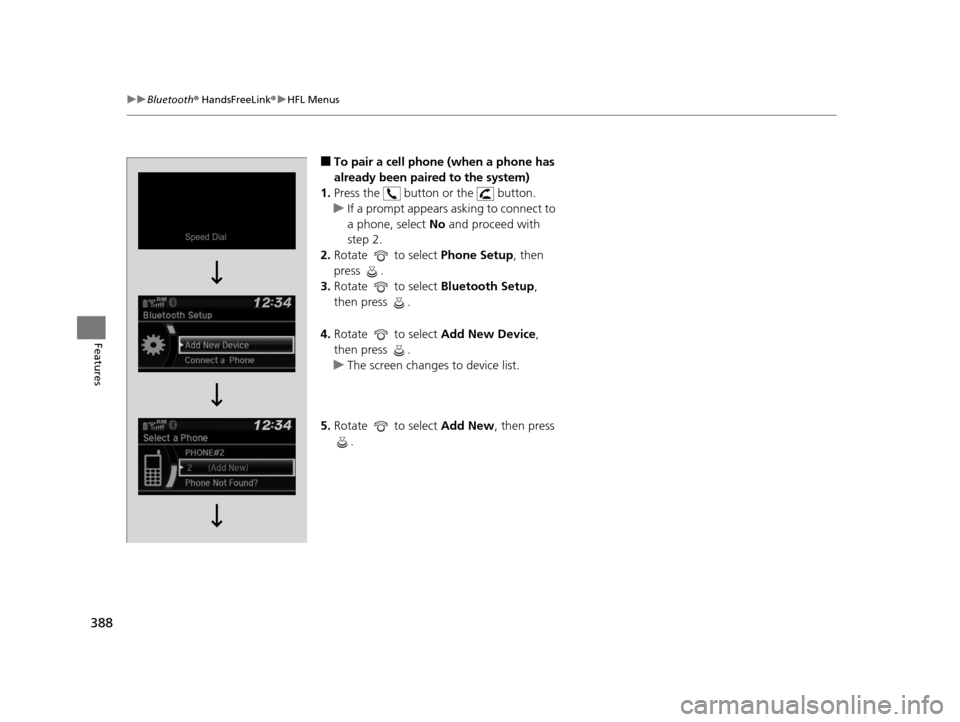
■To pair a cell phone (when a phone has
already been paired to the system)
1. Press the button or the button.
u If a prompt appears asking to connect to
a phone, select No and proceed with
step 2.
2. Rotate to select Phone Setup, then
press .
3. Rotate to select Bluetooth Setup,
then press .
4. Rotate to select Add New Device,
then press .
u The screen changes to device list.
5. Rotate to select Add New, then press
.
16 PILOT-31TG76000.book 388 ページ 2015年6月15日 月曜日 午前11時30分
Page 390 of 661
389
uuBluetooth ® HandsFreeLink ®u HFL Menus
Continued
Features
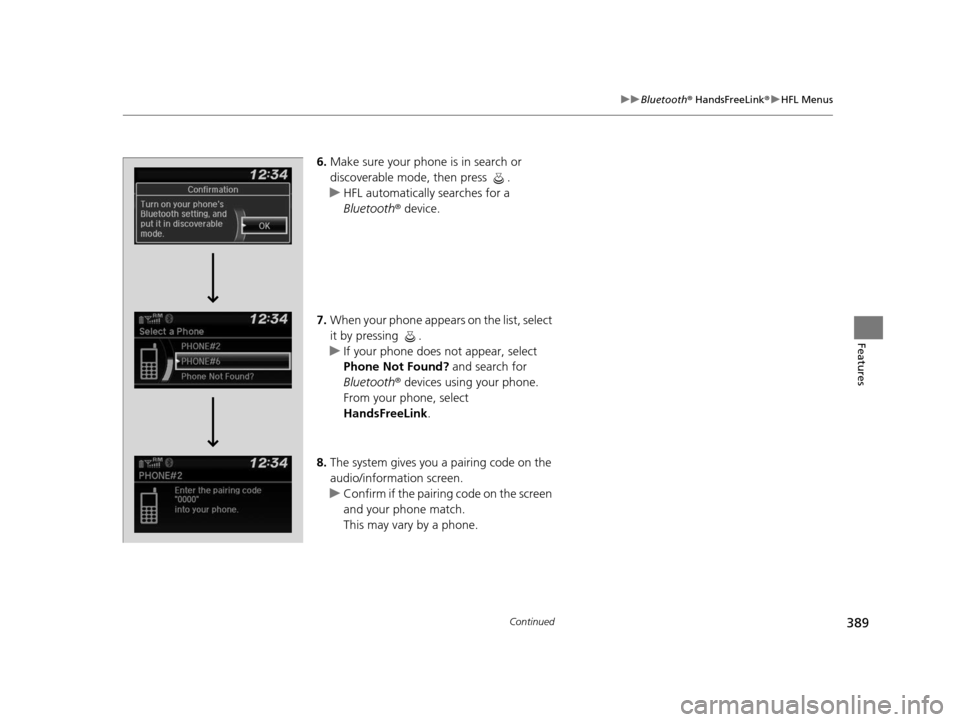
6. Make sure your phone is in search or
discoverable mode, then press .
u HFL automatically searches for a
Bluetooth ® device.
7. When your phone appears on the list, select
it by pressing .
u If your phone does not appear, select
Phone Not Found? and search for
Bluetooth ® devices using your phone.
From your phone, select
HandsFreeLink .
8. The system gives you a pairing code on the
audio/information screen.
u Confirm if the pairing code on the screen
and your phone match.
This may vary by a phone.
16 PILOT-31TG76000.book 389 ページ 2015年6月15日 月曜日 午前11時30分
Page 391 of 661
390
uuBluetooth ® HandsFreeLink ®u HFL Menus
Features
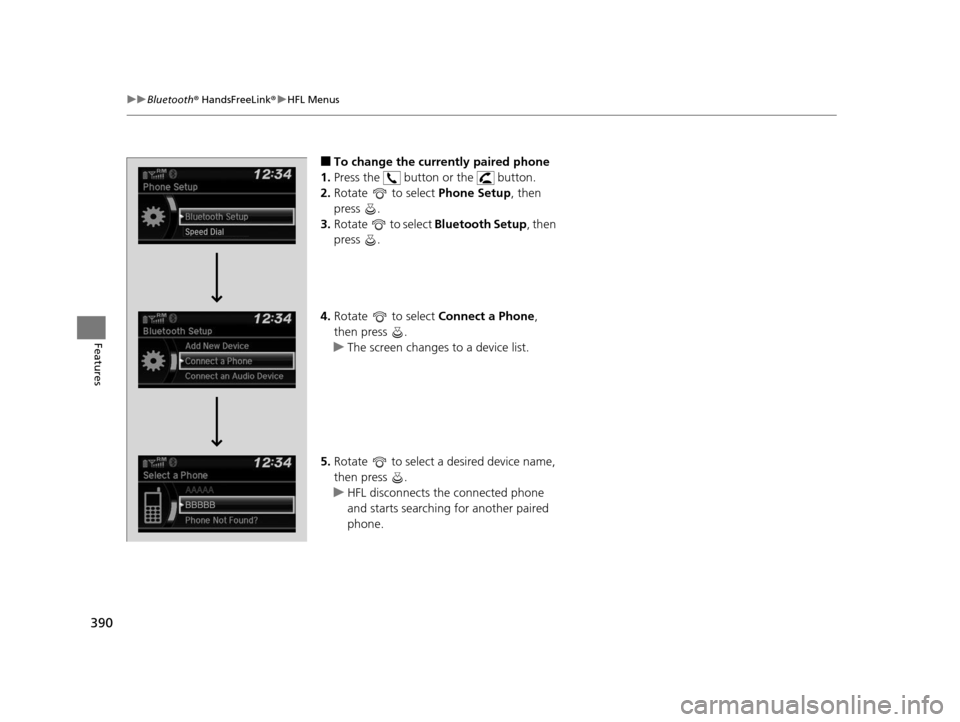
■To change the currently paired phone
1. Press the button or the button.
2. Rotate to select Phone Setup, then
press .
3. Rotate to select Bluetooth Setup, then
press .
4. Rotate to select Connect a Phone,
then press .
u The screen changes to a device list.
5. Rotate to select a desired device name,
then press .
u HFL disconnects the connected phone
and starts searching for another paired
phone.
16 PILOT-31TG76000.book 390 ページ 2015年6月15日 月曜日 午前11時30分
Page 392 of 661
391
uuBluetooth ® HandsFreeLink ®u HFL Menus
Continued
Features
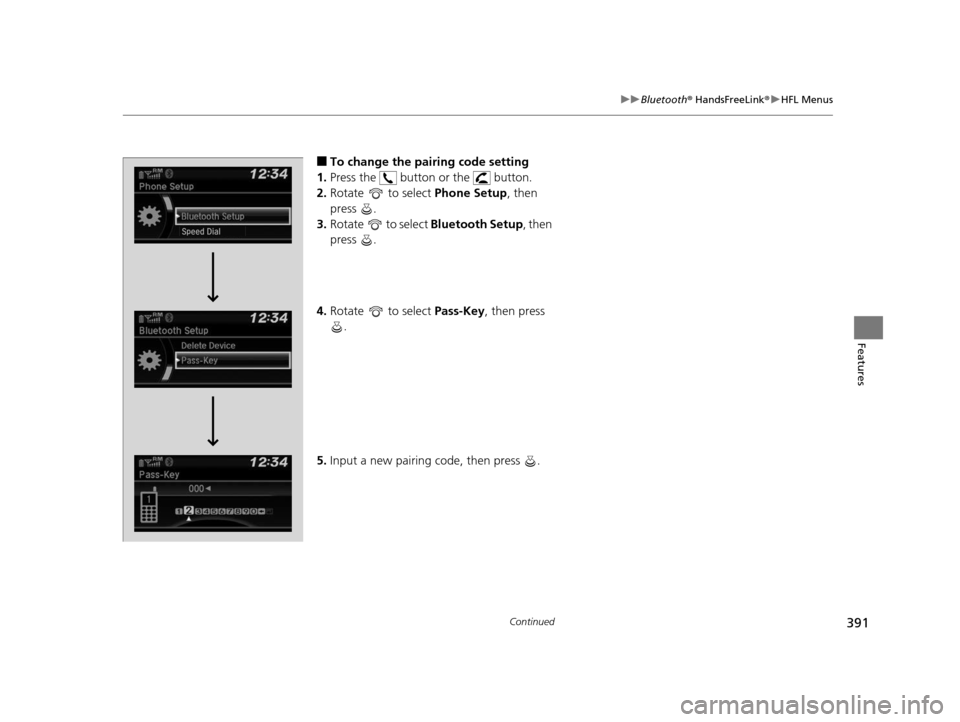
■To change the pairing code setting
1. Press the button or the button.
2. Rotate to select Phone Setup, then
press .
3. Rotate to select Bluetooth Setup, then
press .
4. Rotate to select Pass-Key, then press
.
5. Input a new pairing code, then press .
16 PILOT-31TG76000.book 391 ページ 2015年6月15日 月曜日 午前11時30分
Page 393 of 661
392
uuBluetooth ® HandsFreeLink ®u HFL Menus
Features
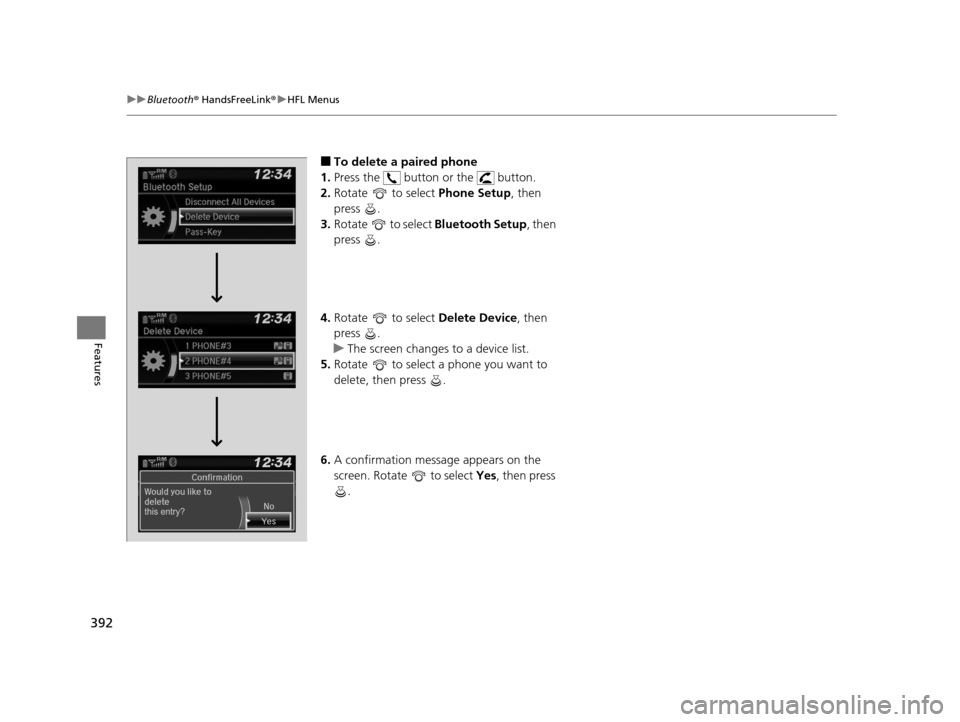
■To delete a paired phone
1. Press the button or the button.
2. Rotate to select Phone Setup, then
press .
3. Rotate to select Bluetooth Setup, then
press .
4. Rotate to select Delete Device, then
press .
u The screen changes to a device list.
5. Rotate to select a phone you want to
delete, then press .
6. A confirmation message appears on the
screen. Rotate to select Yes, then press
.
16 PILOT-31TG76000.book 392 ページ 2015年6月15日 月曜日 午前11時30分
Page 394 of 661
Continued393
uuBluetooth ® HandsFreeLink ®u HFL Menus
Features
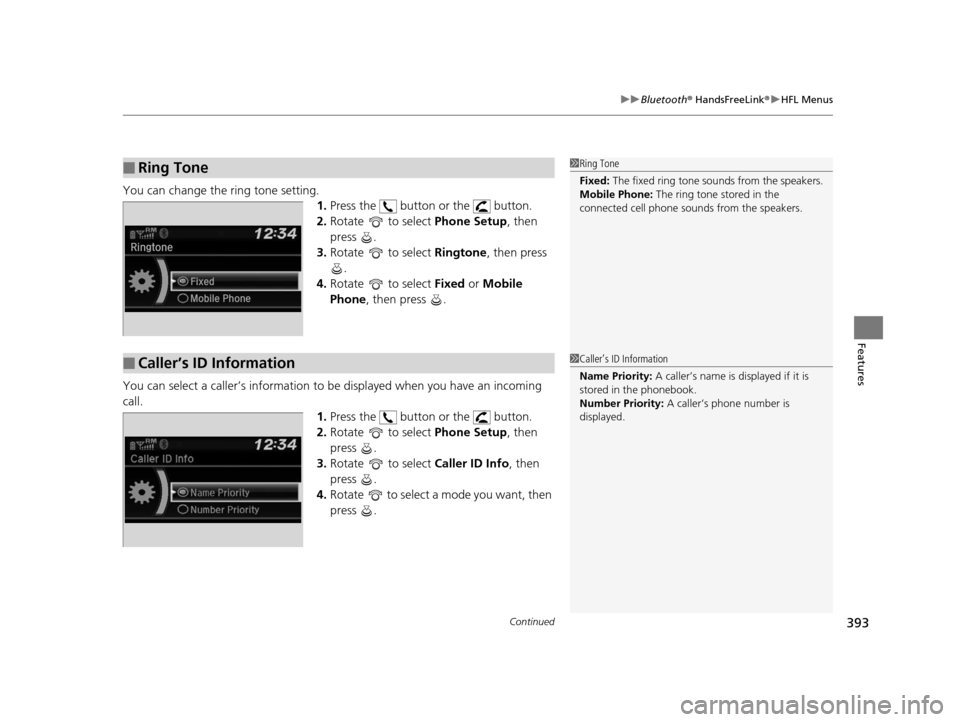
You can change the ring tone setting.
1.Press the button or the button.
2. Rotate to select Phone Setup, then
press .
3. Rotate to select Ringtone, then press
.
4. Rotate to select Fixed or Mobile
Phone , then press .
You can select a caller’s information to be displayed when you have an incoming
call. 1.Press the button or the button.
2. Rotate to select Phone Setup, then
press .
3. Rotate to select Caller ID Info, then
press .
4. Rotate to select a mode you want, then
press .
■Ring Tone1Ring Tone
Fixed: The fixed ring tone sounds from the speakers.
Mobile Phone: The ring tone stored in the
connected cell phone sounds from the speakers.
■Caller’s ID Information1 Caller’s ID Information
Name Priority: A caller’s name is displayed if it is
stored in the phonebook.
Number Priority: A caller’s phone number is
displayed.
16 PILOT-31TG76000.book 393 ページ 2015年6月15日 月曜日 午前11時30分