light HONDA PILOT 2016 3.G Repair Manual
[x] Cancel search | Manufacturer: HONDA, Model Year: 2016, Model line: PILOT, Model: HONDA PILOT 2016 3.GPages: 661, PDF Size: 37.79 MB
Page 220 of 661
219
uuAudio System uUSB Port(s)
Features
USB Port(s)
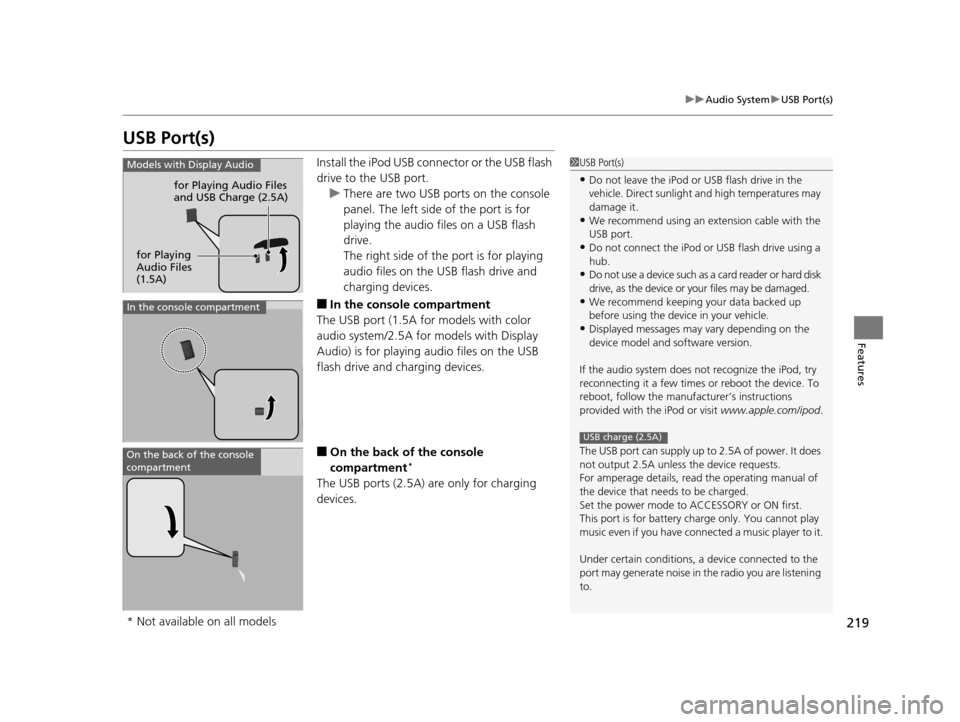
Install the iPod USB connector or the USB flash
drive to the USB port.
u There are two USB ports on the console
panel. The left side of the port is for
playing the audio files on a USB flash
drive.
The right side of th e port is for playing
audio files on the USB flash drive and
charging devices.
■In the consol e compartment
The USB port (1.5A for models with color
audio system/2.5A for models with Display
Audio) is for playing audio files on the USB
flash drive and charging devices.
■On the back of the console
compartment*
The USB ports (2.5A) are only for charging
devices.
1 USB Port(s)
•Do not leave the iPod or USB flash drive in the
vehicle. Direct sunlight and high temperatures may
damage it.
•We recommend using an extension cable with the
USB port.
•Do not connect the iPod or USB flash drive using a
hub.
•Do not use a device such as a card reader or hard disk
drive, as the device or your files may be damaged.
•We recommend keeping y our data backed up
before using the device in your vehicle.
•Displayed messages may vary depending on the
device model and software version.
If the audio system does not recognize the iPod, try
reconnecting it a few times or reboot the device. To
reboot, follow the manufac turer’s instructions
provided with the iPod or visit www.apple.com/ipod.
The USB port can supply up to 2.5A of power. It does
not output 2.5A unless the device requests.
For amperage details, read the operating manual of
the device that ne eds to be charged.
Set the power mode to ACCESSORY or ON first.
This port is for battery charge only. You cannot play
music even if you have conne cted a music player to it.
Under certain condi tions, a device connected to the
port may generate noise in the radio you are listening
to.
USB charge (2.5A)
Models with Display Audio
for Playing Audio Files
and USB Charge (2.5A)
for Playing
Audio Files
(1.5A)
In the console compartment
On the back of the console
compartment
* Not available on all models
16 PILOT-31TG76000.book 219 ページ 2015年6月15日 月曜日 午前11時30分
Page 262 of 661
261
uuAudio System Basic Operation uVoice Control Operation
Continued
Features
Voice Control Operation
Your vehicle has a voice control syst em that allows hands-free operation.
The voice control system uses the (Tal k) and (hang-up/back) buttons on the
steering wheel and a microphone near the map lights on the ceiling.
To achieve optimum voice recognition when using the voice control system:
• Make sure the correct screen is displa yed for the voice command that you are
using.
• Close the windows and moonroof
*.
• Adjust the dashboard and side vents so air does not blow onto the microphone
on the ceiling.
• Speak clearly in a clear, natural speaking voice without pausing between words.
• Reduce any background noise if possible. The system may misinterpret your
command if more than one person is speaking at the same time.
■Voice Recognition
1Voice Control Operation
When you press the button, a helpful prompt asks
what you would like to do. Press and release the
button again to bypass th is prompt and give a
command.
1 Voice Recognition
The voice control system can only be used from the
driver’s seat because the microphone unit removes
noises from the front passenger’s side.
* Not available on all models
16 PILOT-31TG76000.book 261 ページ 2015年6月15日 月曜日 午前11時30分
Page 311 of 661
uuGeneral Information on the Audio System uRecommended CD*
310
Features
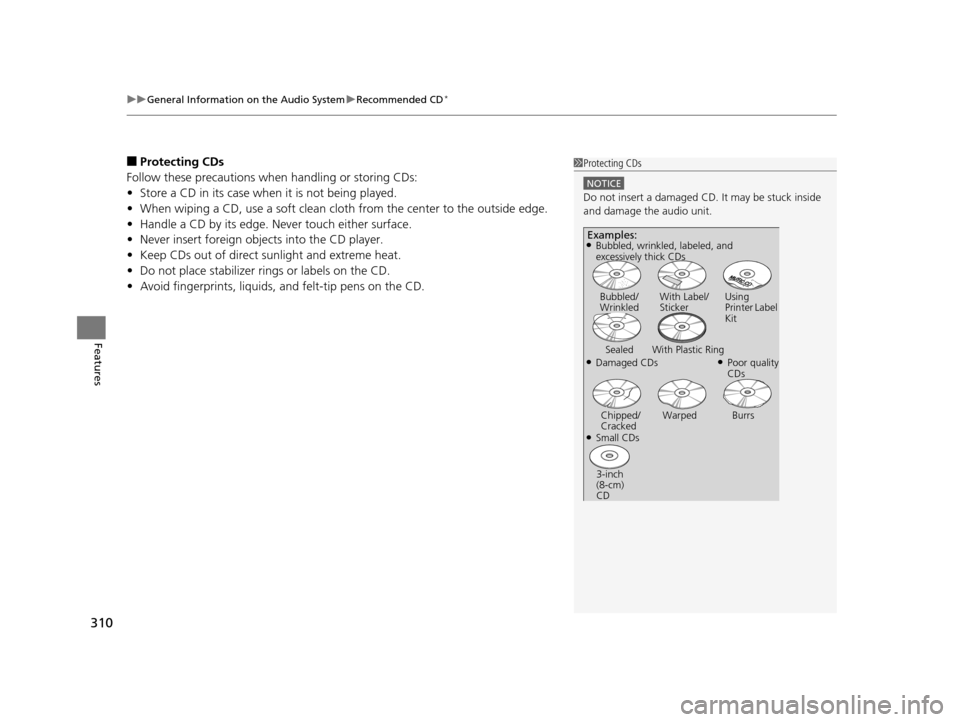
■Protecting CDs
Follow these precautions when handling or storing CDs:
• Store a CD in its case when it is not being played.
• When wiping a CD, use a soft clean clot h from the center to the outside edge.
• Handle a CD by its edge. Never touch either surface.
• Never insert foreign objects into the CD player.
• Keep CDs out of direct sunlight and extreme heat.
• Do not place stabilizer ri ngs or labels on the CD.
• Avoid fingerprints, liquids, and felt-tip pens on the CD.1Protecting CDs
NOTICE
Do not insert a damaged CD. It may be stuck inside
and damage the audio unit.
Examples:
●Damaged CDs Bubbled/
Wrinkled
With Label/
Sticker Using
Printer Label
Kit
Sealed With Plastic Ring●Poor quality
CDs
Chipped/
Cracked Warped Burrs
●Small CDs
3-inch
(8-cm)
CD
●Bubbled, wrinkled, labeled, and
excessively thick CDs
16 PILOT-31TG76000.book 310 ページ 2015年6月15日 月曜日 午前11時30分
Page 318 of 661
317
uuBlu-ray/DVD Rear Entertainment System*uPlaying a DVD/Blu-rayTM*
Continued
Features
Playing a DVD/Blu-rayTM*
To play a DVD or Blu-rayTM *, insert a DVD or Blu-rayTM * into the lower slot of the
front audio system, and press the REAR button.
u The system automatically st arts the DVD or Blu-ray
TM *. DVD or Blu-rayTM * is
available for the rear seat passenger only.
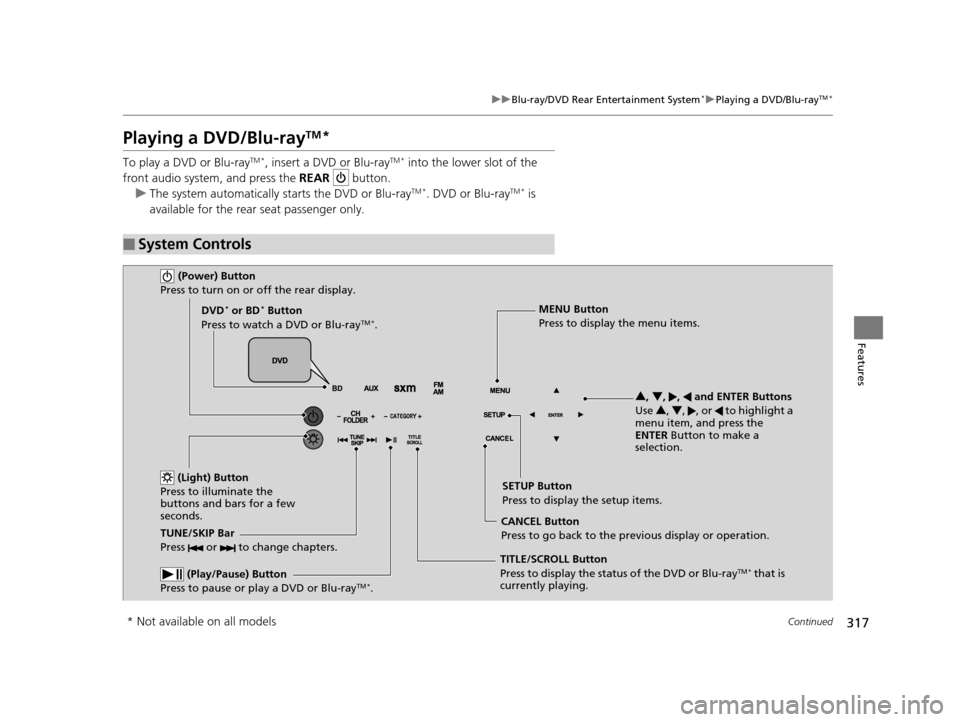
■System Controls
(Power) Button
Press to turn on or off the rear display.
DVD* or BD* Button
Press to watch a DVD or Blu-rayTM *.
(Light) Button
Press to illuminate the
buttons and bars for a few
seconds.
TUNE/SKIP Bar
Press or to change chapters.
(Play/Pause) Button
Press to pause or play a DVD or Blu-rayTM *.
TITLE/SCROLL Button
Press to display the status of the DVD or Blu-rayTM * that is
currently playing. MENU Button
Press to display the menu items.
SETUP Button
Press to display the setup items.
CANCEL Button
Press to go back to the previous display or operation. 3
, 4 , , and ENTER Buttons
Use 3, 4 , , or to highlight a
menu item, and press the
ENTER Button to make a
selection.
* Not available on all models
16 PILOT-31TG76000.book 317 ページ 2015年6月15日 月曜日 午前11時30分
Page 332 of 661
331
uuBlu-ray/DVD Rear Entertainment System*uPlaying Audio
Continued
Features
Playing Audio
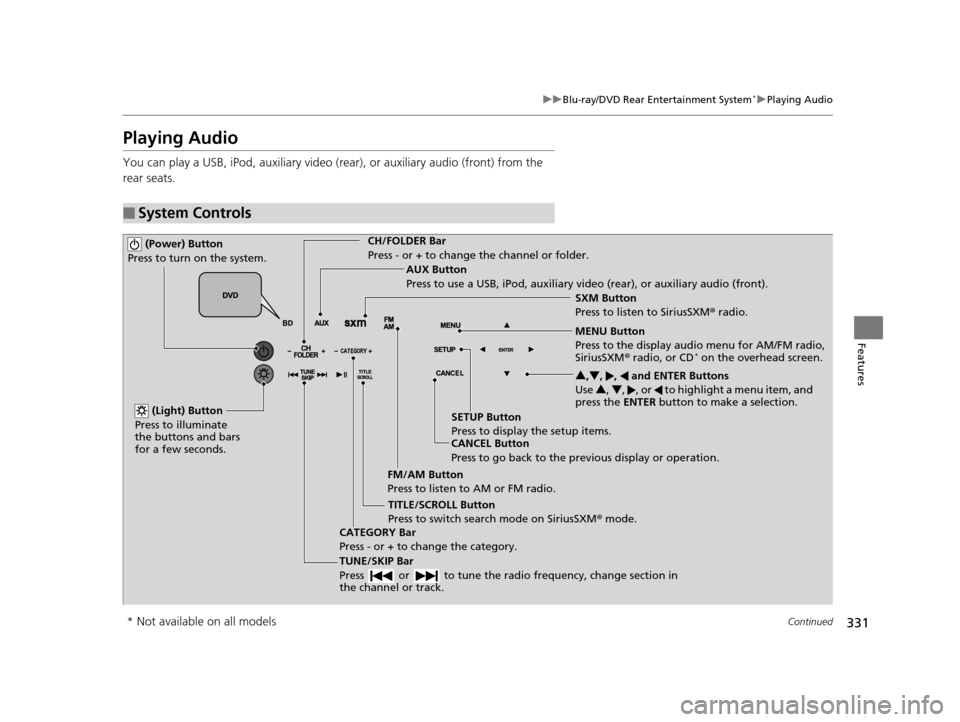
You can play a USB, iPod, auxiliary video (rear), or auxiliary audio (front) from the
rear seats.
■System Controls
(Power) Button
Press to turn on the system.CH/FOLDER Bar
Press - or + to change the channel or folder.
(Light) Button
Press to illuminate
the buttons and bars
for a few seconds.
TUNE/SKIP Bar
Press or to tune the radi o frequency, change section in
the channel or track.
TITLE/SCROLL Button
Press to switch search mode on SiriusSXM ® mode.
CANCEL Button
Press to go back to the previous display or operation. 3
,4 , , and ENTER Buttons
Use 3, 4 , , or to highlight a menu item, and
press the ENTER button to make a selection.
CATEGORY Bar
Press - or + to change the category. AUX Button
Press to use a USB, iPod, auxiliary video (rear), or auxiliary audio (front).
FM/AM Button
Press to listen to AM or FM radio. SETUP Button
Press to display the setup items. SXM Button
Press to listen to SiriusSXM
® radio.
MENU Button
Press to the display audio menu for AM/FM radio,
SiriusSXM ® radio, or CD
* on the overhead screen.
* Not available on all models
16 PILOT-31TG76000.book 331 ページ 2015年6月15日 月曜日 午前11時30分
Page 352 of 661
351
uuCustomized Features u
Continued
Features
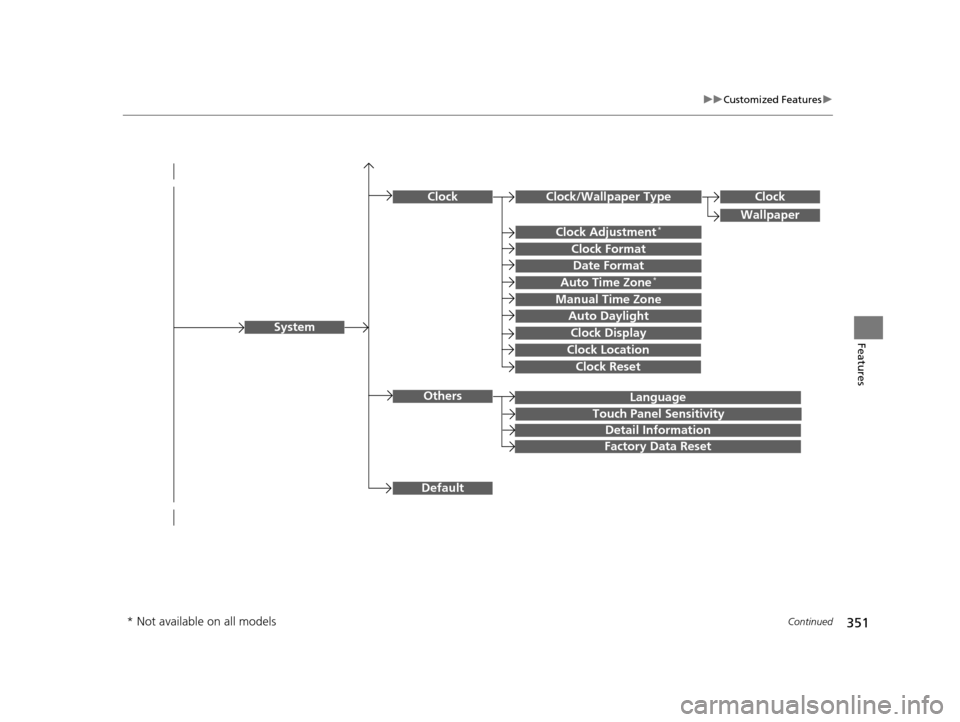
Language
Default
System
Others
Clock/Wallpaper Type
Date Format
Clock Adjustment*
ClockClock
Wallpaper
Manual Time Zone
Auto Daylight
Clock Display
Touch Panel Sensitivity
Clock Format
Auto Time Zone*
Detail Information
Factory Data Reset
Clock Reset
Clock Location
* Not available on all models
16 PILOT-31TG76000.book 351 ページ 2015年6月15日 月曜日 午前11時30分
Page 354 of 661
353
uuCustomized Features u
Continued
Features
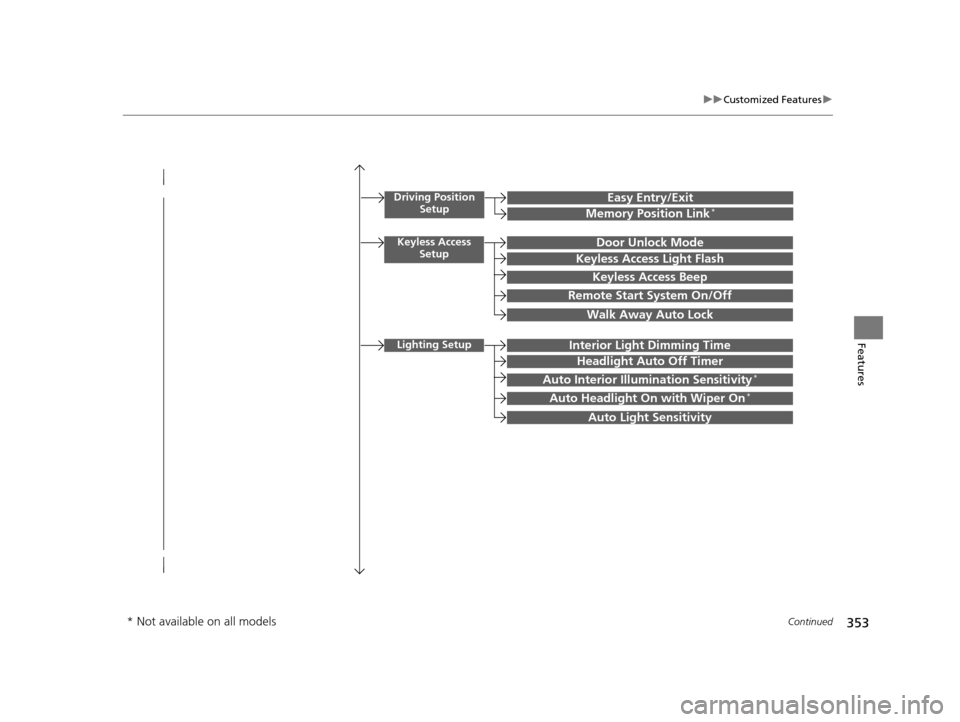
Driving Position
SetupEasy Entry/Exit
Memory Position Link*
Keyless Access SetupDoor Unlock Mode
Keyless Access Light Flash
Keyless Access Beep
Remote Start System On/Off
Walk Away Auto Lock
Lighting SetupInterior Light Dimming Time
Headlight Auto Off Timer
Auto Interior Illu mination Sensitivity*
Auto Headlight On with Wiper On*
Auto Light Sensitivity
* Not available on all models
16 PILOT-31TG76000.book 353 ページ 2015年6月15日 月曜日 午前11時30分
Page 357 of 661
356
uuCustomized Features u
Features
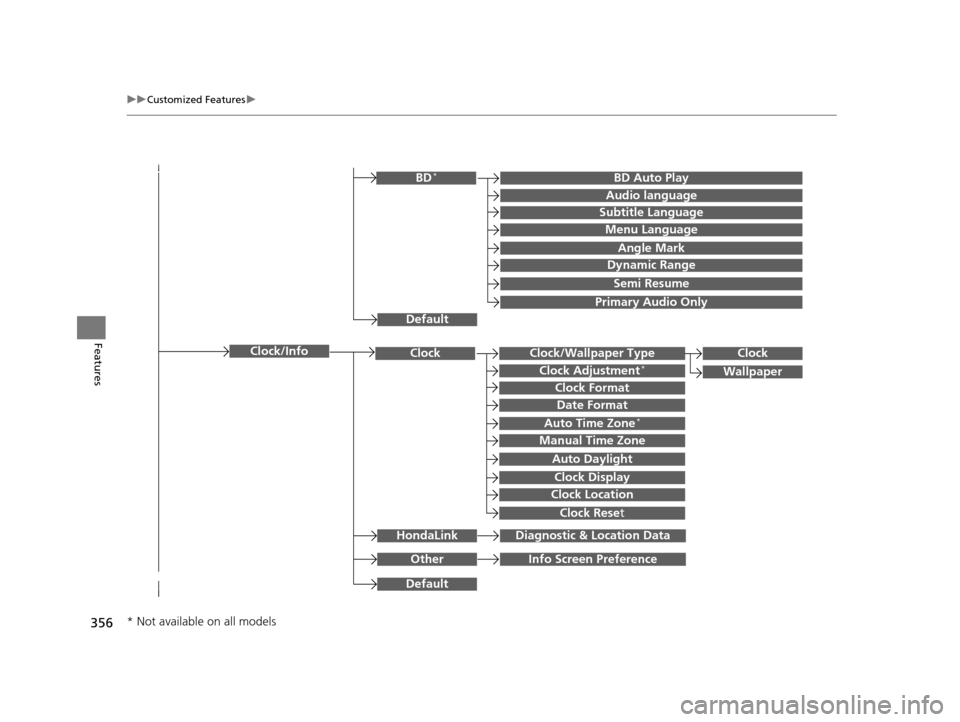
Clock/Wallpaper TypeClockClock
WallpaperClock Adjustment*
Clock Format
Date Format
Auto Time Zone*
Manual Time Zone
Auto Daylight
Clock Display
Clock Location
Clock Reset
OtherInfo Screen Preference
Default
Clock/Info
BD Auto PlayBD*
Audio language
Subtitle Language
Menu Language
Angle Mark
Dynamic Range
Semi Resume
Primary Audio Only
Default
HondaLinkDiagnostic & Location Data
* Not available on all models
16 PILOT-31TG76000.book 356 ページ 2015年6月15日 月曜日 午前11時30分
Page 362 of 661
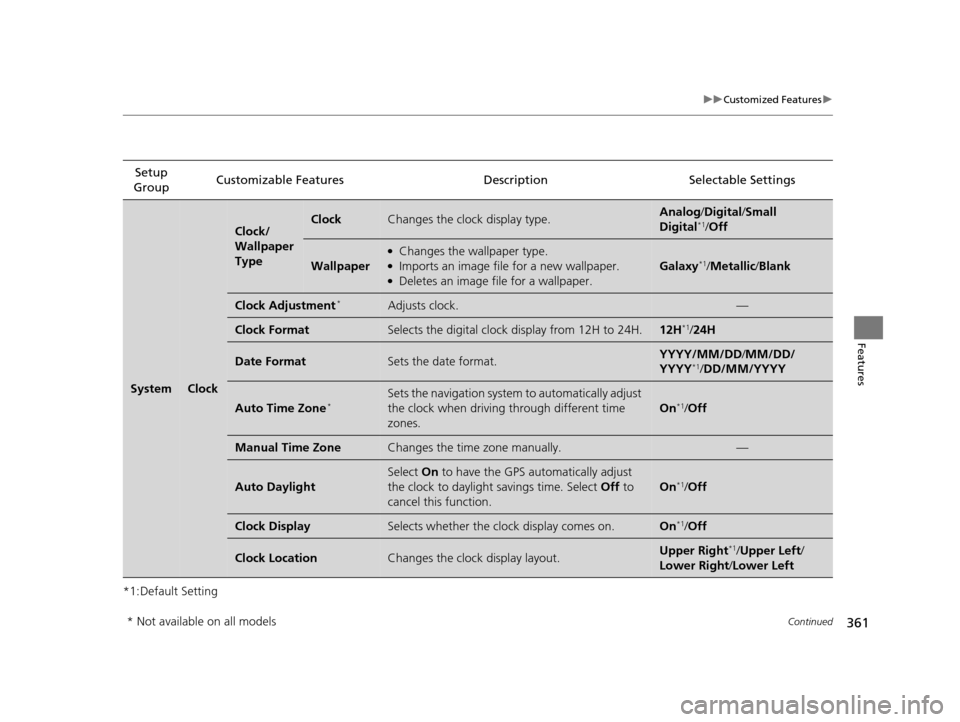
361
uuCustomized Features u
Continued
Features
*1:Default SettingSetup
Group Customizable Features Description Selectable Settings
SystemClock
Clock/
Wallpaper
TypeClockChanges the clock display type.Analog
/Digital /Small
Digital*1/ Off
Wallpaper
●Changes the wallpaper type.●Imports an image file for a new wallpaper.●Deletes an image file for a wallpaper.
Galaxy*1/ Metallic/ Blank
Clock Adjustment*Adjusts clock.—
Clock FormatSelects the digital clock display from 12H to 24H.12H*1/24H
Date FormatSets the date format.YYYY/MM/DD/ MM/DD/
YYYY*1/ DD/MM/YYYY
Auto Time Zone*Sets the navigation system to automatically adjust
the clock when driving through different time
zones.
On*1/ Off
Manual Time ZoneChanges the time zone manually.—
Auto Daylight
Select On to have the GPS automatically adjust
the clock to daylight savings time. Select Off to
cancel this function.
On*1/ Off
Clock DisplaySelects whether the clock display comes on.On*1/Off
Clock LocationChanges the clock display layout.Upper Right*1/Upper Left /
Lower Right /Lower Left
* Not available on all models
16 PILOT-31TG76000.book 361 ページ 2015年6月15日 月曜日 午前11時30分
Page 366 of 661
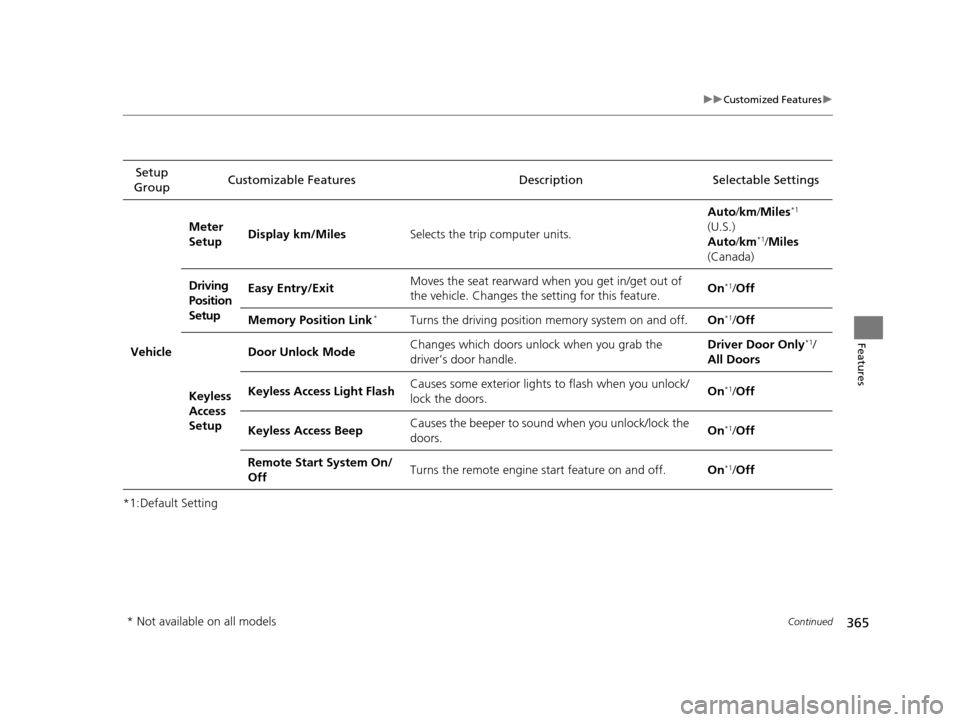
365
uuCustomized Features u
Continued
Features
*1:Default SettingSetup
Group Customizable Features Description Selectable Settings
Vehicle
Meter
Setup
Display km/Miles
Selects the trip computer units. Auto
/km /Miles
*1
(U.S.)
Auto /km*1/Miles
(Canada)
Driving
Position
Setup Easy Entry/Exit
Moves the seat rearward when you get in/get out of
the vehicle. Changes the
setting for this feature. On
*1/
Off
Memory Position Link
*Turns the driving position memory system on and off. On*1/Off
Keyless
Access
Setup Door Unlock Mode
Changes which doors unlock when you grab the
driver’s door handle. Driver Door Only
*1/
All Doors
Keyless Access Light Flash Causes some exterior lights to flash when you unlock/
lock the doors. On
*1/
Off
Keyless Access Beep Causes the beeper to soun
d when you unlock/lock the
doors. On
*1/
Off
Remote Start System On/
Off Turns the remote engine start feature on and off.
On
*1/Off
* Not available on all models
16 PILOT-31TG76000.book 365 ページ 2015年6月15日 月曜日 午前11時30分