bluetooth HONDA PILOT 2016 3.G Owners Manual
[x] Cancel search | Manufacturer: HONDA, Model Year: 2016, Model line: PILOT, Model: HONDA PILOT 2016 3.GPages: 661, PDF Size: 37.79 MB
Page 3 of 661
Contents
This owner’s manual should be considered a permanent part of the
vehicle and should remain with the vehicle when it is sold.
This owner’s manual covers all models of your vehicle. You may find
descriptions of equipment and features that are not on your
particular model.
Images throughout this owner’s manu al (including the front cover)
represent features and equipment that are available on some, but
not all, models. Your particular mo del may not have some of these
features.
This owner’s manual is for vehicles sold in the United States and
Canada.
The information and specifications in cluded in this publication were
in effect at the time of approval for printing. Honda Motor Co., Ltd.
reserves the right, however, to discontinue or change specifications
or design at any time without notice and without incurring any
obligation.2 Safe Driving P. 31
For Safe Driving P. 32 Seat Belts P. 37 Airbags P. 45
2Instrument Panel P. 77
Indicators P. 78 Gauges and Multi-Information Display (MID) P. 113
2Controls P. 119
Clock P. 120 Locking and Unlocking the Doors P. 121
Opening and Closing the Moonroof* P. 149
Adjusting the Mirrors P. 171 Adjusting the Seats P. 174
Climate Control System
* P. 210
2 Features P. 217
Audio System P. 218
General Information on the Audio System P. 308
HomeLink ® Universal Transceiver
* P. 378 Bluetooth ® HandsFreeLink ® P. 381
2 Driving P. 441
Before Driving P. 442 Towing a Trailer P. 448
Parking Your Vehicle P. 540Multi-view rear camera* P. 549
2Maintenance P. 555
Before Performing Maintenance P. 556 Maintenance MinderTM P. 559
Checking and Maintaining Wiper Blades P. 581
Remote Control and Wireless Headphone Care
* P. 597
2 Handling the Unexpected P. 605
Tools P. 606 If a Tire Goes Flat P. 607
Overheating P. 622 Indicator, Coming On/Blinking P. 624
When You Cannot Unlock the Fuel Fill Door P. 634
2 Information P. 637
Specifications P. 638 Identification Numbers P. 640
Emissions Testing P. 643 Warranty Coverages P. 645
16 PILOT-31TG76000.book 2 ページ 2015年6月15日 月曜日 午前11時30分
Page 4 of 661
Contents
Child Safety P. 58Exhaust Gas Hazard P. 74Safety Labels P. 75
Opening and Closing the Tailgate P. 135 Security System P. 144 Opening and Closing the Windows P. 147
Panoramic Glass Roof* P. 150 Operating the Switches Around the Steering Wheel P. 151
Interior Lights/Interior Convenience Items P. 188 Heating and Cooling* P. 205
Audio System Basic Operation P. 224, 242 Audio Error Messages P. 304
Blu-ray/DVD Rear Entertainment System* P. 313 Customized Features P. 342
Bluetooth® HandsFreeLink ® P. 406 Compass* P. 439
Off-Highway Driving Guidelines P. 459 When Driving P. 461 Braking P. 527
Refueling P. 550 Fuel Economy P. 552Accessories and Modifications P. 553
Maintenance Under the Hood P. 563 Replacing Light Bulbs P. 575
Checking and Maintaining Tires P. 585 Battery P. 594 Remote Transmitter Care P. 596
Heating and Cooling System
*/Climate Control System* Maintenance P. 599 Cleaning P. 600
Engine Does Not Start P. 615 Shift Lever Does Not Move* P. 618 Jump Starting P. 619
Fuses P. 628 Emergency Towing P. 633
When You Cannot Open the Tailgate P. 636 Refueling P. 635
Devices that Emit Radio Waves P. 641 Reporting Safety Defects P. 642
Authorized Manuals P. 647 Customer Service Information P. 648
Quick Reference GuideP. 4
Safe DrivingP. 31
Instrument PanelP. 77
ControlsP. 119
FeaturesP. 217
DrivingP. 441
MaintenanceP. 555
Handling the UnexpectedP. 605
InformationP. 637
IndexP. 649
16 PILOT-31TG76000.book 3 ページ 2015年6月15日 月曜日 午前11時30分
Page 6 of 661
5
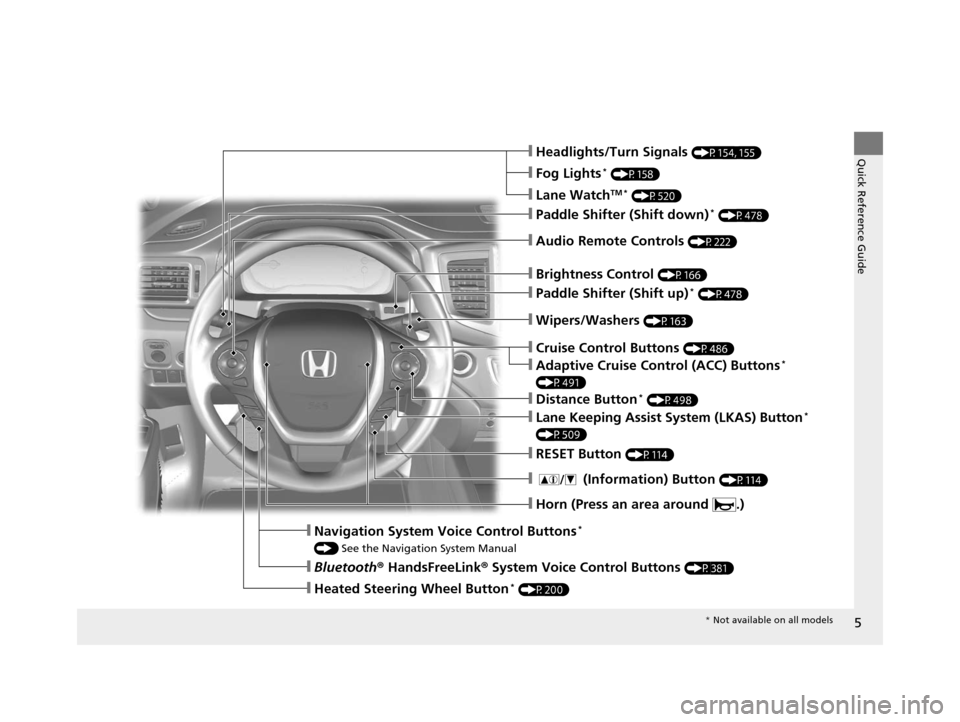
Quick Reference Guide❙Headlights/Turn Signals (P154, 155)
❙Fog Lights* (P158)
❙Lane WatchTM * (P520)
❙Paddle Shifter (Shift down)* (P478)
❙Audio Remote Controls (P222)
❙Wipers/Washers (P163)
❙Paddle Shifter (Shift up)* (P478)
❙Brightness Control (P166)
❙Cruise Control Buttons (P486)
❙Adaptive Cruise Control (ACC) Buttons*
(P491)
❙Distance Button* (P498)
❙Lane Keeping Assist System (LKAS) Button*
(P509)
❙RESET Button (P114)
❙Horn (Press an area around .)
❙ (Information) Button (P114)
❙Navigation System Voice Control Buttons*
() See the Navigation System Manual
❙Bluetooth ® HandsFreeLink ® System Voice Control Buttons (P381)
❙Heated Steering Wheel Button* (P200)
* Not available on all models
16 PILOT-31TG76000.book 5 ページ 2015年6月15日 月曜日 午前11時30分
Page 21 of 661
20
Quick Reference Guide
(Eject) Button
Disc Slot
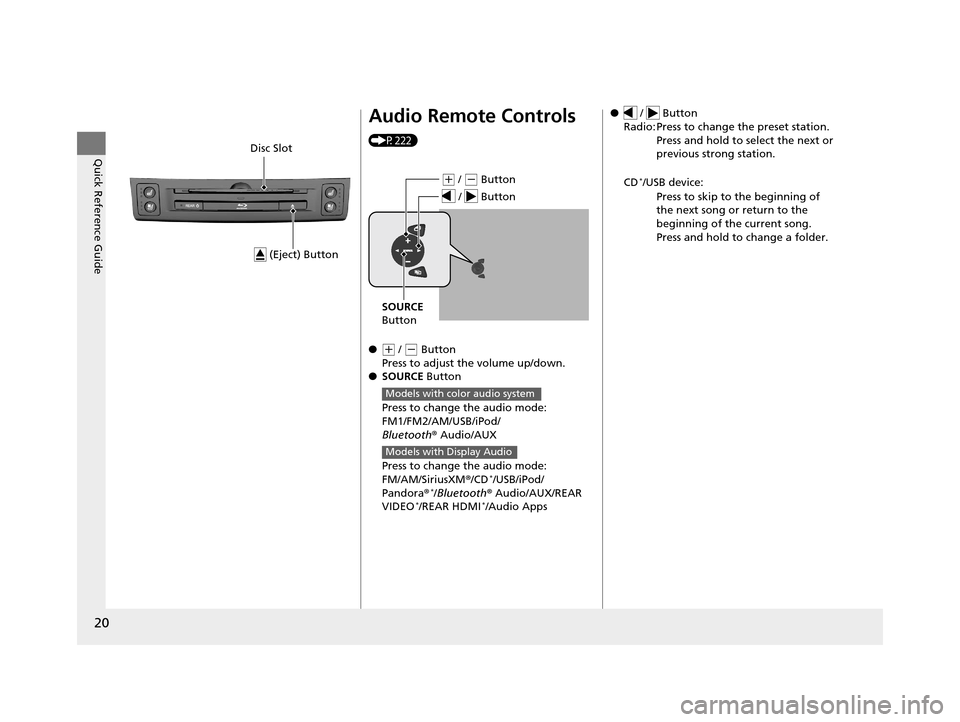
Audio Remote Controls
(P222)
●
(+ / (- Button
Press to adjust the volume up/down.
● SOURCE Button
Press to change the audio mode:
FM1/FM2/AM/USB/iPod/
Bluetooth ® Audio/AUX
Press to change the audio mode:
FM/AM/SiriusXM ®/CD
*/USB/iPod/
Pandora ®*/Bluetooth® Audio/AUX/REAR
VIDEO*/REAR HDMI*/Audio Apps
( + / (- Button
SOURCE
Button
/ Button
Models with color audio system
Models with Display Audio
● / Button
Radio: Press to change the preset station. Press and hold to select the next or
previous strong station.
CD
*/USB device: Press to skip to the beginning of
the next song or return to the
beginning of the current song.
Press and hold to change a folder.
16 PILOT-31TG76000.book 20 ページ 2015年6月15日 月曜日 午前11時30分
Page 218 of 661
217
Features
This chapter describes how to operate technology features.
Audio SystemAbout Your Audio System ................ 218
USB Port(s) ....................................... 219
Auxiliary Input Jack .......................... 220
Audio System Theft Protection ......... 221
Audio Remote Controls .................... 222
Audio System Basic Operation ........ 224
Audio System Basic Operation ........ 242
Models with color audio system
Models with Display Audio
Audio Error Messages...................... 304
CD Player*....................................... 304
iPod/USB Flash Drive ........................ 305
Pandora ®
*....................................... 306
Android/Apps .................................. 307
General Information on the Audio
System ............................................. 308
SiriusXM ® Radio Service ................... 308
Recommended CD
*......................... 309
Compatible iPod, iPhone, and USB Flash Drives............................................. 311
About Open Source Licenses ............ 312 Blu-ray/DVD Rear Entertainment
System
*........................................... 313
Customized Features ........................ 342
HomeLink ® Universal Transceiver
*.. 378
Bluetooth ® HandsFreeLink® ............. 381
Bluetooth ® HandsFreeLink® ............. 406
Compass
*.......................................... 439
Compass Calibration........................ 439
Compass Zone Selection .................. 440
Models with color audio system
Models with Display Audio
* Not available on all models
16 PILOT-31TG76000.book 217 ページ 2015年6月15日 月曜日 午前11時30分
Page 219 of 661
218
Features
Audio System
About Your Audio System
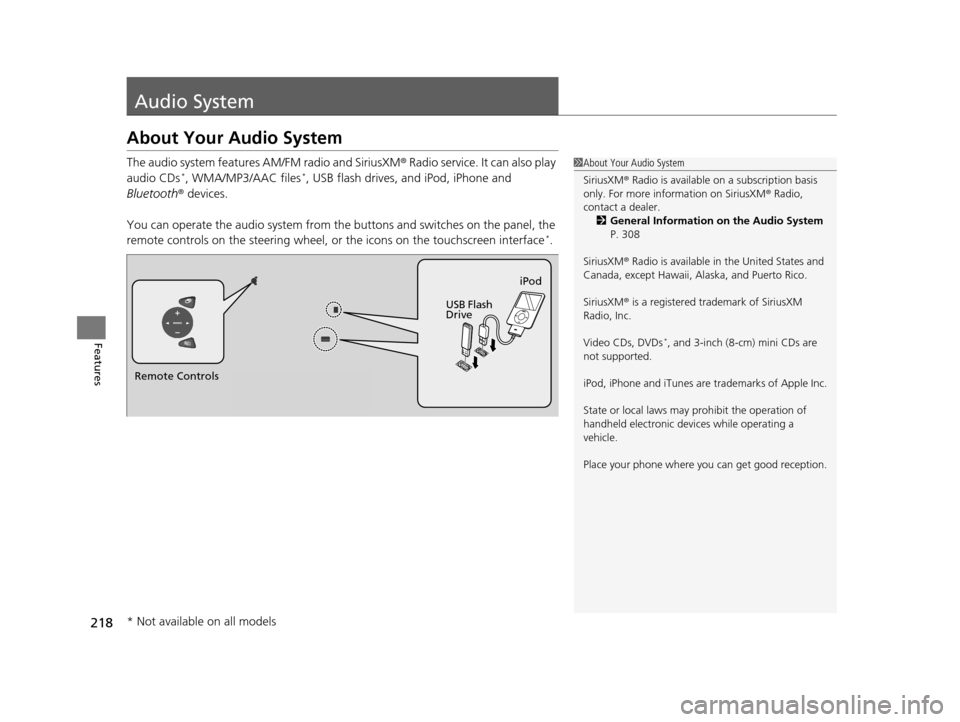
The audio system features AM/FM radio and SiriusXM® Radio service. It can also play
audio CDs*, WMA/MP3/AAC files*, USB flash drives, and iPod, iPhone and
Bluetooth ® devices.
You can operate the audio system from the buttons and switches on the panel, the
remote controls on the steering wheel, or the icons on the touchscreen interface
*.
1About Your Audio System
SiriusXM ® Radio is available on a subscription basis
only. For more information on SiriusXM ® Radio,
contact a dealer.
2 General Information on the Audio System
P. 308
SiriusXM ® Radio is available in the United States and
Canada, except Ha waii, Alaska, and Puerto Rico.
SiriusXM ® is a registered trademark of SiriusXM
Radio, Inc.
Video CDs, DVDs
*, and 3-inch (8-cm) mini CDs are
not supported.
iPod, iPhone and iTunes are trademarks of Apple Inc.
State or local laws may pr ohibit the operation of
handheld electronic devi ces while operating a
vehicle.
Place your phone where y ou can get good reception.
Remote Controls iPod
USB Flash
Drive
* Not available on all models
16 PILOT-31TG76000.book 218 ページ 2015年6月15日 月曜日 午前11時30分
Page 223 of 661
222
uuAudio System uAudio Remote Controls
Features
Audio Remote Controls
Allow you to operate the au dio system while driving.
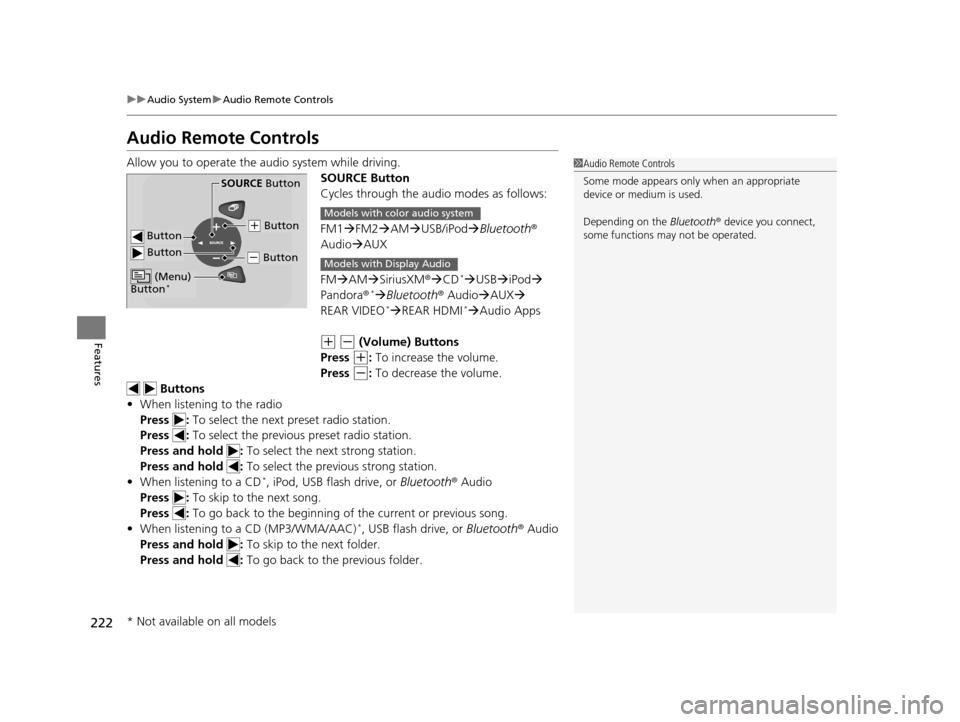
SOURCE Button
Cycles through the audio modes as follows:
FM1FM2 AM USB/iPod Bluetooth®
Audio AUX
FM AM SiriusXM ®CD
*USB iPod
Pandora®* Bluetooth ® AudioAUX
REAR VIDEO* REAR HDMI*Audio Apps
(+ (- (Volume) Buttons
Press
(+: To increase the volume.
Press
(-: To decrease the volume.
Buttons
• When listening to the radio
Press : To select the next preset radio station.
Press : To select the previous preset radio station.
Press and hold : To select the next strong station.
Press and hold : To select the previous strong station.
• When listening to a CD
*, iPod, USB flash drive, or Bluetooth® Audio
Press : To skip to the next song.
Press : To go back to the beginning of the current or previous song.
• When listening to a CD (MP3/WMA/AAC)
*, USB flash drive, or Bluetooth ® Audio
Press and hold : To skip to the next folder.
Press and hold : To go back to the previous folder.
1Audio Remote Controls
Some mode appears only when an appropriate
device or medium is used.
Depending on the Bluetooth® device you connect,
some functions ma y not be operated.
Button
SOURCE Button
Button
(+ Button
(- Button
(Menu)
Button*
Models with color audio system
Models with Display Audio
* Not available on all models
16 PILOT-31TG76000.book 222 ページ 2015年6月15日 月曜日 午前11時30分
Page 224 of 661
223
uuAudio System uAudio Remote Controls
Features
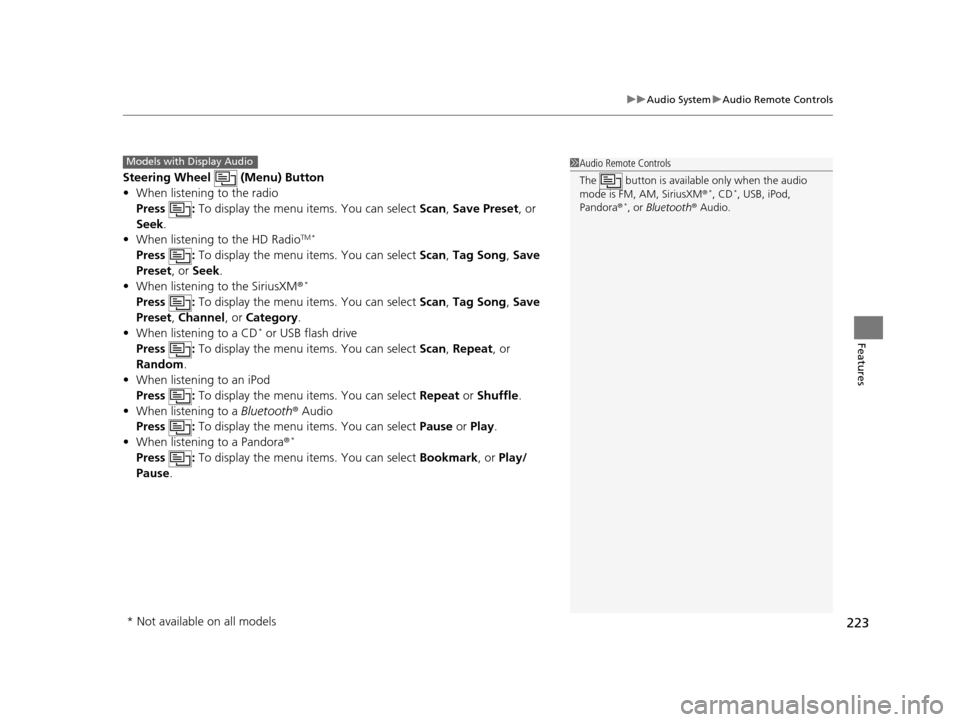
Steering Wheel (Menu) Button
• When listening to the radio
Press : To display the menu items. You can select Scan, Save Preset, or
Seek.
• When listening to the HD Radio
TM *
Press : To display the menu items. You can select Scan, Tag Song , Save
Preset, or Seek.
• When listening to the SiriusXM ®
*
Press : To display the menu items. You can select Scan, Tag Song , Save
Preset, Channel , or Category .
• When listening to a CD
* or USB flash drive
Press : To display the menu items. You can select Scan, Repeat, or
Random .
• When listening to an iPod
Press : To display the menu items. You can select Repeat or Shuffle.
• When listening to a Bluetooth® Audio
Press : To display the menu items. You can select Pause or Play.
• When listening to a Pandora ®
*
Press : To display the menu items. You can select Bookmark, or Play/
Pause .
1Audio Remote Controls
The button is availabl e only when the audio
mode is FM, AM, SiriusXM ®
*, CD*, USB, iPod,
Pandora ®*, or Bluetooth® Audio.
Models with Display Audio
* Not available on all models
16 PILOT-31TG76000.book 223 ページ 2015年6月15日 月曜日 午前11時30分
Page 240 of 661
239
uuAudio System Basic Operation uPlaying Bluetooth ® Audio
Continued
Features
Playing Bluetooth ® Audio
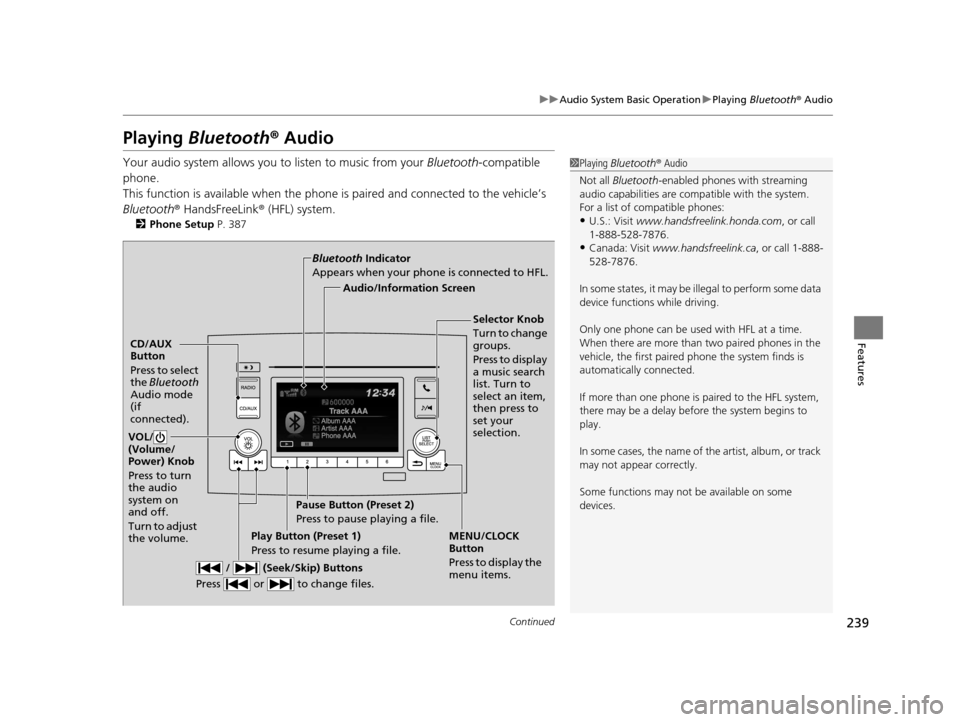
Your audio system allows you to listen to music from your Bluetooth-compatible
phone.
This function is available when the phone is paired an d connected to the vehicle’s
Bluetooth ® HandsFreeLink ® (HFL) system.
2Phone Setup P. 387
1Playing Bluetooth ® Audio
Not all Bluetooth -enabled phones with streaming
audio capabilities are compatible with the system.
For a list of compatible phones:
•U.S.: Visit www.handsfreelink.honda.com , or call
1-888-528-7876.
•Canada: Visit www.handsfreelink.ca , or call 1-888-
528-7876.
In some states, it may be il legal to perform some data
device functions while driving.
Only one phone can be used with HFL at a time.
When there are more than two paired phones in the
vehicle, the first paired phone the system finds is
automatically connected.
If more than one phone is paired to the HFL system,
there may be a delay before the system begins to
play.
In some cases, the name of the artist, album, or track
may not appear correctly.
Some functions may not be available on some
devices.
CD/AUX
Button
Press to select
the Bluetooth
Audio mode
(if
connected).
VOL/
(Volume/
Power) Knob
Press to turn
the audio
system on
and off.
Turn to adjust
the volume.
MENU/CLOCK
Button
Press to display the
menu items.
Audio/Information Screen
Bluetooth
Indicator
Appears when your phone is connected to HFL.
/ (Seek/Skip) Buttons
Press or to change files.Play Button (Preset 1)
Press to resume playing a file. Pause Button (Preset 2)
Press to pause playing a file.
Selector Knob
Turn to change
groups.
Press to display
a music search
list. Turn to
select an item,
then press to
set your
selection.
16 PILOT-31TG76000.book 239 ページ 2015年6月15日 月曜日 午前11時30分
Page 241 of 661
uuAudio System Basic Operation uPlaying Bluetooth ® Audio
240
Features
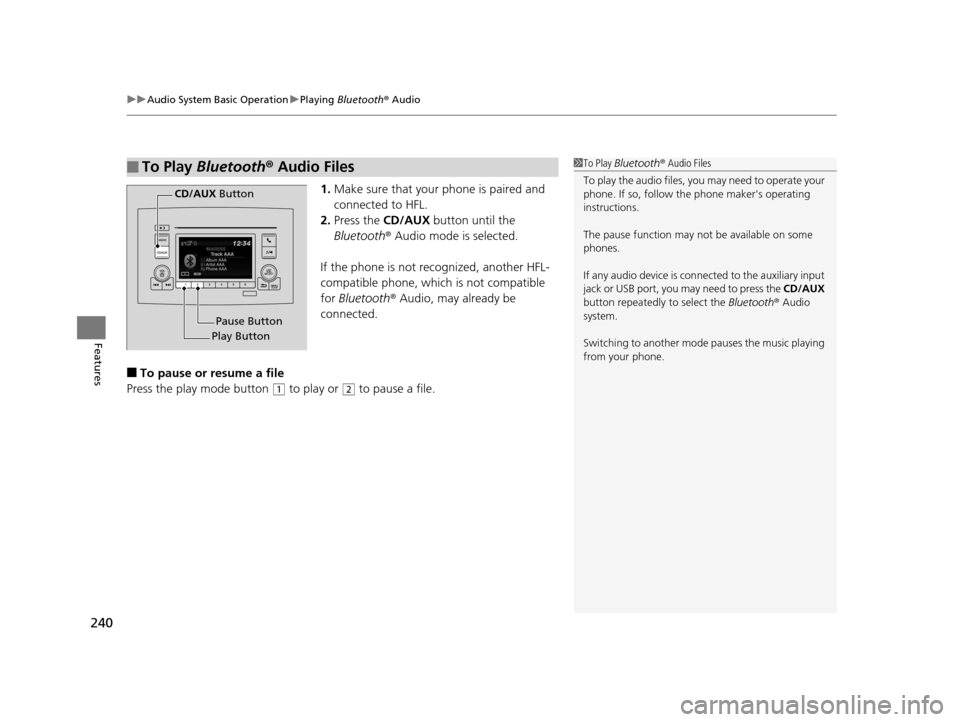
1. Make sure that your phone is paired and
connected to HFL.
2. Press the CD/AUX button until the
Bluetooth ® Audio mode is selected.
If the phone is not recognized, another HFL-
compatible phone, which is not compatible
for Bluetooth ® Audio, may already be
connected.
■To pause or resume a file
Press the play mode button
(1 to play or (2 to pause a file.
■To Play Bluetooth® Audio Files1To Play Bluetooth ® Audio Files
To play the audio files, y ou may need to operate your
phone. If so, follow the phone maker's operating
instructions.
The pause function may no t be available on some
phones.
If any audio device is conne cted to the auxiliary input
jack or USB port, you may need to press the CD/AUX
button repeatedly to select the Bluetooth® Audio
system.
Switching to another mode pauses the music playing
from your phone.
Play Button Pause Button
CD/AUX
Button
16 PILOT-31TG76000.book 240 ページ 2015年6月15日 月曜日 午前11時30分