lock HONDA PILOT 2016 3.G Quick Guide
[x] Cancel search | Manufacturer: HONDA, Model Year: 2016, Model line: PILOT, Model: HONDA PILOT 2016 3.GPages: 89, PDF Size: 5.82 MB
Page 21 of 89

34 || 35
VEHICLE CONTROLSVEHICLE CONTROLS
Power Window Operation
The power windows can be opened and closed when the vehicle is on by usi\
ng the
switches on the doors. The switches on the driver’s side can be used to open and
close all the windows.
Automatic Operation
To open: Push the switch down firmly.
To close: Pull the switch up firmly.
The window opens or closes completely. To stop
the window at any time, push or pull the switch
again briefly.
Manual OperationTo open: Push the switch down lightly.
To close: Pull the switch up lightly.
Release the switch when the windows reach
the desired position.
Power Window LockPush in the power window lock button so only the driver’s window can be
operated. An indicator appears in the button when window lock is on.
Closing a power window on someone’s hands or fingers can cause serious
injury.
Make sure your passengers are away from the windows before closing them.
WARNING
OffPower window
lock button
Driver’s
window
switch Front passenger’s
window switchOn
Rear window
switches
Power Moonroof Operation*
The moonroof can be opened and closed when the vehicle is on by using th\
e switch
on the ceiling.
Automatic Operation To open: Push the switch back firmly to the second
detent, then release.
To close: Push the switch forward firmly to the
second detent, then release.
The moonroof opens or closes completely. To stop
the moonroof at any time, push the switch briefly.
Manual OperationTo open: Push and hold the switch back lightly to the
first detent until the desired position is reached.
To close: Push and hold the switch forward lightly to
the first detent until the desired position is reached.
Moonroof TiltTo tilt: Push the center of the switch.
To close: Push the switch forward firmly, then release.
Closing the moonroof on someone’s hands or fingers can cause serious injury.
Make sure your passengers are away from the moonroof before closing it.
WARNING
Opening the moonroof in below freezing temperatures or when it is covere\
d with
snow or ice can damage the moonroof panel or motor.
NOTICE
Models without
panoramic roof
Close
Open
Tilt
*if equipped
Models wit h
panoramic roof
Close
Open
Tilt
Page 22 of 89

36 || 37
VEHICLE CONTROLSVEHICLE CONTROLS
Panoramic Glass Roof*
The ceiling cover in the second row can be opened and closed to reveal t\
he glass
roof when the vehicle is on by using the switch on the ceiling.
Automatic Operation
To open: Push the switch back firmly, then release.
To close: Push the switch forward firmly, then
release.
The cover opens completely. To stop the cover in
either direction, push the switch briefly.
Manual OperationTo open: Push and hold the switch back lightly until the desired position is
reached.
To close: Push and hold the switch forward lightly until the desired position is
reached.
Closing the roof on someone’s hands or fingers can cause serious injury.
Make sure your passengers are away from the roof before closing it.
WARNING
Close
Open
*if equipped
Interior and Exterior Lights
Operate interior and exterior lights when the vehicle is on or off.
Brightness ControlAdjust instrument panel brightness when the
vehicle is on.
To brighten: Press the + button.
To dim: Press the - button.
A beep sounds when the brightness reaches
minimum or maximum.
Interior LightsChange the interior light settings using the switch
on the ceiling.
ON position: Interior lights remain on.
Door-activated position: Interior lights come on
when any of the doors are opened, the driver’s door
is unlocked, or the vehicle is turned off.
OFF position: Interior lights remain off.
Map LightsPress the front map lights to turn on or off.
There are also map lights located on the ceiling for
the second- and third-row seats. Turn them on or
off when the front interior light switch is in the door-
activated position.
Models without
panoramic roof
On
Off
Door-activated position
Models without
panoramic roof
Models wit
h
panoramic roof
+ button
- button
Models with
panoramic roof
OnOff Door-activated position
Page 23 of 89

38 || 39
VEHICLE CONTROLSVEHICLE CONTROLS
Exterior Lights
Rotate the switches on the headlight lever to operate the exterior light\
s. Push the
lever forward to turn on the high beams. Return the lever to its origina\
l position for
low beams.
OFF: All exterior lights are off.
: Turn on exterior lights except headlights.
AUTO: Turn on the automatic lighting feature.
Headlights turn on or off depending on ambient
brightness when the vehicle is on. Headlights
automatically come on after the wipers are
engaged for a certain time.
: Turn on all exterior lights including headlights.
: Turn fog lights* on or off.
Cargo Area LightsLocated on the rear ceiling in front of the tailgate.
ON position: Cargo lights remain on.
Door-activated position: Cargo lights turn on when
the tailgate is opened.
OFF position: Cargo area lights remain off.
On
Off
*if equipped
High beams
Low
beams Flash high
beams
Fog
lights*
One-Touch Turn Signal
Use this quick and convenient method to signal a lane change.
Lightly push the turn signal lever up or down for a
three-blink sequence.
For a continuous signal, push the lever up or down
until it locks into place.
Left turn
Right turn
Auto High Beam System*
Automatically changes the low beam headlights to high beam headlights wh\
en
necessary.
How It Works
When you are driving at night above 25 mph (40 km/h) and the headlight\
lever is
in the low beam position with the switch rotated to AUTO, the system cha\
nges
between low and high beams depending on the brightness of the vehicle li\
ghts
ahead of you.
If a vehicle is detected ahead of you, the headlights stay in low beams.\
If the
system does not detect any vehicles ahead of you, the headlights change \
to high
beams.
Certain conditions, such as weather and brightness of other vehicles’\
lights, can
affect system operation.
Turning the System On or OffMake sure the headlight lever is in the low beam
position with the switch rotated to the AUTO
position. The auto high beam system indicator
comes on.
To disable the system: Pull and hold the headlight
lever toward you until the indicator flashes twice.
To enable the system: Pull and hold the headlight
lever toward you until the indicator flashes once.
Your vehicle
Headlight switch
*if equipped
Oncoming
vehicle
Vehicle ahead
of you
Door-
activated
position
Page 26 of 89

44 || 45
VEHICLE CONTROLSVEHICLE CONTROLS
Adjusting the Head Restraints
Your vehicle is equipped with head restraints in all seating positions. H\
ead
restraints are most effective for protection against whiplash and other \
rear-impact
crash injuries.
The center of the back of the occupant’s head
should rest against the center of the restraint. The
tops of the occupant’s ears should be level with the
center height of the restraint.
To raise the head restraint: Pull it upward.
To lower the head restraint: Push it down while
pressing the release button.
Front and second-row head restraints
To remove the head restraint: Pull the restraint up
as far as it will go. Then press the release button(s),
and pull the restraint up and out.
To reinstall a head restraint: Insert the legs back
in place, then adjust the head restraint to an
appropriate height while pressing the release
button(s). Pull up on the restraint to make sure it is
locked in position.
Folding down the third-row head restraints
To fold down: Pull the strap.
To return to upright position: Pull up the head and
push rearward until it latches.
Position head in the
center of the head
restraint.
Improperly positioning head restraints reduces their effectiveness and
increases the likelihood of serious injury in a crash.
Make sure head restraints are in place and positioned properly before dr\
iving.
WARNING
Failure to reinstall, or correctly reinstall, the head restraints can re\
sult in
severe injury during a crash.
Always replace the head restraints before driving.
WARNING
Strap
Floor MatsPosition the front and second-row seat floor mats
properly, and anchor them. If they are not properly
positioned, the floor mats can interfere with the front
seat functions.
Do not put additional floor mats on top of the
anchored mats.
Unlock
Lock
For a head restraint system to work properly:
• Do not hang any items on the head restraints, or from the restraint legs\
.
• Do not place any object between an occupant and the seat-back.
• Install each restraint in its proper location.
Page 28 of 89

48 || 49
VEHICLE CONTROLSVEHICLE CONTROLS
Folding Down the Third-Row Seat
Separately fold down the left and right halves of the third-row seat to \
make room
for cargo.
To fold down the seat
1. Pull the strap on the seat-back. The head
restraint tilts downward.
2. Push the seat-back forward while pulling the
strap.
To return the seat to the original position
1. Pull up the seat-back with the strap pulled.
2. Pull the head restraint up to its original position.
Strap
Adjusting the Steering Wheel
The steering wheel height and distance from your body can be adjusted so\
that you
can comfortably grip the steering wheel in an appropriate driving postur\
e.
1. Push down the steering wheel adjustment lever.
2. Move the steering wheel up or down, and in or out.
3. Pull up the steering wheel adjustment lever to lock
the steering wheel in position.
Adjusting the steering wheel position while driving may cause you to los\
e
control of the vehicle and be seriously injured in a crash.
Adjust the steering wheel only when the vehicle is stopped.
WARNING
To adjust
To lock
Lever
Driving Position Memory System*
You can store two driver’s seat and door mirror positions into memory when the
vehicle is on using the buttons on the driver’s door.
1. Adjust the seat and mirrors to your preferred
positions.
2. Press SET.
3. Press and hold memory button 1 or 2. You will hear
two beeps when the memory is set.
4. Press one of the memory buttons to recall
previously stored positions.
Lumbar positions cannot be stored.
When you unlock and open the driver’s door, the driver’s seat slides rearward to
allow for easy entry. The seat slides forward to the stored position and the other
items adjust when the vehicle is turned on.
Memory button 1
SET button
*if equipped
Memory button 2
Page 30 of 89

52 || 53
VEHICLE CONTROLSVEHICLE CONTROLS
Air Conditioning System*
Manually control the front and rear heating and cooling in your vehicle’\
s interior
using the buttons on the dashboard.
Front Operation
Fan control switch
A/C
buttonMAX A/C
button Windshield
defroster
buttonTemperature
control
switch
RR SETTINGS
button: Adjust
rear temperature. Temperature
control switch
Recirculation button:
Recirculation mode
(indicator on):
Recirculates air from the
vehicle’s interior.
Fresh air mode
(indicator off): Maintains
outside ventilation.
Rear
defogger/
heated door
mirrors
button*
Fan control
switch ON/OFF
button
REAR ON/OFF
button
MODE
button
MODE button:
Change airflow
location.
*if equipped
Rear Operation
Climate Control System*
The automatic climate control system can maintain your preferred interio\
r
temperature by selecting the proper mix of heated or cooled air and fan \
speed. Use
the buttons on the dashboard to control both front and rear operation.
Climate control is turned off during auto idle stop operation* (see pag\
e 112).
Front Operation
AUTO button: Press, then
use the temperature
control switch to set your
preferred temperature. SYNC button: Set the passenger’s
side and rear temperature to the
same as the driver’s side.
Driver’s
side
temperature
control
switch
A/C
buttonPassenger’s
side
temperature
control
switch
Recirculation button:
Recirculation mode (indicator on):
Recirculates air from the vehicle’s interior.
Fresh Air mode (indicator off): Maintains
outside ventilation.
Rear
defogger/
heated door
mirrors
button*
Windshield
defroster
button
Fan
control
buttons
ON/OFF
buttonMODE button:
Change airflow
location.
*if equipped
Rear Operation
REAR LOCK button:
Disable rear control.
RR SETTINGS button:
Adjust rear temperature.
REAR ON/OFF
button
Page 31 of 89

54 || 55
VEHICLE CONTROLSVEHICLE CONTROLS
You can also operate the rear climate control using the rear controls loc\
ated on
the back of the center console. Make sure the REAR LOCK button is not on\
in the
front.
Fan control buttons
MODE
button
Temperature
control buttons
AUTO
buttonON/OFF
button
*if equipped
Heated Windshield Button
Canadian models
Press the heated windshield button to deice the
windshield when the vehicle is on.
If the outside temperature goes below 4°C, the heated
windshield automatically activates for 15 minutes.
Heated Steering Wheel*Press the button to heat the steering wheel when
the vehicle is on. Press the button again to turn off
heating.
Seat Heaters*
Quickly warm the front seats when the vehicle is on. The appropriate ind\
icator
appears for each setting.
Front Seat Heaters*Press the seat heater button to cycle through high,
low, and off.
Front Seat Heaters and Ventilation*Press the seat heater or seat ventilation button to cycle through settin\
gs. The
appropriate indicator (red for heat, blue for ventilation) appears for\
each setting.
Once - HI setting (three indicators)
Twice - MID setting (two indicators)
Three times - LO setting (one indicator)
Four times - OFF (no indicators)
Second-Row Outer Seat Heaters*Press the rear seat heater button to cycle through settings. The appropr\
iate
indicator appears for each setting.
Once - HI setting (three indicators)
Twice - MID setting (two indicators)
Three times - LO setting (one indicator)
Four times - OFF (no indicators)
Heat-induced burns are possible when using seat heaters.
Persons with a diminished ability to sense temperature (e.g., persons w\
ith
diabetes, lower-limb nerve damage, or paralysis) or with sensitive skin should
not use the seat heaters.
WARNING
*if equipped
Page 32 of 89

56 || 57
VEHICLE CONTROLSVEHICLE CONTROLS
Customized Features
Use the Settings menu to customize certain features when the vehicle is \
stopped.
Using the Color Audio System*
Use the selector knob to make and enter selections.
*if equipped
Using the Touchscreen*Select items on the touchscreen to make selections.
1. Press and hold the MENU/CLOCK button.
2. Select Settings.
3. Select a setting option, and make your preferred changes.
4. Press the Back button to exit the menus.
MENU/CLOCK button
Selector knob
1. From the HOME screen, select Settings.
2. Select a setting option, and make your preferred changes.
3. Press BACK to exit the menus.
*if equipped
Setting the Clock
Adjust the time using the steps described for your system type.
Using the Color Audio System*Use the selector knob to make and enter selections.
1. Press and hold the MENU/CLOCK button.
2. Select Adjust Clock.
3. Select the hour and adjust as necessary.
4. Select the minutes and adjust as necessary.
5. Select Set when complete.
6. Press the Back button to exit the menu.
Using the Touchscreen*Select items on the touchscreen to make selections.
1. From the HOME screen, select Settings.
2. Select Clock/Info.
3. Select Clock Adjustment.
4. Adjust the hour and minute values.
5. Select OK when complete.
On vehicles with navigation, the time is automatically set using GPS sig\
nals.
Page 33 of 89

58 || 59
AUDIO AND CONNECTIVITY
AUDIO AND CONNECTIVITY
Basic Audio Operation
Connect audio devices and operate buttons and displays for the audio sys\
tem.
USB Port
Connect a USB flash drive or other audio device, such as an iPod
® or iPhone®.
Install the flash drive or cable connector to the USB port.
Models with color audio system
The USB port is located inside the center console
and is for playing audio and/or charging devices.
Models with touchscreen
There are two USB ports in the front console: the
left port is for playing audio; the right port is for
playing audio and/or charging devices.
An additional port* is located inside the center
console. It can be used for playing audio and/or
charging devices.
There are additional ports* on the back of the
center console that can be used for charging only.
iPod and iPhone are trademarks of Apple, Inc. State or local laws may prohibit the operation
of handheld electronic devices while operating a vehicle.
*if equipped
AUDIO AND CONNECTIVITY
Learn how to operate the vehicle’s audio system.
USB audio play
and/or charging
USB audio
play
*if equipped
Accessory Power Socket Open the socket cover to use power when the
vehicle is on.
Power sockets are located in the front console,
inside the center console, and the rear cargo area*.
Do not insert an automotive type cigarette lighter element. This can ove\
rheat the
power socket.
NOTICE
AC Power Outlet*The outlet can supply power for appliances up to
115 volts that are rated 150 watts or less when the
engine is running.
1. Open the socket cover on the back of the center
console.
2. Slightly plug in the socket, turn it 90 degrees
clockwise, then push it in all the way.
Do not use the AC power outlet for electric appliances that require high\
initial
peak wattage, such as cathode-ray tube type televisions, refrigerators, \
electric
pumps, etc. It is not suitable for devices that process precise data, su\
ch as
medical equipment, and that require an extremely stable power supply, such as
microcomputer-controlled electric blankets, touch sensor lamps, etc.
NOTICE
Auxiliary Input JackConnect standard audio devices with a 1/8-inch
(3.5 mm) stereo miniplug.
1. Open the AUX cover.
2. Insert the miniplug attached to the audio device
into the jack. The audio system switches to
AUX mode. Use the device to control the audio.
Page 35 of 89
62 || 63
AUDIO AND CONNECTIVITY
AUDIO AND CONNECTIVITY
Models with color audio system
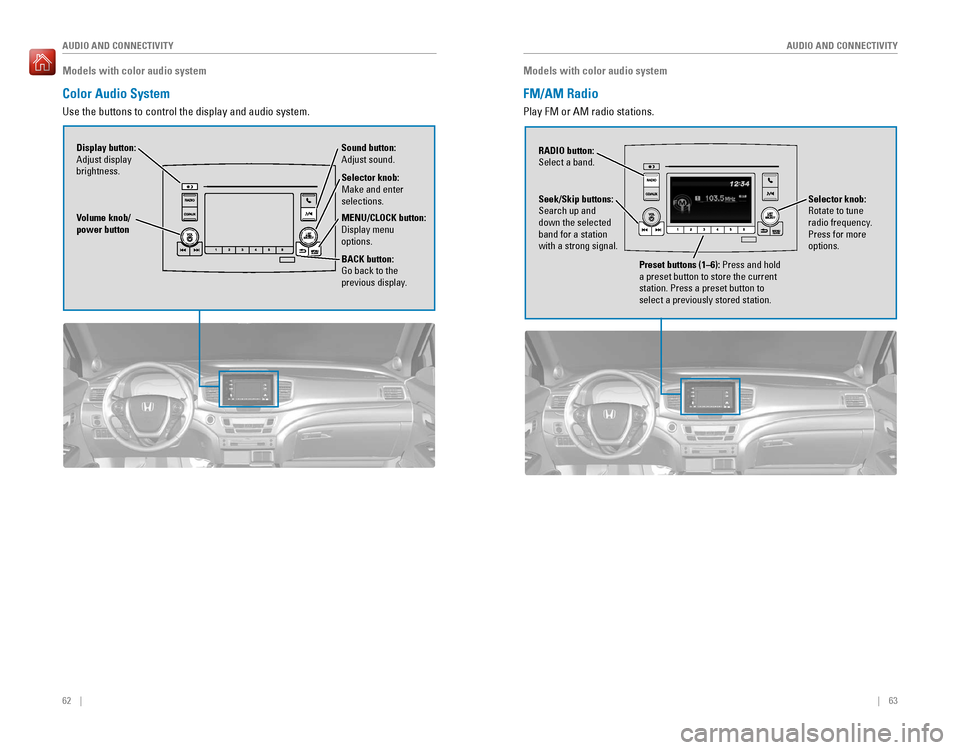
Color Audio System
Use the buttons to control the display and audio system.
Selector knob:
Make and enter
selections.
Volume knob/
power button
MENU/CLOCK button:
Display menu
options.
BACK button:
Go back to the
previous display.
Display button:
Adjust display
brightness. Sound button:
Adjust sound.
Models with color audio system
FM/AM Radio
Play FM or AM radio stations.
RADIO button:
Select a band.
Preset buttons (1–6): Press and hold
a preset button to store the current
station. Press a preset button to
select a previously stored station.
Seek/Skip buttons:
Search up and
down the selected
band for a station
with a strong signal.
Selector knob:
Rotate to tune
radio frequency.
Press for more
options.