radio HONDA PILOT 2018 (in English) Owner's Guide
[x] Cancel search | Manufacturer: HONDA, Model Year: 2018, Model line: PILOT, Model: HONDA PILOT 2018Pages: 695, PDF Size: 48.42 MB
Page 278 of 695
uuAudio System Basic Operation uPlaying SiriusXM ® Radio*
276
Features
1. Select .
2. Select Tune Mode .
3. Select Channel Mode or Category Mode .
■To Change the Tune Mode1Playing SiriusXM ® Radio*
In the channel mode, all available channels are
selectable. In the categor y mode, you can select a
channel within a ca tegory (Jazz, Rock, Classical, etc.).
There may be instances when SiriusXM ® Radio does
not broadcast all the data fi elds (artist name, title).
This does not indicate a problem with your audio
system.
SiriusXM ® Radio stations load in ascending order,
which can take about a minute. Once they have
loaded you will be able to scroll up or down to make
your selections.
Switching the Audio Mode
Press the SOURCE button on the steering wheel or
select SOURCE on the screen.
2 Audio Remote Controls P. 226
Tune Start:
When you change to a preset channel, a song being
played on that channel restarts from the beginning
with this function. This can be turned on or off from
the Audio settings screen.
2 Customized Features P. 374
* Not available on all models
18 PILOT-31TG76200.book 276 ページ 2018年3月30日 金曜日 午前11時51分
Page 279 of 695
Continued277
uuAudio System Basic Operation uPlaying SiriusXM ® Radio*
Features
To store a channel:
1. Tune to the selected channel.
2. Select to hold the preset number fo r the station you want to store.
3. Select Replace .
You can also store a channel by the following procedure.
1. Tune to the selected channel.
2. Select the open/close icon to display a list.
3. Select the Preset tab.
4. Select and hold the preset number for the station you want to store.
■Multi-channel preset (for music channels only)
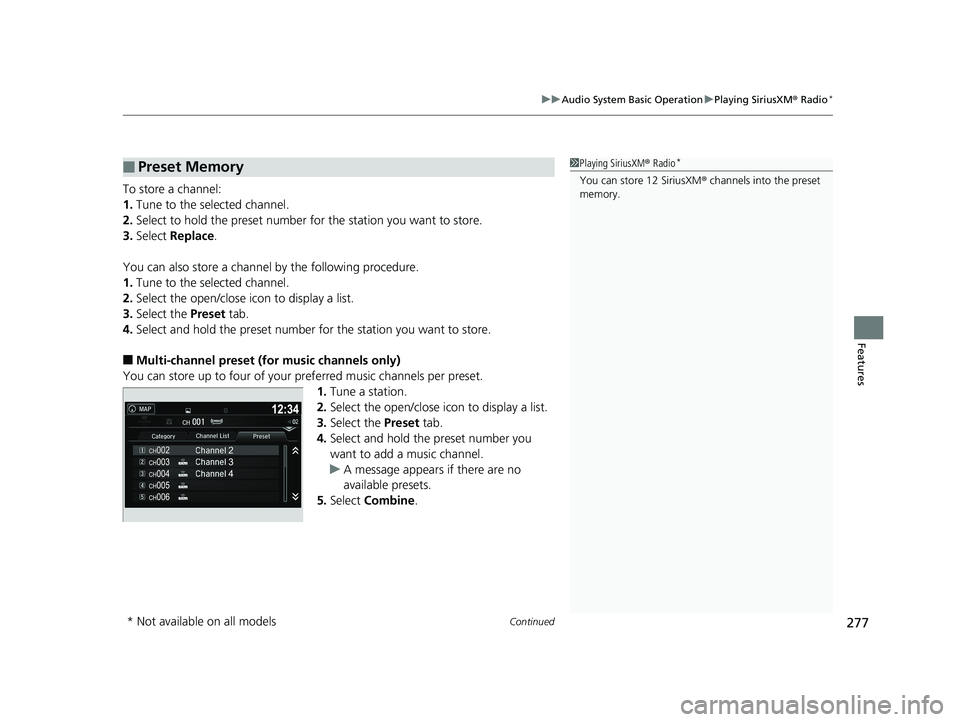
You can store up to four of your preferred music channels per preset. 1.Tune a station.
2. Select the open/close icon to display a list.
3. Select the Preset tab.
4. Select and hold the preset number you
want to add a music channel.
u A message appears if there are no
available presets.
5. Select Combine .
■Preset Memory1Playing SiriusXM ® Radio*
You can store 12 SiriusXM ® channels into the preset
memory.
* Not available on all models
18 PILOT-31TG76200.book 277 ページ 2018年3月30日 金曜日 午前11時51分
Page 280 of 695
uuAudio System Basic Operation uPlaying SiriusXM ® Radio*
278
Features
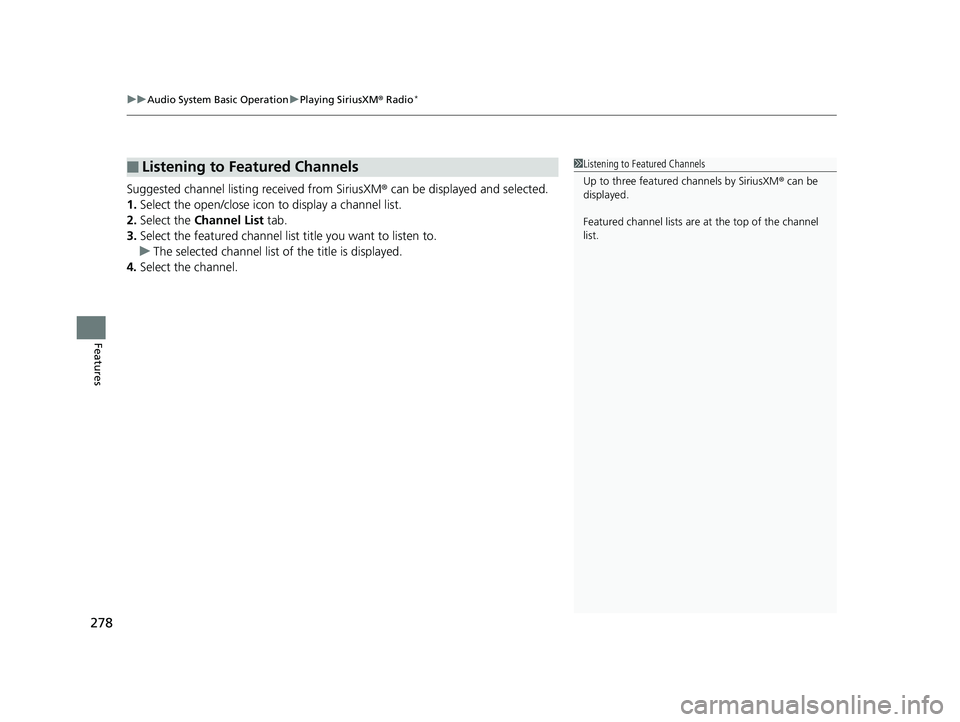
Suggested channel listing received from SiriusXM ® can be displayed and selected.
1. Select the open/close icon to display a channel list.
2. Select the Channel List tab.
3. Select the featured channel list title you want to listen to.
u The selected channel list of the title is displayed.
4. Select the channel.
■Listening to Featured Channels1Listening to Featured Channels
Up to three featured channels by SiriusXM ® can be
displayed.
Featured channel lists are at the top of the channel
list.
18 PILOT-31TG76200.book 278 ページ 2018年3月30日 金曜日 午前11時51分
Page 281 of 695
Continued279
uuAudio System Basic Operation uPlaying SiriusXM ® Radio*
Features
The system can record up to the last 60 minutes broadcast of your currently tuned
channel as well as the last 30 minutes br oadcast of preset channels, starting from
the moment you turn the vehicle on. If yo u tuned to preset channel, the system
records up to 60 minutes of a broadcast instead of up to 30 minutes. You can
rewind and replay the last 30 or 60 minutes of a broadcast.
1. Select .
2. Select Playback Position .
3. Move the gauge to the position you want to replay.
To play or pause on playback mode:
1. Select .
2. Select Play/Pause .
■Returning to real-time broadcast
1. Select .
2. Select Play Live Broadcast .
■Replay Function1Replay Function
The system starts storing broadcast in memory when
the power mode is turned ON. You can go back to
the program from that point.
You can no longer repl ay any program once the
power mode is turned off as it erases memory.
You can check how long the program has been
stored in memory from th e audio/information screen.
After 30 or 60 minutes of recording the system will
automatically start deleting the oldest data.
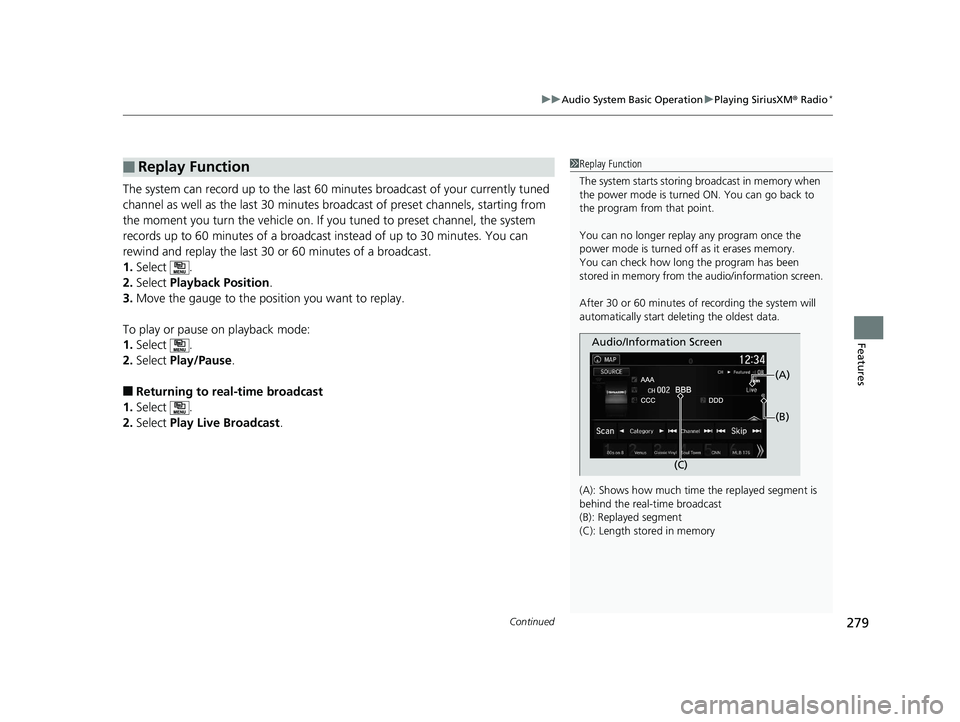
(A): Shows how much time the replayed segment is
behind the real-time broadcast
(B): Replayed segment
(C): Length stored in memory
Audio/Information Screen
(C) (B)
(A)
18 PILOT-31TG76200.book 279 ページ 2018年3月30日 金曜日 午前11時51分
Page 282 of 695
uuAudio System Basic Operation uPlaying SiriusXM ® Radio*
280
Features
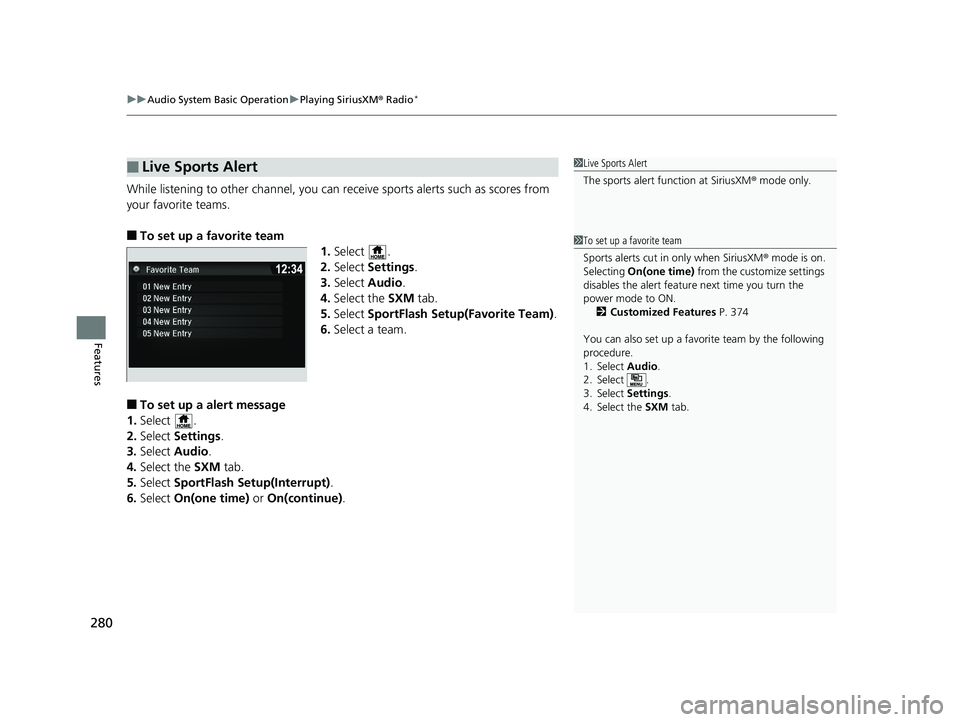
While listening to other channel, you can re ceive sports alerts such as scores from
your favorite teams.
■To set up a favorite team 1.Select .
2. Select Settings .
3. Select Audio .
4. Select the SXM tab.
5. Select SportFlash Setup(Favorite Team).
6. Select a team.
■To set up a alert message
1. Select .
2. Select Settings .
3. Select Audio .
4. Select the SXM tab.
5. Select SportFlash Setup(Interrupt).
6. Select On(one time) or On(continue) .
■Live Sports Alert1Live Sports Alert
The sports alert function at SiriusXM ® mode only.
1 To set up a favorite team
Sports alerts cut in only when SiriusXM ® mode is on.
Selecting On(one time) from the customize settings
disables the alert feature next time you turn the
power mode to ON.
2 Customized Features P. 374
You can also set up a favori te team by the following
procedure.
1. Select Audio.
2. Select .
3. Select Settings .
4. Select the SXM tab.
18 PILOT-31TG76200.book 280 ページ 2018年3月30日 金曜日 午前11時51分
Page 283 of 695
281
uuAudio System Basic Operation uPlaying SiriusXM ® Radio*
Features
■To set up a alert beep
1. Select .
2. Select Settings .
3. Select Audio.
4. Select the SXM tab.
5. Select SportFlash Setup(Interrupt Beep) .
6. Select On.
■Traffic and Weather Information
You can receive traffic and weather information.
1. Select .
2. Select Settings .
3. Select Audio .
4. Select the SXM tab.
5. Select Traffic & Weather Setup .
6. Select the region.
u When you do not want to receive the information, select Unset.
Sample each channel on the selected mode for 10 seconds.
1. Select Scan.
2. Select Scan Channels.
u You can select the desired channel by songs using Scan Songs in Presets.
To turn off scan, select Cancel.
■Scan
1To set up a alert beep
You can also set up an alert beep by the following
procedure.
1. Select Audio .
2. Select .
3. Select Settings .
4. Select the SXM tab.
1Traffic and Weather Information
The traffic and weather information function at
SiriusXM ® mode only.
You can also set up th e traffic and weather
information by the following procedure.
1. Select Audio .
2. Select .
3. Select Settings .
4. Select the SXM tab.
1Scan
The “Scan Songs in Presets” function is based on
TuneScan
TM technology of SiriusXM ®.
The “Featured Channels” function is based on
Featured Favorites
TM technology of SiriusXM ®.
TuneScan
TM and Featured FavoritesTM are registered
trademarks of SiriusXM ® Radio, Inc.
18 PILOT-31TG76200.book 281 ページ 2018年3月30日 金曜日 午前11時51分
Page 294 of 695
292
uuAudio System Basic Operation uPlaying Pandora ®*
Features
Playing Pandora ®*
Your audio system allows you to listen to music from the Pandora ® app on a
compatible smartphone.
This function is available when the phone is paired and connected to the vehicle’s
Bluetooth ® HandsFreeLink ® (HFL) system, or with an iPhone, you can connect using
your USB cable to the USB port.
2 Phone Setup P. 439
2 USB Port(s) P. 223
*1:Some or all of the lists may not be displayed.
1Playing Pandora ®*
Pandora®, the Pandora logo, and the Pandora trade
dress are trademarks or registered trademarks of
Pandora Media, Inc., used with permission. Pandora
is only available in certai n countries. Visit the Pandora
website for more information.
To find out if your phone is compatible with this
feature, visit automobiles.honda.com /handsfreelink/,
or call 1-888-528-7876.
To use this service in your vehicle, the Pandora ® app
must first be installed on your phone. Visit
www.pandora.com . for more information.
Pandora ® is free, personalized radio that plays music
and comedy you’ll love. Just start with the name of
one of your favorite arti sts, tracks, comedians or
composers and Pandora ® will create a custom station
that plays similar tracks. Pandora ® also features
hundreds of genre stations ranging from Dubstep to
Smooth Jazz to Power Workout.
If you cannot operate Pandora ® through the audio
system, it may be streaming through Bluetooth®
Audio. Make sure Pandora ® mode on your audio
system is selected.
If your phone is connected to Android Auto
TM,
Pandora ® is only available through the Android
Auto
TM interface. Visit the Android AutoTM website to
check compatibility.
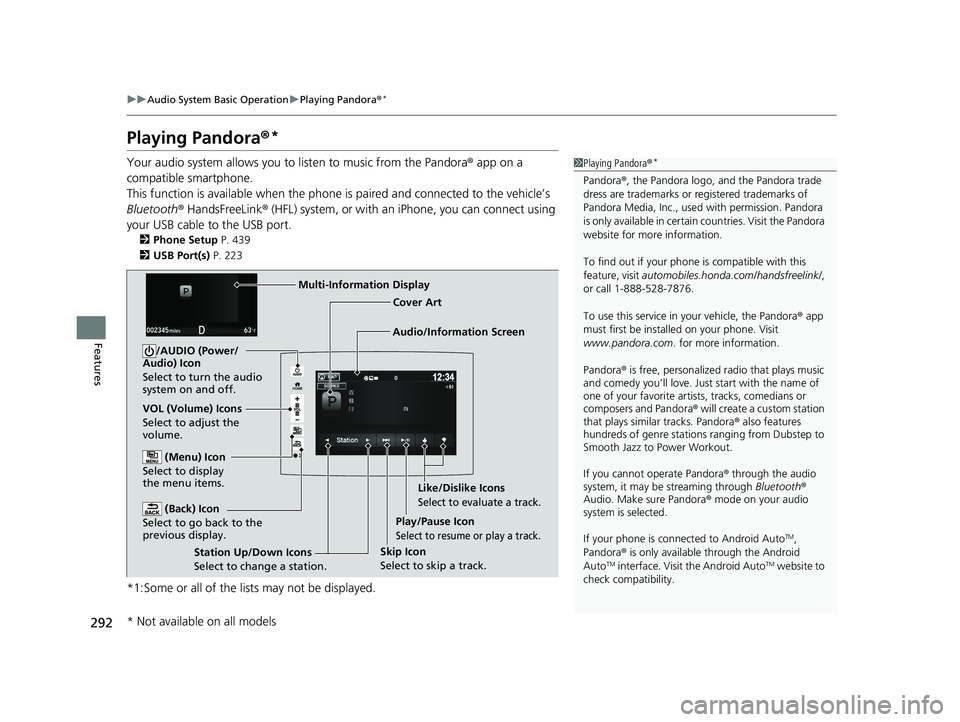
Audio/Information Screen Cover Art
VOL (Volume) Icons
Select to adjust the
volume. (Back) Icon
Select to go back to the
previous display.
/AUDIO (Power/
Audio) Icon
Select to turn the audio
system on and off.
(Menu) Icon
Select to display
the menu items.
Play/Pause Icon
Select to resume or play a track.
Station Up/Down Icons
Select to change a station. Skip Icon
Select to skip a track.Like/Dislike Icons
Select to evaluate a track.
Multi-Information Display
* Not available on all models
18 PILOT-31TG76200.book 292 ページ 2018年3月30日 金曜日 午前11時51分
Page 320 of 695
318
Features
General Information on the Audio System
SiriusXM® Radio Service*
1. You need your radio ID ready before regist ering for subscription. To see the ID in
the screen, select Channel to 0.
2. Have your radio ID ready, and either call or visit the SiriusXM® website to
subscribe.
Switch to the SiriusXM ® mode by using the SOURCE button on the steering wheel,
or through the audio/information screen, and stay in this mode for about 30
minutes until the service is activated. Make sure your vehicle is in an open area with
good reception.
Channel Not Subscribed:
You are not subscribed to the channel selected.
Subscription Update:
SiriusXM ® radio is receiving information update from the network.
Channel Not Available:
No such channel exits, or the artist or title information is unavailable.
No Signal:
The signal is too weak in the current location.
Antenna Disconnected:
The SiriusXM ® antenna is disconnected. Contact a dealer.
■Subscribing to SiriusXM ® Radio
■Receiving SiriusXM® Radio
■SiriusXM® Radio Display Messages
1 Subscribing to SiriusXM ® Radio
Contact Information for SiriusXM ® Radio:
•US: SiriusXM ® Radio at
www.siriusxm.com/subscribenow or
1-866-635-2349
•Canada: SiriusXM ® Canada at
www.siriusxm.ca/subscribe-now or
1-877-209-0079
1 Receiving SiriusXM ® Radio
The SiriusXM ® satellites are in orbit over the equator;
therefore, objects south of the vehicle may cause
satellite rece ption interruptions. Sa tellite signals are
more likely to be blocked by tall buildings and
mountains the farther north you travel from the
equator.
You may experience rece ption problems under the
following circumstances:
•In a location with an obstruction to the south of
your vehicle.
•In tunnels
•On the lower level of a multi-tiered road
•Large items carried on the roof rack
* Not available on all models
18 PILOT-31TG76200.book 318 ページ 2018年3月30日 金曜日 午前11時51分
Page 340 of 695
338
Features
Blu-ray/DVD Rear Entertainment System*
Rear seat passengers can enjoy a completely separate entertainment source than
front passengers, including movies , games, and other audio choices.
Wireless Headphones
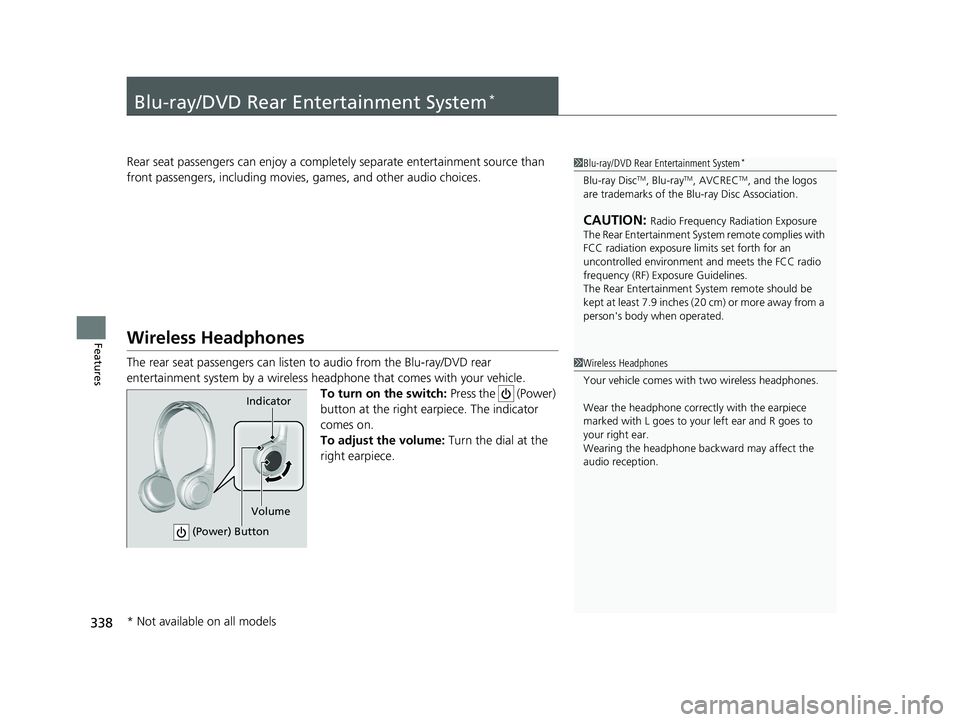
The rear seat passengers can listen to audio from the Blu-ray/DVD rear
entertainment system by a wireless headphone that comes with your vehicle. To turn on the switch: Press the (Power)
button at the right ear piece. The indicator
comes on.
To adjust the volume: Turn the dial at the
right earpiece.
1 Blu-ray/DVD Rear Entertainment System*
Blu-ray DiscTM, Blu-rayTM, AVCRECTM, and the logos
are trademarks of the Bl u-ray Disc Association.
CAUTION: Radio Frequency Radiation Exposure
The Rear Entertainment System remote complies with
FCC radiation exposure lim its set forth for an
uncontrolled environment and meets the FCC radio
frequency (RF) Exposure Guidelines.
The Rear Entertainment Sy stem remote should be
kept at least 7.9 inches ( 20 cm) or more away from a
person's body when operated.
1 Wireless Headphones
Your vehicle comes with two wireless headphones.
Wear the headphone correc tly with the earpiece
marked with L goes to y our left ear and R goes to
your right ear.
Wearing the headphone back ward may affect the
audio reception.
Indicator
(Power) Button
Volume
* Not available on all models
18 PILOT-31TG76200.book 338 ページ 2018年3月30日 金曜日 午前11時51分
Page 358 of 695
356
uuBlu-ray/DVD Rear Entertainment System*uPlaying Audio
Features
Playing Audio
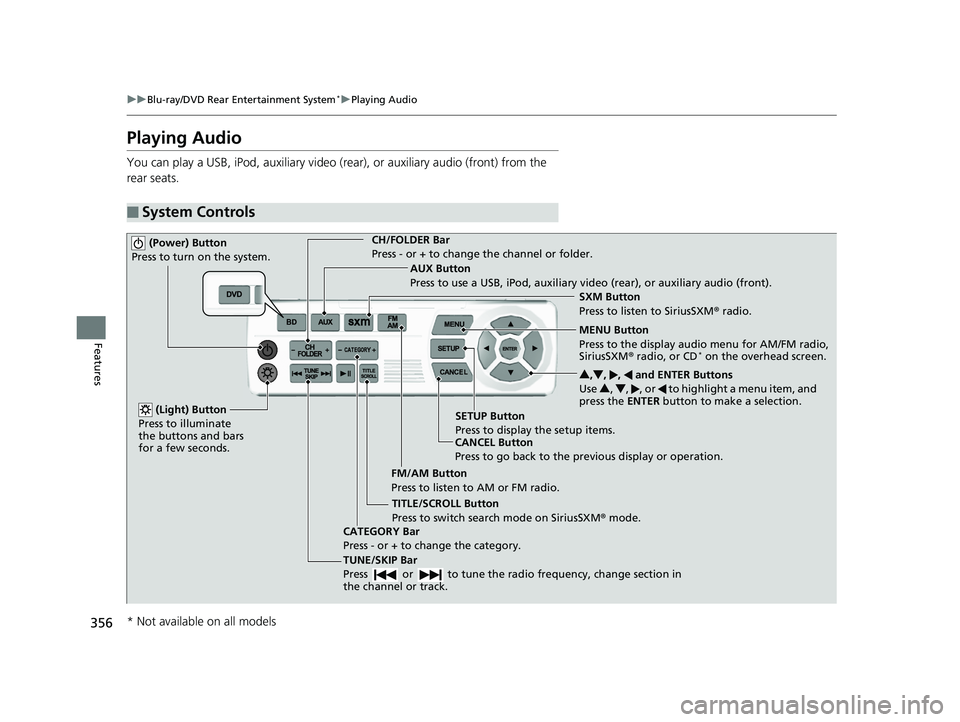
You can play a USB, iPod, auxiliary video (rear), or auxiliary audio (front) from the
rear seats.
■System Controls
(Power) Button
Press to turn on the system.CH/FOLDER Bar
Press - or + to change the channel or folder.
(Light) Button
Press to illuminate
the buttons and bars
for a few seconds.
TUNE/SKIP Bar
Press or to tune the radi o frequency, change section in
the channel or track.
TITLE/SCROLL Button
Press to switch search mode on SiriusSXM ® mode.
CANCEL Button
Press to go back to the previous display or operation. 3
,4 , , and ENTER Buttons
Use 3, 4 , , or to highlight a menu item, and
press the ENTER button to make a selection.
CATEGORY Bar
Press - or + to change the category. AUX Button
Press to use a USB, iPod, auxiliary video (rear), or auxiliary audio (front).
FM/AM Button
Press to listen to AM or FM radio. SETUP Button
Press to display the setup items. SXM Button
Press to listen to SiriusSXM
® radio.
MENU Button
Press to the display audio menu for AM/FM radio,
SiriusSXM ® radio, or CD
* on the overhead screen.
* Not available on all models
18 PILOT-31TG76200.book 356 ページ 2018年3月30日 金曜日 午前11時51分