USB HONDA PILOT 2022 Owner's Manual
[x] Cancel search | Manufacturer: HONDA, Model Year: 2022, Model line: PILOT, Model: HONDA PILOT 2022Pages: 737, PDF Size: 28.84 MB
Page 286 of 737
uuAudio System Basic Operation uSystem Updates
284
Features
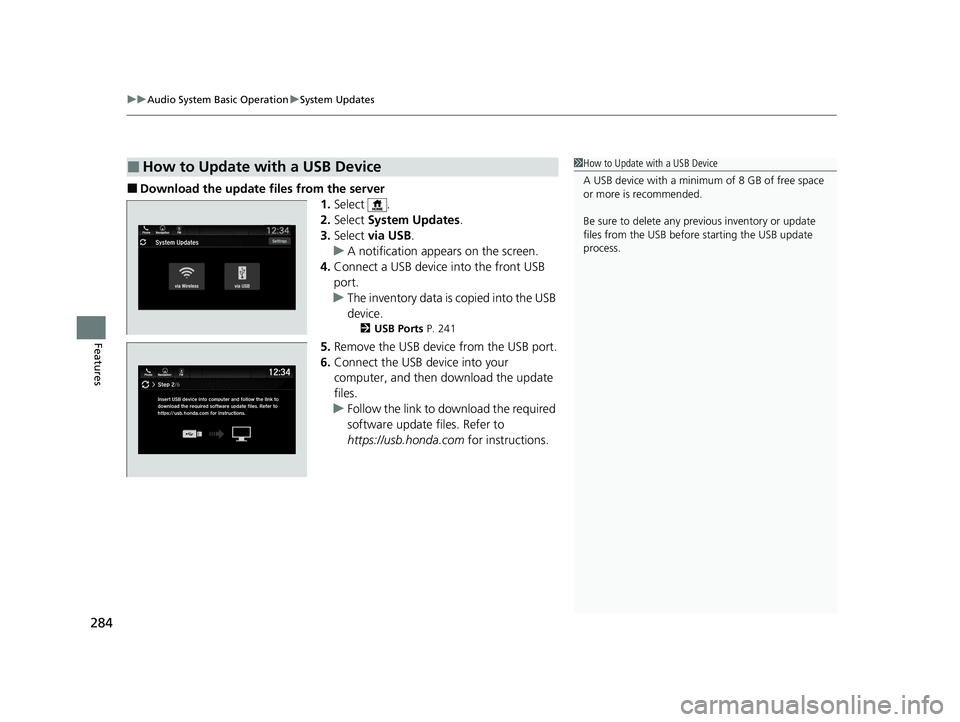
■Download the update files from the server
1.Select .
2. Select System Updates .
3. Select via USB .
u A notification appears on the screen.
4. Connect a USB device into the front USB
port.
u The inventory data is copied into the USB
device.
2 USB Ports P. 241
5.Remove the USB device from the USB port.
6. Connect the USB device into your
computer, and then download the update
files.
u Follow the link to download the required
software update files. Refer to
https://usb.honda.com for instructions.
■How to Update with a USB Device1How to Update with a USB Device
A USB device with a minimum of 8 GB of free space
or more is recommended.
Be sure to delete any pr evious inventory or update
files from the USB before starting the USB update
process.
22 PILOT-31TG76600.book 284 ページ 2021年6月11日 金曜日 午後4時40分
Page 287 of 737
285
uuAudio System Basic Operation uSystem Updates
Features
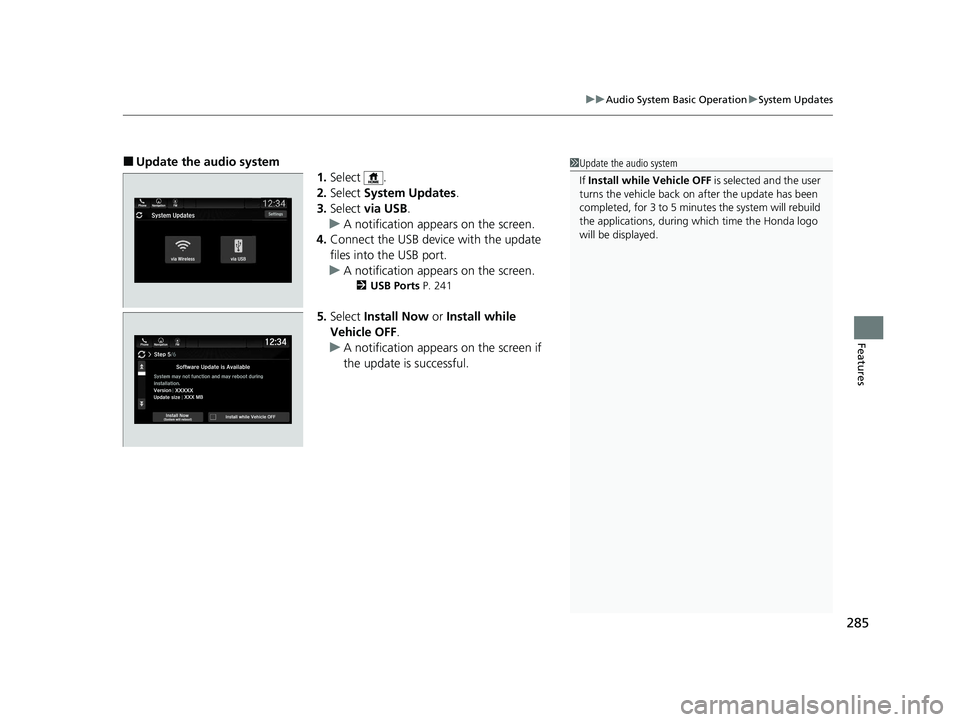
■Update the audio system
1.Select .
2. Select System Updates .
3. Select via USB .
u A notification appears on the screen.
4. Connect the USB device with the update
files into the USB port.
u A notification appears on the screen.
2 USB Ports P. 241
5.Select Install Now or Install while
Vehicle OFF .
u A notification appears on the screen if
the update is successful.
1Update the audio system
If Install while Vehicle OFF is selected and the user
turns the vehicle back on after the update has been
completed, for 3 to 5 minutes the system will rebuild
the applications, during wh ich time the Honda logo
will be displayed.
22 PILOT-31TG76600.book 285 ページ 2021年6月11日 金曜日 午後4時40分
Page 288 of 737
286
uuAudio System Basic Operation uFile Manager
Features
File Manager
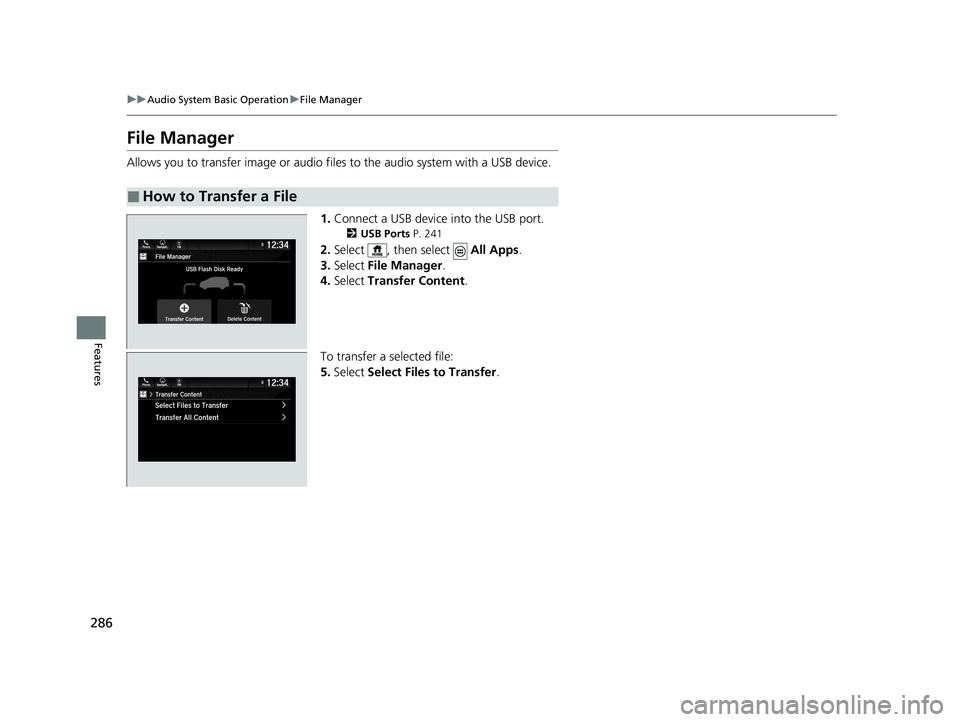
Allows you to transfer imag e or audio files to the audio system with a USB device.
1.Connect a USB device into the USB port.
2 USB Ports P. 241
2.Select , then select All Apps.
3. Select File Manager .
4. Select Transfer Content .
To transfer a selected file:
5. Select Select Files to Transfer .
■How to Transfer a File
22 PILOT-31TG76600.book 286 ページ 2021年6月11日 金曜日 午後4時40分
Page 298 of 737
296
uuAudio System Basic Operation uVoice Control Operation
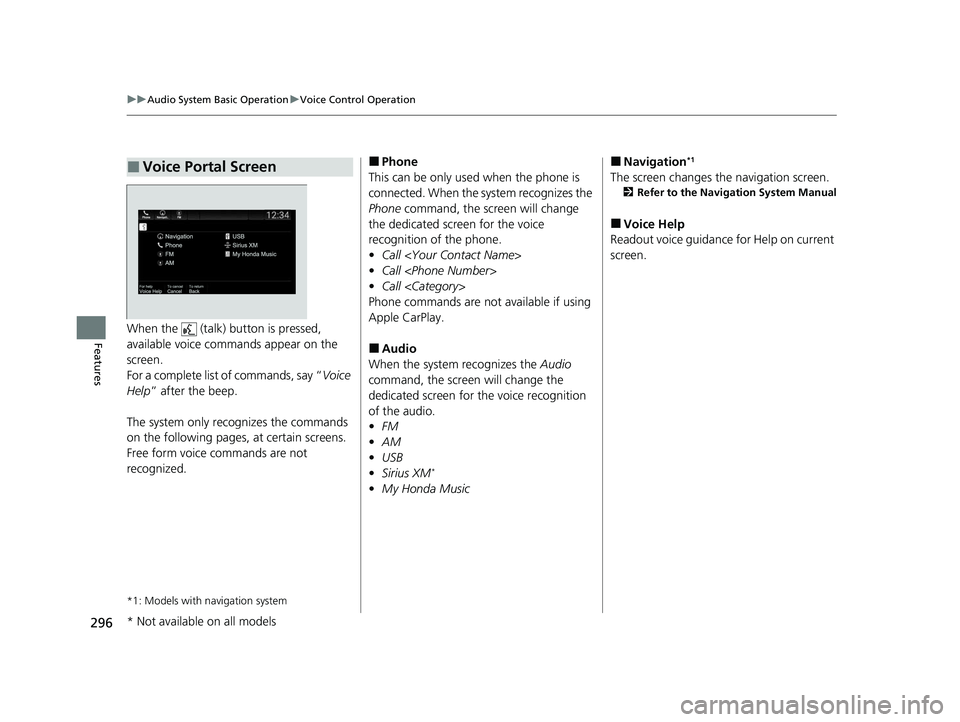
FeaturesWhen the (talk) button is pressed,
available voice commands appear on the
screen.
For a complete list of commands, say “ Voice
Help ” after the beep.
The system only reco gnizes the commands
on the following pages, at certain screens.
Free form voice commands are not
recognized.
*1: Models with navigation system
■Voice Portal Screen■Phone
This can be only used when the phone is
connected. When the sy stem recognizes the
Phone command, the screen will change
the dedicated screen for the voice
recognition of the phone.
• Call
• Call
• Call
Phone commands are not available if using
Apple CarPlay.
■Audio
When the system recognizes the Audio
command, the screen will change the
dedicated screen for the voice recognition
of the audio.
• FM
• AM
• USB
• Sirius XM
*
•My Honda Music
■Navigation*1
The screen changes the navigation screen.
2 Refer to the Navigation System Manual
■Voice Help
Readout voice guidance for Help on current
screen.
* Not available on all models
22 PILOT-31TG76600.book 296 ページ 2021年6月11日 金曜日 午後4時40分
Page 299 of 737
297
uuAudio System Basic Operation uVoice Control Operation
Features
The system accepts th ese commands on the
dedicated screen for the voice recognition
of the phone.
• Call
• Call
• Call
■Phone Commands
The system accepts these commands on the
dedicated screen for the voice recognition
of the audio.
■FM Commands
• Tune to <87.7-107.9> FM
■AM Commands
• Tune to <530-1710> AM
■Sirius XM Commands*
•Channel <1-999>
• Channel
■USB/My Honda Music Commands
• Play Artist
• Play Album
• Play Genre
• Play Playlist
• Play Music
• Play Song
■Audio Commands
* Not available on all models
22 PILOT-31TG76600.book 297 ページ 2021年6月11日 金曜日 午後4時40分
Page 317 of 737
315
uuAudio System Basic Operation uPlaying an iPod
Continued
Features
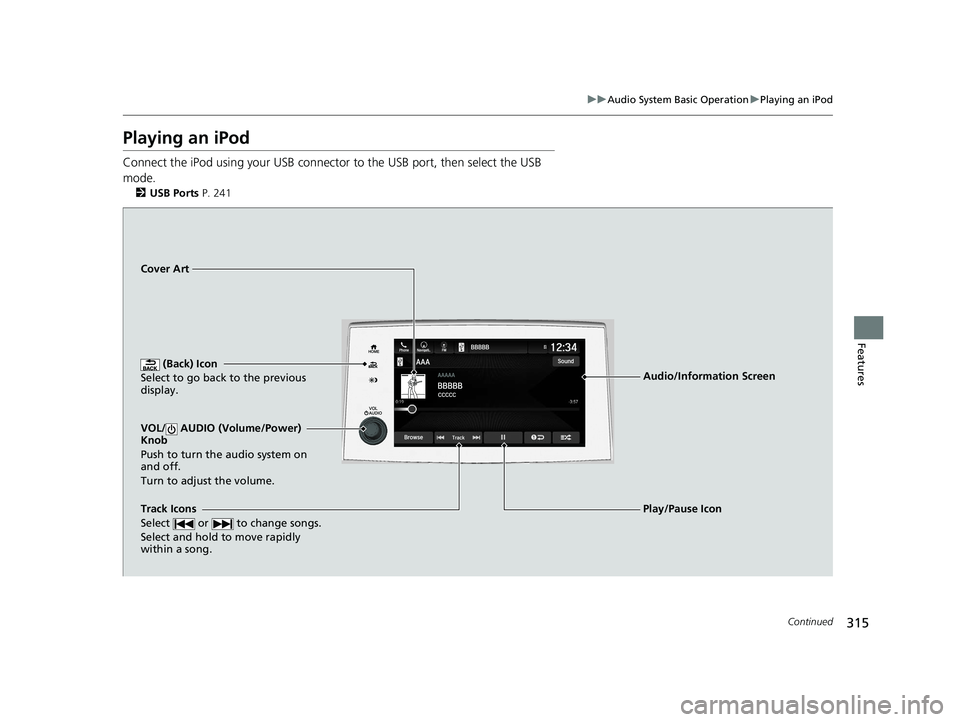
Playing an iPod
Connect the iPod using your USB connector to the USB port, then select the USB
mode.
2 USB Ports P. 241
(Back) Icon
Select to go back to the previous
display.
Track Icons
Select or to change songs.
Select and hold to move rapidly
within a song.
VOL/ AUDIO (Volume/Power)
Knob
Push to turn the audio system on
and off.
Turn to adjust the volume.
Cover Art
Audio/Information Screen
Play/Pause Icon
22 PILOT-31TG76600.book 315 ページ 2021年6月11日 金曜日 午後4時40分
Page 318 of 737
uuAudio System Basic Operation uPlaying an iPod
316
Features
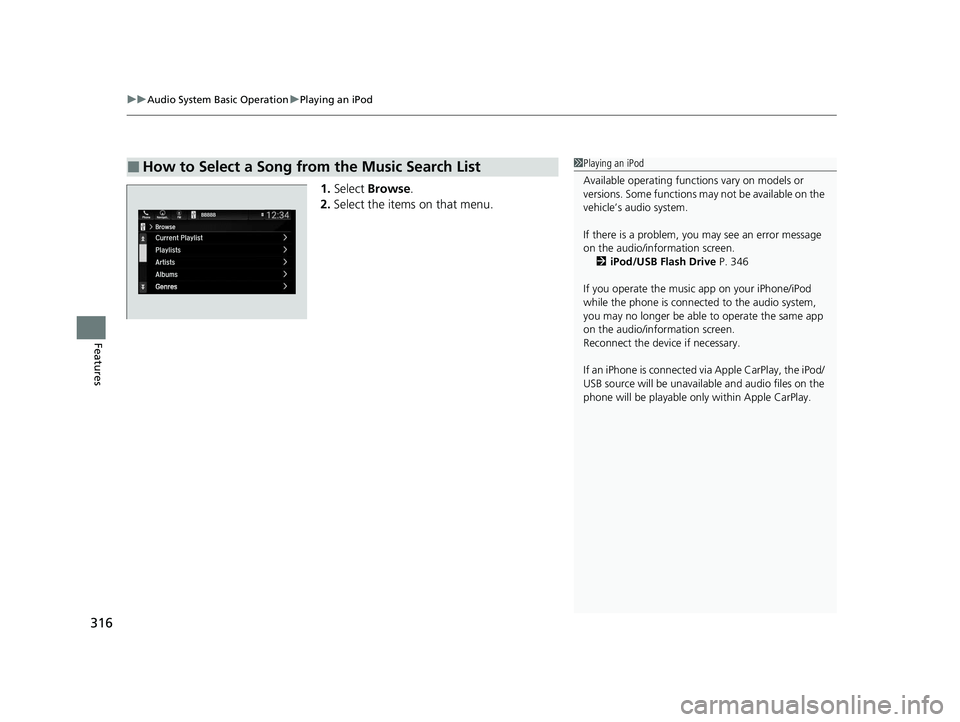
1. Select Browse .
2. Select the items on that menu.
■How to Select a Song from the Music Search List1Playing an iPod
Available operating functi ons vary on models or
versions. Some functions ma y not be available on the
vehicle’s audio system.
If there is a problem, you may see an error message
on the audio/information screen. 2 iPod/USB Flash Drive P. 346
If you operate the musi c app on your iPhone/iPod
while the phone is connected to the audio system,
you may no longer be able to operate the same app
on the audio/information screen.
Reconnect the devi ce if necessary.
If an iPhone is connected vi a Apple CarPlay, the iPod/
USB source will be unavailable and audio files on the
phone will be playable onl y within Apple CarPlay.
22 PILOT-31TG76600.book 316 ページ 2021年6月11日 金曜日 午後4時40分
Page 320 of 737
318
uuAudio System Basic Operation uPlaying a USB Flash Drive
Features
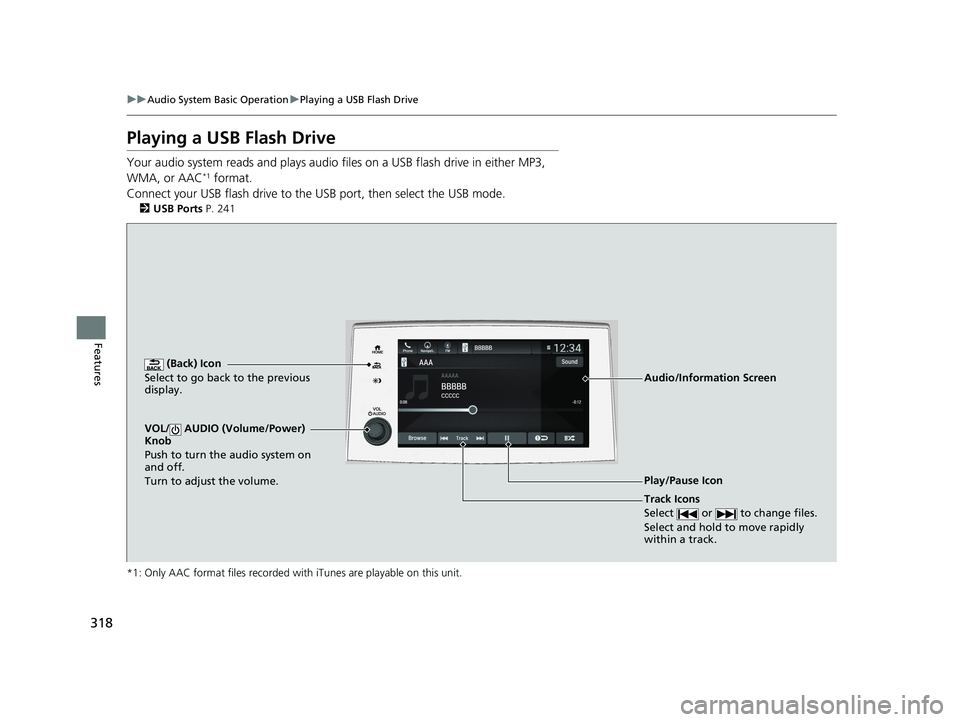
Playing a USB Flash Drive
Your audio system reads and plays audio f iles on a USB flash drive in either MP3,
WMA, or AAC*1 format.
Connect your USB flash drive to the USB port, then select the USB mode.
2USB Ports P. 241
*1: Only AAC format files recorded with iTunes are playable on this unit.
(Back) Icon
Select to go back to the previous
display.
Track Icons
Select or to change files.
Select and hold to move rapidly
within a track.
VOL/ AUDIO (Volume/Power)
Knob
Push to turn the audio system on
and off.
Turn to adjust the volume.
Audio/Information Screen
Play/Pause Icon
22 PILOT-31TG76600.book 318 ページ 2021年6月11日 金曜日 午後4時40分
Page 321 of 737
Continued319
uuAudio System Basic Operation uPlaying a USB Flash Drive
Features
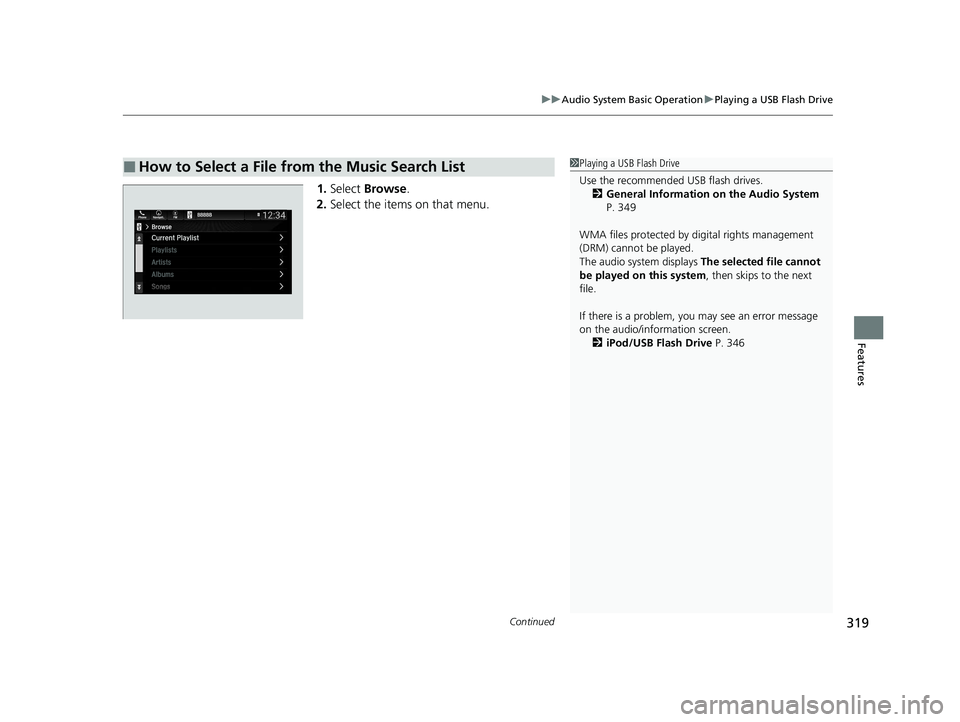
1. Select Browse .
2. Select the items on that menu.
■How to Select a File from the Music Search List1Playing a USB Flash Drive
Use the recommended USB flash drives.
2 General Information on the Audio System
P. 349
WMA files protected by di gital rights management
(DRM) cannot be played.
The audio system displays The selected file cannot
be played on this system , then skips to the next
file.
If there is a problem, you may see an error message
on the audio/information screen. 2 iPod/USB Flash Drive P. 346
22 PILOT-31TG76600.book 319 ページ 2021年6月11日 金曜日 午後4時40分
Page 322 of 737
uuAudio System Basic Operation uPlaying a USB Flash Drive
320
Features
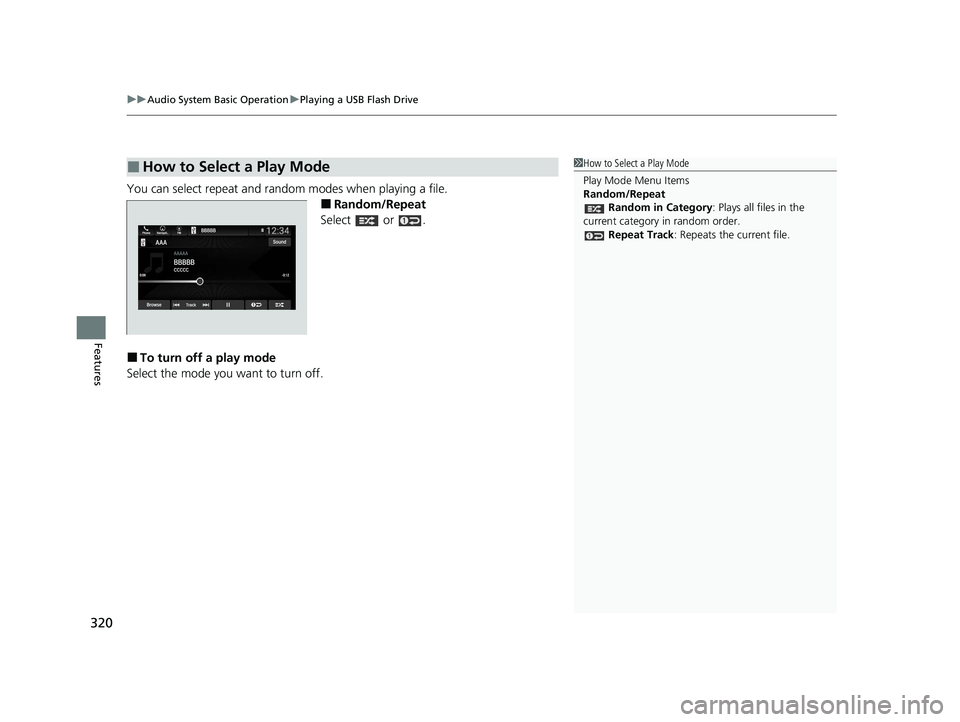
You can select repeat and random modes when playing a file.
■Random/Repeat
Select or .
■To turn off a play mode
Select the mode you want to turn off.
■How to Select a Play Mode1 How to Select a Play Mode
Play Mode Menu Items
Random/Repeat
Random in Category : Plays all files in the
current category in random order. Repeat Track: Repeats the current file.
22 PILOT-31TG76600.book 320 ページ 2021年6月11日 金曜日 午後4時40分