ad blue HONDA PILOT 2022 Owner's Manual
[x] Cancel search | Manufacturer: HONDA, Model Year: 2022, Model line: PILOT, Model: HONDA PILOT 2022Pages: 737, PDF Size: 28.84 MB
Page 339 of 737
337
uuAudio System Basic Operation uApple CarPlay
Continued
Features
Apple CarPlay
If you connect an Apple CarPlay-compatible iPhone to the system via the front USB
port, you can use the audio/information screen, instead of the iPhone display, to
make a phone call, listen to music, view maps (navigation), and access messages.
2USB Ports P. 241
■Phone
Access the contact list, make phone ca lls, or listen to voice mail.
■Messages
Check and reply to text messages, or have messages read to you.
■Music
Play music stored on your iPhone.
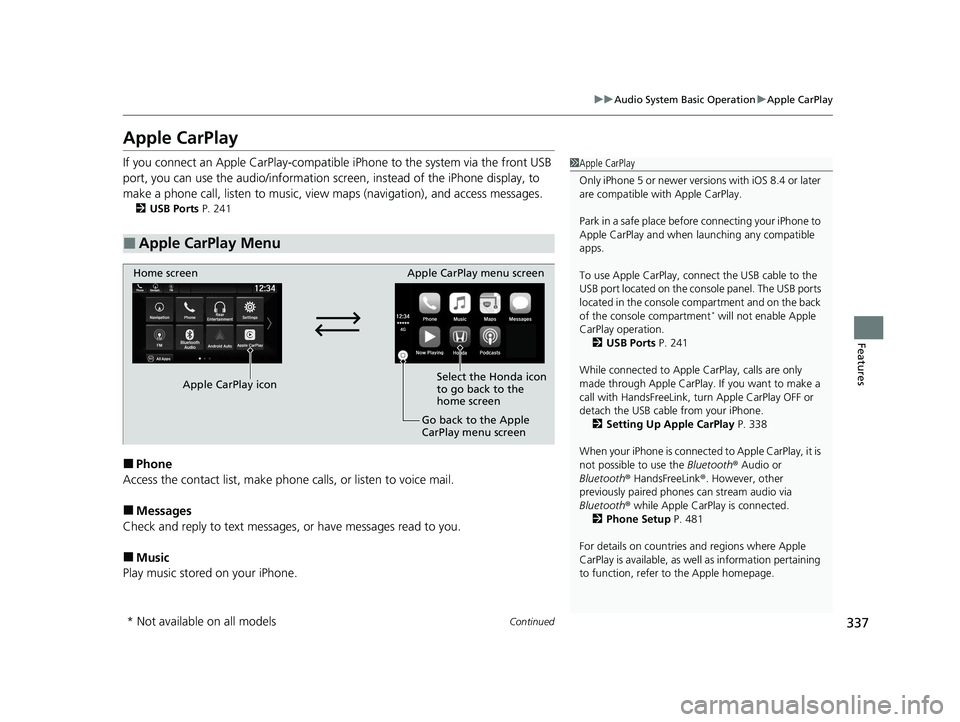
■Apple CarPlay Menu
1 Apple CarPlay
Only iPhone 5 or newer versi ons with iOS 8.4 or later
are compatible with Apple CarPlay.
Park in a safe place before connecting your iPhone to
Apple CarPlay and when launching any compatible
apps.
To use Apple CarPlay, connect the USB cable to the
USB port located on the console panel. The USB ports
located in the console compartment and on the back
of the console compartment
* will not enable Apple
CarPlay operation. 2 USB Ports P. 241
While connected to Apple CarPlay, calls are only
made through Apple CarPlay. If you want to make a
call with HandsFreeLink, tu rn Apple CarPlay OFF or
detach the USB cable from your iPhone. 2 Setting Up Apple CarPlay P. 338
When your iPhone is connected to Apple CarPlay, it is
not possible to use the Bluetooth® Audio or
Bluetooth ® HandsFreeLink ®. However, other
previously paired phones can stream audio via
Bluetooth ® while Apple CarPlay is connected.
2 Phone Setup P. 481
For details on c ountries and regions where Apple
CarPlay is available, as well as information pertaining
to function, refer to the Apple homepage.
Home screen
Apple CarPlay icon Apple CarPlay menu screen
Go back to the Apple
CarPlay menu screen
Select the Honda icon
to go back to the
home screen
* Not available on all models
22 PILOT-31TG76600.book 337 ページ 2021年6月11日 金曜日 午後4時40分
Page 342 of 737
340
uuAudio System Basic Operation uAndroid Auto
Features
Android Auto
When you connect an Android phone to the audio system via the front USB port,
Android Auto is automatically initiated. When connected via Android Auto, you can
use the audio/information screen to access the Phone, Google Maps (Navigation),
Google Play Music, and Google Now functions. When you first use Android Auto, a
tutorial will appe ar on the screen.
We recommend that you complete this tuto rial while safely parked before using
Android Auto.
2 USB Ports P. 241
2 Auto Pairing Connection P. 342
1Android Auto
To use Android Auto, you need to download the
Android Auto app from Google Play to your
smartphone.
Only Android 5.0 (Lollipop) or later versions are
compatible with Android Auto.
Bluetooth A2DP cannot be used with Android Auto
phone.
Park in a safe place befo re connecting your Android
phone to Android Auto and when launching any
compatible apps.
To use Android Auto, connect the USB cable to the
USB port located on the console panel. The USB ports
located in the console compartment and on the back
of the console compartment
* will not enable Android
Auto operation. 2 USB Ports P. 241
To directly access the Android Auto phone function,
press Phone on the home screen.
2 Auto Pairing Connection P. 342
When your Android phone is connected to Android
Auto, it is not possible to use the Bluetooth® Audio.
However, other previously paired phones can stream
audio via Bluetooth ® while Android Auto is
connected.
2 Phone Setup P. 481
* Not available on all models
22 PILOT-31TG76600.book 340 ページ 2021年6月11日 金曜日 午後4時40分
Page 372 of 737
370
uuGeneral Information on the Audio System uLicense Information*
Features
The Bluetooth ® word mark and logos are register ed trademarks owned by Bluetooth
SIG, Inc. and any use of such marks by DENSO CORPORATION is under license.
Other trademarks and trade names are those of their respective owners.
This product is protected by certain intelle ctual property rights of Microsoft. Use or
distribution of such technology outside of this product is prohibited without a
license from Microsoft.
■Bluetooth
■Windows Media
22 PILOT-31TG76600.book 370 ページ 2021年6月11日 金曜日 午後4時40分
Page 382 of 737

380
uuBlu-ray/DVD Rear Entertainment System*uVideo Accessibility
Features
Press any of the following colored buttons on the RES remote three times to turn a
function on or off, or to change a function setting.
Red button: Accessibility
Green button: Subtitles
Yellow button: Secondary Audio
Blue button: Audio Format Switching
■Changing Function Status
22 PILOT-31TG76600.book 380 ページ 2021年6月11日 金曜日 午後4時40分
Page 383 of 737
381
uuBlu-ray/DVD Rear Entertainment System*uPlaying a DVD/Blu-rayTM
Continued
Features
Playing a DVD/Blu-rayTM
To play a DVD or Blu-rayTM, insert a DVD or Blu-rayTM into the lower slot of the front
audio system, and select Rear in the audio/information screen.
u The system automatically st arts the DVD or Blu-ray
TM. DVD or Blu-rayTM is
available for the rear seat passenger only.
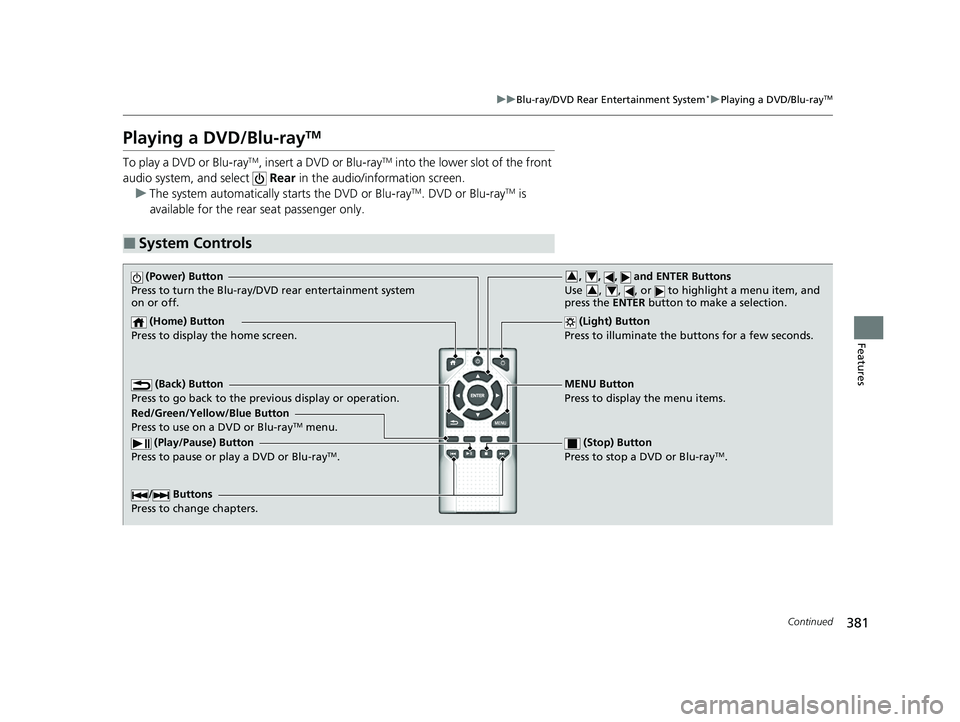
■System Controls
(Power) Button
Press to turn the Blu-ray/DVD rear entertainment system
on or off.
(Home) Button
Press to display the home screen. (Light) Button
Press to illuminate the buttons for a few seconds.
/ Buttons
Press to change chapters.
(Play/Pause) Button
Press to pause or play a DVD or Blu-rayTM.
(Stop) Button
Press to stop a DVD or Blu-rayTM.
MENU Button
Press to display the menu items.
Red/Green/Yellow/Blue Button
Press to use on a DVD or Blu-ray
TM menu.
(Back) Button
Press to go back to the pr evious display or operation.
, , , and ENTER Buttons
Use , , , or to highlight a menu item, and
press the ENTER button to make a selection.34
34
22 PILOT-31TG76600.book 381 ページ 2021年6月11日 金曜日 午後4時40分
Page 425 of 737
423
uuCustomized Features u
Continued
Features
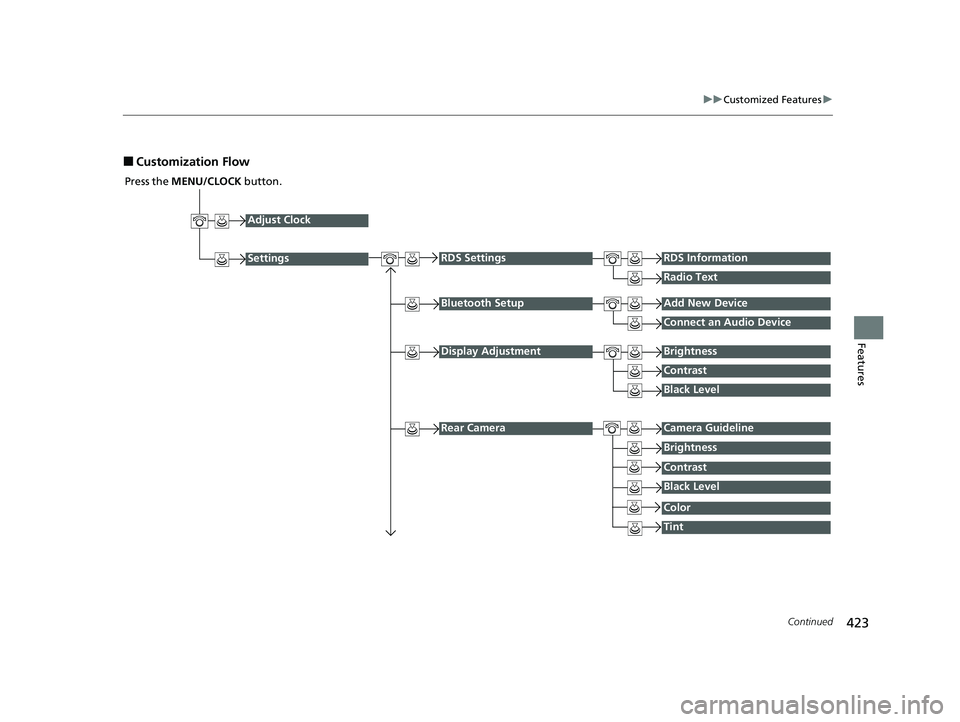
■Customization Flow
Press the MENU/CLOCK button.
Adjust Clock
Settings
Bluetooth SetupAdd New Device
Connect an Audio Device
Display AdjustmentBrightness
Contrast
Black Level
Rear CameraCamera Guideline
RDS SettingsRDS Information
Radio Text
Brightness
Contrast
Black Level
Color
Tint
22 PILOT-31TG76600.book 423 ページ 2021年6月11日 金曜日 午後4時40分
Page 426 of 737
424
uuCustomized Features u
Features
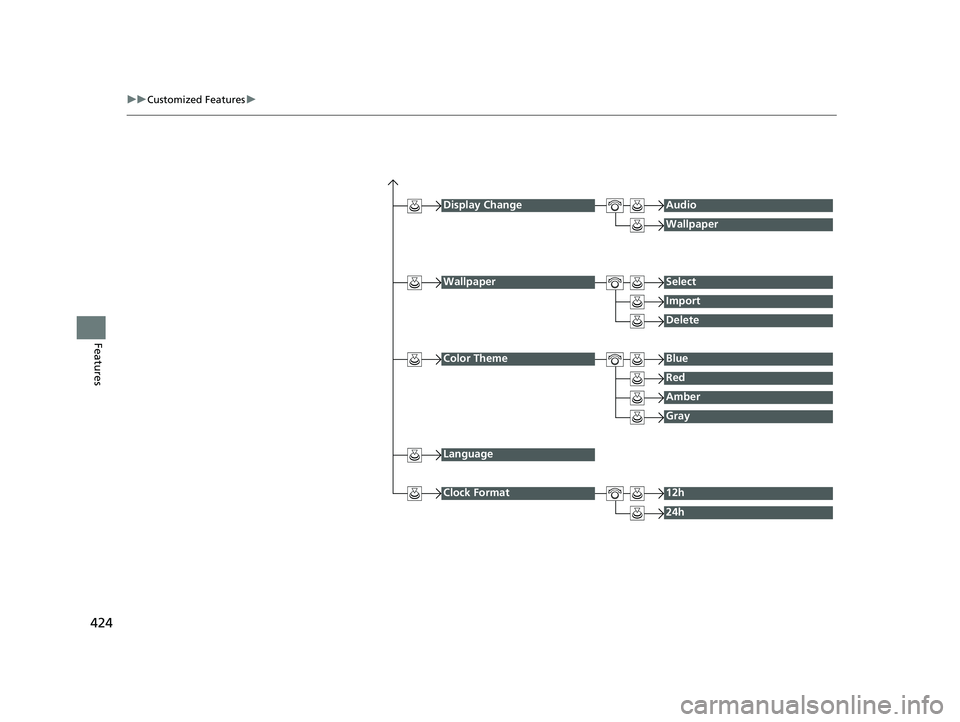
Display ChangeAudio
Wallpaper
WallpaperSelect
Import
Delete
Color ThemeBlue
Red
Amber
Gray
Language
Clock Format12h
24h
22 PILOT-31TG76600.book 424 ページ 2021年6月11日 金曜日 午後4時40分
Page 427 of 737
425
uuCustomized Features u
Continued
Features
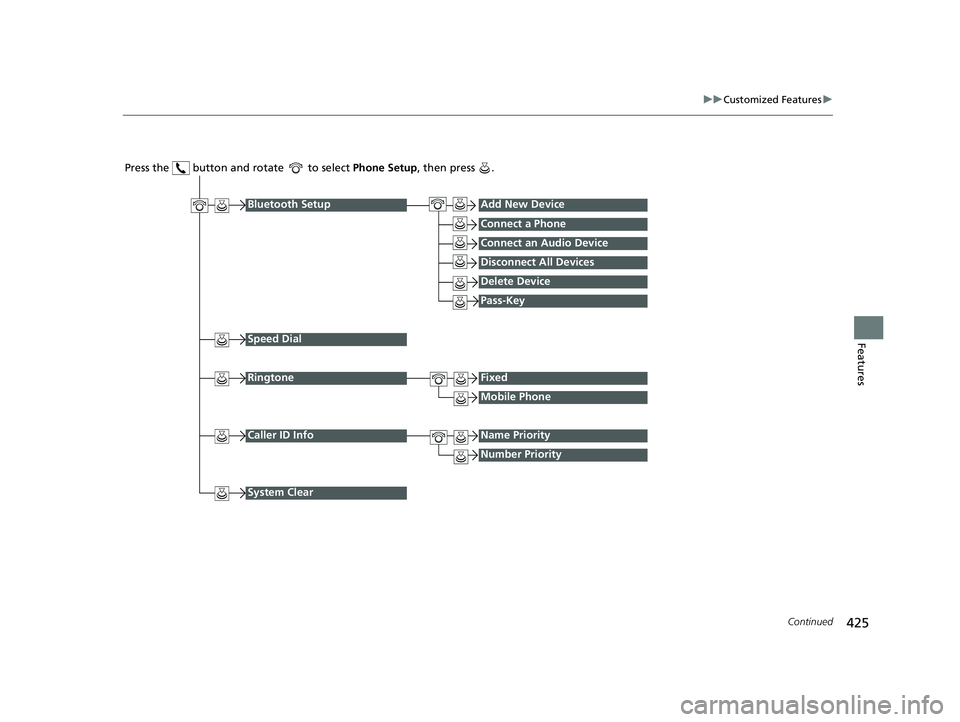
Press the button and rotate to select Phone Setup, then press .
RingtoneFixed
Mobile Phone
Bluetooth SetupAdd New Device
Connect a Phone
Connect an Audio Device
Disconnect All Devices
Delete Device
Pass-Key
Speed Dial
Caller ID InfoName Priority
Number Priority
System Clear
22 PILOT-31TG76600.book 425 ページ 2021年6月11日 金曜日 午後4時40分
Page 428 of 737
426
uuCustomized Features u
Features
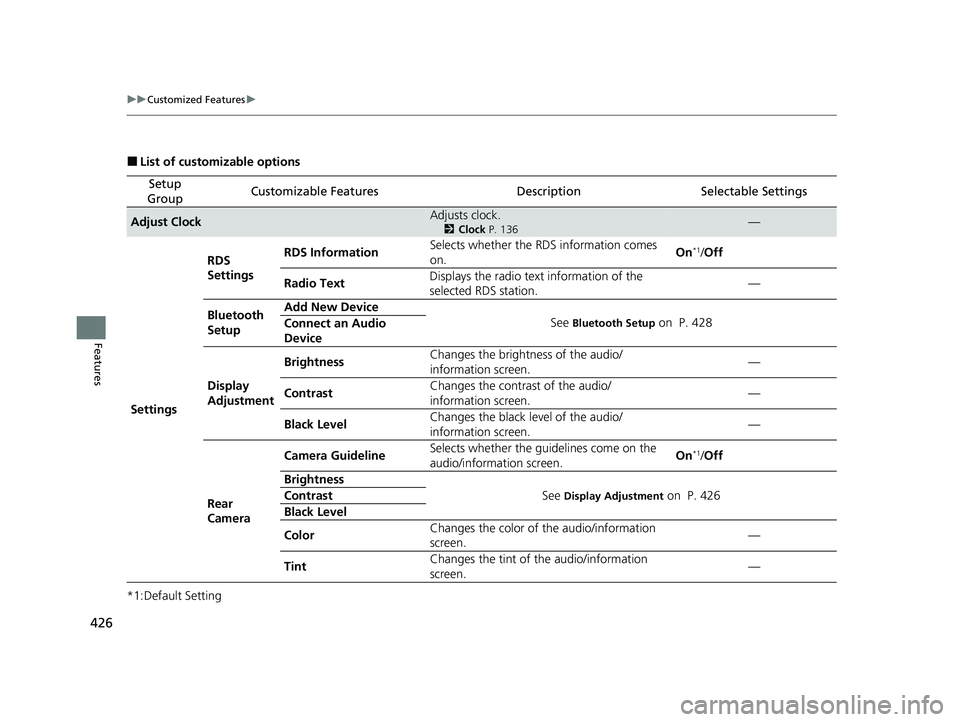
■List of customizable options
*1:Default Setting
Setup
GroupCustomizable FeaturesDescriptionSelectable Settings
Adjust ClockAdjusts clock.
2 Clock P. 136—
Settings RDS
Settings
RDS Information
Selects whether the RDS information comes
on. On
*1/
Off
Radio Text Displays the radio text information of the
selected RDS station. —
Bluetooth
Setup Add New Device
See
Bluetooth Setup on P. 428
Connect an Audio
Device
Display
Adjustment Brightness
Changes the brightness of the audio/
information screen. —
Contrast Changes the contrast of the audio/
information screen. —
Black Level Changes the black level of the audio/
information screen.
—
Rear
Camera Camera Guideline
Selects whether the guidelines come on the
audio/information screen. On
*1/
Off
Brightness See
Display Adjustment on P. 426
Contrast
Black Level
Color Changes the color of the audio/information
screen. —
Tint Changes the tint of
the audio/information
screen. —
22 PILOT-31TG76600.book 426 ページ 2021年6月11日 金曜日 午後4時40分
Page 429 of 737
427
uuCustomized Features u
Continued
Features
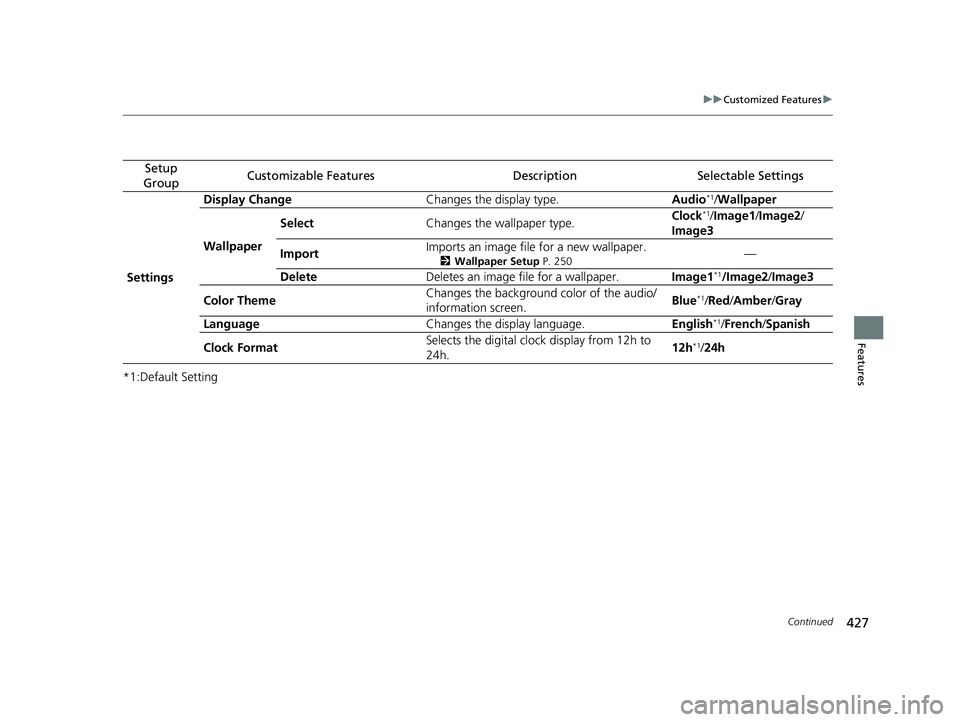
*1:Default Setting
Setup
GroupCustomizable FeaturesDescriptionSelectable Settings
Settings Display Change
Changes the display type. Audio
*1/Wallpaper
Wallpaper Select
Changes the wallpaper type. Clock*1/
Image1/ Image2/
Image3
Import Imports an image file for a new wallpaper.
2
Wallpaper Setup P. 250—
Delete Deletes an image file for a wallpaper. Image1
*1/Image2/Image3
Color Theme Changes the background color of the audio/
information screen.
Blue
*1/
Red /Amber /Gray
Language Changes the display language. English
*1/French /Spanish
Clock Format Selects the digital clock display from 12h to
24h. 12h
*1/
24h
22 PILOT-31TG76600.book 427 ページ 2021年6月11日 金曜日 午後4時40分