carplay HONDA PILOT 2023 Owner's Manual
[x] Cancel search | Manufacturer: HONDA, Model Year: 2023, Model line: PILOT, Model: HONDA PILOT 2023Pages: 814, PDF Size: 29.02 MB
Page 377 of 814
376
uuAudio System Basic Operation uHondaLink ®
Features
HondaLink ®
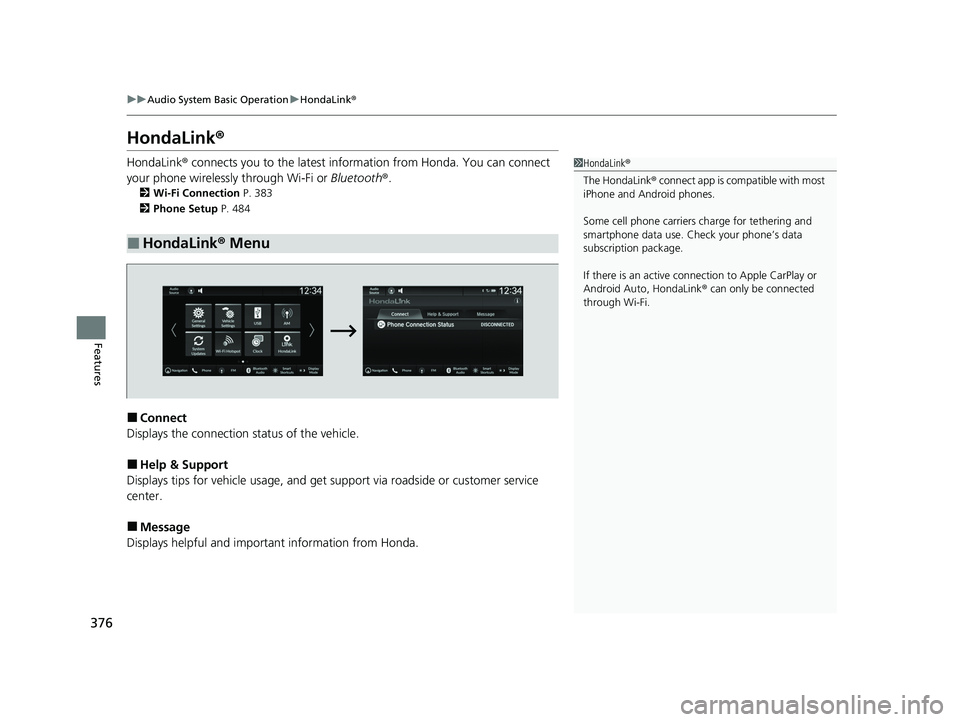
HondaLink® connects you to the latest information from Honda. You can connect
your phone wirelessly through Wi-Fi or Bluetooth®.
2Wi-Fi Connection P. 383
2 Phone Setup P. 484
■Connect
Displays the connection status of the vehicle.
■Help & Support
Displays tips for vehicle usage, and get support via roadside or customer service
center.
■Message
Displays helpful and important information from Honda.
■HondaLink® Menu
1HondaLink ®
The HondaLink® connect app is compatible with most
iPhone and Android phones.
Some cell phone carriers charge for tethering and
smartphone data use. Check your phone’s data
subscription package.
If there is an active connection to Appl e CarPlay or
Android Auto, HondaLink ® can only be connected
through Wi-Fi.
23 PILOT-31T906000_03.book 376 ページ 2022年10月31日 月曜日 午前10時26分
Page 382 of 814
Continued381
uuAudio System Basic Operation uSmart Shortcuts
Features
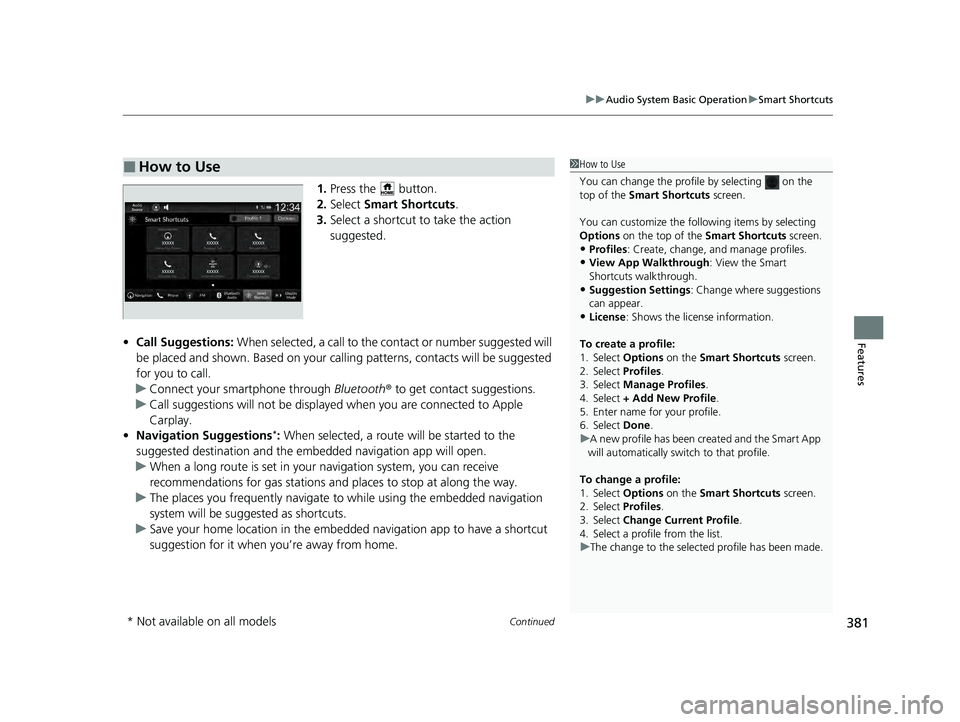
1. Press the button.
2. Select Smart Shortcuts .
3. Select a shortcut to take the action
suggested.
• Call Suggestions: When selected, a call to the contact or number suggested will
be placed and shown. Based on your call ing patterns, contacts will be suggested
for you to call.
u Connect your smartphone through Bluetooth® to get contact suggestions.
u Call suggestions will not be displayed when you are connected to Apple
Carplay.
• Navigation Suggestions
*: When selected, a route will be started to the
suggested destination and the embedded navigation app will open.
u When a long route is set in your navigation system, you can receive
recommendations for gas stations and places to stop at along the way.
u The places you frequently navigate to while using the embedded navigation
system will be suggested as shortcuts.
u Save your home location in the embedded navigation app to have a shortcut
suggestion for it when you’re away from home.
■How to Use1How to Use
You can change the profile by selecting on the
top of the Smart Shortcuts screen.
You can customize the foll owing items by selecting
Options on the top of the Smart Shortcuts screen.
•Profiles: Create, change, a nd manage profiles.
•View App Walkthrough : View the Smart
Shortcuts walkthrough.
•Suggestion Settings : Change where suggestions
can appear.
•License: Shows the license information.
To create a profile:
1. Select Options on the Smart Shortcuts screen.
2. Select Profiles .
3. Select Manage Profiles .
4. Select + Add New Profile .
5. Enter name for your profile.
6. Select Done .
u A new profile has been cr eated and the Smart App
will automatically switch to that profile.
To change a profile:
1. Select Options on the Smart Shortcuts screen.
2. Select Profiles .
3. Select Change Current Profile .
4. Select a profile from the list.
u The change to the selected profile has been made.
* Not available on all models
23 PILOT-31T906000_03.book 381 ページ 2022年10月31日 月曜日 午前10時26分
Page 386 of 814
385
uuAudio System Basic Operation uApple CarPlay
Continued
Features
Apple CarPlay
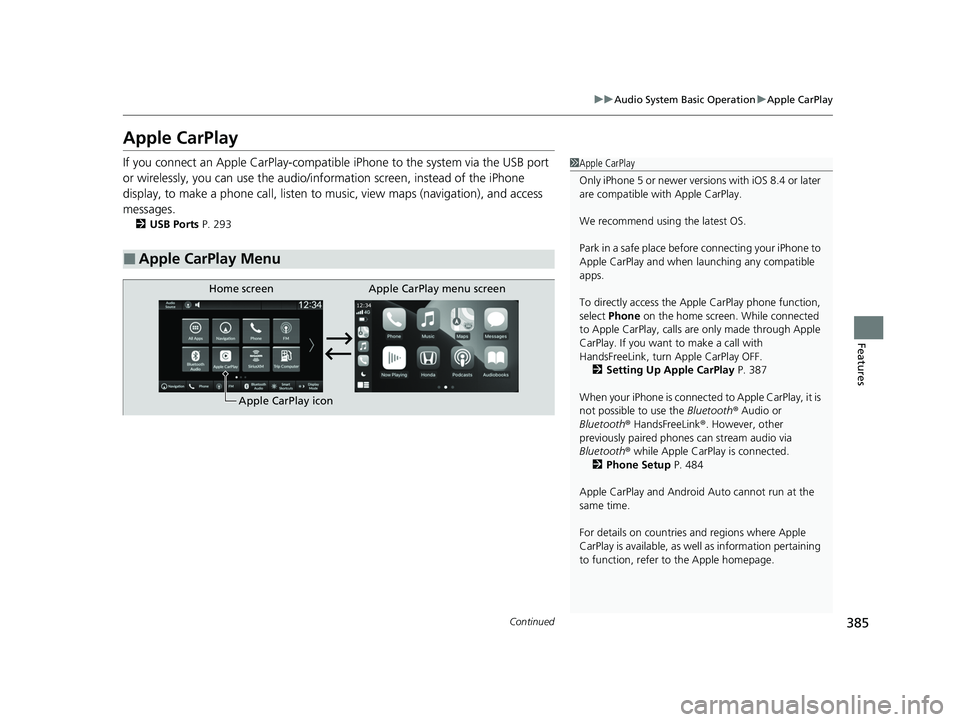
If you connect an Apple CarPlay-compatib le iPhone to the system via the USB port
or wirelessly, you can use the audio/information screen, instead of the iPhone
display, to make a phone call, listen to music, view maps (navigation), and access
messages.
2 USB Ports P. 293
■Apple CarPlay Menu
1Apple CarPlay
Only iPhone 5 or newer versi ons with iOS 8.4 or later
are compatible with Apple CarPlay.
We recommend using the latest OS.
Park in a safe place before connecting your iPhone to
Apple CarPlay and when launching any compatible
apps.
To directly access the Appl e CarPlay phone function,
select Phone on the home screen. While connected
to Apple CarPlay, calls are only made through Apple
CarPlay. If you want to make a call with
HandsFreeLink, turn Apple CarPlay OFF.
2 Setting Up Apple CarPlay P. 387
When your iPhone is connected to Apple CarPlay, it is
not possible to use the Bluetooth® Audio or
Bluetooth ® HandsFreeLink ®. However, other
previously paired phones can stream audio via
Bluetooth ® while Apple CarPlay is connected.
2 Phone Setup P. 484
Apple CarPlay and Android Auto cannot run at the
same time.
For details on c ountries and regions where Apple
CarPlay is available, as well as information pertaining
to function, refer to the Apple homepage.
Home screen
Apple CarPlay icon Apple CarPlay menu screen
23 PILOT-31T906000_03.book 385 ページ 2022年10月31日 月曜日 午前10時26分
Page 387 of 814
uuAudio System Basic Operation uApple CarPlay
386
Features
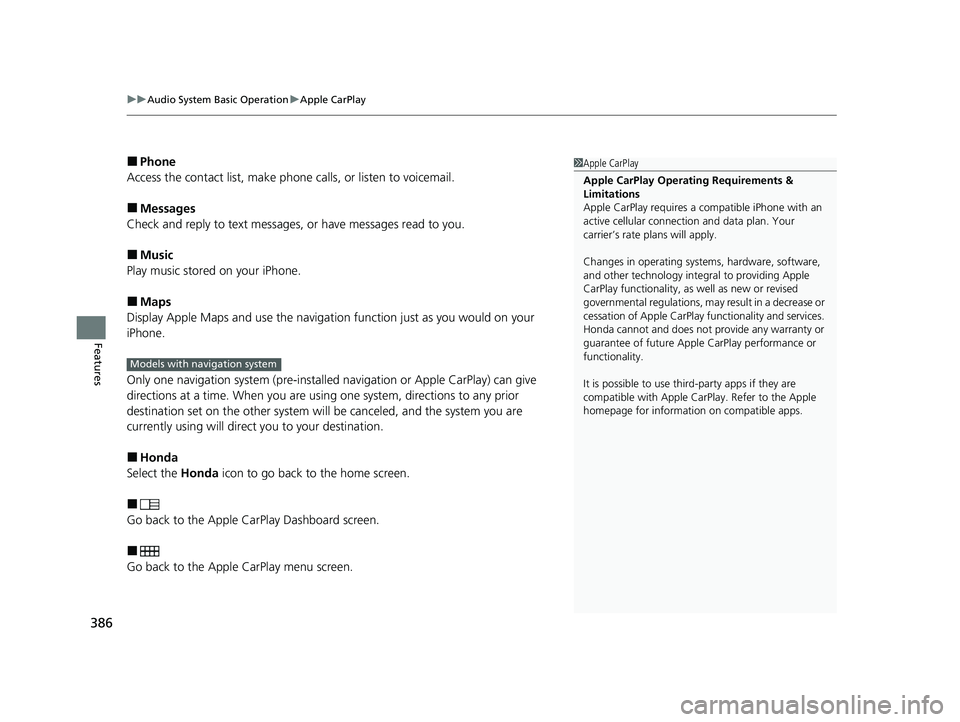
■Phone
Access the contact list, make phone calls, or listen to voicemail.
■Messages
Check and reply to text messages, or have messages read to you.
■Music
Play music stored on your iPhone.
■Maps
Display Apple Maps and use the navigation function just as you would on your
iPhone.
Only one navigation system (pre-installed navigation or Apple CarPlay) can give
directions at a time. When you are using one system, directions to any prior
destination set on the other system will be canceled, and the system you are
currently using will direct you to your destination.
■Honda
Select the Honda icon to go back to the home screen.
■
Go back to the Apple CarPlay Dashboard screen.
■
Go back to the Apple CarPlay menu screen.
1Apple CarPlay
Apple CarPlay Operating Requirements &
Limitations
Apple CarPlay requi res a compatible iPhone with an
active cellular connecti on and data plan. Your
carrier’s rate plans will apply.
Changes in operating systems, hardware, software,
and other technology integral to providing Apple
CarPlay functionality, as well as new or revised
governmental regulations, may result in a decrease or
cessation of Apple CarPlay functionality and services.
Honda cannot and does not pr ovide any warranty or
guarantee of future Appl e CarPlay performance or
functionality.
It is possible to use thir d-party apps if they are
compatible with Apple CarPlay. Refer to the Apple
homepage for information on compatible apps.
Models with navigation system
23 PILOT-31T906000_03.book 386 ページ 2022年10月31日 月曜日 午前10時26分
Page 388 of 814
Continued387
uuAudio System Basic Operation uApple CarPlay
Features
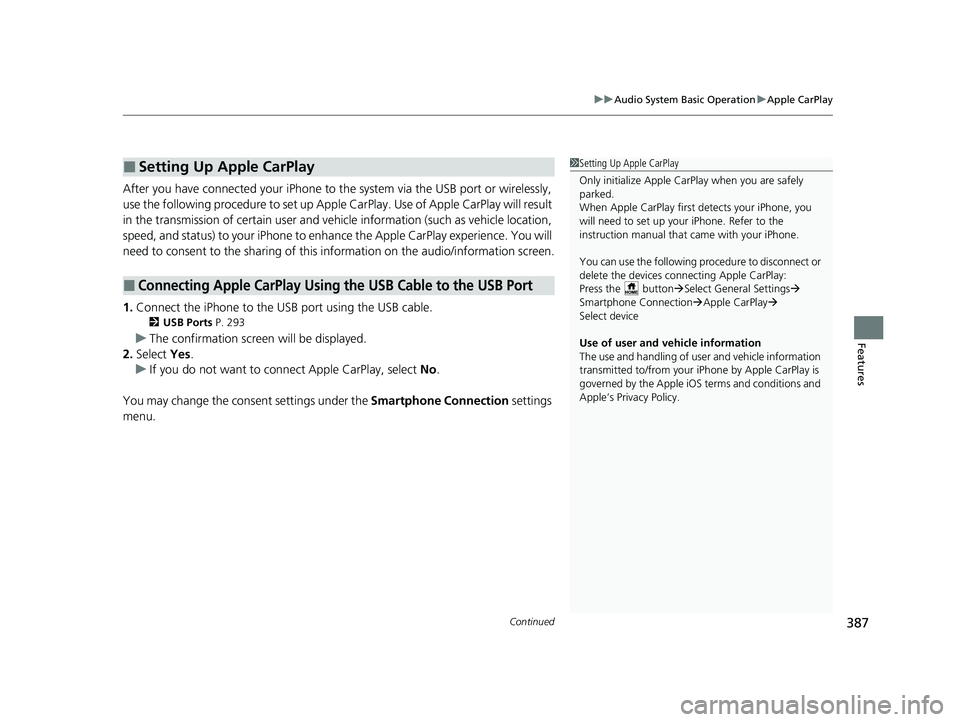
After you have connected your iPhone to the system via the USB port or wirelessly,
use the following procedure to set up Apple CarPlay. Use of Apple CarPlay will result
in the transmission of certain user and vehi cle information (such as vehicle location,
speed, and status) to your iPhone to enha nce the Apple CarPlay experience. You will
need to consent to the sharing of this information on the audio/information screen.
1. Connect the iPhone to the USB port using the USB cable.
2 USB Ports P. 293
uThe confirmation screen will be displayed.
2. Select Yes.
u If you do not want to connect Apple CarPlay, select No.
You may change the cons ent settings under the Smartphone Connection settings
menu.
■Setting Up Apple CarPlay
■Connecting Apple CarPlay Using the USB Cable to the USB Port
1 Setting Up Apple CarPlay
Only initialize Apple CarPlay when you are safely
parked.
When Apple CarPlay first detects your iPhone, you
will need to set up your iPhone. Refer to the
instruction manual that came with your iPhone.
You can use the following procedure to disconnect or
delete the devices conn ecting Apple CarPlay:
Press the button Select General Settings
Smartphone Connection Apple CarPlay
Select device
Use of user and vehicle information
The use and handling of user and vehicle information
transmitted to/from your iP hone by Apple CarPlay is
governed by the Apple iOS terms and conditions and
Apple’s Privacy Policy.
23 PILOT-31T906000_03.book 387 ページ 2022年10月31日 月曜日 午前10時26分
Page 389 of 814
388
uuAudio System Basic Operation uApple CarPlay
Features
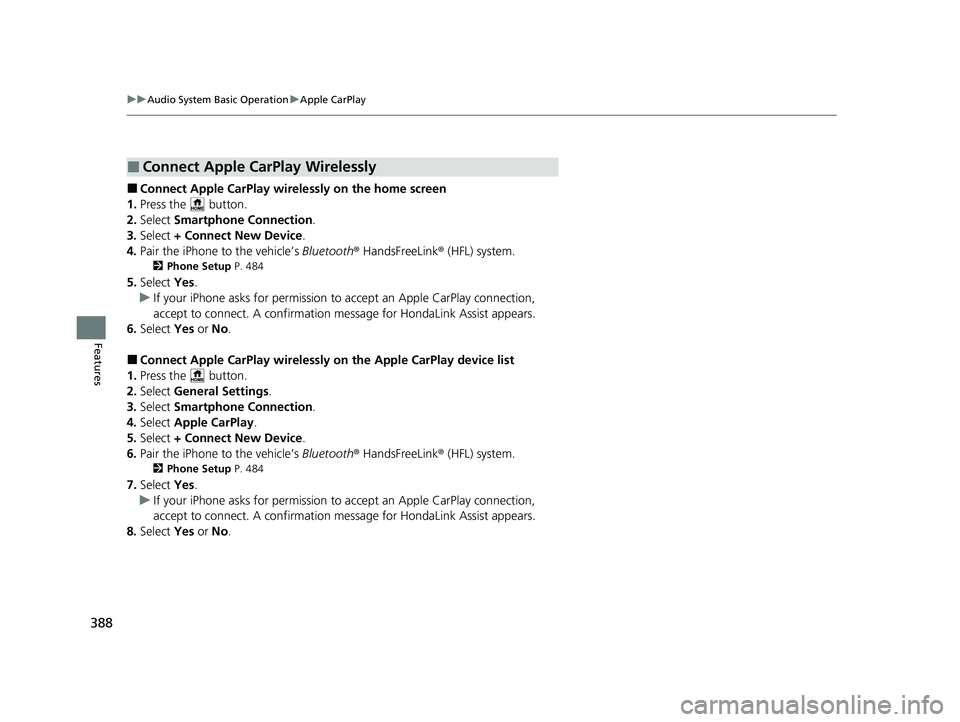
■Connect Apple CarPlay wirele ssly on the home screen
1. Press the button.
2. Select Smartphone Connection .
3. Select + Connect New Device.
4. Pair the iPhone to the vehicle’s Bluetooth® HandsFreeLink ® (HFL) system.
2 Phone Setup P. 484
5.Select Yes.
u If your iPhone asks for permission to accept an Apple CarPlay connection,
accept to connect. A confirmation message for HondaLink Assist appears.
6. Select Yes or No.
■Connect Apple CarPlay wirelessly on the Apple CarPlay device list
1. Press the button.
2. Select General Settings .
3. Select Smartphone Connection .
4. Select Apple CarPlay .
5. Select + Connect New Device.
6. Pair the iPhone to the vehicle’s Bluetooth® HandsFreeLink ® (HFL) system.
2 Phone Setup P. 484
7.Select Yes.
u If your iPhone asks for permission to accept an Apple CarPlay connection,
accept to connect. A confirmation message for HondaLink Assist appears.
8. Select Yes or No.
■Connect Apple CarPlay Wirelessly
23 PILOT-31T906000_03.book 388 ページ 2022年10月31日 月曜日 午前10時26分
Page 390 of 814
389
uuAudio System Basic Operation uApple CarPlay
Continued
Features
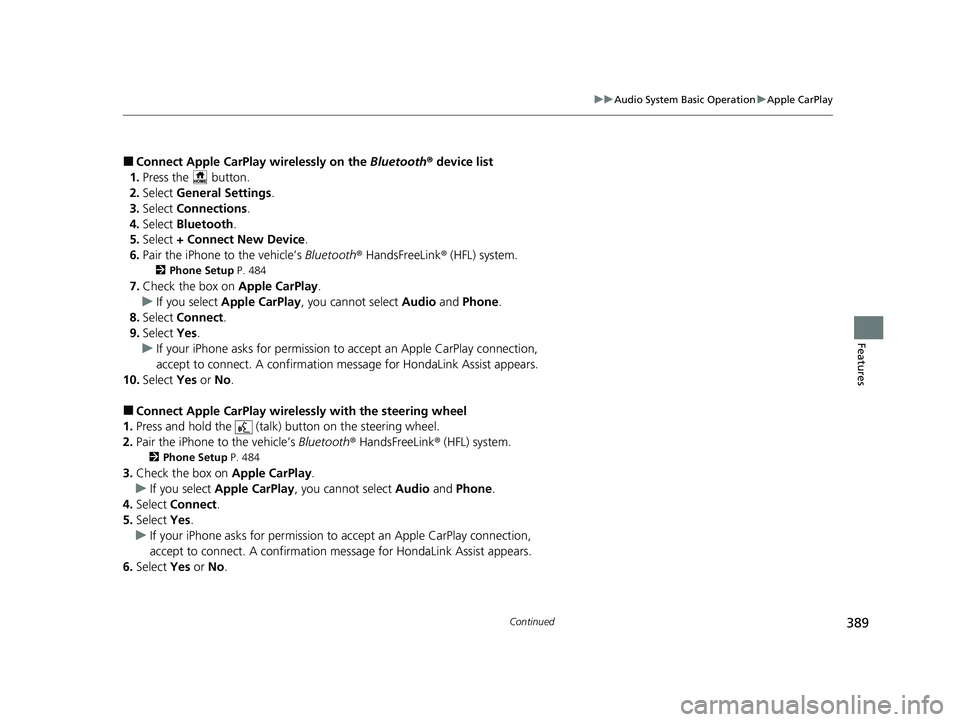
■Connect Apple CarPlay wirelessly on the Bluetooth® device list
1. Press the button.
2. Select General Settings .
3. Select Connections.
4. Select Bluetooth .
5. Select + Connect New Device.
6. Pair the iPhone to the vehicle’s Bluetooth® HandsFreeLink ® (HFL) system.
2 Phone Setup P. 484
7.Check the box on Apple CarPlay.
u If you select Apple CarPlay , you cannot select Audio and Phone .
8. Select Connect .
9. Select Yes.
u If your iPhone asks for permission to accept an Apple CarPlay connection,
accept to connect. A confirmation me ssage for HondaLink Assist appears.
10. Select Yes or No.
■Connect Apple CarPlay wirelessly with the steering wheel
1. Press and hold the (talk) button on the steering wheel.
2. Pair the iPhone to the vehicle’s Bluetooth® HandsFreeLink ® (HFL) system.
2Phone Setup P. 484
3.Check the box on Apple CarPlay.
u If you select Apple CarPlay , you cannot select Audio and Phone .
4. Select Connect .
5. Select Yes.
u If your iPhone asks for permission to accept an Apple CarPlay connection,
accept to connect. A confirmation me ssage for HondaLink Assist appears.
6. Select Yes or No .
23 PILOT-31T906000_03.book 389 ページ 2022年10月31日 月曜日 午前10時26分
Page 391 of 814
390
uuAudio System Basic Operation uApple CarPlay
Features
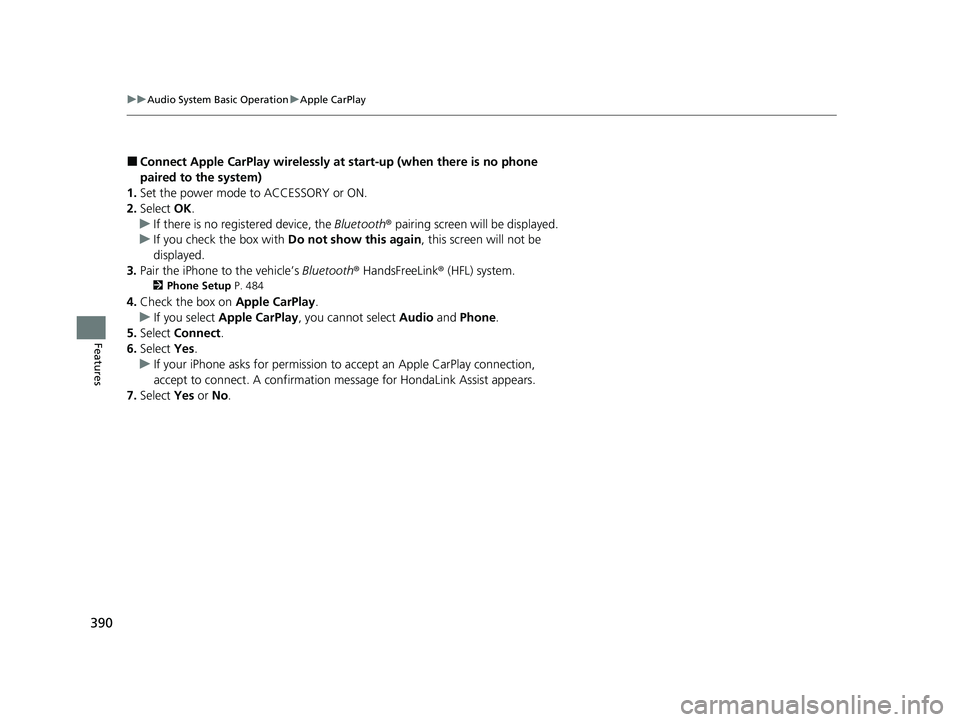
■Connect Apple CarPlay wirelessly at start-up (when there is no phone
paired to the system)
1. Set the power mode to ACCESSORY or ON.
2. Select OK.
u If there is no registered device, the Bluetooth® pairing screen will be displayed.
u If you check the box with Do not show this again, this screen will not be
displayed.
3. Pair the iPhone to the vehicle’s Bluetooth® HandsFreeLink ® (HFL) system.
2 Phone Setup P. 484
4.Check the box on Apple CarPlay.
u If you select Apple CarPlay , you cannot select Audio and Phone .
5. Select Connect .
6. Select Yes.
u If your iPhone asks for permission to accept an Apple CarPlay connection,
accept to connect. A confirmation message for HondaLink Assist appears.
7. Select Yes or No.
23 PILOT-31T906000_03.book 390 ページ 2022年10月31日 月曜日 午前10時26分
Page 392 of 814
391
uuAudio System Basic Operation uApple CarPlay
Features
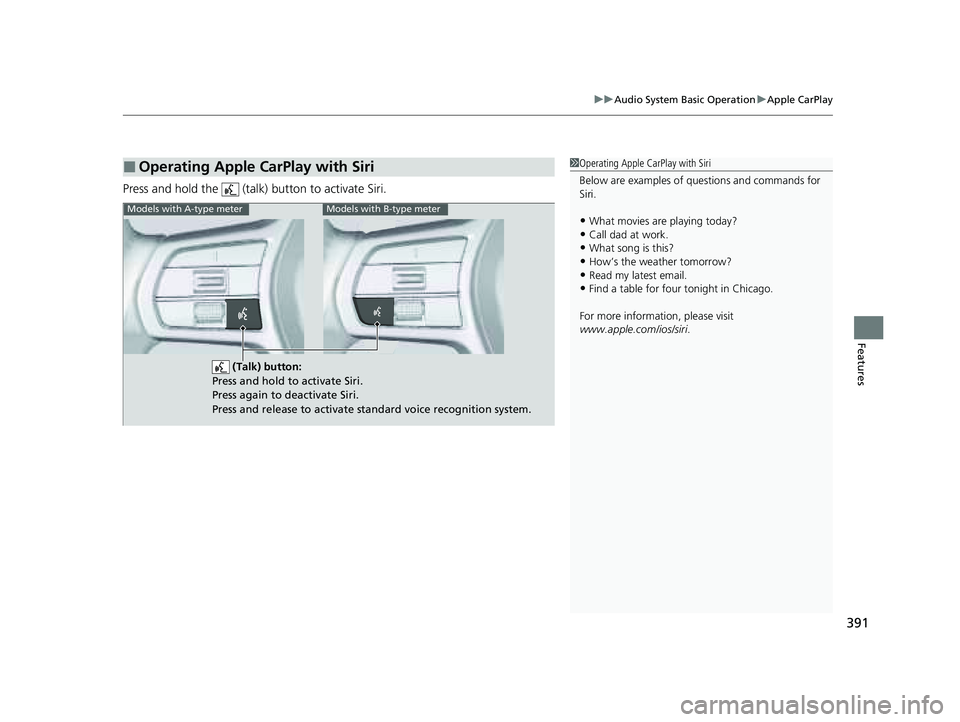
Press and hold the (talk) button to activate Siri.
■Operating Apple CarPlay with Siri1Operating Apple CarPlay with Siri
Below are examples of questions and commands for
Siri.
•What movies are playing today?•Call dad at work.
•What song is this?
•How’s the weather tomorrow?•Read my latest email.
•Find a table for four tonight in Chicago.
For more information, please visit
www.apple.com/ios/siri .
(Talk) button:
Press and hold to activate Siri.
Press again to deactivate Siri.
Press and release to activate standard voice recognition system.
Models with A-type meterModels with B-type meter
23 PILOT-31T906000_03.book 391 ページ 2022年10月31日 月曜日 午前10時26分
Page 393 of 814
392
uuAudio System Basic Operation uAndroid AutoTM
Features
Android AutoTM
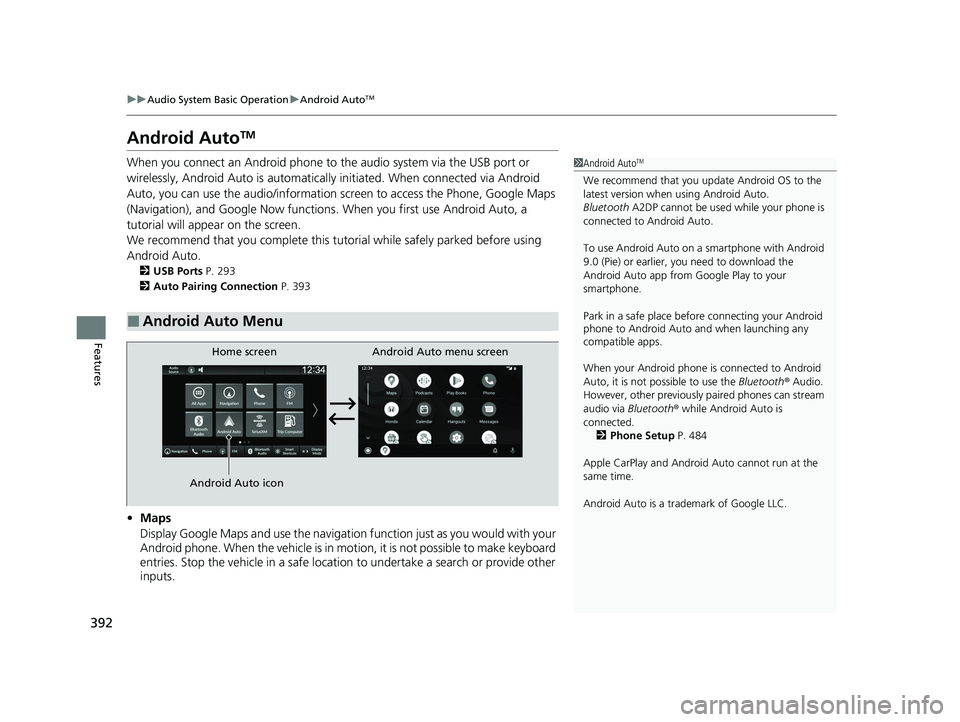
When you connect an Android phone to the audio system via the USB port or
wirelessly, Android Auto is automatically initiated. When connected via Android
Auto, you can use the audio/information screen to access the Phone, Google Maps
(Navigation), and Google Now functions. When you first use Android Auto, a
tutorial will appe ar on the screen.
We recommend that you complete this tuto rial while safely parked before using
Android Auto.
2 USB Ports P. 293
2 Auto Pairing Connection P. 393
•Maps
Display Google Maps and use the navigation function just as you would with your
Android phone. When the vehicle is in motion, it is not possible to make keyboard
entries. Stop the vehicle in a safe location to undertake a search or provide other
inputs.
■Android Auto Menu
1 Android AutoTM
We recommend that you upda te Android OS to the
latest version when using Android Auto.
Bluetooth A2DP cannot be used while your phone is
connected to Android Auto.
To use Android Auto on a smartphone with Android
9.0 (Pie) or earl ier, you need to download the
Android Auto app from Google Play to your
smartphone.
Park in a safe place befo re connecting your Android
phone to Android Auto and when launching any
compatible apps.
When your Android phone is connected to Android
Auto, it is not possible to use the Bluetooth® Audio.
However, other previously paired phones can stream
audio via Bluetooth ® while Android Auto is
connected. 2 Phone Setup P. 484
Apple CarPlay and Android Auto cannot run at the
same time.
Android Auto is a trademark of Google LLC.
Android Auto menu screen
Home screen
Android Auto icon
23 PILOT-31T906000_03.book 392 ページ 2022年10月31日 月曜日 午前10時26分