bluetooth HONDA PILOT 2023 Owner's Guide
[x] Cancel search | Manufacturer: HONDA, Model Year: 2023, Model line: PILOT, Model: HONDA PILOT 2023Pages: 814, PDF Size: 29.02 MB
Page 391 of 814
390
uuAudio System Basic Operation uApple CarPlay
Features
■Connect Apple CarPlay wirelessly at start-up (when there is no phone
paired to the system)
1. Set the power mode to ACCESSORY or ON.
2. Select OK.
u If there is no registered device, the Bluetooth® pairing screen will be displayed.
u If you check the box with Do not show this again, this screen will not be
displayed.
3. Pair the iPhone to the vehicle’s Bluetooth® HandsFreeLink ® (HFL) system.
2 Phone Setup P. 484
4.Check the box on Apple CarPlay.
u If you select Apple CarPlay , you cannot select Audio and Phone .
5. Select Connect .
6. Select Yes.
u If your iPhone asks for permission to accept an Apple CarPlay connection,
accept to connect. A confirmation message for HondaLink Assist appears.
7. Select Yes or No.
23 PILOT-31T906000_03.book 390 ページ 2022年10月31日 月曜日 午前10時26分
Page 393 of 814
392
uuAudio System Basic Operation uAndroid AutoTM
Features
Android AutoTM
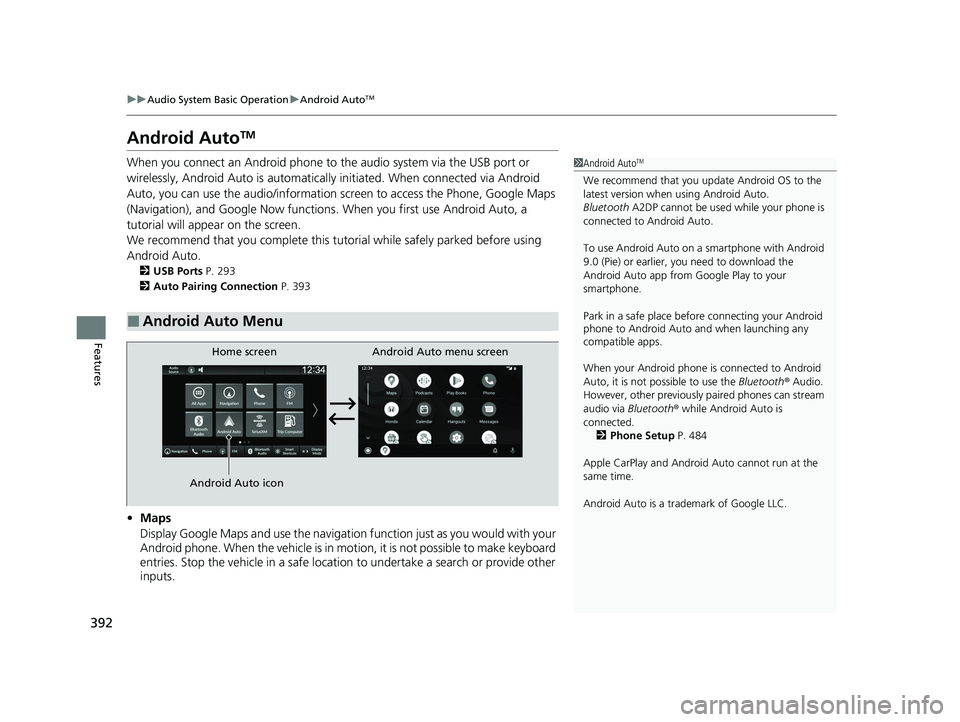
When you connect an Android phone to the audio system via the USB port or
wirelessly, Android Auto is automatically initiated. When connected via Android
Auto, you can use the audio/information screen to access the Phone, Google Maps
(Navigation), and Google Now functions. When you first use Android Auto, a
tutorial will appe ar on the screen.
We recommend that you complete this tuto rial while safely parked before using
Android Auto.
2 USB Ports P. 293
2 Auto Pairing Connection P. 393
•Maps
Display Google Maps and use the navigation function just as you would with your
Android phone. When the vehicle is in motion, it is not possible to make keyboard
entries. Stop the vehicle in a safe location to undertake a search or provide other
inputs.
■Android Auto Menu
1 Android AutoTM
We recommend that you upda te Android OS to the
latest version when using Android Auto.
Bluetooth A2DP cannot be used while your phone is
connected to Android Auto.
To use Android Auto on a smartphone with Android
9.0 (Pie) or earl ier, you need to download the
Android Auto app from Google Play to your
smartphone.
Park in a safe place befo re connecting your Android
phone to Android Auto and when launching any
compatible apps.
When your Android phone is connected to Android
Auto, it is not possible to use the Bluetooth® Audio.
However, other previously paired phones can stream
audio via Bluetooth ® while Android Auto is
connected. 2 Phone Setup P. 484
Apple CarPlay and Android Auto cannot run at the
same time.
Android Auto is a trademark of Google LLC.
Android Auto menu screen
Home screen
Android Auto icon
23 PILOT-31T906000_03.book 392 ページ 2022年10月31日 月曜日 午前10時26分
Page 395 of 814
uuAudio System Basic Operation uAndroid AutoTM
394
Features
1. Connect the Android phone to the USB port using the USB cable.
2 USB Ports P. 293
uThe confirmation screen will be displayed.
2. Select Yes.
u If you do not want to connect Android Auto, select No.
You may change the consent settings under the Smartphone Connection settings
menu.
■Connect Android Auto wirelessly on the home screen
1. Press the button.
2. Select Smartphone Connection .
3. Select + Connect New Device.
4. Pair the Android phone to the vehicle’s Bluetooth® HandsFreeLink ® (HFL) system.
2Phone Setup P. 484
5.Select Yes.
u If your Android phone asks for permission to accept an Android Auto
connection, accept to connect. A confir mation message for HondaLink Assist
appears.
6. Select Yes or No.
■Connecting Android Auto Using the USB Cable to the USB Port
■Connect Android Auto Wirelessly
1Connecting Android Auto Using the USB Cable to the USB Port
Only initialize Android Auto when you are safely
parked. When Android Auto first detects your phone,
you will need to set up your phone so that auto
pairing is possibl e. Refer to the instruction manual
that came with your phone.
You can use the following procedure to disconnect or
delete the devices connecting Android Auto after you
have completed the initial setup:
Press the button Select General Settings
Smartphone Connection Android Auto
Select device
Use of user and vehicle information
The use and handling of user and vehicle information
transmitted to/from your phone by Android Auto is
governed by the Google’s Privacy Policy.
23 PILOT-31T906000_03.book 394 ページ 2022年10月31日 月曜日 午前10時26分
Page 396 of 814
395
uuAudio System Basic Operation uAndroid AutoTM
Continued
Features
■Connect Android Auto wirelessly on the Android Auto device list
1. Press the button.
2. Select General Settings .
3. Select Smartphone Connection .
4. Select Android Auto .
5. Select + Connect New Device .
6. Pair the Android phone to the vehicle’s Bluetooth® HandsFreeLink ® (HFL) system.
2Phone Setup P. 484
7.Select Yes.
u If your Android phone asks for permission to accept an Android Auto
connection, accept to connect. A conf irmation message for HondaLink Assist
appears.
8. Select Yes or No .
■Connect Android Auto wirelessly on the Bluetooth® device list
1. Press the button.
2. Select General Settings .
3. Select Connections.
4. Select Bluetooth .
5. Select + Connect New Device.
6. Pair the Android phone to the vehicle’s Bluetooth® HandsFreeLink® (HFL) system.
2Phone Setup P. 484
7.Check the box on Android Auto.
u If you select Android Auto , you cannot select Audio and Phone .
8. Select Connect .
9. Select Yes.
u If your Android phone asks for permission to accept an Android Auto
connection, accept to connect. A conf irmation message for HondaLink Assist
appears.
10. Select Yes or No.
23 PILOT-31T906000_03.book 395 ページ 2022年10月31日 月曜日 午前10時26分
Page 397 of 814
396
uuAudio System Basic Operation uAndroid AutoTM
Features
■Connect Android Auto wirele ssly with the steering wheel
1. Press and hold the (talk) button on the steering wheel.
2. Pair the Android phone to the vehicle’s Bluetooth® HandsFreeLink ® (HFL) system.
2Phone Setup P. 484
3.Check the box on Android Auto.
u If you select Android Auto , you cannot select Audio and Phone .
4. Select Connect .
5. Select Yes.
u If your Android phone asks for permission to accept an Android Auto
connection, accept to connect. A confir mation message for HondaLink Assist
appears.
6. Select Yes or No.
■Connect Android Auto wirelessly at start-up (when there is no phone
paired to the system)
1. Set the power mode to ACCESSORY or ON.
2. Select OK.
u If there is no registered device, the Bluetooth® pairing screen will be displayed.
u If you check the box with Do not show this again, this screen will not be
displayed.
3. Pair the Android phone to the vehicle’s Bluetooth® HandsFreeLink ® (HFL) system.
2Phone Setup P. 484
4.Check the box on Android Auto.
u If you select Android Auto , you cannot select Audio and Phone .
5. Select Connect .
6. Select Yes.
u If your Android phone asks for permission to accept an Android Auto
connection, accept to connect. A confir mation message for HondaLink Assist
appears.
7. Select Yes or No.
23 PILOT-31T906000_03.book 396 ページ 2022年10月31日 月曜日 午前10時26分
Page 418 of 814
417
uuGeneral Information on the Audio System uLicense Information
Continued
Features
License Information
The Bluetooth® word mark and logos are register ed trademarks owned by Bluetooth
SIG, Inc. and any use of such marks by Pan asonic Automotive Systems Co., Ltd. is
under license. Other trademarks and trade names are those of their respective
owners.
The Bluetooth® word mark and logos are register ed trademarks owned by Bluetooth
SIG, Inc. and any use of such marks by MITSUBISHI ELECTRIC is under license.
Other trademarks and trade names are those of their respective owners.
https://www.bluetooth.com/develop- with-bluetooth/marketing-branding/
This product is protected by certain intellectual property rights of Microsoft. Use or
distribution of such technology outside of this product is prohibited without a
license from Microsoft.
■Bluetooth
■Windows Media
23 PILOT-31T906000_03.book 417 ページ 2022年10月31日 月曜日 午前10時26分
Page 423 of 814
422
uuCustomized Features u
Features
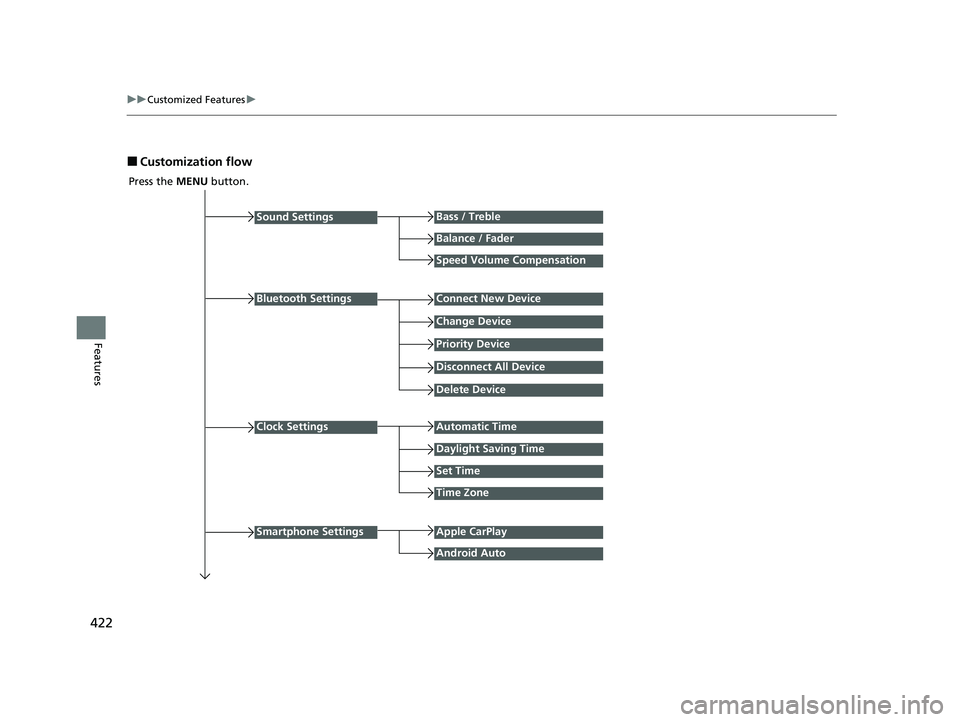
■Customization flow
Press the MENU button.
Sound Settings
Bluetooth Settings
Bass / Treble
Balance / Fader
Speed Volume Compensation
Connect New Device
Change Device
Priority Device
Clock Settings
Smartphone Settings
Disconnect All Device
Delete Device
Automatic Time
Set Time
Time Zone
Apple CarPlay
Android Auto
Daylight Saving Time
23 PILOT-31T906000_03.book 422 ページ 2022年10月31日 月曜日 午前10時26分
Page 425 of 814
424
uuCustomized Features u
Features
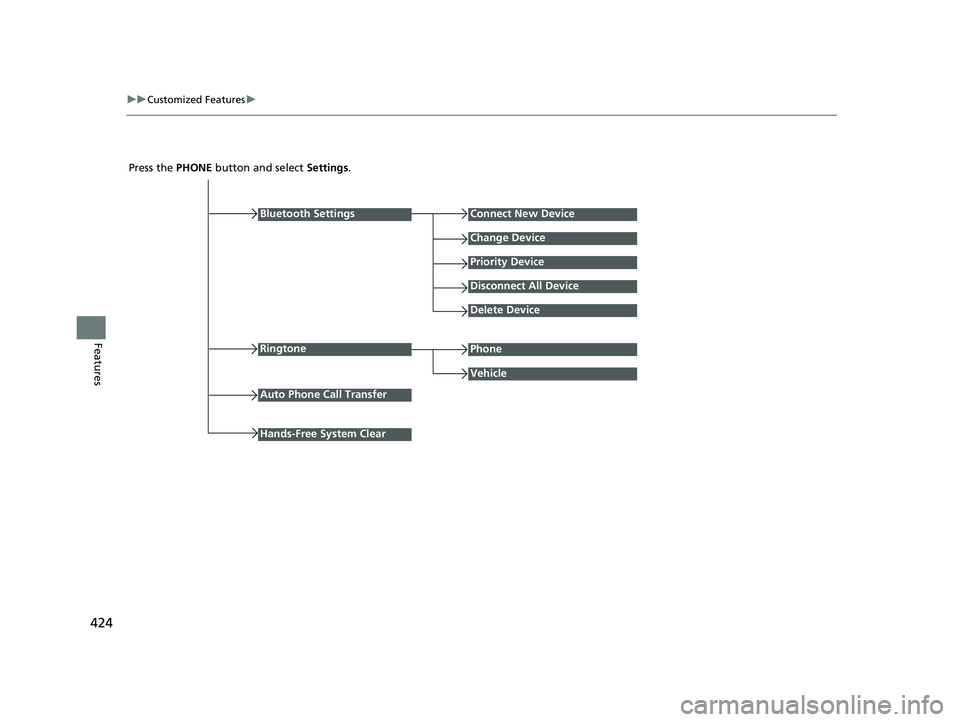
Press the PHONE button and select Settings.
Bluetooth Settings
Ringtone
Connect New Device
Change Device
Priority Device
Disconnect All Device
Delete Device
Vehicle
Auto Phone Call Transfer
Phone
Hands-Free System Clear
23 PILOT-31T906000_03.book 424 ページ 2022年10月31日 月曜日 午前10時26分
Page 426 of 814
425
uuCustomized Features u
Continued
Features
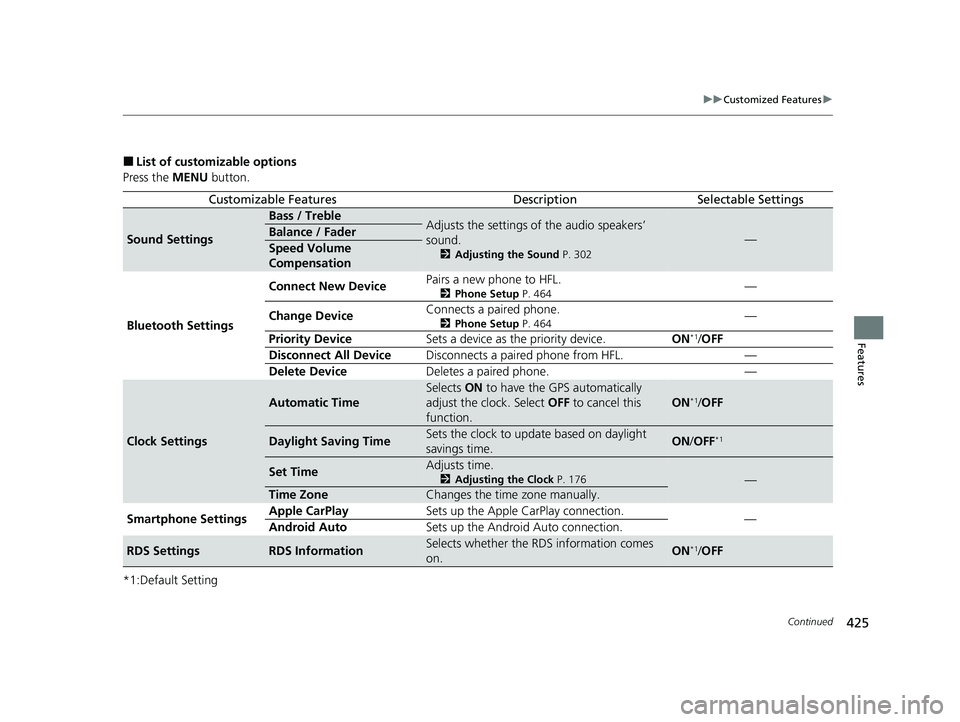
■List of customizable options
Press the MENU button.
*1:Default Setting
Customizable FeaturesDescriptionSelectable Settings
Sound Settings
Bass / TrebleAdjusts the settings of the audio speakers’
sound.
2 Adjusting the Sound P. 302
—Balance / Fader
Speed Volume
Compensation
Bluetooth Settings Connect New Device
Pairs a new phone to HFL.
2
Phone Setup P. 464—
Change Device Connects a paired phone.
2
Phone Setup P. 464—
Priority Device Sets a device as the priority device. ON
*1/OFF
Disconnect All Device Disconnects a paired phone from HFL. —
Delete Device Deletes a paired phone. —
Clock Settings
Automatic Time
Selects ON to have the GPS automatically
adjust the clock. Select OFF to cancel this
function.
ON*1/ OFF
Daylight Saving TimeSets the clock to update based on daylight
savings time.ON /OFF*1
Set TimeAdjusts time.
2 Adjusting the Clock P. 176—
Time ZoneChanges the time zone manually.
Smartphone Settings Apple CarPlay
Sets up the Apple CarPlay connection.
—
Android Auto Sets up the Android Auto connection.
RDS SettingsRDS InformationSelects whether the RDS information comes
on.ON*1/OFF
23 PILOT-31T906000_03.book 425 ページ 2022年10月31日 月曜日 午前10時26分
Page 428 of 814
427
uuCustomized Features u
Features
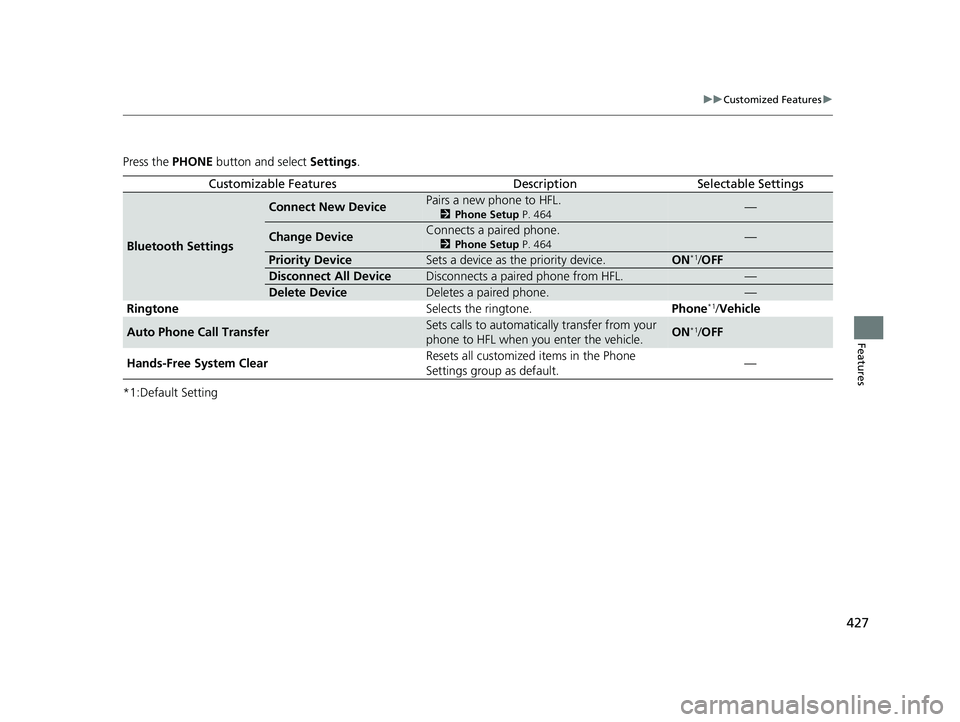
Press the PHONE button and select Settings.
*1:Default Setting
Customizable FeaturesDescriptionSelectable Settings
Bluetooth Settings
Connect New DevicePairs a new phone to HFL.
2 Phone Setup P. 464—
Change DeviceConnects a paired phone.
2Phone Setup P. 464—
Priority DeviceSets a device as the priority device.ON*1/OFF
Disconnect All DeviceDisconnects a paired phone from HFL.—
Delete DeviceDeletes a paired phone.—
Ringtone Selects the ringtone.Phone*1/Vehicle
Auto Phone Call TransferSets calls to automatically transfer from your
phone to HFL when you enter the vehicle.ON*1/OFF
Hands-Free System Clear Resets all customized items in the Phone
Settings group as default.
—
23 PILOT-31T906000_03.book 427 ページ 2022年10月31日 月曜日 午前10時26分