ad blue HONDA RIDGELINE 2008 1.G Navigation Manual
[x] Cancel search | Manufacturer: HONDA, Model Year: 2008, Model line: RIDGELINE, Model: HONDA RIDGELINE 2008 1.GPages: 135, PDF Size: 11.61 MB
Page 7 of 135
Navigation System7
Introduction
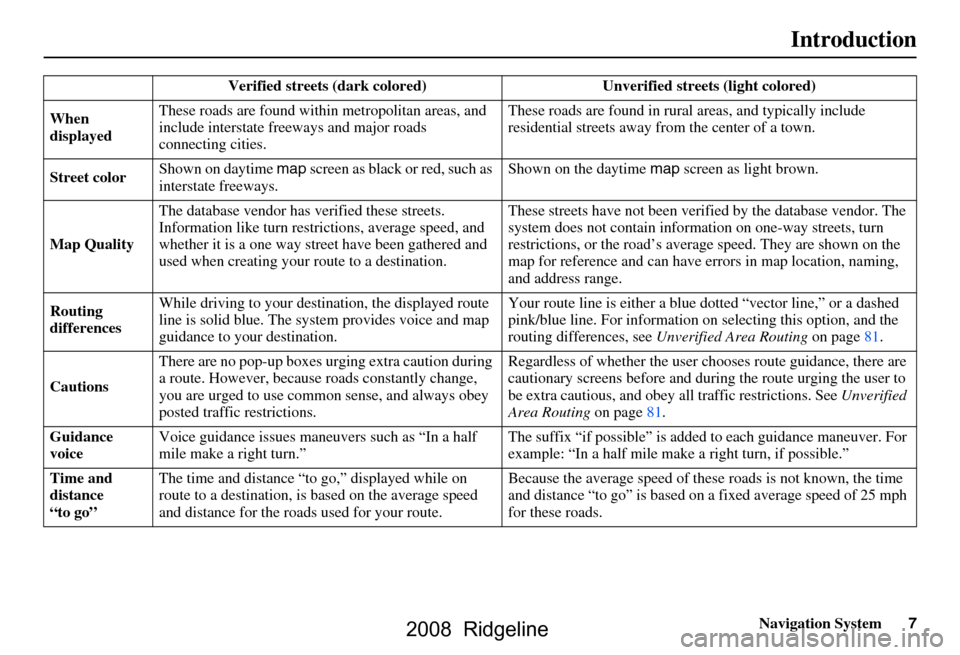
Verified streets (dark colored) Unverified streets (light colored)
When
displayed These roads are found within
metropolitan areas, and
include interstate freeways and major roads
connecting cities. These roads are found in rural
areas, and typically include
residential street s away from the center of a town.
Street color Shown on daytime
map screen as black or red, such as
interstate freeways. Shown on the daytime
map screen as light brown.
Map Quality The database vendor has
verified these streets.
Information like tu rn restrictions, average speed, and
whether it is a one way street have been gathered and
used when creating your route to a destination. These streets have not been veri
fied by the database vendor. The
system does not contain inform ation on one-way streets, turn
restrictions, or the road’s average speed. They are shown on the
map for reference and can have e rrors in map location, naming,
and address range.
Routing
differences While driving to your destin
ation, the displayed route
line is solid blue. The system provides voice and map
guidance to your destination. Your route line is either a blue
dotted “vector line,” or a dashed
pink/blue line. For information on selecting this option, and the
routing differences, see Unverified Area Routing on page
81.
Cautions There are no pop-up boxes urging extra caution during
a route. However, because
roads constantly change,
you are urged to use common sense, and always obey
posted traffic restrictions. Regardless of whether the user c
hooses route guidance, there are
cautionary screens before and dur ing the route urging the user to
be extra cautious, and obey a ll traffic restrictions. See Unverified
Area Routing on page81.
Guidance
voice Voice guidance issues maneuvers such as “In a half
mile make a right turn.” The suffix “if possible” is adde
d to each guidance maneuver. For
example: “In a half mile make a right turn, if possible.”
Time and
distance
“to go” The time and distance “t
o go,” displayed while on
route to a destination, is based on the average speed
and distance for the roads used for your route. Because the average speed of thes
e roads is not known, the time
and distance “to go” is based on a fixed average speed of 25 mph
for these roads.
2008 Ridgeline
Page 18 of 135
18Navigation System
Getting Started
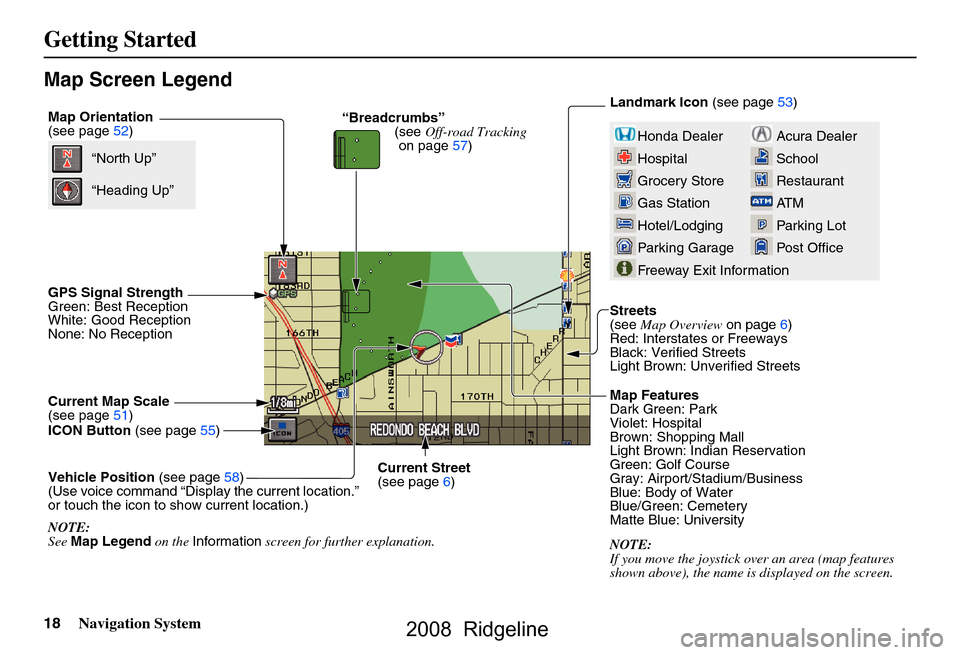
Map Screen Legend
Acura Dealer
School
Restaurant
AT M
Parking Lot
Post OfficeHonda Dealer
Hospital
Grocery Store
Gas Station
Hotel/Lodging
Parking Garage
Freeway Exit Information
Map Orientation
(see page52)
GPS Signal Strength
Green: Best Reception
White: Good Reception
None: No Reception
Current Map Scale
(see page51)
ICON Button (see page55)
Vehicle Position (see page58)
(Use voice command “Display the current location.”
or touch the icon to show current location.) Streets
(see
Map Overview on page6)
Red: Interstates or Freeways
Black: Verified Streets
Light Brown: Unverified Streets
Map Features
Dark Green: Park
Violet: Hospital
Brown: Shopping Mall
Light Brown: Indian Reservation
Green: Golf Course
Gray: Airport/Stadium/Business
Blue: Body of Water
Blue/Green: Cemetery
Matte Blue: University
NOTE:
If you move the joystick ov er an area (map features
shown above), the name is displayed on the screen.
Current Street
(see page6)
“North Up”
NOTE:
See Map Legend on the Information screen for further explanation.
“Heading Up”
“Breadcrumbs”
(see Off-road Tracking
on page57)Landmark Icon (see page53)
2008 Ridgeline
Page 20 of 135
20Navigation System
Getting Started
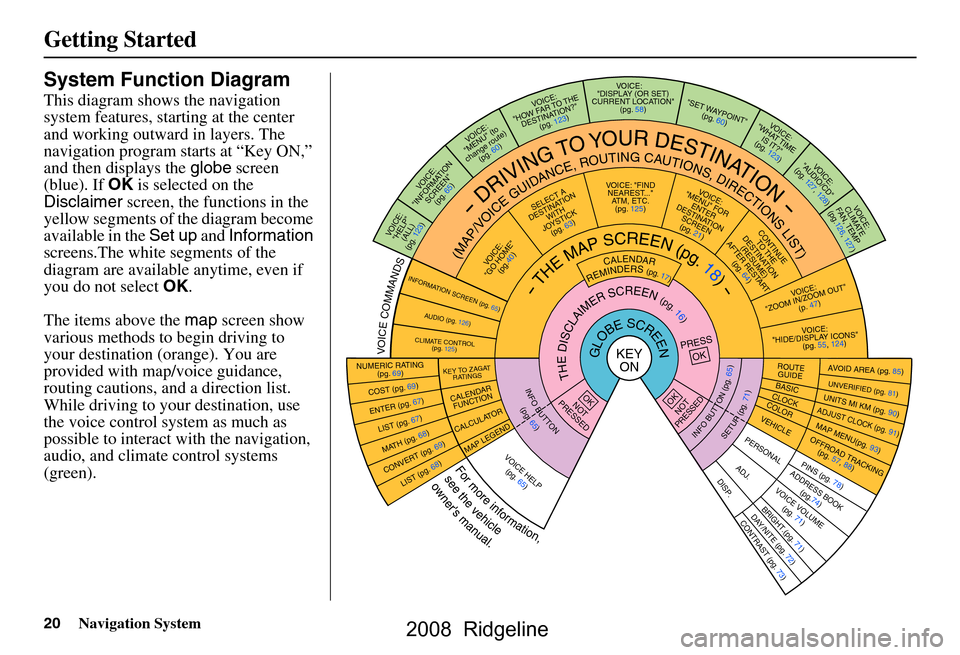
System Function Diagram
This diagram shows the navigation
system features, starting at the center
and working outward in layers. The
navigation program starts at “Key ON,”
and then displays the globe screen
(blue). If OK is selected on the
Disclaimer screen, the functions in the
yellow segments of the diagram become
available in the Set up and Information
screens.The white segments of the
diagram are available anytime, even if
you do not select OK.
The items above the map screen show
various methods to begin driving to
your destination (orange). You are
provided with map/voice guidance,
routing cautions, and a direction list.
While driving to your destination, use
the voice control system as much as
possible to interact with the navigation,
audio, and climat e control systems
(green).
GLOBE SCREEN
REMINDERS (pg. 17)CALENDAR
THE DISCLAIMER SCREEN (pg. 16)
- THE MAP SCREEN (pg. 18) -
(MAP/VOICE GUIDANCE, ROUTING CAUTIONS, DIRECTIONS LIST)
- DRIVING TO YOUR DESTINATION -
VOICE: "F IND
N EARE ST..."
A
TM, ET C.
(pg. 125)
SELECT A
DEST INA TION
WITH
J O
YSTICK
(pg. 63)
VOICE:
"GO HOM E"
(pg.40)
VOICE :
"H ELP"
(
AL L)
(pg. 1 23)
VOICE:
"IN FORMATION
SCR EEN"
( p g. 65)
V OICE:
"
MENU" (to
change route) (pg. 60 )
VO ICE:
"HO
W F AR T O THE
DES
TINATION?" (pg. 123)
VOICE:
" DISPLA Y (OR SET)
CURRENT LO CA
TION"
(pg.
58)
VOICE:
"WH AT
TIME
IS IT ?"
(pg. 123)
V O ICE:
" AU
D IO /CD
"
(
pg. 1 27, 128)
VOIC E:
C LIMAT E
FA
N , T
E MP
(pg.126, 127)
"SET WA YPOINT"
(pg. 60)
VOICE:
" Z O
OM IN/ZOOM OUT"
(p. 47)
VOICE:
"HIDE/DIS PLAY ICONS"
(pg. 55, 124)
AV OID AREA (pg. 85)ROUTE
GUIDE
BASICCLOC KCOLO RVEHICLE
ADJ.DISP.
PERSONAL
UNVER IFIED (pg. 81)
UNITS MI KM (pg. 90) ADJUST CLOCK (pg. 91)MAP MENU(pg. 93) OFFROAD TRACKIN G
PINS (pg. 78)ADDRESS BOOK
(pg.74)VOICE VOL UME
(pg. 71)
BRIGHT.(pg. 71)
NUM ERI C RA TING
(pg. 6 9)K EY TO Z A
GA T
RATINGS
COST (pg. 69)
EN T ER (pg. 67)
LIST (p g . 6 7)
M A TH (pg. 68)
CONV ERT (pg. 69)LIST (pg . 68)
CALENDAR
FUNCTION
CA LCULA TOR
MAP LE GEND
VOICE:
"MENU" FOR
ENTER
D ESTINATION
SCREEN (pg. 21)
CONTI NUE
T O THE
DES TINATION
(R ESUME)
AFTER R EST
ART
(pg. 64)
KEY
ONPRESS
OK
Formoreinformation,
seethevehicle
owner'smanual.
VOICE COMMANDS
NO T
PR ESS EDOKNOT
PRESSEDOK
IN FORMATION SC REEN (p g. 65)AUD IO (p g. 126)
CLIMA TE CONTR OL
( pg .
125)
CONTRAS T (pg. 73)
VOICE HELP
(pg. 65)(pg. 57, 88)
DAY/ NI TE
(pg. 72 )
INFOBUTTON(pg.65)
SETUP(pg.71)INFOBUTTON
(pg.65)
2008 Ridgeline
Page 45 of 135
Navigation System45
Driving to Your Destination
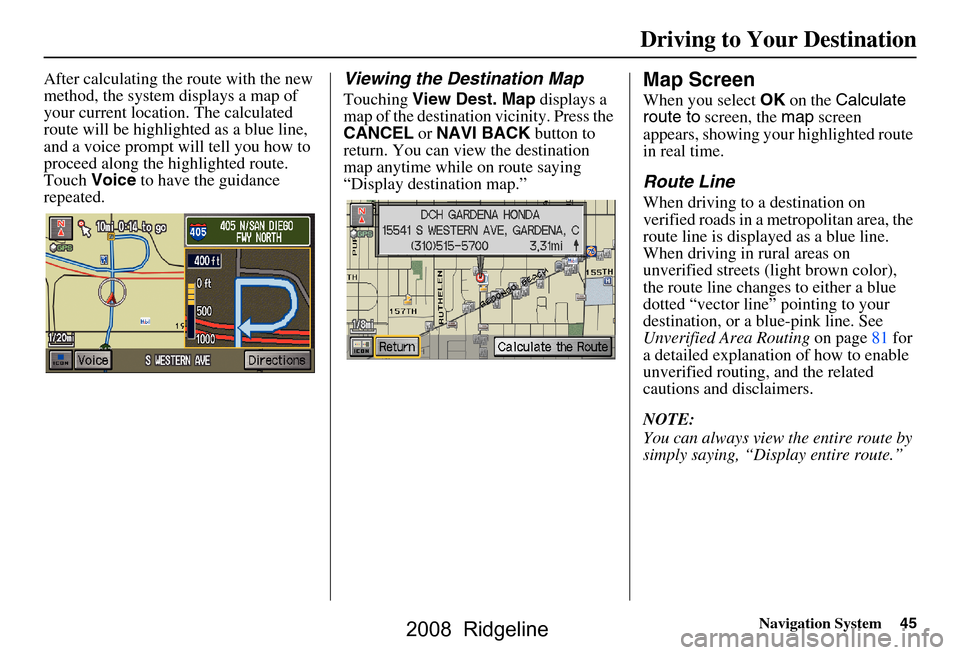
After calculating the route with the new
method, the system displays a map of
your current location. The calculated
route will be highlighted as a blue line,
and a voice prompt will tell you how to
proceed along the hi ghlighted route.
Touch Voice to have the guidance
repeated.Viewing the Destination Map
Touching View Dest. Map displays a
map of the destination vicinity. Press the
CANCEL or NAVI BACK button to
return. You can view the destination
map anytime while on route saying
“Display destination map.”
Map Screen
When you select OK on the Calculate
route to screen, the map screen
appears, showing your highlighted route
in real time.
Route Line
When driving to a destination on
verified roads in a metropolitan area, the
route line is displayed as a blue line.
When driving in rural areas on
unverified streets (light brown color),
the route line changes to either a blue
dotted “vector line” pointing to your
destination, or a blue-pink line. See
Unverified Area Routing on page81 for
a detailed expl anation of how to enable
unverified routing, and the related
cautions and disclaimers.
NOTE:
You can always view the entire route by
simply saying, “Display entire route.”
2008 Ridgeline
Page 46 of 135
46Navigation System
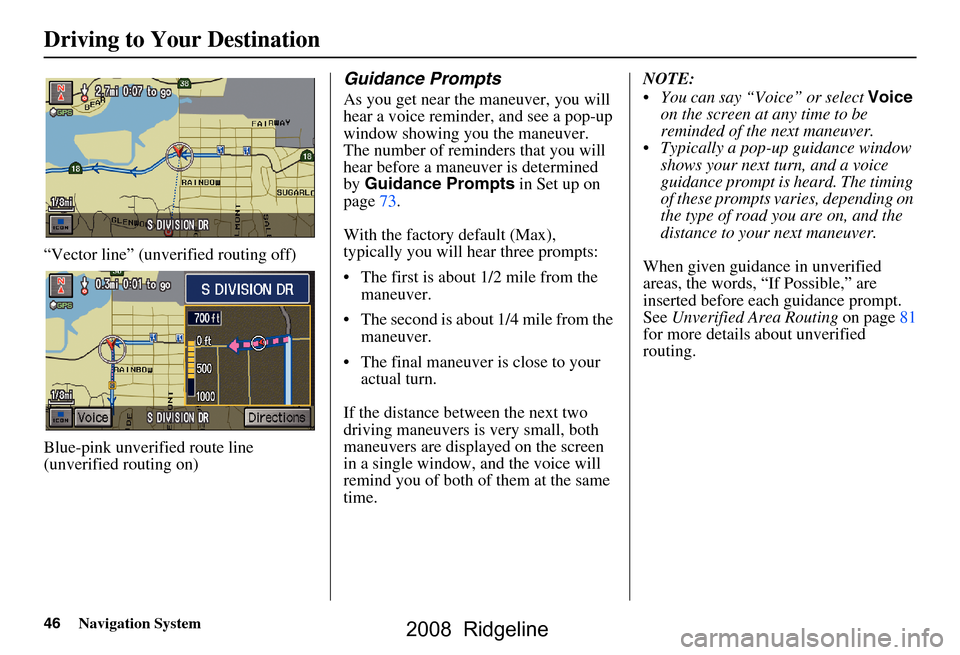
“Vector line” (unverified routing off)
Blue-pink unverified route line
(unverified routing on)
Guidance Prompts
As you get near the maneuver, you will
hear a voice reminder, and see a pop-up
window showing you the maneuver.
The number of reminders that you will
hear before a maneuver is determined
by Guidance Prompts in Set up on
page73.
With the factory default (Max),
typically you will hear three prompts:
The first is about 1/2 mile from the maneuver.
The second is about 1/4 mile from the maneuver.
The final maneuver is close to your actual turn.
If the distance between the next two
driving maneuvers is very small, both
maneuvers are displayed on the screen
in a single window, and the voice will
remind you of both of them at the same
time. NOTE:
You can say “Voice” or select
Voice
on the screen at any time to be
reminded of the next maneuver.
Typically a pop-up guidance window shows your next turn, and a voice
guidance prompt is heard. The timing
of these prompts varies, depending on
the type of road you are on, and the
distance to your next maneuver.
When given guidance in unverified
areas, the words, “If Possible,” are
inserted before each guidance prompt.
See Unverified Area Routing on page81
for more details about unverified
routing.
Driving to Your Destination
2008 Ridgeline
Page 47 of 135
Navigation System47
Driving to Your Destination
Acura Dealer
School
Restaurant
AT M
Parking Lot
Post OfficeHonda Dealer
Hospital
Grocery Store
Gas Station
Hotel/Lodging
Parking Garage
Freeway Exit Information
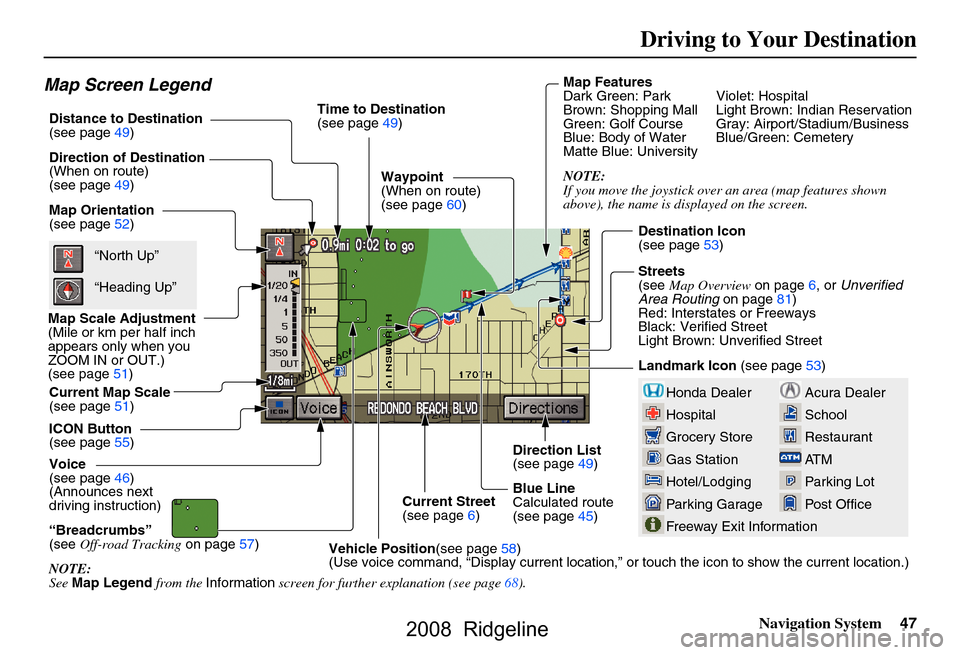
Map Screen Legend
Map Orientation
(see page52)
Map Scale Adjustment
(Mile or km per half inch
appears only when you
ZOOM IN or OUT.)
(see page51) Current Map Scale
(see page51)
ICON Button
(see page55)
“Breadcrumbs”
(see Off-road Tracking on page57)
NOTE:
See Map Legend from the Information screen for further explanation (see page68).
Direction of Destination
(When on route)
(see page49)
Voice
(see page46)
(Announces next
driving instruction)
Distance to Destination
(see page49)
Time to Destination
(see page49)
Waypoint
(When on route)
(see page60)
Current Street
(see page6)
Vehicle Position (see page58)
(Use voice command, “Display curr ent location,” or touch the icon to show the current location.)
Direction List
(see page49)
Blue Line
Calculated route
(see page45) Map Features
Dark Green: Park Violet: Hospital
Brown: Shopping Mall Light
Brown: Indian Reservation
Green: Golf Course Gray: Airport/Stadium/Business
Blue: Body of Water Blue/Green: Cemetery
Matte Blue: University
NOTE:
If you move the joystick over an area (map features shown
above), the name is disp layed on the screen.
Destination Icon
(see page53)
Streets
(see Map Overview on page6, or Unverified
Area Routing on page81)
Red: Interstates or Freeways
Black: Verified Street
Light Brown: Unverified Street
Landmark Icon (see page53)
“North Up”
“Heading Up”
2008 Ridgeline
Page 55 of 135
Navigation System55
Driving to Your Destination
Showing Icons on the Map
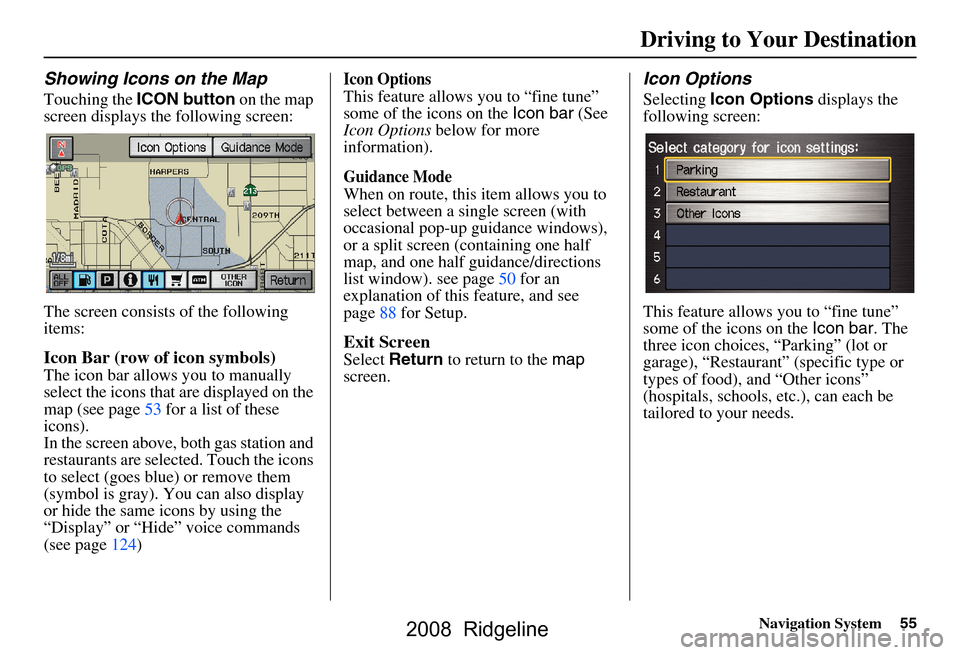
Touching the ICON button on the map
screen displays the following screen:
The screen consists of the following
items:
Icon Bar (row of icon symbols)
The icon bar allows you to manually
select the icons that are displayed on the
map (see page53 for a list of these
icons).
In the screen above, both gas station and
restaurants are selected. Touch the icons
to select (goes blue) or remove them
(symbol is gray). You can also display
or hide the same icons by using the
“Display” or “Hide” voice commands
(see page124)
Icon Options
This feature allows you to “fine tune”
some of the icons on the Icon bar (See
Icon Options below for more
information).
Guidance Mode
When on route, this item allows you to
select between a single screen (with
occasional pop-up guidance windows),
or a split screen (containing one half
map, and one half guidance/directions
list window). see page50 for an
explanation of this feature, and see
page88 for Setup.
Exit Screen
Select Return to return to the map
screen.
Icon Options
Selecting Icon Options displays the
following screen:
This feature allows you to “fine tune”
some of the icons on the Icon bar. The
three icon choices, “Parking” (lot or
garage), “Restaurant” (specific type or
types of food), and “Other icons”
(hospitals, schools, etc.), can each be
tailored to your needs.
2008 Ridgeline
Page 56 of 135
56Navigation System
For instance, let’s assume that your
hospital is not displa yed on the map, and
you want to make sure that your settings
are correct. You would do the
following:
First you would ensure that the “OTHER ICON” button on the Icon
bar is blue (See Icon Bar above).
Second, you select Icon Options
and verify that hospital option is also
on (blue). This procedure is explained
below.
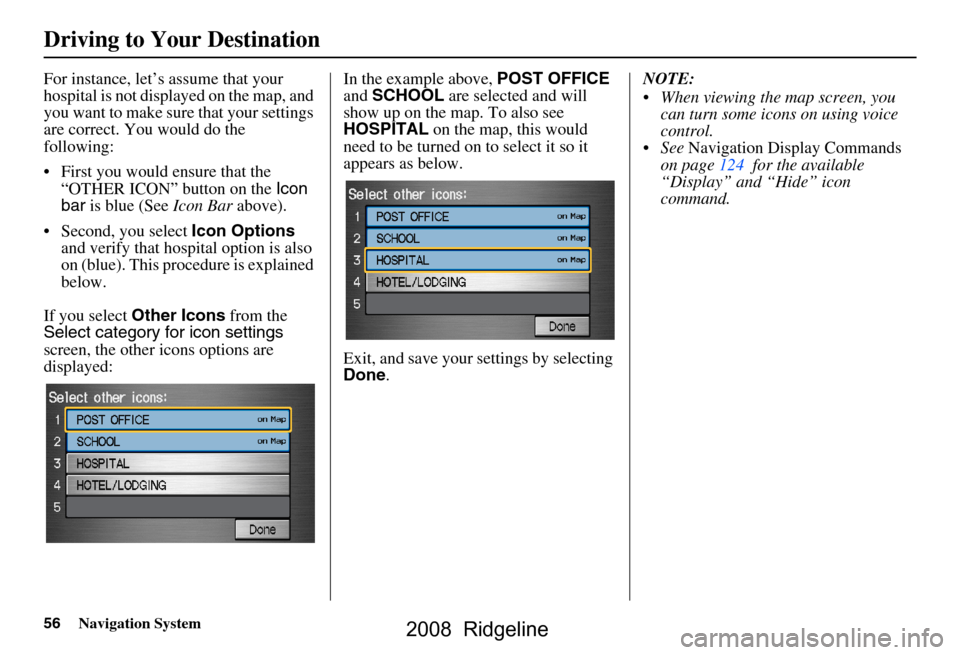
If you select Other Icons from the
Select category for icon settings
screen, the other icons options are
displayed: In the example above,
POST OFFICE
and SCHOOL are selected and will
show up on the map. To also see
HOSPITAL on the map, this would
need to be turned on to select it so it
appears as below.
Exit, and save your settings by selecting
Done . NOTE:
When viewing the map screen, you
can turn some icons on using voice
control.
See Navigation Display Commands
on page124 for the available
“Display” and “Hide” icon
command.
Driving to Your Destination
2008 Ridgeline
Page 69 of 135
Navigation System69
Information Features
Unit Conversion
To perform a conversion:
1. Enter a numeric value to be converted
(for example, 100).
2. Select the type of unit you want to convert (for example, weight). The
screen for that conversion type
appears (see illustrat ion in step 3).
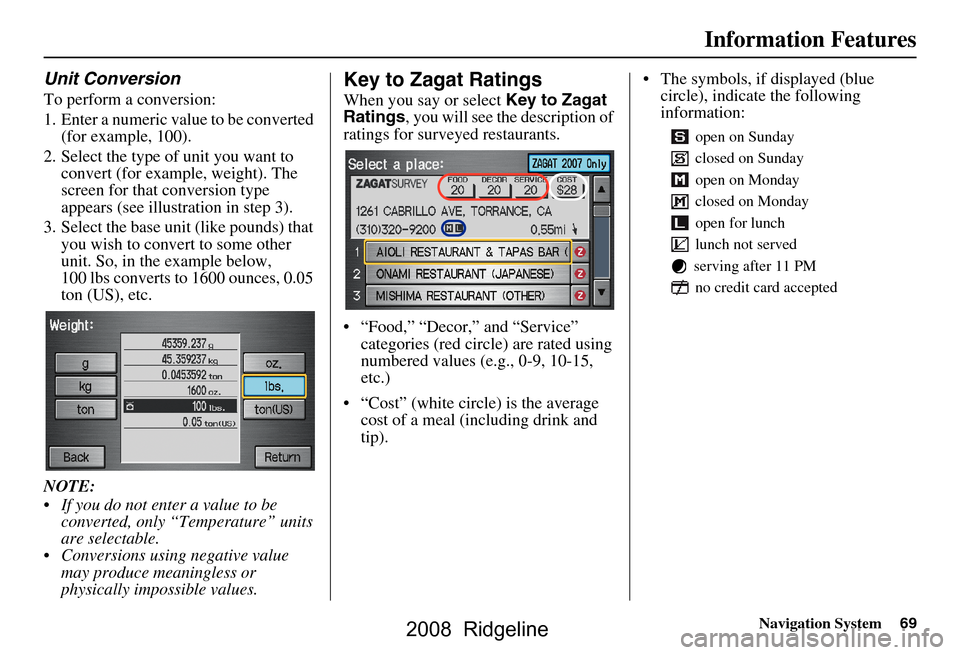
3. Select the base unit (like pounds) that you wish to convert to some other
unit. So, in the example below,
100 lbs converts to 1600 ounces, 0.05
ton (US), etc.
NOTE:
If you do not enter a value to be converted, only “Temperature” units
are selectable.
Conversions using negative value may produce meaningless or
physically impossible values.
Key to Zagat Ratings
When you say or select Key to Zagat
Ratings , you will see the description of
ratings for surveyed restaurants.
“Food,” “Decor,” and “Service” categories (red circle) are rated using
numbered values (e.g., 0-9, 10-15,
etc.)
“Cost” (white circle) is the average cost of a meal (including drink and
tip). The symbols, if displayed (blue
circle), indicate the following
information:
open on Sunday
closed on Sunday
open on Monday
closed on Monday
open for lunch
lunch not served
serving after 11 PM no credit card accepted
2008 Ridgeline
Page 81 of 135
Navigation System81
System Set-up
Unverified Area Routing
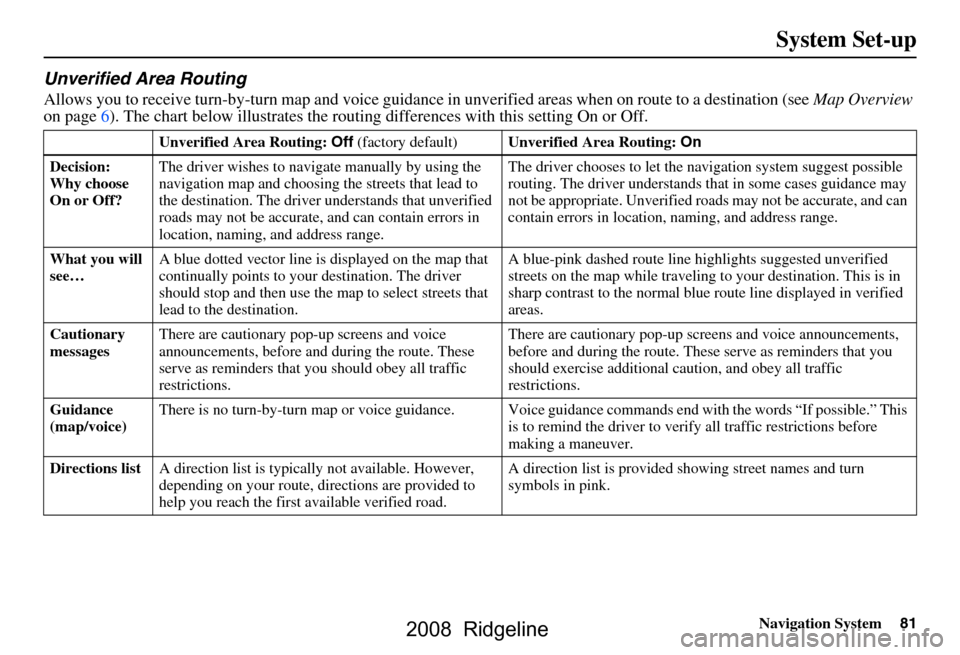
Allows you to receive turn-by-turn map and voice guidance in unverified areas when on route to a destination (see Map Overview
on page6). The chart below illustrates the rou ting differences with this setting On or Off.
Unverified Area Routing: Off (factory default) Unverified Area Routing: On
Decision:
Why choose
On or Off? The driver wishes to navi
gate manually by using the
navigation map and choosing the streets that lead to
the destination. The driver understands that unverified
roads may not be a ccurate, and can contain errors in
location, naming, and address range. The driver chooses to let the na
vigation system suggest possible
routing. The driver understands th at in some cases guidance may
not be appropriate. Unverified ro ads may not be accurate, and can
contain errors in location, naming, and address range.
What you will
see… A blue dotted vector line is
displayed on the map that
continually points to your destination. The driver
should stop and then use the ma p to select streets that
lead to the destination. A blue-pink dashed route line
highlights suggested unverified
streets on the map while traveling to your destination. This is in
sharp contrast to the normal blue route line displayed in verified
areas.
Cautionary
messages There are cautionary pop-up screens and voice
announcements, before and
during the route. These
serve as reminders that you should obey all traffic
restrictions. There are cautionary pop-up sc
reens and voice announcements,
before and during the route. These serve as reminders that you
should exercise additional ca ution, and obey all traffic
restrictions.
Guidance
(map/voice) There is no turn-by-turn map or voice guidance. Voice gu
idance commands end with the words “If possible.” This
is to remind the driver to verify all traffic restrictions before
making a maneuver.
Directions list A direction list is typicall y not available. However,
depending on your route, dire ctions are provided to
help you reach the first available verified road. A direction list is provided s
howing street names and turn
symbols in pink.
2008 Ridgeline