ac system HONDA RIDGELINE 2017 2.G Owners Manual
[x] Cancel search | Manufacturer: HONDA, Model Year: 2017, Model line: RIDGELINE, Model: HONDA RIDGELINE 2017 2.GPages: 606, PDF Size: 13.21 MB
Page 195 of 606
uuHeating and Cooling System*uUsing Vents, Heating and A/C
194
Controls
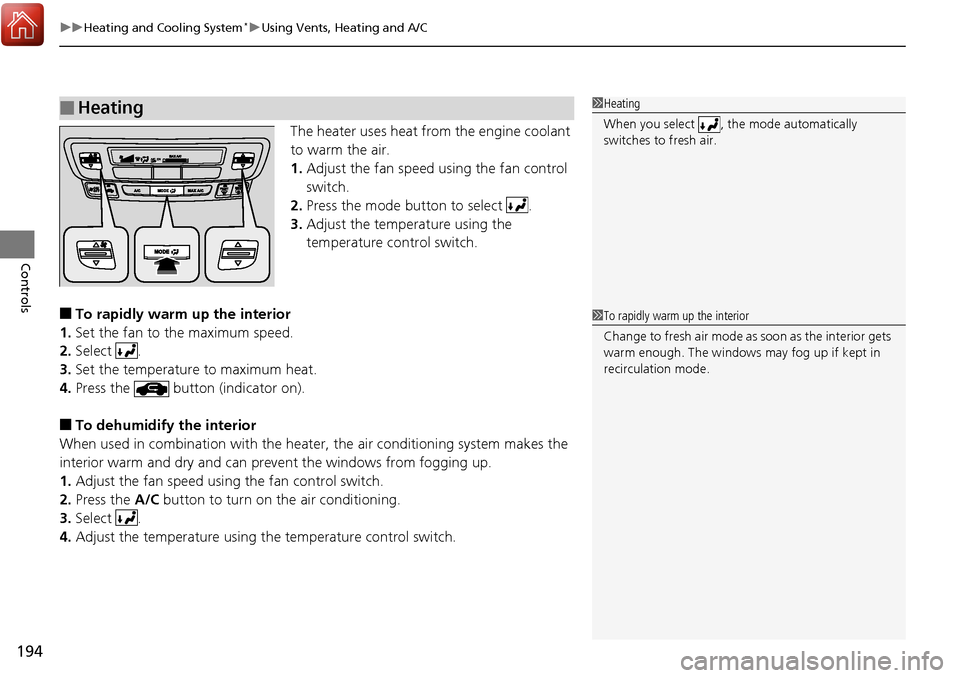
The heater uses heat from the engine coolant
to warm the air.
1. Adjust the fan speed using the fan control
switch.
2. Press the mode button to select .
3. Adjust the temperature using the
temperature control switch.
■To rapidly warm up the interior
1. Set the fan to the maximum speed.
2. Select .
3. Set the temperature to maximum heat.
4. Press the button (indicator on).
■To dehumidify the interior
When used in combination with the heater , the air conditioning system makes the
interior warm and dry and can prevent the windows from fogging up.
1. Adjust the fan speed using the fan control switch.
2. Press the A/C button to turn on the air conditioning.
3. Select .
4. Adjust the temperature using the temperature control switch.
■Heating1Heating
When you select , th e mode automatically
switches to fresh air.
1 To rapidly warm up the interior
Change to fresh air mode as soon as the interior gets
warm enough. The windows may fog up if kept in
recirculation mode.
Page 196 of 606
Continued195
uuHeating and Cooling System*uUsing Vents, Heating and A/C
Controls
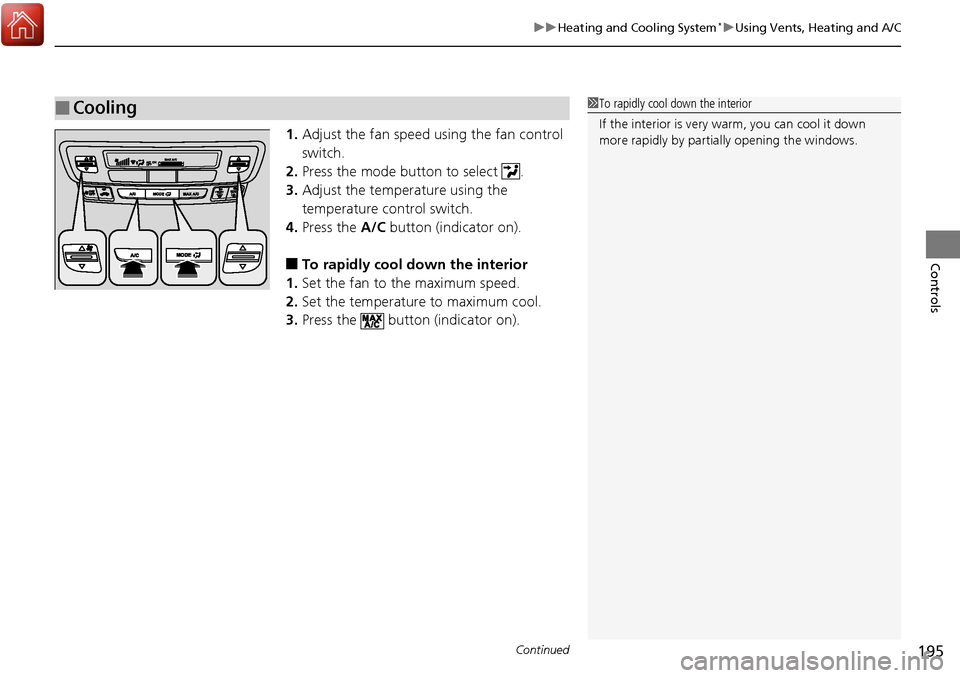
1. Adjust the fan speed using the fan control
switch.
2. Press the mode button to select .
3. Adjust the temperature using the
temperature control switch.
4. Press the A/C button (indicator on).
■To rapidly cool down the interior
1. Set the fan to the maximum speed.
2. Set the temperature to maximum cool.
3. Press the button (indicator on).
■Cooling1To rapidly cool down the interior
If the interior is very warm, you can cool it down
more rapidly by parti ally opening the windows.
Page 197 of 606
uuHeating and Cooling System*uUsing Vents, Heating and A/C
196
Controls
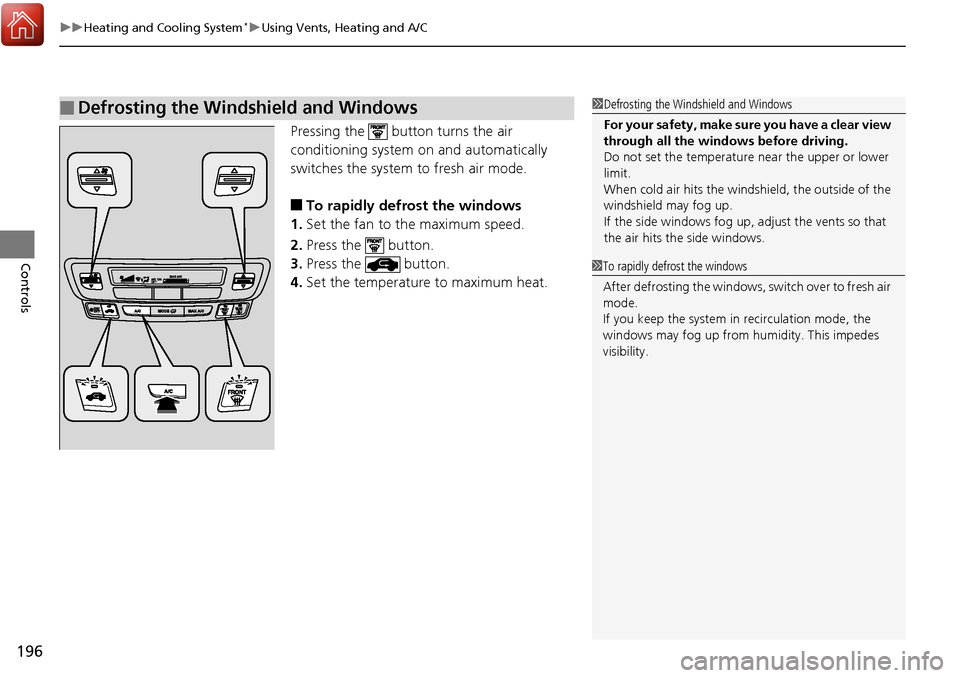
Pressing the button turns the air
conditioning system on and automatically
switches the system to fresh air mode.
■To rapidly defrost the windows
1. Set the fan to the maximum speed.
2. Press the button.
3. Press the button.
4. Set the temperature to maximum heat.
■Defrosting the Windshield and Windows1Defrosting the Windshield and Windows
For your safety, make sure you have a clear view
through all the windows before driving.
Do not set the temperatur e near the upper or lower
limit.
When cold air hits the windshield, the outside of the
windshield may fog up.
If the side windows fog up, adjust the vents so that
the air hits th e side windows.
1To rapidly defrost the windows
After defrosting the windows, switch over to fresh air
mode.
If you keep the system in recirculation mode, the
windows may fog up from humidity. This impedes
visibility.
Page 198 of 606
197
Features
This chapter describes how to operate technology features.
Audio SystemAbout Your Audio System ................ 198
USB Port(s) ....................................... 199
Auxiliary Input Jack .......................... 200
Audio System Theft Protection ......... 201
Audio Remote Controls .................... 202
Audio System Basic Operation ........ 204
Audio/Information Screen ................ 205
Adjusting the Sound ........................ 209
Display Setup ................................... 210
Playing AM/FM Radio ....................... 211
Playing an iPod ................................ 213
Playing a USB Flash Drive ................. 216
Playing Bluetooth ® Audio ................. 219
Models with color audio system
Audio System Basic Operation ........ 222
Audio/Information Screen ................ 223
Adjusting the Sound ........................ 240
Display Setup ................................... 241
Voice Control Operation .................. 243
Playing AM/FM Radio ....................... 247
Playing SiriusXM ® Radio
*................. 251
Playing a CD .................................... 259
Playing an iPod ................................ 262
Song By Voice
TM (SBV) ...................... 265
Playing Pandora ®............................. 269
Models with Display Audio
Canadian models
Models with navigation system
U.S. models
Playing a USB Flash Drive ................. 271
Playing Bluetooth ® Audio ................ 274
HondaLink ®..................................... 276
Wi-Fi Connection ............................. 281
Siri Eyes Free .................................... 283
Apple CarPlay .................................. 284
Android Auto .................................. 287
Truck Bed Audio System
*................. 291
Audio Error Messages ...................... 292
General Information on the Audio
System ............................................. 296
Customized Features ........................ 303
HomeLink ® Universal Transceiver
*... 334
Bluetooth ® HandsFreeLink® ..... 337, 362
* Not available on all models
Page 199 of 606
198
Features
Audio System
About Your Audio System
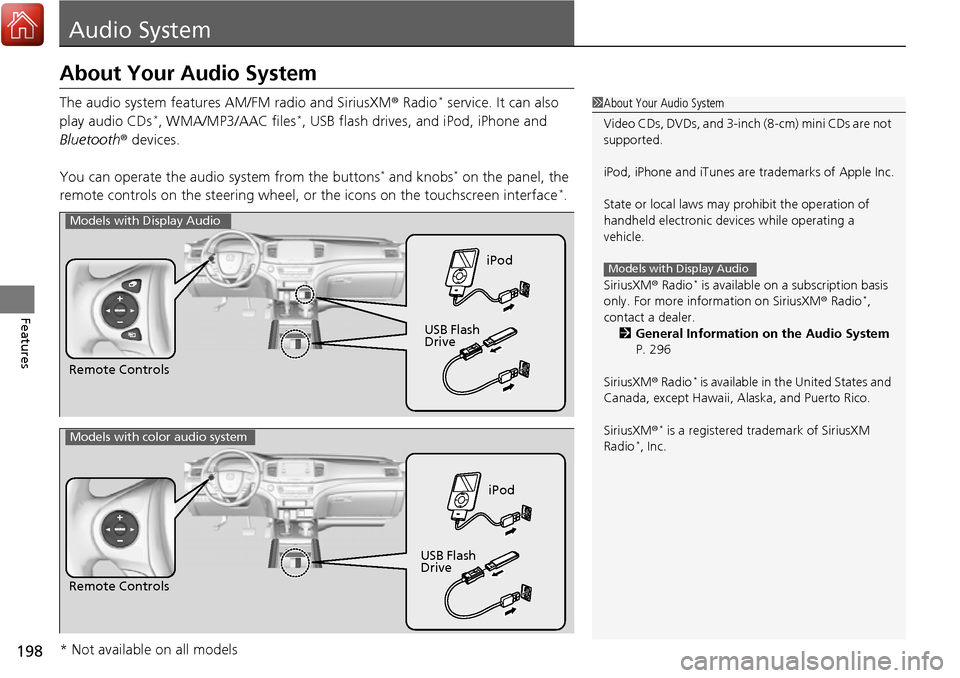
The audio system features AM/FM radio and SiriusXM® Radio* service. It can also
play audio CDs*, WMA/MP3/AAC files*, USB flash drives, and iPod, iPhone and
Bluetooth ® devices.
You can operate the audi o system from the buttons
* and knobs* on the panel, the
remote controls on the steering wheel, or the icons on the touchscreen interface*.
1 About Your Audio System
Video CDs, DVDs, and 3-inch (8-cm) mini CDs are not
supported.
iPod, iPhone and iTunes are trademarks of Apple Inc.
State or local laws may pr ohibit the operation of
handheld electronic devi ces while operating a
vehicle.
SiriusXM ® Radio
* is available on a subscription basis
only. For more information on SiriusXM ® Radio*,
contact a dealer. 2 General Information on the Audio System
P. 296
SiriusXM ® Radio
* is available in the United States and
Canada, except Ha waii, Alaska, and Puerto Rico.
SiriusXM ®
* is a registered trademark of SiriusXM
Radio*, Inc.
Models with Display Audio
Remote Controls iPod
USB Flash
Drive
Models with Display Audio
Remote Controls iPod
USB Flash
Drive
Models with color audio system
* Not available on all models
Page 200 of 606
199
uuAudio System uUSB Port(s)
Features
USB Port(s)
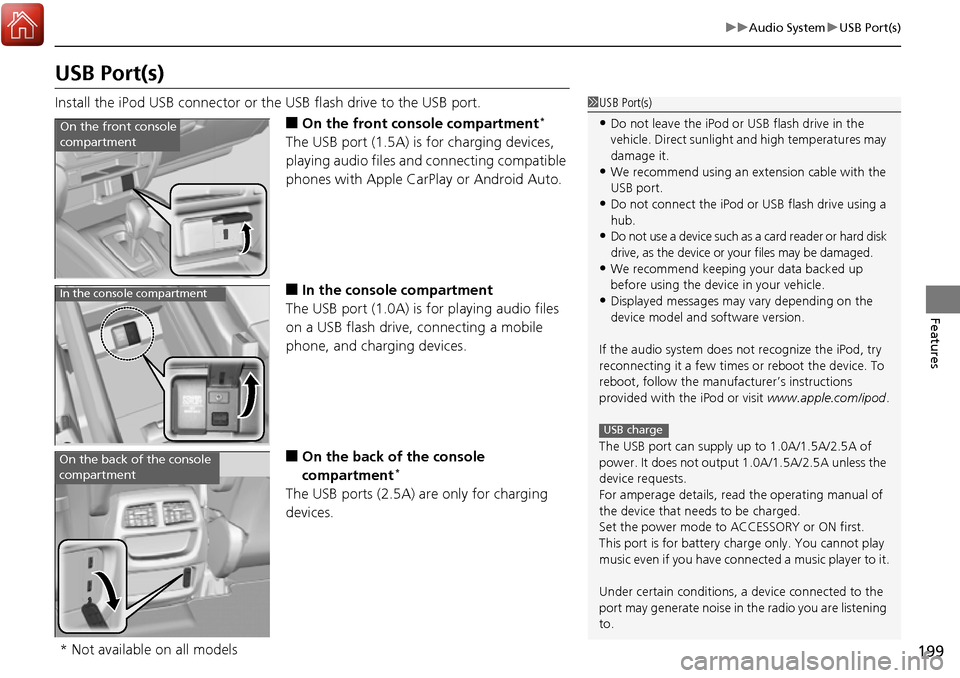
Install the iPod USB connector or the USB flash drive to the USB port.
■On the front console compartment*
The USB port (1.5A) is for charging devices,
playing audio files and connecting compatible
phones with Apple CarPlay or Android Auto.
■In the consol e compartment
The USB port (1.0A) is for playing audio files
on a USB flash drive, connecting a mobile
phone, and charging devices.
■On the back of the console
compartment*
The USB ports (2.5A) are only for charging
devices.
1 USB Port(s)
•Do not leave the iPod or USB flash drive in the
vehicle. Direct sunlight and high temperatures may
damage it.
•We recommend using an extension cable with the
USB port.
•Do not connect the iPod or USB flash drive using a
hub.
•Do not use a device such as a card reader or hard disk
drive, as the device or your files may be damaged.
•We recommend keeping y our data backed up
before using the device in your vehicle.
•Displayed messages may vary depending on the
device model and software version.
If the audio system does not recognize the iPod, try
reconnecting it a few times or reboot the device. To
reboot, follow the manufac turer’s instructions
provided with the iPod or visit www.apple.com/ipod.
The USB port can supply up to 1.0A/1.5A/2.5A of
power. It does not output 1.0A/1.5A/2.5A unless the
device requests.
For amperage details, read the operating manual of
the device that ne eds to be charged.
Set the power mode to ACCESSORY or ON first.
This port is for battery charge only. You cannot play
music even if you have conne cted a music player to it.
Under certain condi tions, a device connected to the
port may generate noise in the radio you are listening
to.
USB charge
On the front console
compartment
In the console compartment
On the back of the console
compartment
* Not available on all models
Page 201 of 606
200
uuAudio System uAuxiliary Input Jack
Features
Auxiliary Input Jack
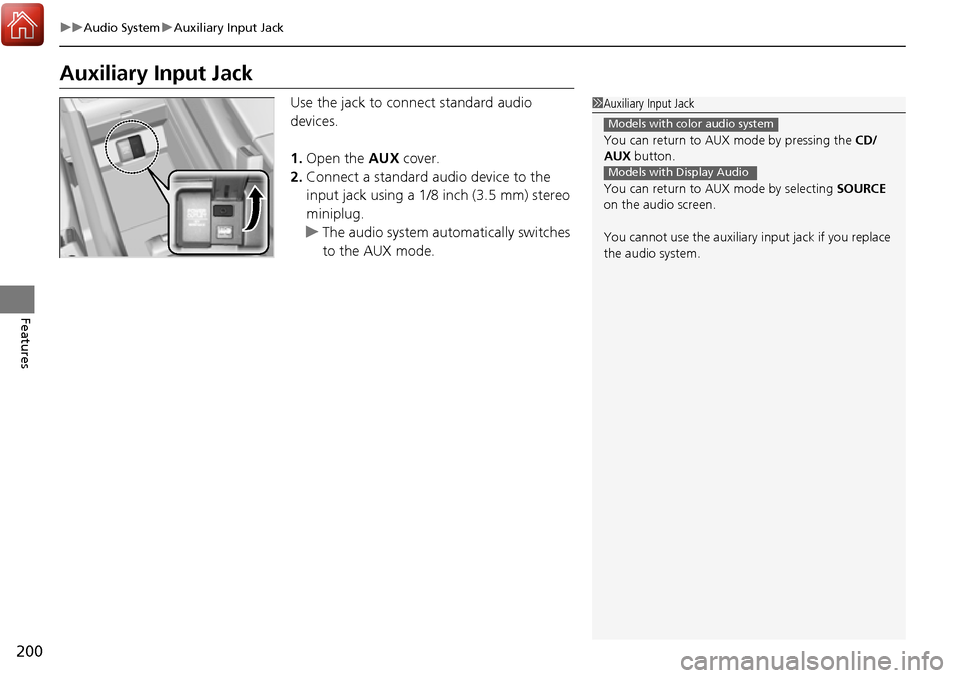
Use the jack to connect standard audio
devices.
1. Open the AUX cover.
2. Connect a standard audio device to the
input jack using a 1/8 inch (3.5 mm) stereo
miniplug.
u The audio system automatically switches
to the AUX mode.1Auxiliary Input Jack
You can return to AUX mode by pressing the CD/
AUX button.
You can return to AUX mode by selecting SOURCE
on the audio screen.
You cannot use the auxiliary input jack if you replace
the audio system.
Models with color audio system
Models with Display Audio
Page 202 of 606
201
uuAudio System uAudio System Theft Protection
Features
Audio System Theft Protection
The audio system is disabled when it is disconnected from the power source, such as
when the battery is disconnected or goes dead. In certain conditions, the system
may display a code entry screen. If this occurs, reactivate the audio system.
■Reactivating the audio system
1. Set the power mode to ON.
2. Turn on the audio system.
3. Press and hold the audio system power button for more than two seconds.
u The audio system is reac tivated when the audio co ntrol unit establishes a
connection with the vehicle control unit. If the control unit fails to recognize
the audio unit, you must go to a dealer and have the audio unit checked.
1 Audio System Theft Protection
Find the audio system’s se curity code and serial
number label in your owner’s manual kit.
We recommend that you write down the serial
number in this owner’s manual.
Do not store the label in your vehicle. If you lose the
label, you must first retrie ve the serial number, and
then obtain the code.
You can find out about your serial number and
security code from a dealer.
U.S. models
Page 203 of 606
202
uuAudio System uAudio Remote Controls
Features
Audio Remote Controls
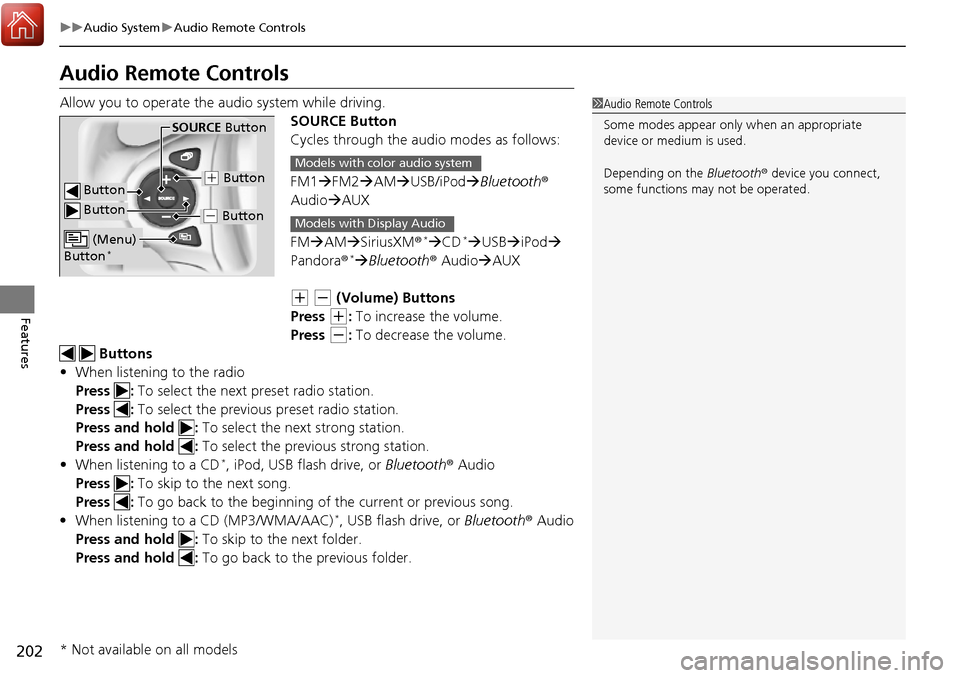
Allow you to operate the a udio system while driving.
SOURCE Button
Cycles through the audio modes as follows:
FM1FM2 AM USB/iPod Bluetooth®
Audio AUX
FM AM SiriusXM ®
*CD* USB iPod
Pandora®* Bluetooth ® Audio AUX
(+ (- (Volume) Buttons
Press
(+: To increase the volume.
Press
(-: To decrease the volume.
Buttons
• When listening to the radio
Press : To select the next preset radio station.
Press : To select the previous preset radio station.
Press and hold : To select the next strong station.
Press and hold : To select the previous strong station.
• When listening to a CD
*, iPod, USB flash drive, or Bluetooth® Audio
Press : To skip to the next song.
Press : To go back to the beginning of the current or previous song.
• When listening to a CD (MP3/WMA/AAC)
*, USB flash drive, or Bluetooth ® Audio
Press and hold : To skip to the next folder.
Press and hold : To go back to the previous folder.
1Audio Remote Controls
Some modes appear only when an appropriate
device or medium is used.
Depending on the Bluetooth® device you connect,
some functions ma y not be operated.
Button
SOURCE Button
Button
(+ Button
(- Button
(Menu)
Button*
Models with color audio system
Models with Display Audio
* Not available on all models
Page 204 of 606
203
uuAudio System uAudio Remote Controls
Features
Steering Wheel (Menu) Button
• When listening to the radio
Press : To display the menu items. You can select Scan, Save Preset, or
Seek.
• When listening to the HD Radio
TM *
Press : To display the menu items. You can select Scan, Save Preset, or
Seek.
• When listening to the SiriusXM ®
*
Press : To display the menu items. You can select Scan, Save Preset,
Channel , or Category.
• When listening to a CD
* or USB flash drive
Press : To display the menu items. You can select Scan, Repeat, or
Random .
• When listening to an iPod
Press : To display the menu items. You can select Repeat or Shuffle.
• When listening to a Bluetooth® Audio
Press : To display the menu items. You can select Pause or Play.
• When listening to a Pandora ®
*
Press : To display the menu items. You can select Bookmark, or Play/
Pause .
1Audio Remote Controls
The button is availabl e only when the audio
mode is FM, AM, SiriusXM ®
*, CD*, USB, iPod,
Pandora ®*, or Bluetooth ® Audio.
Models with Display Audio
Models with Display Audio
* Not available on all models