turn signal HONDA RIDGELINE 2018 (in English) User Guide
[x] Cancel search | Manufacturer: HONDA, Model Year: 2018, Model line: RIDGELINE, Model: HONDA RIDGELINE 2018Pages: 623, PDF Size: 25.85 MB
Page 251 of 623
249
uuAudio System Basic Operation uPlaying AM/FM Radio
Continued
Features
Playing AM/FM Radio
*1:Some or all of the lists may not be displayed.
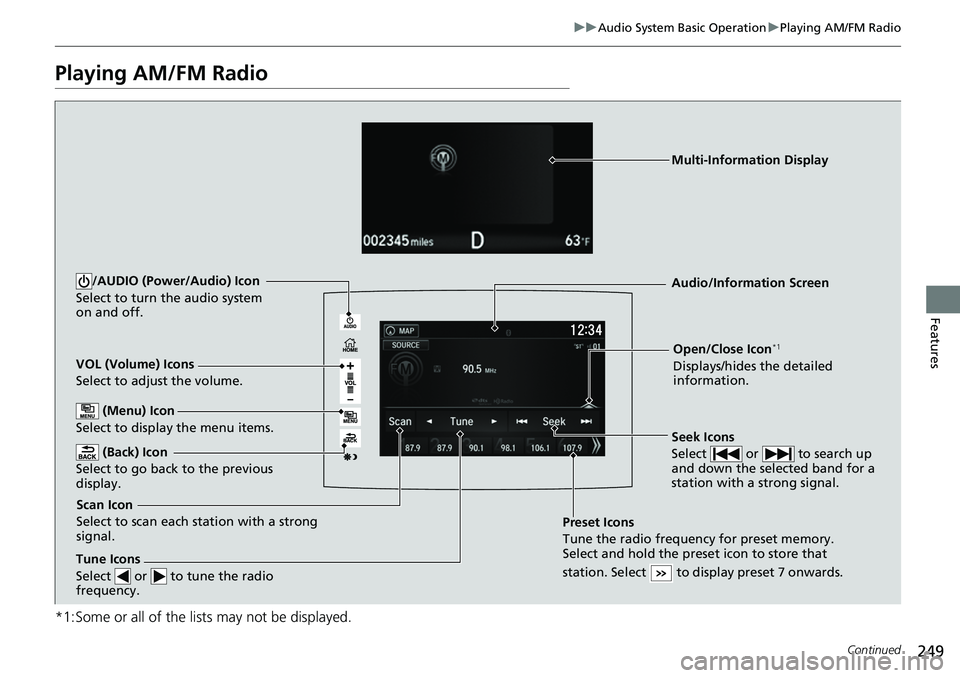
VOL (Volume) Icons
Select to adjust the volume.
(Back) Icon
Select to go back to the previous
display.
Seek Icons
Select or to search up
and down the selected band for a
station with a strong signal.
/AUDIO (Power/Audio) Icon
Select to turn the audio system
on and off.
Open/Close Icon*1
Displays/hides the detailed
information.
(Menu) Icon
Select to display the menu items.
Tune Icons
Select or to tune the radio
frequency.
Audio/Information Screen
Scan Icon
Select to scan each station with a strong
signal. Preset Icons
Tune the radio frequency for preset memory.
Select and hold the preset icon to store that
station. Select to display preset 7 onwards.
Multi-Information Display
Page 253 of 623
Continued251
uuAudio System Basic Operation uPlaying AM/FM Radio
Features
Samples each of the strongest stations on the selected band for 10 seconds. To turn
off scan, select Cancel or .
Provides text data information related to your selected RDS-capable FM station.
■To find an RDS station from Station List
1. Select the open/close icon to display a list while listening to an FM station.
2. Select the Station List tab.
3. Select the station.
■Manual update
Updates your available st ation list at any time.
1. Select the open/close icon to display a list while listening to an FM station.
2. Select the Station List tab.
3. Select Refresh .
■Radio text
Displays the radio text informat ion of the selected RDS station.
1. Select .
2. Select View Radio Text .
■Scan
Samples each of the strongest stations on the selected band for 10 seconds.
To turn off scan, select Cancel or .
■Scan
■Radio Data System (RDS)1Radio Data System (RDS)
When you select an RDS-capable FM station, the RDS
automatically turns on, and the frequency display
changes to the station name. However, when the
signals of that station become weak, the display
changes from the statio n name to the frequency.
Page 332 of 623
330
uuCustomized Features u
Features
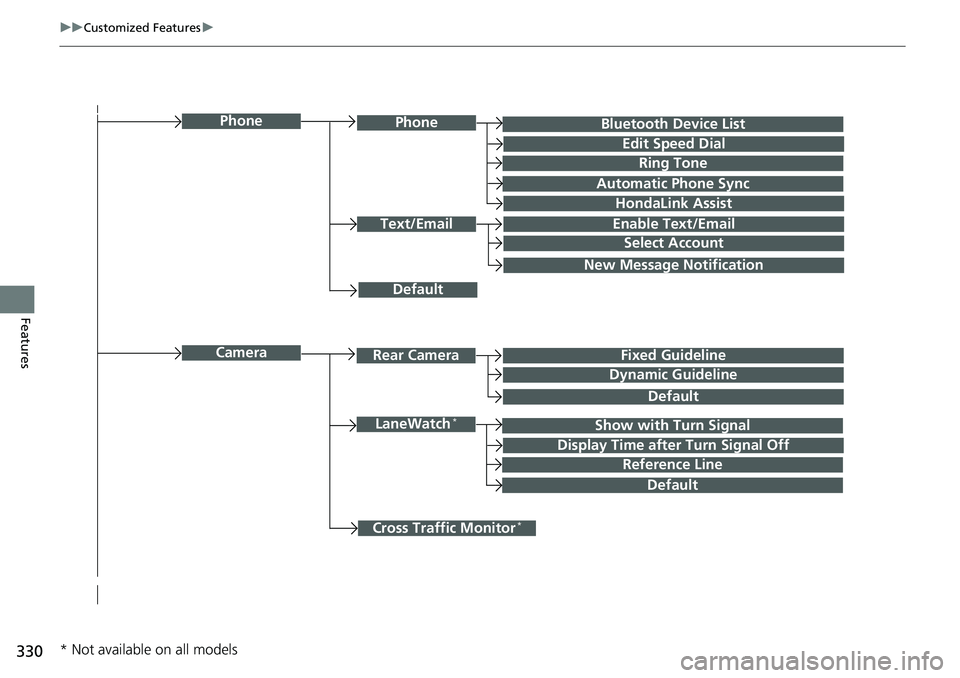
Bluetooth Device List
Default
PhonePhone
Edit Speed Dial
Ring Tone
Automatic Phone Sync
HondaLink Assist
Text/EmailEnable Text/Email
Select Account
New Message Notification
Cross Traffic Monitor*
Camera
Show with Turn SignalLaneWatch*
Display Time after Turn Signal Off
Reference Line
Default
Rear CameraFixed Guideline
Dynamic Guideline
Default
* Not available on all models
Page 339 of 623
337
uuCustomized Features u
Continued
Features
*1:Default SettingSetup
Group Customizable Features Description Selectable Settings
Vehicle Meter
SetupLanguage Selection
Changes the displayed language on the multi-
information display. English
*1/
French /
Spanish
Adjust Outside Temp
Display Adjusts the temperature reading by a few degrees. -5°F ~ ±0°F
*1
~ +5°F
(U.S.)
-3°C ~ ±0°C
*1 ~ +3°C
(Canada)
“Trip A” Reset Timing Changes the setting of how to reset trip meter A and
average fuel economy A. With Refuel
/IGN Off /
Manually Reset
*1
“Trip B” Reset Timing Changes the setting of how to reset trip meter B and
average fuel economy B. With Refuel
/IGN Off /
Manually Reset*1
Adjust Alarm Volume Changes the alarm volume, such as the buzzers,
warnings, turn signal sound, and so on. High
/Mid*1/Low
Turn by Turn Display
*Selects whether the turn-by-turn display comes on
during the route guidance. On*1/
Off
Display km/Miles Selects the trip computer units. Auto
/km /Miles
*1
(U.S.)
Auto /km*1/Miles
(Canada)
* Not available on all models
Page 347 of 623
345
uuCustomized Features u
Continued
Features
*1:Default SettingSetup
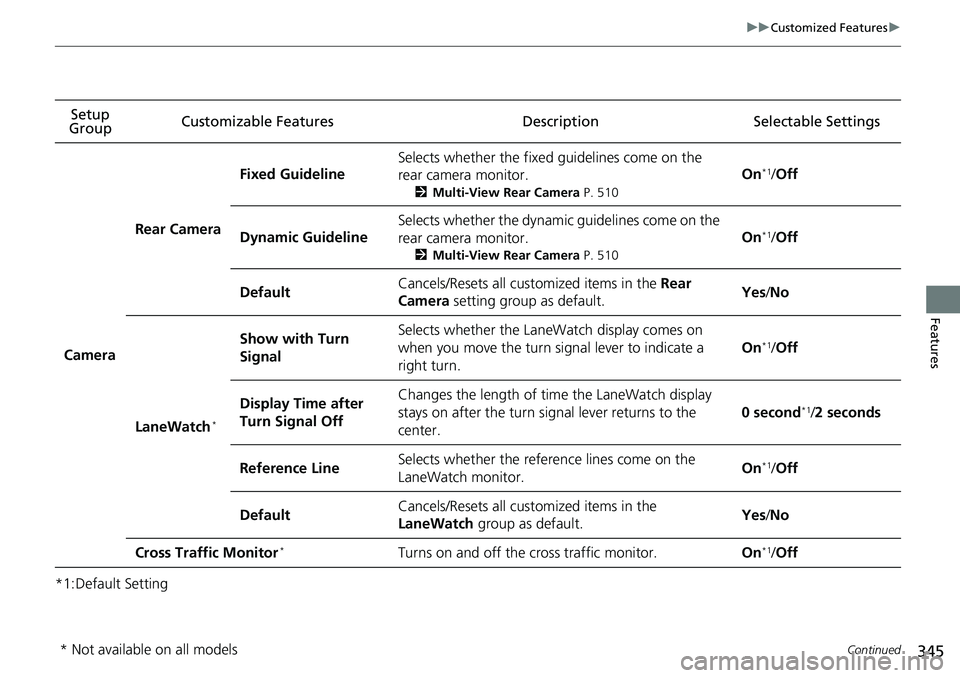
Group Customizable Featur
es Description Selectable Settings
Camera
Rear Camera
Fixed Guideline
Selects whether the fixed guidelines come on the
rear camera monitor.
2Multi-View Rear Camera P. 510
On*1/Off
Dynamic Guideline
Selects whether the dynamic guidelines come on the
rear camera monitor.
2 Multi-View Rear Camera P. 510
On*1/Off
DefaultCancels/Resets all customized items in the Rear
Camera setting group as default.Yes /No
LaneWatch*
Show with Turn
SignalSelects whether the LaneWatch display comes on
when you move the turn signal lever to indicate a
right turn.
On*1/ Off
Display Time after
Turn Signal OffChanges the length of time the LaneWatch display
stays on after the turn signal lever returns to the
center.
0 second*1/2 seconds
Reference LineSelects whether the reference lines come on the
LaneWatch monitor.On*1/ Off
DefaultCancels/Resets all customized items in the
LaneWatch group as default.Yes/No
Cross Traffic Monitor*Turns on and off the cross traffic monitor.On*1/ Off
* Not available on all models
Page 427 of 623
Continued425
uuTowing a Trailer uTowing Preparation
Driving
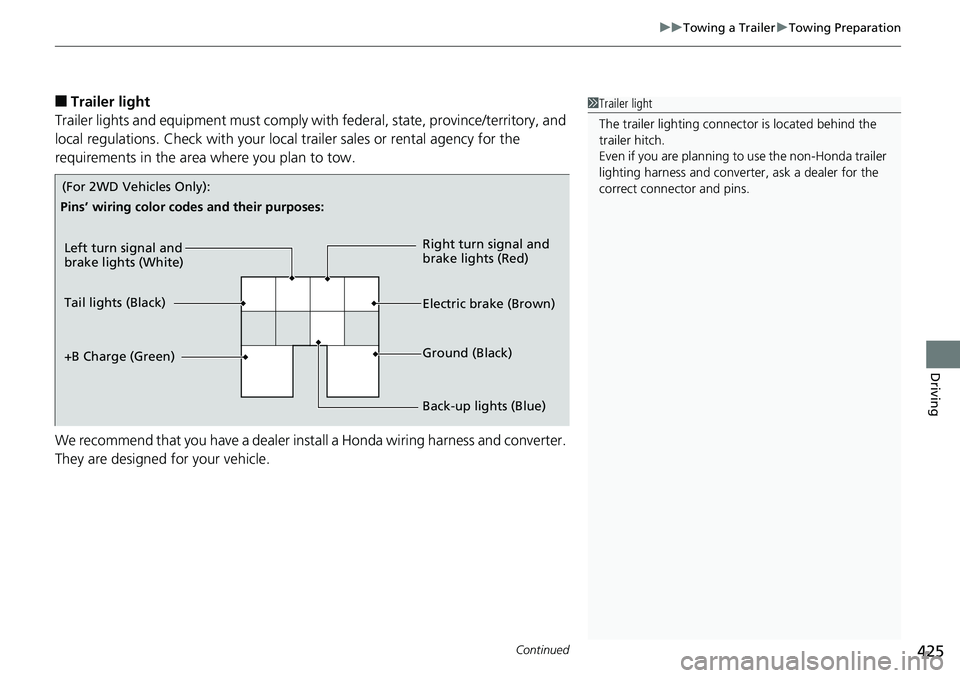
■Trailer light
Trailer lights and equipment must comply with federal, state, province/territory, and
local regulations. Check with your local trailer sales or rental agency for the
requirements in the area where you plan to tow.
We recommend that you have a dealer install a Honda wiring harness and converter.
They are designed for your vehicle.1 Trailer light
The trailer lighting connect or is located behind the
trailer hitch.
Even if you are planning to use the non-Honda trailer
lighting harness and converte r, ask a dealer for the
correct connector and pins.
Left turn signal and
brake lights (White)
Electric brake (Brown) Right turn signal and
brake lights (Red)
Back-up lights (Blue) Ground (Black)
Tail lights (Black)
+B Charge (Green)
Pins’ wiring color codes and their purposes:
(For 2WD Vehicles Only):
Page 428 of 623
426
uuTowing a Trailer uTowing Preparation
Driving
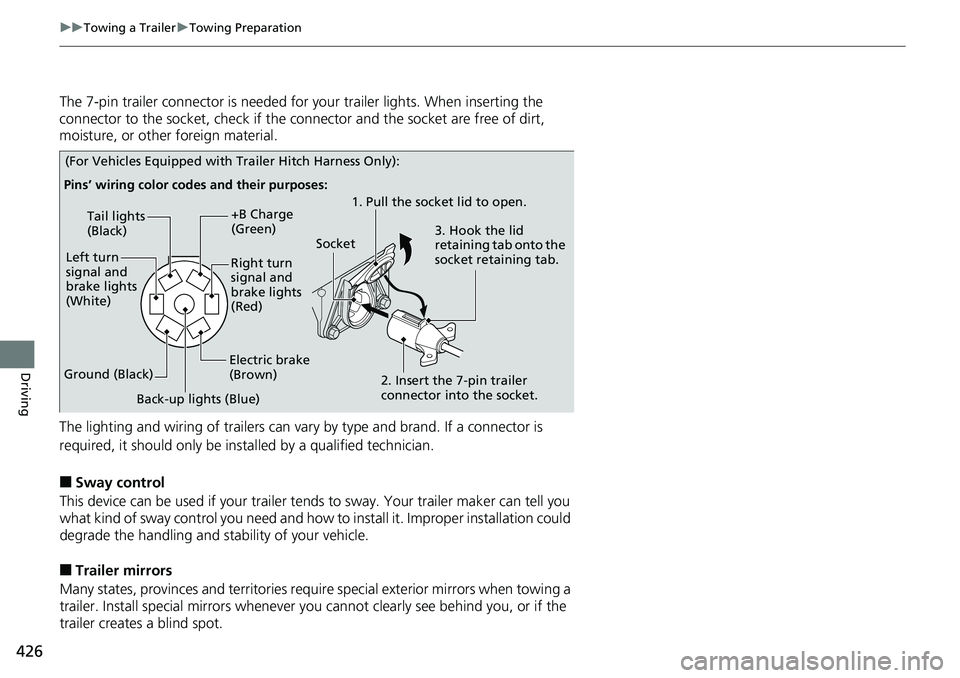
The 7-pin trailer connector is needed for your trailer lights. When inserting the
connector to the socket, ch eck if the connector and the socket are free of dirt,
moisture, or other foreign material.
The lighting and wiring of trailers can vary by type and brand. If a connector is
required, it should only be installed by a qualified technician.
■Sway control
This device can be used if your trailer te nds to sway. Your trailer maker can tell you
what kind of sway control you need and how to install it. Improper installation could
degrade the handling and stability of your vehicle.
■Trailer mirrors
Many states, provinces and te rritories require special exterior mirrors when towing a
trailer. Install special mirrors whenever you cannot clearly see behind you, or if the
trailer creates a blind spot.
Pins’ wiring color codes and their purposes:
Tail lights
(Black)
Left turn
signal and
brake lights
(White)
Ground (Black) +B Charge
(Green)
Right turn
signal and
brake lights
(Red)
Electric brake
(Brown)
Back-up lights (Blue) 1. Pull the socket lid to open.
2. Insert the 7-pin trailer
connector into the socket. 3. Hook the lid
retaining tab onto the
socket retaining tab.
Socket
(For Vehicles Equipped with Trailer Hitch Harness Only):
Page 452 of 623
450
uuWhen Driving uRoad Departure Mitigation (RDM) System*
Driving
Road Departure Mitigation (RDM) System*
Alerts and helps to assist you when the sy stem detects a possibility of your vehicle
unintentionally crossing over detected la ne markings and/or leaving the roadway
altogether.
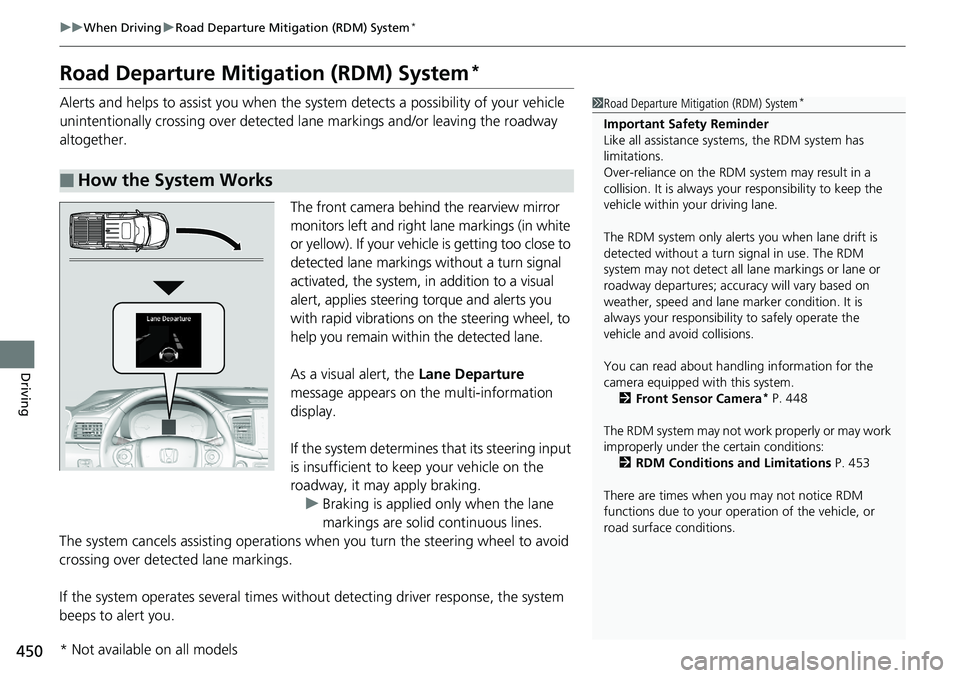
The front camera behind the rearview mirror
monitors left and right lane markings (in white
or yellow). If your vehicle is getting too close to
detected lane markings without a turn signal
activated, the system, in addition to a visual
alert, applies steering torque and alerts you
with rapid vibrations on the steering wheel, to
help you remain within the detected lane.
As a visual alert, the Lane Departure
message appears on the multi-information
display.
If the system determines that its steering input
is insufficient to keep your vehicle on the
roadway, it may apply braking. u Braking is applied only when the lane
markings are solid continuous lines.
The system cancels assistin g operations when you turn the steering wheel to avoid
crossing over detected lane markings.
If the system operates several times withou t detecting driver response, the system
beeps to alert you.
■How the System Works
1 Road Departure Mitigation (RDM) System*
Important Safety Reminder
Like all assistance systems, the RDM system has
limitations.
Over-reliance on the RDM system may result in a
collision. It is always your responsibility to keep the
vehicle within your driving lane.
The RDM system only alerts you when lane drift is
detected without a turn signal in use. The RDM
system may not detect all la ne markings or lane or
roadway departures; accu racy will vary based on
weather, speed and lane marker condition. It is
always your responsibilit y to safely operate the
vehicle and avoid collisions.
You can read about handling information for the
camera equipped with this system.
2 Front Sensor Camera
* P. 448
The RDM system may not wo rk properly or may work
improperly under the certain conditions: 2 RDM Conditions and Limitations P. 453
There are times when you may not notice RDM
functions due to your opera tion of the vehicle, or
road surface conditions.
* Not available on all models
Page 453 of 623
Continued451
uuWhen Driving uRoad Departure Mitigation (RDM) System*
Driving
The system becomes ready to start sear ching for lane markings when all the
following conditions are met:
• The vehicle is traveling between about 45 and 90 mph (72 and 145 km/h).
• The vehicle is on a straight or slightly curved road.
• The turn signals are off.
• The brake pedal is not depressed.
• The wipers are not in continuous operation.
• The system makes a determination that th e driver is not actively accelerating,
braking or steering.
■How the System Activates1 How the System Activates
The RDM system may automa tically shut off and the
indicator comes and stays on.
2 Indicators P. 84
The RDM system function can be impacted when the
vehicle is:
•Not driven within a traffic lane.
•Driven on the inside edge of a curve, or outside of
a lane.
•Driven in a narrow lane.
Page 470 of 623
468
uuWhen Driving uLane Keeping Assist System (LKAS)*
Driving
Lane Keeping Assist System (LKAS)*
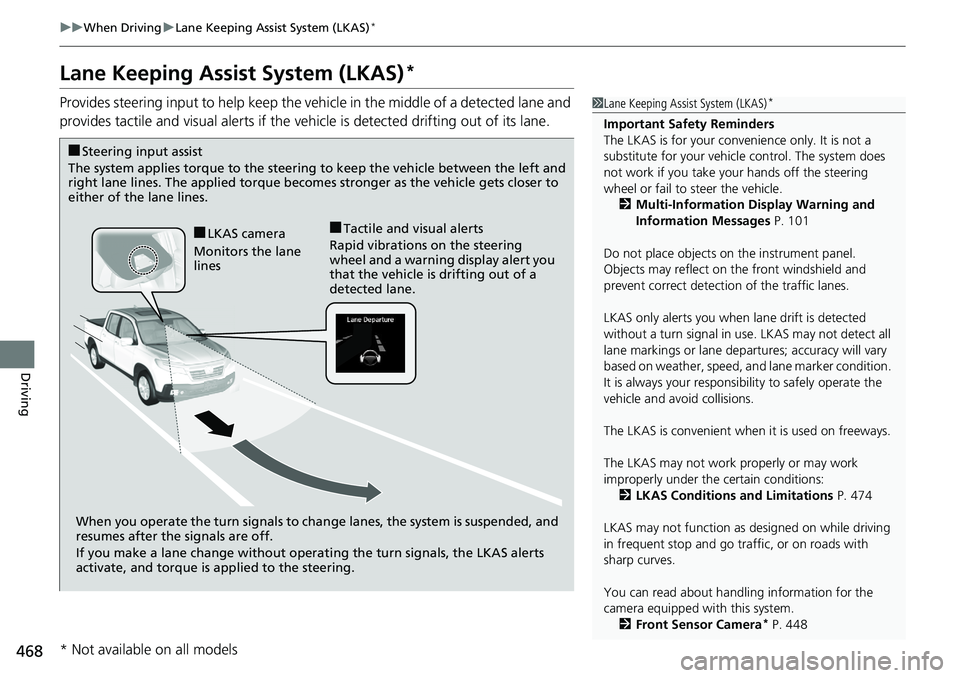
Provides steering input to help keep the vehicle in the middle of a detected lane and
provides tactile and visual alerts if the ve hicle is detected drifting out of its lane.1Lane Keeping Assist System (LKAS)*
Important Safety Reminders
The LKAS is for your convenience only. It is not a
substitute for your vehicl e control. The system does
not work if you take y our hands off the steering
wheel or fail to steer the vehicle.
2 Multi-Information Display Warning and
Information Messages P. 101
Do not place objects on the instrument panel.
Objects may reflect on th e front windshield and
prevent correct detectio n of the traffic lanes.
LKAS only alerts you when lane drift is detected
without a turn signal in use. LKAS may not detect all
lane markings or lane departures; a ccuracy will vary
based on weather, speed, an d lane marker condition.
It is always your responsibility to safely operate the
vehicle and avoid collisions.
The LKAS is convenient when it is used on freeways.
The LKAS may not work properly or may work
improperly under the certain conditions: 2 LKAS Conditions and Limitations P. 474
LKAS may not function as designed on while driving
in frequent stop and go traf fic, or on roads with
sharp curves.
You can read about handling information for the
camera equipped with this system. 2 Front Sensor Camera
* P. 448
When you operate the turn signals to chan ge lanes, the system is suspended, and
resumes after the signals are off.
If you make a lane change without operat ing the turn signals, the LKAS alerts
activate, and torque is applied to the steering.
■LKAS camera
Monitors the lane
lines■Tactile and visual alerts
Rapid vibrations on the steering
wheel and a warning display alert you
that the vehicle is drifting out of a
detected lane.
■Steering input assist
The system applies torque to the steering to keep the vehicle between the left and
right lane lines. The applied torque beco mes stronger as the vehicle gets closer to
either of the lane lines.
* Not available on all models