carplay HONDA RIDGELINE 2019 Owner's Manual (in English)
[x] Cancel search | Manufacturer: HONDA, Model Year: 2019, Model line: RIDGELINE, Model: HONDA RIDGELINE 2019Pages: 624, PDF Size: 34.98 MB
Page 201 of 624
199
Features
This chapter describes how to operate technology features.
Audio SystemAbout Your Audio System ................ 200
USB Port(s) ....................................... 201
Auxiliary Input Jack .......................... 203
Audio System Theft Protection ......... 204
Audio Remote Controls .................... 205
Audio System Basic Operation ........ 207
Audio/Information Screen ................ 208
Adjusting the Sound ........................ 212
Display Setup ................................... 213
Playing AM/FM Radio ....................... 214
Playing an iPod ................................ 216
Playing a USB Flash Drive ................. 219
Playing Bluetooth ® Audio ................. 222
Models with color audio system
Audio System Basic Operation ........ 225
Audio/Information Screen ................ 226
Adjusting the Sound ........................ 243
Display Setup ................................... 244
Voice Control Operation .................. 246
Playing AM/FM Radio ....................... 250
Playing SiriusXM ® Radio
*................. 254
Playing a CD .................................... 262
Playing an iPod ................................ 265
Song By Voice
TM (SBV) ...................... 268
Playing Pandora ®............................. 272
Models with Display Audio
Canadian models
Models with navigation system
U.S. models
Playing a USB Flash Drive ................. 274
Playing Bluetooth ® Audio ................ 277
HondaLink ®..................................... 279
Wi-Fi Connection ............................. 284
Siri ® Eyes Free .................................. 286
Apple CarPlay
TM............................... 287
Android AutoTM............................... 290
Truck Bed Audio System*................ 294
Audio Error Messages ...................... 295
General Information on the Audio
System ............................................. 299
Customized Features ........................ 318
HomeLink ® Universal Transceiver
*... 349
Bluetooth ® HandsFreeLink® ..... 352, 377
* Not available on all models
Page 203 of 624
201
uuAudio System uUSB Port(s)
Continued
Features
USB Port(s)
Install the iPod USB connector or the USB flash drive to the USB port.
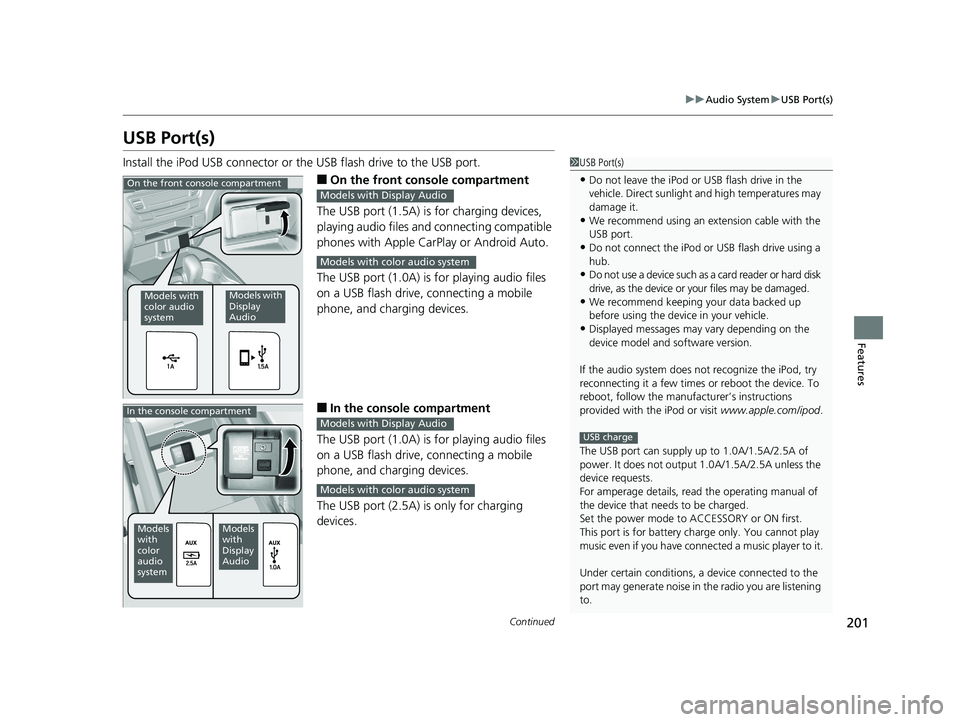
■On the front console compartment
The USB port (1.5A) is for charging devices,
playing audio files and connecting compatible
phones with Apple CarPlay or Android Auto.
The USB port (1.0A) is for playing audio files
on a USB flash drive, connecting a mobile
phone, and charging devices.
■In the consol e compartment
The USB port (1.0A) is for playing audio files
on a USB flash drive, connecting a mobile
phone, and charging devices.
The USB port (2.5A) is only for charging
devices.
1 USB Port(s)
•Do not leave the iPod or USB flash drive in the
vehicle. Direct sunlight and high temperatures may
damage it.
•We recommend using an ex tension cable with the
USB port.
•Do not connect the iPod or USB flash drive using a
hub.
•Do not use a device such as a card reader or hard disk
drive, as the device or your files may be damaged.
•We recommend keeping y our data backed up
before using the device in your vehicle.
•Displayed messages may vary depending on the
device model and software version.
If the audio system does not recognize the iPod, try
reconnecting it a few times or reboot the device. To
reboot, follow the manufac turer’s instructions
provided with the iPod or visit www.apple.com/ipod.
The USB port can supply up to 1.0A/1.5A/2.5A of
power. It does not output 1.0A/1.5A/2.5A unless the
device requests.
For amperage details, read the operating manual of
the device that ne eds to be charged.
Set the power mode to ACCESSORY or ON first.
This port is for battery charge only. You cannot play
music even if you have conne cted a music player to it.
Under certain condi tions, a device connected to the
port may generate noise in the radio you are listening
to.
USB charge
On the front console compartment
Models with
color audio
systemModels with
Display
Audio
Models with Display Audio
Models with color audio system
In the console compartment
Models
with
Display
AudioModels
with
color
audio
system
Models with Display Audio
Models with color audio system
Page 231 of 624
229
uuAudio System Basic Operation uAudio/Information Screen
Continued
Features
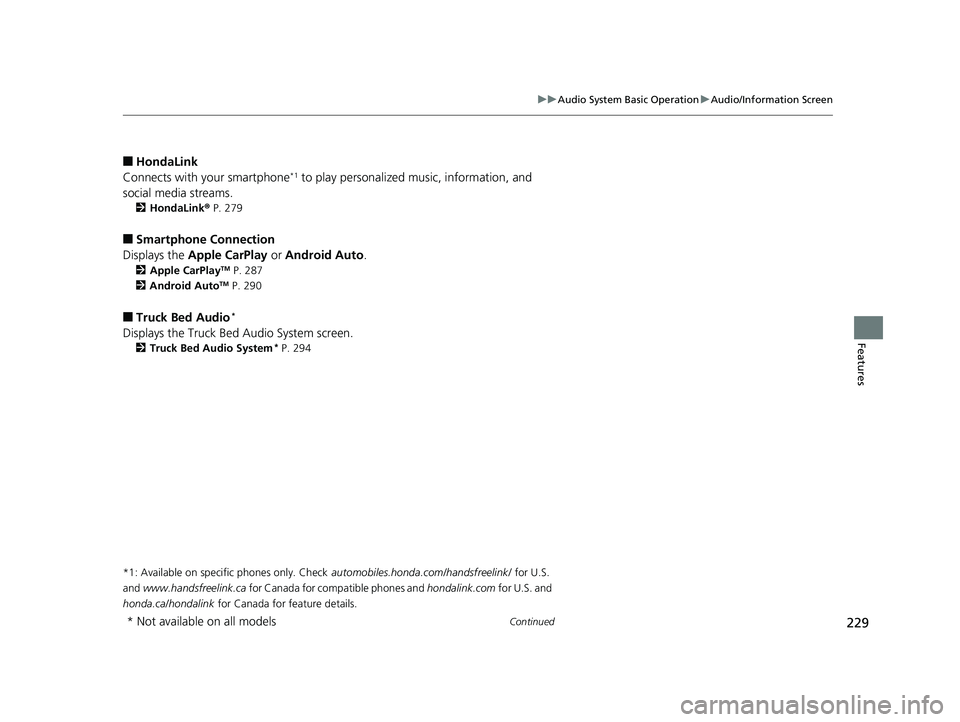
■HondaLink
Connects with your smartphone*1 to play personalized music, information, and
social media streams.
2 HondaLink ® P. 279
■Smartphone Connection
Displays the Apple CarPlay or Android Auto.
2Apple CarPlayTM P. 287
2 Android AutoTM P. 290
■Truck Bed Audio*
Displays the Truck Bed Audio System screen.
2Truck Bed Audio System* P. 294
*1: Available on specific phones only. Check
automobiles.honda.com /handsfreelink/ for U.S.
and
www.handsfreelink.ca for Canada for compatible phones and hondalink.com for U.S. and
honda.ca/hondalink for Canada for feature details.
* Not available on all models
Page 249 of 624
247
uuAudio System Basic Operation uVoice Control Operation
Continued
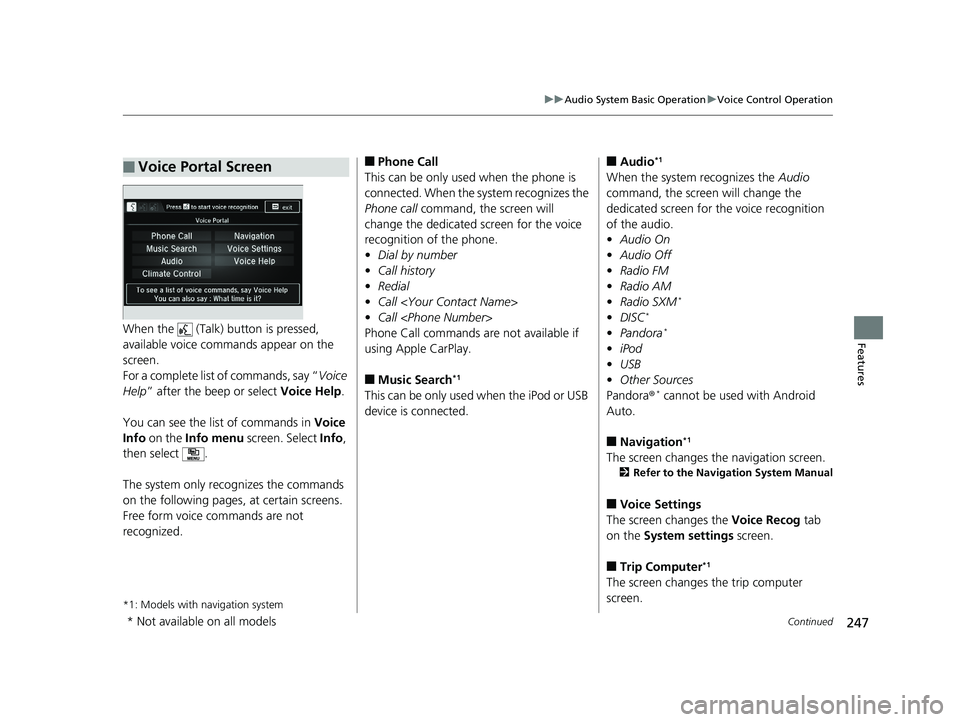
FeaturesWhen the (Talk) button is pressed,
available voice comma nds appear on the
screen.
For a complete list of commands, say “ Voice
Help ” after the beep or select Voice Help.
You can see the list of commands in Voice
Info on the Info menu screen. Select Info,
then select .
The system only recognizes the commands
on the following pages, at certain screens.
Free form voice commands are not
recognized.
*1: Models with navigation system
■Voice Portal Screen■Phone Call
This can be only used when the phone is
connected. When the sy stem recognizes the
Phone call command, the screen will
change the dedicated screen for the voice
recognition of the phone.
• Dial by number
• Call history
• Redial
• Call
• Call
Phone Call commands are not available if
using Apple CarPlay.
■Music Search*1
This can be only used when the iPod or USB
device is connected.
■Audio*1
When the system recognizes the Audio
command, the screen will change the
dedicated screen for the voice recognition
of the audio.
• Audio On
• Audio Off
• Radio FM
• Radio AM
• Radio SXM
*
•DISC*
•Pandora*
•iPod
• USB
• Other Sources
Pandora®
* cannot be used with Android
Auto.
■Navigation*1
The screen changes the navigation screen.
2 Refer to the Navigation System Manual
■Voice Settings
The screen changes the Voice Recog tab
on the System settings screen.
■Trip Computer*1
The screen changes the trip computer
screen.
* Not available on all models
Page 268 of 624
uuAudio System Basic Operation uPlaying an iPod
266
Features
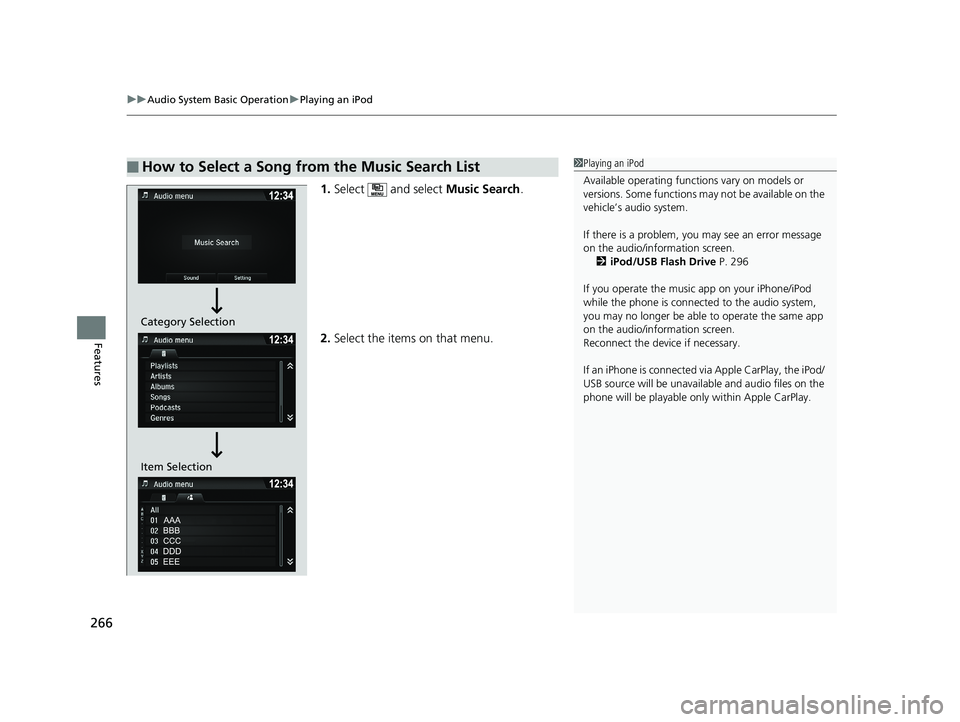
1. Select and select Music Search.
2. Select the items on that menu.
■How to Select a Song from the Music Search List1Playing an iPod
Available operating functi ons vary on models or
versions. Some functions ma y not be available on the
vehicle’s audio system.
If there is a problem, you may see an error message
on the audio/information screen. 2 iPod/USB Flash Drive P. 296
If you operate the musi c app on your iPhone/iPod
while the phone is connected to the audio system,
you may no longer be able to operate the same app
on the audio/information screen.
Reconnect the devi ce if necessary.
If an iPhone is connected vi a Apple CarPlay, the iPod/
USB source will be unavailable and audio files on the
phone will be playable onl y within Apple CarPlay.
Category Selection
Item Selection
Page 279 of 624
277
uuAudio System Basic Operation uPlaying Bluetooth ® Audio
Continued
Features
Playing Bluetooth ® Audio
Your audio system allows you to listen to music from your Bluetooth-compatible
phone.
This function is available when the phone is paired an d connected to the vehicle’s
Bluetooth ® HandsFreeLink ® (HFL) system.
2Phone Setup P. 385
*1:Depending on the Bluetooth ® device you connect, some or all of the lists may not
be displayed.
1 Playing Bluetooth ® Audio
Not all Bluetooth -enabled phones with streaming
audio capabilities are compatible.
To check if your phone is compatible, visit
automobiles.honda.com /handsfreelink/.
It may be illegal to pe rform some data device
functions while driving.
Only one phone can be used with HFL at a time.
When there are more than two paired phones in the
vehicle, the first paired phone the system finds is
automatically connected.
The connected phone for Bluetooth® Audio can be
different.
If more than one phone is paired to the HFL system,
there may be a delay before the system begins to
play.
In some cases, the name of the artist, album, or track
may not appear correctly.
Some functions may not be available on some
devices.
If a phone is currently conne cted via Apple CarPlay or
Android Auto, Bluetooth® Audio from that phone
will be unavailable. Howe ver, you can have a second
previously paired phone stream Bluetooth® Audio by
selecting Connect from Bluetooth Device List.
2 Phone Setup P. 385
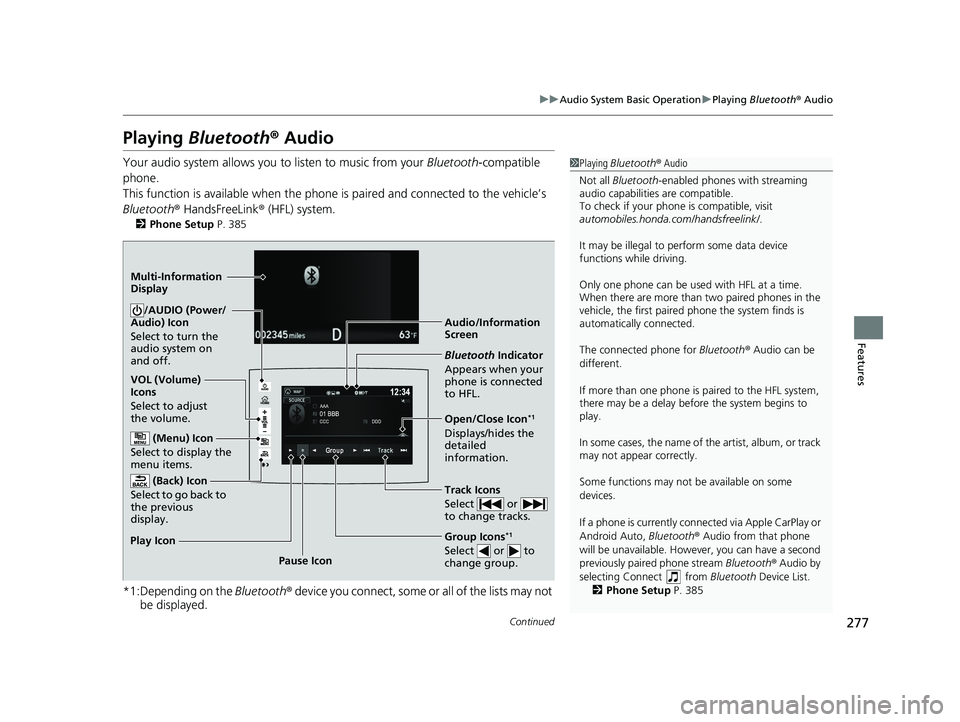
Audio/Information
Screen
VOL (Volume)
Icons
Select to adjust
the volume.
(Back) Icon
Select to go back to
the previous
display./AUDIO (Power/
Audio) Icon
Select to turn the
audio system on
and off.
(Menu) Icon
Select to display the
menu items.
Group Icons*1
Select or to
change group.Pause Icon
Play Icon
Bluetooth
Indicator
Appears when your
phone is connected
to HFL.
Track Icons
Select or
to change tracks.
Open/Close Icon*1
Displays/hides the
detailed
information.
Multi-Information
Display
Page 281 of 624
279
uuAudio System Basic Operation uHondaLink ®
Continued
Features
HondaLink ®
HondaLink® connects you to the latest info rmation from Honda. You can connect
your phone wirelessly through Wi-Fi or Bluetooth®.
2Wi-Fi Connection P. 284
2 Phone Setup P. 385
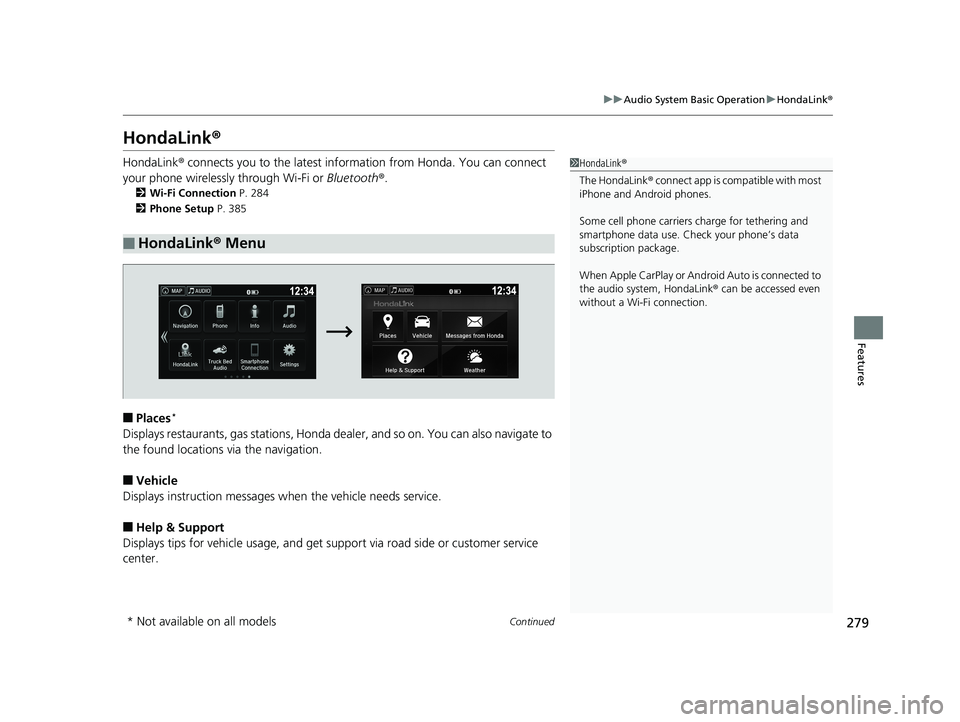
■Places*
Displays restaurants, gas stations, Honda de aler, and so on. You can also navigate to
the found locations via the navigation.
■Vehicle
Displays instruction messages when the vehicle needs service.
■Help & Support
Displays tips for vehicle us age, and get support via road side or customer service
center.
■HondaLink ® Menu
1 HondaLink ®
The HondaLink ® connect app is compatible with most
iPhone and Android phones.
Some cell phone carriers charge for tethering and
smartphone data use. Check your phone’s data
subscription package.
When Apple CarPlay or Android Auto is connected to
the audio system, HondaLink ® can be accessed even
without a Wi-Fi connection.
* Not available on all models
Page 289 of 624
287
uuAudio System Basic Operation uApple CarPlayTM
Continued
Features
Apple CarPlayTM
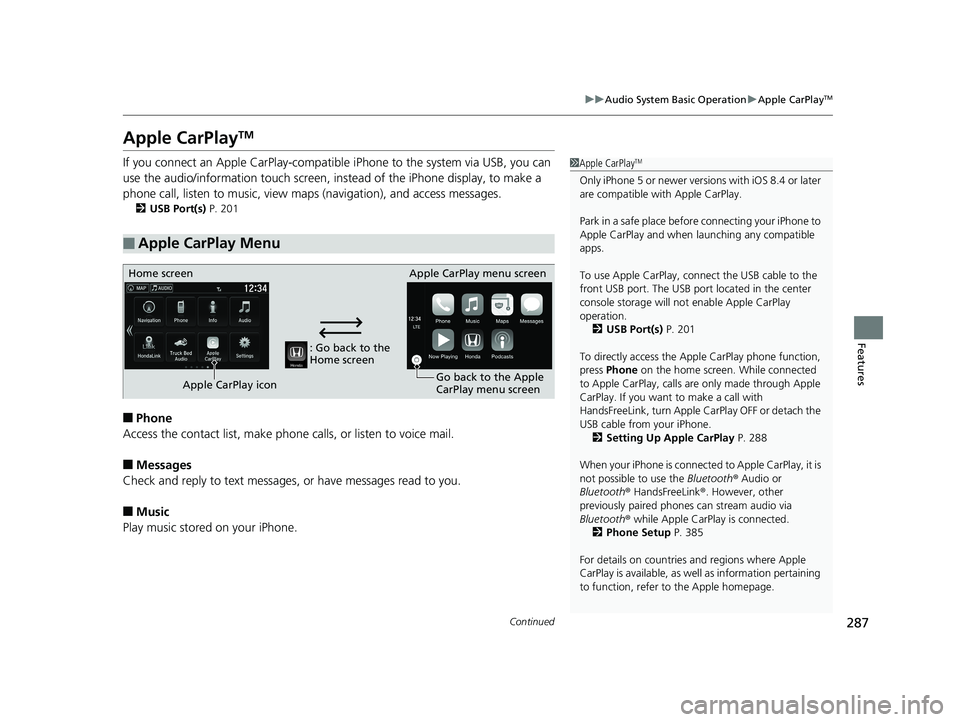
If you connect an Apple CarPlay-compatible iPhone to the system via USB, you can
use the audio/information touch screen, in stead of the iPhone display, to make a
phone call, listen to music, view maps (navigation), and access messages.
2USB Port(s) P. 201
■Phone
Access the contact list, make phone ca lls, or listen to voice mail.
■Messages
Check and reply to text messages, or have messages read to you.
■Music
Play music stored on your iPhone.
■Apple CarPlay Menu
1 Apple CarPlayTM
Only iPhone 5 or newer versi ons with iOS 8.4 or later
are compatible with Apple CarPlay.
Park in a safe place before connecting your iPhone to
Apple CarPlay and when launching any compatible
apps.
To use Apple CarPlay, connect the USB cable to the
front USB port. The USB por t located in the center
console storage will not enable Apple CarPlay
operation.
2 USB Port(s) P. 201
To directly access the Appl e CarPlay phone function,
press Phone on the home screen. While connected
to Apple CarPlay, calls are only made through Apple
CarPlay. If you want to make a call with
HandsFreeLink, turn Apple CarPlay OFF or detach the
USB cable from your iPhone. 2 Setting Up Apple CarPlay P. 288
When your iPhone is connected to Apple CarPlay, it is
not possible to use the Bluetooth® Audio or
Bluetooth ® HandsFreeLink ®. However, other
previously paired phones can stream audio via
Bluetooth ® while Apple CarPlay is connected.
2 Phone Setup P. 385
For details on c ountries and regions where Apple
CarPlay is available, as well as information pertaining
to function, refer to the Apple homepage.
: Go back to the
Home screen
Home screen
Apple CarPlay icon Apple CarPlay menu screen
Go back to the Apple
CarPlay menu screen
Page 290 of 624
uuAudio System Basic Operation uApple CarPlayTM
288
Features
■Maps
Display Apple CarPlay map and use the navigation function just as you would on
your iPhone.
Only one navigation system (pre-installed navigation or Apple CarPlay) can give
directions at a time. When you are using one system, directions to any prior
destination set on the other system wi ll be canceled, and the system you are
currently using will direct you to your destination.
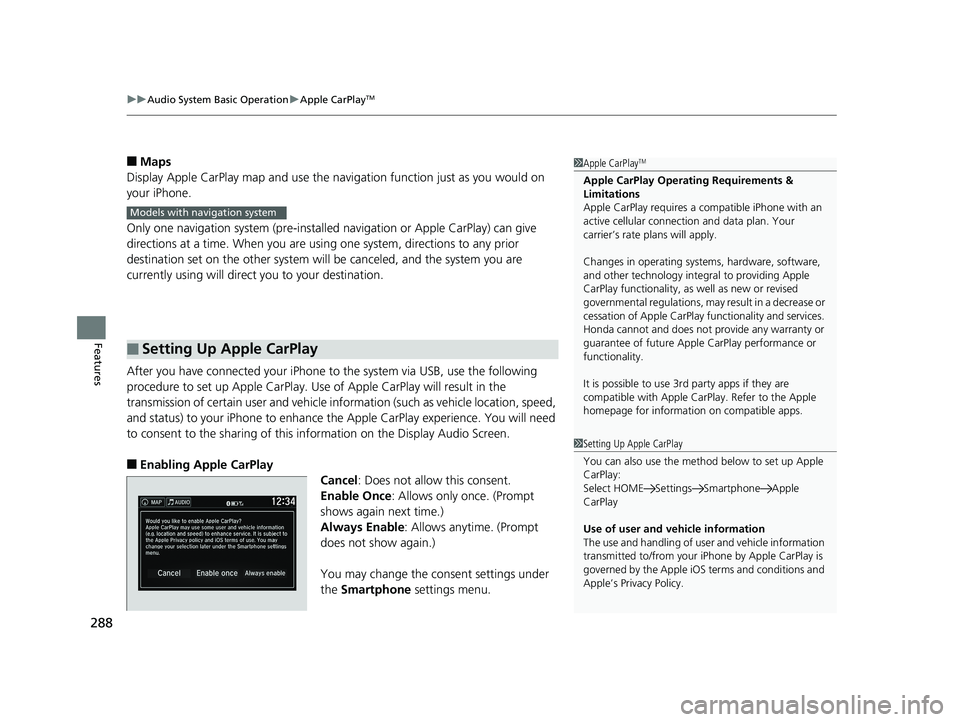
After you have connected your iPhone to the system via USB, use the following
procedure to set up Apple CarPlay. Us e of Apple CarPlay will result in the
transmission of certain user and vehicle information (such as vehicle location, speed,
and status) to your iPhone to enhance th e Apple CarPlay experience. You will need
to consent to the sharing of this information on the Display Audio Screen.
■Enabling Apple CarPlay
Cancel: Does not allow this consent.
Enable Once : Allows only once. (Prompt
shows again next time.)
Always Enable : Allows anytime. (Prompt
does not show again.)
You may change the consent settings under
the Smartphone settings menu.
■Setting Up Apple CarPlay
1Apple CarPlayTM
Apple CarPlay Operating Requirements &
Limitations
Apple CarPlay requi res a compatible iPhone with an
active cellular connecti on and data plan. Your
carrier’s rate plans will apply.
Changes in operating system s, hardware, software,
and other technology integral to providing Apple
CarPlay functionality, as well as new or revised
governmental regulations, may result in a decrease or
cessation of Apple CarPlay functionality and services.
Honda cannot and does not pr ovide any warranty or
guarantee of future Appl e CarPlay performance or
functionality.
It is possible to use 3r d party apps if they are
compatible with Apple CarPlay. Refer to the Apple
homepage for information on compatible apps.
Models with navigation system
1 Setting Up Apple CarPlay
You can also use the method below to set up Apple
CarPlay:
Select HOME Settings Smartphone Apple
CarPlay
Use of user and vehicle information
The use and handling of user and vehicle information
transmitted to/from your iP hone by Apple CarPlay is
governed by the Apple iOS terms and conditions and
Apple’s Privacy Policy.
Page 291 of 624
289
uuAudio System Basic Operation uApple CarPlayTM
Features
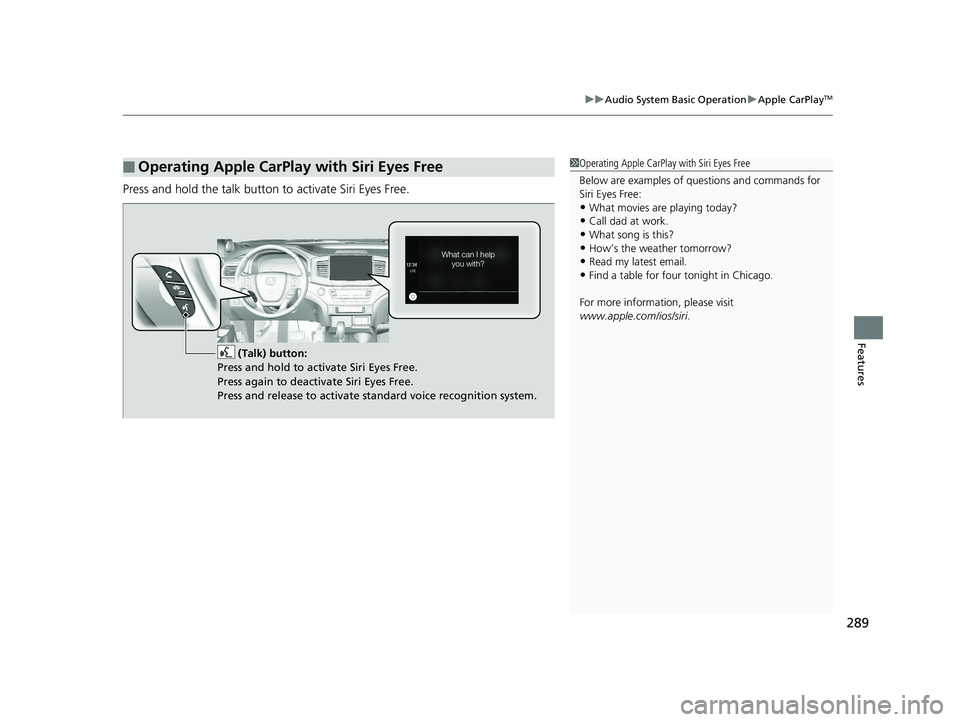
Press and hold the talk button to activate Siri Eyes Free.
■Operating Apple CarPlay with Siri Eyes Free1Operating Apple CarPlay with Siri Eyes Free
Below are examples of questions and commands for
Siri Eyes Free:
•What movies are playing today?
•Call dad at work.
•What song is this?•How’s the weather tomorrow?
•Read my latest email.
•Find a table for four tonight in Chicago.
For more information, please visit
www.apple.com/ios/siri .
(Talk) button:
Press and hold to activate Siri Eyes Free.
Press again to deactivate Siri Eyes Free.
Press and release to activate standard voice recognition system.