RAP HONDA RIDGELINE 2022 User Guide
[x] Cancel search | Manufacturer: HONDA, Model Year: 2022, Model line: RIDGELINE, Model: HONDA RIDGELINE 2022Pages: 598, PDF Size: 12.42 MB
Page 241 of 598
239
uuAudio System Basic Operation uPlaying SiriusXM ® Radio*
Continued
Features
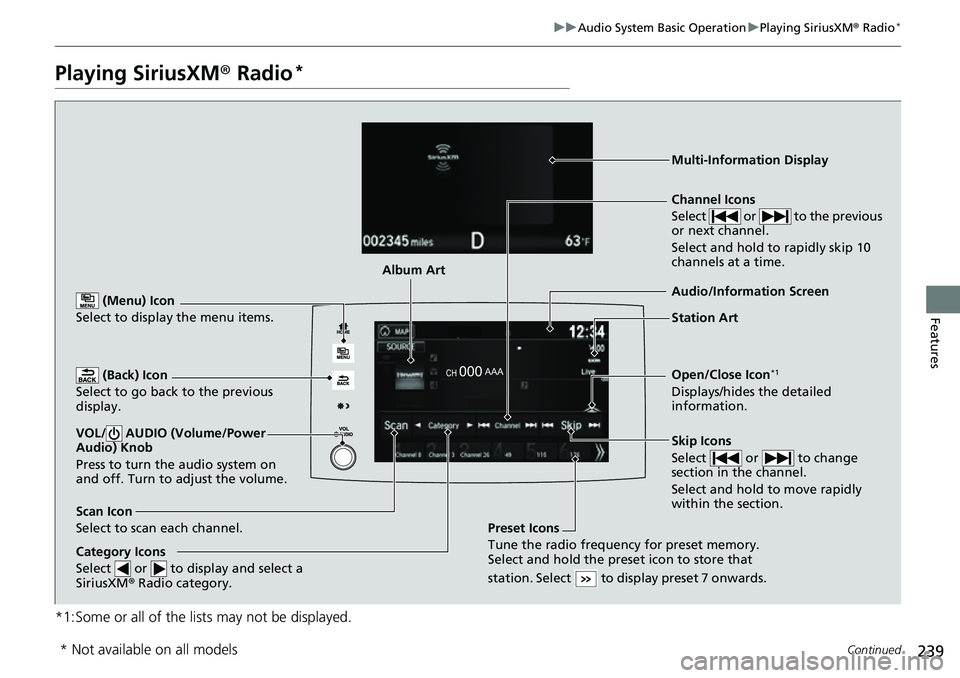
Playing SiriusXM® Radio*
*1:Some or all of the lists may not be displayed.
(Back) Icon
Select to go back to the previous
display.
Channel Icons
Select or to the previous
or next channel.
Select and hold to rapidly skip 10
channels at a time.
VOL/ AUDIO (Volume/Power
Audio) Knob
Press to turn the audio system on
and off. Turn to adjust the volume.
Open/Close Icon*1
Displays/hides the detailed
information.
(Menu) Icon
Select to display the menu items.
Category Icons
Select or to display and select a
SiriusXM ® Radio category.
Audio/Information Screen
Scan Icon
Select to scan each channel. Preset Icons
Tune the radio frequency for preset memory.
Select and hold the preset icon to store that
station. Select to display preset 7 onwards.
Skip Icons
Select or to change
section in the channel.
Select and hold to move rapidly
within the section.
Multi-Information Display
Album Art
Station Art
* Not available on all models
Page 249 of 598
247
uuAudio System Basic Operation uPlaying an iPod
Continued
Features
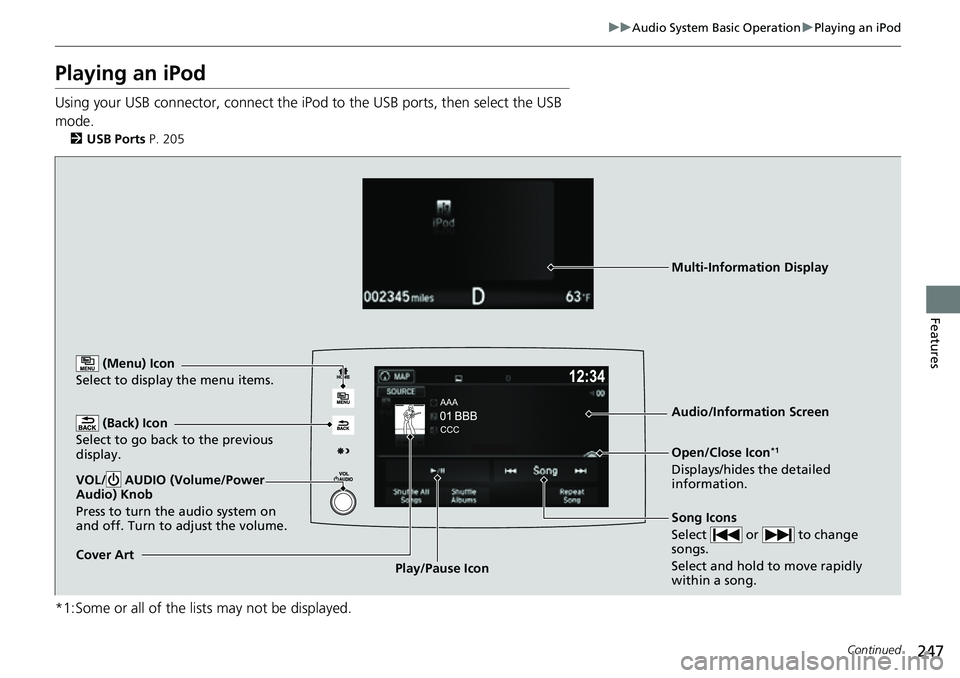
Playing an iPod
Using your USB connector, connect the iPod to the USB ports, then select the USB
mode.
2 USB Ports P. 205
*1:Some or all of the lists may not be displayed.
(Back) Icon
Select to go back to the previous
display.
Song Icons
Select or to change
songs.
Select and hold to move rapidly
within a song.
VOL/ AUDIO (Volume/Power
Audio) Knob
Press to turn the audio system on
and off. Turn to adjust the volume.
Open/Close Icon*1
Displays/hides the detailed
information.
(Menu) Icon
Select to display the menu items.
Cover Art Audio/Information ScreenPlay/Pause Icon
Multi-Information Display
Page 258 of 598
256
uuAudio System Basic Operation uPlaying a USB Flash Drive
Features
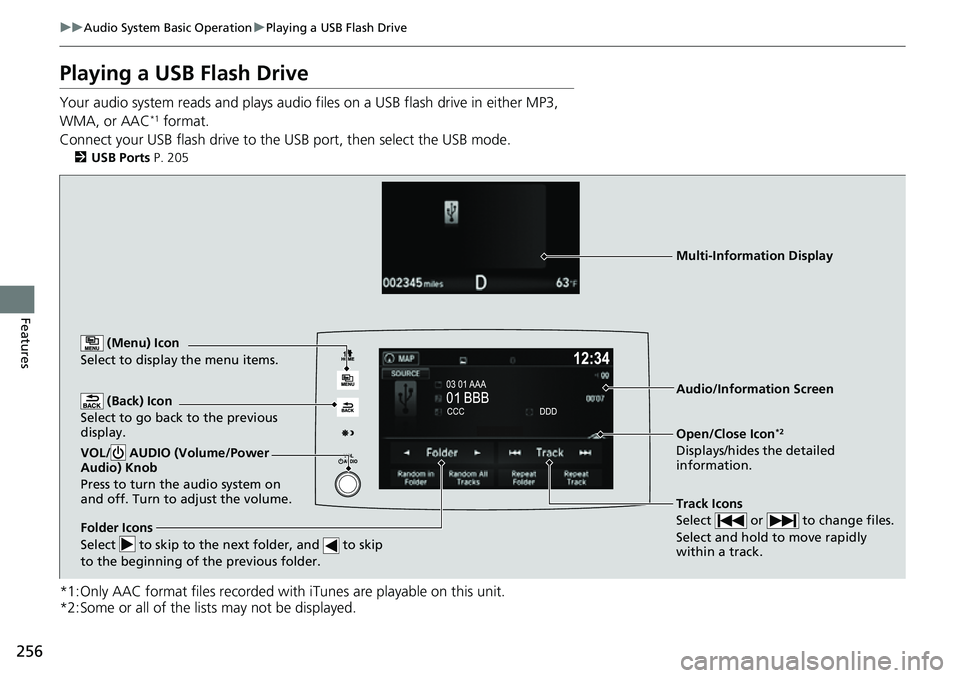
Playing a USB Flash Drive
Your audio system reads and plays audio f iles on a USB flash drive in either MP3,
WMA, or AAC*1 format.
Connect your USB flash drive to the USB port, then select the USB mode.
2USB Ports P. 205
*1:Only AAC format files recorded with iTunes are playable on this unit.
*2:Some or all of the lists may not be displayed.
(Back) Icon
Select to go back to the previous
display.
Track Icons
Select or to change files.
Select and hold to move rapidly
within a track.
VOL/ AUDIO (Volume/Power
Audio) Knob
Press to turn the audio system on
and off. Turn to adjust the volume.
Open/Close Icon*2
Displays/hides the detailed
information.
(Menu) Icon
Select to display the menu items.
Folder Icons
Select to skip to the next folder, and to skip
to the beginning of the previous folder.
Audio/Information Screen
Multi-Information Display
Page 280 of 598
278
Features
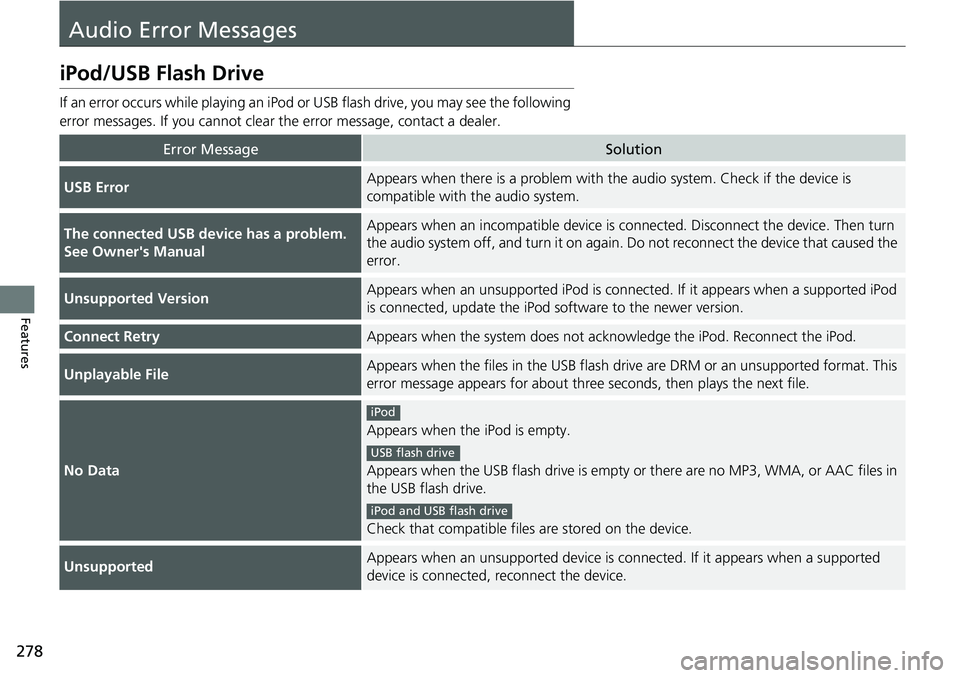
Audio Error Messages
iPod/USB Flash Drive
If an error occurs while playing an iPod or USB flash drive, you may see the following
error messages. If you cannot clear the error message, contact a dealer.
Error MessageSolution
USB ErrorAppears when there is a problem with th e audio system. Check if the device is
compatible with the audio system.
The connected USB device has a problem.
See Owner's ManualAppears when an incompatible device is connected. Disconnect the device. Then turn
the audio system off, and turn it on again. Do not reconnect the device that caused the
error.
Unsupported VersionAppears when an unsupported iPod is connected. If it appears when a supported iPod
is connected, update the iPod software to the newer version.
Connect RetryAppears when the system does not acknowledge the iPod. Reconnect the iPod.
Unplayable FileAppears when the files in the USB flash dr ive are DRM or an unsupported format. This
error message appears for about three seconds, then plays the next file.
No Data
Appears when the iPod is empty.
Appears when the USB flash drive is empty or there are no MP3, WMA, or AAC files in
the USB flash drive.
Check that compatible files are stored on the device.
UnsupportedAppears when an unsupported device is conn ected. If it appears when a supported
device is connected, reconnect the device.
iPod
USB flash drive
iPod and USB flash drive
Page 325 of 598
323
Features
HomeLink® Universal Transceiver
The HomeLink ® Universal Transceiver can be pr ogrammed to operate up to three
remote controlled devices around your hom e, such as garage doors, lighting, or
home security systems.
Refer to the safety information that came wi th your garage door opener to test that
the safety features are functioning prope rly. If you do not have the safety
information, contact the manufacturer.
Before programming HomeLink, make sure th at people and objects are out of the
way of the garage or gate to prevent potential injury or damage.
When programming a garage door opener, pa rk just outside the garage door’s path.
■Important Safety Precautions
1HomeLink ® Universal Transceiver
Before programming HomeLi nk to operate a garage
door opener, confirm that the opener has an external
entrapment protection system , such as an “electronic
eye,” or other safety and reverse stop features. If it
does not, HomeLink may not be able to operate it.
Page 327 of 598
325
uuHomeLink ® Universal Transceiver uTraining HomeLink
Features
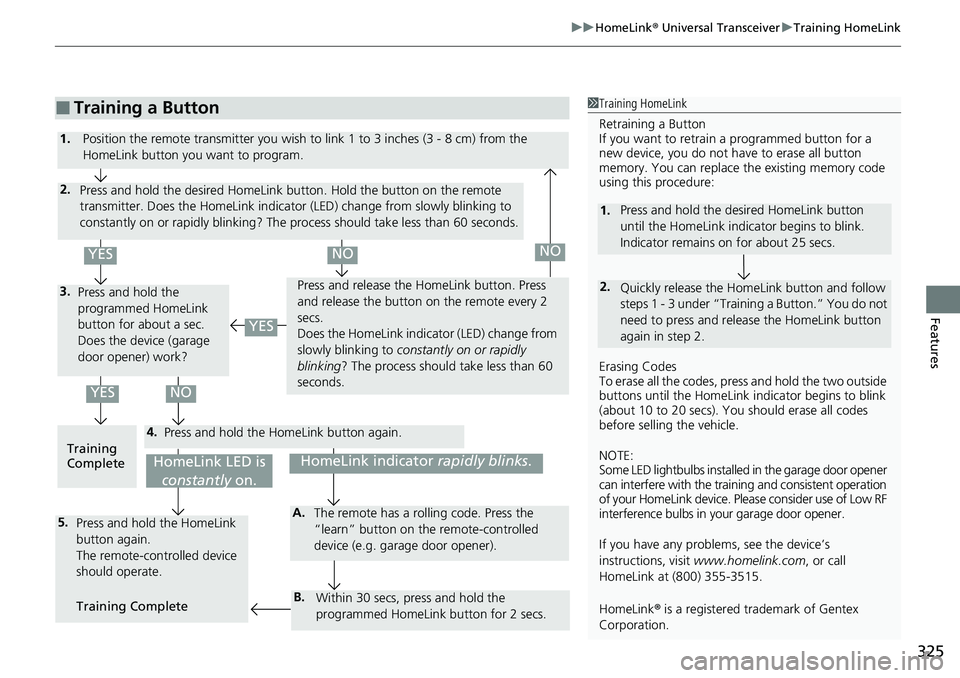
■Training a Button1Training HomeLink
Retraining a Button
If you want to retrain a programmed button for a
new device, you do not ha ve to erase all button
memory. You can replace the existing memory code
using this procedure:
Erasing Codes
To erase all the codes, press and hold the two outside
buttons until the HomeLink i ndicator begins to blink
(about 10 to 20 secs). You should erase all codes
before selling the vehicle.
NOTE:
Some LED lightbulbs installed in the garage door opener
can interfere with the traini ng and consistent operation
of your HomeLink device. Pl ease consider use of Low RF
interference bulbs in your garage door opener.
If you have any problems, see the device’s
instructions, visit www.homelink.com , or call
HomeLink at (800) 355-3515.
HomeLink® is a registered tra demark of Gentex
Corporation.
2.
1. Press and hold the desired HomeLink button
until the HomeLink indi
cator begins to blink.
Indicator remains on for about 25 secs.
Quickly release the Home Link button and follow
steps 1 - 3 under “Training a Button.” You do not
need to press and rel ease the HomeLink button
again in step 2.
4.
3.
2.
5.A.
B.
1. Position the remote transmitter you wish to link 1 to 3 inches (3 - 8 cm) from the
HomeLink button you want to program.
Press and hold the desired HomeLink button. Hold the button on the remote
transmitter. Does the HomeLink indicato r (LED) change from slowly blinking to
constantly on or rapidly blinking? The process should take less than 60 seconds.
Press and hold the
programmed HomeLink
button for about a sec.
Does the device (garage
door opener) work? Press and release the Ho
meLink button. Press
and release the button on the remote every 2
secs.
Does the HomeLink indica tor (LED) change from
slowly blinking to constantly on or rapidly
blinking ? The process should take less than 60
seconds.
Training
Complete Press and hold the HomeLink button again.
Press and hold the HomeLink
button again.
The remote-controlled device
should operate.
Training Complete The remote has a ro
lling code. Press the
“learn” button on the remote-controlled
device (e.g. garage door opener).
Within 30 secs, press and hold the
programmed HomeLink button for 2 secs.
HomeLink indicator rapidly blinks.HomeLink LED is
constantly on.
YESNO
YES
YESNONO
Page 329 of 598
Continued327
uuHomeLink ® Universal Transceiver uTraining HomeLink
Features
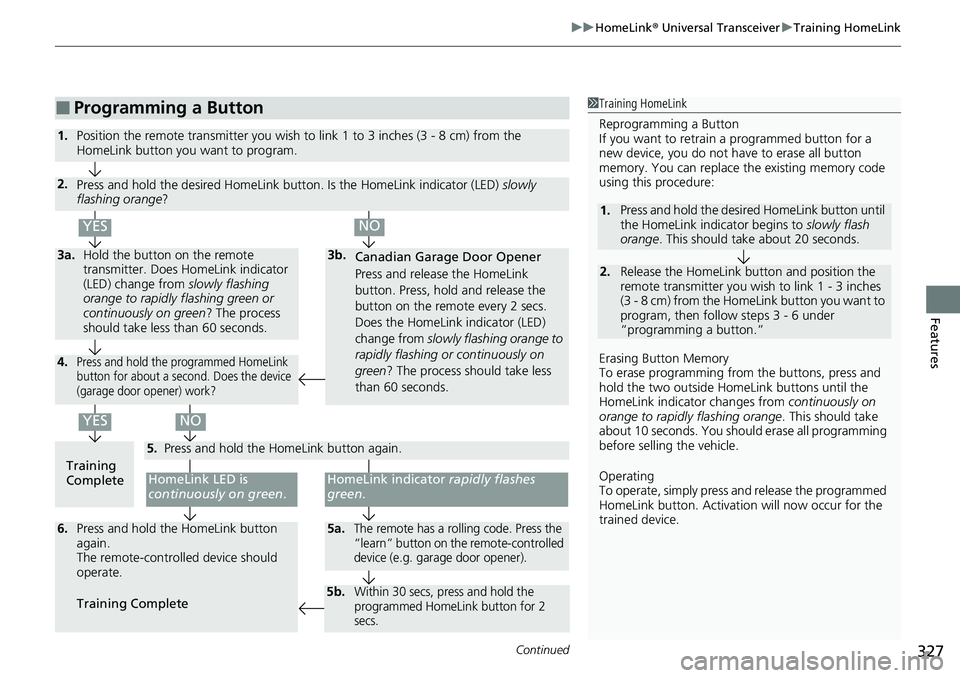
■Programming a Button1Training HomeLink
Reprogramming a Button
If you want to retrain a programmed button for a
new device, you do not ha ve to erase all button
memory. You can replace the existing memory code
using this procedure:
Erasing Button Memory
To erase programming from the buttons, press and
hold the two outside Home Link buttons until the
HomeLink indicator changes from continuously on
orange to rapidly flashing orange. This should take
about 10 seconds. You should erase all programming
before selling the vehicle.
Operating
To operate, simply press and release the programmed
HomeLink button. Activati on will now occur for the
trained device.
2.
1. Press and hold the desired HomeLink button until
the HomeLink indi
cator begins to slowly flash
orange . This should take about 20 seconds.
Release the HomeLink button and position the
remote transmitter you wish to link 1 - 3 inches
(3 - 8 cm) from the Home Link button you want to
program, then follow steps 3 - 6 under
“programming a button.”
Training
CompleteHomeLink LED is
continuously on green .
YES
YES
1.Position the remote transmitter you wish to link 1 to 3 inches (3 - 8 cm) from the
HomeLink button you want to program.
3b.
Canadian Garage Door Opener
Press and release the HomeLink
button. Press, hold and release the
button on the remote every 2 secs.
Does the HomeLink indicator (LED)
change from slowly flashing orange to
rapidly flashing or continuously on
green ? The process should take less
than 60 seconds.
NO
2. Press and hold the desired HomeLink butt on. Is the HomeLink indicator (LED) slowly
flashing orange ?
NO
3a.Hold the button on the remote
transmitter. Does HomeLink indicator
(LED) change from slowly flashing
orange to rapidly flashing green or
continuously on green ? The process
should take less than 60 seconds.
5. Press and hold the HomeLink button again.
HomeLink indicator rapidly flashes
green .
5a.The remote has a rolling code. Press the
“learn” button on the remote-controlled
device (e.g. garage door opener).6.Press and hold the HomeLink button
again.
The remote-controll ed device should
operate.
Training Complete
5b.Within 30 secs, press and hold the
programmed HomeLink button for 2
secs.
4.Press and hold the programmed HomeLink
button for about a second. Does the device
(garage door opener) work?
Page 373 of 598
371
uuBefore Driving uCarrying Cargo
Driving
You can also support motorcycles on the pickup bed floor with the cleats.
The floor panel of the pickup bed is designed to hold motorcycle tires. Be sure to
tighten motorcycles securely, with an ap proved tie-down or motorcycle strap,
according to the motorcyc le maker’s instructions.
When carrying motorcycles or any other cargo, do not spill any oil or fluid on the
pickup bed. A spilled liquid may damage the pickup bed.
Page 389 of 598
Continued387
uuWhen Driving uStarting the Engine
Driving
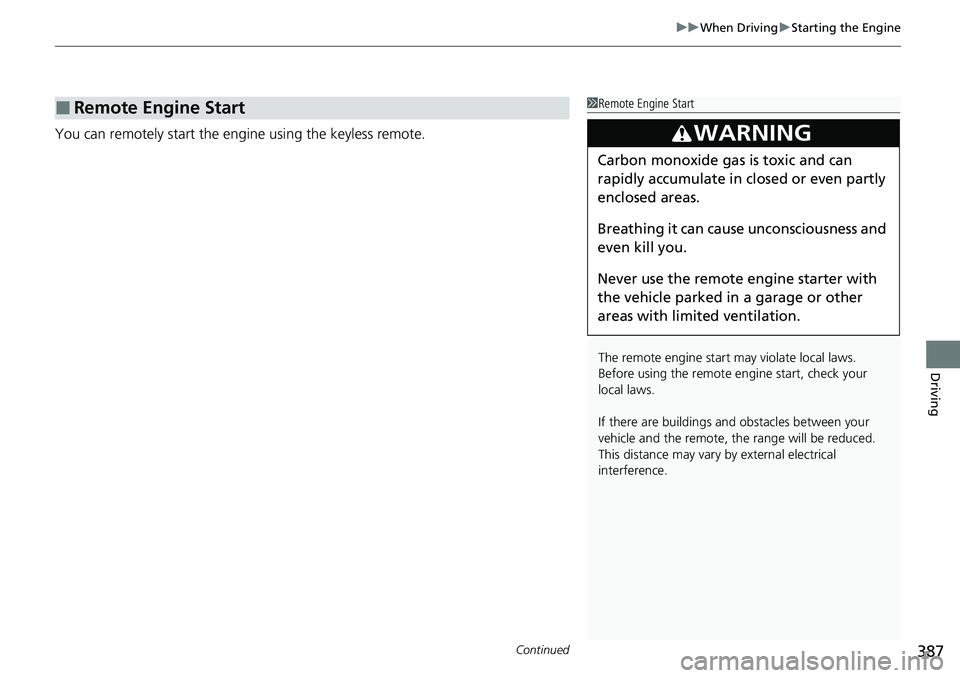
You can remotely start the engine using the keyless remote.
■Remote Engine Start1Remote Engine Start
The remote engine start may violate local laws.
Before using the remote e ngine start, check your
local laws.
If there are buildings an d obstacles between your
vehicle and the remote, th e range will be reduced.
This distance may vary by external electrical
interference.
3WARNING
Carbon monoxide ga s is toxic and can
rapidly accumulate in closed or even partly
enclosed areas.
Breathing it can cause unconsciousness and
even kill you.
Never use the remote engine starter with
the vehicle parked in a garage or other
areas with limited ventilation.
Page 428 of 598
426
uuHonda Sensing ®u Collision Mitigation Braking SystemTM (CMBSTM)
Driving
Collision Mitigati on Braking SystemTM (CMBSTM)
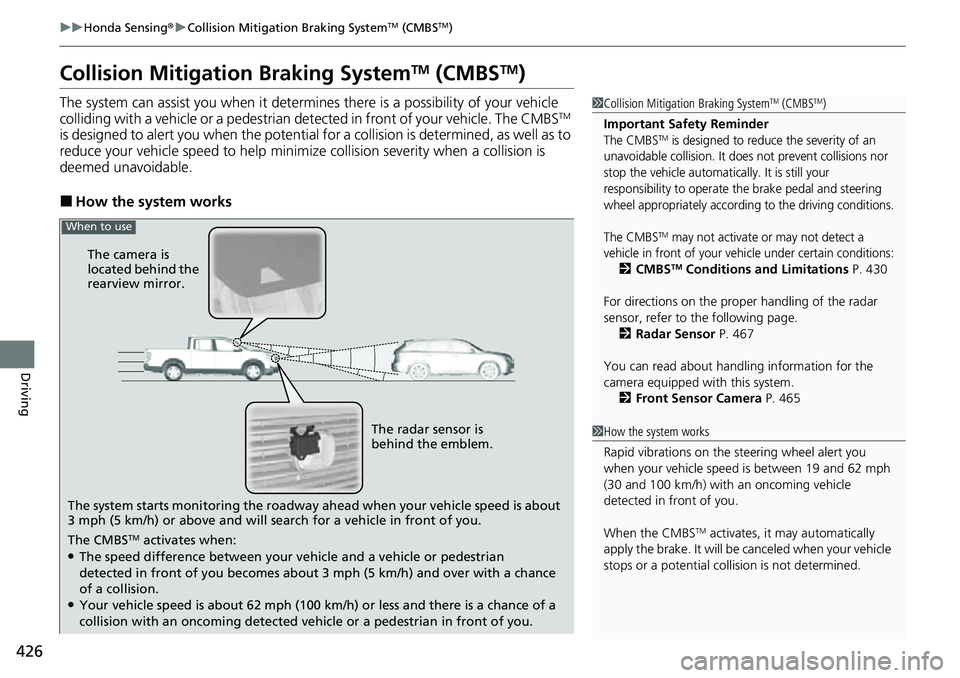
The system can assist you when it determine s there is a possibility of your vehicle
colliding with a vehicle or a pedestrian de tected in front of your vehicle. The CMBSTM
is designed to alert you when the potential for a collision is determined, as well as to
reduce your vehicle speed to help minimize collision severity when a collision is
deemed unavoidable.
■How the system works
1 Collision Mitigation Braking SystemTM (CMBSTM)
Important Safety Reminder
The CMBSTM is designed to reduce the severity of an
unavoidable collision. It does not prevent collisions nor
stop the vehicle automatically. It is still your
responsibility to operate the brake pedal and steering
wheel appropriately according to the driving conditions.
The CMBS
TM may not activate or may not detect a
vehicle in front of your vehicle under certain conditions:
2 CMBSTM Conditions and Limitations P. 430
For directions on the prop er handling of the radar
sensor, refer to the following page. 2 Radar Sensor P. 467
You can read about handling information for the
camera equipped with this system. 2 Front Sensor Camera P. 465
1How the system works
Rapid vibrations on the st eering wheel alert you
when your vehicle speed is between 19 and 62 mph
(30 and 100 km/h) with an oncoming vehicle
detected in front of you.
When the CMBS
TM activates, it may automatically
apply the brake. It will be canceled when your vehicle
stops or a potential colli sion is not determined.
The system starts monitoring the roadway ah ead when your vehicle speed is about
3 mph (5 km/h) or above and will search for a vehicle in front of you. The radar sensor is
behind the emblem.
The CMBS
TM activates when:●The speed difference between your vehicle and a vehicle or pedestrian
detected in front of you becomes about 3 mph (5 km/h) and over with a chance
of a collision.
●Your vehicle speed is about 62 mph (100 km /h) or less and there is a chance of a
collision with an oncoming detected vehicle or a pedestrian in front of you. The camera is
located behind the
rearview mirror.
When to use