USB HONDA RIDGELINE 2022 User Guide
[x] Cancel search | Manufacturer: HONDA, Model Year: 2022, Model line: RIDGELINE, Model: HONDA RIDGELINE 2022Pages: 598, PDF Size: 12.42 MB
Page 222 of 598
uuAudio System Basic Operation uAudio/Information Screen
220
Features
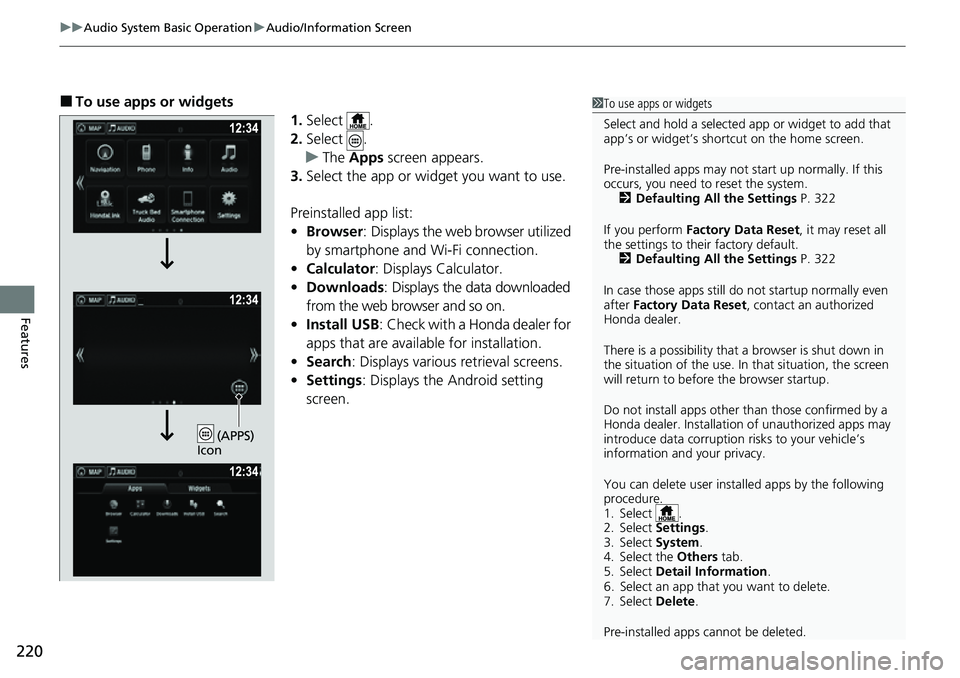
■To use apps or widgets
1.Select .
2. Select .
u The Apps screen appears.
3. Select the app or widget you want to use.
Preinstalled app list:
• Browser : Displays the web browser utilized
by smartphone and Wi-Fi connection.
• Calculator : Displays Calculator.
• Downloads : Displays the data downloaded
from the web browser and so on.
• Install USB : Check with a Honda dealer for
apps that are available for installation.
• Search : Displays various retrieval screens.
• Settings : Displays the Android setting
screen.1 To use apps or widgets
Select and hold a selected app or widget to add that
app’s or widget’s shortcut on the home screen.
Pre-installed apps may not start up normally. If this
occurs, you need to reset the system. 2 Defaulting All the Settings P. 322
If you perform Factory Data Reset , it may reset all
the settings to their factory default. 2 Defaulting All the Settings P. 322
In case those apps still do not startup normally even
after Factory Data Reset , contact an authorized
Honda dealer.
There is a possibility that a browser is shut down in
the situation of the use. In that situation, the screen
will return to before the browser startup.
Do not install apps other than those confirmed by a
Honda dealer. Installation of unauthorized apps may
introduce data corruption risks to your vehicle’s
information and your privacy.
You can delete user installed apps by the following
procedure.
1. Select .
2. Select Settings .
3. Select System .
4. Select the Others tab.
5. Select Detail Information .
6. Select an app that you want to delete.
7. Select Delete .
Pre-installed apps cannot be deleted.
(APPS)
Icon
Page 235 of 598
233
uuAudio System Basic Operation uVoice Control Operation
Continued
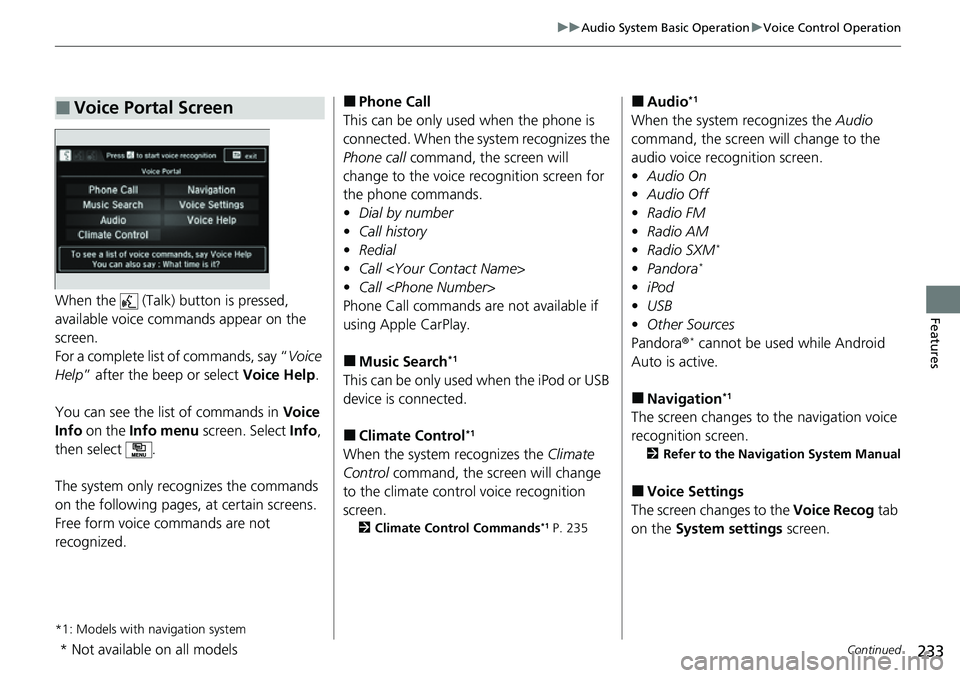
FeaturesWhen the (Talk) button is pressed,
available voice comma nds appear on the
screen.
For a complete list of commands, say “ Voice
Help ” after the beep or select Voice Help.
You can see the list of commands in Voice
Info on the Info menu screen. Select Info,
then select .
The system only recognizes the commands
on the following pages, at certain screens.
Free form voice commands are not
recognized.
*1: Models with navigation system
■Voice Portal Screen■Phone Call
This can be only used when the phone is
connected. When the sy stem recognizes the
Phone call command, the screen will
change to the voice re cognition screen for
the phone commands.
• Dial by number
• Call history
• Redial
• Call
• Call
Phone Call commands are not available if
using Apple CarPlay.
■Music Search*1
This can be only used when the iPod or USB
device is connected.
■Climate Control*1
When the system recognizes the Climate
Control command, the screen will change
to the climate con trol voice recognition
screen.
2 Climate Control Commands*1 P. 235
■Audio*1
When the system recognizes the Audio
command, the screen will change to the
audio voice recognition screen.
• Audio On
• Audio Off
• Radio FM
• Radio AM
• Radio SXM
*
•Pandora*
•iPod
• USB
• Other Sources
Pandora ®
* cannot be used while Android
Auto is active.
■Navigation*1
The screen changes to the navigation voice
recognition screen.
2 Refer to the Navigation System Manual
■Voice Settings
The screen changes to the Voice Recog tab
on the System settings screen.
* Not available on all models
Page 236 of 598
234
uuAudio System Basic Operation uVoice Control Operation
Features
■Voice Help
You can see a list of the available
commands on the screen.
• Useful Commands
*
•Phone Commands
• Audio Commands*
•Climate Control Commands*
•On Screen Commands
• Music Search Commands*
•General Commands*
•Voice Settings
• Getting Started
• All Commands
The system accepts th ese commands on the
voice portal top screen.
• Call
• Call
• What time is it?
• What is today’s date?
*1: Models with navigation system
■Useful Commands
The system accepts these commands on the
dedicated screen for the voice recognition
of the phone.
• Call by Number
• Call by Name
• Call
• Call
The system accepts these commands on the
dedicated screen for the voice recognition
of the audio.
■Radio FM Commands
• Radio tune to <87.7-107.9> FM
• Radio tune to <87.7 -107.9> HD <1-8>
FM
• Radio FM preset <1-12>
■Radio AM Commands
• Radio tune to <530-1710> AM
• Radio AM preset <1-6>
■Radio SXM Commands*
•SXM channel <1-999>
• SXM channel
• Radio SXM preset <1-12>
■Phone Commands
■Audio Commands*1
■Pandora Commands*
•Pandora play
■iPod Commands
• iPod play
• iPod play track <1-30>
• Music Search
• What album is this?
• What am I listening to?
■USB Commands
• USB play
• USB play track <1-30>
• Music Search
• What album is this?
• What am I listening to?
■Bluetooth ® audio Commands
• Bluetooth ® audio play
NOTE:
Bluetooth ® Audio commands may not work
on some phones or Bluetooth ® Audio
devices.
■AUX-Audio commands
• AUX audio play
* Not available on all models
Page 237 of 598
235
uuAudio System Basic Operation uVoice Control Operation
Features
When On Screen Commands is selected,
the explanation scr een is displayed.
The system accepts th ese commands on the
Music Search screen.
■Using Song By Voice
Song By VoiceTM is a feature that allows you
to select music from yo ur iPod or USB device
using Voice Commands. To activate this
mode, you must push the talk switch and
say: “ Music search ”.
■Song By Voice Commands
• What am I listening to?
• Who am I listening to?
• Who is this?
• What’s playing?
• Who’s playing?
• What album is this?
*1: Models with navigation system
■On Screen Commands
■Music Search Commands*1
■Play Commands
• Play artist
• Play track/song
• Play album
• Play genre/category
• Play playlist
• Play composer
■List Commands
• List artist
• List album
• List genre/category
• List playlist
• List composer
• What time is it?
• What is today’s date?
■General Commands
•Climate Control on
• Climate Control off
• Fan Speed <1-7>
• Temperature max heat
• Temperature max cool
• Temperature <57-87> degrees
• Defrost on
• Defrost off
• Air conditioner on
• Air conditioner off
• More
• Climate control automatic
• Vent
• Dash and floor
• Fan speed up
• Fan speed down
• Floor vents
• Floor and defrost
• Temperature up
• Temperature down
■Climate Control Commands*1
Page 249 of 598
247
uuAudio System Basic Operation uPlaying an iPod
Continued
Features
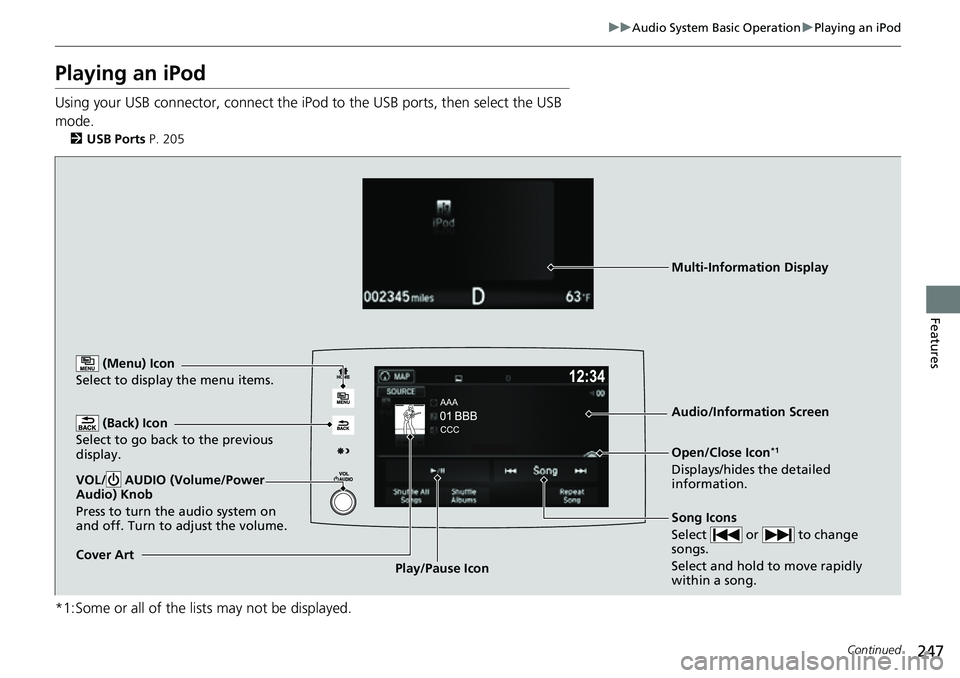
Playing an iPod
Using your USB connector, connect the iPod to the USB ports, then select the USB
mode.
2 USB Ports P. 205
*1:Some or all of the lists may not be displayed.
(Back) Icon
Select to go back to the previous
display.
Song Icons
Select or to change
songs.
Select and hold to move rapidly
within a song.
VOL/ AUDIO (Volume/Power
Audio) Knob
Press to turn the audio system on
and off. Turn to adjust the volume.
Open/Close Icon*1
Displays/hides the detailed
information.
(Menu) Icon
Select to display the menu items.
Cover Art Audio/Information ScreenPlay/Pause Icon
Multi-Information Display
Page 250 of 598
uuAudio System Basic Operation uPlaying an iPod
248
Features
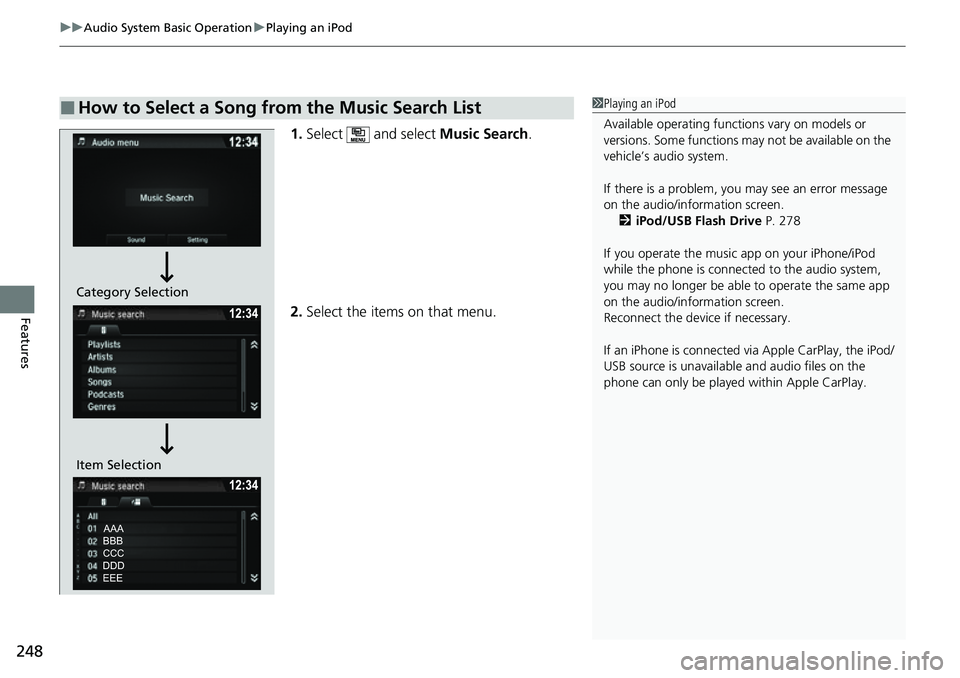
1. Select and select Music Search.
2. Select the items on that menu.
■How to Select a Song from the Music Search List1Playing an iPod
Available operating functi ons vary on models or
versions. Some functions ma y not be available on the
vehicle’s audio system.
If there is a problem, you may see an error message
on the audio/information screen. 2 iPod/USB Flash Drive P. 278
If you operate the musi c app on your iPhone/iPod
while the phone is connected to the audio system,
you may no longer be able to operate the same app
on the audio/information screen.
Reconnect the devi ce if necessary.
If an iPhone is connected via Apple CarP lay, the iPod/
USB source is unavailable and audio files on the
phone can only be played within Apple CarPlay.
Category Selection
Item Selection
Page 252 of 598
250
uuAudio System Basic Operation uSong By VoiceTM (SBV)
Features
Song By VoiceTM (SBV)
Use SBV to search for and play music from your USB flash drive or iPod using voice
commands.
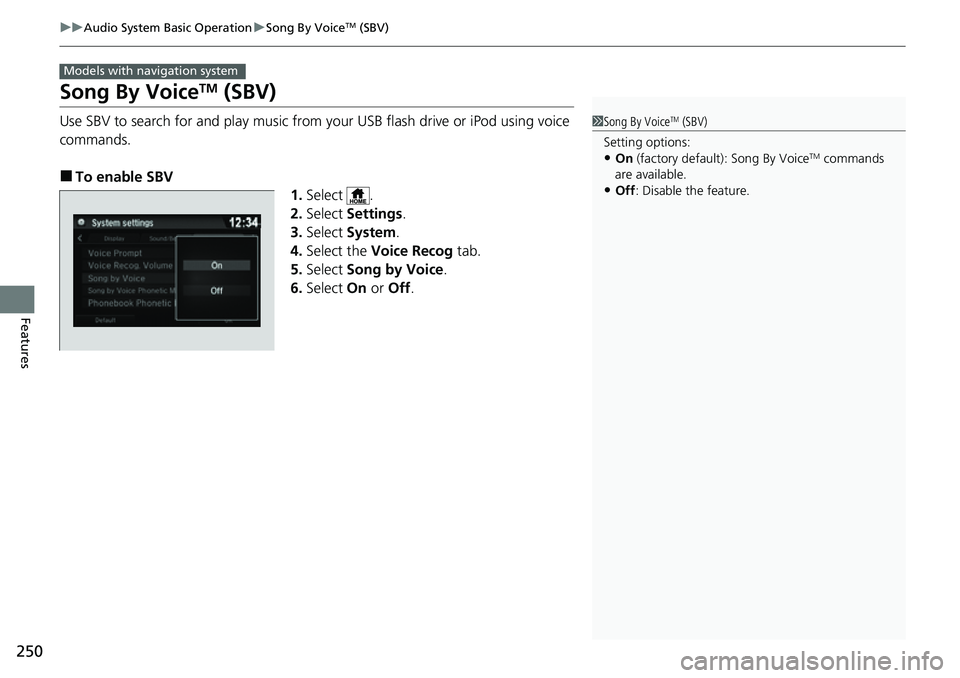
■To enable SBV
1.Select .
2. Select Settings .
3. Select System .
4. Select the Voice Recog tab.
5. Select Song by Voice .
6. Select On or Off .
Models with navigation system
1Song By VoiceTM (SBV)
Setting options:
•On (factory default): Song By VoiceTM commands
are available.
•Off : Disable the feature.
Page 253 of 598
Continued251
uuAudio System Basic Operation uSong By VoiceTM (SBV)
Features
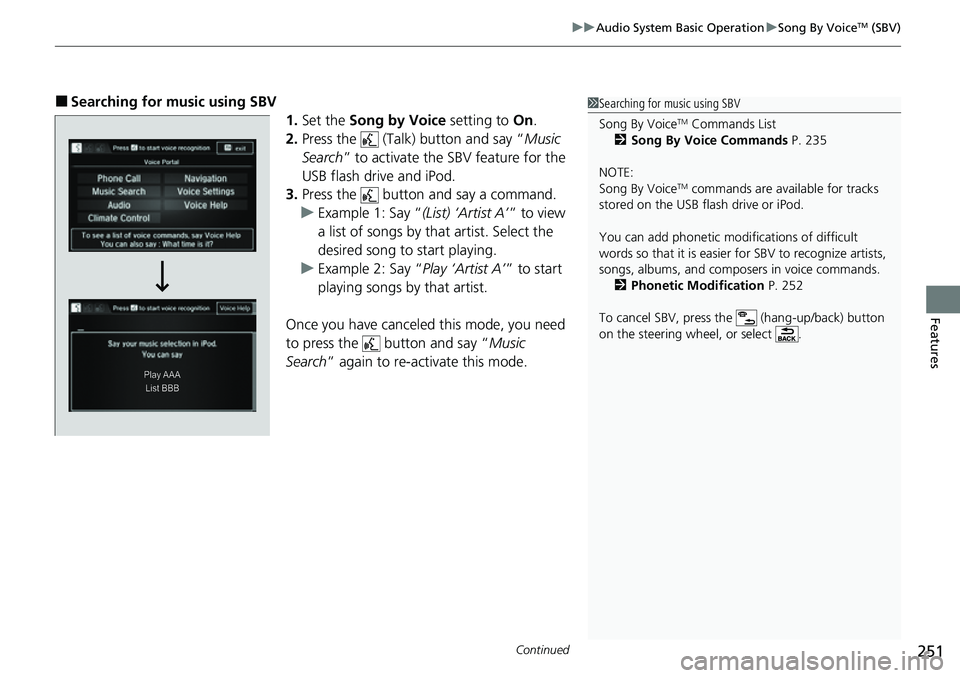
■Searching for music using SBV
1.Set the Song by Voice setting to On.
2. Press the (Talk) button and say “ Music
Search ” to activate the SBV feature for the
USB flash drive and iPod.
3. Press the button and say a command.
u Example 1: Say “ (List) ‘Artist A’” to view
a list of songs by th at artist. Select the
desired song to start playing.
u Example 2: Say “ Play ‘Artist A’” to start
playing songs by that artist.
Once you have canceled this mode, you need
to press the button and say “ Music
Search ” again to re-activate this mode.1Searching for music using SBV
Song By Voice
TM Commands List
2 Song By Voice Commands P. 235
NOTE:
Song By Voice
TM commands are available for tracks
stored on the USB flash drive or iPod.
You can add phonetic modi fications of difficult
words so that it is easier for SBV to recognize artists,
songs, albums, and composers in voice commands. 2 Phonetic Modification P. 252
To cancel SBV, press th e (hang-up/back) button
on the steering wheel, or select .
Page 254 of 598
uuAudio System Basic Operation uSong By VoiceTM (SBV)
252
Features
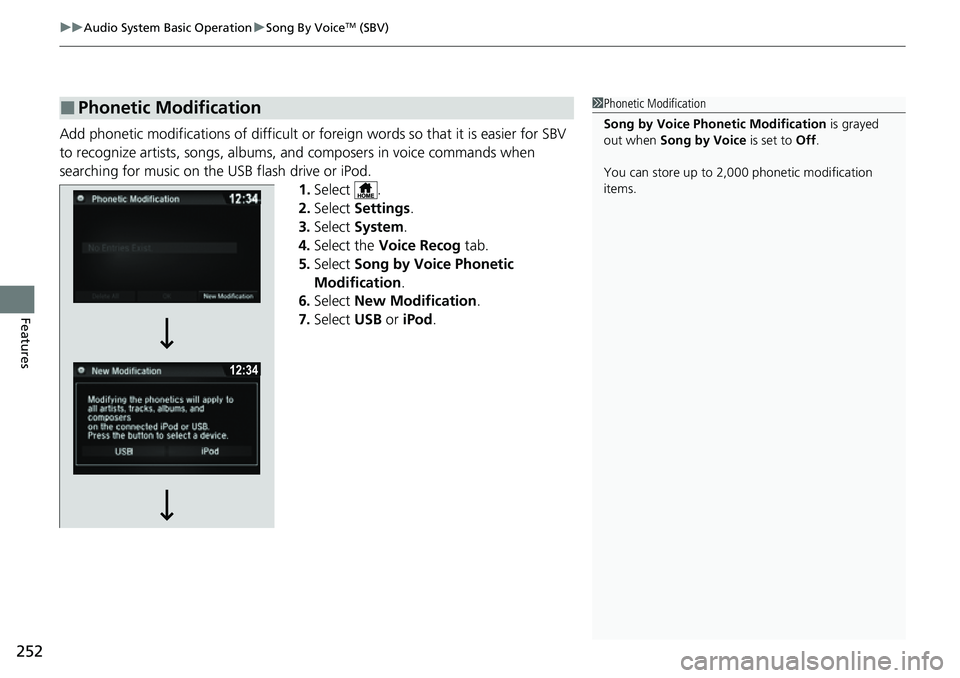
Add phonetic modifications of difficult or fo reign words so that it is easier for SBV
to recognize artists, songs, albums, and composers in voice commands when
searching for music on the USB flash drive or iPod. 1.Select .
2. Select Settings .
3. Select System .
4. Select the Voice Recog tab.
5. Select Song by Voice Phonetic
Modification .
6. Select New Modification .
7. Select USB or iPod .
■Phonetic Modification1Phonetic Modification
Song by Voice Phonetic Modification is grayed
out when Song by Voice is set to Off.
You can store up to 2, 000 phonetic modification
items.
Page 256 of 598
254
uuAudio System Basic Operation uPlaying Pandora ®*
Features
Playing Pandora ®*
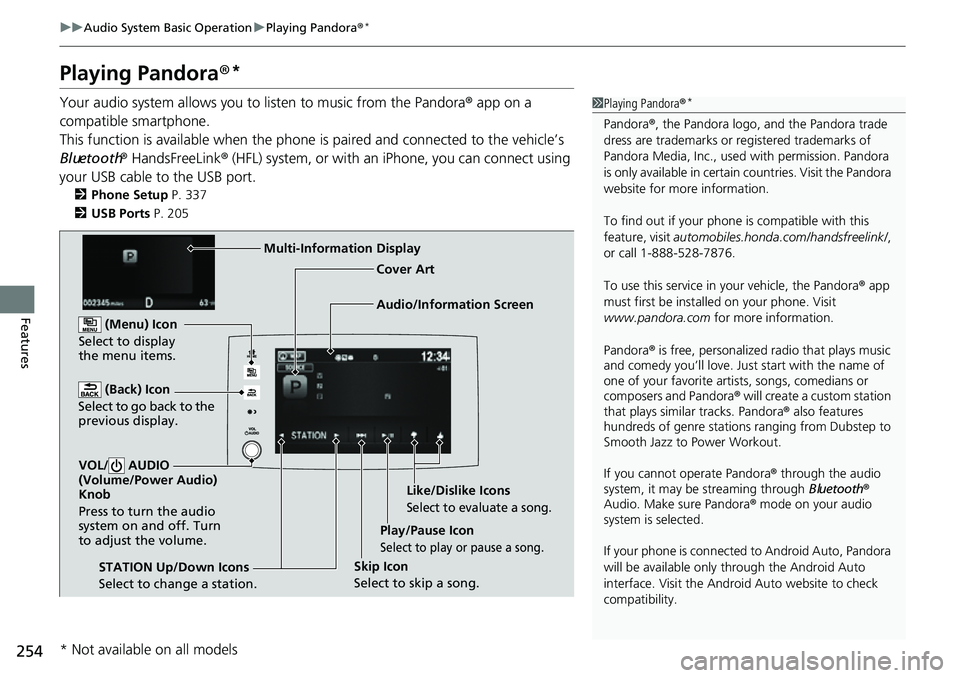
Your audio system allows you to listen to music from the Pandora ® app on a
compatible smartphone.
This function is available when the phone is paired and connected to the vehicle’s
Bluetooth ® HandsFreeLink ® (HFL) system, or with an iPhone, you can connect using
your USB cable to the USB port.
2 Phone Setup P. 337
2 USB Ports P. 205
1Playing Pandora ®*
Pandora®, the Pandora logo, and the Pandora trade
dress are trademarks or registered trademarks of
Pandora Media, Inc., used with permission. Pandora
is only available in certai n countries. Visit the Pandora
website for more information.
To find out if your phone is compatible with this
feature, visit automobiles.honda.com/handsfreelink/ ,
or call 1-888-528-7876.
To use this service in your vehicle, the Pandora ® app
must first be installed on your phone. Visit
www.pandora.com for more information.
Pandora ® is free, personalized radio that plays music
and comedy you’ll love. Just start with the name of
one of your favorite arti sts, songs, comedians or
composers and Pandora ® will create a custom station
that plays similar tracks. Pandora ® also features
hundreds of genre stations ranging from Dubstep to
Smooth Jazz to Power Workout.
If you cannot operate Pandora ® through the audio
system, it may be streaming through Bluetooth®
Audio. Make sure Pandora ® mode on your audio
system is selected.
If your phone is connecte d to Android Auto, Pandora
will be availa ble only through the Android Auto
interface. Visit the Android Auto website to check
compatibility.
Audio/Information Screen Cover Art
(Back) Icon
Select to go back to the
previous display.
VOL/ AUDIO
(Volume/Power Audio)
Knob
Press to turn the audio
system on and off. Turn
to adjust the volume.
(Menu) Icon
Select to display
the menu items.
Play/Pause Icon
Select to play or pause a song.
STATION Up/Down Icons
Select to change a station. Skip Icon
Select to skip a song.Like/Dislike Icons
Select to evaluate a song.
Multi-Information Display
* Not available on all models