change time HONDA RIDGELINE 2022 Owner's Manual
[x] Cancel search | Manufacturer: HONDA, Model Year: 2022, Model line: RIDGELINE, Model: HONDA RIDGELINE 2022Pages: 598, PDF Size: 12.42 MB
Page 298 of 598
296
uuGeneral Information on the Audio System uLegal Information on Apple CarPlay/Android Auto
Features
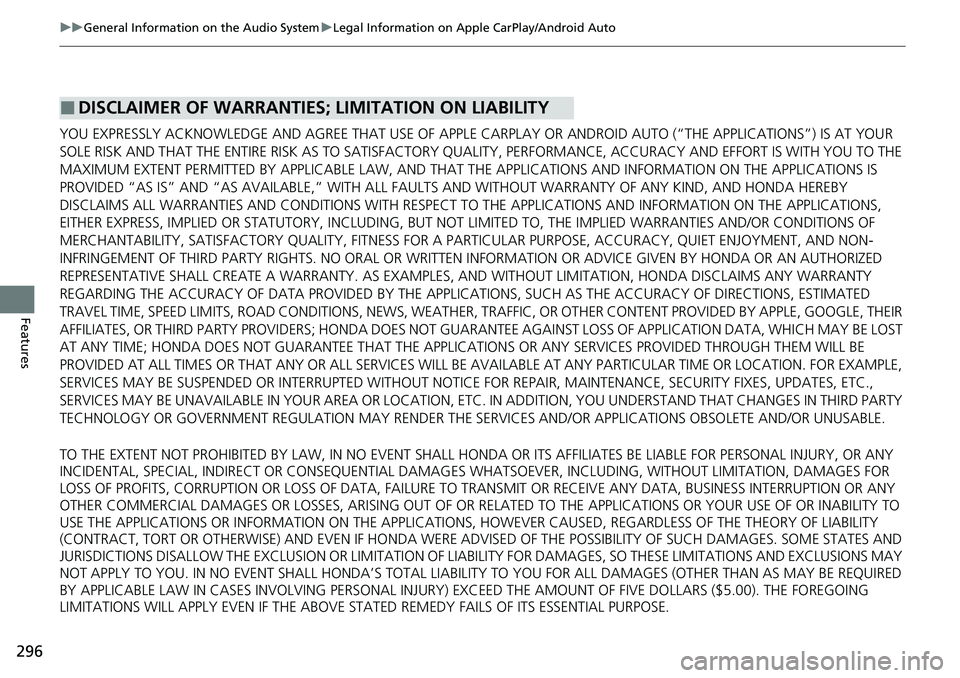
YOU EXPRESSLY ACKNOWLEDGE AND AGREE THAT USE OF APPLE CARPLAY OR ANDROID AUTO (“THE APPLICATIONS”) IS AT YOUR
SOLE RISK AND THAT THE ENTIRE RISK AS TO SATISFACTORY QUALITY, PERFORMANCE, ACCURACY AND EFFORT IS WITH YOU TO THE
MAXIMUM EXTENT PERMITTED BY APPLICABLE LAW, AND THAT TH E APPLICATIONS AND INFORMATION ON THE APPLICATIONS IS
PROVIDED “AS IS” AND “AS AVAILABLE,” WITH ALL FAULTS AND WITHOUT WARRANTY OF ANY KIND, AND HONDA HEREBY
DISCLAIMS ALL WARRANTIES AND CONDITIONS WITH RESPECT TO TH E APPLICATIONS AND INFORMATION ON THE APPLICATIONS,
EITHER EXPRESS, IMPLIED OR STATUTORY, INCLUDING, BUT NOT LIMITED TO, TH E IMPLIED WARRANTIES AND/OR CONDITIONS OF
MERCHANTABILITY, SATISFACTORY QUALITY, FITNESS FOR A PART ICULAR PURPOSE, ACCURACY, QUIET ENJOYMENT, AND NON-
INFRINGEMENT OF THIRD PARTY RIGHTS. NO ORAL OR WRI TTEN INFORMATION OR ADVICE GIVEN BY HONDA OR AN AUTHORIZED
REPRESENTATIVE SHALL CREATE A WARRANT Y. AS EXAMPLES, AND WITHOUT LIMITATION, HONDA DISCLAIMS ANY WARRANTY
REGARDING THE ACCURACY OF DATA PROVIDED BY THE APPL ICATIONS, SUCH AS THE ACCURACY OF DIRECTIONS, ESTIMATED
TRAVEL TIME, SPEED LIMITS, ROAD CONDITIONS, NEWS, WEATHER, TRAFFIC, OR OTHER CONTENT PROVIDED BY APPLE, GOOGLE, THEIR
AFFILIATES, OR THIRD PARTY PROVIDERS; HONDA DOES NOT GUARANTEE AGAINST LOSS OF APPLICATION DATA, WHICH MAY BE LOST
AT ANY TIME; HONDA DOES NOT GUARANTEE THAT THE APPLICATION S OR ANY SERVICES PROVIDED THROUGH THEM WILL BE
PROVIDED AT ALL TIMES OR THAT ANY OR ALL SERVICES WILL BE AVAILABLE AT ANY PA RTICULAR TIME OR LOCATION. FOR EXAMPLE,
SERVICES MAY BE SUSPENDED OR INTERRUPTED WITHOUT NOTICE FOR REPAIR, MAINTENANCE, SECURITY FIXES, UPDATES, ETC.,
SERVICES MAY BE UNAVAILABLE IN YOUR AREA OR LOCATION, ETC. IN ADDITION, YOU UNDERSTAND THAT CHANGES IN THIRD PARTY
TECHNOLOGY OR GOVERNMENT REGULATION MAY RENDER THE SERVICES AND/OR APPLICATIONS OBSOLETE AND/OR UNUSABLE.
TO THE EXTENT NOT PROHIBITED BY LAW, IN NO EVENT SHALL HONDA OR ITS AFFILIATES BE LIABLE FOR PERSONAL INJURY, OR ANY
INCIDENTAL, SPECIAL, INDIRECT OR CONSEQUENTIAL DAMAG ES WHATSOEVER, INCLUDING, WITHOUT LIMITATION, DAMAGES FOR
LOSS OF PROFITS, CORRUPTION OR LOSS OF DATA, FAILURE TO TRANSMIT OR RECEIV E ANY DATA, BUSINESS INTERRUPTION OR ANY
OTHER COMMERCIAL DAMAGES OR LOSSES, ARISING OUT OF OR RELATE D TO THE APPLICATIONS OR YOUR USE OF OR INABILITY TO
USE THE APPLICATIONS OR INFORMATION ON THE APPLICATIONS, HOWEVER CAUSED, REGARDLESS OF THE THEORY OF LIABILITY
(CONTRACT, TORT OR OTHERWISE) AND EVEN IF HONDA WERE AD VISED OF THE POSSIBILITY OF SUCH DAMAGES. SOME STATES AND
JURISDICTIONS DISALLOW THE EXCLUSION OR LIMITATION OF LI ABILITY FOR DAMAGES, SO THESE LIMITATIONS AND EXCLUSIONS MAY
NOT APPLY TO YOU. IN NO EVENT SHALL HONDA’S TOTAL LIABILIT Y TO YOU FOR ALL DAMAGES (OTHER THAN AS MAY BE REQUIRED
BY APPLICABLE LAW IN CASES INVOLVING PERSONAL INJURY) EXC EED THE AMOUNT OF FIVE DOLLARS ($5.00). THE FOREGOING
LIMITATIONS WILL APPLY EVEN IF THE ABOVE STA TED REMEDY FAILS OF ITS ESSENTIAL PURPOSE.
■DISCLAIMER OF WARRANTIES; LIMITATION ON LIABILITY
Page 311 of 598
309
uuCustomized Features u
Continued
Features
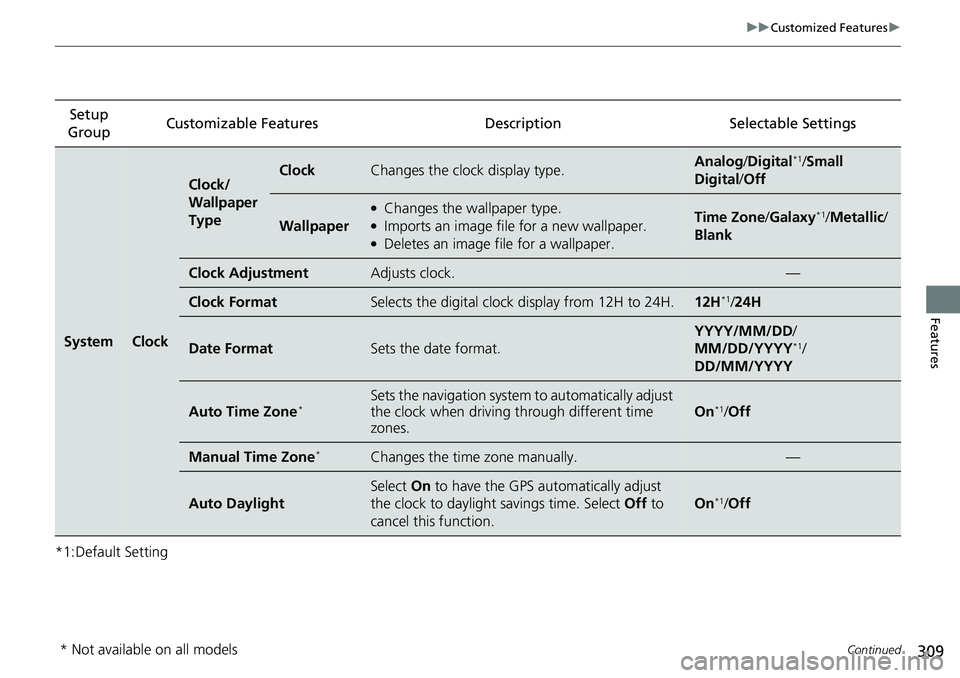
*1:Default SettingSetup
Group Customizable Features
Description Selectable Settings
SystemClock
Clock/
Wallpaper
TypeClockChanges the clock display type.Analog/Digital*1/Small
Digital /Off
Wallpaper
●Changes the wallpaper type.●Imports an image file for a new wallpaper.●Deletes an image file for a wallpaper.
Time Zone /Galaxy*1/Metallic /
Blank
Clock AdjustmentAdjusts clock.—
Clock FormatSelects the digital clock display from 12H to 24H.12H*1/24H
Date FormatSets the date format.
YYYY/MM/DD /
MM/DD/YYYY*1/
DD/MM/YYYY
Auto Time Zone*Sets the navigation system to automatically adjust
the clock when driving through different time
zones.
On*1/ Off
Manual Time Zone*Changes the time zone manually.—
Auto Daylight
Select On to have the GPS automatically adjust
the clock to daylight savings time. Select Off to
cancel this function.
On*1/ Off
* Not available on all models
Page 316 of 598
314
uuCustomized Features u
Features
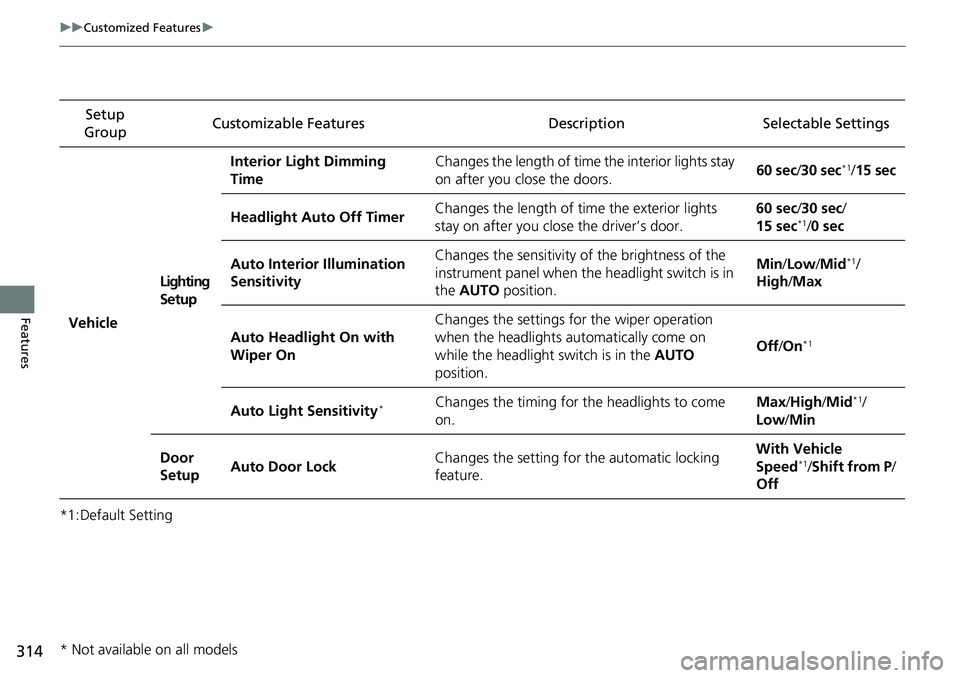
*1:Default SettingSetup
Group Customizable Features
Description Selectable Settings
VehicleLighting
SetupInterior Light Dimming
Time
Changes the length of time
the interior lights stay
on after you close the doors. 60 sec
/30 sec
*1/ 15 sec
Headlight Auto Off Timer Changes the length of time the exterior lights
stay on after you close the driver’s door. 60 sec
/30 sec/
15 sec
*1/ 0 sec
Auto Interior Illumination
Sensitivity Changes the sensitivity of the brightness of the
instrument panel when the headlight switch is in
the
AUTO position. Min/
Low/Mid
*1/
High /Max
Auto Headlight On with
Wiper On Changes the settings fo
r the wiper operation
when the headlights automatically come on
while the headlight switch is in the AUTO
position. Off
/On
*1
Auto Light Sensitivity*Changes the timing for the headlights to come
on. Max
/High /Mid*1/
Low /Min
Door
Setup Auto Door Lock Changes the setting for the automatic locking
feature. With Vehicle
Speed
*1/
Shift from P/
Off
* Not available on all models
Page 317 of 598
315
uuCustomized Features u
Continued
Features
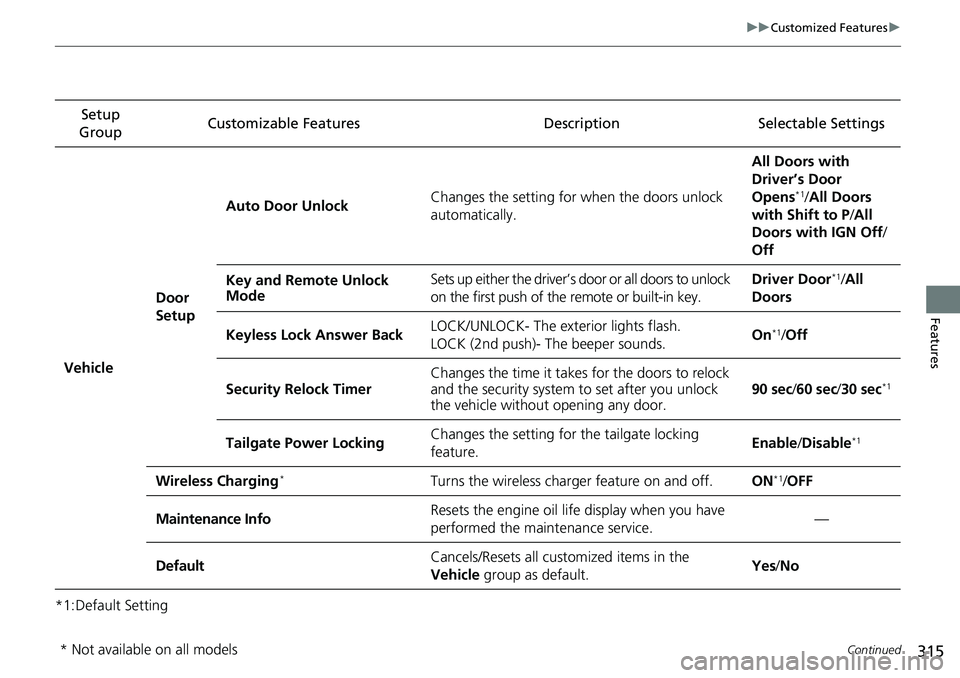
*1:Default SettingSetup
Group Customizable Features
DescriptionSelectable Settings
Vehicle
Door
SetupAuto Door Unlock
Changes the setting for when the doors unlock
automatically. All Doors with
Driver’s Door
Opens
*1/
All Doors
with Shift to P /All
Doors with IGN Off /
Off
Key and Remote Unlock
Mode Sets up either the driver’s
door or all doors to unlock
on the first push of the remote or built-in key. Driver Door
*1/
All
Doors
Keyless Lock Answer Back LOCK/UNLOCK- The exterior lights flash.
LOCK (2nd push)- The beeper sounds. On
*1/
Off
Security Relock Timer Changes the time it takes for the doors to relock
and the security system to set after you unlock
the vehicle without opening any door.
90 sec
/60 sec /30 sec
*1
Tailgate Power Locking Changes the setting for
the tailgate locking
feature. Enable
/Disable*1
Wireless Charging*Turns the wireless charger feature on and off.ON*1/ OFF
Maintenance InfoResets the engine oil life display when you have
performed the maintenance service.—
DefaultCancels/Resets all customized items in the
Vehicle group as default.Yes/No
* Not available on all models
Page 319 of 598
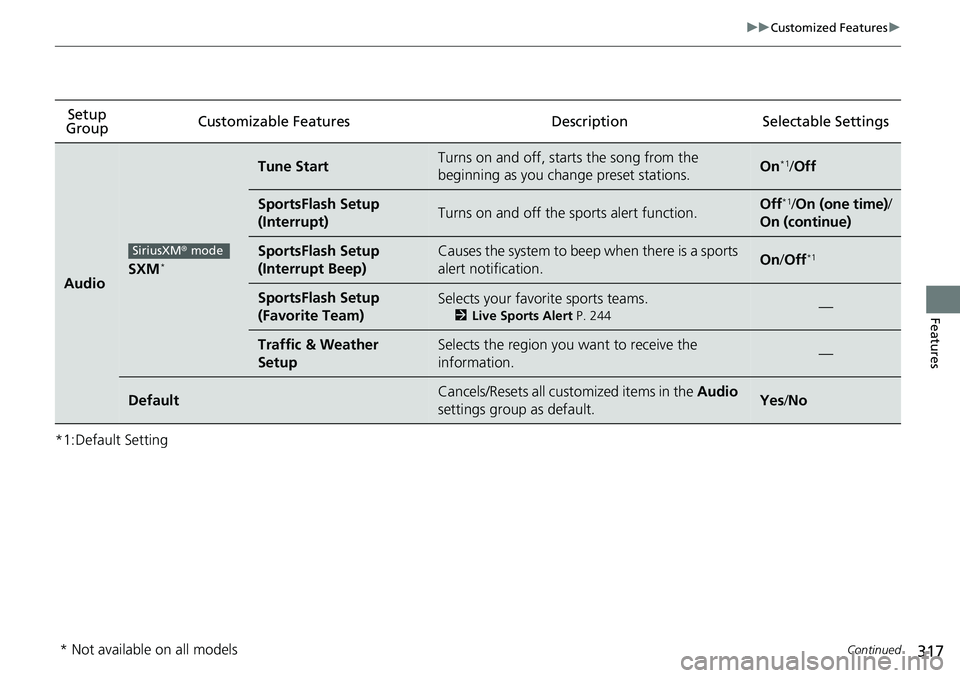
317
uuCustomized Features u
Continued
Features
*1:Default SettingSetup
Group Customizable Features
DescriptionSelectable Settings
AudioSXM*
Tune StartTurns on and off, starts the song from the
beginning as you change preset stations.On*1/ Off
SportsFlash Setup
(Interrupt)Turns on and off the sp orts alert function.Off*1/On (one time) /
On (continue)
SportsFlash Setup
(Interrupt Beep)Causes the system to beep when there is a sports
alert notification.On /Off*1
SportsFlash Setup
(Favorite Team)Selects your favorite sports teams.
2 Live Sports Alert P. 244—
Traffic & Weather
SetupSelects the region you want to receive the
information.—
DefaultCancels/Resets all customized items in the Audio
settings group as default.Yes /No
SiriusXM ® mode
* Not available on all models
Page 320 of 598
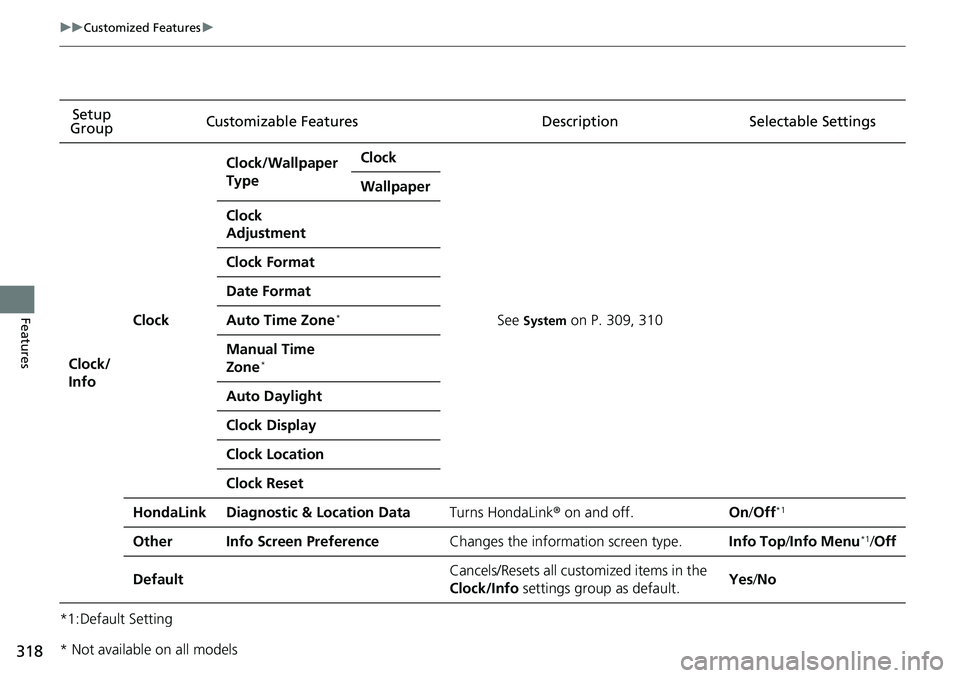
318
uuCustomized Features u
Features
*1:Default SettingSetup
Group Customizable Features
Description Selectable Settings
Clock/
Info
Clock
Clock/Wallpaper
TypeClock
See System on P. 309, 310
Wallpaper
Clock
Adjustment
Clock Format
Date Format
Auto Time Zone*
Manual Time
Zone*
Auto Daylight
Clock Display
Clock Location
Clock Reset
HondaLinkDiagnostic & Location DataTurns HondaLink® on and off.On /Off*1
OtherInfo Screen PreferenceChanges the information screen type.Info Top /Info Menu*1/Off
DefaultCancels/Resets all cust omized items in the
Clock/Info settings group as default.Yes/No
* Not available on all models
Page 340 of 598
uuBluetooth ® HandsFreeLink ®u HFL Menus
338
Features
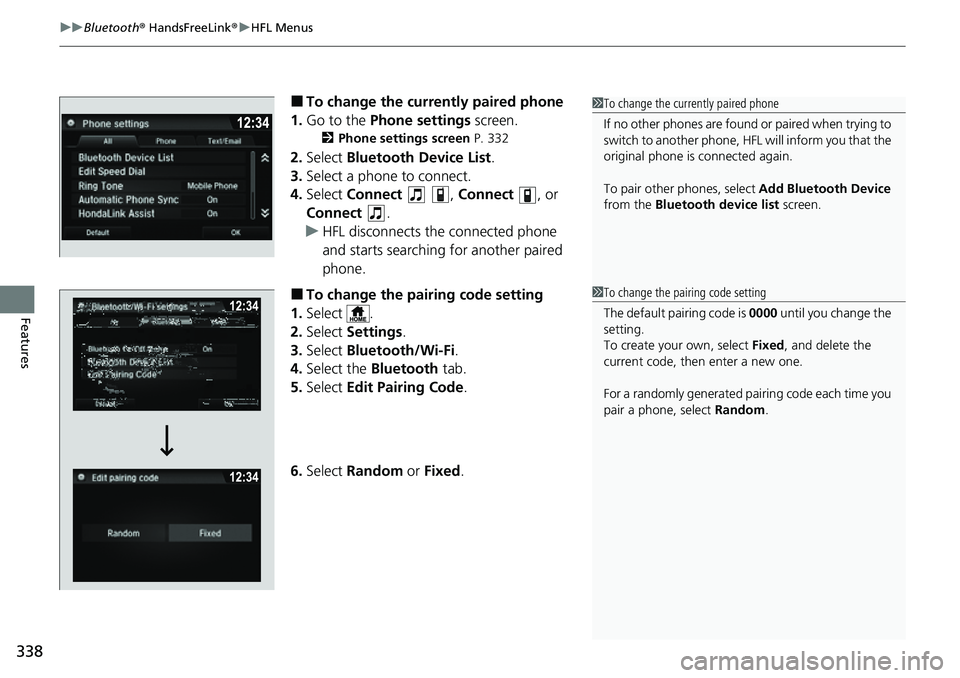
■To change the currently paired phone
1. Go to the Phone settings screen.
2Phone settings screen P. 332
2.Select Bluetooth Device List .
3. Select a phone to connect.
4. Select Connect , Connect , or
Connect .
u HFL disconnects the connected phone
and starts searching for another paired
phone.
■To change the pairing code setting
1. Select .
2. Select Settings .
3. Select Bluetooth/Wi-Fi .
4. Select the Bluetooth tab.
5. Select Edit Pairing Code .
6. Select Random or Fixed .
1To change the currently paired phone
If no other phones are found or paired when trying to
switch to another phone, HFL will inform you that the
original phone is connected again.
To pair other phones, select Add Bluetooth Device
from the Bluetooth device list screen.
1To change the pairing code setting
The default pairing code is 0000 until you change the
setting.
To create your own, select Fixed, and delete the
current code, then enter a new one.
For a randomly generated pair ing code each time you
pair a phone, select Random.
Page 362 of 598
uuBluetooth ® HandsFreeLink ®u HFL Menus
360
Features
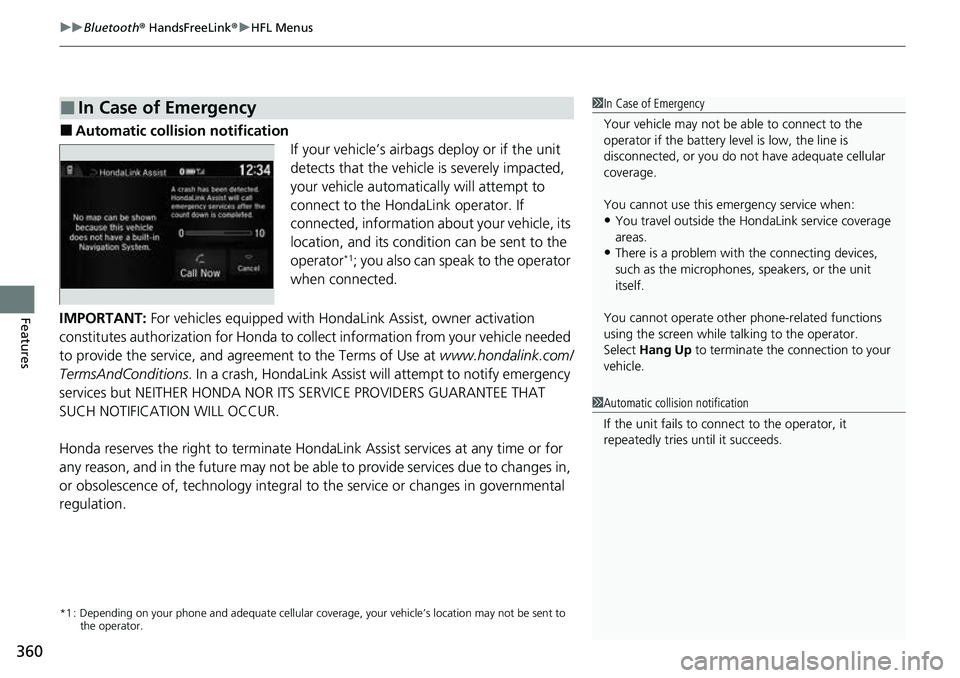
■Automatic collision notification
If your vehicle’s airbags deploy or if the unit
detects that the vehicle is severely impacted,
your vehicle automatically will attempt to
connect to the HondaLink operator. If
connected, information about your vehicle, its
location, and its condition can be sent to the
operator
*1; you also can speak to the operator
when connected.
IMPORTANT: For vehicles equipped with Ho ndaLink Assist, owner activation
constitutes authorization for Honda to co llect information from your vehicle needed
to provide the service, and agr eement to the Terms of Use at www.hondalink.com/
TermsAndConditions . In a crash, HondaLink Assist w ill attempt to notify emergency
services but NEITHER HONDA NOR ITS SERVICE PROVIDERS GUARANTEE THAT
SUCH NOTIFICATION WILL OCCUR.
Honda reserves the right to terminate HondaLink Assist services at any time or for
any reason, and in the future may not be ab le to provide services due to changes in,
or obsolescence of, technology integral to the service or changes in governmental
regulation.
*1 : Depending on your phone and ad equate cellular coverage, your vehicle’s location may not be sent to
the operator.
■In Case of Emergency1 In Case of Emergency
Your vehicle may not be able to connect to the
operator if the battery level is low, the line is
disconnected, or you do not have adequate cellular
coverage.
You cannot use this emergency service when:
•You travel outside the HondaLink service coverage
areas.
•There is a problem with the connecting devices,
such as the microphones, speakers, or the unit
itself.
You cannot operate othe r phone-related functions
using the screen while talking to the operator.
Select Hang Up to terminate the connection to your
vehicle.
1 Automatic collision notification
If the unit fails to connect to the operator, it
repeatedly tries until it succeeds.
Page 397 of 598
395
uuWhen Driving uShifting
Continued
Driving
Shifting
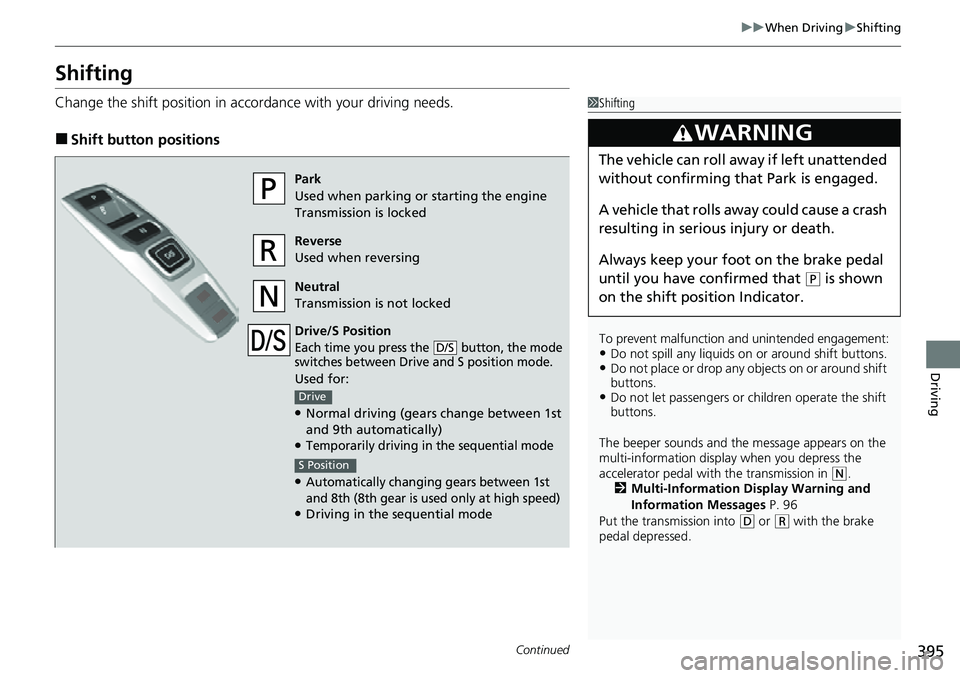
Change the shift position in accordance with your driving needs.
■Shift button positions
1Shifting
To prevent malfunction an d unintended engagement:
•Do not spill any liquids on or around shift buttons.•Do not place or drop any objects on or around shift
buttons.
•Do not let passengers or ch ildren operate the shift
buttons.
The beeper sounds and the message appears on the
multi-information display when you depress the
accelerator pedal with the transmission in
( N.
2 Multi-Information Display Warning and
Information Messages P. 96
Put the transmission into
( D or (R with the brake
pedal depressed.
3WARNING
The vehicle can roll aw ay if left unattended
without confirming that Park is engaged.
A vehicle that rolls away could cause a crash
resulting in seriou s injury or death.
Always keep your foot on the brake pedal
until you have confirmed that
( P is shown
on the shift posi tion Indicator.
Park
Used when parking or starting the engine
Transmission is locked
Reverse
Used when reversing
Neutral
Transmission is not locked
Drive/S Position
Each time you press the button, the mode
switches between Drive and S position mode.
Used for:
●Normal driving (gears change between 1st
and 9th automatically)
●Temporarily driving in the sequential mode
●Automatically changi ng gears between 1st
and 8th (8th gear is used only at high speed)
●Driving in the sequential mode
D/S
Drive
S Position
Page 399 of 598
Continued397
uuWhen Driving uShifting
Driving
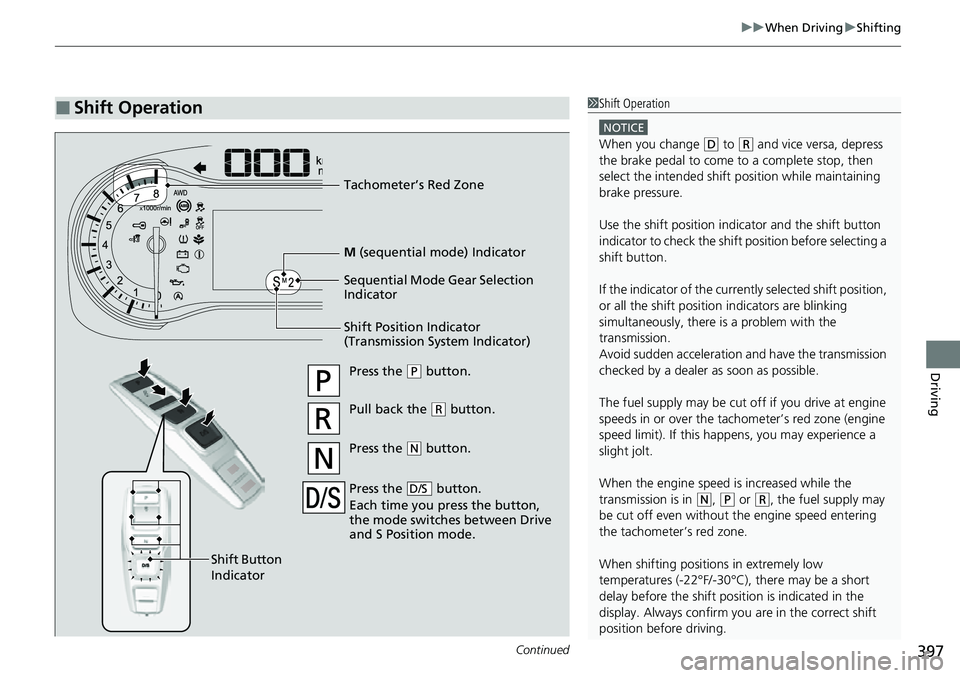
■Shift Operation1Shift Operation
NOTICE
When you change (D to (R and vice versa, depress
the brake pedal to come to a complete stop, then
select the intended shift position while maintaining
brake pressure.
Use the shift position indi cator and the shift button
indicator to check the shift position before selecting a
shift button.
If the indicator of the currently selected shift position,
or all the shift position indicators are blinking
simultaneously, there is a problem with the
transmission.
Avoid sudden acceleration and have the transmission
checked by a dealer as soon as possible.
The fuel supply may be cut of f if you drive at engine
speeds in or over the tac hometer’s red zone (engine
speed limit). If this happe ns, you may experience a
slight jolt.
When the engine speed is increased while the
transmission is in
( N, (P or (R, the fuel supply may
be cut off even without the engine speed entering
the tachometer’s red zone.
When shifting positions in extremely low
temperatures (-22°F/-30°C), there may be a short
delay before the shift posit ion is indicated in the
display. Always confirm y ou are in the correct shift
position before driving.
Shift Position Indicator
(Transmission System Indicator) Tachometer’s Red Zone
Press the
(P button.
Pull back the ( R button.
Press the
( N button.
Press the button.
Each time you press the button,
the mode switches between Drive
and S Position mode.
D/S
Shift Button
Indicator M
(sequential mode) Indicator
Sequential Mode Gear Selection
Indicator