auto start HONDA RIDGELINE 2023 Owner's Manual
[x] Cancel search | Manufacturer: HONDA, Model Year: 2023, Model line: RIDGELINE, Model: HONDA RIDGELINE 2023Pages: 598, PDF Size: 12.34 MB
Page 245 of 598
Continued243
uuAudio System Basic Operation uPlaying SiriusXM ® Radio*
Features
The system can record up to the last 60 minutes broadcast of your currently tuned
channel as well as the last 30 minutes broadcast of preset channels, starting from
the moment you turn the vehicle on. If y ou tuned to preset channel, the system
records up to 60 minutes of a broadcast instead of up to 30 minutes. You can
rewind and replay the last 30 or 60 minutes of a broadcast.
1. Select .
2. Select Playback Position .
3. Move the gauge to the position you want to replay.
The following items are availa ble on the pop-up screen:
(Skip Down): Skips to the previously st ored channel. Select and hold to fast-
rewind the current selection. (Skip Up): Skips to the next channe l. Select and hold to fast-forward the
current selection. (15sec Back): Select to skip back 15 seconds in the current selection. Select and
hold to fast-rewind th e current selection.
(15sec Skip): Select to skip forward 15 seconds in the current selection. Select
and hold to fast-forward the current selection.
u Select OK to close the pop-up menu. Replay in playback mode continues.
To play or pause on playback mode:
1. Select .
2. Select Play/Pause .
■Returning to real-time broadcast
1. Select .
2. Select Play Live Broadcast .
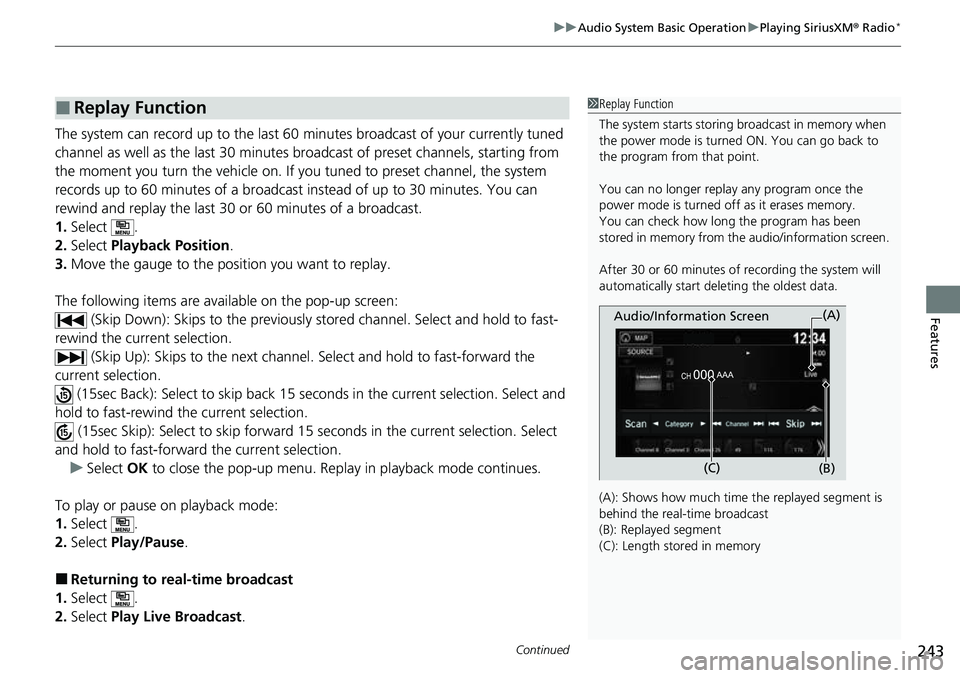
■Replay Function1Replay Function
The system starts storing broadcast in memory when
the power mode is turned ON. You can go back to
the program from that point.
You can no longer repl ay any program once the
power mode is turned off as it erases memory.
You can check how long the program has been
stored in memory from th e audio/information screen.
After 30 or 60 minutes of recording the system will
automatically start deleting the oldest data.
(A): Shows how much time the replayed segment is
behind the real-time broadcast
(B): Replayed segment
(C): Length stored in memory
Audio/Information Screen
(C) (B)(A)
Page 256 of 598
254
uuAudio System Basic Operation uPlaying Pandora ®*
Features
Playing Pandora ®*
Your audio system allows you to listen to music from the Pandora ® app on a
compatible smartphone.
This function is available when the phone is paired and connected to the vehicle’s
Bluetooth ® HandsFreeLink ® (HFL) system, or with an iPhone, you can connect using
your USB cable to the USB port.
2 Phone Setup P. 338
2 USB Ports P. 205
1Playing Pandora ®*
Pandora®, the Pandora logo, and the Pandora trade
dress are trademarks or registered trademarks of
Pandora Media, Inc., used with permission. Pandora
is only available in certai n countries. Visit the Pandora
website for more information.
To find out if your phone is compatible with this
feature, visit automobiles.honda.com/handsfreelink/ ,
or call 1-888-528-7876.
To use this service in your vehicle, the Pandora ® app
must first be installed on your phone. Visit
www.pandora.com for more information.
Pandora ® is free, personalized radio that plays music
and comedy you’ll love. Just start with the name of
one of your favorite arti sts, songs, comedians or
composers and Pandora ® will create a custom station
that plays similar tracks. Pandora ® also features
hundreds of genre stations ranging from Dubstep to
Smooth Jazz to Power Workout.
If you cannot operate Pandora ® through the audio
system, it may be streaming through Bluetooth®
Audio. Make sure Pandora ® mode on your audio
system is selected.
If your phone is connecte d to Android Auto, Pandora
will be availa ble only through the Android Auto
interface. Visit the Android Auto website to check
compatibility.
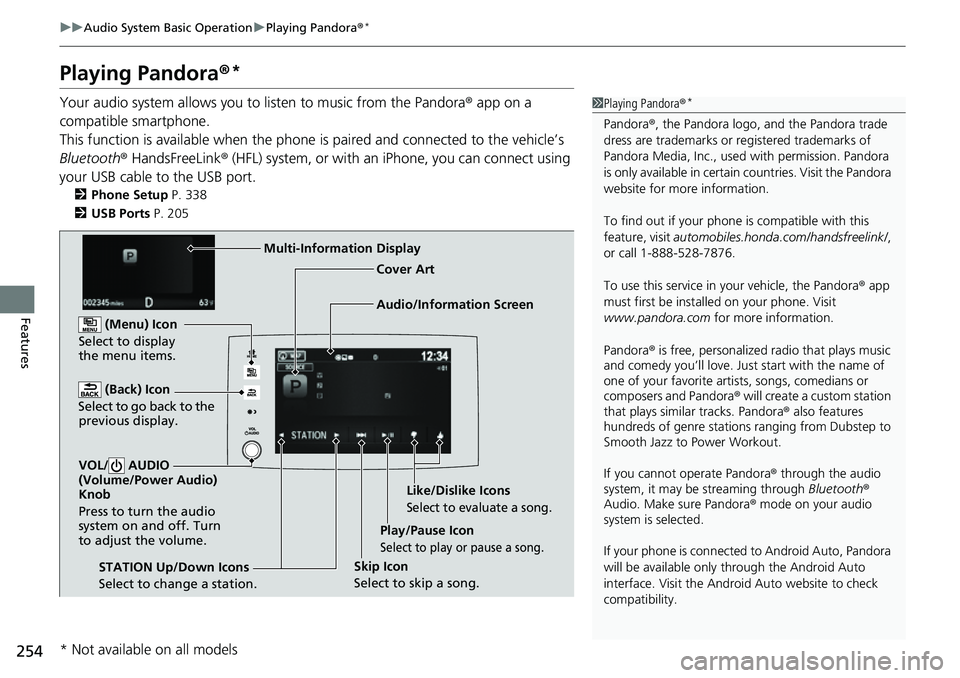
Audio/Information Screen Cover Art
(Back) Icon
Select t
o go back to the
previous display.
VOL/ AUDIO
(Volume/Power Audio)
Knob
Press to turn the audio
system on and off. Turn
to adjust the volume.
(Menu) Icon
Select to display
the menu items.
Play/Pause Icon
Select to play or pause a song.
STATION Up/Down Icons
Select to change a station. Skip Icon
Select to skip a song.Like/Dislike Icons
Select to evaluate a song.
Multi-Information Display
* Not available on all models
Page 304 of 598
302
uuCustomized Features u
Features
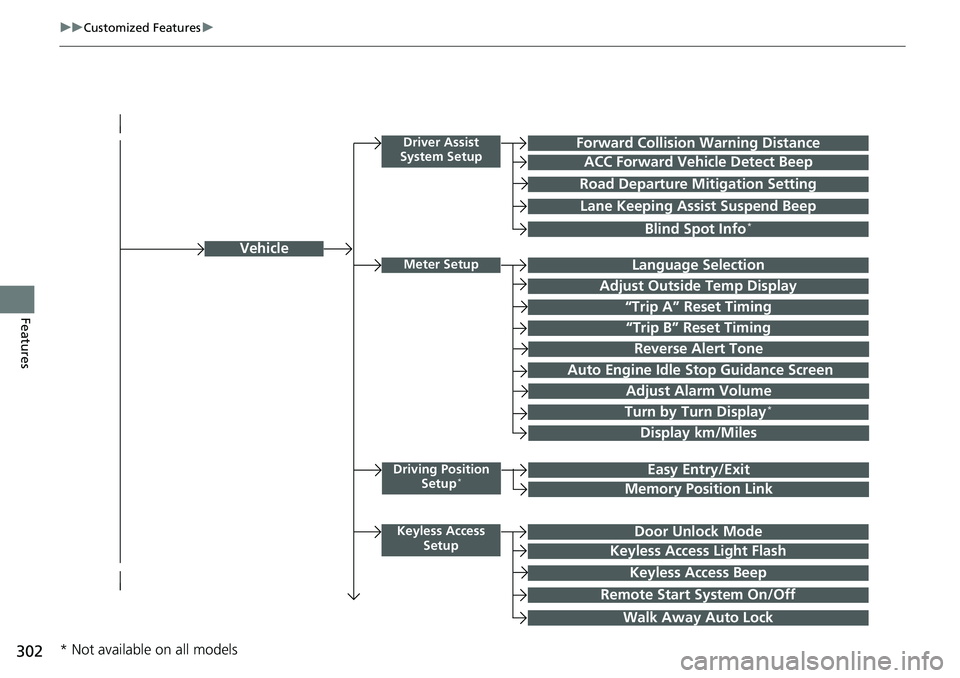
Vehicle
Driver Assist
System SetupForward Collision Warning Distance
ACC Forward Vehicle Detect Beep
Road Departure Mi tigation Setting
Lane Keeping Assist Suspend Beep
Blind Spot Info*
Meter SetupLanguage Selection
Adjust Outside Temp Display
“Trip A” Reset Timing
“Trip B” Reset Timing
Adjust Alarm Volume
Turn by Turn Display*
Display km/Miles
Driving Position
Setup*Easy Entry/Exit
Memory Position Link
Keyless Access SetupDoor Unlock Mode
Keyless Access Light Flash
Keyless Access Beep
Remote Start System On/Off
Walk Away Auto Lock
Reverse Alert Tone
Auto Engine Idle Stop Guidance Screen
* Not available on all models
Page 316 of 598
314
uuCustomized Features u
Features
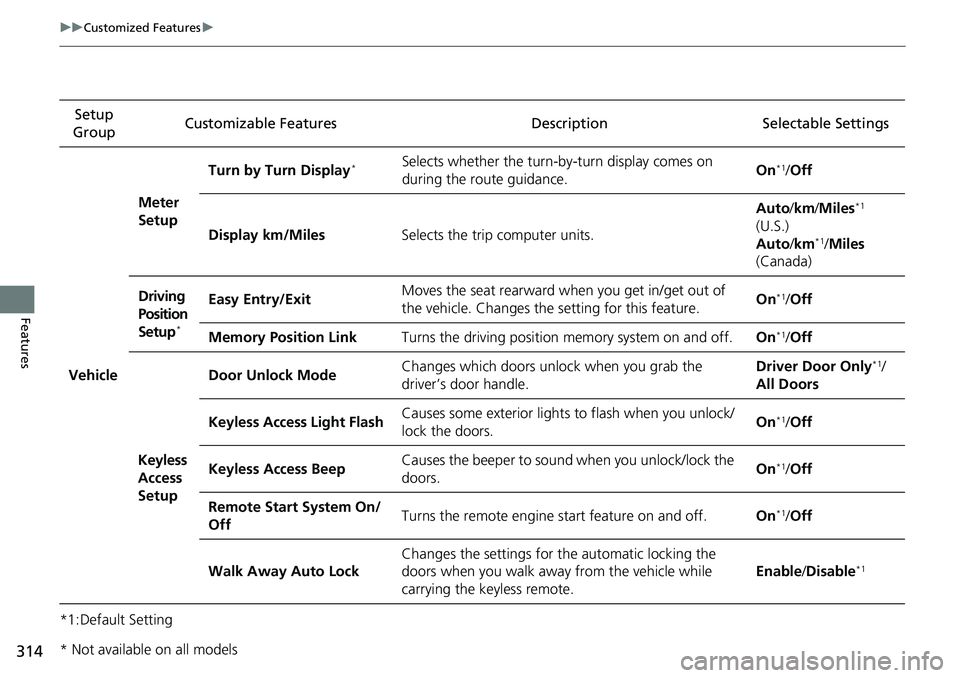
*1:Default SettingSetup
Group Customizable Features Description Selectable Settings
Vehicle
Meter
SetupTurn by Turn Display
*Selects whether the turn-b
y-turn display comes on
during the route guidance. On*1/
Off
Display km/Miles Selects the trip computer units. Auto
/km /Miles
*1
(U.S.)
Auto /km*1/Miles
(Canada)
Driving
Position
Setup
*
Easy Entry/Exit Moves the seat rearward wh
en you get in/get out of
the vehicle. Changes the setting for this feature. On*1/
Off
Memory Position Link Turns the driving position memory system on and off. On
*1/Off
Keyless
Access
Setup Door Unlock Mode
Changes which doors unlock when you grab the
driver’s door handle. Driver Door Only
*1/
All Doors
Keyless Access Light FlashCauses some exterior lights to flash when you unlock/
lock the doors. On
*1/
Off
Keyless Access Beep Causes the beeper to sou
nd when you unlock/lock the
doors. On
*1/
Off
Remote Start System On/
Off Turns the remote engine start feature on and off.
On
*1/Off
Walk Away Auto Lock Changes the settings for the automatic locking the
doors when you walk away
from the vehicle while
carrying the keyless remote. Enable
/Disable
*1
* Not available on all models
Page 354 of 598
352
uuBluetooth ® HandsFreeLink ®u HFL Menus
Features
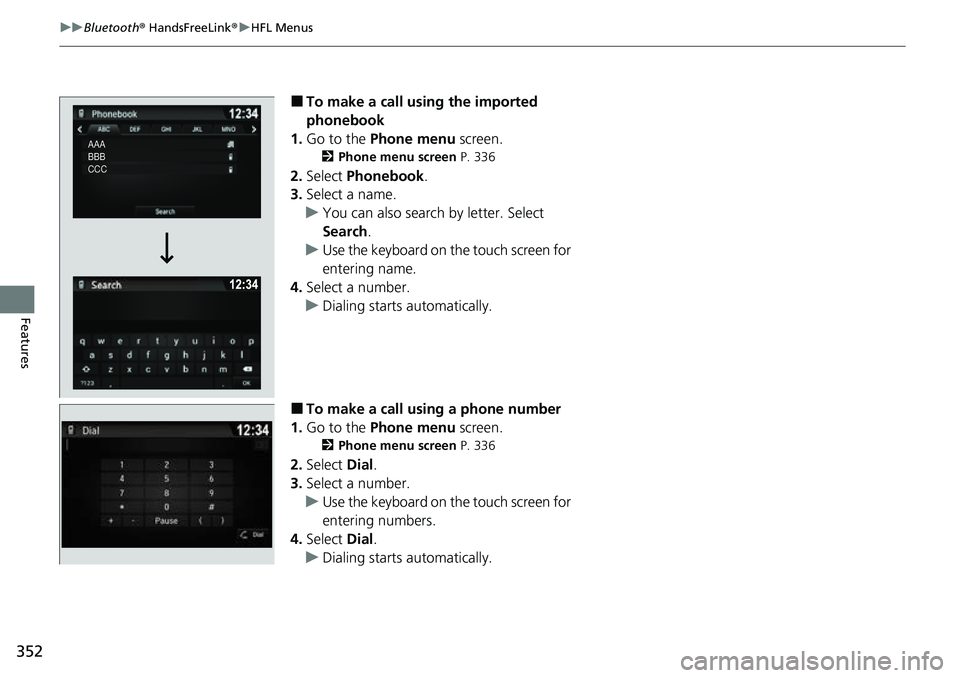
■To make a call using the imported
phonebook
1. Go to the Phone menu screen.
2Phone menu screen P. 336
2.Select Phonebook .
3. Select a name.
u You can also search by letter. Select
Search .
u Use the keyboard on the touch screen for
entering name.
4. Select a number.
u Dialing starts automatically.
■To make a call using a phone number
1. Go to the Phone menu screen.
2Phone menu screen P. 336
2.Select Dial.
3. Select a number.
u Use the keyboard on the touch screen for
entering numbers.
4. Select Dial.
u Dialing starts automatically.
AAAAAABBBBBBCCCCCC
AAA
BBB
CCC
Page 355 of 598
Continued353
uuBluetooth ® HandsFreeLink ®u HFL Menus
Features
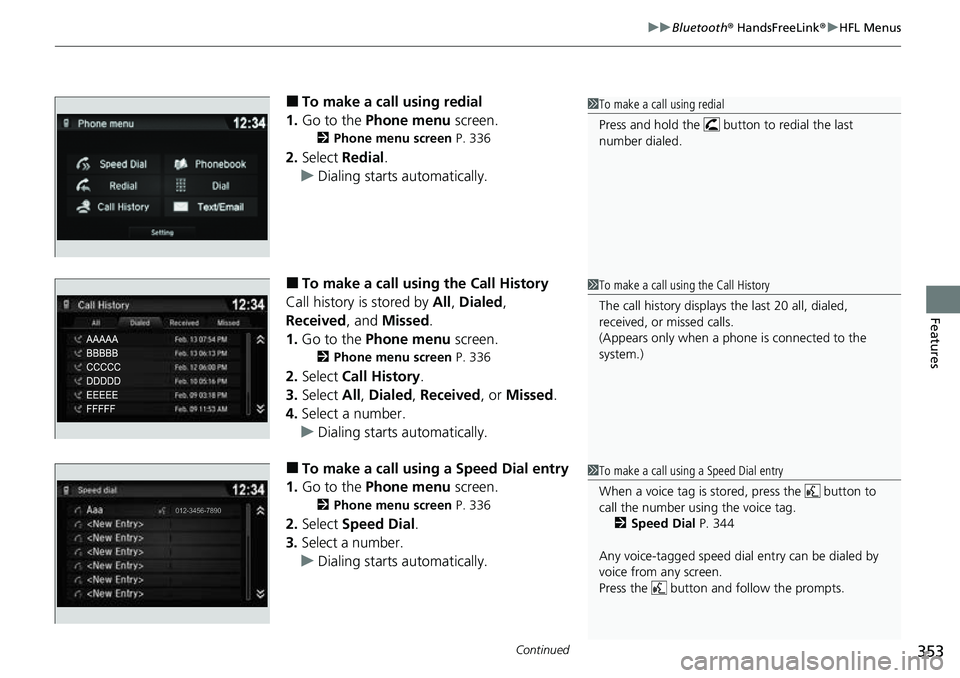
■To make a call using redial
1. Go to the Phone menu screen.
2Phone menu screen P. 336
2.Select Redial .
u Dialing starts automatically.
■To make a call using the Call History
Call history is stored by All, Dialed ,
Received , and Missed .
1. Go to the Phone menu screen.
2Phone menu screen P. 336
2.Select Call History .
3. Select All, Dialed , Received , or Missed .
4. Select a number.
u Dialing starts automatically.
■To make a call using a Speed Dial entry
1. Go to the Phone menu screen.
2Phone menu screen P. 336
2.Select Speed Dial .
3. Select a number.
u Dialing starts automatically.
1To make a call using redial
Press and hold the butt on to redial the last
number dialed.
1 To make a call using the Call History
The call history displays the last 20 all, dialed,
received, or missed calls.
(Appears only when a phone is connected to the
system.)
1 To make a call using a Speed Dial entry
When a voice tag is stored, press the button to
call the number using the voice tag.
2 Speed Dial P. 344
Any voice-tagged speed dial entry can be dialed by
voice from any screen.
Press the button and follow the prompts.
Page 357 of 598
Continued355
uuBluetooth ® HandsFreeLink ®u HFL Menus
Features
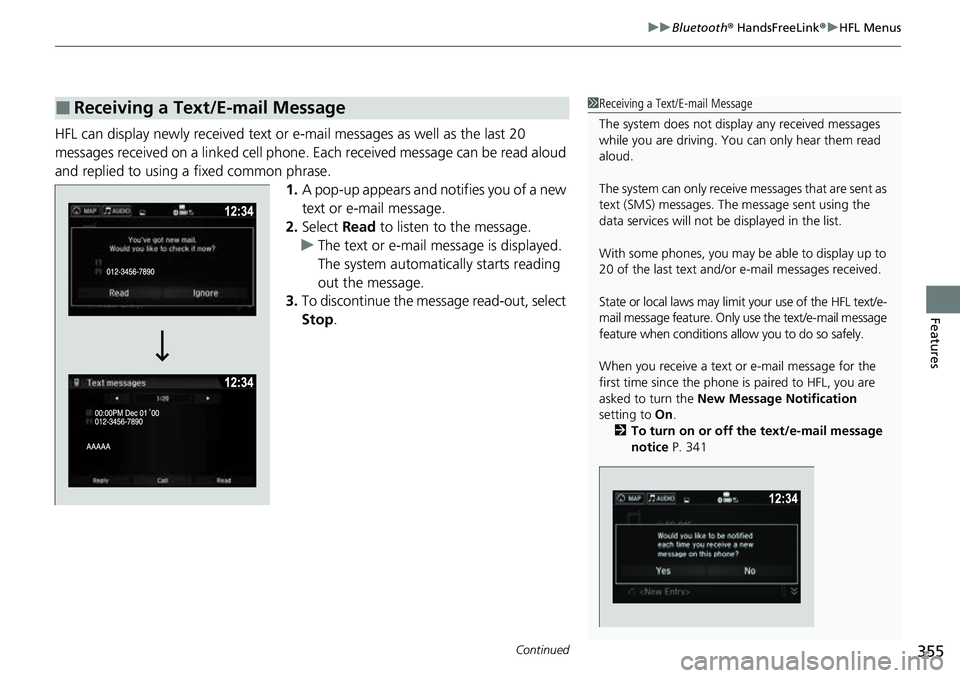
HFL can display newly received text or e-mail messages as well as the last 20
messages received on a linked cell phone. Each received message can be read aloud
and replied to using a fixed common phrase.
1.A pop-up appears and notifies you of a new
text or e-mail message.
2. Select Read to listen to the message.
u The text or e-mail message is displayed.
The system automatica lly starts reading
out the message.
3. To discontinue the message read-out, select
Stop .
■Receiving a Text/E-mail Message1Receiving a Text/E-mail Message
The system does not display any received messages
while you are driving. You can only hear them read
aloud.
The system can only receive messages that are sent as
text (SMS) messages. The message sent using the
data services will not be displayed in the list.
With some phones, you may be able to display up to
20 of the last text and/or e-mail messages received.
State or local laws may limit your use of the HFL text/e-
mail message feature. Only use the text/e-mail message
feature when conditions a llow you to do so safely.
When you receive a text or e-mail message for the
first time since the phone is paired to HFL, you are
asked to turn the New Message Notification
setting to On .
2 To turn on or off the text/e-mail message
notice P. 341
Page 359 of 598
Continued357
uuBluetooth ® HandsFreeLink ®u HFL Menus
Features
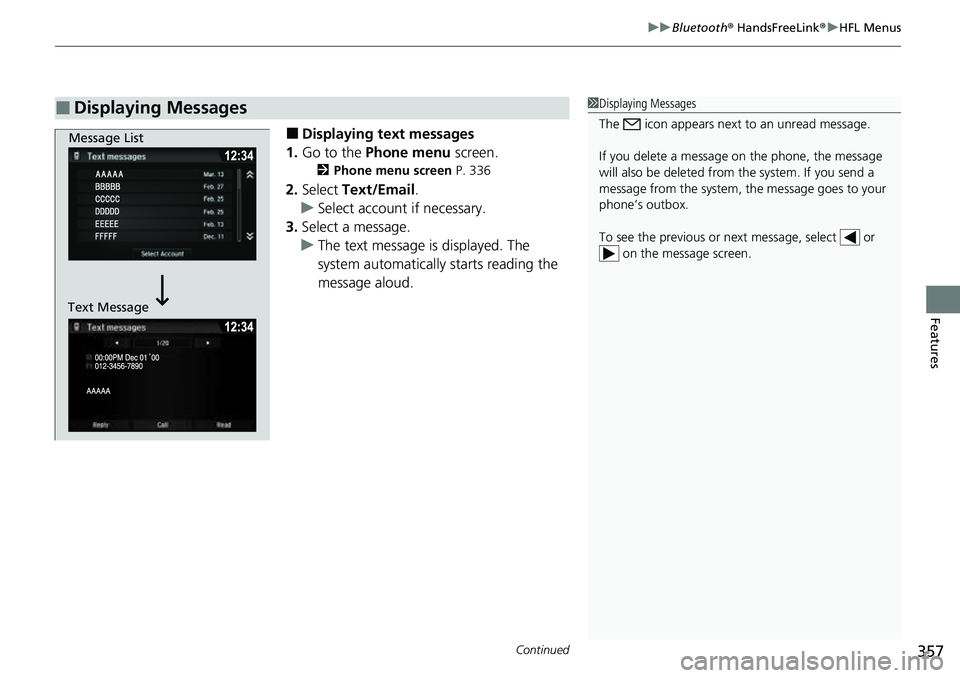
■Displaying t ext messages
1. Go to the Phone menu screen.
2Phone menu screen P. 336
2.Select Text/Email .
u Select account if necessary.
3. Select a message.
u The text message is displayed. The
system automatically starts reading the
message aloud.
■Displaying Messages1Displaying Messages
The icon appears next to an unread message.
If you delete a message on the phone, the message
will also be dele ted from the system. If you send a
message from the system, the message goes to your
phone’s outbox.
To see the previous or ne xt message, select or
on the message screen.
Message List
Text Message
Page 360 of 598
358
uuBluetooth ® HandsFreeLink ®u HFL Menus
Features
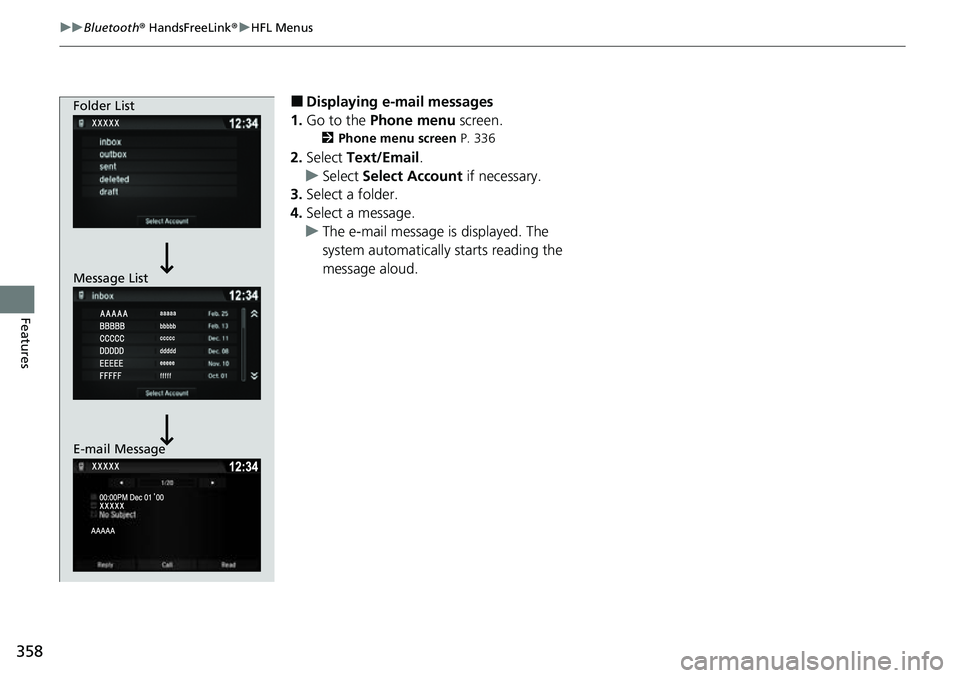
■Displaying e-mail messages
1. Go to the Phone menu screen.
2Phone menu screen P. 336
2.Select Text/Email .
u Select Select Account if necessary.
3. Select a folder.
4. Select a message.
u The e-mail message is displayed. The
system automatically starts reading the
message aloud.
Folder List
Message List
E-mail Message
Page 361 of 598
Continued359
uuBluetooth ® HandsFreeLink ®u HFL Menus
Features
■Read or Stop reading a message
1. Go to the text or e-mail message screen.
u The system automatica lly starts reading
the message aloud.
2 Displaying Messages P. 357
2.Select Stop to stop reading.
Select Read again to start reading the
message from the beginning.
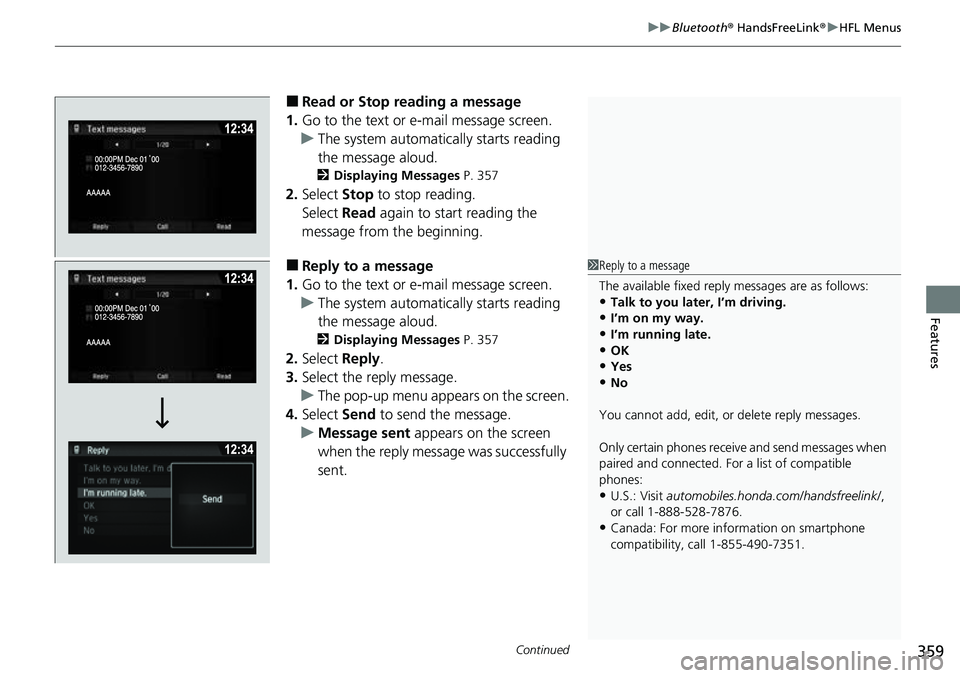
■Reply to a message
1. Go to the text or e-mail message screen.
u The system automatica lly starts reading
the message aloud.
2 Displaying Messages P. 357
2.Select Reply.
3. Select the reply message.
u The pop-up menu appears on the screen.
4. Select Send to send the message.
u Message sent appears on the screen
when the reply message was successfully
sent.
1 Reply to a message
The available fixed reply messages are as follows:
•Talk to you later, I’m driving.
•I’m on my way.
•I’m running late.•OK
•Yes
•No
You cannot add, edit, or delete reply messages.
Only certain phones receive and send messages when
paired and connected. For a list of compatible
phones:
•U.S.: Visit automobiles.honda.com/handsfreelink/ ,
or call 1-888-528-7876.
•Canada: For more info rmation on smartphone
compatibility, call 1-855-490-7351.