SOURCE Button HONDA RIDGELINE 2023 Owners Manual
[x] Cancel search | Manufacturer: HONDA, Model Year: 2023, Model line: RIDGELINE, Model: HONDA RIDGELINE 2023Pages: 598, PDF Size: 12.34 MB
Page 22 of 598
20
Quick Reference Guide
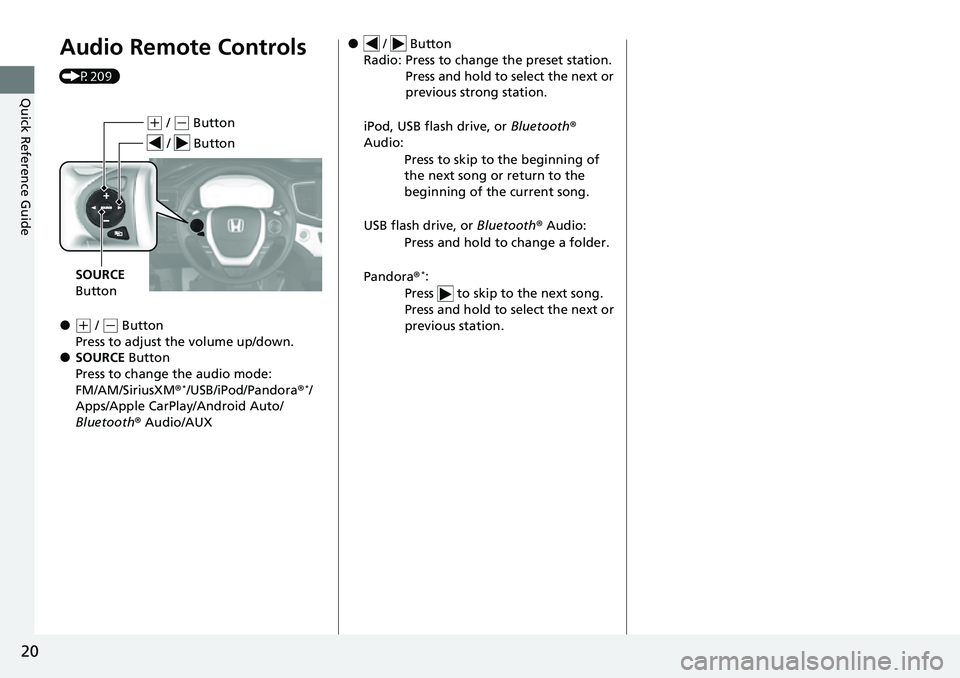
Audio Remote Controls
(P209)
●(+ / ( - Button
Press to adjust the volume up/down.
●SOURCE Button
Press to change the audio mode:
FM/AM/SiriusXM ®
*/USB/iPod/Pandora ®*/
Apps/Apple CarPlay/Android Auto/
Bluetooth ® Audio/AUX
(+ / (- Button
SOURCE
Button
/ Button
● / Button
Radio: Press to change the preset station. Press and hold to select the next or
previous strong station.
iPod, USB flash drive, or Bluetooth®
Audio:
Press to skip to the beginning of
the next song or return to the
beginning of the current song.
USB flash drive, or Bluetooth® Audio:
Press and hold to change a folder.
Pandora ®
*:
Press to skip to the next song.
Press and hold to select the next or
previous station.
Page 210 of 598
208
uuAudio System uAudio System Theft Protection
Features
Audio System Theft Protection
The audio system is disabled when it is disconnected from the power source, such as
when the battery is disconnected or goes dead. In certain conditions, the system
may display a code entry screen. If this occurs, reactivate the audio system.
■Reactivating the audio system
1. Set the power mode to ON.
2. Turn on the audio system.
3. Press and hold the audio system power button for more than two seconds.
u The audio system is reac tivated when the audio co ntrol unit establishes a
connection with the vehicle control unit. If the control unit fails to recognize
the audio unit, you must go to a dealer and have the audio unit checked.
Page 211 of 598
209
uuAudio System uAudio Remote Controls
Continued
Features
Audio Remote Controls
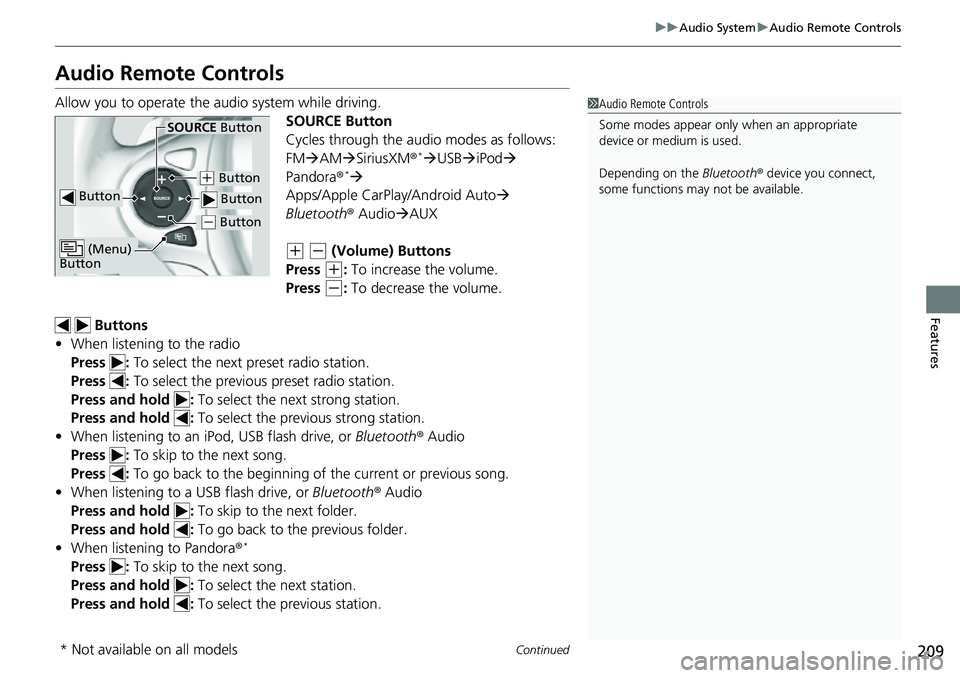
Allow you to operate the au dio system while driving.
SOURCE Button
Cycles through the audio modes as follows:
FMAM SiriusXM ®
*USB iPod
Pandora ®*
Apps/Apple CarPlay/Android Auto
Bluetooth ® AudioAUX
(+ (- (Volume) Buttons
Press
(+: To increase the volume.
Press
(-: To decrease the volume.
Buttons
• When listening to the radio
Press : To select the next preset radio station.
Press : To select the previous preset radio station.
Press and hold : To select the next strong station.
Press and hold : To select the previous strong station.
• When listening to an iPod, USB flash drive, or Bluetooth® Audio
Press : To skip to the next song.
Press : To go back to the beginning of the current or previous song.
• When listening to a USB flash drive, or Bluetooth® Audio
Press and hold : To skip to the next folder.
Press and hold : To go back to the previous folder.
• When listening to Pandora ®
*
Press : To skip to the next song.
Press and hold : To select the next station.
Press and hold : To select the previous station.
1Audio Remote Controls
Some modes appear only when an appropriate
device or medium is used.
Depending on the Bluetooth® device you connect,
some functions may not be available.
Button
SOURCE Button
Button
(+ Button
( - Button
(Menu)
Button
( - Button
* Not available on all models
Page 235 of 598
233
uuAudio System Basic Operation uVoice Control Operation
Continued
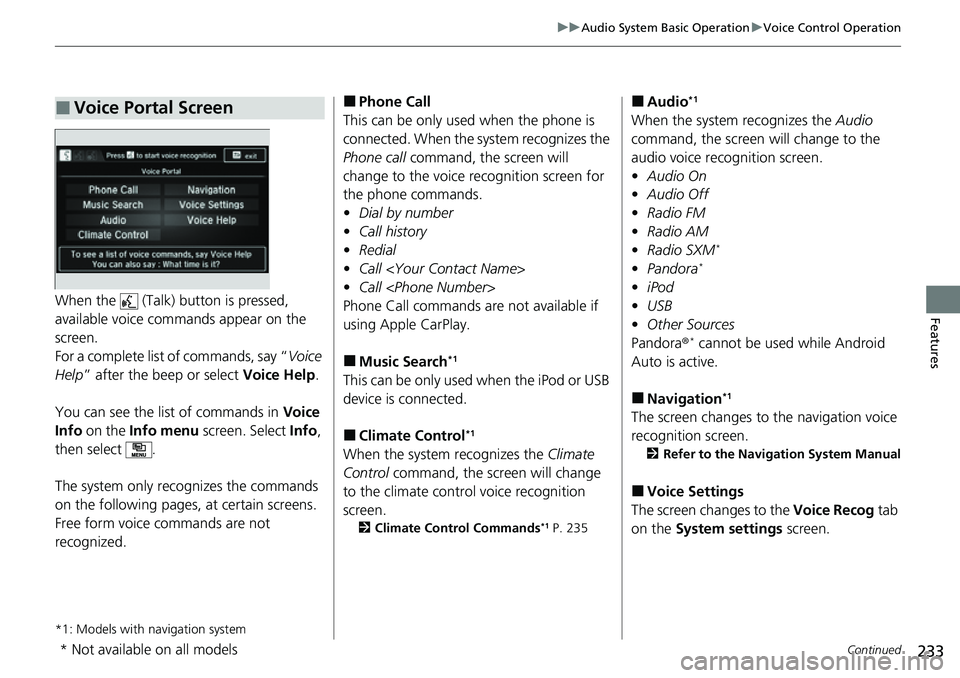
FeaturesWhen the (Talk) button is pressed,
available voice comma nds appear on the
screen.
For a complete list of commands, say “ Voice
Help ” after the beep or select Voice Help.
You can see the list of commands in Voice
Info on the Info menu screen. Select Info,
then select .
The system only recognizes the commands
on the following pages, at certain screens.
Free form voice commands are not
recognized.
*1: Models with navigation system
■Voice Portal Screen■Phone Call
This can be only used when the phone is
connected. When the sy stem recognizes the
Phone call command, the screen will
change to the voice re cognition screen for
the phone commands.
• Dial by number
• Call history
• Redial
• Call
• Call
Phone Call commands are not available if
using Apple CarPlay.
■Music Search*1
This can be only used when the iPod or USB
device is connected.
■Climate Control*1
When the system recognizes the Climate
Control command, the screen will change
to the climate con trol voice recognition
screen.
2 Climate Control Commands*1 P. 235
■Audio*1
When the system recognizes the Audio
command, the screen will change to the
audio voice recognition screen.
• Audio On
• Audio Off
• Radio FM
• Radio AM
• Radio SXM
*
•Pandora*
•iPod
• USB
• Other Sources
Pandora ®
* cannot be used while Android
Auto is active.
■Navigation*1
The screen changes to the navigation voice
recognition screen.
2 Refer to the Navigation System Manual
■Voice Settings
The screen changes to the Voice Recog tab
on the System settings screen.
* Not available on all models
Page 239 of 598
Continued237
uuAudio System Basic Operation uPlaying AM/FM Radio
Features
To store a station:
1. Tune to the selected station.
2. Select and hold the preset number for the station you want to store.
You can also store a preset station by the following procedure.
1. Tune to the selected station.
2. Select the open/close icon to display a list.
3. Select the Preset tab.
4. Select and hold the preset number for the station you want to store.
Lists the strongest stations on the selected band.
1. Select the open/close icon to display a list.
2. Select the Station List tab.
3. Select the station.
■Manual update
Updates your available st ation list at any time.
1. Select the open/close icon to display a list.
2. Select the Station List tab.
3. Select Refresh .
Samples each of the strongest stations on th e selected band for 10 seconds. To turn
off scan, select Cancel or .
■Preset Memory
■Station List
■Scan
1Preset Memory
The ST indicator appears on the display indicating
stereo FM broadcasts.
Stereo reproduction in AM is not available.
Switching the Audio Mode
Press the SOURCE button on the steering wheel or
select SOURCE on the screen.
2 Audio Remote Controls P. 209
You can store 6 AM stations and 12 FM stations into
preset memory.
HD Radio Technology manufactured under license
from iBiquity Digi tal Corporation. U.S. and Foreign
Patents. For patents, see http://dts.com/patents. HD
Radio, Artist Experience, and the HD, HD Radio, and
“ARC” logos are registered trademarks or
trademarks of iBiquity Di gital Corporation in the
United States and/ or other countries.
Models with HD RadioTM
Page 242 of 598
uuAudio System Basic Operation uPlaying SiriusXM ® Radio*
240
Features
1. Select .
2. Select Tune Mode .
3. Select Channel Mode or Category Mode .
■To Change the Tune Mode1Playing SiriusXM ® Radio*
In the channel mode, all available channels are
selectable. In the categor y mode, you can select a
channel within a ca tegory (Jazz, Rock, Classical, etc.).
There may be instances when SiriusXM ® Radio does
not broadcast all the data fi elds (artist name, title).
This does not indicate a problem with your audio
system.
SiriusXM ® Radio stations load in ascending order,
which can take about a minute. Once they have
loaded you will be able to scroll up or down to make
your selections.
Switching the Audio Mode
Press the SOURCE button on the steering wheel or
select SOURCE on the screen.
2 Audio Remote Controls P. 209
Tune Start:
When you change to a preset channel, a song being
played on that channel restarts from the beginning
with this function. This can be turned on or off from
the Audio settings screen.
2 Customized Features P. 299
* Not available on all models
Page 283 of 598
281
Features
General Information on the Audio System
SiriusXM® Radio Service*
1.You need your radio ID ready before regist ering for subscription. To see the ID in
the screen, select Channel to 0.
2. Have your radio ID ready, and either call or visit the SiriusXM® website to
subscribe.
Switch to the SiriusXM ® mode by using the SOURCE button on the steering wheel,
or through the audio/information screen, and stay in this mode for about 30
minutes until the service is activated. Make sure your vehicle is in an open area with
good reception.
Channel Not Subscribed:
You are not subscribed to the channel selected.
Subscription Update:
SiriusXM ® radio is receiving informati on update from the network.
Channel Not Available:
No such channel exits, or the artist or title information is unavailable.
No Signal:
The signal is too weak in the current location.
Antenna Disconnected, Antenna Shorted:
There is a problem with the SiriusXM ® antenna. Contact a dealer.
■Subscribing to SiriusXM® Radio
■Receiving SiriusXM ® Radio
■SiriusXM ® Radio Display Messages
1 Subscribing to SiriusXM ® Radio
Contact Information for SiriusXM ® Radio:
•US: SiriusXM ® Radio at
www.siriusxm.com/subscribenow , or 1-866-635-
2349
•Canada: SiriusXM ® Canada at
www.siriusxm.ca/subscribe-now , or 1-877-209-
0079
1 Receiving SiriusXM ® Radio
The SiriusXM ® satellites are in orbit over the equator;
therefore, objects south of the vehicle may cause
satellite reception interruptions. Sa tellite signals are
more likely to be blocked by tall buildings and
mountains the farther north you travel from the
equator.
You may experience rece ption problems under the
following circumstances:
•In a location with an obstruction to the south of
your vehicle.
•In tunnels.
•On the lower level of a multi-tiered road.
•Large items carried on the roof rack.
* Not available on all models
Page 332 of 598
330
Features
Bluetooth® HandsFreeLink ®
Bluetooth® HandsFreeLink ® (HFL) allows you to place and receive phone calls using
your vehicle’s audio system, without handling your cell phone.
Using HFL
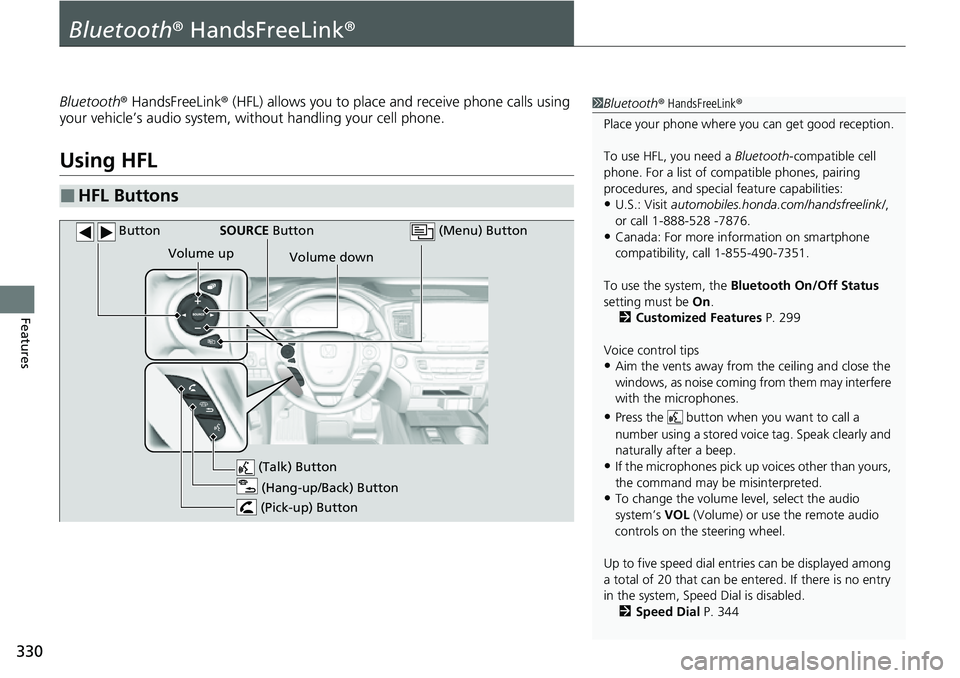
■HFL Buttons
1 Bluetooth ® HandsFreeLink ®
Place your phone where y ou can get good reception.
To use HFL, you need a Bluetooth-compatible cell
phone. For a list of compatible phones, pairing
procedures, and special feature capabilities:
•U.S.: Visit automobiles.honda.com/handsfreelink/ ,
or call 1-888-528 -7876.
•Canada: For more info rmation on smartphone
compatibility, call 1-855-490-7351.
To use the system, the Bluetooth On/Off Status
setting must be On.
2 Customized Features P. 299
Voice control tips
•Aim the vents away from the ceiling and close the
windows, as noise coming from them may interfere
with the microphones.
•Press the button when you want to call a
number using a stored voic e tag. Speak clearly and
naturally after a beep.
•If the microphones pick up vo ices other than yours,
the command may be misinterpreted.
•To change the volume level, select the audio
system’s VOL (Volume) or use the remote audio
controls on the steering wheel.
Up to five speed dial entries can be displayed among
a total of 20 that can be en tered. If there is no entry
in the system, Speed Dial is disabled.
2 Speed Dial P. 344
(Talk) Button
Volume up
(Hang-up/Back) Button
(Pick-up) Button
Volume down
SOURCE
Button (Menu) Button
Button
Page 333 of 598
Continued331
uuBluetooth ® HandsFreeLink ®u Using HFL
Features
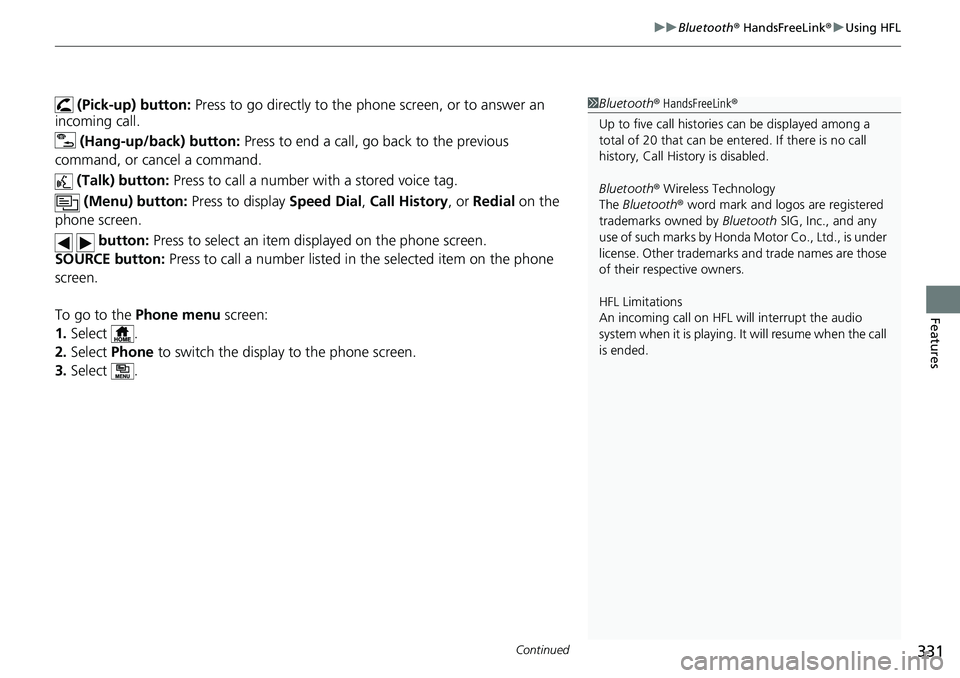
(Pick-up) button: Press to go directly to the pho ne screen, or to answer an
incoming call.
(Hang-up/back) button: Press to end a call, go back to the previous
command, or cancel a command.
(Talk) button: Press to call a number with a stored voice tag.
(Menu) button: Press to display Speed Dial, Call History , or Redial on the
phone screen.
button: Press to select an item di splayed on the phone screen.
SOURCE button: Press to call a number listed in the selected item on the phone
screen.
To go to the Phone menu screen:
1. Select .
2. Select Phone to switch the displa y to the phone screen.
3. Select .1Bluetooth ® HandsFreeLink ®
Up to five call historie s can be displayed among a
total of 20 that can be entered. If there is no call
history, Call History is disabled.
Bluetooth ® Wireless Technology
The Bluetooth ® word mark and logos are registered
trademarks owned by Bluetooth SIG, Inc., and any
use of such marks by Honda Motor Co., Ltd., is under
license. Other trademarks and trade names are those
of their respective owners.
HFL Limitations
An incoming call on HFL will interrupt the audio
system when it is playing. It will resume when the call
is ended.
Page 589 of 598
Index
587
Index
Index
A
ABS (Anti-lock Brake System).................. 470
AC Power Outlet ...................................... 191
Accessories and Modifications ................ 535
Accessory Power Sockets ......................... 182
Adaptive Cruise Control (ACC) ................ 438
Indicator ................................................... 91
Additives
Coolant .................................................. 504
Engine Oil ............................................... 499
Washer ................................................... 507
Adjusting Armrest .................................................. 174
Front Seats.............................................. 166
Head Restraints ............................... 171, 172
Mirrors.................................................... 164
Rear Seats ............................................... 169
Steering Wheel ....................................... 163
Temperature ........................................... 113
Agile Handling Assist ............................... 414
Air Conditioning System (Climate Control System) .................................................... 195
Changing the Mode................................ 195
Defrosting the Windshield and Windows .............................................. 196
Dust and Pollen Filter .............................. 528
Recirculation/Fresh Air Mode................... 196
Sensor .................................................... 201
Synchronized Mode ................................ 198
Using Automatic Climate Control............ 195
Air Pressure ...................................... 517, 575 Airbags
........................................................ 44
Advanced Airbags ..................................... 50
After a Collision ......................................... 47
Airbag Care ............................................... 58
Event Data Recorder .................................... 0
Front Airbags (SRS) .................................... 47
Indicator .............................................. 55, 82
Passenger Airbag Off Indicator .................. 56
Sensors ...................................................... 44
Side Airbags .............................................. 52
Side Curtain Airbags .................................. 54
All-wheel drive (AWD) Indicator ............... 88
AM/FM Radio ............................................ 236
Android Auto ............................................ 273
Anti-lock Brake System (ABS) .................. 470
Indicator .................................................... 82
Apple CarPlay ........................................... 269
Armrest ..................................................... 174
Audio Remote Controls ............................ 209
Audio System ............................................ 204
Adjusting the Sound ................................ 229
Audio/Information Screen ........................ 212
Auxiliary Input Jack .................................. 207
Changing the Home Screen Icon Layout ................................................... 216
Closing Apps ........................................... 226
Display Setup ........................................... 230
Error Messages ........................................ 278
General Information ................................ 281
Home Screen ........................................... 219
Limitations for Manua l Operation ............ 231 MP3/WMA/AAC ...................................... 256
Reactivating ............................................ 208
Remote Controls ..................................... 209
Security Code .......................................... 208
Selecting an Audio Source ....................... 231
Status Area ............................................. 225
Theft Protection ...................................... 208
Truck Bed Audio...................................... 277
USB Flash Drives .............................. 256, 282
USB Port.................................................. 205
Wallpaper Setup...................................... 217
Audio/Information Screen ....................... 212
Authorized Manuals ................................ 584
Auto Door Locking/Unlocking ................. 130
Customize ....................................... 315, 316
Auto High-Beam ....................................... 154
Indicator.................................................... 86
Auto Idle Stop .......................................... 406
OFF Button .............................................. 407
Auto Idle Stop Indicator (Green) ............... 89
Auto Idle Stop System Indicator (Amber) ..................................................... 89
Automatic Intermittent Wipers ............... 158
Automatic Lighting .................................. 150
Automatic Transmission ........................... 394
Creeping ................................................. 394
Fluid ................. .....................
.................. 506
Kickdown ................................................ 394
Operating the Shift Button ...................... 397
Shifting ................................................... 395
Auxiliary Input Jack .................................. 207