radio HUMMER H2 2006 Owner's Guide
[x] Cancel search | Manufacturer: HUMMER, Model Year: 2006, Model line: H2, Model: HUMMER H2 2006Pages: 502, PDF Size: 3.35 MB
Page 223 of 502
Playing a CD
If the ignition or radio is turned off, with a CD in the
player, it will stay in the player. When the ignition
or radio is turned on, the CD will start playing where it
stopped, if it was the last selected audio source.
When a CD is inserted, the CD symbol will appear on
the CD. As each new track starts to play, the track
number will appear on the display.
The CD player can play the smaller 3 inch (8 cm) single
CDs with an adapter ring. Full-size CDs and the
smaller CDs are loaded in the same manner.
If playing a CD-R, the sound quality may be reduced
due to CD-R quality, the method of recording, the quality
of the music that has been recorded, and the way the
CD-R has been handled. There may be an increase
in skipping, difficulty in nding tracks, and/or difficulty in
loading and ejecting. If these problems occur, check
the bottom surface of the CD. If the surface of the CD is
damaged, such as cracked, broken, or scratched, the
CD will not play properly. If the surface of the CD
is soiled, seeCare of Your CDs and DVDs on
page 3-113for more information.
If there is no apparent damage, try a known good CD.Do not add any label to a CD, it could get caught in the
CD player. If a CD is recorded on a personal computer
and a description label is needed, try labeling the top of
the recorded CD with a marking pen instead.
Notice:If you add any label to a CD, insert more
than one CD into the slot at a time, or attempt
to play scratched or damaged CDs, you could
damage the CD player. When using the CD player,
use only CDs in good condition without any
label, load one CD at a time, and keep the CD player
and the loading slot free of foreign materials,
liquids, and debris.
If an error appears on the display, see “CD Messages”
later in this section.
LOAD:Press this button to load CDs into the CD
player. This CD player will hold up to six CDs.
To insert one CD, do the following:
1. Turn the ignition on.
2. Press and release the LOAD button.
3. Wait for the indicator light, located to the right of the
slot, to turn green.
4. Load a CD. Insert the CD partway into the slot,
label side up. The player will pull the CD in.
3-83
Page 224 of 502
To insert multiple CDs, do the following:
1. Turn the ignition on.
2. Press and hold the LOAD button for two seconds.
You will hear a beep and the indicator light, located
to the right of the slot, will begin to ash and
MULTI LOAD # will appear on the display.
3. Once the light stops ashing and turns green,
INSERT CD # will appear on the display, load
a CD. Insert the CD partway into the slot, label side
up. The player will pull the CD in.
Once the CD is loaded, the indicator light will begin
ashing again. Once the light stops ashing and
turns green, you can load another CD. The
CD player takes up to six CDs. Do not try to load
more than six.
To load more than one CD but less than six, complete
Steps 1 through 3. When nished loading CDs,
press the LOAD button to cancel the loading function.
The radio will begin to play the last CD loaded.
If more than one CD has been loaded, a number for
each CD will appear on the display.Playing a Specic Loaded CD
For every CD loaded, a number will appear on the
display. To play a specic CD, rst (if not in CD mode)
press the CD AUX button, then press the numbered
pushbutton that corresponds to the CD. A small bar will
appear under the CD number that is playing and the
track number will appear on the display.
If an error appears on the display, see “CD Messages”
later in this section.
CD
Z(Eject):Press this button to eject CD(s).
To eject the CD that is currently playing, press and
release this button.
To eject multiple CDs, do the following:
1. Press and hold the CD eject button for ve seconds.
You will hear a beep and the indicator light, located
to the right of the slot, will begin to ash and
EJECT ALL will appear on the display.
2. Once the light stops ashing REMOVE CD # will
appear on the display. The CD will eject and can
be removed.
Once the CD is removed, the indicator light will
begin ashing again and another CD will eject.
To stop ejecting the CDs, press the LOAD or the
eject button.
3-84
Page 226 of 502
AUTO EQ (Automatic Equalization):Press AUTO EQ
to select the equalization setting while playing a CD.
The equalization will be stored whenever a CD is played.
For more information on AUTO EQ, see “AUTO EQ”
listed previously in this section.
©SEEK¨:Press the left arrow to go to the start of
the current track (if more than 10 seconds have played),
or go to the beginning of the previous track (if less
than 10 seconds has played). Press the right arrow to
go to the next track. If either arrow is held or pressed
more than once, the player will continue moving
backward or forward through the CD.
©SCAN¨:To scan one CD, press and hold either
SCAN arrow for more than two seconds until TRACK
SCAN appears on the display and you hear a beep. The
radio will go to the next track, play for 10 seconds,
then go on to the next track. Press either SCAN arrow
again, to stop scanning.
To scan all loaded CDs, press and hold either SCAN
arrow for more than four seconds until ALL CD
SCAN appears on the display and you hear a beep.
Use this feature to listen to 10 seconds of the rst track
of each loaded CD. Press either SCAN arrow again,
to stop scanning.INFO (Information):Press this knob to see how long
the current track has been playing. To change the
default on the display, track or elapsed time, press the
knob until you see the display you want, then hold
the knob until the radio beeps. The selected display will
now be the default.
BAND:Press this button to listen to the radio when a
CD is playing. The inactive CD(s) will remain safely
inside the radio for future listening.
Using Song List Mode
The six-disc CD changer has a feature called song list.
This feature is capable of saving 20 track selections.
To save tracks into the song list feature, perform
the following steps:
1. Turn the CD player on and load it with at least
one CD. See “LOAD CD” listed previously in this
section for more information.
2. Check to see that the CD changer is not in song list
mode. S-LIST should not appear on the display. If
S-LIST is present, press the SONG LIST button
to turn it off.
3. Select the desired CD by pressing the numbered
pushbutton and then use the SEEK or TYPE right
arrow to locate the track to be saved. The track will
begin to play.
3-86
Page 228 of 502
CD Messages
CHECK CD:If this message appears on the display
and/or the CD comes out, it could be for one of the
following reasons:
It is very hot. When the temperature returns to
normal, the CD should play.
You are driving on a very rough road. When the
road becomes smoother, the CD should play.
The CD is dirty, scratched, wet, or upside down.
The air is very humid. If so, wait about an hour and
try again.
There may have been a problem while burning
the CD.
The label may be caught in the CD player.
If the CD is not playing correctly, for any other reason,
try a known good CD.
If any error occurs repeatedly or if an error cannot be
corrected, contact your GM dealer. If the radio displays
an error message, write it down and provide it to
your GM dealer when reporting the problem.
Navigation/Radio System
Your vehicle may have a navigation radio system.
The navigation system has built-in features intended to
minimize driver distraction. Technology alone, no
matter how advanced, can never replace your own
judgment. See the navigation system manual for some
tips to help you reduce distractions while driving.
Rear Seat Entertainment System
Your vehicle may have a DVD Rear Seat
Entertainment (RSE) system. The RSE system
includes a DVD player, two head restraint video
display screens, auxiliary inputs, two sets of wireless
headphones, and a remote control.
Parental Control
Parental control can be maintained through the DVD
rating settings. This function restricts movie viewing for
children of appropriate age levels. See “Rating”
under Displaying DVD Player Default Settings, later in
this section.
3-88
Page 231 of 502
Audio Output
Audio from the DVD player or auxiliary devices can be
heard through the vehicle speakers or the wireless/wired
headphones. The FM Modulator control has to be set
to one of eight frequencies in order for these devices to
be heard through the vehicle’s speakers. See “FM
Modulator Control” later in this section.
Vehicle Speakers
Only one audio source can be heard through the
vehicle’s speakers at a time. The audio source to be
reproduced is specied by the A/V source selected on
the driver’s side head restraint monitor.
The RSE system or an auxiliary device can be heard
through all of the vehicle’s speakers when a DVD
or auxiliary device is playing and the radio is tuned
to one of eight frequencies selected on the FM
Modulator controller.
To turn the RSE system audio output to the vehicle’s
speakers, on or off, press the POWER button on the FM
Modulator Controller. The audio from the RSE system
can be heard through the wireless/wired headphones
and the vehicle’s speakers at the same time. The
volume on the radio may vary when switching between
the radio, CD, DVD, MP3, or an auxiliary device.
Video Screens
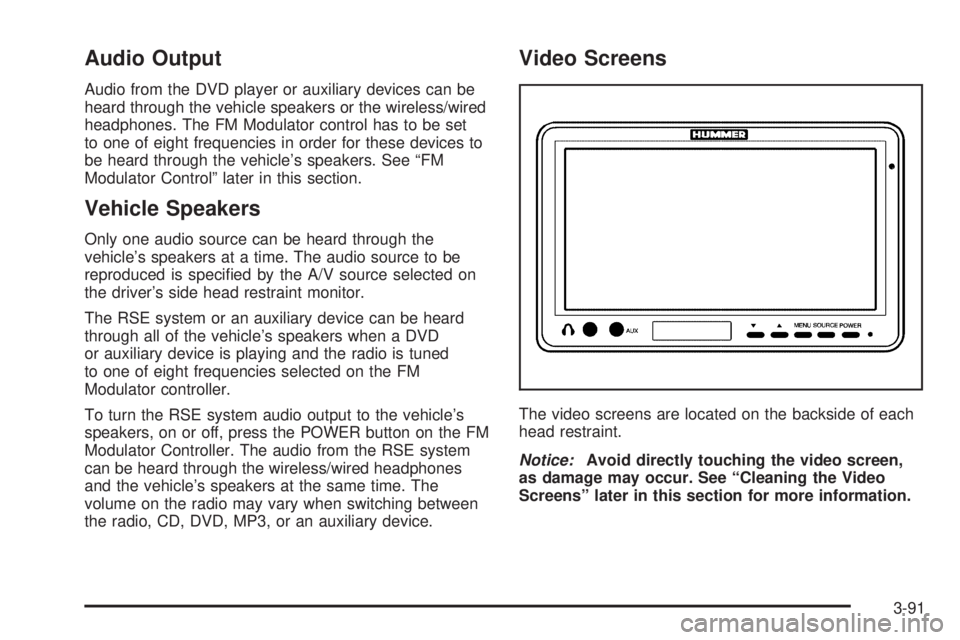
The video screens are located on the backside of each
head restraint.
Notice:Avoid directly touching the video screen,
as damage may occur. See “Cleaning the Video
Screens” later in this section for more information.
3-91
Page 243 of 502
FM Modulator Control
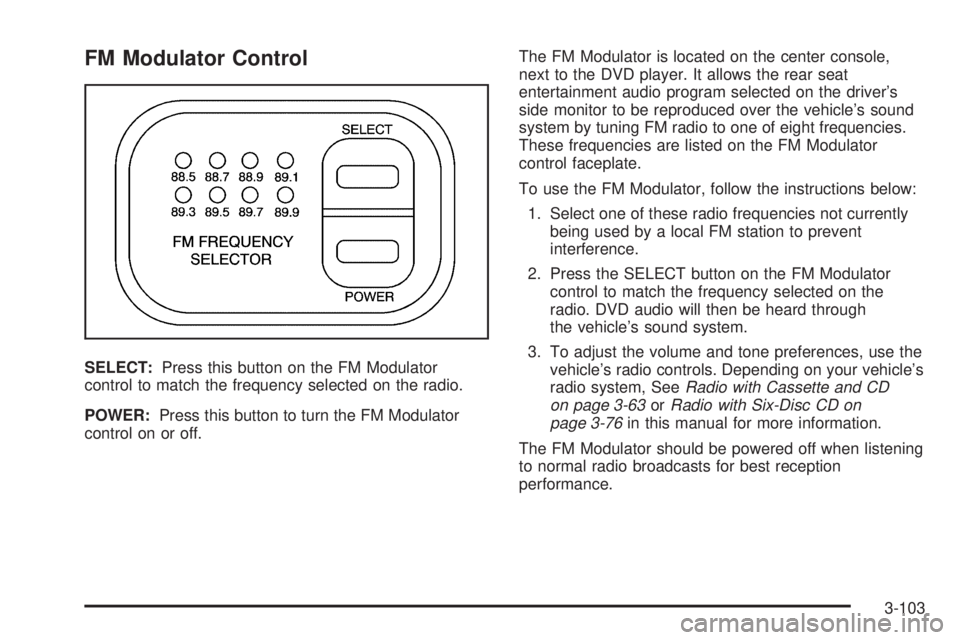
SELECT:Press this button on the FM Modulator
control to match the frequency selected on the radio.
POWER:Press this button to turn the FM Modulator
control on or off.The FM Modulator is located on the center console,
next to the DVD player. It allows the rear seat
entertainment audio program selected on the driver’s
side monitor to be reproduced over the vehicle’s sound
system by tuning FM radio to one of eight frequencies.
These frequencies are listed on the FM Modulator
control faceplate.
To use the FM Modulator, follow the instructions below:
1. Select one of these radio frequencies not currently
being used by a local FM station to prevent
interference.
2. Press the SELECT button on the FM Modulator
control to match the frequency selected on the
radio. DVD audio will then be heard through
the vehicle’s sound system.
3. To adjust the volume and tone preferences, use the
vehicle’s radio controls. Depending on your vehicle’s
radio system, SeeRadio with Cassette and CD
on page 3-63orRadio with Six-Disc CD on
page 3-76in this manual for more information.
The FM Modulator should be powered off when listening
to normal radio broadcasts for best reception
performance.
3-103
Page 246 of 502

Problem Recommended Action
The fast forward, fast
reverse, previous,
and next functions
do not work.
Some commands that
do one thing for
DVDs will not always
work or perform the
same function for
audio, audio discs, or
games. These
functions may also be
disabled when the
DVD is playing the
copyright information
or the previews.
Picture color is poor.
Spots or dotted
lines/stripes appear.
Set brightness/
color/tint controls to
the proper settings.
Change the location
of the vehicle. Poor
picture color can be
caused by neon
signs, high-voltage
power lines, CB
transmitter, and
neighboring vehicle’s
ignition plugs, cell
phones, etc.
Problem Recommended Action
No remote control
operation or unstable
operation.
Remove any obstacle
between the system
remote control and
the remote sensor on
the monitor.
Replace batteries
with new ones.
Make sure the
batteries are
inserted correctly.
No rear seat
entertainment audio
sound from vehicle radio.
Turn on the POWER
to the radio, turn up
the volume.
Turn on the POWER
to the FM Modulator.
Tune FM Modulator
and vehicle radio to
the same FM
frequency.
Make sure the
driver’s side monitor
is switched to on.
3-106
Page 247 of 502
Problem Recommended Action
Distorted/Interference
DVD audio sound from
vehicle radio.
Make sure the FM
Modulator and vehicle
radio are tuned to the
same FM frequency.
Change FM
frequency on the
vehicle radio and FM
Modulator to an
unused frequency in
current driving area.
(No local, strong FM
station on the
frequency selected.)
DVD Messages
The following errors may be displayed on the
video monitor.
Bad Disc:This message will be displayed if a disc with
an unsupported format is inserted into the DVD
player, or if the disc is unreadable.Region Error:This message will be displayed if the
region code of the DVD is not compatible with the region
code of the DVD player.
No Disc:This message will be displayed when you try
to play or eject a disc that is not in the player.
X:A white X will be displayed, in the upper left corner
of the video monitor, if the operation that has been
selected is not currently available.
DVD Distortion
There may be an experience with video distortion when
operating cellular phones, scanners, CB radios,
Global Position Systems (GPS)*, two-way radios, mobile
fax, or walkie talkies.
It may be necessary to turn off the DVD player when
operating one of these devices in or near the vehicle.
*Excludes the OnStar
®System.
3-107
Page 248 of 502
Cleaning the Video Screens
The video display screens are made of a specially
coated glass and can be scratched or damaged
by abrasive products, solvents, or ammonia-based
window cleaners. Occasionally take a soft, lint-free,
cotton cloth that has been slightly dampened with warm
water and wrung out completely. Dry the screens by
wiping with a clean dry cotton cloth.
Cleaning the Components
Use care when directly touching or cleaning the
components such as the DVD player and the discs that
are used for your viewing entertainment, as damage
may result. SeeCare of the CD and DVD Player
on page 3-113andCare of Your CDs and DVDs on
page 3-113in this manual for more information.
Rear Seat Audio (RSA)
This feature allows rear seat passengers to listen to any
of the sources: radio, cassette tapes, or CDs. However,
the rear seat passengers can only control the sources
that the front seat passengers are not listening to.
For example, rear seat passengers may listen to and
control cassette tapes or CDs through the headphones
while the driver listens to the radio through the front
speakers. The rear seat passengers have control of the
volume for each set of headphones.The front seat audio controls always have priority over
the RSA controls. If the front seat passengers switch the
source for the main radio to a remote source, the RSA will
not be able to control the source. You can operate the
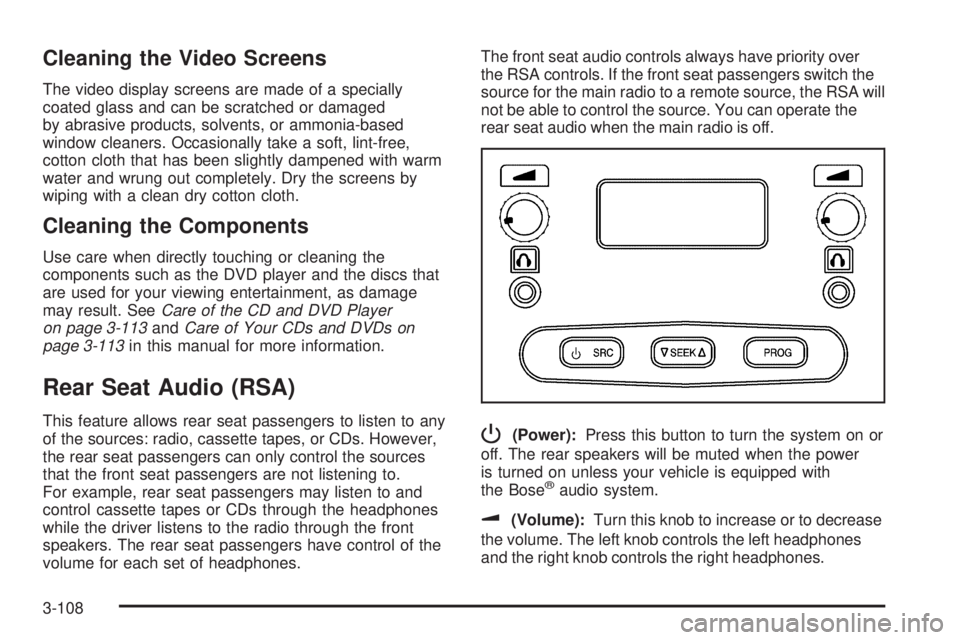
rear seat audio when the main radio is off.P(Power):Press this button to turn the system on or
off. The rear speakers will be muted when the power
is turned on unless your vehicle is equipped with
the Bose
®audio system.
u(Volume):Turn this knob to increase or to decrease
the volume. The left knob controls the left headphones
and the right knob controls the right headphones.
3-108
Page 249 of 502

SRC (Source):Press this button to select a source:
radio, cassette tape, or CD.
xSEEKw:When listening to FM1, FM2, AM, or
XM1 or XM2 (if equipped), press the up or the
down arrow to go to the next or to the previous station
and stay there. This function is inactive if the front
seat passengers are listening to the radio.
When a cassette tape is playing, press the up or the
down arrow to go to the next or the previous selection.
This function is inactive if the front seat passengers
are listening to a cassette tape.
When a CD is playing, press the up arrow to got to the
next track on the CD. Press the down arrow to go to
the start of the current track if more than eight seconds
have played. This function is inactive if the front seat
passengers are listening to a CD.
PROG (Program):Press this button to go to the next
preset radio station set on the pushbuttons on the
main radio. This function is inactive if the front seat
passengers are listening to the radio.When a cassette tape is playing, press this button to go to
the other side of the tape. This function is inactive if the
front seat passengers are listening to a cassette tape.
When a CD is playing, press this button to go to the
beginning of the CD. This function is inactive if the front
seat passengers are listening to a CD.
When a CD is playing in the six-disc CD changer, press
this button to select the next CD, if multiple CDs are
loaded. This function is inactive if the front seat
passengers are listening to a CD.
Theft-Deterrent Feature
THEFTLOCK®is designed to discourage theft of your
vehicle’s radio. The feature works automatically by
learning a portion of the Vehicle Identication
Number (VIN). If the radio is moved to a different
vehicle, it will not operate and LOCKED will appear on
the display.
When the radio and vehicle are turned off, the blinking
red light indicates that THEFTLOCK
®is armed.
With THEFTLOCK
®activated, the radio will not operate
if stolen.
3-109