turn signal HUMMER H2 2007 User Guide
[x] Cancel search | Manufacturer: HUMMER, Model Year: 2007, Model line: H2, Model: HUMMER H2 2007Pages: 570, PDF Size: 3.34 MB
Page 180 of 570
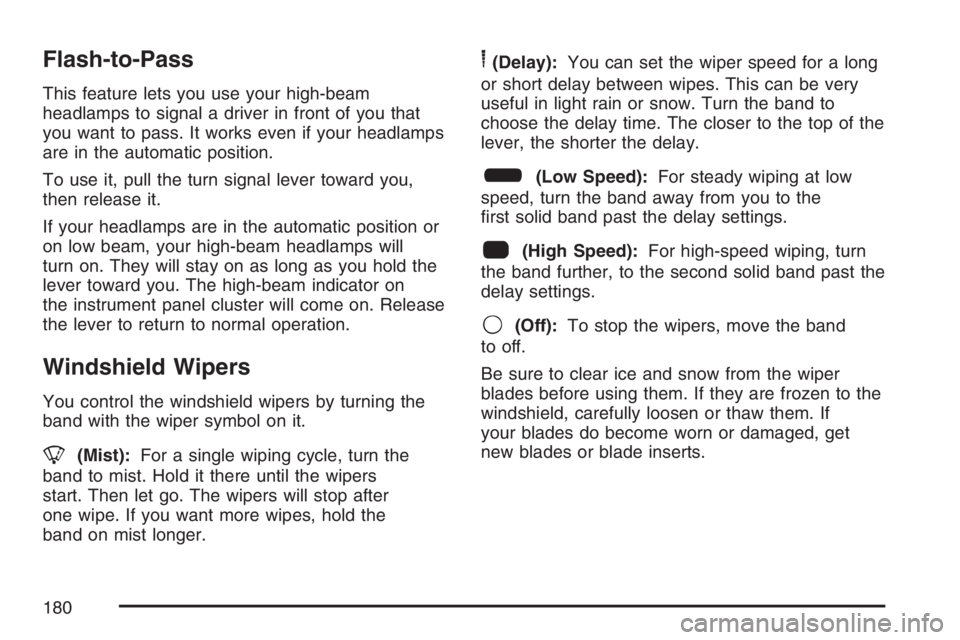
Flash-to-Pass
This feature lets you use your high-beam
headlamps to signal a driver in front of you that
you want to pass. It works even if your headlamps
are in the automatic position.
To use it, pull the turn signal lever toward you,
then release it.
If your headlamps are in the automatic position or
on low beam, your high-beam headlamps will
turn on. They will stay on as long as you hold the
lever toward you. The high-beam indicator on
the instrument panel cluster will come on. Release
the lever to return to normal operation.
Windshield Wipers
You control the windshield wipers by turning the
band with the wiper symbol on it.
8(Mist):For a single wiping cycle, turn the
band to mist. Hold it there until the wipers
start. Then let go. The wipers will stop after
one wipe. If you want more wipes, hold the
band on mist longer.
6(Delay):You can set the wiper speed for a long
or short delay between wipes. This can be very
useful in light rain or snow. Turn the band to
choose the delay time. The closer to the top of the
lever, the shorter the delay.
6(Low Speed):For steady wiping at low
speed, turn the band away from you to the
rst solid band past the delay settings.
1(High Speed):For high-speed wiping, turn
the band further, to the second solid band past the
delay settings.
9(Off):To stop the wipers, move the band
to off.
Be sure to clear ice and snow from the wiper
blades before using them. If they are frozen to the
windshield, carefully loosen or thaw them. If
your blades do become worn or damaged, get
new blades or blade inserts.
180
Page 188 of 570

2(Headlamps):Turn the control to this position
to turn on the headlamps, together with the
previously listed lamps and lights.
When the vehicle is turned off and the headlamps
are in AUTO, the headlamps may automatically
remain on for a set time. You can change
this delay time using the DIC. SeeDriver
Information Center (DIC) on page 222.
You can switch your headlamps from low to
high-beam by pushing the turn signal/multifunction
lever toward the instrument panel.
Headlamps on Reminder
If a door is open, a reminder chime will sound
when your headlamps or parking lamps are
manually turned on and your key is out of the
ignition. To turn off the chime, turn the headlamp
switch to off or AUTO and then back on, or
close and re-open the door. In the AUTO mode,
the headlamps turn off once the ignition is in LOCK
or may remain on until the headlamp delay ends
(if enabled in the DIC). See “Exit Lighting”
underDIC Vehicle Customization on page 234.
Daytime Running Lamps (DRL)
Daytime Running Lamps (DRL) can make it easier
for others to see the front of your vehicle during
the day. DRL can be helpful in many different
driving conditions, but they can be especially
helpful in the short periods after dawn and before
sunset. Fully functional daytime running lamps
are required on all vehicles rst sold in Canada.
The DRL system will come on when the following
conditions are met:
The ignition is on.
The exterior lamps control is in AUTO.
The transmission is not in PARK (P).
The light sensor determines it is daytime.
When the DRL are on, only your DRL lamps will
be on. The taillamps, sidemarker, and other lamps
will not be on. The instrument panel will not be
lit up either.
When it begins to get dark, the automatic
headlamp system will switch from DRL to the
headlamps.
188
Page 220 of 570

Cruise Control Light
The cruise light comes
on whenever you set
your cruise control. See
“Cruise Control”
underTurn
Signal/Multifunction
Lever on page 178.
Highbeam On Light
This light comes on
when the high-beam
headlamps are in use.
SeeHeadlamp High/Low-Beam Changer on
page 179.
Tow/Haul Mode Light
This light is displayed
when the tow/haul mode
has been activated.
For more information, see “Tow/Haul Mode” under
Towing a Trailer on page 374.
220
Page 234 of 570

TURN SIGNAL ON
This message displays and a chime sounds if a
turn signal is left on for 3/4 of a mile (1.2 km).
Move the turn signal/multifunction lever to the off
position. Press any of the DIC buttons, or the
trip stem, to acknowledge this message and clear
it from the DIC display.
DIC Vehicle Customization
Your vehicle may have customization capabilities
that allow you to program some features to
one personalized setting based on your
preference. All of the customizable options listed
may not be available on your vehicle. Only
the options available will be displayed on the
Driver Information Center (DIC).
The default settings for the customization features
were set when your vehicle left the factory, but
may have been changed from their default
state since then.
To change feature preferences, make sure the
ignition is on and the vehicle is in PARK (P). To
avoid excessive drain on the battery, it is
recommended that the headlamps are turned off.Press the customization button to scroll through
the available customizable options.
After pressing the customization button, VEHICLE
SETTINGS will momentarily display before
going to a customization option.
Lock Doors
Press the customization button until LOCK
DOORS appears in the display. To select your
preference for automatic locking, press the select
button while LOCK DOORS is displayed on
the DIC. Pressing the select button will scroll
through the following choices:
LOCK DOORS: IN GEAR (default):The doors
will lock when the vehicle is shifted out of
PARK (P).
LOCK DOORS: WITH SPEED:The doors will
lock when the vehicle speed is above
8 mph (13 km/h) for three seconds.
Choose one of the available options and press the
customization button while it is displayed on the
DIC to select it and move on to the next feature.
234
Page 242 of 570
While your vehicle is parked:
Familiarize yourself with all of its controls.
Familiarize yourself with its operation.
Set up your audio system by presetting your
favorite radio stations, setting the tone, and
adjusting the speakers. Then, when driving
conditions permit, you can tune to your favorite
radio stations using the presets and steering
wheel controls if the vehicle has them.
Notice:Before adding any sound equipment to
your vehicle, such as an audio system, CD
player, CB radio, mobile telephone, or two-way
radio, make sure that it can be added by
checking with your dealer. Also, check federal
rules covering mobile radio and telephone
units. If sound equipment can be added, it is
very important to do it properly. Added sound
equipment may interfere with the operation of
your vehicle’s engine, radio, or other systems,
and even damage them. Your vehicle’s systems
may interfere with the operation of sound
equipment that has been added.Notice:The chime signals related to safety
belts, parking brake, and other functions of
your vehicle operate through the radio/
entertainment system. If that equipment is
replaced or additional equipment is added to
your vehicle, the chimes may not work. Make
sure that replacement or additional equipment
is compatible with your vehicle before installing
it. SeeAccessories and Modifications on
page 392.
Your vehicle has a feature called Retained
Accessory Power (RAP). With RAP, the audio
system can be played even after the ignition
is turned off. SeeRetained Accessory
Power (RAP) on page 121for more information.
242
Page 245 of 570

AUTO VOL (Automatic Volume):With automatic
volume, the audio system adjusts automatically
to make up for road and wind noise as you drive
by increasing the volume as vehicle speed
increases.
Set the volume at the desired level. Press this
button to select LOW, MEDIUM, or HIGH. AVOL
(automatic volume) displays. Each higher
setting provides more volume compensation at
faster vehicle speeds. To turn automatic volume
off, press this button until AVOL OFF displays.
Finding a Station
BAND:Press this button to switch between FM1,
FM2, AM, or XM1 or XM2 (if equipped). The
selection displays.
TUNE:Turn this knob to select radio stations.
©SEEK¨:Press either the SEEK or the TYPE
arrows to go to the next or to the previous
station and stay there.
The radio only seeks stations with a strong signal
that are in the selected band.
©SCAN¨:Press and hold either the SCAN or
the TYPE arrows for two seconds until SCAN
displays and a beep sounds. The radio goes to a
station, plays for a few seconds, then goes to
the next station. Press either the SCAN or
the TYPE arrows again to stop scanning.
To scan preset stations, press and hold either
the SCAN or the TYPE arrows for more than
four seconds. PSCN displays and a double beep
sounds. The radio goes to a preset station,
plays for a few seconds, then goes to the next
preset station. Press either the SCAN or the TYPE
arrows again to stop scanning presets.
The radio only scans stations with a strong signal
that are in the selected band.
245
Page 258 of 570

Finding a Station
BAND:Press this button to switch between FM1,
FM2, AM, or XM1 or XM2 (if equipped). The
selection displays.
TUNE:Turn this knob to select radio stations.
©SEEK¨:Press either the SEEK or the TYPE
arrows to go to the next or to the previous
station and stay there.
The radio only seeks stations with a strong signal
that are in the selected band.
©SCAN¨:Press and hold either the SCAN or
the TYPE arrows for two seconds until SCN
displays and a beep sounds. The radio goes to a
station, plays for a few seconds, then goes to
the next station. Press either the SCAN or
the TYPE arrows again to stop scanning.
To scan preset stations, press and hold either
the SCAN or the TYPE arrows for more than
four seconds. PSC displays and a double beep
sounds. The radio goes to a preset station, plays
for a few seconds, then goes to the next preset
station. Press either the SCAN or the TYPE arrows
again to stop scanning presets.
The radio only scans stations with a strong signal
that are in the selected band.
Setting Preset Stations
Up to 30 stations (six FM1, six FM2, and six AM,
six XM1 and six XM2 (if equipped), can be
programed on the six numbered pushbuttons, by
performing the following steps:
1. Turn the radio on.
2. Press BAND to select FM1, FM2, AM, or XM1
or XM2.
3. Tune in the desired station.
4. Press and hold one of the six numbered
pushbuttons until a beep sounds. When that
numbered pushbutton is pressed, the station
that was set, returns for that pushbutton.
5. Repeat the steps for each pushbutton.
To store an equalization setting to a preset station
perform the following:
1. Tune to the preset station.
2. Press and release the AUTO EQ button to
select the equalization setting.
Once the equalization no longer displays, the
equalization is set for that preset station.
258
Page 269 of 570
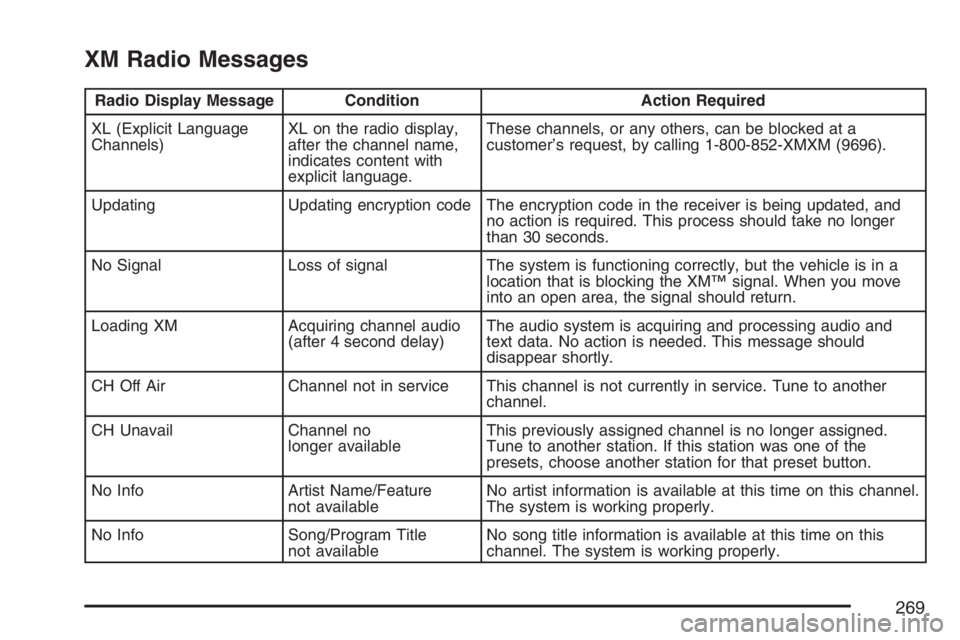
XM Radio Messages
Radio Display Message Condition Action Required
XL (Explicit Language
Channels)XL on the radio display,
after the channel name,
indicates content with
explicit language.These channels, or any others, can be blocked at a
customer’s request, by calling 1-800-852-XMXM (9696).
Updating Updating encryption code The encryption code in the receiver is being updated, and
no action is required. This process should take no longer
than 30 seconds.
No Signal Loss of signal The system is functioning correctly, but the vehicle is in a
location that is blocking the XM™ signal. When you move
into an open area, the signal should return.
Loading XM Acquiring channel audio
(after 4 second delay)The audio system is acquiring and processing audio and
text data. No action is needed. This message should
disappear shortly.
CH Off Air Channel not in service This channel is not currently in service. Tune to another
channel.
CH Unavail Channel no
longer availableThis previously assigned channel is no longer assigned.
Tune to another station. If this station was one of the
presets, choose another station for that preset button.
No Info Artist Name/Feature
not availableNo artist information is available at this time on this channel.
The system is working properly.
No Info Song/Program Title
not availableNo song title information is available at this time on this
channel. The system is working properly.
269
Page 272 of 570

Headphones
Wireless Headphones
The RSE system might include two sets of
wireless headphones. Each headphone has an
L marked on the left-side, for the left ear and an
R marked on the right-side, for the right ear. The
L and R marks are to show how the headphones
should be worn.
OFF/ON (Power):The wireless headphones have
an OFF/ON power switch located on the
earpiece. To use the headphones, turn the switch
to ON. An indicator light on the earpiece of the
headphones illuminates. If the light does not
illuminate, the batteries might need to be replaced.
See “Battery Replacement” later in this section.
Switch the headphones to OFF when not in use.
The headphones shut off automatically to save the
battery power if the RSE system is shut off or if
the headphones are out of range of the transmitter
window for more than three minutes. The
transmitter window is located on the bottom edge
of the monitor. If you move too far forward or
step out of the vehicle, the headphones could lose
the audio signal.Channel Selector:The wireless headphones
have a channel selector switch located on the right
earpiece. The channel selector switches between
Channel A and Channel B. Since each monitor
can function as two independent sources through
auxiliary input, it is necessary to transmit audio
signals on separate channels. The driver’s
side monitor is designated as Channel A, and the
passenger’s side as Channel B. The Headphone
channel selector switch must be set to the
correct channel according to the monitor being
viewed. When the head restraint monitor is initially
turned on, the message, “To listen to this
monitor tune your headphones to channel A
(or B)” displays for ve seconds then disappears.
VOL
0(Volume):To adjust the volume
on the wireless headphones, use the volume
control.
Notice:Do not store the headphones in heat
or direct sunlight. This could damage the
headphones and repairs will not be covered by
your warranty. Keep the headphones stored
in a cool, dry place.
272
Page 273 of 570

If there is a decreased audio signal during CD,
MP3, or DVD play, there could be a soft hissing
noise through the speakers and/or headphones.
If the hissing sound in the wireless headphones
seem excessive, make sure the headphone
batteries are fully charged. A small amount of
hissing is normal.
Battery Replacement
To change the batteries, do the following:
1. Press down on the left earpiece and slide the
battery compartment panel down to expose
the battery compartment.
2. Replace the two AAA batteries in the
compartment. Make sure they are installed
correctly using the diagram on the inside
of the battery compartment.
3. Slide the battery compartment panel back and
then down until the panel closes into the
headphone ear piece.
If the headphones are to be stored for a long
period of time, remove the batteries, and keep
them in a cool, dry place.
Wired Headphones
There is a headphone jack on the left lower side
of the video screen. Use this jack with universal
wired headphones. To adjust the volume, do
the following:
1. Press the power button on the monitor to turn
the video screen on. Briey press the power
button again to toggle between monitor and
DVD control buttons. The appropriate toggle is
monitor. Main menu function icons display.
2. Plug the headphone into the corresponding
jack, located on the bottom left of the video
screen, next to the auxiliary jack.
3. Press the soft key buttons on the monitor,
located under the up and down arrow icons,
to increase or to decrease the volume.
Audio Output
Audio from the DVD player or auxiliary devices
can be heard through the vehicle speakers or the
wireless/wired headphones. The FM Modulator
control has to be set to one of eight frequencies in
order for these devices to be heard through the
vehicle’s speakers. See “FM Modulator Control”
later in this section.
273