battery HUMMER H2 2008 Owner's Manual
[x] Cancel search | Manufacturer: HUMMER, Model Year: 2008, Model line: H2, Model: HUMMER H2 2008Pages: 504, PDF Size: 7.12 MB
Page 256 of 504
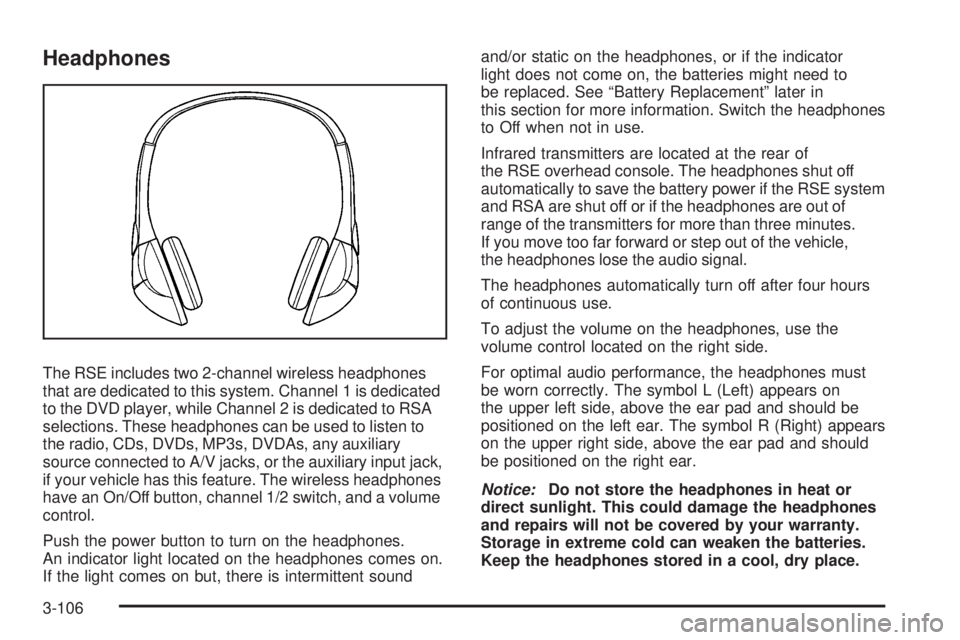
Headphones
The RSE includes two 2-channel wireless headphones
that are dedicated to this system. Channel 1 is dedicated
to the DVD player, while Channel 2 is dedicated to RSA
selections. These headphones can be used to listen to
the radio, CDs, DVDs, MP3s, DVDAs, any auxiliary
source connected to A/V jacks, or the auxiliary input jack,
if your vehicle has this feature. The wireless headphones
have an On/Off button, channel 1/2 switch, and a volume
control.
Push the power button to turn on the headphones.
An indicator light located on the headphones comes on.
If the light comes on but, there is intermittent soundand/or static on the headphones, or if the indicator
light does not come on, the batteries might need to
be replaced. See “Battery Replacement” later in
this section for more information. Switch the headphones
to Off when not in use.
Infrared transmitters are located at the rear of
the RSE overhead console. The headphones shut off
automatically to save the battery power if the RSE system
and RSA are shut off or if the headphones are out of
range of the transmitters for more than three minutes.
If you move too far forward or step out of the vehicle,
the headphones lose the audio signal.
The headphones automatically turn off after four hours
of continuous use.
To adjust the volume on the headphones, use the
volume control located on the right side.
For optimal audio performance, the headphones must
be worn correctly. The symbol L (Left) appears on
the upper left side, above the ear pad and should be
positioned on the left ear. The symbol R (Right) appears
on the upper right side, above the ear pad and should
be positioned on the right ear.
Notice:Do not store the headphones in heat or
direct sunlight. This could damage the headphones
and repairs will not be covered by your warranty.
Storage in extreme cold can weaken the batteries.
Keep the headphones stored in a cool, dry place.
3-106
Page 257 of 504
If the foam ear pads attached to the headphones
become worn or damaged, the pads can be replaced
separately from the headphone set. Refer to your
dealer/retailer for more information.
Battery Replacement
To change the batteries on the headphones, do the
following:
1. Turn the screw to loosen the battery door located
on the left side of the headphones. Slide the
battery door open.
2. Replace the two batteries in the compartment.
Make sure that they are installed correctly,
using the diagram on the inside of the battery
compartment.
3. Replace the battery door and tighten the door
screw.
If the headphones are to be stored for a long period of
time, remove the batteries and keep them in a cool,
dry place.
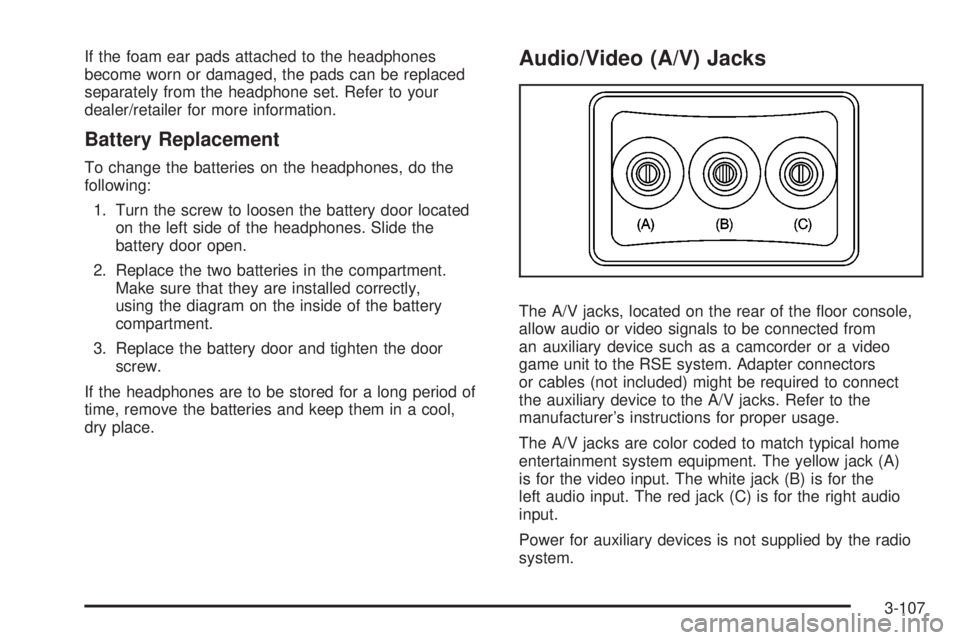
Audio/Video (A/V) Jacks
The A/V jacks, located on the rear of the oor console,
allow audio or video signals to be connected from
an auxiliary device such as a camcorder or a video
game unit to the RSE system. Adapter connectors
or cables (not included) might be required to connect
the auxiliary device to the A/V jacks. Refer to the
manufacturer’s instructions for proper usage.
The A/V jacks are color coded to match typical home
entertainment system equipment. The yellow jack (A)
is for the video input. The white jack (B) is for the
left audio input. The red jack (C) is for the right audio
input.
Power for auxiliary devices is not supplied by the radio
system.
3-107
Page 259 of 504
Video Screen
The video screen is located in the overhead console.
To use the video screen, do the following:
1. Push the release button located on the overhead
console.
2. Move the screen to the desired position.
When the video screen is not in use, push it up into its
locked position.
If a DVD is playing and the screen is raised to its locked
position, the screen remains on. This is normal, and
the DVD continues to play through the previous audio
source. Use the remote control power button or eject the
disc to turn off the screen.
The overhead console contains the infrared transmitters
for the wireless headphones and the infrared receivers
for the remote control. They are located at the rear
of the console.
Notice:Avoid directly touching the video screen,
as damage may occur. See “Cleaning the Video
Screen” later in this section for more information.
Remote Control
To use the remote control, aim it at the transmitter
window at the rear of the RSE overhead console and
press the desired button. Direct sunlight or very bright
light could affect the ability of the RSE transmitter to
receive signals from the remote control. If the remote
control does not seem to be working, the batteries might
need to be replaced. See “Battery Replacement” later in
this section. Objects blocking the line of sight could also
affect the function of the remote control.
If a CD or DVD is in the Radio DVD slot, the remote
control power button can be used to turn on the video
screen display and start the disc. The radio can also
turn on the video screen display. SeeRadio(s) (MP3)
on page 3-75for more information.
Notice:Storing the remote control in a hot area or
in direct sunlight can damage it, and the repairs
will not be covered by your warranty. Storage
in extreme cold can weaken the batteries. Keep
the remote control stored in a cool, dry place.
If the remote control becomes lost or damaged, a
new universal remote control can be purchased. If this
happens, make sure the universal remote control uses a
code set of Toshiba
®.
3-109
Page 262 of 504

\(Clear):Press this button within three seconds after
entering a numeric selection, to clear all numerical
inputs.
}10 (Double Digit Entries):Press this button to
select chapter or track numbers greater than nine.
Press this button before entering the number.
Battery Replacement
To change the remote control batteries, do the following:
1. Slide the rear cover back on the remote control.
2. Replace the two batteries in the compartment. Make
sure that they are installed correctly, using the
diagram on the inside of the battery compartment.
3. Replace the battery cover.
If the remote control is to be stored for a long period of
time, remove the battery and keep it in a cool, dry place.
Problem Recommended Action
No power. The ignition might not be
turned ON/RUN or in
ACC/ACCESSORY.
The picture does not ll
the screen. There are
black borders on the
top and bottom or on
both sides or it looks
stretched out.Check the display mode
settings in the setup menu
by pressing the display
menu button on the remote
control.
In auxiliary mode, the
picture moves or scrolls.Check the auxiliary input
connections at both
devices.
The remote control does
not work.Check to make sure there
is no obstruction between
the remote control and the
transmitter window.
Check the batteries to
make sure they are not
dead or installed
incorrectly.
After stopping the player,
I push Play but sometimes
the DVD starts where I left
off and sometimes at the
beginning.If the stop button was
pressed one time, the DVD
player resumes playing
where the DVD was
stopped. If the stop button
was pressed two times the
DVD player begins to play
from the beginning of
the DVD.
3-112
Page 275 of 504
You must wait for the light in the button to stop ashing
and remain illuminated before the rear axle is locked.
Notice:If you try to lock the rear axle while your
vehicle is stuck and the tires are spinning, you could
damage your vehicle’s drivetrain. The repairs
would not be covered by your warranty. Always lock
the rear axle before attempting situations and/or
navigating terrain which could possibly cause
the vehicle to become stuck.
The locking rear axle will be disengaged when the
vehicle’s speed is greater than 40 mph (64 km/h), if the
vehicle’s battery is low and/or the transfer case is
shifted out of Four-Wheel-Low-Lock mode.
Notice:If you lock the rear axle while driving
on pavement, you could damage your vehicle’s
drivetrain. The repairs would not be covered by
your warranty. Do not use the locking rear axle
on pavement.
StabiliTrak®System
Your vehicle has the StabiliTrak®system which
combines Antilock brake, traction and stability control
systems and helps the driver maintain directional control
of the vehicle in most driving conditions.When you rst start your vehicle and begin to drive
away, the system performs several diagnostic checks to
ensure there are no problems. You may hear or feel
the system working. This is normal and does not mean
there is a problem with your vehicle. The system
should initialize before the vehicle reaches 20 mph
(32 km/h). In some cases, it may take approximately
two miles of driving before the system initializes.
If the system fails to turn on or activate, the StabiliTrak
®
light along with one of the following messages will be
displayed on the Driver Information Center (DIC):
TRACTION CONTROL OFF, SERVICE TRACTION
CONTROL, STABILITRAK OFF, SERVICE
STABILITRAK. If these DIC messages appear, make
sure the StabiliTrak
®system has not been turned
off using the StabiliTrak®on/off button. If this clears
the message(s), your vehicle does not need servicing.
If this does not clear the message(s), then turn the
vehicle off, wait 15 seconds, and then turn it back on
again to reset the system. If any of these messages still
appear on the Driver Information Center (DIC), your
vehicle should be taken in for service. For more
information on the DIC messages, seeDriver
Information Center (DIC) on page 3-49.
4-7
Page 306 of 504
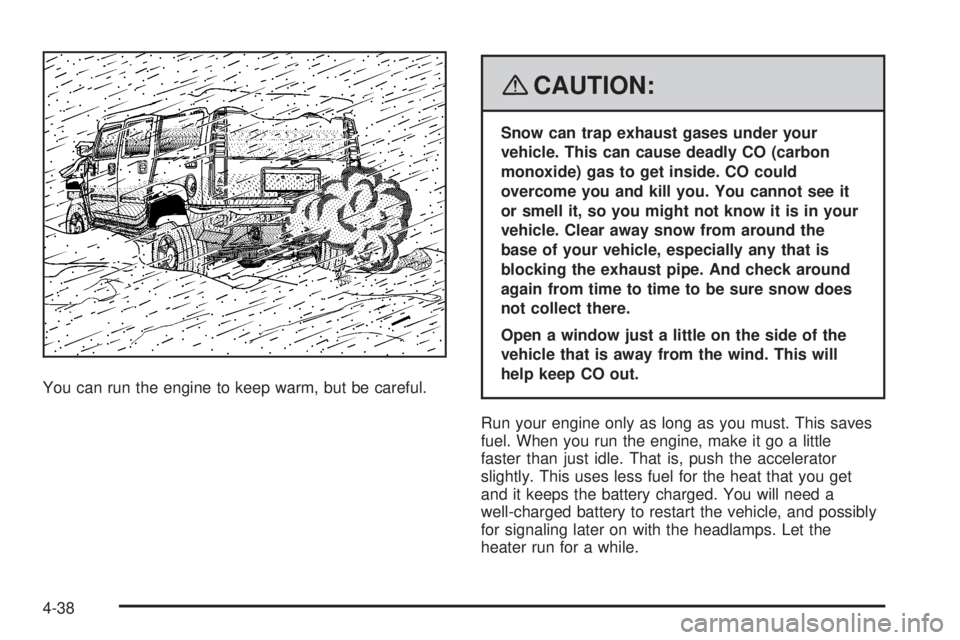
You can run the engine to keep warm, but be careful.
{CAUTION:
Snow can trap exhaust gases under your
vehicle. This can cause deadly CO (carbon
monoxide) gas to get inside. CO could
overcome you and kill you. You cannot see it
or smell it, so you might not know it is in your
vehicle. Clear away snow from around the
base of your vehicle, especially any that is
blocking the exhaust pipe. And check around
again from time to time to be sure snow does
not collect there.
Open a window just a little on the side of the
vehicle that is away from the wind. This will
help keep CO out.
Run your engine only as long as you must. This saves
fuel. When you run the engine, make it go a little
faster than just idle. That is, push the accelerator
slightly. This uses less fuel for the heat that you get
and it keeps the battery charged. You will need a
well-charged battery to restart the vehicle, and possibly
for signaling later on with the headlamps. Let the
heater run for a while.
4-38
Page 320 of 504
Dinghy Towing
Use the following procedure to tow your vehicle:
1. Shift the transmission to PARK (P).
2. Turn the engine off, but leave the ignition in
ACCESSORY.
3. Firmly set the parking brake.
4. Securely attach the vehicle being towed to the
tow vehicle.
{CAUTION:
Shifting a full-time four-wheel-drive vehicle’s
transfer case into NEUTRAL can cause your
vehicle to roll even if the transmission is in
PARK (P). You or others could be injured.
Make sure the parking brake is rmly set
before you shift the transfer case to NEUTRAL.
5. Shift the transfer case to NEUTRAL (N). See
Full-Time Four-Wheel Drive on page 2-36for
the proper procedure to select the NEUTRAL
position for your vehicle.6. Release the parking brake only after the vehicle
being towed is rmly attached to the towing
vehicle. You can use your vehicle’s front mounted
receiver with the proper accessories to tow it.
See “Front Mounted Receiver” underIf Your Vehicle
is Stuck in Sand, Mud, Ice, or Snow on page 4-39.
7. Turn the ignition to ACCESSORY.
8. Disconnect the battery if you are going to tow for
long distances or long periods of time.
When towing your vehicle for extended periods of time,
start your vehicle as often as possible to prevent
battery drain. This should only be done when the tow
vehicle is parked.Dolly Towing
Your vehicle cannot be dolly towed. If you must tow
your vehicle behind another, use the dinghy towing
procedure listed previously.
Notice:Dolly towing your vehicle will damage
drivetrain components. Do not dolly tow your
vehicle.
4-52
Page 334 of 504
Trailer Wiring Harness
Heavy-Duty Trailer Wiring Harness
Package
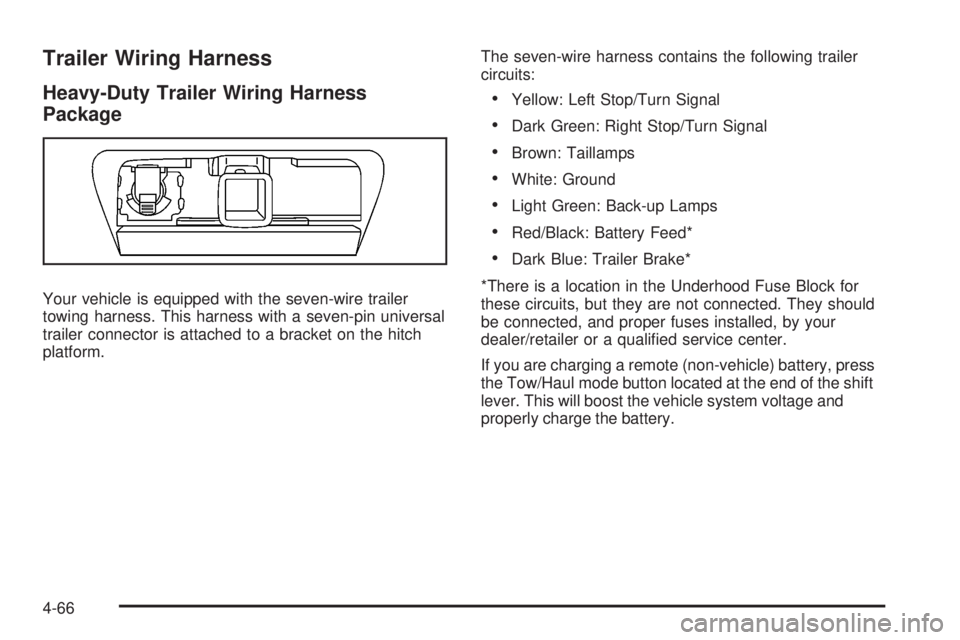
Your vehicle is equipped with the seven-wire trailer
towing harness. This harness with a seven-pin universal
trailer connector is attached to a bracket on the hitch
platform.The seven-wire harness contains the following trailer
circuits:
Yellow: Left Stop/Turn Signal
Dark Green: Right Stop/Turn Signal
Brown: Taillamps
White: Ground
Light Green: Back-up Lamps
Red/Black: Battery Feed*
Dark Blue: Trailer Brake*
*There is a location in the Underhood Fuse Block for
these circuits, but they are not connected. They should
be connected, and proper fuses installed, by your
dealer/retailer or a qualied service center.
If you are charging a remote (non-vehicle) battery, press
the Tow/Haul mode button located at the end of the shift
lever. This will boost the vehicle system voltage and
properly charge the battery.
4-66
Page 335 of 504
Electric Brake Control Wiring
Provisions
These wiring provisions are included with your vehicle
as part of the trailer wiring package. These provisions
are for an electric brake controller. The instrument panel
contains blunt cut wires near the data link connector
for the trailer brake controller. The harness contains the
following wires:
Dark Blue: Brake Signal to Trailer Connector
Red/Black: Battery
Light Blue/White: Brake Switch
White: Ground
It should be installed by your dealer/retailer or a
qualied service center.
Trailer Recommendations
You must subtract your hitch loads from the Cargo
Weight Rating (CWR). CWR is the maximum weight of
the load your vehicle can carry. It doesn’t include the
weight of the people inside, but you can gure about
150 lbs. (68 kg) for each seat. The total cargo load must
not be more than your vehicles CWR.
Weigh your vehicle with your trailer attached, so that
you won’t go over the GVWR or GAWR. If you are using
a weight-distributing hitch, weigh the vehicle without
the spring bars in place.
You’ll get the best performance if you spread out the
weight of your load the right way, and if you choose the
correct hitch and trailer brakes.
For more information seeTowing a Trailer on page 4-55.
4-67
Page 337 of 504
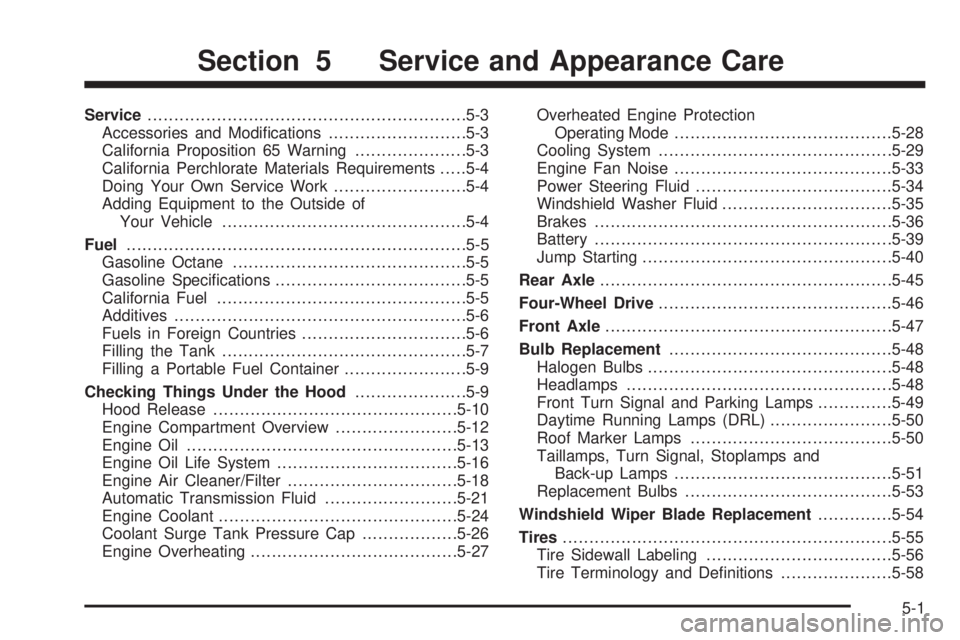
Service............................................................5-3
Accessories and Modications..........................5-3
California Proposition 65 Warning.....................5-3
California Perchlorate Materials Requirements.....5-4
Doing Your Own Service Work.........................5-4
Adding Equipment to the Outside of
Your Vehicle..............................................5-4
Fuel................................................................5-5
Gasoline Octane............................................5-5
Gasoline Specications....................................5-5
California Fuel...............................................5-5
Additives.......................................................5-6
Fuels in Foreign Countries...............................5-6
Filling the Tank..............................................5-7
Filling a Portable Fuel Container.......................5-9
Checking Things Under the Hood.....................5-9
Hood Release..............................................5-10
Engine Compartment Overview.......................5-12
Engine Oil...................................................5-13
Engine Oil Life System..................................5-16
Engine Air Cleaner/Filter................................5-18
Automatic Transmission Fluid.........................5-21
Engine Coolant.............................................5-24
Coolant Surge Tank Pressure Cap..................5-26
Engine Overheating.......................................5-27Overheated Engine Protection
Operating Mode.........................................5-28
Cooling System............................................5-29
Engine Fan Noise.........................................5-33
Power Steering Fluid.....................................5-34
Windshield Washer Fluid................................5-35
Brakes........................................................5-36
Battery........................................................5-39
Jump Starting...............................................5-40
Rear Axle.......................................................5-45
Four-Wheel Drive............................................5-46
Front Axle......................................................5-47
Bulb Replacement..........................................5-48
Halogen Bulbs..............................................5-48
Headlamps..................................................5-48
Front Turn Signal and Parking Lamps..............5-49
Daytime Running Lamps (DRL).......................5-50
Roof Marker Lamps......................................5-50
Taillamps, Turn Signal, Stoplamps and
Back-up Lamps.........................................5-51
Replacement Bulbs.......................................5-53
Windshield Wiper Blade Replacement..............5-54
Tires..............................................................5-55
Tire Sidewall Labeling...................................5-56
Tire Terminology and Denitions.....................5-58
Section 5 Service and Appearance Care
5-1